We special in laptop battery ,laptop adapters for most of top brands, such as apple,acer, asus, dell, fujitsu,hp, compaq, ibm, lenovo, toshiba, samsung, sony on UK,all the ac power adapters, laptop batteries are high quality and low price.
It’s no lightweight, though, which may turn off frequent flyers…
Our Verdict
The Dell 16 Plus 2-in-1 is a versatile convertible laptop from this famously reliable computer giant. The big, bright touchscreen is equally great for photo-editing as it is for watching films in bed, and the ergonomics of the sturdy build are generally very pleasing in use. Adding to that, you get a capable, big laptop for both work and (a little) play for under £/$1,000 (at least the base model). It is quite heavy, though, the Intel Arc graphics still lag behind Apple and laptops with NVIDIA graphics on board, and despite 32GB of RAM, its top-end performance is relatively limited compared to zippier rivals. If you don’t need 3D prowess or intense processing power, this Dell hits a sweet spot between value and performance for a lot of users.
For
Excellent Mini-LED touchscreen
Sturdy but smooth 2-in-1
Good value for power
Against
No discrete graphics
Some touchpad frustrations
Not the flashiest design
The Dell 16 Plus 2-in-1 is a key figure in the first lineup of the renamed (and slightly rebranded) fleet of Dell laptops coming out in 2025. We’ve already reviewed theDell Pro 13 Premium, which, while being a capable business laptop, may not surpass any of our top options for the bestlaptops for photo editingorvideo editing. So seeing as that’s a £/$2,000 machine, surely the Dell 16 Plus 2-in-1, priced at half that, won’t stand a snowball’s chance in the proverbial, right?
Actually, that might not be the case.
I’ve had it for the last three weeks, using it for work, hobbies and play, including writing for this website, editing videos and photos and even doing some (light) gaming, and I’ve found a lot to like about it.
Big, bright touchscreen • 2-in-1 with sturdy hinge
TheDell16 Plus is the spiritual (and renamed) successor to theDell Inspiron 16 2-in-1, with hints of the Dell XPS in there too. Dell have simplified their product naming, no doubt inspired by Apple’s exceedingly straightforward (and easy-to-understand) range of MacBooks. The Dell 16 Plus is marketed as a business laptop, first and foremost, but one aimed at content creators and more casual users too, thanks to its big touchscreen and 2-in-1 functionality (here most impressive in its video/image-presenting tent mode).
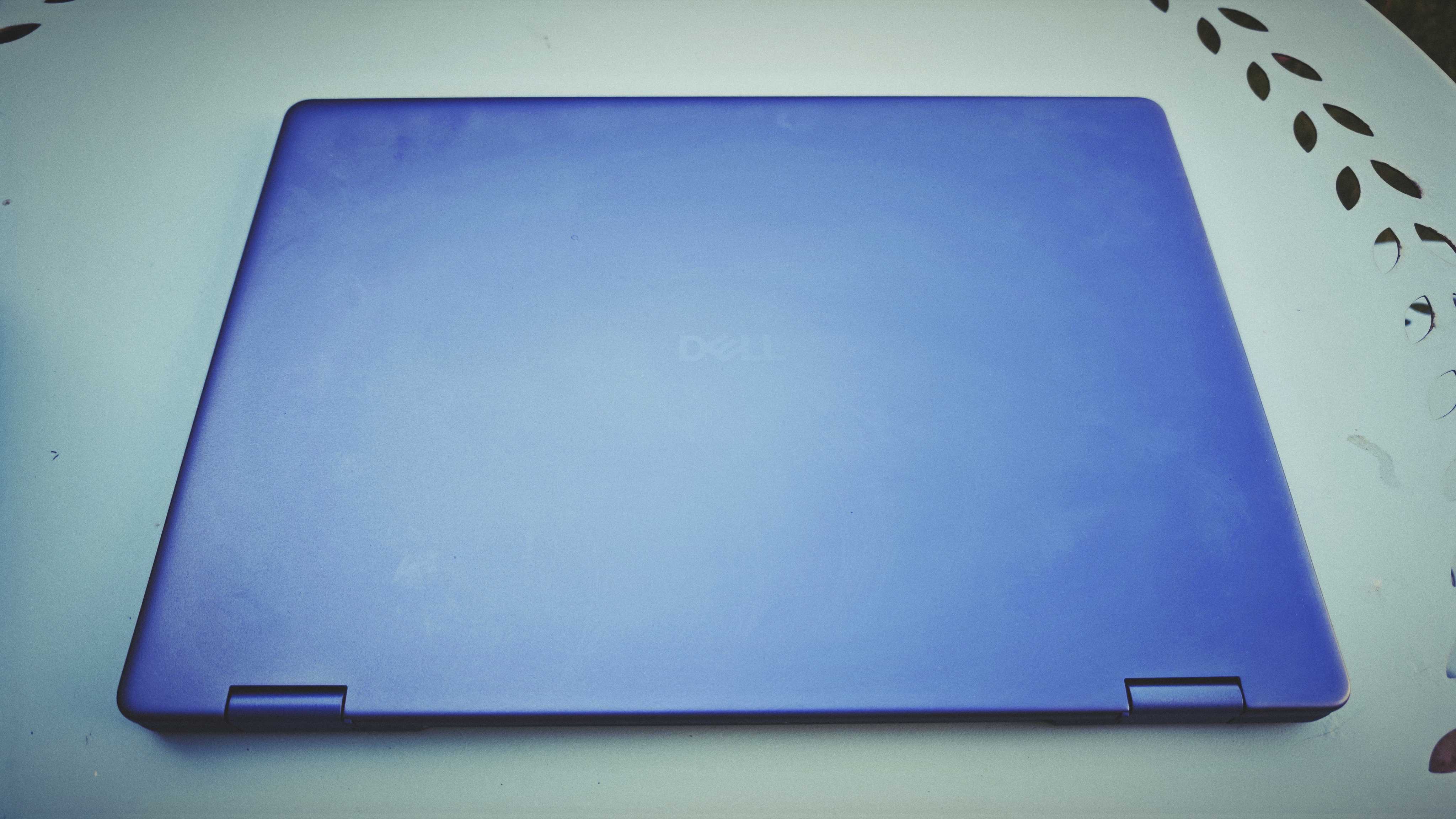
The colour is a little darker grey than the previous generation of computers from Dell, but retains that inoffensive, office-friendly and, let’s face it, a little dull air about it. There’s precious little of the design flair you’ll see in ASUS orHuaweilaptops, or the friendly vibes emanating from most Acer machines of a similar ilk, despite the colour being upgraded from a shade of grey to a shade of midnight blue. It’s a tool, designed to be a tool, and marketed as one too.
But for a tool, it’s a pretty brilliantly designed one. The build quality of the chassis is excellent, as usual from Dell. There’s no flex in the body or the lid, which comes in handy when you flip the thing into tent or tablet mode and the 16-inch Mini-LED touchscreen becomes the main attraction.
When you’ve got a mechanism like that, the hinge needs to be sturdy and strong, and that’s certainly the case here. It’s easy to flip but the laptop stays reassuringly in whatever position you put it.
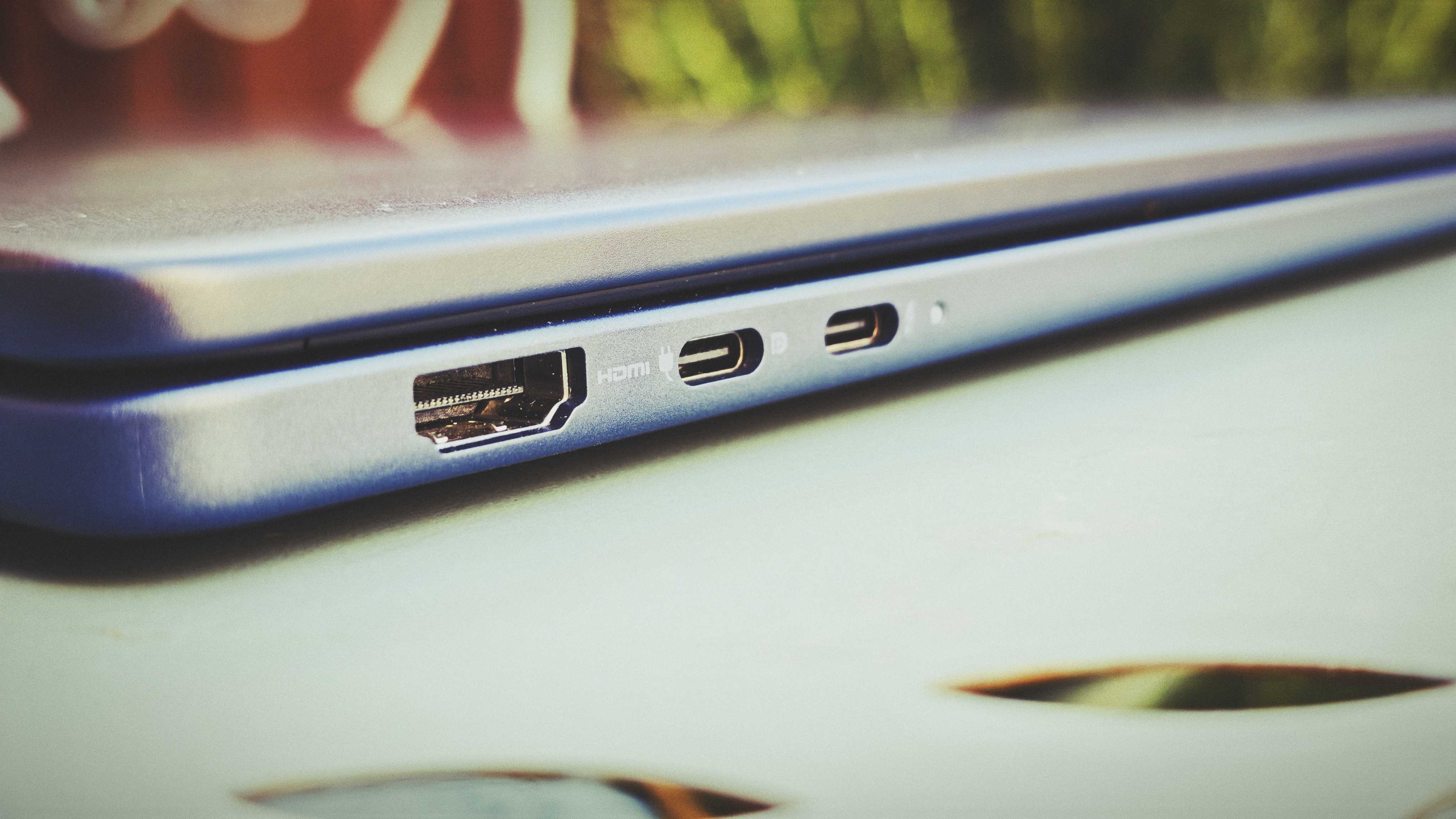
Port selection is decent if unspectacular, but there is a Thunderbolt 4 port here, which is a nice little treat. Alongside that, you’ll find a USB-C 3.2 with DisplayPort and power delivery compatibility, along with a USB-A 3.2 port, HDMI 2.1 port and an audio jack.
What this laptop isnotis lightweight. That extra size and sturdiness comes at a cost, and it’s your back that will pay, as the thing weighs a very considerable 2.05 kilograms, which is more than many gaming laptops do nowadays.
The screen makes it worth it, though. 16 inches big, it’s a 2.5K (2560×1600) Mini-LED, sharp and bright and colour-accurate enough for nearly photo-editing job. I measured it at a peak of 552 nits in HDR mode with 99.2% DCI-P3 colour coverage (and 96% sRGB), so that’s another win for anyone manipulating (still or moving) images.
On the inside, you’ll get a choice of two processors, either the Intel Core Ultra 7 256V or the more powerful 258V, which is the one occupying the internal space in my test unit. That one comes with 32GB of RAM and a 1TB SSD, while the other models have 16GB of RAM and a choice of 512GB or 1TB SSD storage. The base model only has a FHD+ (1920×1200) screen, while the other two both sport the aforementioned 2.5K spec.
The memory card is an LPDDR5X spec, which is an upgraded last-gen version, with very decent bandwidth of 8533MT/s
There’s no choice when it comes to graphics, though, as all the options have Intel Arc fitted as standard. It’s not enough to play Doom: The Dark Ages or runUnreal Enginedevelopment sessions on it, but it’s a huge step up from the Iris Xe cards of yesteryear, as the benchmarks below will show. There’s Wi-Fi 7 on board, along with Bluetooth and speakers that, dare I say it, aren’t all that shabby. There’s a decent volume, some bass and better sound fill than in many other laptops (although I will always prefer external speakers or headphones myself).
The keyboard is Dell’s standard, reliable but unspectacular offering. Key response and travel is good and natural (I prefer it to theMacBook Air), and I quickly got used to key placement. Meanwhile, the Mylar touchpad is responsive, although I found the click a little stiffer and the non-click tap response a little less responsive than the best touchpads in the business (again, the MacBooks, along with the ASUS ProArt ones).
Feature score: 4/5
Performance
Good CPU performance for the price • Great for photo processing, less for video and 3D
The Dell 16 Plus 2-in-1 slots right in where expected in most of our performance tests. CPU performance is on par with similar Windows laptops, similar to the HP Omnibook Ultra Flip 14, a little behind the likes of the ASUS Zenbook A14 and a little ahead of the MSI Prestige 13 AI+ Evo and the Acer Swift 16 AI.
One thing to note is that if you’re in the market for a Dell laptop in particular, the 16 Plus almost matches the much more expensive Dell Pro 13 Premium in most CPU and GPU tests, and actually beats it in a few.
Obviously it doesn’t touch discrete-graphics laptops in GPU and 3D jobs, but is fully competitive against other Intel Arc-powered machines, and at this price point, that’s an important consideration.
Where it lags behind the competition is in Stable Diffusion gen-AI processing, though, and it’s unspectacular in the Topaz Video AI upscaling test and while it runsPremiere Proeasily enough, you’ll probably want to leave heavier editing and rendering jobs to more powerful alternatives.
Photoshopperformance is perfectly acceptable, though, and photo-resizing and general office tasks will run well here. I was a little surprised to only get 8 hours and 39 minutes of battery life out of it, but literally two days after running that specific test, Dell released a software update that aims to increase battery efficiency in laptops including this one, so clearly if it’s an issue, Dell is aware and working on it.
Performance score: 3.5/5
Price
You can get the base Dell 16 Plus 2-in-1 for under £/$1,000, but the model I tested comes in at£1,299 in the UKand$1,399 in the US. If performance is premium, I’d recommend that one, with the 32GB of RAM giving it that little extra oomph, but if you’re not fussed about marginal gains, the base model with 16GB RAM and an FHD+ screen offers pretty good value for money.
Value score: 4/5
Who is it for?
• Business users and photo editors
The 2-in-1 functionality and the touchscreen make it a great laptop for versatility, usable for work and entertainment in equal measures. Its screen and CPU make it a great-value laptop for photo editors too, but pro graphic designers will need more graphic oomph.
Dell 16 Plus 2-in-1 score card
Attributes
Notes
Rating
Design:
It’s a Dell. It’s a blue Dell, but a Dell, for better and worse.
4/5
Features:
Up-to-date internals, good keyboard and touchpad, lots of RAM
4/5
Performance:
Good CPU performance, decent AI processing, integrated graphics only
3.5/5
Value:
Around £/$1k offers good bang for the buck
4/5
Buy it if…
You want a capable, versatile photo-editing laptop
These Chromebooks are great, affordable alternatives to Windows laptops and MacBooks
If I were a student today looking for a laptop that’s equal parts performance-driven, made for entertainment and affordable, I’d without a doubt get one of the best Chromebooks. Heck, even in my job, I’d be perfectly happy getting work done on many of the Chromebooks I’ve tested.
The appeal of a ChromeOS laptop isn’t about matching the power of an Windows PC or MacBook, as it’s key strengths lie in web-based productivity and creativity. That means making full use of Google’s suite of apps, whether it be hopping between multiple Chrome tabs, writing up a storm in Google Docs, watching binge-worthy shows and even streaming games via Nvidia GeForce Now.
After testing dozens of Chromebooks every year, my team and I know which ChromeOS machines should be on your radar — and whether it’s worth picking one up. So let’s get into it.
Now, after dabbling with Chromebooks for over half a decade, the picks above are only a handful of ChromeOS laptops worth a recommendation. There are plenty more to suit different needs (as you’ll find below), but before you even buy a Chromebook, ask yourself these two key questions:>>>Replacement battery for Samsung Galaxy Chromebook XE930QCA
Should I buy a Chromebook?
If the majority of your work, study or entertainment revolve around being on a browser, then a Chromebook will take you far. These laptops thrive as budget-friendly machines with a lightweight and wonderfully simplistic operating system so everyone has an easy, straightforward time using one.
That’s why they are ideal for students, kids and even professionals looking for an affordable way to work through online documents. Plus, Chromebooks are outfitted with productivity and educational-driven apps for plenty of use cases — like in classrooms, offices and more.
No, these are not built for gaming or heavy-duty tasks like photo or video editing, and without an internet connection, a Chromebook won’t be able to do much. However, if all you’re looking for is affordability in a laptop that can get through everyday online tasks without breaking a sweat, then a Chromebook is for you.
When should I buy a Chromebook?
As with most tech in general, the best time to buy a Chromebook is when it comes with a eye-catching discount during a sales event, like Black Friday or Prime Day. However, since these machines also cater to students, you’ll find many great student-friendly deals during back-to-school sales in the summer — so around July to August.
That said, Chromebooks are typically set at a more wallet-friendly price compared to their Windows and MacBook competitors. If you’re in need of a specific Chromebook right now, chances are it will be well below that hefty $1,000/£1,000 mark.
CPU:Intel Core i3-1315URAM:8GBStorage:128GB eMMCDisplay:14-inch (1920×1200) IPS touchscreenDimensions:12.4 x 9 x 0.8 inchesWeight:3.57 pounds
Reasons to buy
+Good performance +Bright touchscreen +Comfy keyboard +Plenty of ports
Reasons to avoid
-Middling battery life -No stylus included
Who is this for?
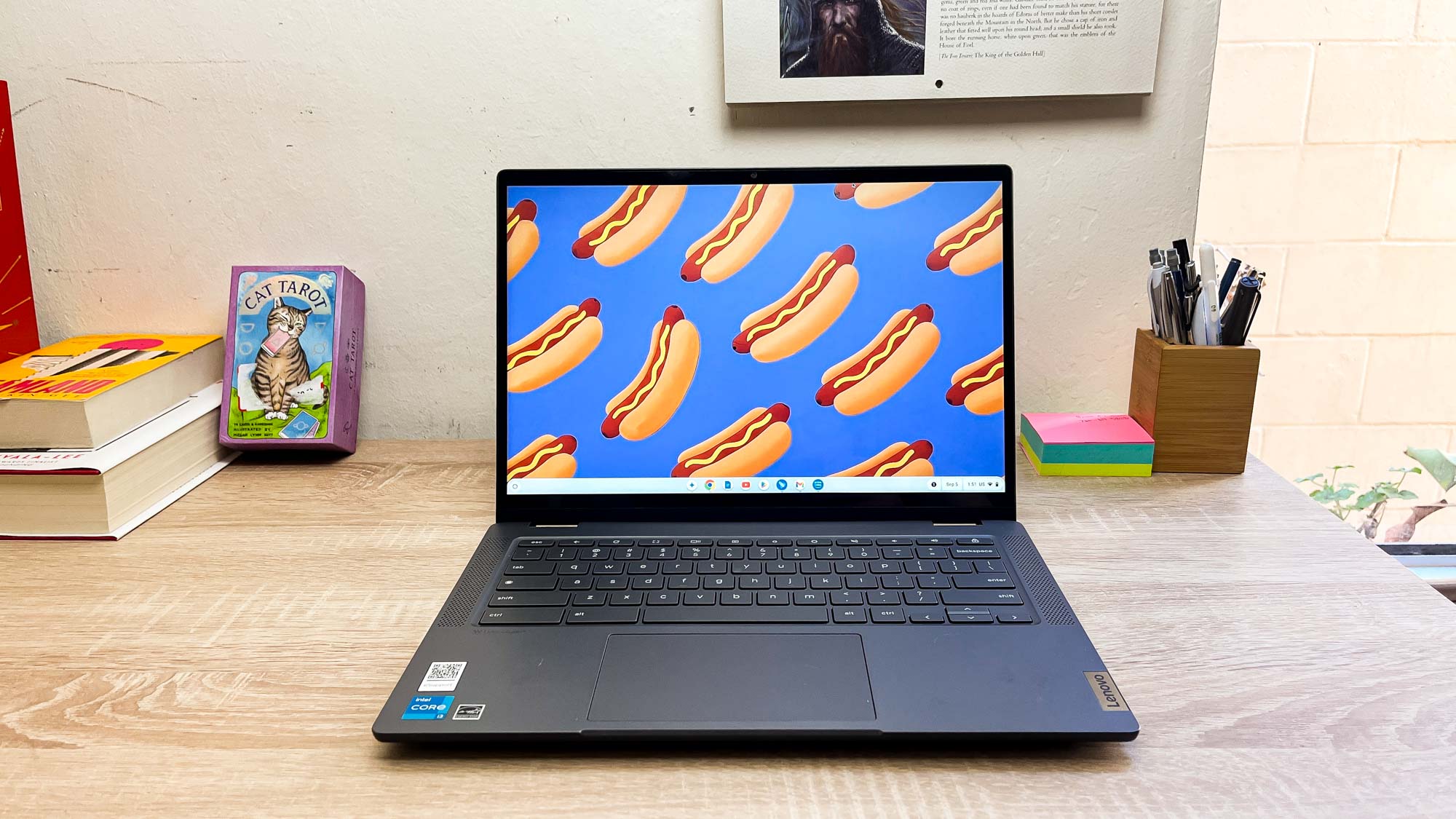
The Lenovo Flex 5i Chromebook Plus is a good all-around Chromebook 2-in-1 that’s aimed at students, professionals and anyone who needs a cheap, sturdy Chromebook with a touchscreen that rotates 360 degrees, so you can use it like a hefty Chrome tablet.
Why is it the best overall Chromebook?
The Lenovo Flex 5i is the best buy on this list with serious value for money! It’s form factor is versatile for everyone, the ergonomics are stellar for hard workers, there’s enough power under the hood to run apps without any slowdown, and the display is bright and colorful for binging to your heart’s content.
What do we like?
????Great, versatile design:As Alex put it in his review, the Flex 5i is a cheap Chromebook that doesn’t look or feel like it. The construction looks utilitarian and feels durable in the hand, with a smooth but rigid 360-degree hinge for the display and a comfy keyboard.
????Gorgeous touchscreen:Chromebooks don’t have to go this hard on display quality, but Lenovo has gone all in with a 14-inch IPS touchscreen panel with 16:10 aspect ratio and FHD resolution. It’s bright, colorful and responsive.
????Impressive power for a Chromebook:Like you’ll see from all the picks on our list, they’re Chromebooks — don’t expect the world. But with the 13th Gen Intel Core i3 and 8GB of RAM running behind the scenes of the incredibly processor-light ChromeOS, everything is zippy.
????Battery life is mid:Yes, the switch to M3 has brought the highly-requested support for two external monitors rather than one, but the improvements over M2 are very incremental.
????No stylus:I see a touch screen — I wanna doodle. So what gives on not packing a stylus in? This will be an optional extra you’d have to pay for.
Bottom line
Put simply, the Lenovo Flex 5i is the embodiment of cheap and cheerful. This is the perfect balance of value for money and premium quality, with its great keyboard and lovely display to get stuff done. Provided you can look past the average battery life, this is a stellar choice.
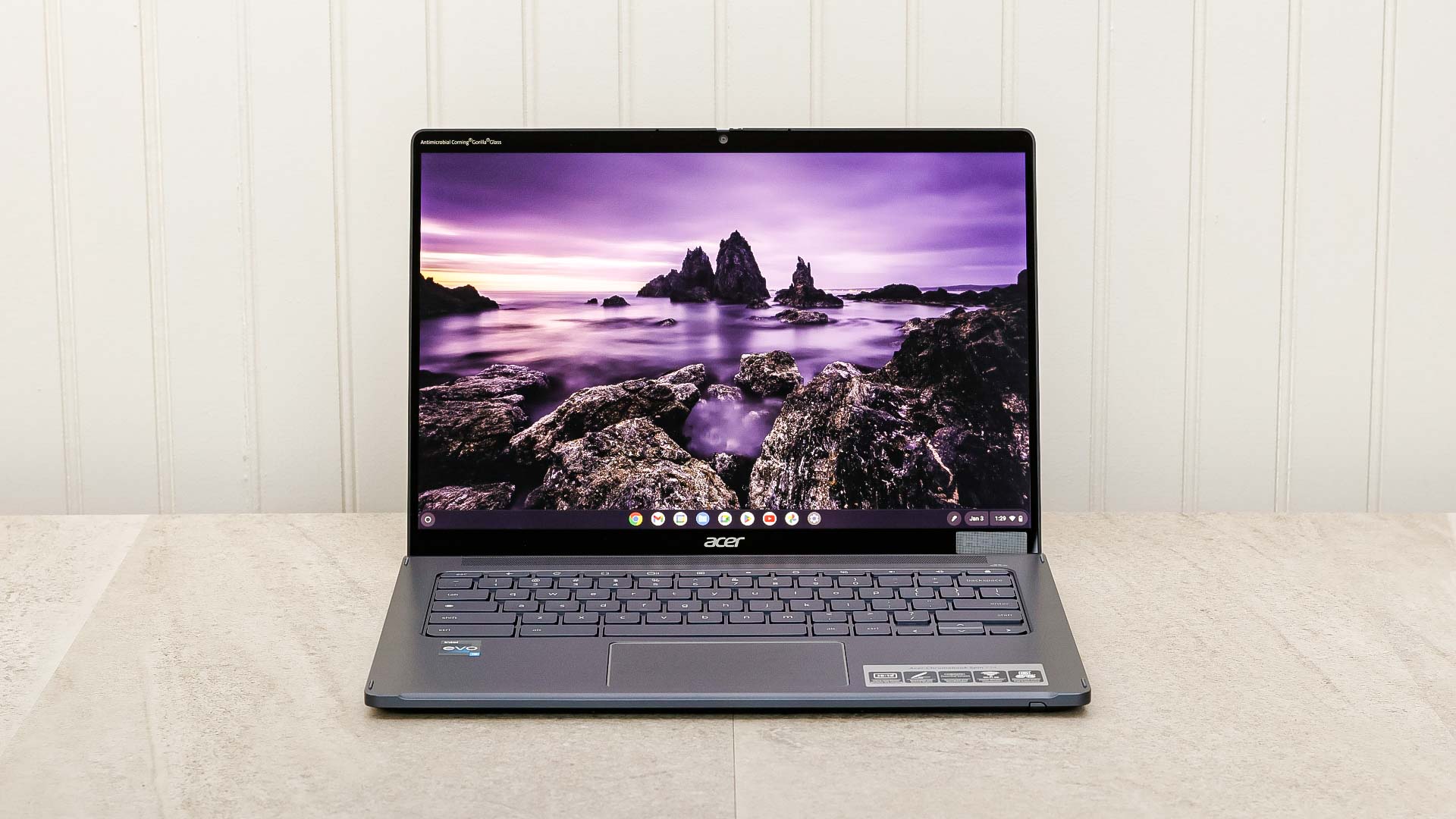
The Acer Chromebook Spin 714 is a more premium option that makes for the best 2-in-1 Chrome laptop you can buy. This is definitely for the more upmarket crowd that wants the best on-the-go.
Why is it the best 2-in-1 Chromebook?
Put simply, it’s because of the attention to detail Acer has put into crafting this machine. The Chromebook Spin 714 is Chromebook Plus compatible with its Intel Core i5 chip — guaranteeing speedy performance. On top of that, there’s decent connectivity, a 10+ hour battery life, a gorgeous screen, and the mouse + stylus come included in the box.
What do we like?
????Utilitarian aesthetic:The uniform aluminum shell has a lovely grey hue with a subtle blue undertone. The aesthetic feels simple and utilitarian, which is everything I want from a laptop — paired with a rigid 360-degree hinge that inspires confidence.
????Vivid display:The 14-inch 3:2 display has a lovely tallness for productivity uses, alongside a rich sRGB color gamut and decent brightness for viewing in direct sunlight.
????Performance and ports galore:That Intel Core Ultra 5 chip is seriously zippy for tackling ChromeOS tasks, while keeping that touchscreen super responsive — even while multitasking (thanks to the 8GB of RAM).
What don’t we like?
????Webcam = potato:That 720p webcam isn’t anything to write home about. It’s got a mushy detail and is not good in challenging lighting conditions.
????No SD Card reader: Come on now. This machine is near on 700 bucks, and you’renotgetting an SD card reader!?
Bottom line
The Acer Chromebook Plus Spin 714 is a mighty machine of performance and power efficiency in a premium shell. From its build quality to its capability, you’re sure to love it.
The best Chrome tablet
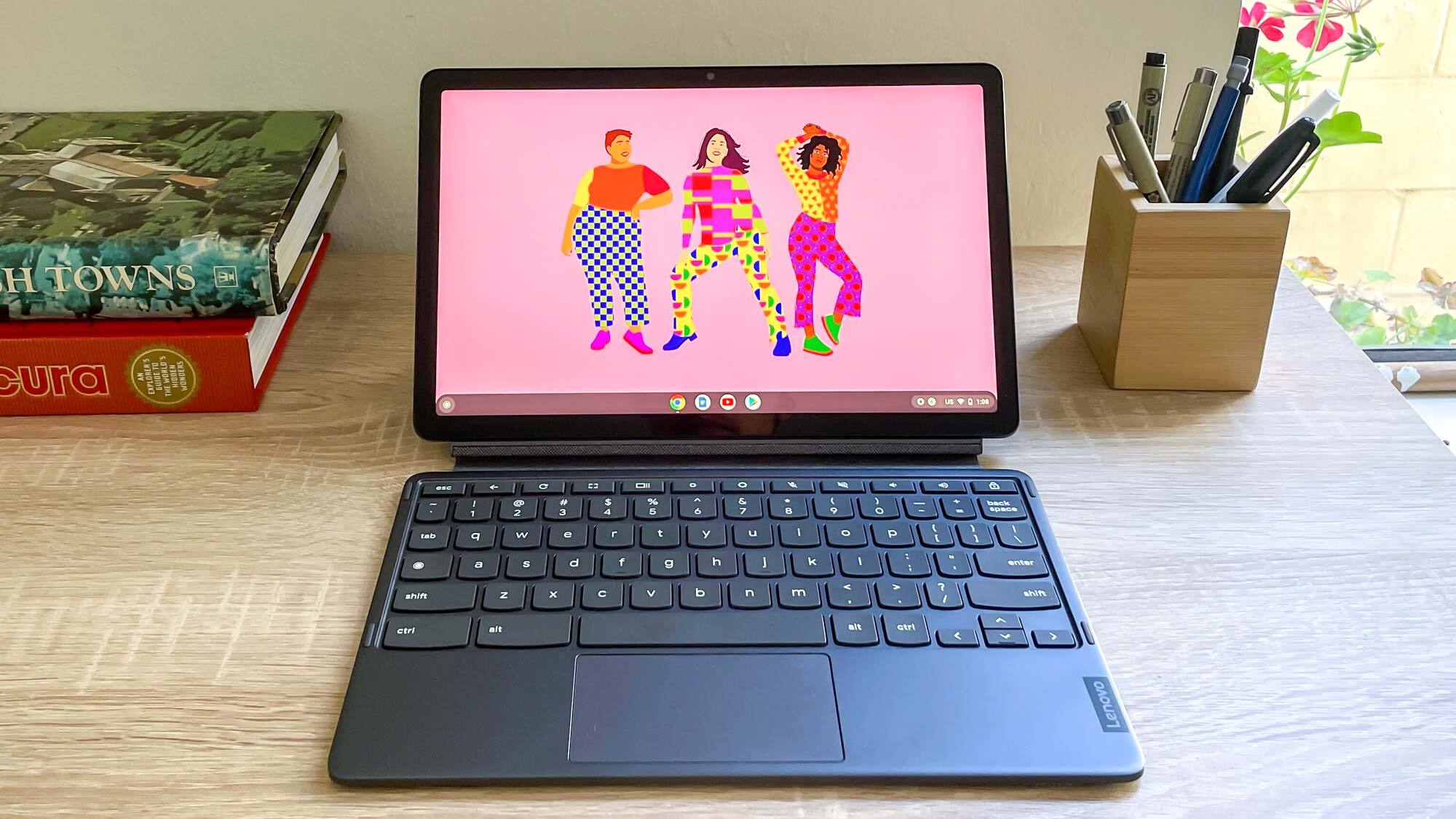
3. Lenovo Chromebook Duet 3
The best Chrome tablet
Specifications
CPU:Qualcomm Snapdragon 7c Gen 2RAM:4-8GBStorage:64-128GB eMMCDisplay:11 inches, 2,000 x 1,200 pixelsDimensions:10.16 x 6.48 x 0.31 inchesWeight:1.2/2.1 lbs (tablet only/tablet + cover)
Reasons to buy
+Bright, sharp display +10+ hours of battery life +Packed-in keyboard cover is decent +Surprisingly loud for a Chrome tablet
Reasons to avoid
-Still no headphone jack -Lackluster cameras -Keyboard cover uncomfortable for sustained typing
Who is this for?
If you’re looking to dip your toes into ChromeOS as a tablet, the Lenovo Duet 3 is the right one for you with a low price and big capabilities.
Why is it the best Chromebook tablet?
The Lenovo Duet 3 gives you everything you need for a solid Chromebook tablet experience. A speedy Qualcomm chip, a gorgeous display, solid ergonomics on that keyboard cover and ChromeOS translates well onto a touch panel.
What do we like?
????Great screen:The fundamental of any good tablet is having a nice screen to look at and touch. That’s what the Chromebook Duet 3 offers with an 11-inch panel with 2,000 x 1,200 pixel resolution for crispy pictures with plenty of color and brightness.
????Sturdy, useful design:With the Lenovo attention to detail, the Duet 3 feels reliably durable in the hand, and packs a second USB-C port for expanded connectivity.
????Performance and ports galore:That Intel Core Ultra 5 chip is seriously zippy for tackling ChromeOS tasks, while keeping that touchscreen super responsive — even while multitasking (thanks to the 8GB of RAM).
What don’t we like?
????Webcam = potato:That 720p webcam isn’t anything to write home about. It’s got a mushy detail and is not good in challenging lighting conditions.
????No SD Card reader: Come on now. This machine is near on 700 bucks, and you’renotgetting an SD card reader!?
Bottom line
The Duet 3 makes important improvements over the original Duet in some key ways — adding a second USB-C port for more connectivity, upping the performance and upgrading the display. Of course, when it comes to tablets, the iPad is kind of a gold standard in this area. But don’t count this Chromebook tablet out.
The best for gaming
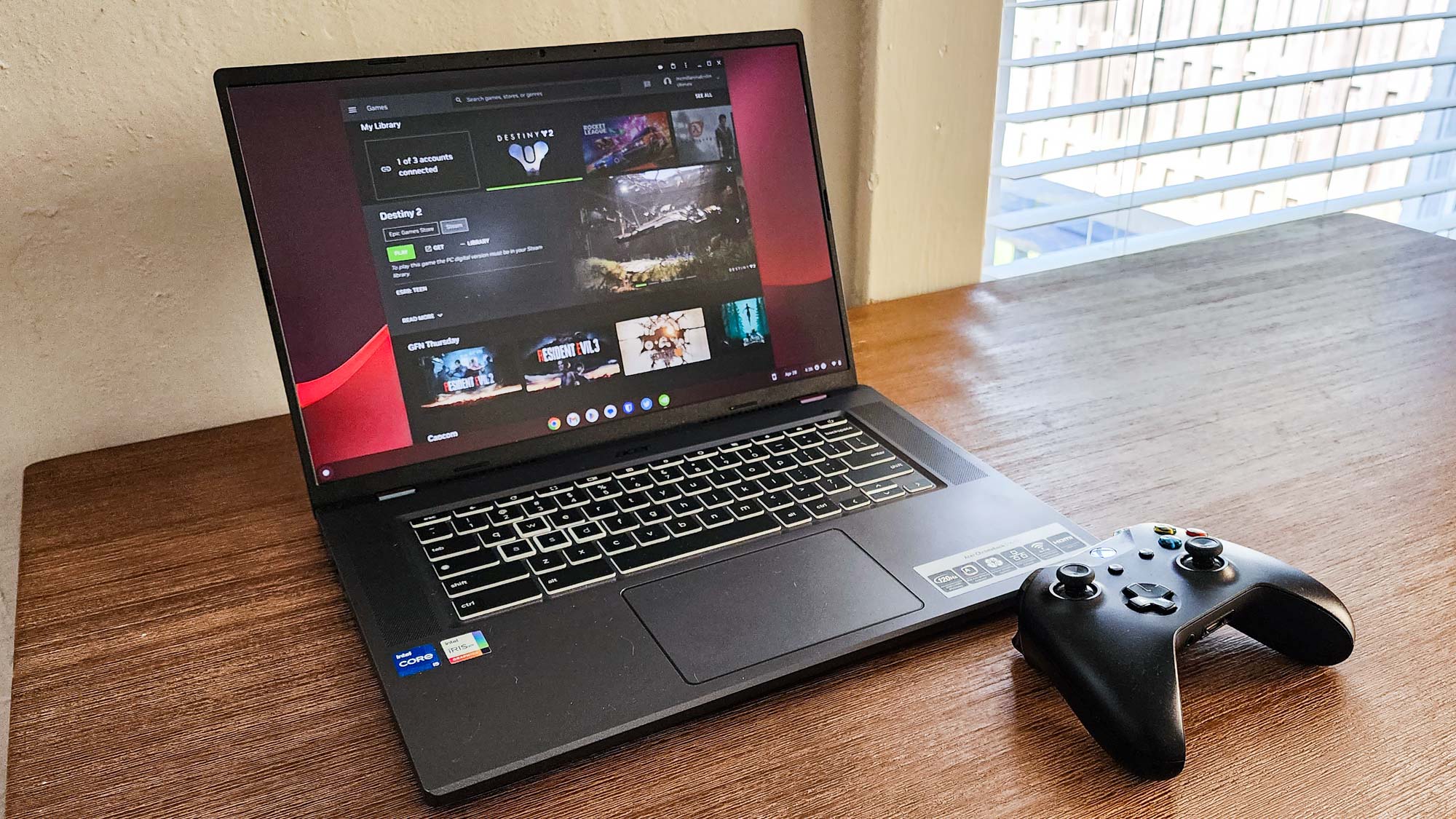
4. Acer Chromebook 516 GE
Best Chromebook for cloud gaming on the go
Specifications
CPU:Intel Core i5-1240PRAM:8GBStorage:256GB SSDDisplay:16-inch WQXGA (2560 x 1600) IPSDimensions:14 x 9.8 x 0.8 inchesWeight:3.9 lbs
Reasons to buy
+Impressive performance +Lightweight design +Excellent battery life
Reasons to avoid
-Underwhelming display -Poor sound quality -Limited by Chrome OS
Who is this for?
This is the one to buy if you’re a gamer. Yes, the concept of a “gaming Chromebook” is a bit of a weird one to think about. But cloud gaming services like Xbox Game Pass and Nvidia GeForce Now are at a point where they can offer reliable gaming experiences with little-to-no latency.
Why is it the best gaming Chromebook?
To determine a gaming Chromebook, it’s not the same as a gaming laptop. We’re not looking for a powerful GPU, rather the other key elements — performance is strong for game streaming, the design is ultraportable to take around with you and the battery life is stellar.
What do we like?
????120Hz display:Did you know that GeForce Now supports 120Hz refresh rates? Well lucky you, the 16-inch panel in here supports that too for super fluid cloud gaming.
????Strong power:To run these game streaming apps, this comes armed with a stacked 12th Gen Intel CPU, 8GB RAM and a 256GB SSD to maintain that performance.
????Ethernet ready:WiFi is pretty reliable, but with game streaming, it could cause some stuttering. That’s where the built-in gigabit ethernet port comes in to offer a smooth fast connection and minimize dropouts.
What don’t we like?
????Poor sound quality:Headphones are pretty much a requirement. These tinny speakers distort very easily and just sound a bit naff.
Bottom line
Advancements in Chrome gaming have been happening with cloud services improving in selection and playability. The Acer Chromebook 516 GE is a great option to embrace it all — thanks to that big 16-inch panel and ethernet connection.
The best for DIYers
5. Framework Laptop Chromebook Edition
The best Chromebook for DIYers
Specifications
CPU:Intel Core i5-1240PGraphics:Integrated Intel Iris XeRAM:16GBStorage:256GBDisplay:13.3-inch, 4K AMOLEDSize:11.9 x 8 x 0.4 inchesWeight:2.3 pounds
Reasons to buy
+Modular design offers tremendous flexibility +Slim, light package is still tinker-friendly +Excellent keyboard and trackpad
Reasons to avoid
-Limited upgrade options for ChromeOS variant -Loud but otherwise unimpressive speakers
Who is this for?
If you don’t want to be bogged down to the spec of laptop you buy, Framework’s the way to go. The Chromebook Edition of its laptop comes with a screwdriver, so you can upgrade or repair any part of it yourself.
Why is it the best Chromebook for DIYers?
Upgradeability and repairability. What else do I need to say? With additional bolt-ons to switch your port array easily, and a super simple design that you can tear into and repair/upgrade any internal elements with just one screwdriver.
What do we like?
????Marvelous modular design:Nearly identical in design to the WindowsFramework Laptop,this utilitarian frame with the lovely gear icon emblazoned across the front feels sturdy while being impressively modular for upgradeability.
????Excellent keyboard and touchpad:One bit that you won’t be able to upgrade is the keyboard and touchpad. But that won’t be a problem whatsoever, as the chiclet keyboard feels great and the pointer has a great smooth surface and tactile click.
What don’t we like?
????Poor speakers:Yes, they are loud. But loud does not mean good, and these are rather tinny.
Bottom line
So where does that leave the Framework Laptop. It does tickle a particular niche, but in many ways its what I’d love the future of laptops to be — impressive modularity to maintain your own system and limit e-waste by just upgrading the chassis you have.
The best 15-inch Chromebook
(Image credit: Future)
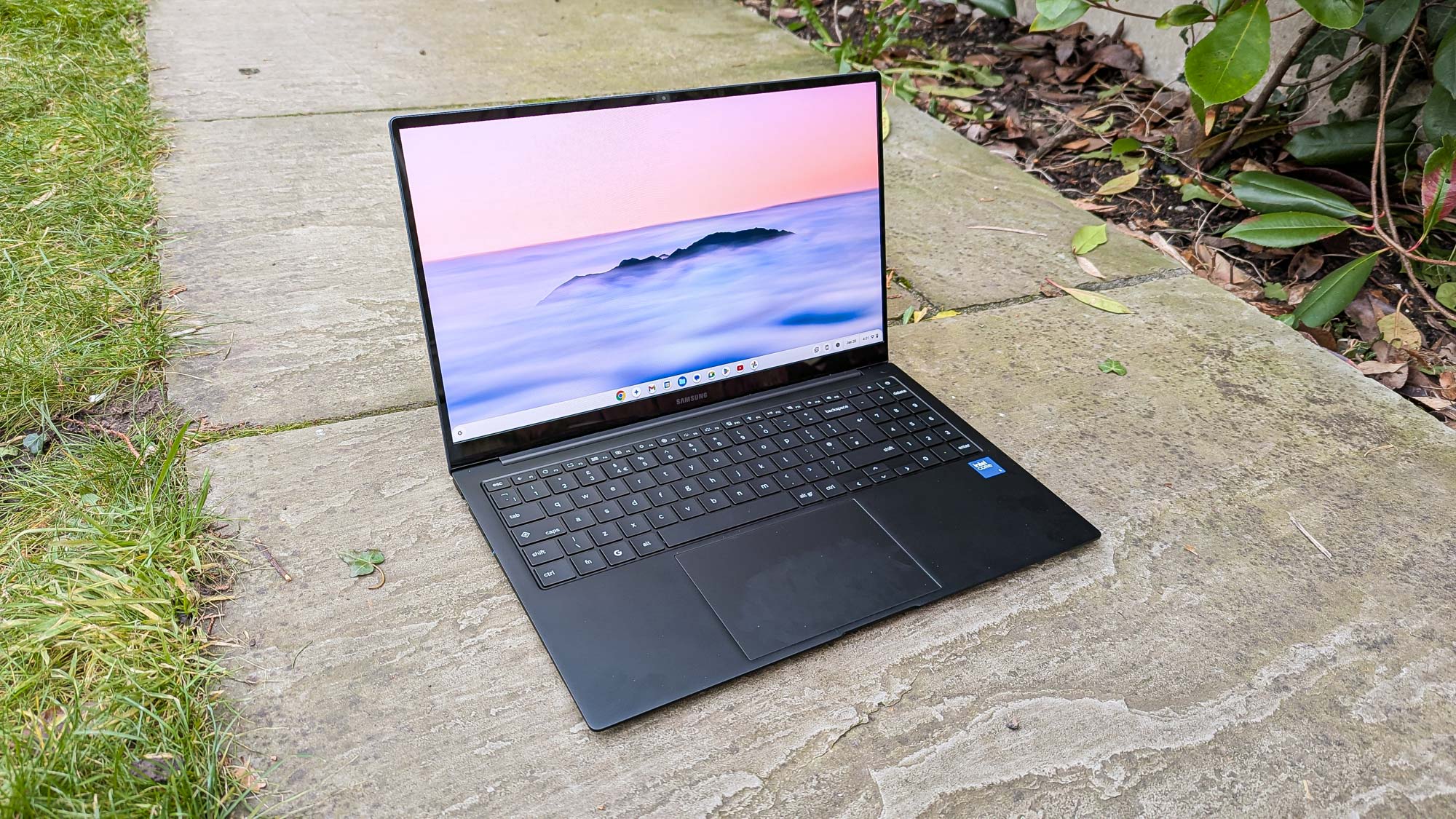
6. Samsung Galaxy Chromebook Plus
Best 15-inch Chromebook
Specifications
CPU:Intel Core i3 100URAM:8GB DDR5XStorage:256GB UFSDisplay:15.6-inch FHD (1920 x 1080) AMOLEDDimensions:13.9 x 8.9 x 0.47 inchesWeight:2.58 pounds
Reasons to buy
+Thin and lightweight metal design +Fast performance +Beautiful 15.6-inch display +Comfortable, precise keyboard and touchpad
Reasons to avoid
-A tad wide -Odd “Plus” key placement
Who is this for?
The Samsung Galaxy Chromebook Plus is a great choice for students, workers who mainly use online documents and apps or anyone who needs a reliable notebook for everyday tasks. It’s an easy-to-use notebook that’s snappy, portable and simple to sync with Android devices.
Why is it the best 15-inch Chromebook?
Considering its compact design (despite being a tad wide), the Galaxy Chromebook Plus does wonders to make this 15-inch laptop as portable as it is. Even with room for a number pad on the keyboard and fitting a 15.6-inch AMOLED display, it’s still lighter than other Chromebooks — and even a MacBook Air. That means you’re getting all the size with none of the weight.
What do we like?
????Excellent Chromebook performance:While its Intel Core 3 100U CPU may not sound like much, it still blows away other Chromebooks in terms of power. It can handle multi-tasking, juggling dozens of Chrome tabs and even play Android games without breaking a sweat. Expect this to run any Chromebook app you throw at it.
????Beautiful AMOLED display:With its sizeable 15.6-inch FHD (1920 x 1080) AMOLED display, expect vibrant colors and smooth visuals in its brighter-than-most screen. Whether it’s scrolling through websites or watching shows, this display nails what’s on display.
????Battery that lasts:Coming in at over 11 hours, the Galaxy Chromebook Plus is one of the longest-lasting Chromebooks we’ve tested. That’s more than enough charge to get through a full workday, and to have a little leftover before it needs to be plugged in again. If anything, this shows how good its efficiency is.
What don’t we like?
????Strange “Plus” key placement:As helpful as its Gemini AI features are, the quick-access “Plus” key to use many of those tools is placed on the Caps Lock key. This means that every time it’s pressed, you’ll have to click on the option that comes up that actually turns it on. It’s odd placement, seeing how many will generally want to quickly press a Caps key to, you know, turn it on.
????Wider than most: While only a small quirk, the Samsung Galaxy Chromebook Plus is a wide notebook to use. It makes it a tad awkward when placing it on a table behind a seat on a flight or train, or even a small coffee tablet.
Bottom line
If there were ever a premium Chromebook to get on board with, the Samsung Galaxy Chromebook Plus is it. Besides its odd “Plus” key placement and wider chassis, it’s hard to beat its snappy performance, fantastic AMOLED display, extended battery life and even its seamless connectivity to Android phones, wireless earbuds and more. Add on its sleek, lightweight design, and this Chromebook really shines.
+Powerful M3 performance +Bright and colorful display +Ultraportable design +Exceptional battery life
Reasons to avoid
-Marginally better performance over M2
Who is this for?
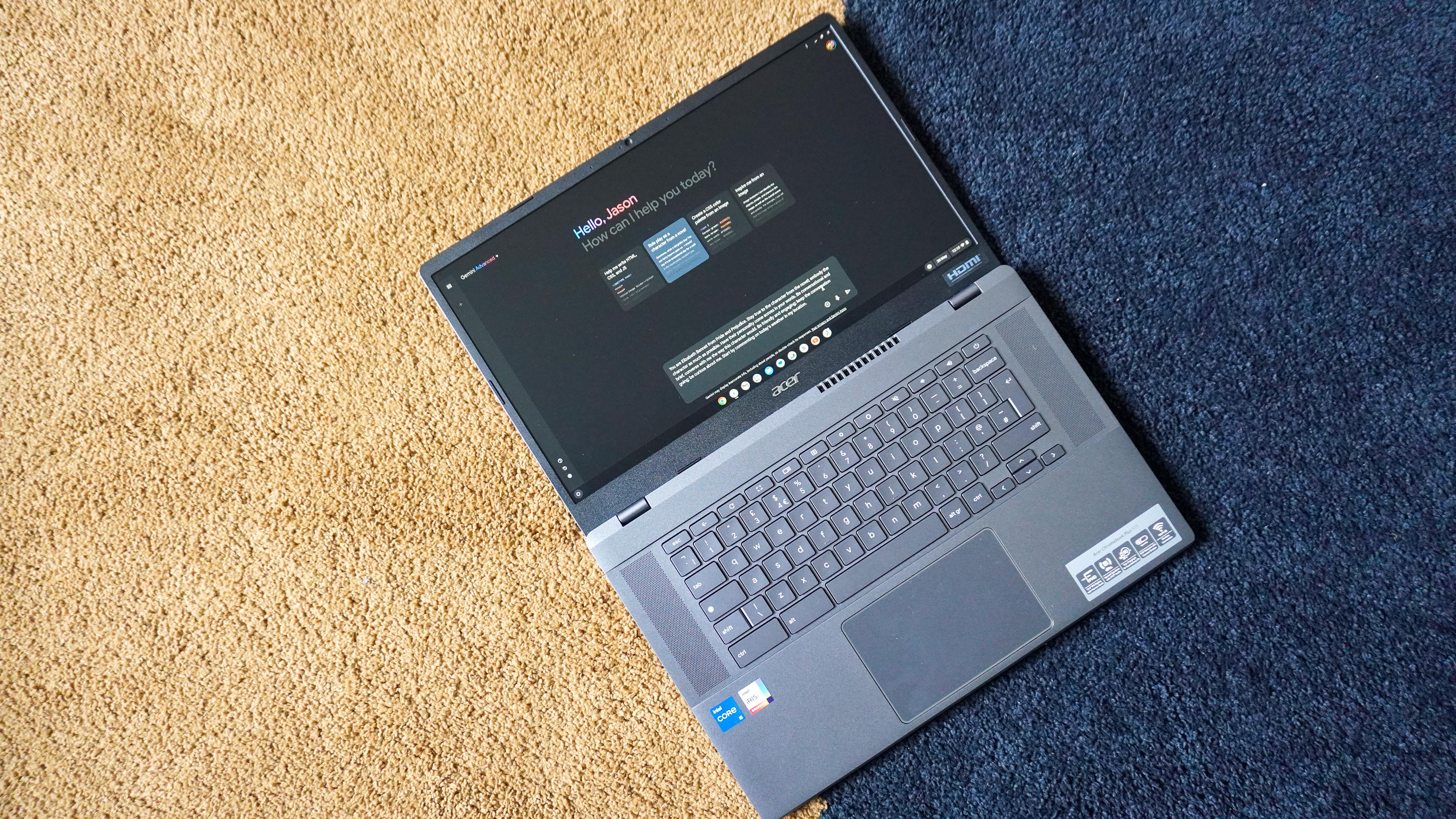
The Acer Chromebook Plus 515 is not just a standard big screen Chromebook that is great for use at home and on-the-go for hard work and entertainment, it also supports all the Gemini features that comes with a Chromebook Plus laptop.
Why is it the best AI Chromebook?
For a seriously affordable price, you can enjoy all of the best Gemini AI features boosting your productivity — all on a Chromebook that is seriously nice to use with a big screen and nice feeling keyboard, along with a decent battery life.
What do we like?
????Big, colorful display:Yes, it’s only 1080p, which means you’ll be able to notice the pixels on this 15.6-inch panel. But for the color production and color on offer here, the resolution can be easily forgiven — plus when it comes to Chromebooks, full HD is definitely on the higher side.
????Great-feeling keyboard:Commonly, Chromebooks make compromises on the keyboard by giving you a bit of a spongey board in favor of cost-cutting. Here, however, there’s a nice tactility to the whole thing.
????Gemini AI features are genuinely useful:So far, we’ve seen Copilot+ PC features feel like a bolt-on, and Apple Intelligence for MacBooks buried under a lot of menus. For ChromeOS, Google is out in the lead in terms of UI. Don’t get me wrong, without an NPU, there is no on-board AI — everything is in the cloud. But in terms of usability, this is one of the best.
What don’t we like?
????Cheap feels:Emphasis has been placed on AI performance and keyboard, but in its place, the whole laptop feels cheap in the plastic surfaces and the spongey trackpad.
Bottom line
In terms of the whole Chromebook market, it’s easy to ignore the Acer Chromebook Plus 515 as just another option. But don’t skip on it if you want a good big-screen experience for bingewatching and AI productivity at its heart.
Frequently asked questions
What does ‘Chromebook Plus’ really mean?
This is a great question, and I get it a lot because in late 2023 Google rolled out a new classification of Chromebook: The Chromebook Plus.
The first Chromebook Plus Chromebooks started shipping in October 2023, and they’re notable because Chromebooks which qualify as Chromebook Plus models will get access to some AI features that other Chromebooks won’t.
Laptops which qualify as Chromebook Plus get improved video calls thanks to built-in AI features which help enhance things like image quality and lighting, for example. And select apps, like the Google Photos app, get extra AI-powered features like the Magic Eraser tool made famous by the Google Pixel phones.
So in short, Chromebook Plus is a new category of Chromebook that gets access to special features not available to all Chromebooks. To qualify for the Chromebook Plus program, a Chromebook must meet at least the following system requirements:
CPU:Intel Core i3 12th Gen or above, or AMD Ryzen 3 7000 series or above
RAM:8GB or more
Storage:128GB or more
Webcam:1080p+
Display:1080p IPS or better
If a laptop qualifies as a Chromebook Plus you should see a badge to that effect somewhere on the laptop’s packaging.
How much should I spend?
In general, I recommend you spend as little as possible while getting a laptop that will meet all your needs for at least the next 3-5 years.
When buying a Chromebook, you should not be spending more than $800 unless you really want something fancy. In fact, most good Chromebooks can be yours for under $600, and while units in the $300-$500 range will be weak and potentially clunky (don’t expect fancy trim), they should be more than good enough for browsing the web, writing emails and taking video calls.
Stay far away from any Chromebook which costs significantly more than $1,000. Some companies, like HP, occasionally sell Chromebooks with four-figure prices as premium business ultraportables or luxurious daily drivers, and if you’re spending that much you should probably just get yourself a MacBook Air or Dell XPS 13.
How long will my Chromebook get updates?
You should check with your Chromebook manufacturer to get the most accurate and up-to-date information about how long it will be supported with general software and security updates.
However, in general you can expect 5-10 years of support. Google has said that every new Chromebook will be guaranteed 10 years of security updates starting in 2024, though Chromebooks released since 2021 will also have access to said updates.
Should I get a clamshell Chromebook or 2-in-1?
There are two major models of Chromebook available, and they have to do with how the screen folds.
Clamshell Chromebooks look like classic laptops, with a hinge in the middle that attaches the screen to the keyboard deck. The hinge doesn’t extend farther than 180 degrees, so you can count on having the screen sturdily propped in front of the keyboard for marathon work sessions.
But 2-in-1 Chromebooks typically have some way to transform them into a tablet, either by detaching the screen from the keyboard or flipping the keyboard around 360 degrees to lay flat against the back of the screen. These Chromebooks have to have touchscreens, which is nice to have when you’re running Android apps on your Chromebook. And the fact that they double as tablets can be nice when you’re traveling or lying in bed and just want a screen to watch videos on.
However, 2-in-1 Chromebooks tend to be more expensive and their keyboards are rarely as good as the best you find on clamshell models. So if you want a productivity machine or something cheap, you probably want to lean more towards clamshells.
How much RAM do I need?
Storage isn’t hugely important on a Chromebook since most of your work is stored online in cloud services like Google Docs or Microsoft 365. But RAM is more valuable because its what your Chromebook uses to store and move data around in memory in real-time.
That means having low RAM will cause your Chromebook to feel slow, sluggish and generally unsteady during daily operation. So in general I recommend you get a Chromebook with no less than 8GB of RAM, because anything less can cause your machine to start to feel slow and underpowered. If you can get a Chromebook Plus, so much the better.
If you see a Chromebook with 16GB of RAM, that’s even better. But there’s not much need to go above that, as 32GB of RAM and beyond is really only key when you’re running demanding programs like modern games or video editing apps.
Microsoft’s branding and advertising have come under fire this week, and I can’t say I’m surprised.
The Better Business Bureau’s National Advertising Division has published a report that feels like the latest chapter in Microsoft’s history of being particularly terrible at naming its products.
But is this a case of AI washing, marketing spin, or Microsoft being terrible at naming products?
The BBB NAD hascriticized Microsoft for its Copilotadvertising, alleging that onlysomeof the Copilot claims are supported by independent research. The report recommends that Microsoft modify or discontinue some AI features and performance claims.
Microsoft’s Copilot AI and Copilot+ PC platforms are confusing — even if you know the difference between the two. For the average Windows user, the difference is even more obscure.
The National Advertising Division (NAD) is a watchdog organization that fact-checks various marketing claims to ensure products are marketed accurately.
TheNAD investigated Microsoft’s claims about Copilot AI featuresto determine if Microsoft was accurately advertising Copilot’s capabilities both within the Microsoft ecosystem and with external applications.
While the NAD upheld many of Microsoft’s AI claims, the advisory board recommended that Microsoft modify its advertising around the Business Chat feature, as it cannot “seamlessly” generate a document in non-Microsoft applications.
To get Business Chat to generate a document in outside apps, a user would need to take additional manual steps to produce the same results as Copilot.
The NAD also criticized Microsoft’s claims that its Copilot and Business Chat AI features increase productivity. Microsoft bases its claim that AI improves productivity on a self-report statement: “67-75% of users say they are more productive” after 6-10 weeks of Copilot usage.
While Microsoft “disagrees with NAD’s conclusions,” the company has agreed to “follow NAD’s recommendations for clarifying its claims.”
Business Chat requires additional functionality in non-Microsoft applications. Microsoft’s self-report style of productivity rating questions some Copilot claims; however, they don’t appear to be “AI washing.”
Business Chat can still generate documents in external applications, even if the AI feature requires additional steps from the user.
Instead, this appears to be a case of marketing spin.
It doesn’t help that Microsoft’s Copilot branding is confusing
Credit: Microsoft
The National Advertising Board also found that users could be confused by Microsoft’s use of Copilot branding across multiple products with different features.
Microsoft’s Copilot assists users in Microsoft 365 applications like Word, Excel, and PowerPoint. Copilot is also a stand-alone AI chatbot.
Microsoft’s Business Chat is a chat interface for Microsoft’s Copilot AI assistant.
Then there’s Microsoft’sCopilot+ PC program, which hasexpanded AI featuresfor hardware that meets a strict 40 TOPS NPU requirement.
Even knowing all of this for the sake of reviewing hardware, I still find Microsoft’s use of Copilot somewhat confusing. I can easily see how someone less informed would be blindsided by the differences between in-app Copilot features and accessing Copilot through Business Chat for external applications.
Microsoft is just bad at naming things
Credit: Microsoft
Look, Microsoft isnotorious for being terrible at naming products. There areplenty ofthink pieces about its various failures,and the rankings of which have been the worst.
There are even multipleYouTube breakdowns. But here are a few quick examples:
Microsoft was in hot water for attaching .NET to many of its products. The name came into use in 2002 and caused much initial confusion in the early days of the Internet.
Windows 95 launched at the end of 1995, making users feel that even when it was new, it was already outdated.
Windows also skipped from Windows 8 to Windows 10, implying Microsoft can’t even count its OS iterations correctly.
Microsoft also can’t stick to a name scheme for its Xbox game consoles. The Xbox was followed by the Xbox 360, which in turn was followed by the Xbox One and Xbox One X. The current consoles are named the Xbox Series X and Series S, which doesn’t reduce confusion.
So the idea that Microsoft overused the Copilot brand isn’t exactly far-fetched.
All we can do is hope the NAD’s intervention will make Microsoft’s Copilot branding clearer in the future. But I also wouldn’t hold my breath, considering Microsoft’s track record with naming things.
The latest Surface Pro model offers a slimmer form factor, great battery life, and a refreshed design. But should you buy one?
key takeaways
The 12-inch Microsoft Surface Pro is available now starting at $799 for the 256GB option, and $899 for the 512GB model.
The 12-inch version is exceedingly thin and light with a fast-charging battery, and the refreshed form factor looks more premium.
The 256GB of storage is not enough for a device at this price point, and the cost adds up quickly, as the keyboard, mouse, and even the power adapter are sold separately.
also:Replacement battery for Microsoft Surface Pro 9 2032 1996 1997 2038Microsoft’s 2025 12-inch Surface Pro is thinner, lighter, and a little more affordable, with a battery-efficient Snapdragon X Plus processor and refreshed design. The latest version of the Surface Pro rounds out the lineup with a more affordable option focused on ultra-long battery life, new colors, and redesigned accessories to show off Windows’ latest Copilot+ PC features.
I replaced my main laptop with the 12-inch Surface Pro for about two weeks, and the Surface Pro seems to me to be more of an addition to the current lineup than a standalone upgrade, particularly in comparison to theenterprise modelsMicrosoft released back in January 2025.
The 2025 Surface Pro has relatively modest hardware, with 16GB of RAM and 256GB or 512GB of UFS storage. It is being marketed at the everyday consumer who uses on-device AI and appreciates the ultra-portability.
Besides the smaller form factor, this year’s Surface Pro comes in two new colors: Violet and Ocean (a blueish gray). The default Platinum color starts at $799, whereas the other two will run you $899, bringing the starting price a little further away from that advertised low price (and we haven’t even bought the keyboard yet).
I must admit that the design on the 12-inch tablet looks better. It looks more like a premium tablet (and more like an iPad) with rounded corners, thin bezels, and the webcam moved to the back corner of the device.
Additionally, I’m a fan of the new Violet and Ocean colorways, which aren’t what I’d call “bold”, but at least they’re not the same desaturated pastels we see everywhere else. The colors extend to the Surface Pro keyboards, which are updated by removing the alcantara fabric on the front of the keyboard for a cleaner, monochromatic matte look.
Instead, the fabric is relegated to the back of the keyboard case, which has a more premium tablet feel for storage and transport. The Surface keyboard is functional and satisfying to type on, with springy keys and a responsive, premium trackpad.
Additionally, the tablet snaps to the keyboard a little tighter and closer to the tablet now, with no gap in the hinge, giving it a slightly smaller footprint on the desk.
The Surface Pen also magnetically snaps to the back of the 12-inch instead of storing on the keyboard. This requires you to store the device with the fabric facing down, as you don’t want to squish the pen. When throwing the Surface Pro in a bag, the Pen also tends to stay put, but can come unattached if you’re not paying attention.
Microsoft wants to showcase its new AI-driven Copilot+ features, and the 12-inch Surface Pro is a good vehicle for marketing them to consumers, especially with its attractive price point and the 45 TOPS Qualcomm Hexagon NPU.
For example, the long-awaited Recall feature is still in Preview mode, but it’s getting closer to a useful state. Other applications that leverage AI processes, particularly ones for creators like Capcut, Davinci Resolve, and DJay Pro should feel smooth and snappy. This makes it a very AI-ready device for everyday users who don’t need high-end hardware for demanding creative projects.
Running Windows on Qualcomm’s Snapdragon X Plus chip shouldn’t be too much of a problem for most users in this category, as the areas that saw the most compatibility issues, like gaming and connecting to legacy software, are more likely not to apply to the targeted user.
The 12-inch Surface Pro’s modest hardware positions itself as a competitive device in the family’s lineup. The aforementioned 16GB of RAM and max 512GB of storage, paired with the Snapdragon X Plus and 2196 x 1464 resolution (220 ppi) LCD that targets everyday users, while its 13-inch siblings can be loaded up with more premium hardware.
That being said, the Snapdragon X Plus processor is snappy and responsive, excelling at tasks that the average consumer cares about: fast startup and app load times, smooth multitasking, and solid battery performance, whether in laptop or tablet mode.
During my benchmarking of the 12-inch Surface Pro, I got numbers that place it around other thin and light laptops in the same price range, including Asus’ Zenbook A14, which also features the Snapdragon X Plus processor, and HP’s OmniBook X 14, one of the first Copilot+ PCs with the Snapdragon X Elite chip from 2024.
Cinebench 24 MC
Geekbench 6.2.2 SC
Geekbench 6.2.2 MC
12-inch Microsoft Surface Pro(Snapdragon X Plus)
418
2,252
9,555
Asus Zenbook A14(Snapdragon X Plus)
541
2,133
10,624
HP Omnibook X(Snapdragon X Elite)
470
2,326
13,160
The display is sharp and crisp, but it does cap out at 400 nits of brightness and a 90Hz refresh rate. Since it’s a tablet, it’s also quite glossy. In the office, for example, I found myself readjusting the device’s angle numerous times throughout the day to account for glare from overhead lighting.
Speaking of using the Surface Pro in the office, it works equally well as a laptop or a tablet, depending on what you need. Detached from the keyboard and armed with the Surface Pen, it becomes a snappy productivity tablet that allows for note taking, prototyping, and freeform idea generation in Windows’ Whiteboard app.
You can also assign different actions to the Pen, including starting apps or performing functions with the button on the device or the “clicky” on the end. I will say that the Pen’s performance can be variable, though. If you’re running multiple programs open in the background, you might notice lag while writing, especially if you’re moving quickly.
Similarly, the HD camera’s location has a slightly downward-facing orientation while connected to the keyboard, as the kickstand can only prop it up so high. Consider a clamshell laptop, for example, which can sit at a 90-degree angle or less. In that sense, untethering the keyboard and using it as a tablet might be more optimal for users who make frequent video calls.
Regarding battery life, the Snapdragon X Plus processor ensures that it drains at a mere trickle when the device is not in use, and is good enough for over a full day’s worth of work on one charge. Microsoft advertises 16 hours of battery life, and I got a little over 15 in our video playback test. Regarding more sustained use, I got over 10 hours on a single charge, which isn’t far off from the advertised 12 hours without using all the max battery efficiency settings.
Couple this with the fact that the Surface Pro charges extremely fast. From a completely dead battery, you’ll get to about 50% in 30 minutes, and around 80% in an hour. Of the Surface Pro family, the 12-inch is certainly the most battery efficient and the fastest to charge.
buying advice
The12-inch Microsoft Surface Procompletes the family’s lineup with a thinner, lighter, and more battery-efficient tablet/laptop hybrid with refreshed colors and design. It comes with slightly more modest hardware (16GB of RAM, 256GB of storage) for a lower starting price of $799.
If you’re looking for a functional 2-in-1 tablet/laptop, enjoy using a stylus, and don’t need a ton of local storage, it’s a great option, especially for its long-lasting battery. It’s an all-around sharp-looking device, and the premium keyboard case provides a satisfying tactile experience.
The cost of the Surface Pro can quickly add up, however, as the Surface Keyboard, Surface Arc mouse, and power adapter are sold separately, bringing the final cost over the $1,000 mark. Combined with the low amount of local storage and modest memory, I’d recommend this device for users who are committed to the 12-inch form factor and want reliable battery life.
Is the AMD Ryzen 9 HX3D all it’s cracked up to be?
Verdict
The Asus ROG Strix G16 features strong performance, solid Nvidia RTX 5070Ti graphics, a bouncy keyboard, plenty of ports, and a bright, vibrant IPS display.
Pros
+Powerful general performance
+Smooth Nvidia RTX 5070Ti graphics
+Bright, colorful IPS display
+Bouncy keyboard
+Plenty of ports
Cons
-Expensive base configuration, though upgrades aren’t pricey
TheAsusROG Strix G16 (G614FR) brings something to the table that we haven’t seen yet in this generation of gaming laptops, and it gave me high hopes as I booted it up for the first time. Powered byAMD’s X3D variant CPU, it promises boosted gaming performance thanks to the company’s clever 3D caching tech.
You may not care about the how, but you will care about the results, and when the Strix G16 testing emerged from our labs, we were pleased to see its strong overall performance and solidNvidia RTX5070Ti graphics. Thebest gaming laptopshave to deliver excellent performance, but it can’t stop there, and the Strix has plenty more to back it up with a bouncy keyboard, ports aplenty, and a bright and reasonably vibrant IPS display.
If you’ve been paying attention to the early RTX 50 series gaming laptops, you’re waiting for the other shoe to drop, with a price tag north of $3,000. While the Strix isn’t cheap, starting at $2,399, it’s a value among its competitors, and upgrades aren’t prohibitively expensive either.
So, is the Asus ROG Strix G16 (G614FR) one of thebest gaming laptops of this generation? Let’s find out.
Asus ROG Strix G16 (G614FR): Price and configurations
Asus has multiple configurations of the Strix G16 available this year. FromInteltoAMDmodels, with both new and older chipset variations, there is a Strix G16 that can suit your budget.
But if you’re looking for the Strix G16 (G14FR), there are two main configuration options, and they’re not too different in price.
The starting configuration costs $2,399 and gets you an AMDRyzen9 9955HX processor with an Nvidia RTX 5070Ti GPU with 12GB of VRAM, 16GB of RAM, a 1TB SSD, and a 16-inch, 2560×1600, 240Hz, IPS display.
Upgrading to the Ryzen 9 9955HX3D processor variant jumps the price up to $2,499.
Our review configuration comes with the Ryzen 9 9955HX3D processor and upgraded memory to 32GB for a total of $2,499. Essentially getting the RAM upgrade for free.
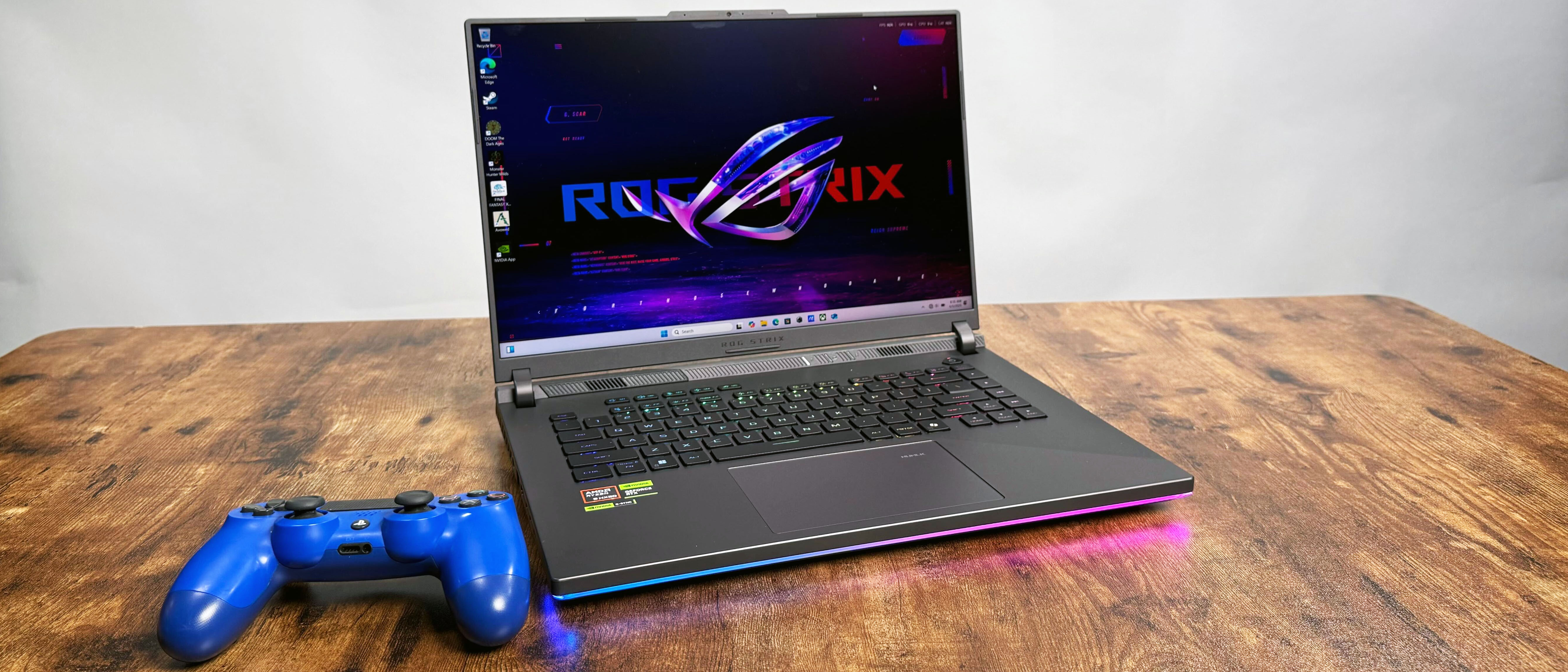
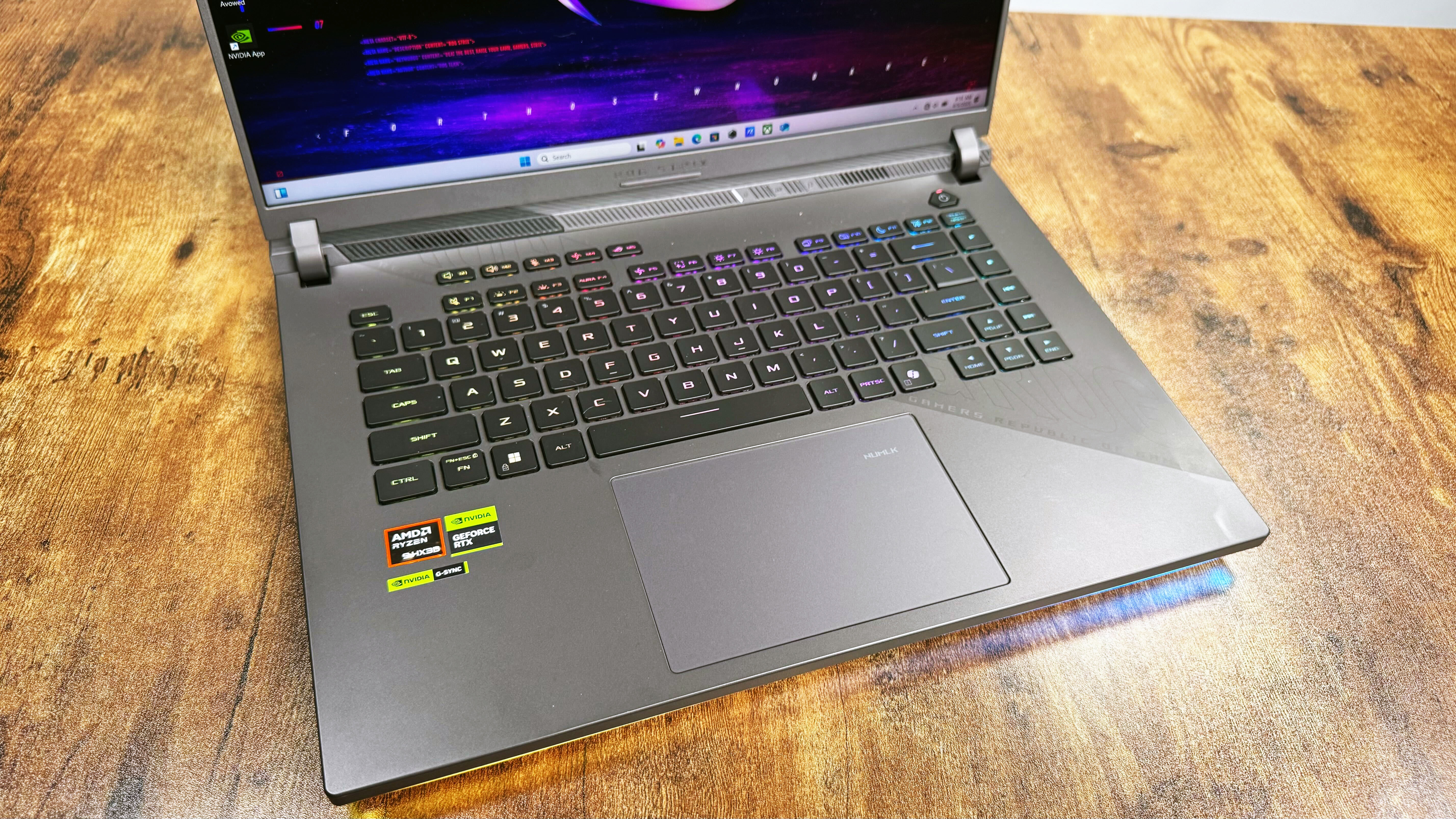
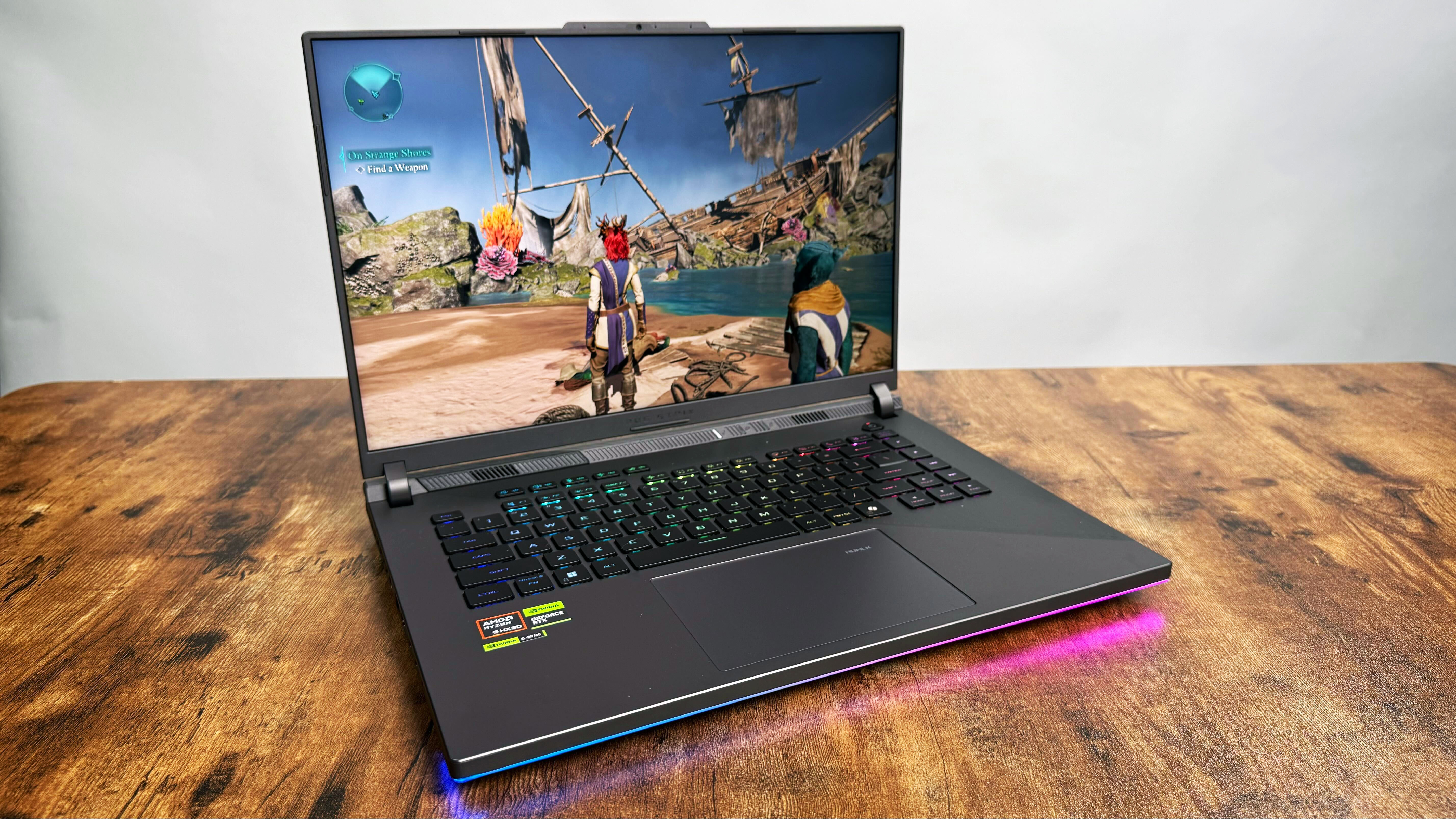
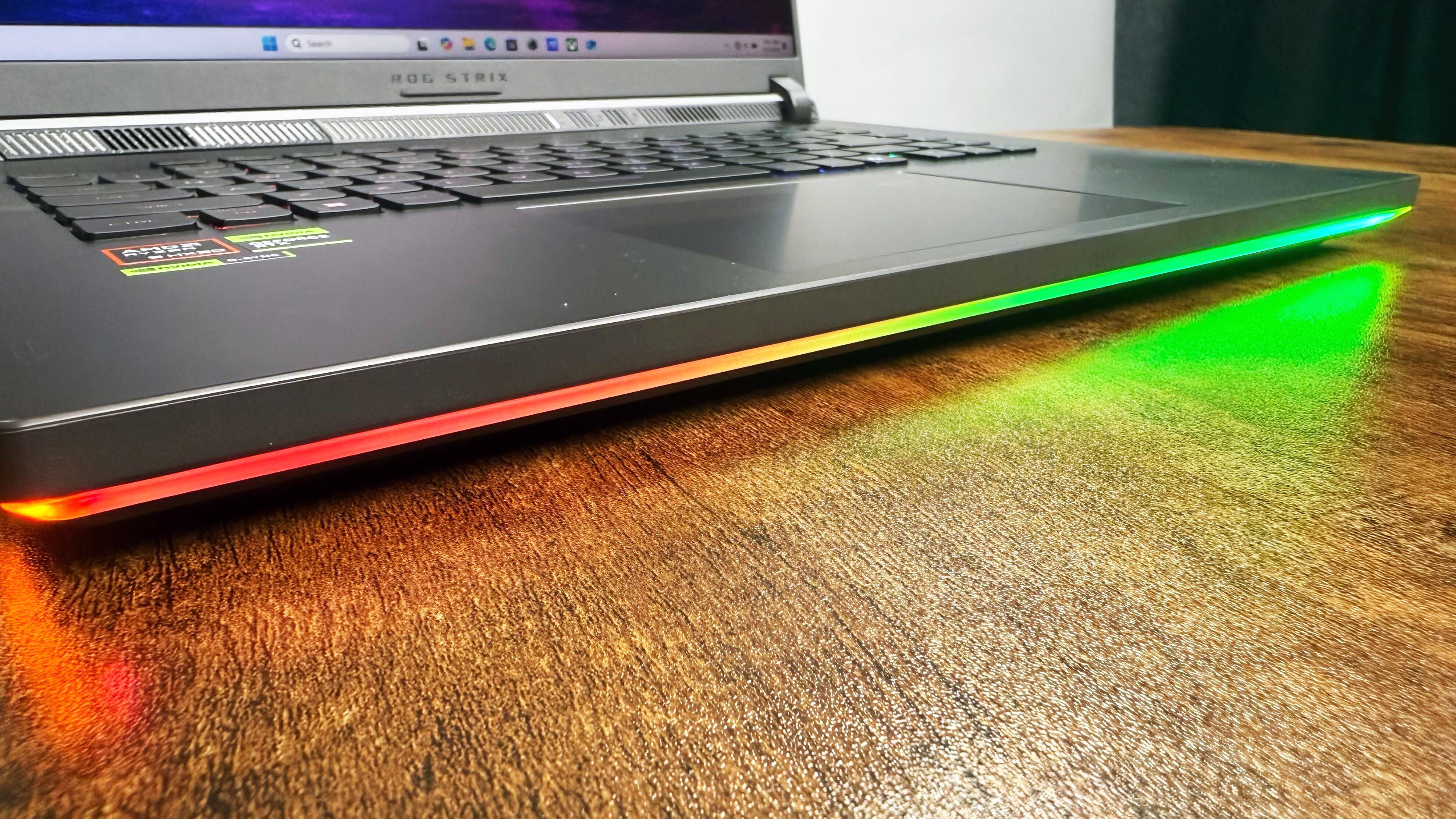
The Asus ROG Strix G16 is a thick, high-end gaming laptop with the aesthetics to match. While the Strix G16 doesn’t have the wild AniMeVision cover panel LEDs of theStrix Scar models, but it does have a flashy RGB lightbar below the keyboard deck, and full RGB on the keyboard.
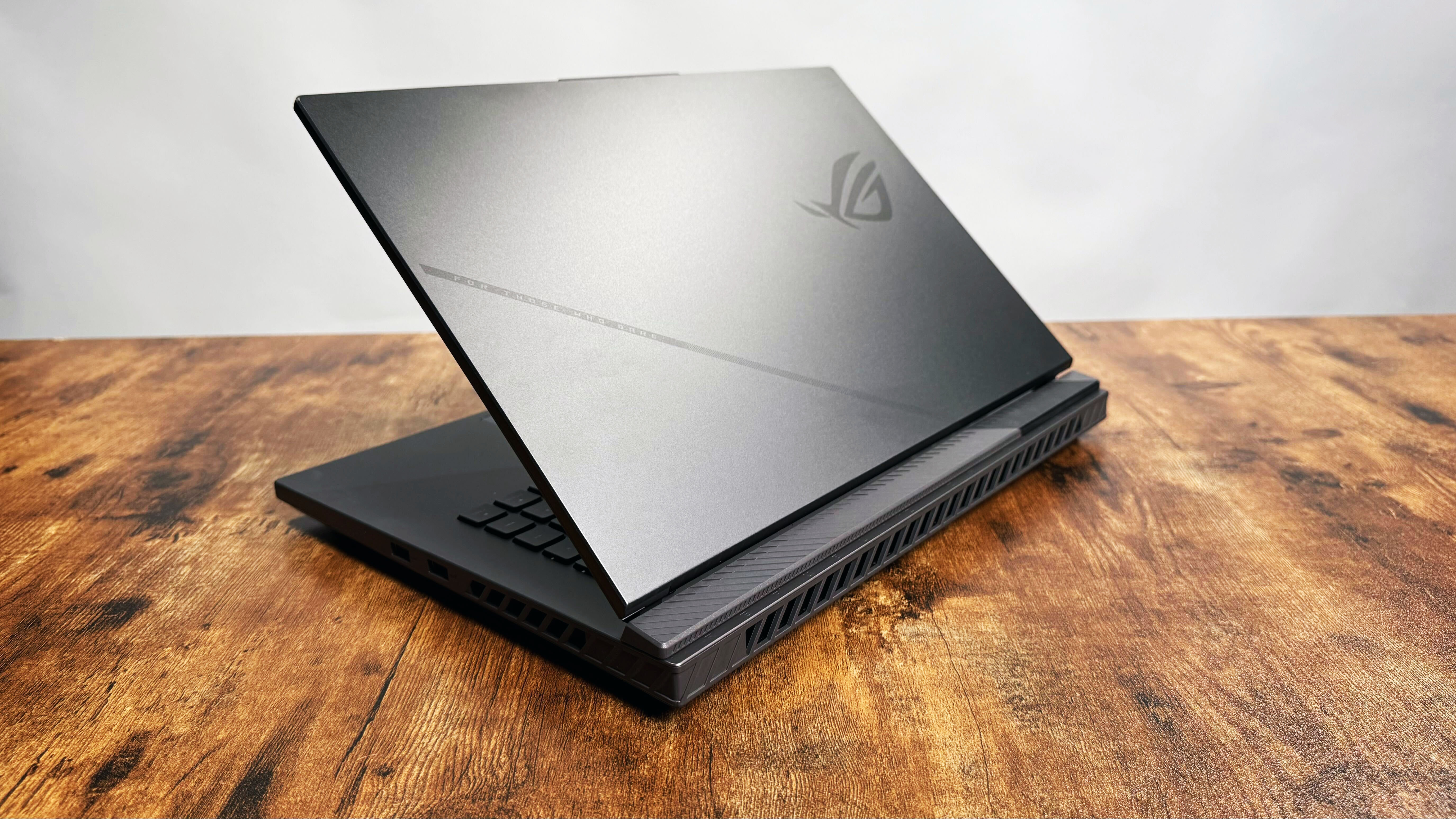
The top panel and keyboard deck feature classic Republic of Gamers branding, including a darkened ROG logo and “For those who dare” tagline on the top cover and ROG badging along the top of the keyboard deck.
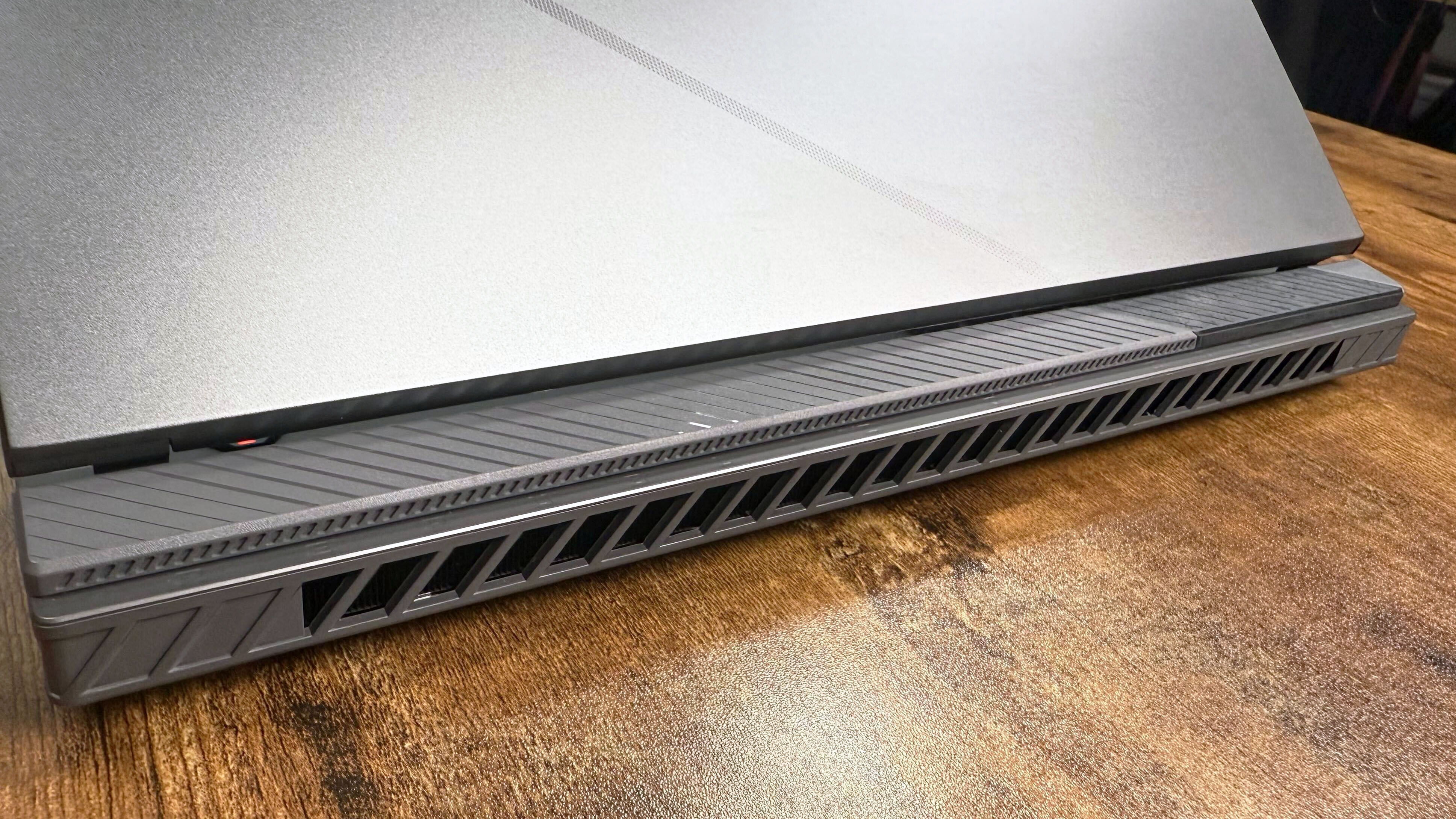
Outside of the aesthetics, the ROG Strix G16 is a bit on the chunky side, which, from a thermal perspective, is ideal for getting the best performance out of its hardware, but it makes it less portable than thinner 16-inch gaming laptops like theRazer Blade 16 (2025).
Measuring 3.94 x 10.39 x 0.89~1.20 inches and weighing 5.51 pounds, the Strix G16 edges into that desktop replacement class of laptops, though it still maintains the portability of a 16-inch laptop chassis. So it can fit into mostlaptop backpacksfor transport to your next in-person gaming session.
While the Strix G16 isn’t the lightest or thinnest 16-inch gaming laptop we’ve reviewed, it fits nicely in the same size range as other 16-inch gaming laptops like:
Alienware 16 Area-51:14.37 x 11.41 x 0.85~1.12 inches, 7.13 pounds
Gigabyte Aorus Master 16:14.05 x 10 x 0.91~1.18 inches, 5.5 pounds
Lenovo Legion 7i Gen 9:14.08 x 10.33 x 0.69 inches, 5.1 pounds
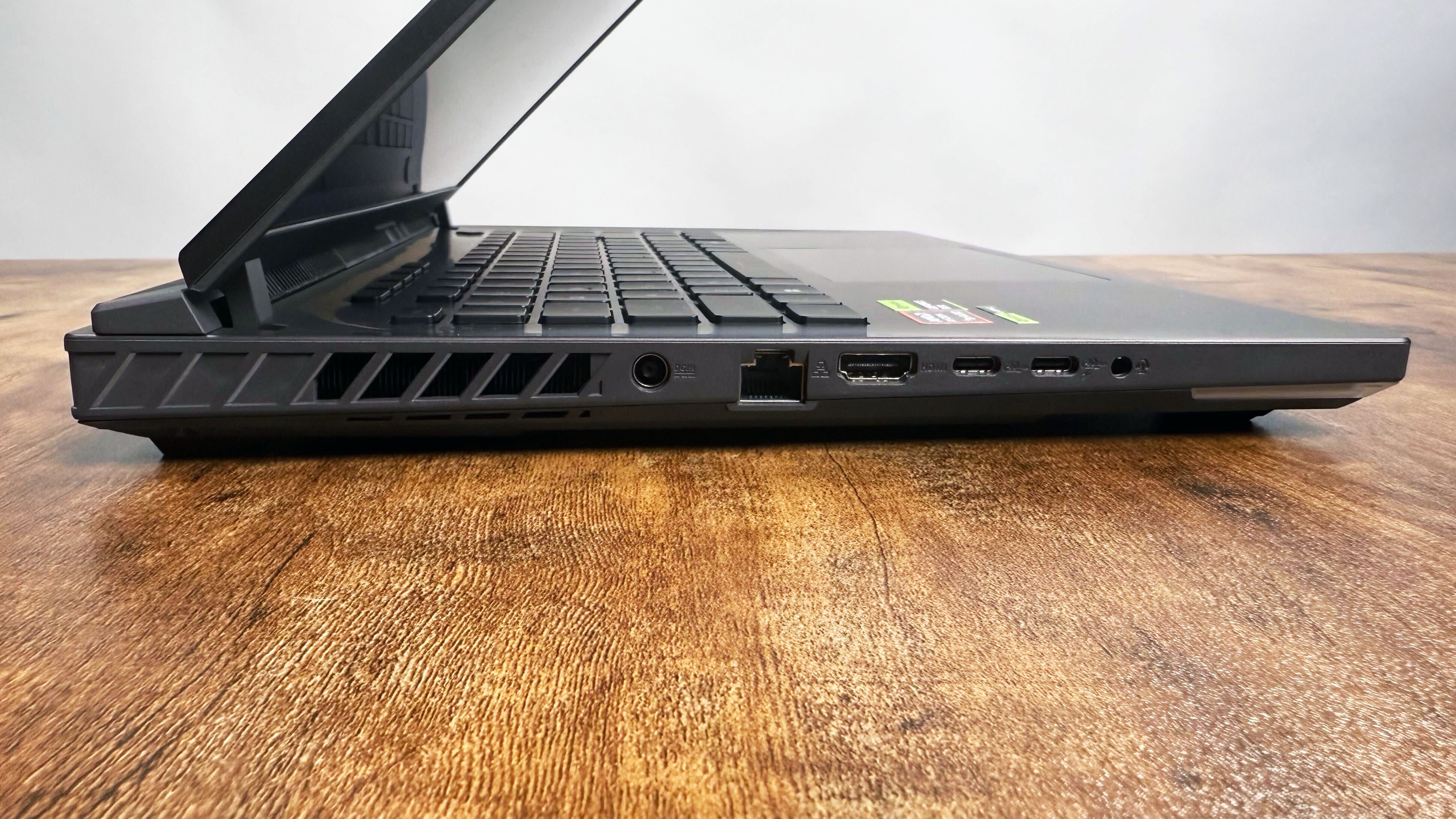
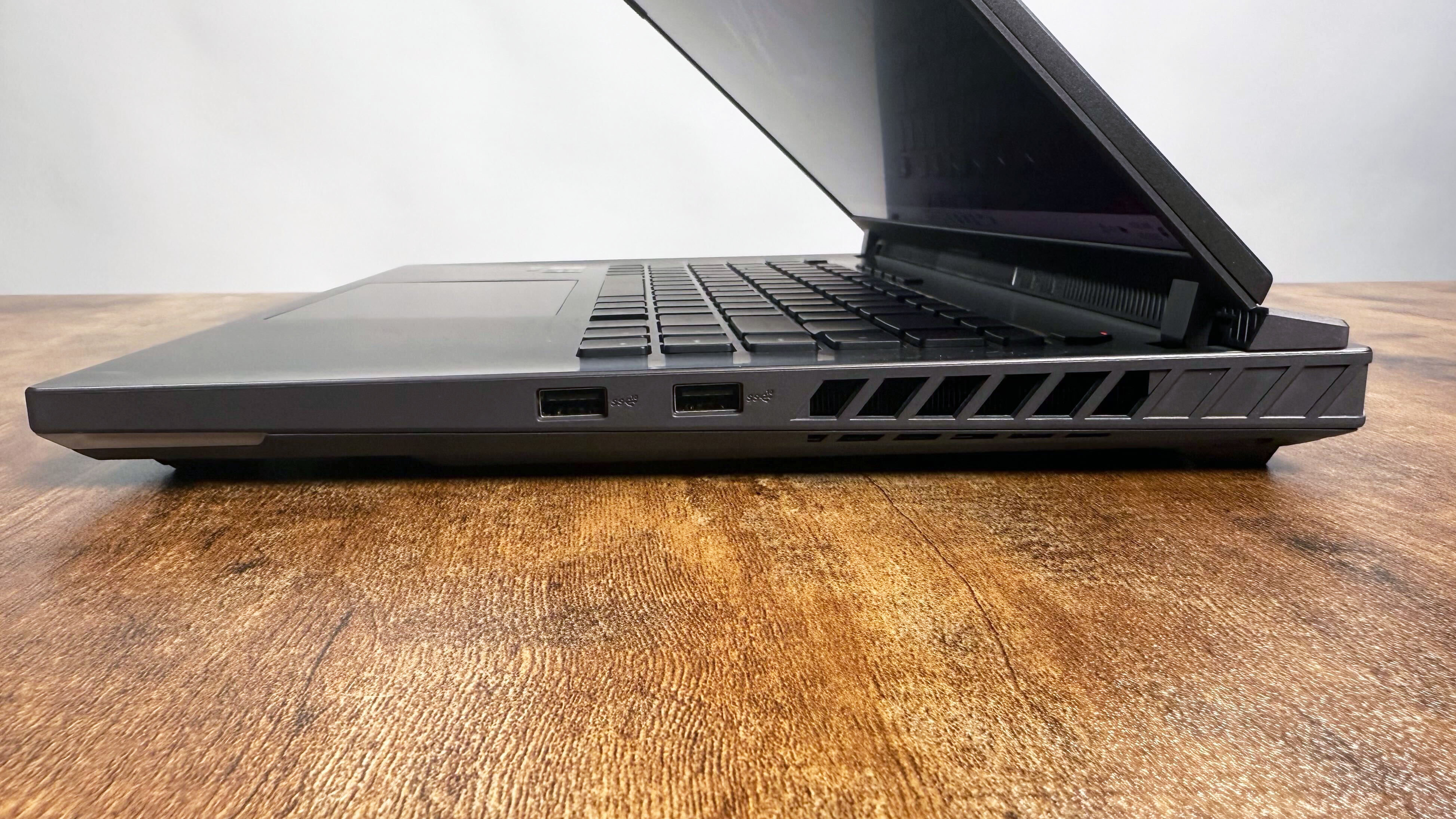
Asus has made sure to include plenty of ports on the Strix G16, which should be more than enough for all your gaming accessories:
1x USB 4 Type-C (DisplayPort, Power Delivery, Nvidia G-Sync)
1x USB 4 Type-C (DisplayPort, Nvidia G-Sync)
2x USB 3.2 Gen 2 Type-A
1x HDMI 2.1 FRL
1x RJ45 ethernet
1x audio combo jack
This should be enough ports for most people, though streamers may still want to invest in one of thebest laptop docking stationsorUSB-C hubsto connect additional monitors, a professionalwebcam, a studio microphone, or aStream Deckin addition to any gaming accessories.
Asus ROG Strix G16 (G614FR): Battery life
Thanks to Nvidia’s investment in its BatteryBoost tech, the Strix G16 lasts a bit longer than previous generations while gaming.
As we usually see with high-powered gaming laptops, the Strix G16 isn’t a threat to thelaptops with the best battery life, but it does last long enough for you to work on battery power before needing to find an outlet.
I didn’t have much hope the Strix G16 would last more than a handful of hours when unplugged, at best. Just going about my usual workday meant I needed to hunt down a charger after just over three and a half hours of writing and video call meetings.
The Strix G16 lasted just 5 hours and 22 minutes on our web browsing test, which is about what I expected from real-world testing.
Thanks to Nvidia’s investment in itsBatteryBoost tech, the Strix G16 lasts a bit longer than previous generations while gaming. The Strix managed to survive for 1 hour and 22 minutes on the PCMark 10 gaming battery test, which is more competitive compared to other 50-series laptops, like the Alienware Area-51 compared to its 40-series counterparts.
Asus ROG Strix G16 (G614FR)
Alienware 16 Area-51
Gigabyte Aorus Master 16
Lenovo Legion 7i Gen 9
Battery life (Higher is better)
05:22
04:10
05:02
03:01
PCMark 10 Gaming Battery life (higher is better)
01:22
01:51
02:54
00:47
Asus ROG Strix G16 (G614FR): Display
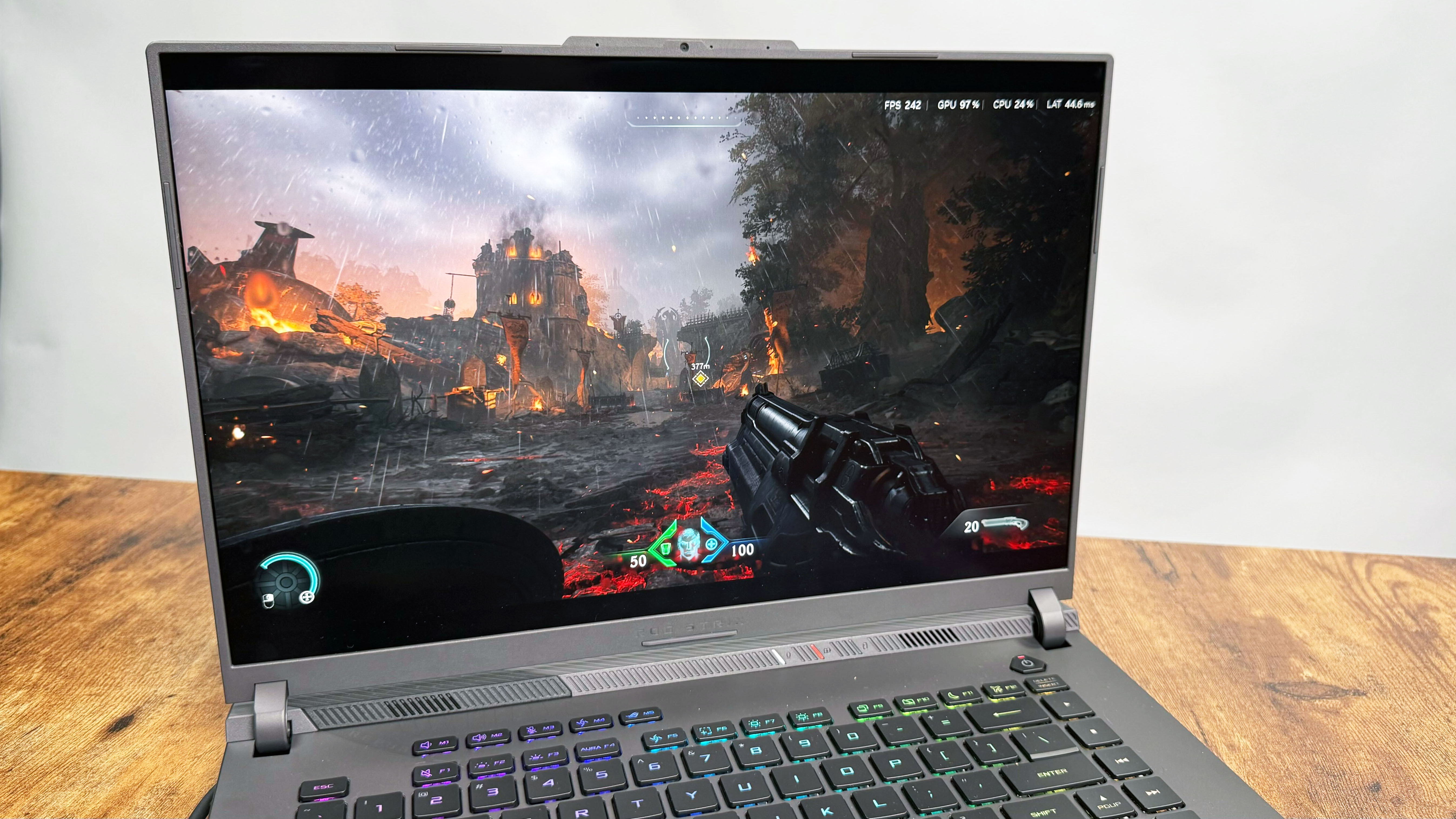
Our Strix G16 (G614FR) review unit features a 16-inch, 2560 x 1600, 240Hz matte IPS panel. Thanks to the Strix’s matte panel, it’s relatively glare-proof, which is ideal for gaming, so you don’t need to worry about missing your next shot because of a poorly placed lamp.
In order to test the Strix G16’s display, I booted upAvowedto see how well the Strix’s IPS panel handles the Fort Northreach beach with its broad color palette. While our lab testing indicated the display wasn’t super vibrant, I had no complaints about how well the Strix handled the corals along the shipwrecked shoreline, with bright, crisp reds and oranges bursting against the storm gray skies in a stunning contrast.
Our lab testing rated the Strix G16 at 79.7% coverage of the DCI-P3 color gamut, with an average peak brightness of 449 nits, which is bright and vibrant enough for most games.
While the Strix doesn’t have all the high-contrast benefits of an OLED or MiniLED display panel, its IPS-level LCD does have Pantone Validation for color, and supports Dolby HDR so it’s far from a disappointment.
Asus ROG Strix G16 (G614FR)
Alienware 16 Area-51
Gigabyte Aorus Master 16
Lenovo Legion 7i Gen 9
Display brightness (Higher is better)
449
516
378
478
sRGB color gamut (Higher is better)
112.5%
115.2%
114.3%
115.2%
DCI-P3 color gamut (Higher is better)
79.7%
81.6%
81.0%
81.6%
Color accuracy (Lower is better)
0.4
0.2
0.23
0.3
Asus ROG Strix G16 (G614FR): Keyboard and touchpad
The Asus ROG laptops tend to have good keyboards, and the Strix G16 is no exception.
The Asus ROG laptops tend to have good keyboards, and the Strix G16 is no exception. While it is a Chiclet style keyboard, the Strix G16’s keys have a nice bounce to them and don’t feel mushy, with a satisfying level of key travel to each press, so you don’t bottom out your fingers on the keyboard.
Chiclet keyboards also tend to be quieter than mechanical switches, which can save your raid team from hearing each individual keysmash during tense encounters.
On the 10fastfingers.com advanced typing test, I averaged 86 words per minute (wpm) on the Strix’s Chiclet keyboard, which is just below my average of 88 wpm on theApple MacBook Pro 14.
Asus has centered the touchpad on the keyboard deck, rather than on the space bar, which I prefer from an aesthetic point of view. And since the Strix’s touchpad is on the large side, measuring 5.4 x 3.4 inches, it’s got enough crossover with the spacebar that you shouldn’t have any kind of learning curve.
The touchpad offers a smooth feel with just the right amount of resistance for precise control. The very top of the touchpad isn’t clickable, though you can click just a half-inch down from the top edge, which isn’t too bad. Then again, I rarely click the top-half of a touchpad, so I didn’t notice it much in my day-to-day use of the Strix.
Asus ROG Strix G16 (G614FR): Audio
The volume wasn’t too explosive, but it was more than enough for some solid gaming immersion.
Asus equipped the ROG Strix G16 with a dual-speaker system with Smart Amplifier Technology, to get more volume out of fewer speakers. The sound system also boasts Dolby Atmos tuning, though the Strix’s Hi-Res audio certification is applicable for headphones so you might want to invest in a quality pair of thebest headphonesor an external sound system rather than rely on the built-in audio.
That said, the Strix’s audio is crisp. I was easily able to discern the individual string instruments that make up the orchestra behindAvowed’s title theme with perfect clarity. The volume wasn’t too explosive, but it was more than enough for some solid gaming immersion.
Though that also depends a bit on the game.Final Fantasy XIV: Dawntrailis notorious for having a very high default volume, and I ended up having to drop the volume below 45 percent to keep the audio at a sensible level while still covering the sound of the Strix’s cooling system.
Asus ROG Strix G16 (G614FR): Performance and heat
Boasting desktop-quality performance, the Ryzen 9 9955HX3D processor is more than sufficient for just about any task.
As for all-around performance, the Strix features AMD’s most powerful gaming CPU for this generation, the Ryzen 9 9955HX3D “Fire Range” chip. Boasting desktop-quality performance, the Ryzen 9 9955HX3D processor is more than sufficient for just about any task.
As for my hands-on testing, nothing I threw at the Strix really made the fans kick on. From e-mail and spreadsheet management with 20+Chrometabs open to Photoshop object selection, I had no hangups of slowdowns with the Strix G16.
With its powerful Ryzen 9 and RTX 5070 Ti combo, the Strix is capable of handling any photo or video editing you might need, and it can also double as a solid choice for handling your STEM data sets if you need to use it for any engineering classes.
Once the fans do kick on, the Strix G16 can be a bit loud, but not to the same level as theMSI Raider 18 HX. But those fans are needed, as the Strix runs hot under pressure. While gaming, the Strix G16 hit a peak temperature of 127.1 degrees Fahrenheit near the F4 key while the center of the keyboard hit 92.8 degrees, which means you’ll want to be careful of your fingertips during long gaming sessions.
The ROG Strix G16 is a 280W system, so it can drive plenty of power…
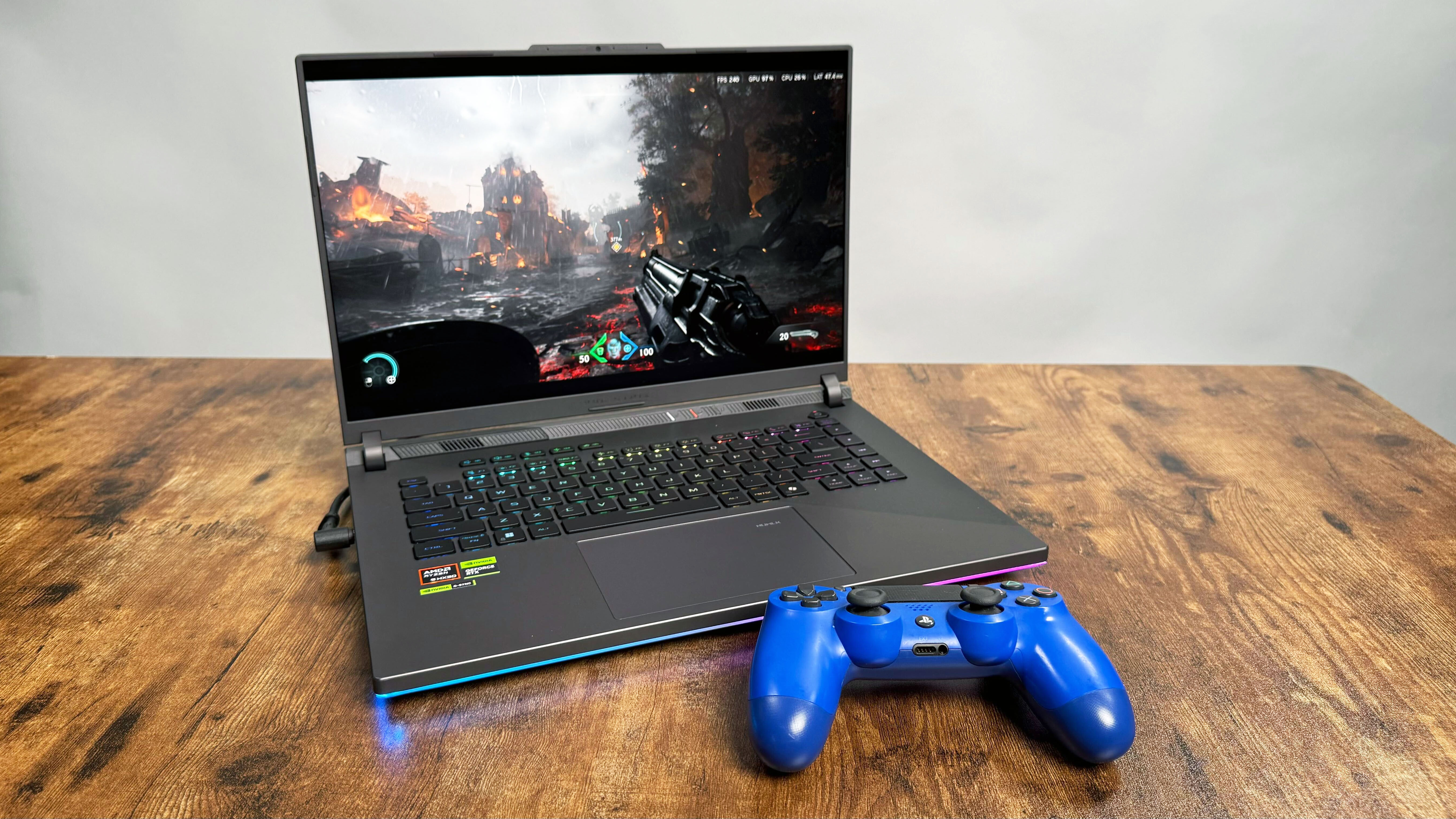
The ROG Strix G16 is a 280W system, so it can drive plenty of power to its onboard AMD Ryzen 9 9955HX3D processor and Nvidia RTX 5070Ti GPU, which offers a smooth, solid gaming experience, especially at the Strix’s max resolution of 1600p.
The Strix G16 gets framerates well above 100 fps at 1080p resolution on games likeAssassin’s Creed Mirage,Borderlands 3, andDiRT 5. More demanding titles likeBlack Myth: WukongandCyberpunk 2077will see those frame rates drop to 53 fps.
With the Strix’s RTX 5070Ti GPU, you can also enablesoftware upscaling like DLSS 4 and frame generation, which can offer a smoother experience with poorly optimized games likeAvowedandMonster Hunter Wilds. This is especially useful if you’re gaming at max resolution, or if you use the Strix to power a high-res gaming monitor
With DLSS 4 enabled at max 1600p resolution and the Ultra graphics presets, I was easily able to keep a stable 85 fps inDoom: The Dark Ages.That rate jumped up to 187 fps with frame generation enabled. While 85 fps is certainly playable, it’s nowhere near as smooth as 187 fps.
I saw similar improvements inAvowed, going from 70 fps at 1600p on Epic settings with only DLSS 4 to 114 fps with frame generation also toggled on. Without either, the game was hitting about 43 fps in terms of just pure Silicon performance.
Of course, if you plan to play a lot of competitive games where super sampling tech like DLSS 4 or FSR can be problematic, dropping your game resolution down to 1200 or 1080p will get you better framerates, as will opting for more mid-range graphics presets.
Asus ROG Strix G16 (G614FR)
Alienware 16 Area-51
Gigabyte Aorus Master 16
Lenovo Legion 7i Gen 9
3DMark Fire Strike Ultra (Higher is better)
10,794
14,073
13,695
6,423
3DMark Time Spy Extreme (Higher is better)
8,577
10,558
10,097
5,526
Assassin’s Creed: Mirage (1080p, fps)
132
149
145
98
Black Myth: Wukong (Cinematic, 1080p, fps)
53
58
52
Row 4 – Cell 4
Cyberpunk 2077 (1080p, fps)
53.75
62.94
61.52
34.51
Far Cry 6 (1080p, fps)
143
121
120
96
Monster Hunter Wilds (1080p, fps)
69.23
82.82
85.67
Row 7 – Cell 4
Red Dead Redemption II (Ultra, 1080p, fps)
51.697
78.348
Row 8 – Cell 3
41.806
Shadow of the Tomb Raider (1080p, fps)
151
183
185
162
Asus ROG Strix G16 (G614FR): AI features
As the Strix G16 features an AMD Ryzen 9 9955HX3D CPU rather than a RyzenAI300 series processor, it doesn’t meet the requirements for Microsoft’sCopilot+ suite of AI features. In fact, the Ryzen 9 9955HX3D doesn’t have an integrated NPU at all, so any AI you run off the Strix G16 will be using either the CPU or GPU to run the workload.
That doesn’t mean the Strix G16 can’t run AI. It has access to Nvidia’s various RTX AI features likeChatRTXandRTX Remixwith its 50-series GPU after all. But it does mean the Strix won’t bother you with a chatbot unless you go out of your way to install one.
Asus ROG Strix G16 (G614FR): Webcam
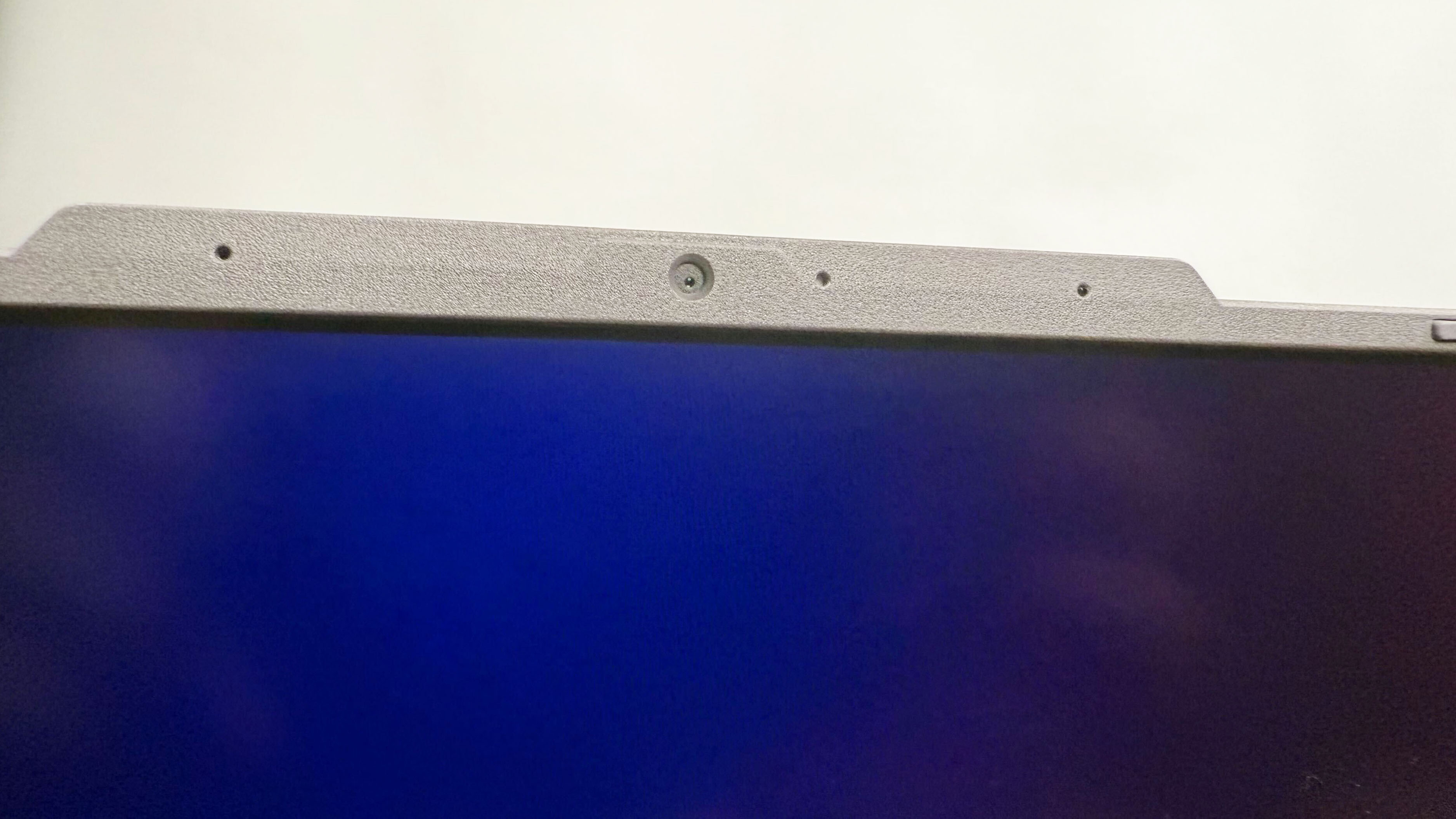
The ROG Strix G16 features a 1080p webcam, so it’s suitable forWindowsHello sign-in, and can handle the occasional video call or virtual meeting.
The camera feed is, as usual, on the dim and grainy side, with a tendency to drop a pink cast over skin tones, but it’s far from the worst we’ve seen. Most colors appear as they should on the webcam feed, just darker than I’d prefer.
If you plan to use the Strix for a lot of video calls or streaming, we’d recommend using one of thebest webcamsinstead of the onboard camera.
Asus ROG Strix G16 (G614FR): Software and warranty
The Strix G16 comes withWindows 11Home installed, which includes a number of standard Windows apps already installed, like Microsoft Copilot, Office 365, and the Xbox App. Asus has included the ArmouryCrate app to control your power profiles and settings and the MyAsus App for more general controls. Asus has also pre-installed the ROG Aura software for controlling your RGB customization, and the Aura Wallpaper Generator to create custom desktop backgrounds.
The number of pre-installed Windows applications is constantly growing, and Asus has installed a decent chunk of proprietary software. Between Microsoft, AMD, Nvidia, and Asus there are a lot of programs pre-installed. Most are utility-based, however, so this doesn’t really count as bloatware, but it’s far from a clean Windows installation.
The Strix includes a 1-year service warranty.
Bottom line
The ROG Strix G16 is the kind of gaming laptop that makes you wonder why other gaming laptops even bother.
The ROG Strix G16 is the kind of gaming laptop that makes you wonder why other gaming laptops even bother. Sure, we’ve seen stronger performance from some of the other gaming laptops this gen, but many of those were nearly twice the price of the ROG Strix G16.
While theAlienware 16 Area-51is our most affordable RTX 5080 laptop, it’s still a good $500 more expensive than the Strix G16. And the Strix weighs two pounds less, making it a much better choice if you need to travel with your gaming laptop occasionally.
Of course, if portability is your key requirement and you’ve got the cash to spare, then theRazer Blade 16 (2025)is still the way to go. After all, the Blade 16 is ultra-lightweight and sports a more powerful GPU, up to the Nvidia RTX 5090. And it gets far better battery life than the Alienware or the Strix.
But if you’re looking for the best balance of performance, price, and portability, it’s hard to do better than the ROG Strix G16 (G614FR).