The Hidden Math Behind Your Phone’s Battery Health: How iOS and Android Brands Calculate “Battery Degradation” Differently

If you’ve ever checked your phone’s battery settings, you’ve likely seen a metric like “Maximum Capacity” (iOS) or “Battery Health” (Android). These numbers—often displayed as a percentage—are supposed to tell you how much of your battery’s original performance remains. But here’s the secret: not all brands calculate this the same way. While a 90% rating might mean similar longevity on an iPhone 15 and a Samsung Galaxy S24, the math behind those digits can vary dramatically based on hidden algorithms, sensor data, and even manufacturer-specific user behavior tracking.

In this deep dive, we’ll unpack how Apple’s closed iOS ecosystem and major Android brands (Samsung, Huawei, Xiaomi, and Google) engineer their battery health metrics, why they diverge, and what it means for your daily phone use.

The Basics: What Is “Battery Health” Anyway?

At its core, battery health is a proxy for capacity loss—how much less charge your battery can hold compared to when it was new. Lithium-ion batteries degrade over time due to chemical reactions (like solid-electrolyte interphase, or SEI, layer growth) and stress factors (heat, overcharging, fast charging). A “100%” healthy battery holds its full designed capacity; a “70%” battery retains just 70% of that original capacity.

But here’s the catch: measuring capacity directly in real time is impossible. Phones instead estimate degradation using proxies—data points like cycle count, voltage, temperature, and usage patterns. The algorithms that turn this raw data into a health percentage are proprietary, and they’re the reason two phones with identical hardware can show different health scores.

iOS: Apple’s “Black Box” of Precision

Apple’s approach to battery health is famously opaque but highly standardized. Since iOS 11.3 (2018), iPhones have displayed “Maximum Capacity” (under Settings > Battery > Battery Health) and “Peak Performance Capability.” Here’s how it works:

1. Hardware-Driven Calibration

iPhones use a combination of built-in sensors (voltage monitors, temperature gauges) and a dedicated fuel gauge chip (the “gas gauge”) to track charge cycles, depth of discharge, and temperature extremes. Apple’s algorithm cross-references this data with a pre-programmed model of battery degradation based on millions of hours of lab testing.

For example, Apple knows from testing that a lithium-ion battery retains ~80% capacity after 500 complete charge cycles (a cycle = using 100% of capacity, whether one full charge or multiple partial ones). If your iPhone’s sensors detect it’s hit 500 cycles, the algorithm will peg Maximum Capacity at ~80%—even if real-world capacity is slightly higher or lower.

2. Peak Performance Throttling

iOS adds another layer: “Peak Performance Capability,” which indicates whether the battery can sustain maximum performance under load (e.g., gaming or video editing). If the algorithm detects rapid capacity loss (e.g., dropping from 95% to 85% in a month), it may throttle the CPU/GPU to prevent unexpected shutdowns—a feature users famously noticed in older iPhones (dubbed “batterygate”).

3. Closed Ecosystem Consistency

Because Apple controls both hardware and software, its algorithm is extremely consistentacross iPhones. A 2020 iPhone 12 with 500 cycles will show nearly the same Maximum Capacity as another 2020 iPhone 12 with the same cycle count. This consistency is a key selling point for users who prioritize predictability.

Android: A Fragmented Landscape of Custom Algorithms

Android’s open ecosystem means manufacturers (Samsung, Huawei, Xiaomi, Google) have more freedom to design their own battery health metrics. While most display a “Battery Health” percentage, the math behind it varies wildly:

1. Samsung: Cycle Count + Usage Patterns

Samsung’s One UI uses a hybrid model that combines cycle count with usage intensity. For example, a user who frequently fast-charges (25W+) or uses the phone while charging (which generates heat) will see faster health degradation than someone who charges slowly overnight.

Samsung also incorporates temperature history: sustained exposure to temperatures above 35°C (95°F) or below 0°C (32°F) accelerates chemical degradation, so the algorithm penalizes these conditions more heavily.

2. Huawei: AI-Driven “Battery Age” Prediction

Huawei’s EMUI takes a more predictive approach. Its “Battery Health” score (found in Settings > Battery > More Battery Settings) uses machine learning to analyze long-term usage trends. Instead of relying solely on cycle count, it tracks:

  • Daily active hours: Phones used 6+ hours daily degrade faster.
  • Charging habits: Frequent top-ups (e.g., 20–80% charging) vs. full 0–100% cycles.
  • App-specific drain: Apps like games or video streamers draw more power, increasing stress.

Huawei claims this model can predict capacity loss 3–6 months in advance, allowing users to adjust habits proactively.

3. Xiaomi: “Intelligent Battery Care” with User Customization

Xiaomi’s MIUI stands out for letting users customizehow the algorithm weights factors. In Settings > Battery & Performance > Battery Health, users can toggle options like:

  • Fast charging protection: Limit fast charging to reduce heat (slower but gentler on the battery).
  • Overnight charging protection: Stop charging at 90% to avoid overvoltage (requires a smart plug or compatible charger).

The algorithm then adjusts the health score based on whether these protections are enabled. A user who disables fast charging protection might see a lower health score over time—even if their battery is physically fine—because the algorithm assumes higher long-term stress.

4. Google Pixel: Minimalist and Transparent

Google’s Pixel phones take a middle ground. The “Battery Health” section (in Settings > Battery) shows a simple percentage, calculated using cycle count and voltage data. Unlike Samsung or Huawei, Google doesn’t disclose additional factors, but internal testing suggests it prioritizes calendar aging(time since manufacture) more than some rivals. A Pixel kept at 50% charge for a year will show slightly lower health than one used daily—reflecting the fact that lithium-ion batteries degrade even when unused.

Why These Differences Matter: The User Experience Gap

The divergence in algorithms creates a critical problem: two phones with identical physical battery health can show different percentages, leading to confusion. For example:

  • An iPhone 15 and a Samsung Galaxy S24 with the same real-world capacity (say, 85% of original) might display 87% and 83%, respectively, due to differing cycle-count weighting.
  • A Xiaomi user who enables fast charging protection might see their health score drop slower than a user with the same usage but disabled protections—even though their batteries degrade at the same rate.

This inconsistency also impacts third-party tools. Apps like AccuBattery (which reverse-engineer health metrics) often give conflicting results across brands because they can’t account for proprietary algorithms.

The Future: Will We Get Standardization?

The lack of industry-wide standards for battery health metrics is a growing pain point. In 2023, the Mobile Phone Battery Health Initiative (MPBHI)—a coalition of brands, including Apple, Samsung, and Google—announced plans to develop a universal “Battery Health Score” based on objective metrics like cycle count, temperature, and voltage. However, progress has been slow, as manufacturers are reluctant to share proprietary data that could expose their optimization secrets.

In the meantime, users can take steps to interpret their phone’s health score more accurately:

  • Check the fine print: Samsung and Huawei publish whitepapers explaining their algorithms; Apple provides details in support articles.
  • Focus on real-world performance: A 90% health score means little if your phone dies at 30% battery. Use battery usage stats (Settings > Battery) to identify drains.
  • Adjust habits based on brand quirks: Xiaomi users should enable charging protections; Samsung users should avoid extreme temperatures.

Conclusion: The Math Isn’t Magic—It’s Proprietary

Battery health scores are not objective measurements; they’re carefully engineered approximations designed to balance accuracy, user experience, and brand differentiation. iOS offers consistency, while Android brands cater to niche user behaviors (fast charging, heavy gaming, etc.). Understanding these differences empowers users to make informed decisions—whether it’s choosing a phone that aligns with their charging habits or interpreting health scores with a grain of salt.

In the end, the “best” battery health algorithm is the one that helps youuse your phone longer, smarter, and with fewer surprises.
I’ve been enjoying this 2-in-1 AI laptop more than I expected, but it feels like it was made to go on sale

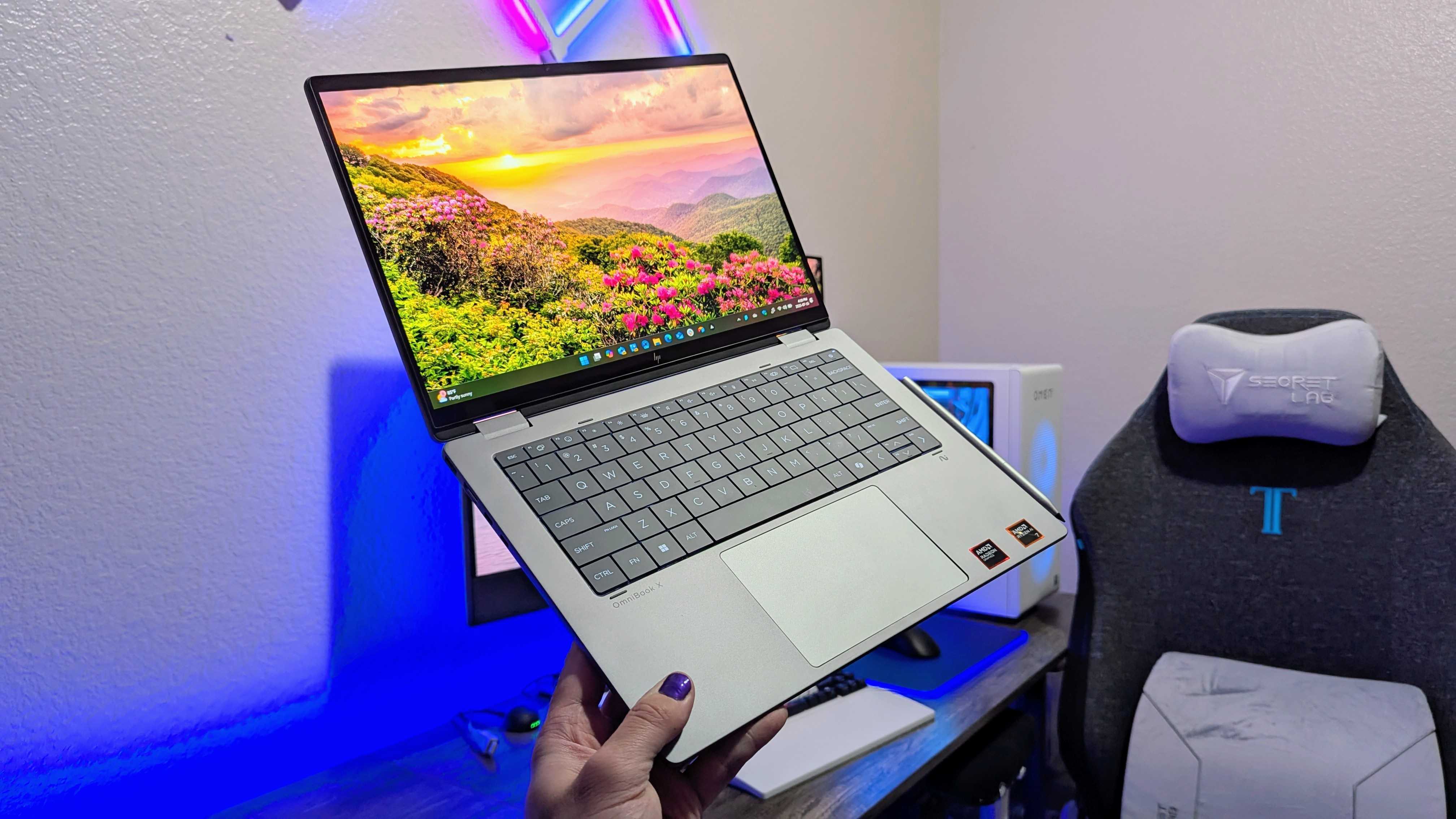
The HP OmniBook X Flip 14 (2025) is a great 2-in-1 laptop that is already benefiting from frequent deals.

Image of the HP OmniBook X Flip 14 (2025) laptop.

Verdict

The HP OmniBook X Flip 14 (2025) isn’t an exciting laptop, but it does tick a lot of boxes for a capable and reliable mid-range 2-in-1 PC. I ended up liking the boring design more than I expected and was impressed by the performance, but the keyboard feels like a downgrade, and the battery can’t keep up with the longest-lasting laptops on the market. All my criticisms are softened by frequent discounts, though.

Pros

  • +Durable and practical 2-in-1 design
  • +Plenty of Intel and AMD configuration options
  • +Strong performance with AI features
  • +Already regularly going on sale

Cons

  • -Battery life isn’t too impressive
  • -New lattice-less keyboard design feels like a big step back

The vast majority of more affordablelaptopsare dreadfully boring, especially in the design department. It’s intentional, of course — premium devices will always be more exciting, but it does make reviewing budget and mid-range laptops a lot less interesting.

The HP OmniBook X Flip 14 (2025) is an important addition toHP’s growing OmniBook lineup, but it doesn’t escape the mid-range curse.

It’s a safe and boring laptop with a sturdy, versatile 2-in-1 design, strong enough performance to handle everything most people do with their laptops, and a range of configuration options to suit your needs or budget. It helps that it’s already regularly going on sale, too.

I did find myself enjoying this laptop’s design more than I expected (notable due to one feature), but I’m absolutely not a fan of HP’s decision to begin moving toward new lattice-less keyboards.

A safe 2-in-1 design with one unique feature

Image of the HP OmniBook X Flip 14 (2025) laptop.

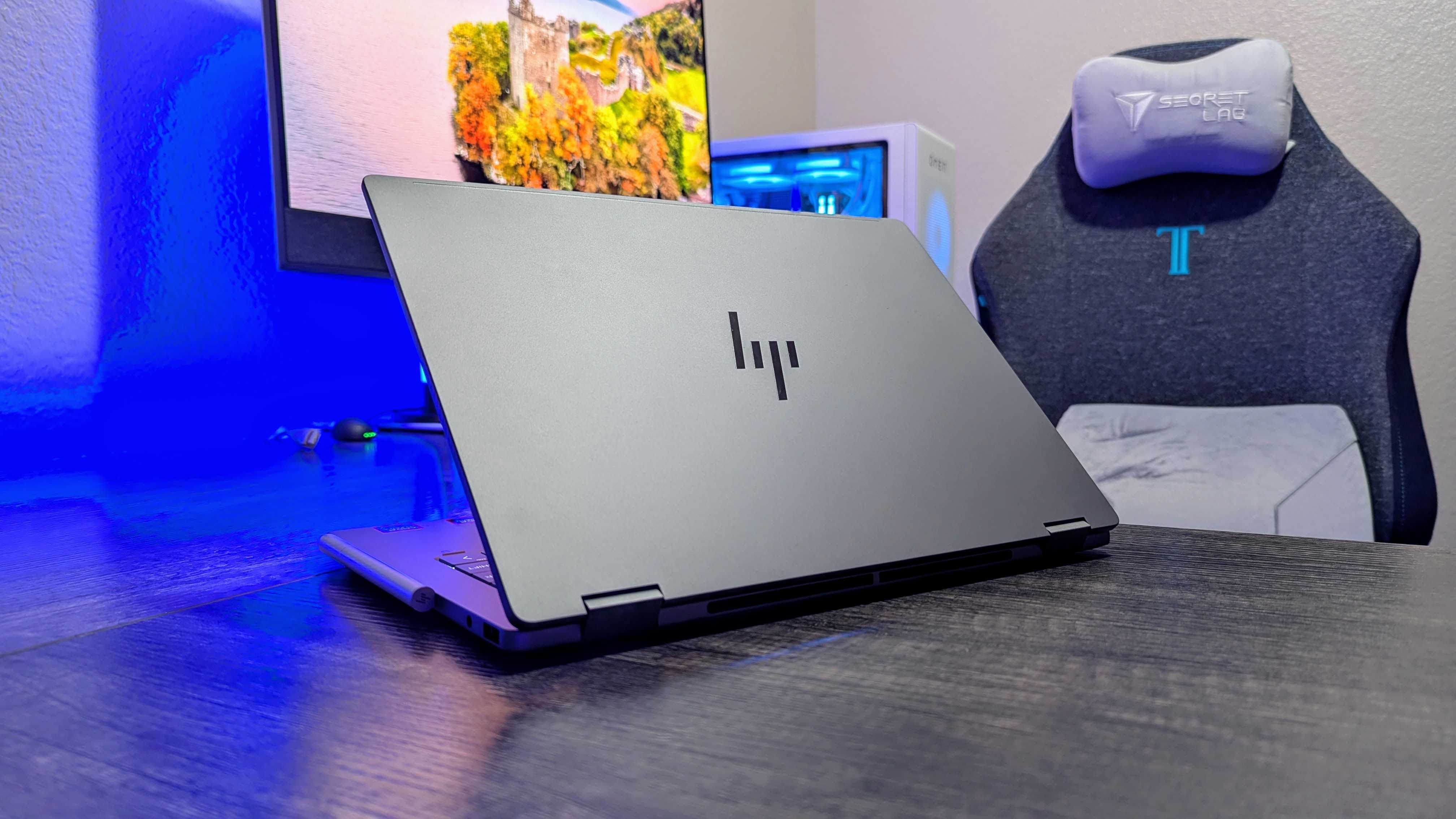
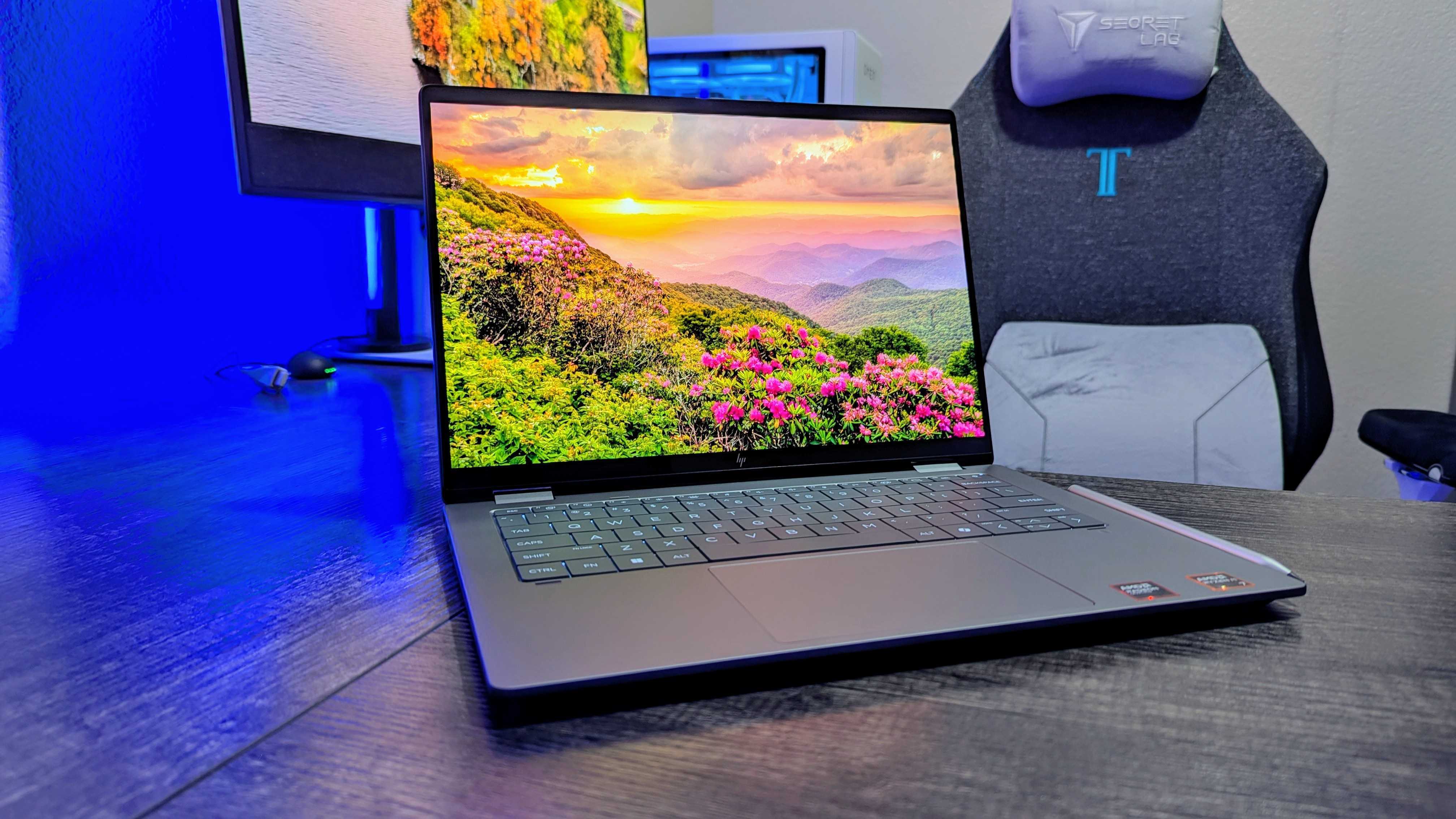
At a glance, this looks like a lot of other mid-range Windows laptops.

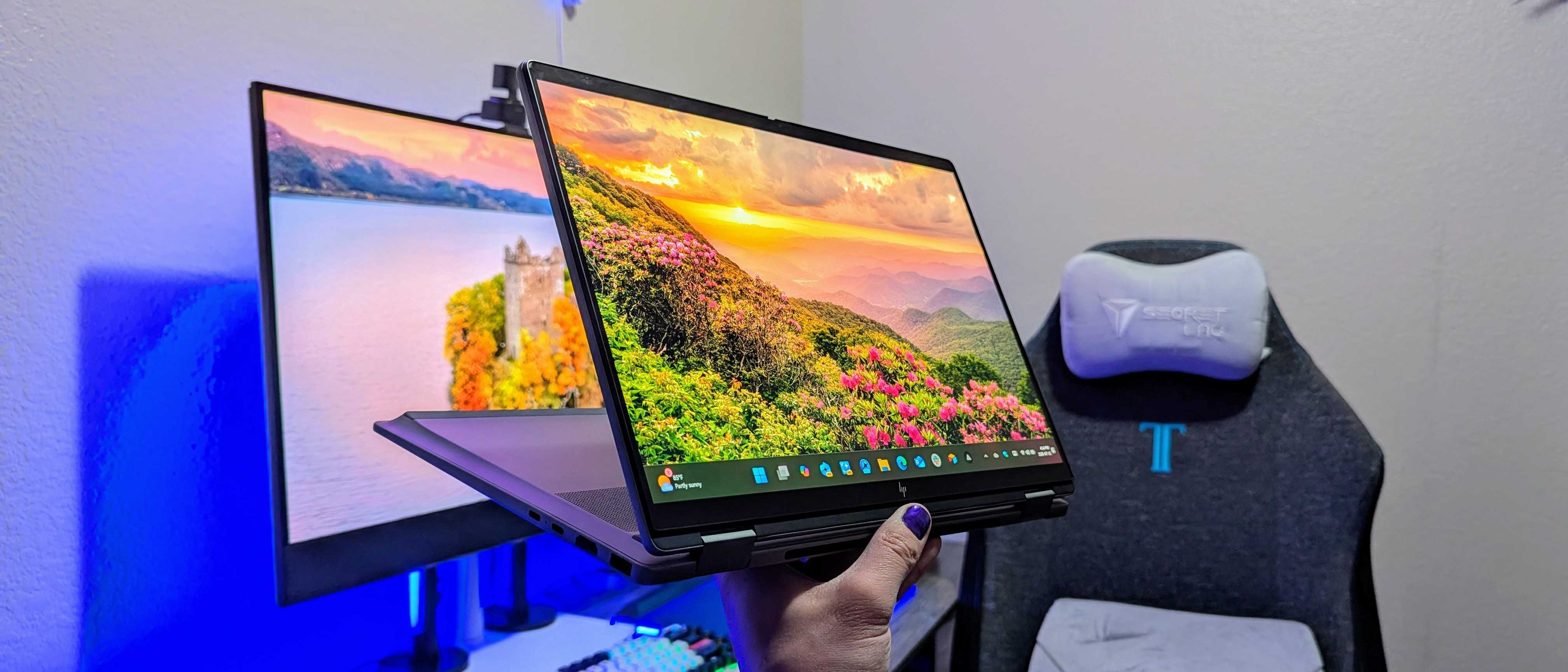
Most companies use androgenous designs across their entire budget and mid-range lineups, and HP is the same. The OmniBook X Flip 14 is your standard Windows laptop clad in aluminum, with dual 360-degrees hinges to support those 2-in-1 features.

At over 3lbs and between 11.4 and 17mm (depending on where you measure), the OmniBook X Flip isn’t the thinnest or lightest machine around, but it doesn’t feel bloated by any means.

I honestly dig how this laptop looks, and it all comes down to that “swoop” at the front.

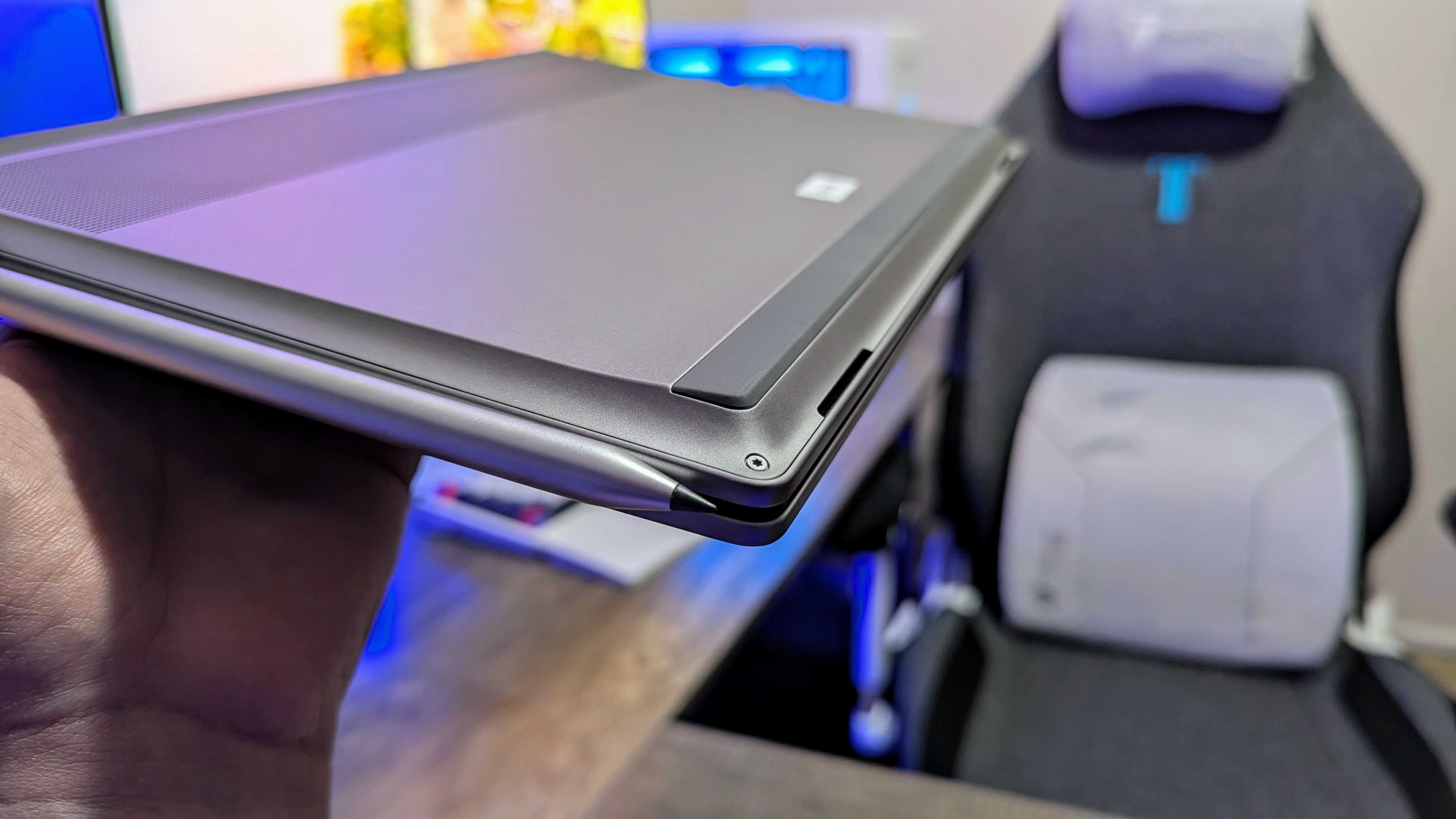
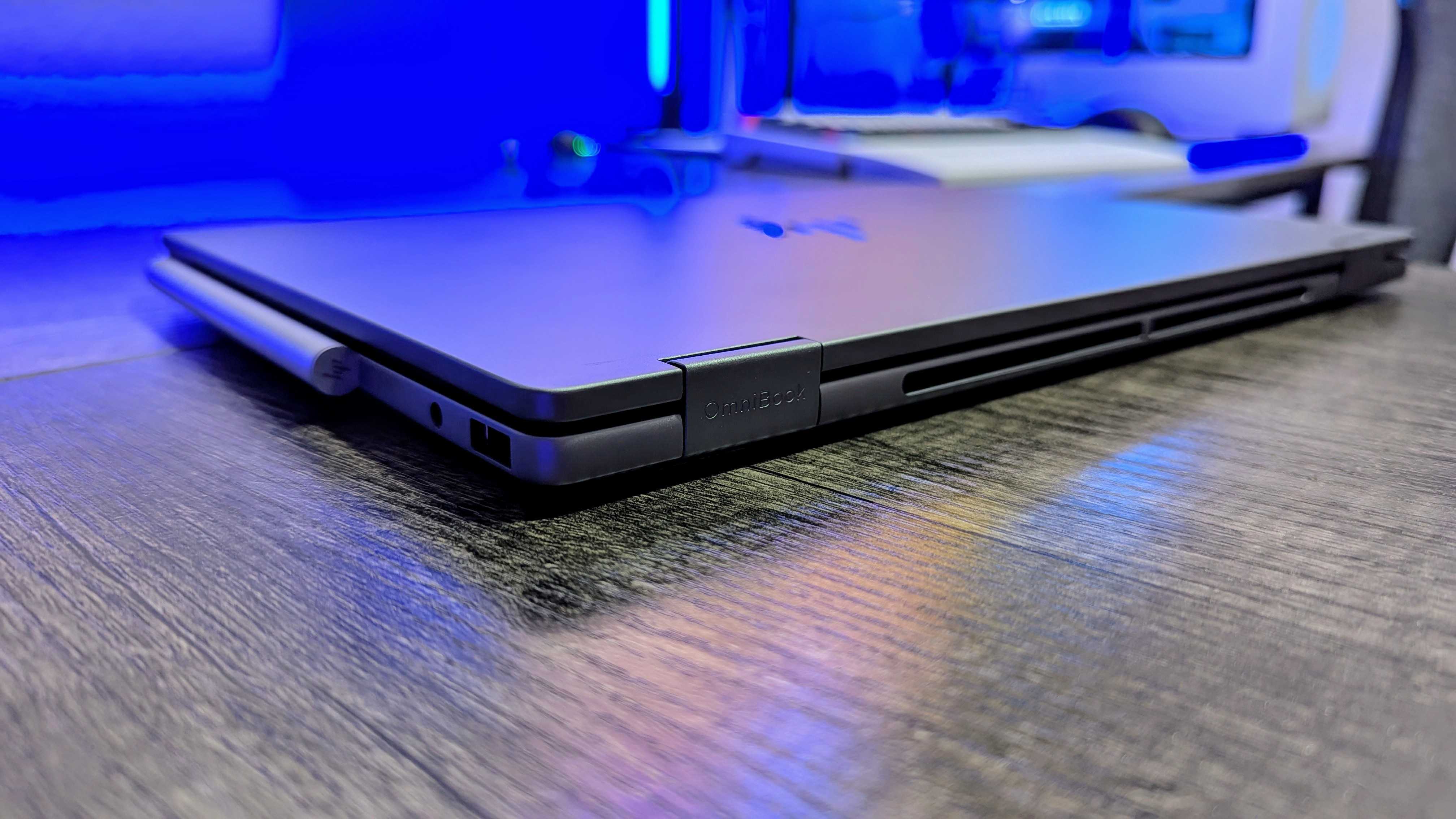
This laptop’s one unique feature is how the bottom panel “swoops” toward the front of the laptop, creating a unique side profile and providing space for the dual speaker system to fire forward, rather than downward.

These speakers aren’t the best, but this positioning is undeniably better than what a lot of cheaper laptops do, and I honestly dig how it looks. Build quality is also quite good — I’ve no complaints in that department.

>>>Replacement adapter for HP 8300E AIO

Image of the HP OmniBook X Flip 14 (2025) laptop.

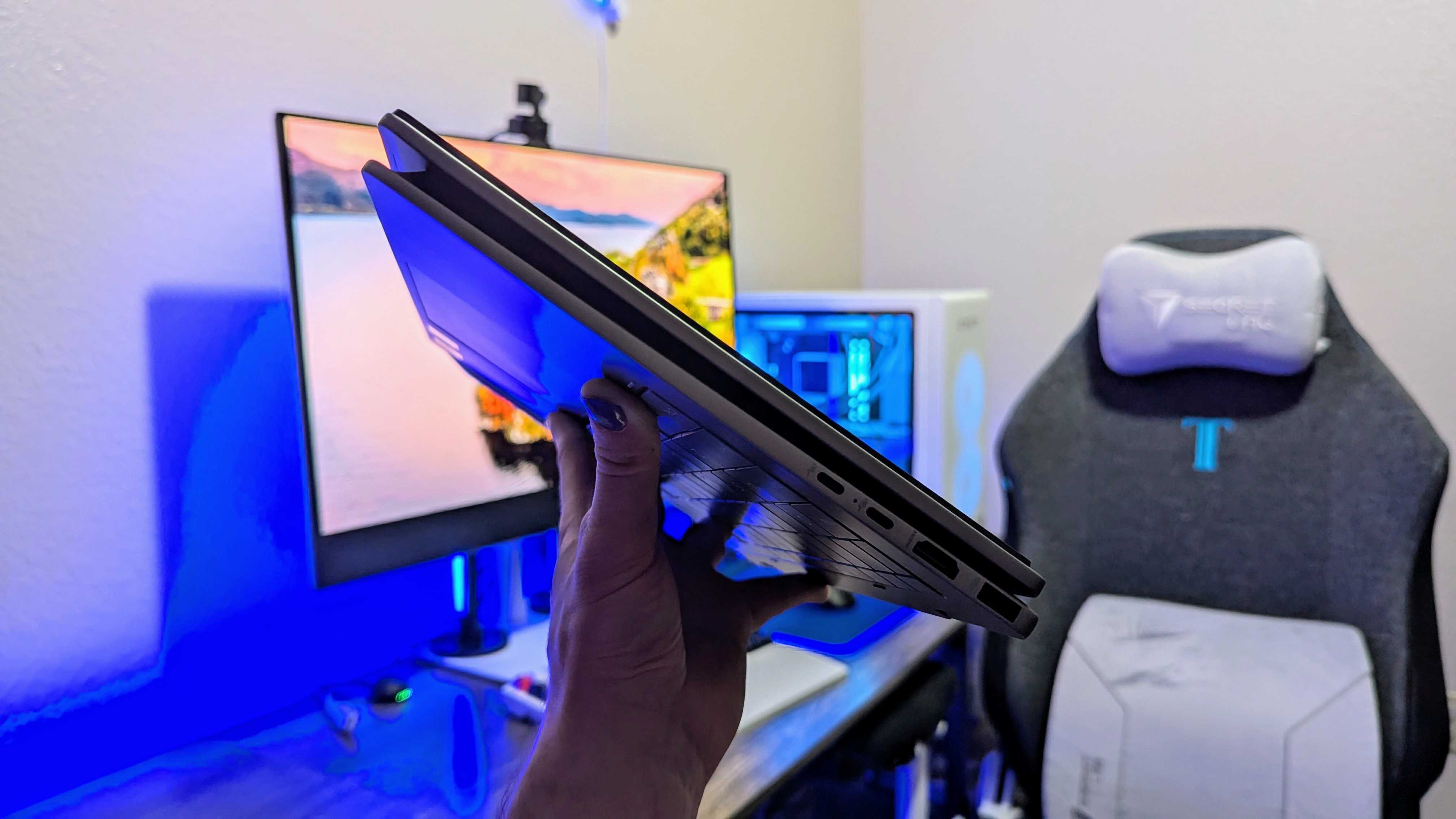
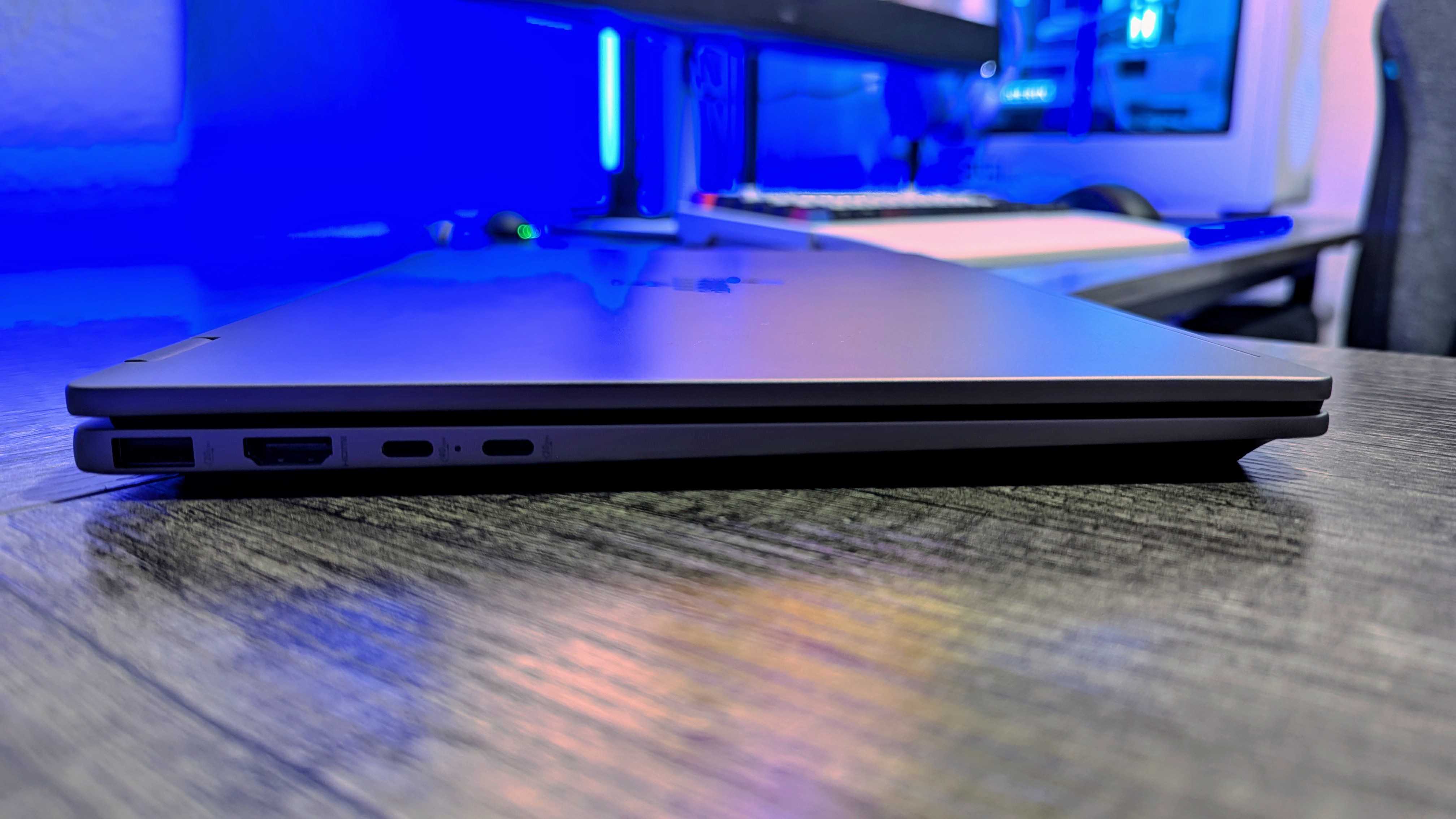
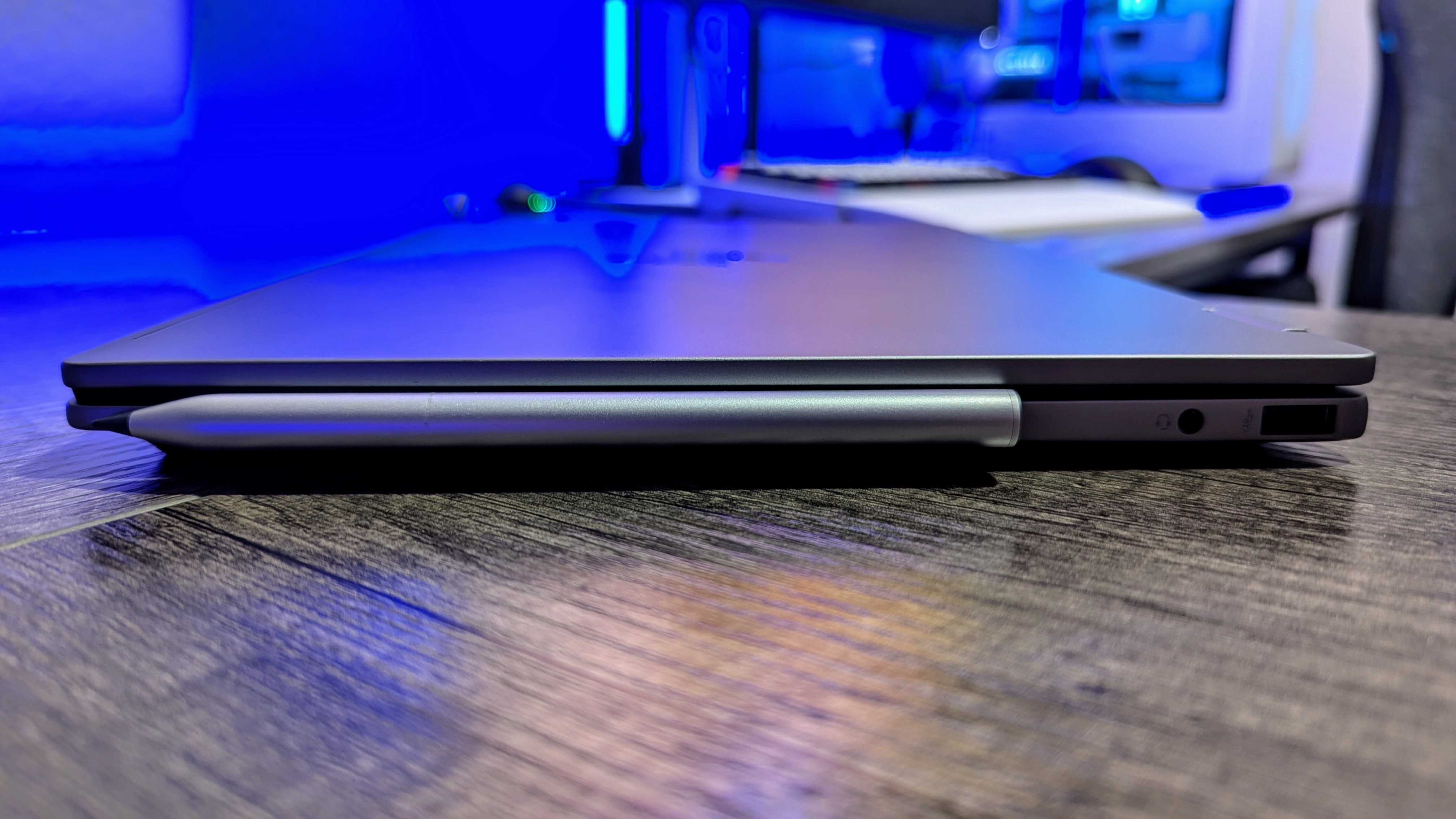
You get a nice number of ports, too, with twoUSBType-A 3.2 Gen 2, one USB Type-C 3.2 Gen 2, one HDMI 2.1, one 3.5mm audio jack, and oneUSB4(orThunderbolt 4) port. If you alsoget the HP Rechargeable MPP 2.0 Tilt Pen for$82.99 at HP(also sometimes on sale), it conveniently clips to the side of the OmniBook X Flip with some shockingly strong magnets, too.

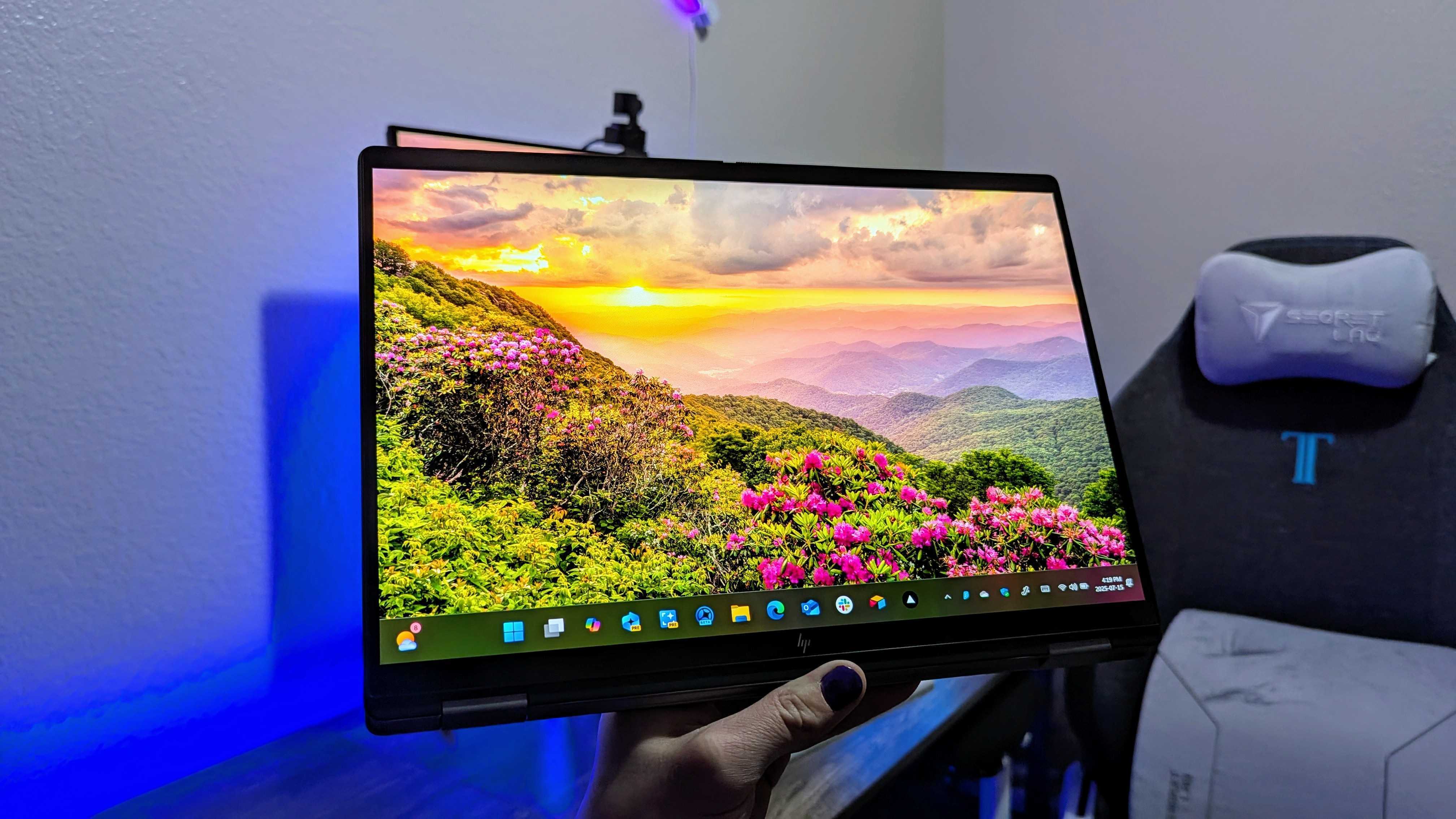
Up front, you’ll find one of three multi-touch displays. My review sample boasts the highest-end panel, and one that we’ve seen on a lot of premium laptops — a 2.8K, 120HzOLEDdisplay with excellent color accuracy and performance. It’s still a beautiful display, but it’s honestly not the screen I recommend.

This laptop shines the most on the lower end of its price range, where it’s equipped with a 1200p IPS LCD display. It’s not nearly as fancy, but you’ll save yourself a decent chunk of change and get better battery life. That’s also the display you’ll find on all the configurations at Best Buy and the models that most often go on sale.

>>>Replacement battery for HP EliteBook 840 G11

Choosing between power or battery life

Most of HP’s highest-end laptops don’t provide much in the way of choice, which is always a shame. The OmniBook X Flip falls just under that line, though, and you get a wide range of configuration options.

Sure, that means choosing between the fancy OLED panel and the “basic” IPS LCD alternative, or choosing how much memory and storage you want, but it also means choosing betweenAMDand Intel chipsets.

You’ll get good performance with the OmniBook X Flip no matter what, but there’s an obvious difference between the AMD and Intel versions.

My review configuration is equipped with anAMD Ryzen AI7 350, but you can also go up to anIntel Core Ultra7 258V on the blue side. Speaking of blue, there’s also the option for a beautiful, dark blue colorway with Intel models, which I desperately wish I had received for review.

Either way, bothIntelandAMDversions are physically the same laptops for the most part, and both offer the sameAI PCandCopilot+ PCfeatures, including all of HP’s ownartificial intelligenceadditions. So, which should you choose? The answer is surprisingly straightforward.

>>>Replacement battery for HP EliteBook 440

Image of the HP OmniBook X Flip 14 (2025) laptop.

HOW TO USE AN APPLE WATCH TO TRACK STEPS WHILE ON A WALKING PAD

Man using walking pad while working

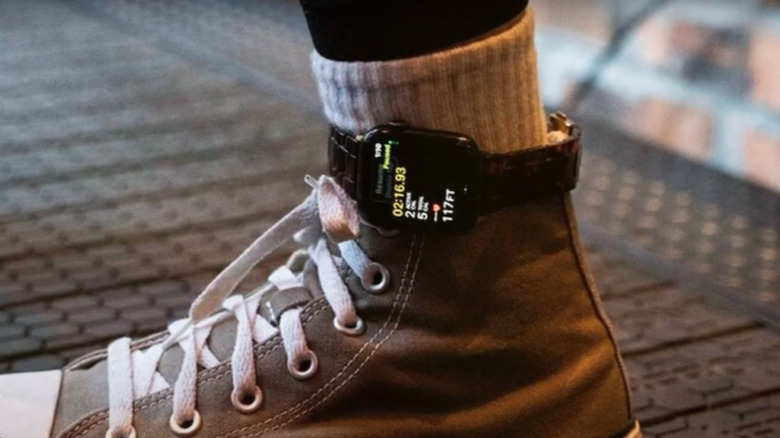
Walking pads have become a popular way for many people with sedentary jobs to get in a few extra steps during their workday. These minimalist treadmills fit under your desk, making it possible to get some exercise in without leaving your workspace and keyboard behind. That’s why many consider them to be an underrated high-tech smart office product, especially for the fitness-minded. While there’s no question that walking pads make it much easier to stay active at your desk, if you want to track your steps with your Apple Watch, you might find that the numbers aren’t adding up. That’s because the Apple Watch counts steps based on how often you move your wrist.If you’re typing on your computer or resting your arms on your desk, your Apple Watch may not recognize that you’re actually walking and assume you’re standing still, even if your feet are busy moving beneath your desk. The good news is there’s a workaround that’ll allow you to track your steps more accurately while on a walking pad: simply wear your Apple Watch on your ankle instead of your wrist. This might sound like a strange fix, but placing the watch on your ankle can help the device track your steps more accurately than when your arms are in a stationary position. If you log lots of hours on a walking pad while working, this simple change can make a big difference in your step count at the end of the day.>>>Replacement battery for Apple Watch Series 8 41mmWearing your Apple Watch on your ankle can give you more accurate step counts

Person wearing converse hightops with Apple Watch strapped to ankle

In most situations, tracking your steps using an Apple Watch is pretty straightforward. Once the watch is strapped onto your wrist and you’re moving naturally, it automatically counts your steps throughout the day. Your Apple Watch uses a combination of its accelerometer and gyroscope to track the number of steps you take, with the movement of your wrist playing a role in how it counts your steps. When your hands are busy typing or resting, which is often the case if you use a walking pad at work, the watch won’t detect much movement, even if you’re actually walking the whole time.Shifting your watch from your wrist to your ankle can help you bypass this limitation because foot motion still produces a consistent impact pattern that the accelerometer can pick up, allowing it to track your steps more reliably. In gym circles and on social media, this ankle placement has become known as the “Apple Watch hack,” with users on TikTok, Reddit, and other platforms saying this simple adjustment results in better step counts when you’re doing an activity that doesn’t involve moving your wrists. While these reports are anecdotal and Apple hasn’t officially endorsed the trend, if you’ve found your Apple Watch undercounts your steps when you’re using a walking pad, wearing it on your ankle could be a simple way to get more accurate results.>>>Replacement battery for Apple Watch Ultra 49mm S8What are the pros and cons of wearing your Apple Watch on your ankle?

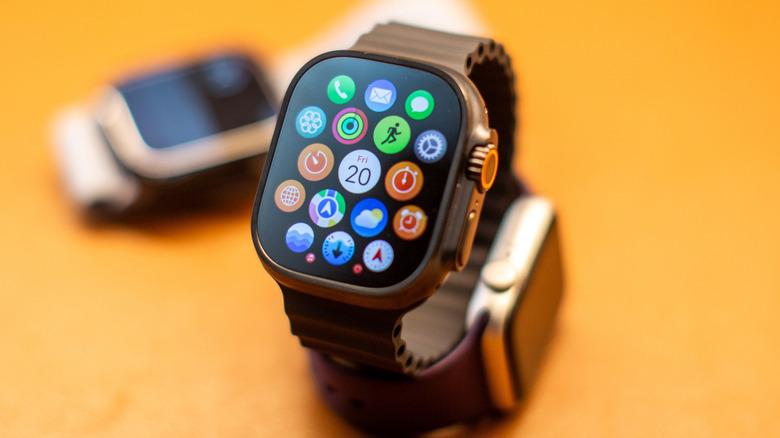
Close up of Apple Watch and apps with two Apple Watches in the background

Whether you’re trying to track steps while on a walking pad or pushing a shopping cart, strapping your Apple Watch to your ankle can make a real difference in your step count. This increased accuracy might help you use your Apple Watch to track calories burned more accurately, giving you a more accurate picture of your daily activity and overall fitness. You may also find ankle placement more comfortable if you have small wrists, tattoos that interfere with its sensors, or if your Apple Watch’s band irritates your skin. As useful as wearing your Apple Watch on your ankle can be, it does come with a few downsides. Apple designed its watch to track step counts using your wrists, and its algorithms are designed for that. If you move your Apple Watch to your ankle, you might notice readings for things like calorie burn, distance, or active minutes are unreliable or inconsistent. However, some users who’ve tested the ankle placement say they haven’t noticed much of a difference. Wearing your Apple Watch on your ankle can look a bit hard and make it harder to check notifications and use features like Apple Pay. But if you’re only strapping it to your ankle while walking at home, those trade-offs don’t really matter. Plus, you get the added benefit of improving your step count accuracy.

After weeks of testing, the new Razer Blade 16 is the gaming laptop I’d happily take anywhere

Serious performance muscle, now in an even skinnier shell.

Razer Blade 16 (2025) review lead

Stuff Verdict

The Razer Blade 16 (2025) is a gaming monster, naturally, but also has fantastic battery life and a stunning screen. If you can afford one, it’s a fantastic ultraportable powerhouse.

Pros

  • Immense gaming muscle and desktop performance
  • Gorgeous, high refresh rate OLED screen
  • Genuinely impressive battery life for a gaming laptop

Cons

  • Screen is very reflective
  • Ruinously expensive with an RTX 5090

>>>Replacement battery for Razer Blade Ryzen 14 2021 2022

Introduction

I’m not a fan of having to pick between high frame rates and portability. The most powerfulgaming laptopsare usually the biggest and heaviest – and rarely last more than a few hours as soon as you unplug their brick-like power adapters. Or at least, that used to be the case. Manufacturers have gotten much better at emphasising slimness and sleekness, without compromising on hardware. The new Razer Blade 16 might’ve just taken that to the extreme.

At a mere 17mm thick, it isn’t that far off a modern MacBook Pro’s dimensions, yet it finds room inside for top-tier Nvidia RTX 5090 mobile graphics. Razer has also opted for AMD internals for the first time to maximise battery life, and brought OLED display tech into the mix.

The laptop equivalent of a supercar never comes cheap, of course. The Blade 16 starts $2400/£2100 with an RTX 5060 GPU, but climbs up to a heady $4500/£3900 for the version tested here – and you can push that figure even further if you want extra RAM or storage. That puts it in the same ballpark as the equally svelte Asus ROG Zephyrus G16. Does the Razer do enough to justify its asking price?

>>>Replacement battery for Razer Blade 15 Base 2020

Design & build: slender fan

Razer Blade 16 (2025) review lid
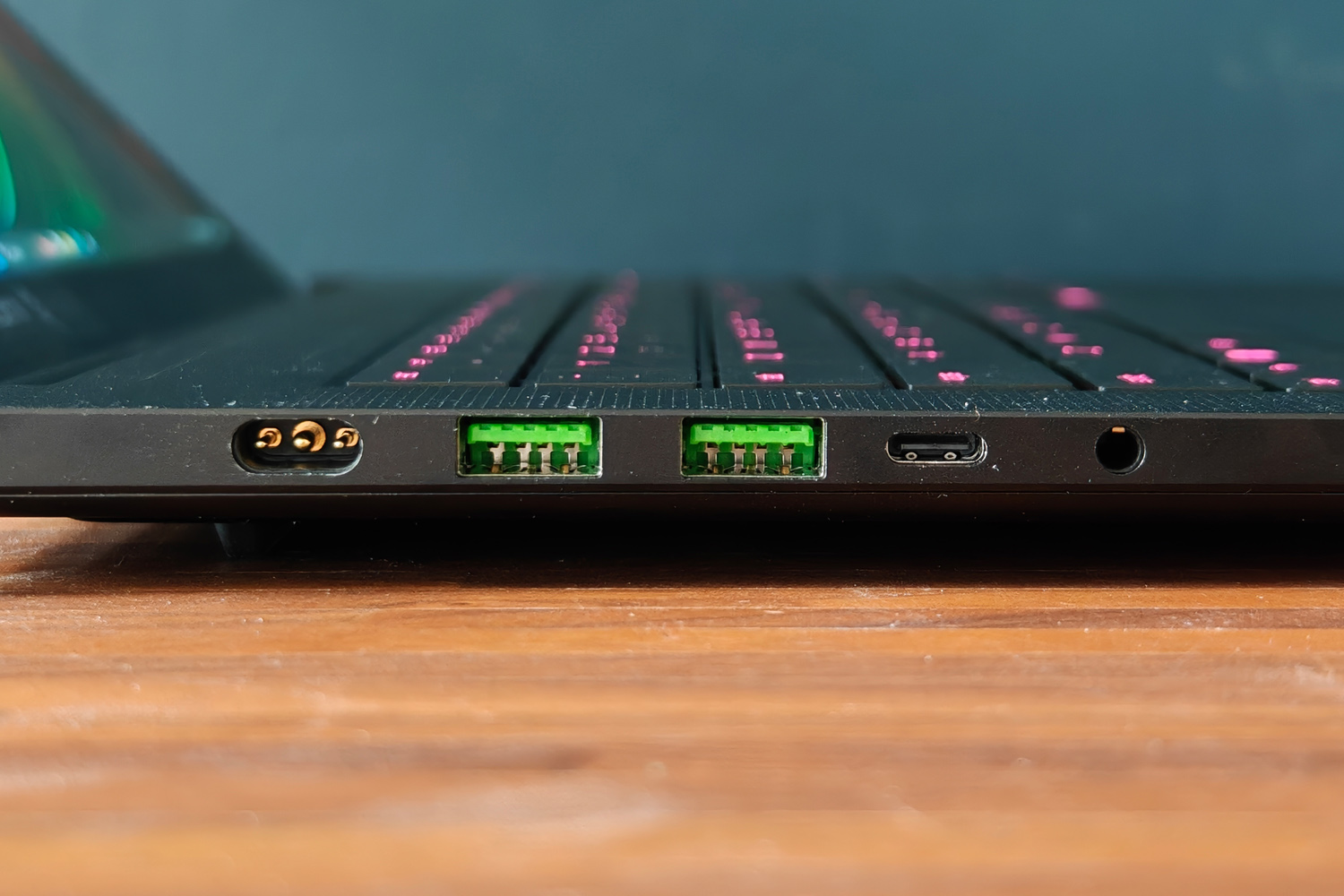
Razer Blade 16 (2025) review ports left
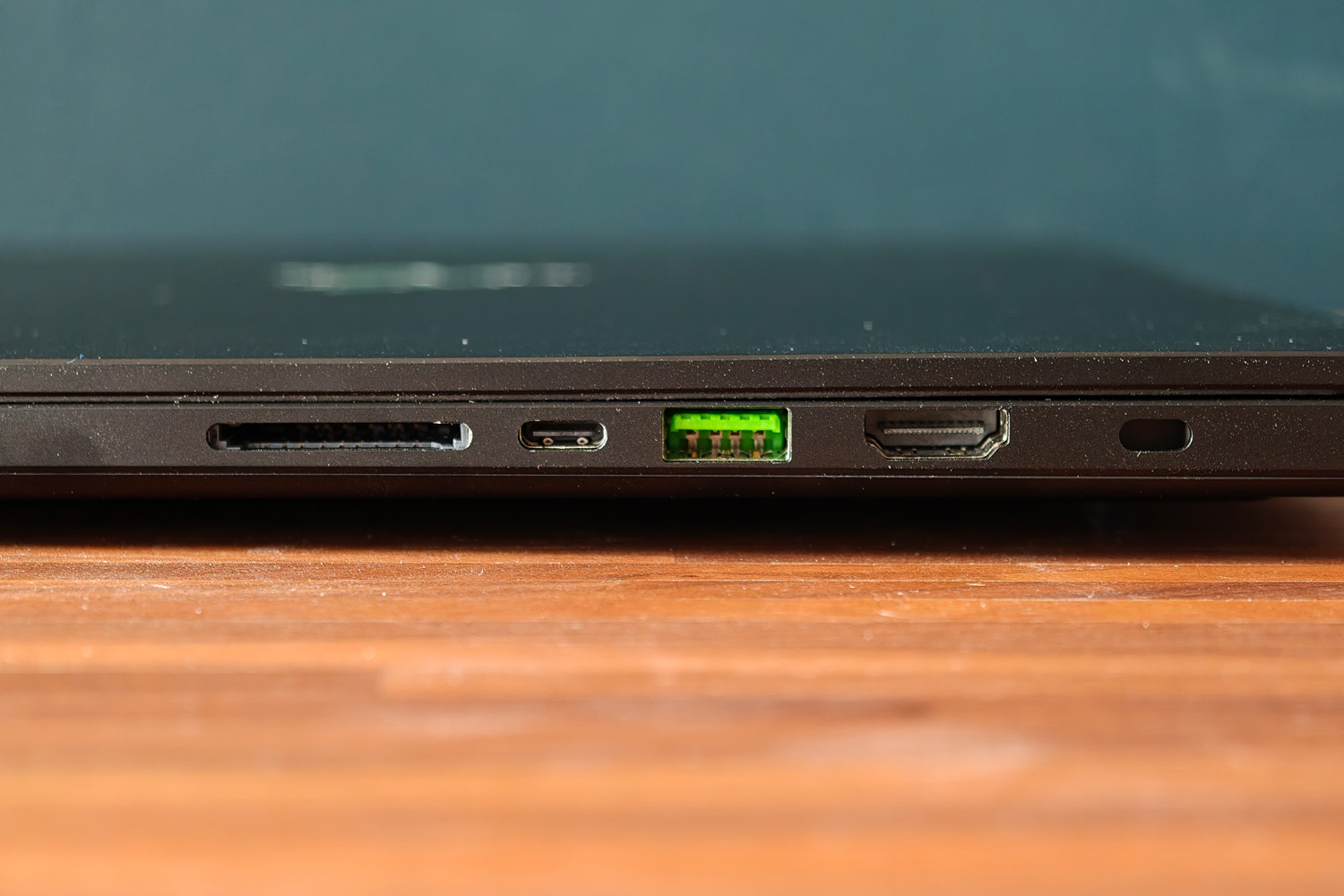
Razer Blade 16 (2025) review ports right

Side by side with a2023-era Blade(the last to use the old chassis), it’s seriously impressive how much skinnier this new model is – despite having to make room inside for some particularly toasty components, not least the RTX 5090 GPU. Cleverly, Razer has pulled this thinning off by actually making the new laptop larger.

The 5mm of depth that’s been shaved off has been added to the length of the laptop instead, but you’d only notice with a direct comparison. The footprint has barely grown, and it won’t affect the sort of backpacks or laptop bags the Blade will slide into. That’s handy, as given the new model is over 300g lighter than the old one, you’re going to want to take it on the move a lot more.

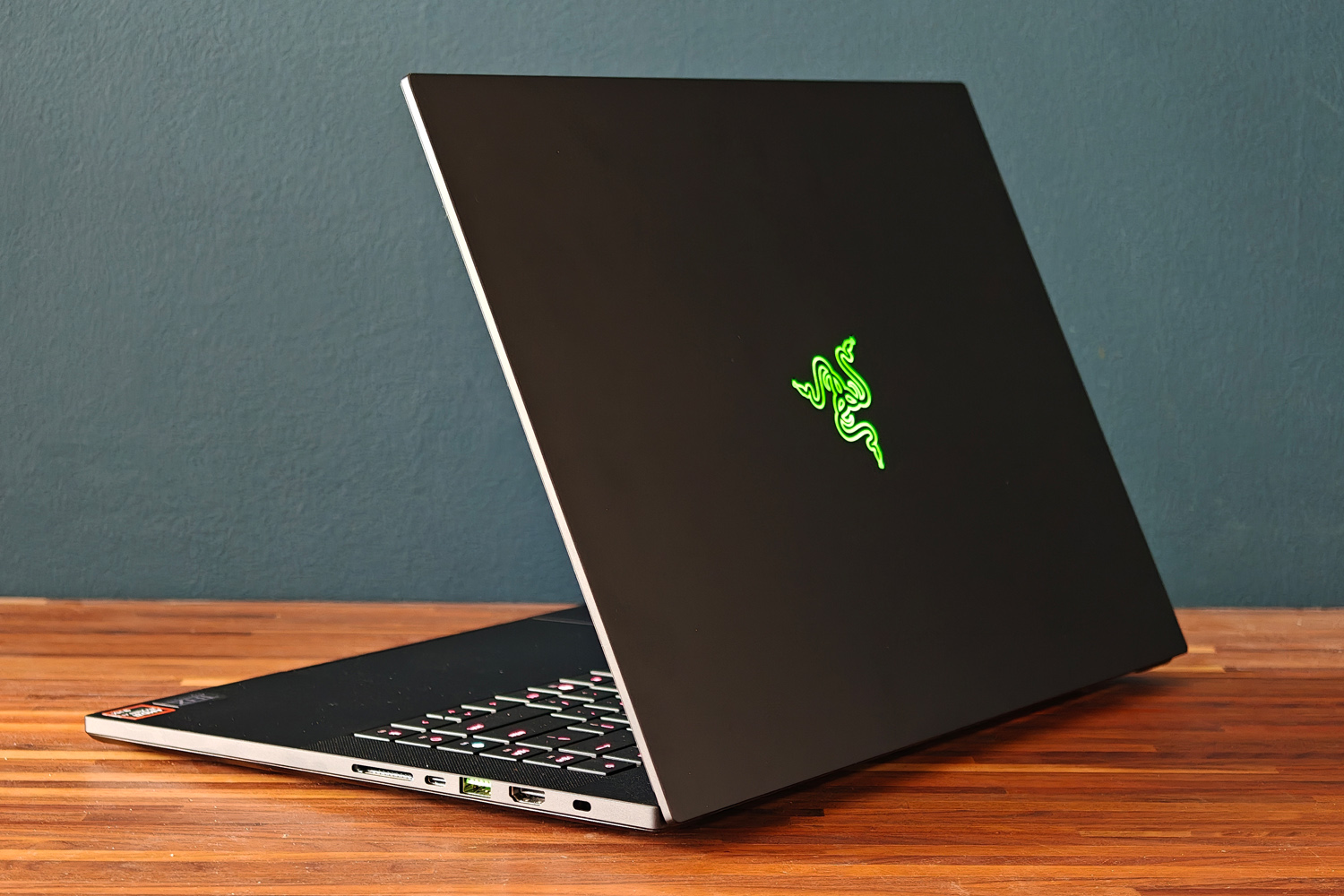
I’ve long seen Razer laptops as the yin to Apple’s yang, and that rings true again here. There’s a clear family resemblance in the milled aluminium unibody, subtle Ouroboros logo on the lid, and green accented USB ports at the sides. The matte black finish is treated to prevent wear, and does a decent job at minimising fingerprint smudges too. It looks mean, without also being shouty; as gaming laptops go, it’s wonderfully subtle unless you know what you’re looking at.

The Blade also gets a big thumbs up for not skimping on connectivity in the name of slimness. You get two USB-Cs (one USB4, one USB 3.2) and three USB type-As, as well as full-size HDMI, a 3.5mm combination headset port, and a full-size SD card reader. Having them all at the sides makes it impossible to keep cables out of sight when gaming at a desk, but convenient for quickly plugging in peripherals.

>>>Replacement battery for Razer Blade RZ09-01302E22 RZ09-0102 RZ09-01161 RZ09-01301E41

Keyboard & touchpad: happy taps

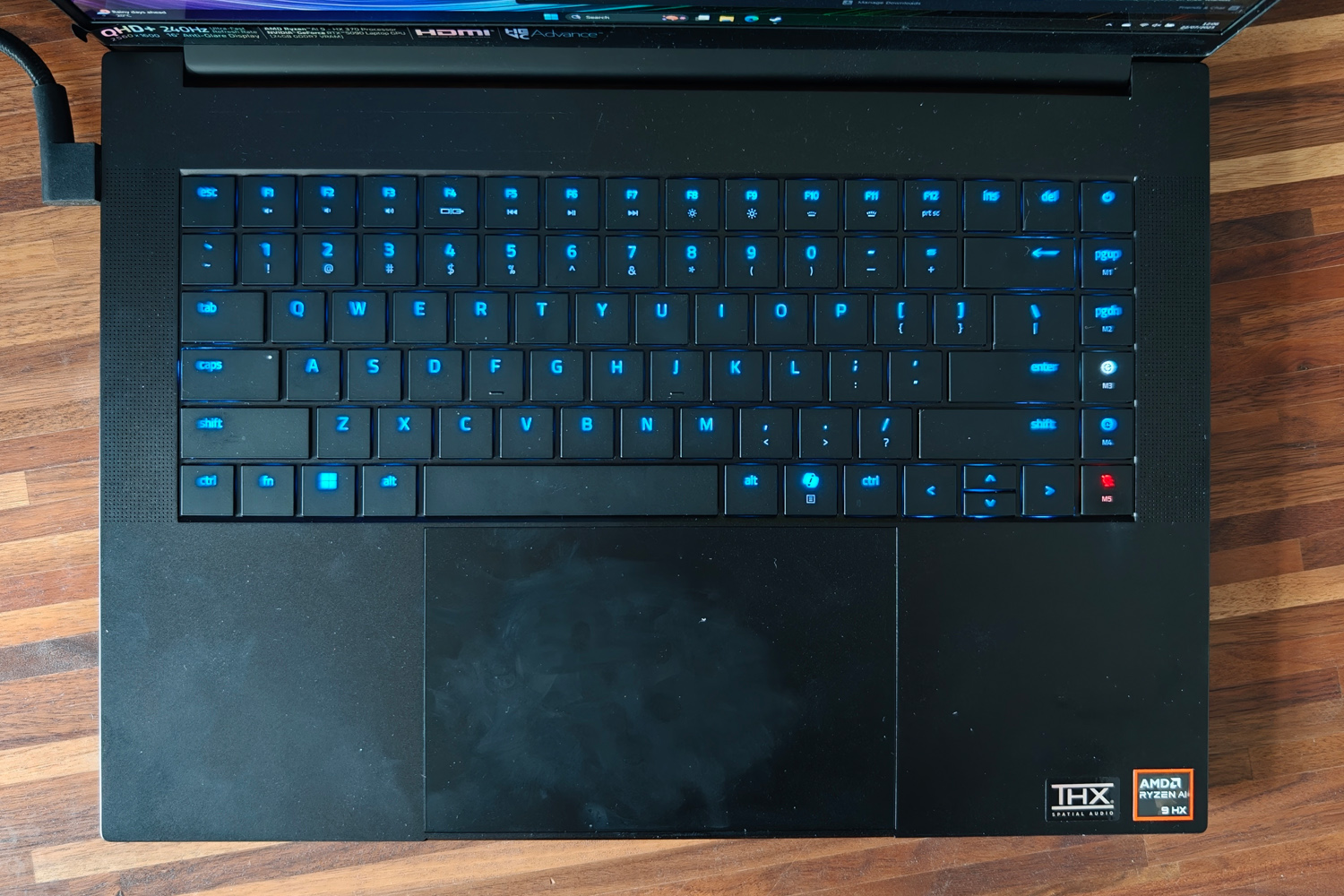
Razer Blade 16 (2025) review keyboard
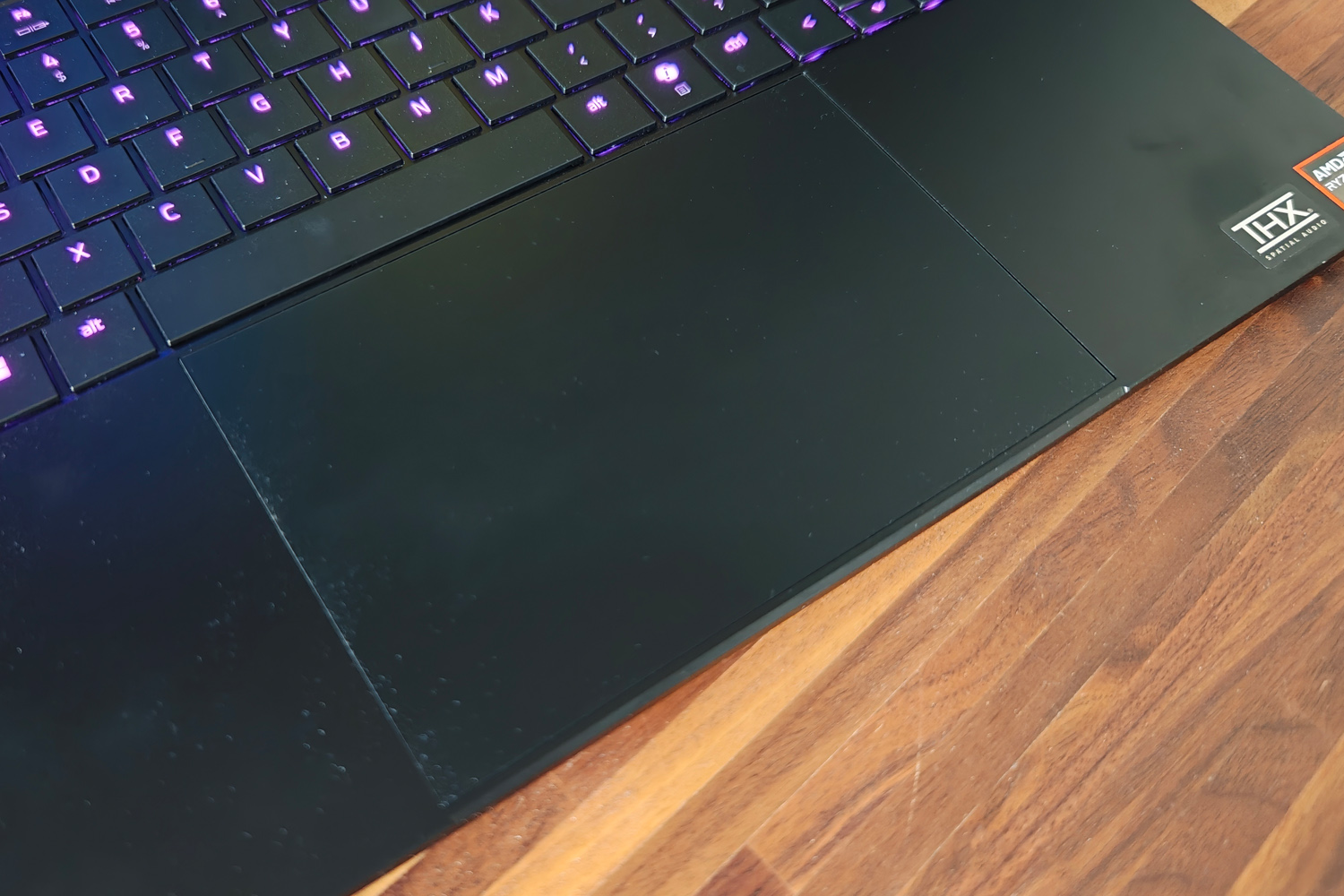
Razer Blade 16 (2025) review touchpad
Razer Blade 16 (2025) review macro keys

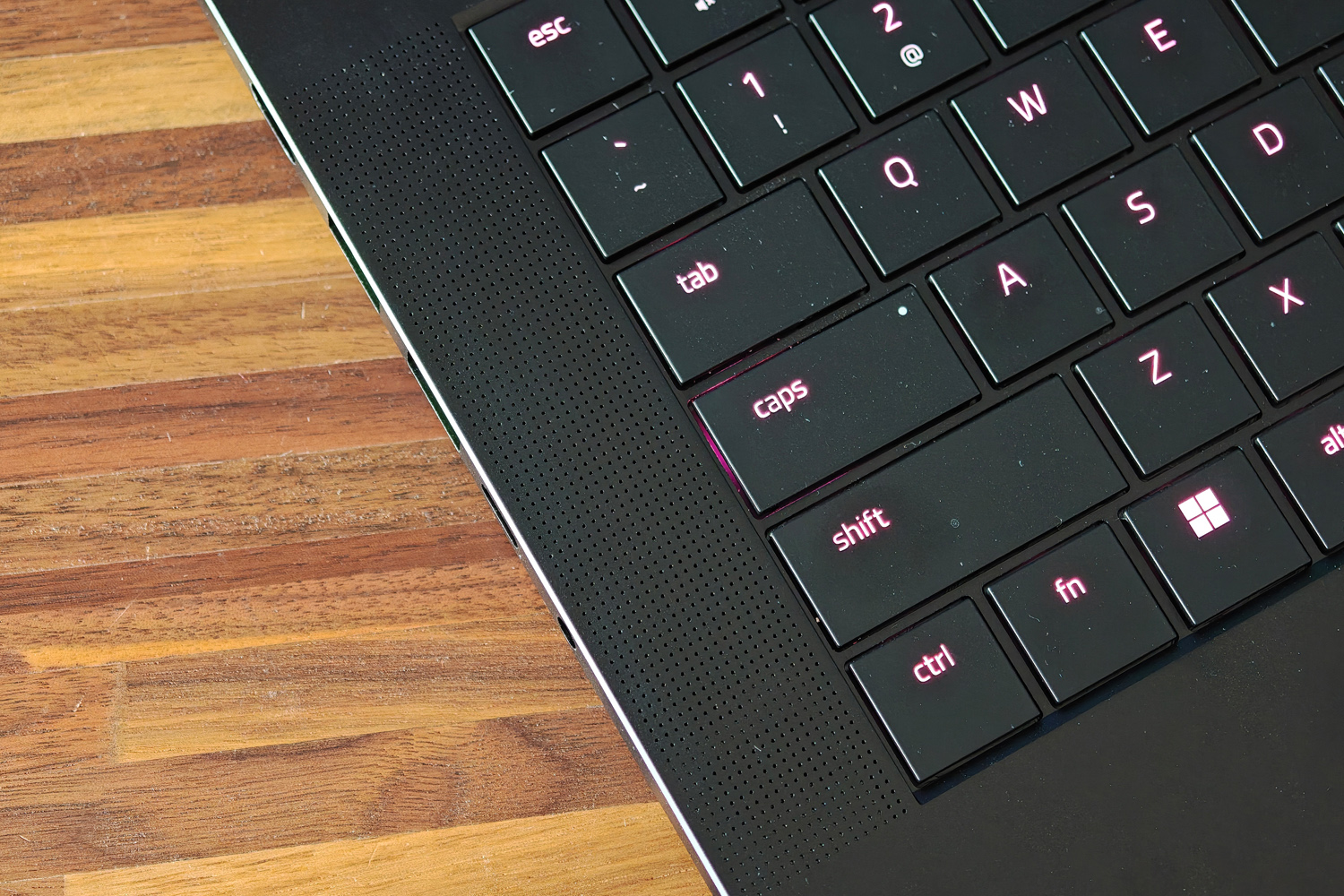
Older Blades weren’t the greatest laptops to type on, but this new one is a treat for your fingers. There’s 50% more key travel than the last-gen chassis got, and the actuation force has been adjusted so it feels like you’re pressing down with purpose before an input is detected. It’s fairly quiet to tap away on unless you type like you’re hammering nails, and each island-style key is comfortably spaced apart. It did take me a few hours to get used to how flat it all is, with no key recesses to help place your fingers.

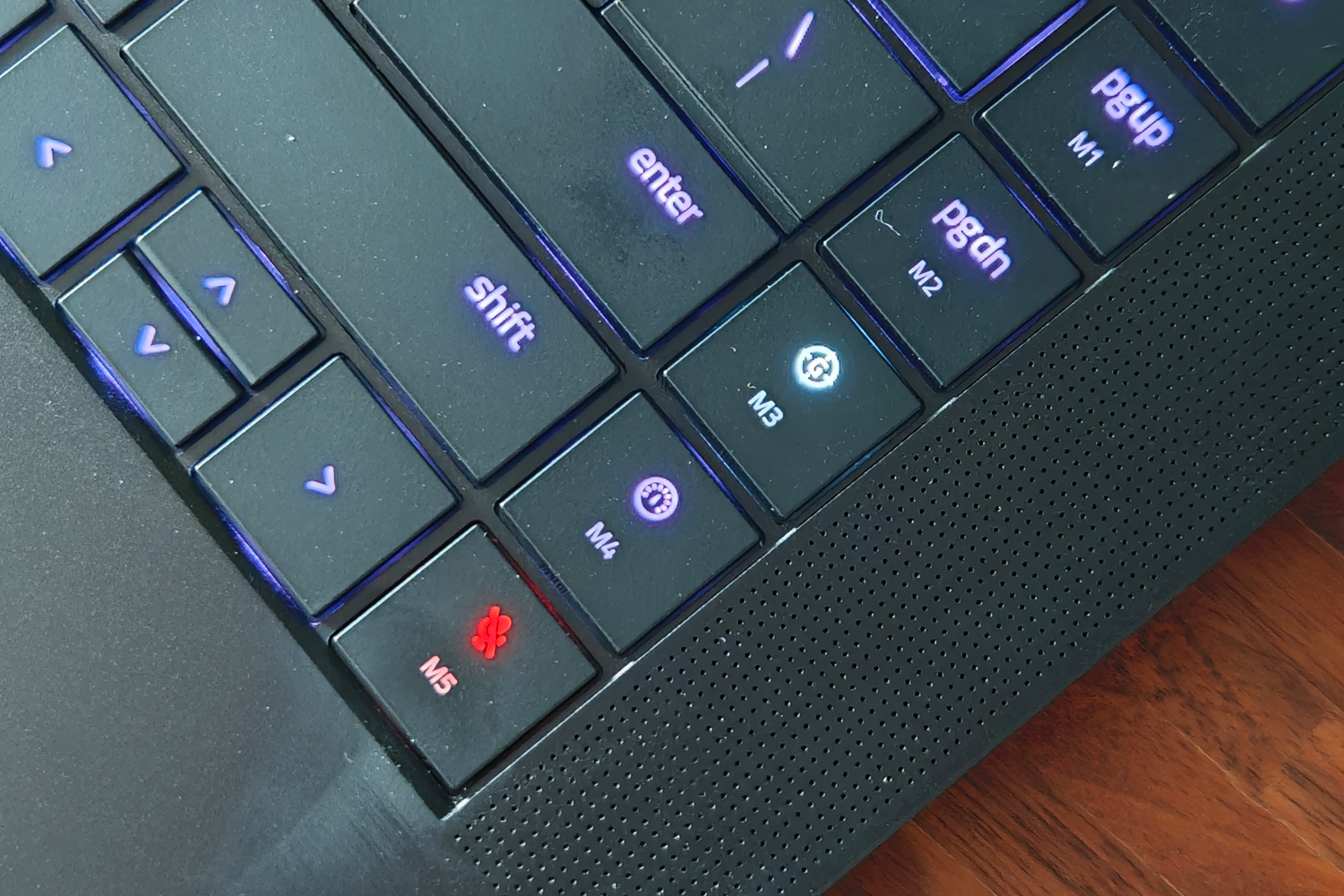
Sensibly Razer hasn’t tried to shoehorn in a numerical keypad, but has found a bit of space at the edge of the board for a few customisable macro keys. Holding down the fn button also switches the per-key RGB backlighting to highlight the top row’s multimedia functions, making things like screen brightness and the mute key far easier to find. Doubling up on LEDs for these keys mean each key cap is perfectly lit, with next to no light bleed around the edges. You can customise the lot through Razer’s Synapse software, too.

While I default to a wireless mouse for pretty much anything outside of the Windows desktop, the Blade’s touchpad is a fine substitute when away from a desk. It’s huge, with a low-friction surface that makes cursor movement a breeze. It’s accurate and has a firm physical click action.

Screen & sound: how refreshing

Razer Blade 16 (2025) review display
Razer Blade 16 (2025) review speakers
Razer Blade 16 (2025) review webcam

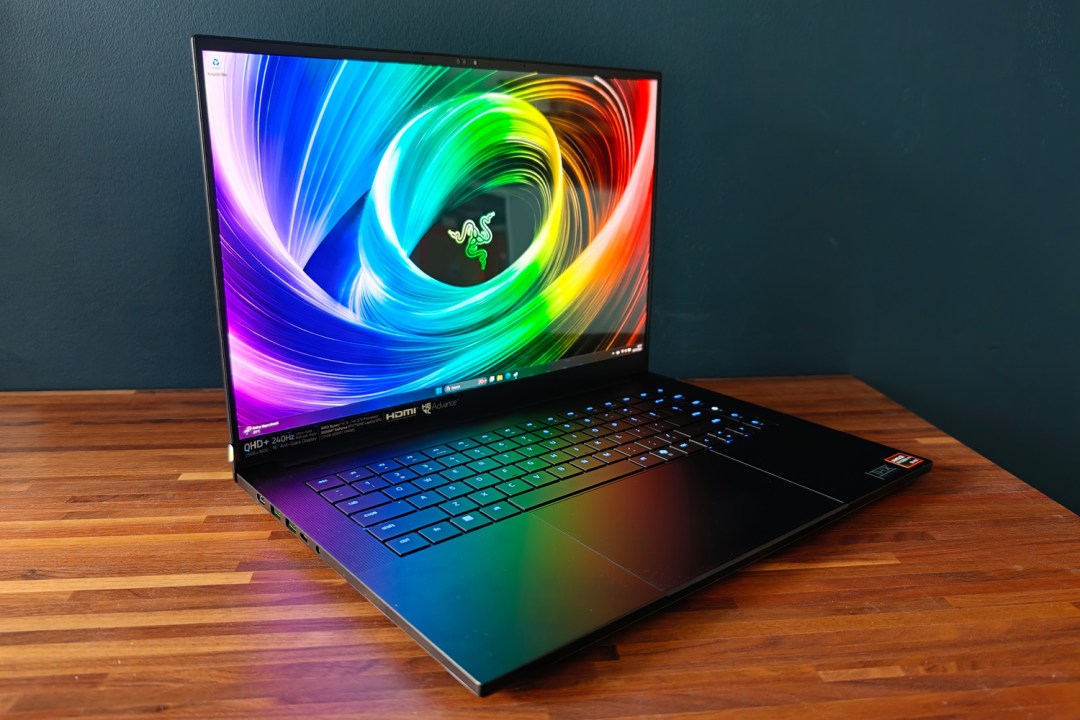
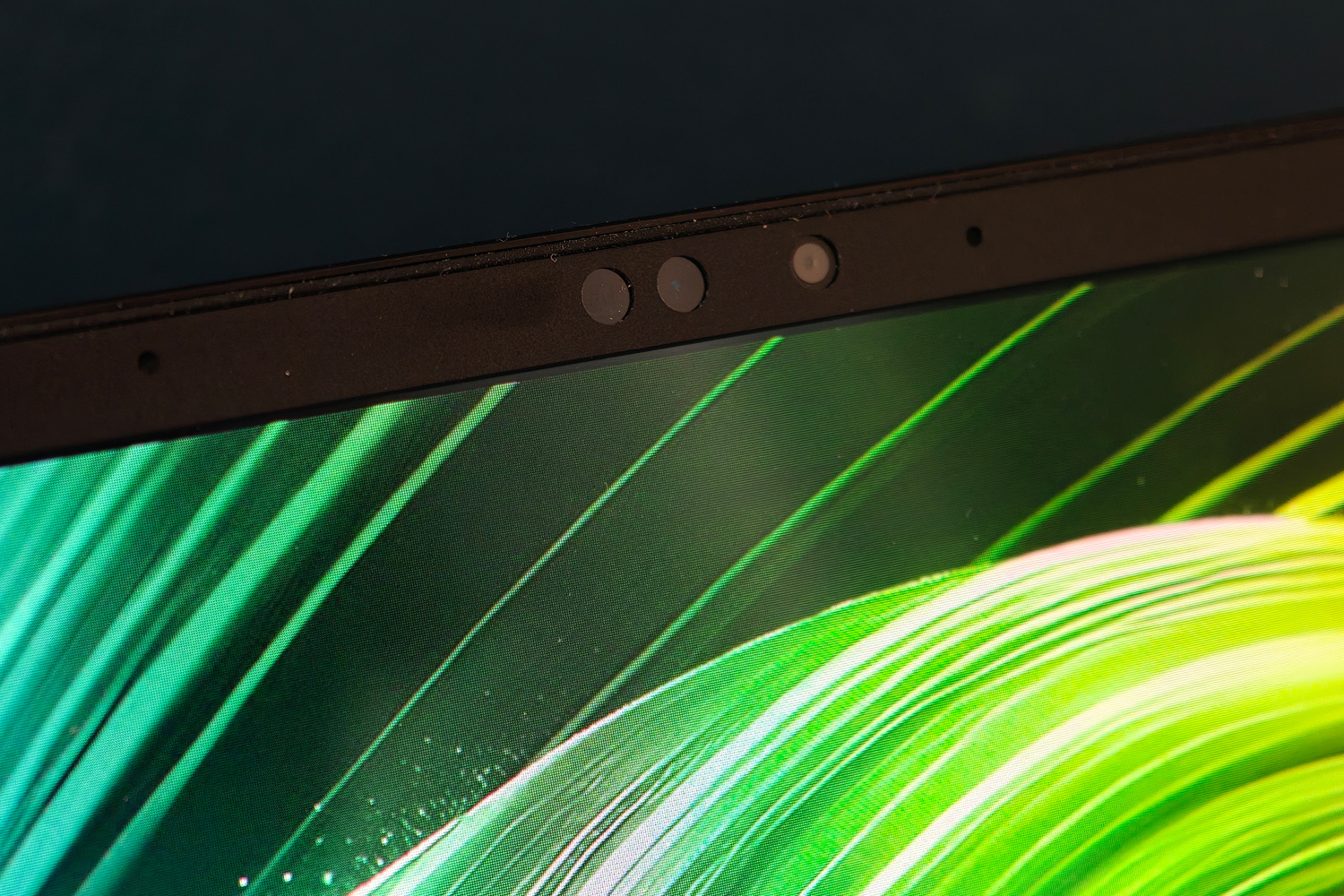
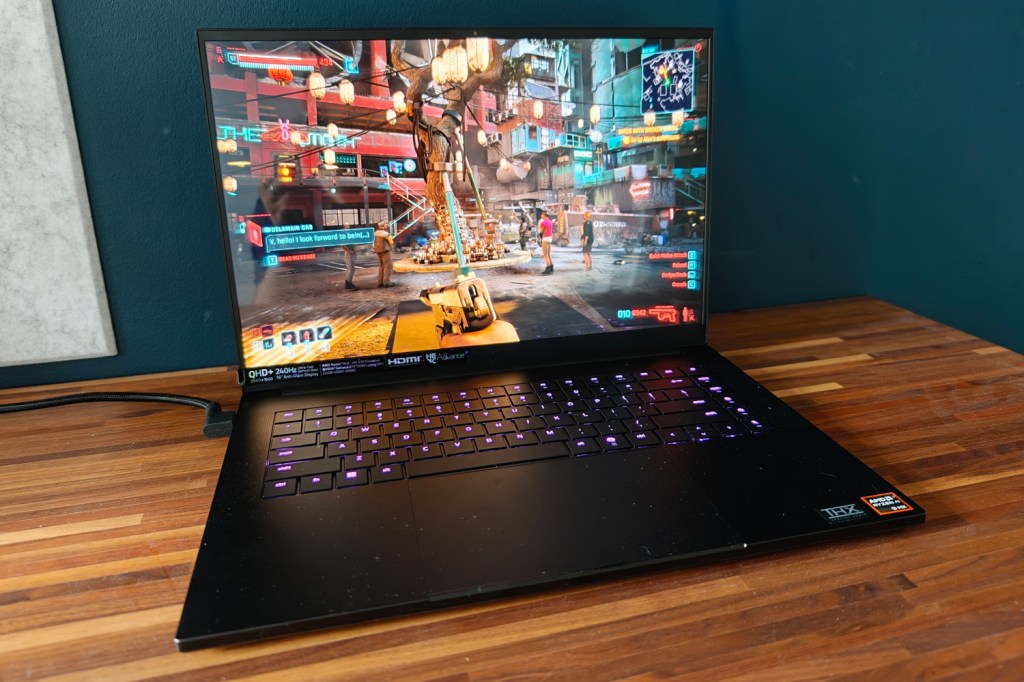
Regardless of what spec you choose, every Blade 16 gets the same QHD+ resolution display. I’m not complaining – it’s an absolute stunner, and I rarely used the last-gen Blade’s dual resolution mode anyway. Here you’re getting a 2560×1600 OLED with a rapid 240Hz refresh rate, which is ideal for hectic multiplayer gaming. While some LCD screens claim even faster refresh rates, OLED tech has inherently faster response times, so you’re getting a gloriously smooth presentation here. Variable refresh all but prevents tearing when frame rates dip below 60fps, too.

OLED also means there’s none of the light bloom or halo effect you got on the old Blade’s mini-LED panel – just perfect blacks and impeccable contrast, which give dimly lit movie scenes and dark game levels outstanding amounts of depth. Colours are deliciously vibrant, helpingCyberpunk 2077’s Phantom Libertyexpansion feel even more immersive than usual.

There’s a decent amount of brightness on tap, which helps give HDR content some welcome extra pop. Pretty much the only downside is how reflective the panel is; even at full whack, sitting by windows or underneath bright lights can be quite distracting.

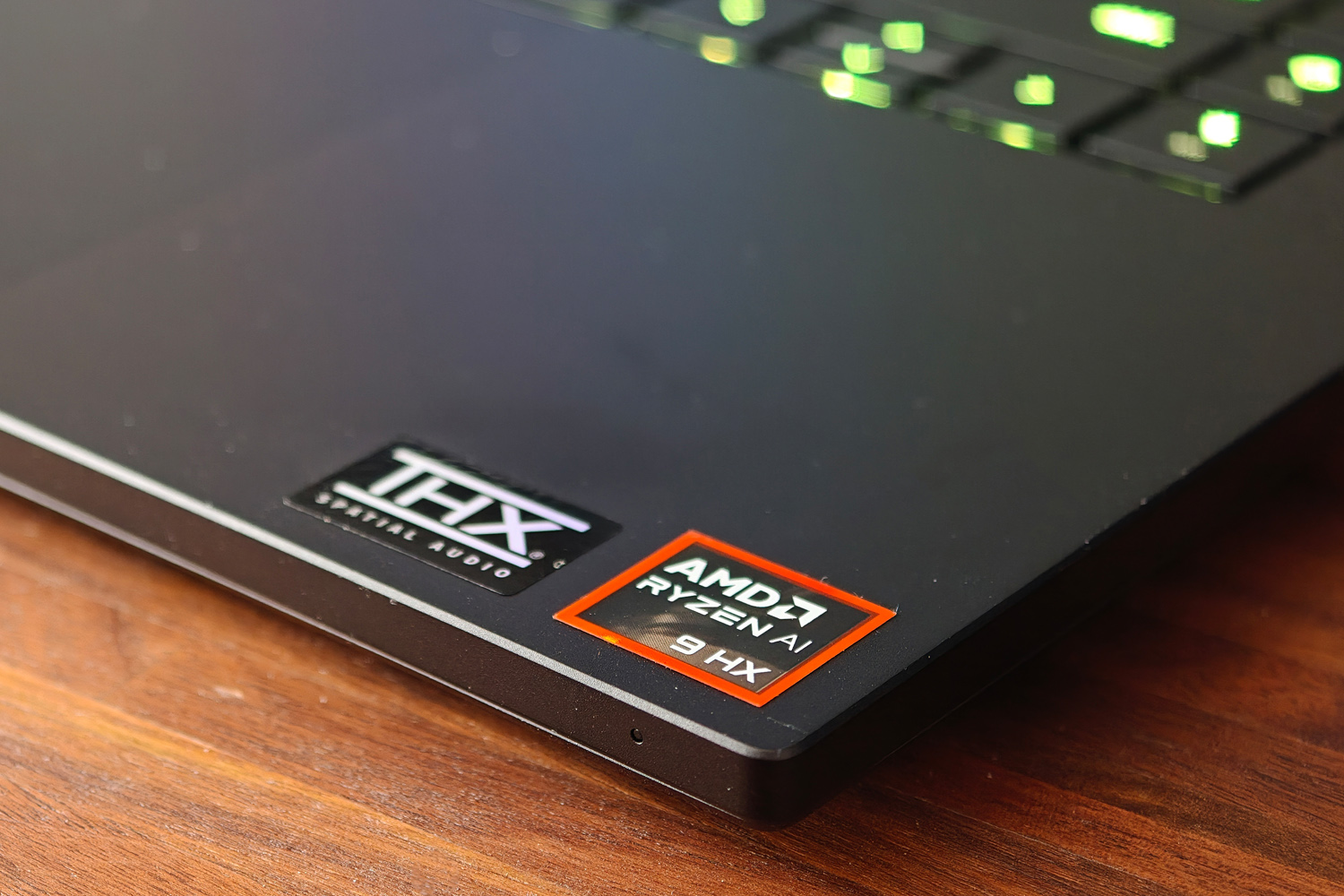
The six-speaker sound system is a great match to the screen, getting impressively loud and with decent amounts of bass for a laptop. The mid-range is clear, and THX Spatial Audio does a convincing impression of surround sound. Treble could use just a little extra bite, but I didn’t ever feel the need to plug in a headset unless I was gaming – and that was partly down to fan noise. The internal fans spin up to a noticeable degree as soon as you boot into a game, and are impossible to ignore when run at their maximum.

Performance: graphical greatness

Razer Blade 16 (2025) review Doom
Razer Blade 16 (2025) review AMD logo
Razer Blade 16 (2025) review Counter Strike

Razer used to be all-in on Intel, but has made the switch to AMD power for this laptop generation. The Blade 16 kicks off with an AMD Ryzen AI 9 365, but steps up to a Ryzen AI 9 HX 370 once you add RTX 5090 graphics to your order. I’ve seen this twelve core, 24-thread chip in larger gaming laptops, but this is the first time I’ve tried one in such a skinny chassis. In my review unit it’s paired with a 2TB NVMe SSD and 32GB of RAM.

For desktop duties, AMD’s silicon trades back and forth with the last-gen Intel Core chips. The gap is fairly small, and there’s ample oomph for all sorts of creative jobs like image editing. Synthetic tests show very little in the way of penalty for going slim, being roughly on par with the 18inMSI Stealth A18 AI+. Certain tasks – like video encoding – are just better suited to Intel’s architecture, so keep in mind that newer doesn’t always mean better – though AMD comfortably wins out on efficiency. More on that below.

Razer Blade 16 (2025) productivity benchmark scores
Geekbench 6 single-core2966
Geekbench 6 multi-core15488
Geekbench AI7643

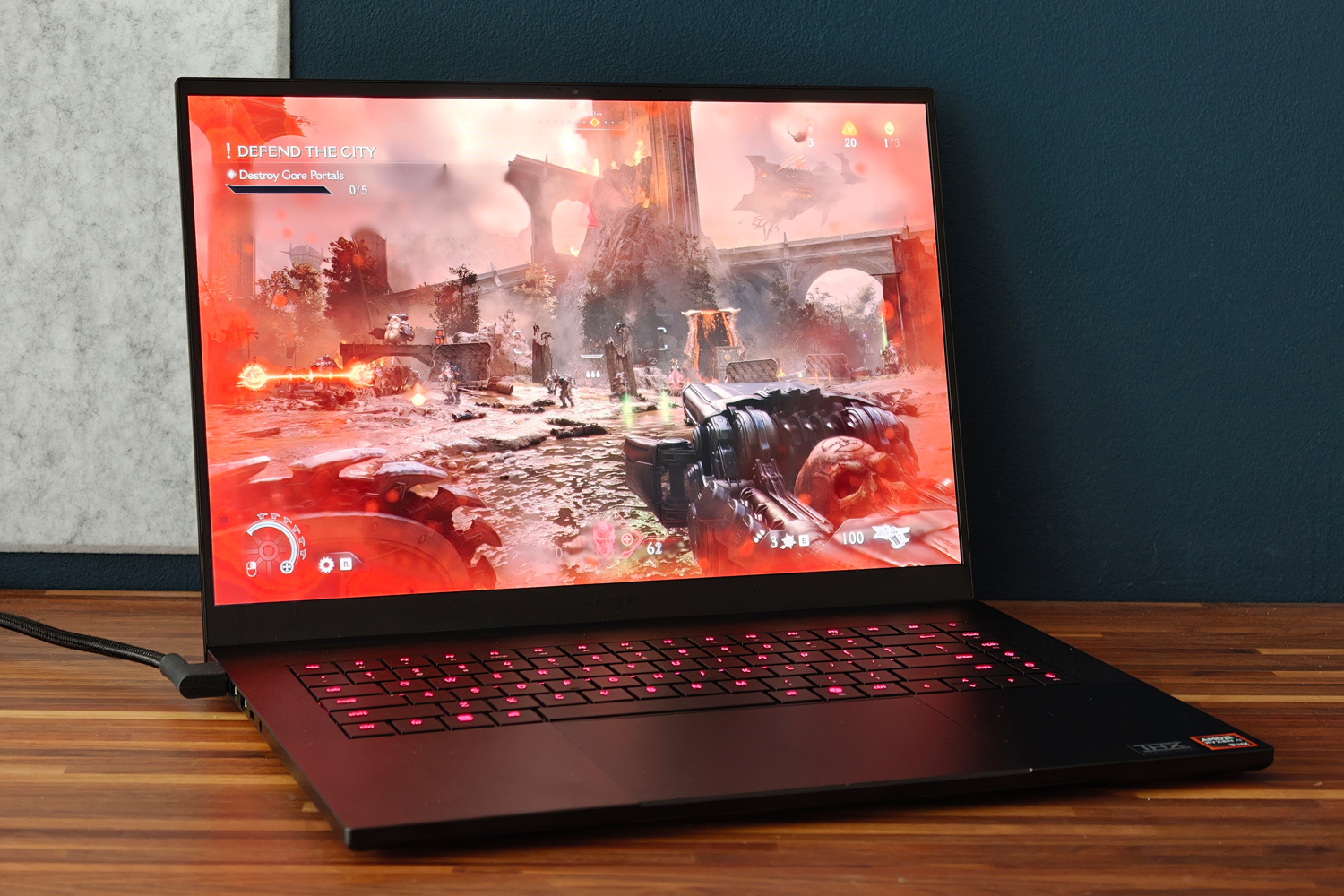
You don’t buy a Blade 16 to just work on the Windows desktop, of course. It’s gaming where this laptop truly shines, the RTX 5090 GPU and its whopping 24GB of video memory absolutely churning through modern titles. At the 2560×1600 native resolution, none of the titles I tried ever dipped below 60fps as long as ray tracing stayed disabled.Counter Strike 2comfortably saw frame rates in the 100-200fps range, which should be ideal for serious esports gamers.

Ray Tracing can still make the hardware sweat, Nvidia’s upscaling tech is on hand to assist. DLSS 4.0 and multi-frame generation are scarily good, creating entirely new frames without the tearing, blurriness or input delay seen on previous iterations.Cyberpunk 2077saw huge gains, from a barely playable 24.4fps with maximum path tracing but no upscaling, to a far smoother 53.9fps with DLSS.Doom: the Dark Ageswas equally impressive, running smoothly even when the screen was filled with demons.

This is the fastest mobile GPU money can buy, hands down – but native rendering performance isn’t a huge leap from the previous generation, and the RTX 5080 isn’t that far behind. It’s only with DLSS and multi-frame generation enabled that the 5000 series shows a truly generational leap from the 4000 series, and even then 4K gaming at maximum settings with ray tracing still looks out of reach in some titles. The Blade 16’s more restrictive thermals also limit the 5090’s potential a little, but not to the extent that games aren’t playable. Frame rates never dipped at any point, even during a marathon play session.

Razer Blade 16 (2025) gaming benchmark scoresNative rendering (2560×1600)DLSSupscaling
3DMark Steel Nomad5821N/A
Cyberpunk 2077 (RT Overdrive)24.43fps53.9fps
Cyberpunk 2077 (Ultra, RT off)91.42fps111.05fps
Shadow of the Tomb Raider (RT on)119fps148fps
Shadow of the Tomb Raider (RT off)156fps161fps
Gears Tactics130.6fpsN/A

Arguably what impressed me most when benchmarking the Blade 16 was how long it lasted while away from the mains. When looping a local video at 50% brightness, I was getting close to ten hours. That’s way more than I managed from the old Intel-powered Blade. Desktop working should see you closer to six or seven, which might be enough to see you through an entire working day – if you aren’t tempted to game during your lunch break.

Depending on the title it can last between one and three hours here. That’s still not a bad showing for a laptop with a green this big and a GPU this power-hungry.

Razer Blade 16 (2025) verdict

Razer Blade 16 (2025) review Cyberpunk

Razer laptops have always carried a certain gravitas, but I think the latest Blade 16 might be one of the first to truly deserve it. This is a gloriously potent gaming laptop, with the sort of screen you could happily stare at all day and enough ports at the sides to become a very effective desktop replacement. Yet it also has a long-lasting battery and is light enough that you can happily take it on the move.

OK, it’s expensive, especially in 5090 guise – but name a laptop with that GPU that isn’t. The ‘Razer tax’ does mean you pay a premium over the likes of Asus, MSI or Lenovo, but you’re getting a design that’s almost on par with Apple for your money. If you have the funds, it’ll demolish any game you can throw at it for years to come.

Stuff Says…

Score:5/5

The Razer Blade 16 (2025) is a gaming monster, naturally, but also has fantastic battery life and a stunning screen. If you can afford one, it’s a fantastic ultraportable powerhouse.

Pros

Immense gaming muscle and desktop performance

Gorgeous, high refresh rate OLED screen

Genuinely impressive battery life for a gaming laptop

Cons

Screen is very reflective

Ruinously expensive with an RTX 5090

Razer Blade 16 (2025) technical specifications

Screen16in, 2560×1600, 240Hz OLED
ProcessorAMD Ryzen AI 9 HX 370
Memory32GB RAM
GraphicsNvidia GeForce RTX 5090 Laptop w/ 24GB RAM
Storage2TB
Operating systemWindows 11
ConnectivityHDMI, 1x USB4 Type-C, 1x USB 3.2 Type-C, 3x USB, 3.5mm headphone port, SD card reader
Battery90Whr
Dimensions355x251x17.4mm, 2.14kg

Hardware Laptops The HP EliteBook X G1a is a classy, capable and almost great laptop

A premium-feeling 14-in laptop that can tackle most applications without breaking a sweat – only the battery life disappoints

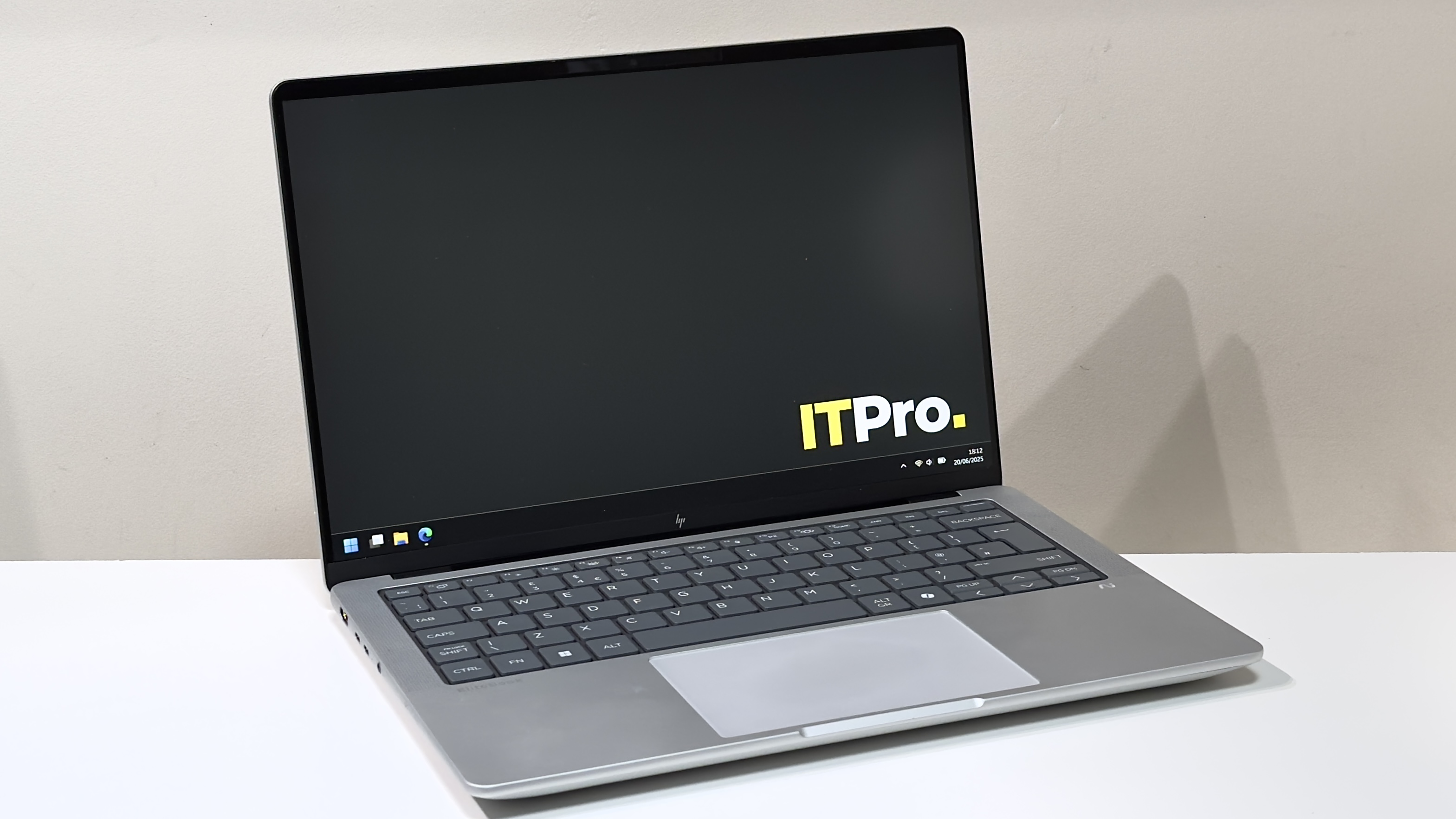
The HP EliteBook X G1a on the ITPro background

Reasons to buy

  • +Premium build and looks
  • +Competitive CPU and GPU performance
  • +Good keyboard and touchpad

Reasons to avoid

  • -Screen quality should be better
  • -Middling battery life
  • -Could be a bit lighter

Elite is a word that indicates excellence. The very best in its field. By that definition, you’d be forgiven for having unreasonably high expectations for the HP EliteBook X G1a. But let’s cut to the chase. It is not excellent. And it most certainly is not the best. What it is, however, is good – in some ways, great. You may want to consider buying it.

The EliteBook X gets off to a strong start. With a design brief that challenges it to distil the core talents of its pricier EliteBook Ultra sibling while trimming the luxuries, it’s good to see that it retains the burly all-aluminium build,Copilot+certification, and Thunderbolt 4 connectivity. Set your sights on the pricier models, and OLED is an option, too.

Meanwhile, the 14-inch chassis is pleasingly baggable without being ultra lightweight – thinkMacBook Prorather thanAir. And unlike the Intel-only Ultra models, you get a selection of capable chips from both AMD and Intel, with prices starting around £1,240 and creeping up and over the £2,000 mark.

>>>Replacement battery for HP EliteBook 840 G11

As ever, though, the devil is in the detail.

The HP EliteBook X G1a on a desk

HP EliteBook X G1a: Design

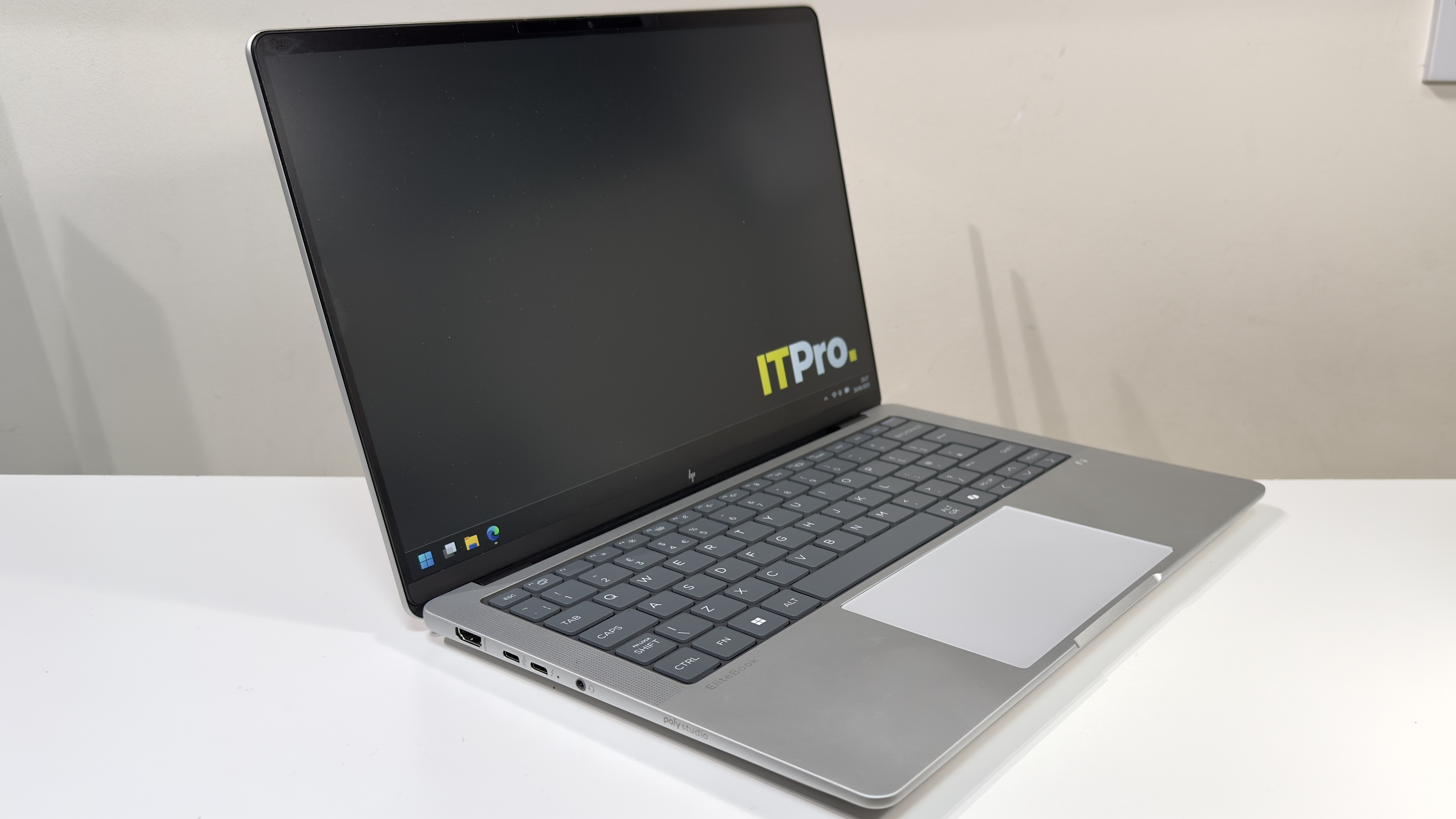
The design is great. The sandwich of light silver aluminium and rounded edges is more than a little reminiscent of the 14-inch MacBook Pro, and it feels really well constructed. There’s barely any give in the base, and even the lid feels incredibly taut and tough. No amount of bad-tempered prodding caused any show-through on the LCD panel inside, either. Hats off to HP here.

The downside of the burly build (and the huge 74.5Wh battery which we’ll discuss later in the review) is weight. The EliteBook X tips the scales at 1.59kg, which is 40-odd grams heavier than the 14-inch MacBook Pro. Compared to the 1.14kgDell Pro 14 Premium, the HP does feel like a bit of a lump.

Thankfully, it doesn’t look like one, but you may want to take HP’s quoted dimensions with a pinch of salt: they conveniently ignore the thick rubber feet on the underside. Those feet mean that the claimed 13mm thickness translates to just shy of 19mm when the laptop is sat on a desk. To be fair, though, you’d have to be working in very cramped conditions for this to prove problematic.

Cast an eye around the EliteBook X’s flanks and it’s well connected. You get a full-sized HDMI 2.1 port, two Thunderbolt 4 ports (one on each side), and one USB-A and USB-C port apiece, both of which reach USB 3.2 Gen 2 speeds. You also get a 3.5mm headset port, and a Kensington lock slot for good measure.

Wireless connectivity, meanwhile, stretches toWi-Fi 7and Bluetooth 5.4 courtesy of a MediaTek MT7925 adapter.

>>>Replacement battery for HP EliteBook 440

HP EliteBook X G1a: Keyboard and touchpad

This is one of the high points for the EliteBook X. You’d think that keyboards would be a solved design problem in 2025, but with big names such asDellmaking an absolute hash of it, it’s not something you can take for granted.

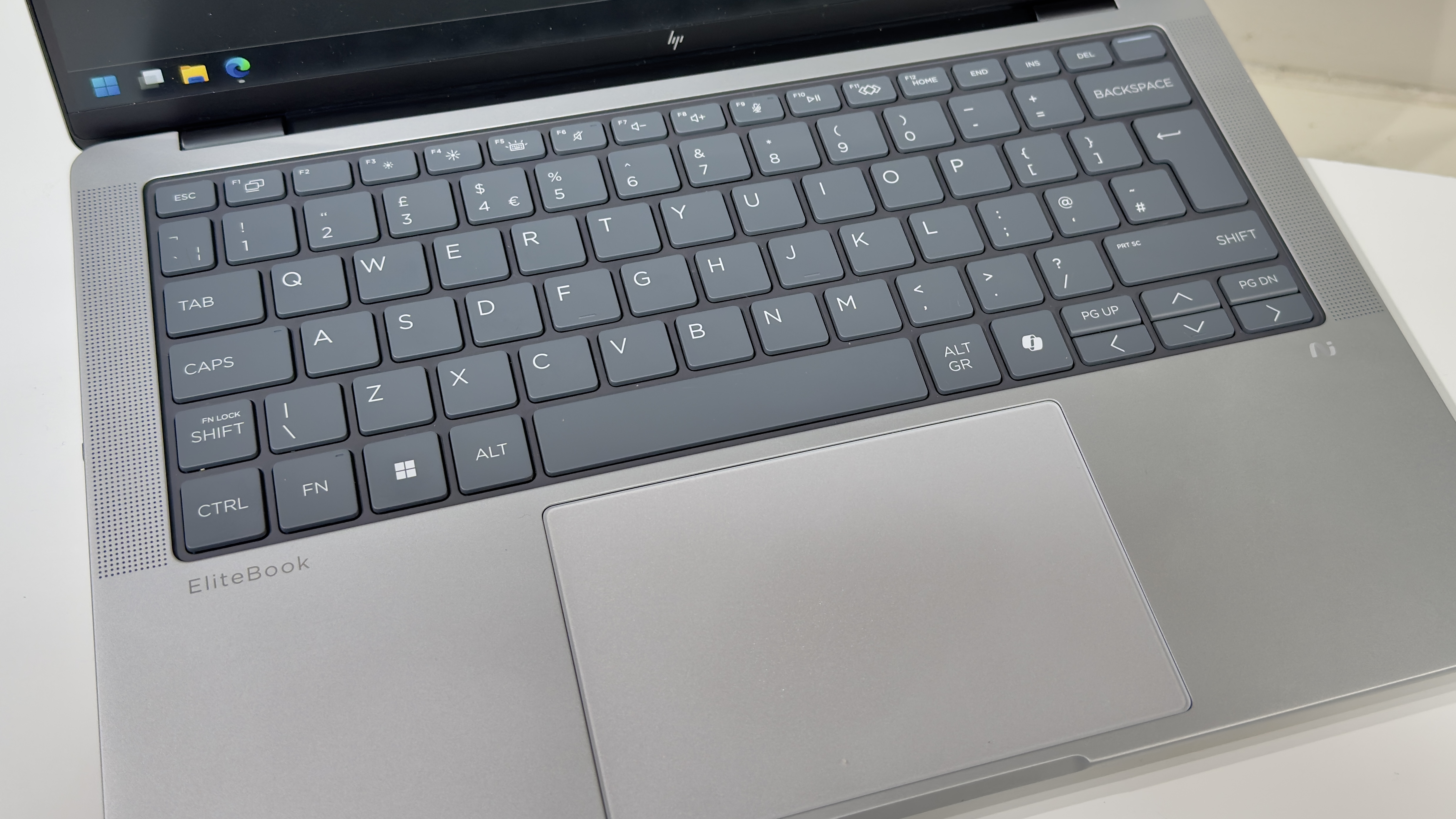
HP, happily, has put usability first. You get a dark grey panel of rounded chiclet keys, each of which respond with a lovely, light action. Unlike the zero-lattice designs onrival laptops, the chiclet design means that every key is separated by a 2mm channel. The result is a keyboard that feels spacious – and it also makes it easier to feel your way around with your fingertips.

Thankfully, there are no attempts here to revolutionise the keyboard. The function row is bog-standard keys which default to their secondary shortcut functions, adjusting brightness and volume, and so forth. There’s the usual Fn Lock arrangement for those who prefer function keys, and a little LED on the FN key illuminates when it’s active.

One nice touch is HP’s programmable button on the function row – this can be customised to launch specific apps, websites, folders or files; trigger a sequence of keypresses (up to five), or input up to 2,000 characters of text. Naturally, we set it to launch theITProwebsite with a single keystroke, although other websites are available.

The HP EliteBook X G1a on a desk

One of the regular pitfalls for modern laptops is the combined power button and fingerprint reader set just to the right of the Delete key, but here HP’s engineers have actually thought about usability. Jab at the Delete key a little too imprecisely, and even if you do hit the power button, the laptop won’t turn off if you’re on the Windows desktop or in an app – it only responds instantaneously on the lock screen or when you’re trying to wake the laptop. If you’re booted into Windows, however, then you’ll need to hold the power button down for a couple of seconds to send the laptop to sleep (or shut down, depending on your preferred settings).

If we take issue with any part of the keyboard layout, it’s the decision to position the Page Up and Page Down keys hard up against the left and right cursor keys. It may just be our particularly oversized fingertips, but we often found our cursor bouncing up or down a page when we were intending to move up or down a single line. It’s potentially something we might get used to, but during our time with the laptop, it was an annoyance.

The EliteBook X cuts costs with a large, mechanical touchpad in place of a fancier haptic variant, but it’s actually rather good. We didn’t encounter any issues with dodgy palm rejection or multi-fingered gestures – it just works, and works well. There’s a nice, deep, solid click action, and it didn’t miss a beat during our several weeks with the EliteBook.

HP EliteBook X G1a: Display

Our review unit came with the cheaper of the two available panels – it’s a 1,920 x 1,200 IPS panel with a claimed 100% sRGB coverage and a maximum 400cd/m2 brightness. Subjectively speaking, it’s absolutely fine. Color reproduction looks reasonably natural, contrast appears to be relatively high for an IPS panel, and the matte anti-glare coating does a superb job.

Put to the test with our X-Rite colorimeter, we measured an sRGB coverage of 94%, a maximum brightness of 370cd/m2, and a contrast ratio of 1,457:1. Even if two of those figures are marginally inferior to HP’s claims, those are respectable numbers.

One thing the panel isn’t, however, is strictly color accurate. The panel’s white point is noticeably too warm and reddish – we measured 6,059k rather than the ideal 6,500k – and the panel’s high gamma means that both colours and greyscales appear darker than intended. That results in a very mediocre average Delta E of 2.94 and a maximum of 6. That sounds worse than it is, though: colours don’t look terribly unnatural, with a few exceptions that are several shades too dark, and some oddly dark, yellowish-looking greys.

Ultimately, despite the inferior top-level measurements, we actually prefer it to the washed-out panel on the Dell Pro 14 Premium. But frankly, HP could still do much better here – and for the money, we think it should. If a laptop wants to call itself an EliteBook, it’s not unreasonable to suggest that a color-accurate display should be a bare minimum.

The HP EliteBook X G1a on a desk