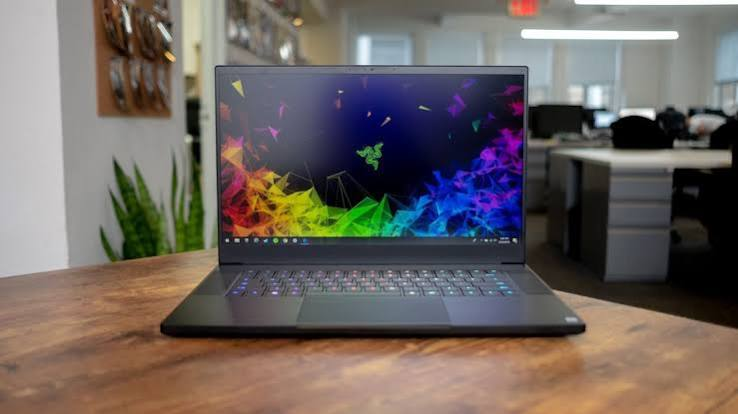
Does your Dell laptop have to stay plugged in? Concerns about breaking free from the power cord

Every Dell laptop owner knows the moment: you unplug the charger, walk to the meeting room, and within minutes – the screen dims, the fan stutters, and the dreaded low-battery warning appears. More often than not, the culprit isn’t software or a heavy workload. It’s an ageing battery that can no longer hold a useful charge. Before you rush to buy a new machine, consider a dell battery replacement. It is one of the most cost-effective ways to restore portability and performance.


Dell Laptop Batteries —
oriccabattery.co.uk

Why Your Dell Battery Dies (And Why It’s Normal)

Lithium-ion batteries are consumable parts. After 300 to 500 charge cycles, their maximum capacity drops below 80%. You’ll notice the laptop shuts down at 15%, or it only lasts an hour on a full charge. Heat, frequent full discharges, and leaving the laptop plugged in 24/7 accelerate this decline. Recognising these signs early saves you from sudden power-offs during important work. A dell battery replacement isn’t a repair – it’s routine maintenance, much like changing tyres on a car. The good news is that Dell laptops are designed with user-serviceable batteries in most models. The challenging part is finding the exact match for your specific laptop series, which brings us to the practical side of sourcing.


The Price Question – How Much Is a Dell Laptop Battery Replacement?

This is the first figure every UK user wants. So, how much is a dell laptop battery replacement? The honest answer is: it depends on your model, capacity (Wh), and where you choose to buy. For a typical 11.1V or 14.8V battery for an Inspiron or Latitude, prices in the UK generally range from £35 to £90. Premium XPS batteries with higher watt-hours (e.g., 56Wh or 97Wh) often sit between £60 and £110. Ultrabook batteries that are glued or taped inside (like some XPS 13 series) may cost more because they require careful fitting, sometimes pushing the total to £130 if you include fitting tools. Avoid any battery priced below £25 – they usually have low-grade cells that swell after a few months. Also, consider delivery charges and VAT, as many UK-based suppliers include both in the displayed price. Remember, the cheapest upfront option often becomes the most expensive over time if it fails prematurely. A mid-range price from a reputable electronics distributor usually offers the best balance of longevity and safety.


The Hunt – How to Find Replacement Battery for Dell Laptop

Now to the critical task: how to find replacement battery for dell laptop that fits perfectly. Start with the physical battery itself. Power off your laptop, remove the battery (if it’s external), and look for the printed part number – it usually starts with “FRU” or “P/N” followed by a 6‑digit code (e.g., 0XDV9K, 1RRTF). For sealed-in batteries, use Dell’s own diagnostic tool (hold F12 during boot and run the ePSA test) – it often displays the battery model. Alternatively, open the Command Prompt as administrator and type powercfg /batteryreport – this generates an HTML report that lists the “Design Capacity” and “Battery Chemistry” along with the manufacturer’s serial number. Armed with that part number, you can search directly on UK-based electronics suppliers, laptop parts specialists, or even large tech retailers like Currys and Argos (though their selection is limited). When you search, always filter by your laptop’s exact service tag (a 7‑character alphanumeric code on the base) – this ensures compatibility with voltage, connector type, and thermal sensors. Do not rely solely on model names like “Inspiron 15” because Dell often changes battery shapes within the same series. Cross-check three details: voltage (e.g., 11.4V vs 14.8V), capacity (mAh or Wh), and physical dimensions (length, width, thickness). A millimetre difference can prevent the lid from closing properly.


Where to Buy in the UK – Physical vs Online

British users have several reliable avenues. High-street computer repair shops often carry popular Dell battery models – you can walk in, compare the old and new batteries side-by-side, and leave with a working laptop the same day. However, their stock is limited to common models. Online UK-based component warehouses offer broader catalogues, often with next-day delivery if you order before 2 PM. Auction sites like eBay UK have thousands of listings, but you must check the seller’s feedback and whether they provide a 12‑month warranty – that is your best safeguard. Avoid overseas sellers with long shipping times, as they rarely honour returns for battery issues. Also, check local computer fairs or university surplus stores, which sometimes sell unused pull-out batteries from upgraded business laptops at a fraction of retail cost. Whichever route you choose, always ask for the battery’s manufacturing date – ideally, it should be less than 6 months old, as lithium cells degrade even on the shelf. A fresh battery gives you closer to the rated cycle life.


Compatibility and Safety – Don’t Overlook These

When you finally find a candidate, verify that it includes the correct temperature sensor wiring and that its chipset supports Dell’s Power Manager software. Without this, Windows might not display the remaining time accurately, and the charging algorithm may shorten the battery’s lifespan. Also, check the connector type – some Dell batteries use a 6‑pin, others a 9‑pin flat cable. If you are unsure, take a clear photo of your old battery’s connector and email it to the supplier before placing the order. Many UK sellers offer a “compatibility check” service using your service tag – use it. Finally, ensure the new battery has built-in overcharge, over-discharge, and short-circuit protection. These features are non-negotiable because a faulty battery can swell and damage your trackpad or motherboard. Remember, safety always trumps saving £5.


DIY Installation – Step-by-Step for UK Users

Replacing the battery is remarkably straightforward for most Dell models. You need a small Phillips screwdriver (usually #00) and a plastic spudger to pry open snap-fit covers. First, power down, unplug the charger, and remove any external peripherals. Place the laptop upside down on a clean, dry cloth. If your battery is external, slide the release latches and pull it out – no tools needed. For internal batteries, remove the bottom cover screws (keep them in a magnetic bowl to avoid losing them), gently disconnect the cable with the spudger, and lift the old battery. Insert the new one, reconnect the cable, and reassemble. Boot up and let the battery charge to 100% without interruption. Then, discharge it completely once to calibrate the fuel gauge. This calibration ensures Windows shows accurate percentages. Do not rush this process – a careful installation prevents damaged cables or stripped screw heads. If you feel hesitant, many UK repair kiosks in shopping centres will fit the battery for £15–£25 labour if you supply the part, which is a sensible option for sealed ultrabooks.

Extending Your New Battery’s Life

After investing time and money in a dell battery replacement, you want it to last. Adjust your power plan to “Balanced” rather than “High Performance”. Keep the laptop in a cool, ventilated area – heat is the biggest enemy of lithium cells. If you use your laptop primarily at a desk, consider setting a charge limit of 80% via Dell Power Manager to reduce stress on the cells. For frequent travellers, carry the adapter but avoid charging immediately after coming indoors from a cold car – let the laptop reach room temperature first to prevent condensation inside the battery. Also, perform a full discharge cycle once every two months to keep the battery management system calibrated. These small habits can double the useful life of your new battery, making your next dell battery replacement three years away rather than 18 months.

Final Thoughts – Is It Worth It?

Absolutely. A fresh battery transforms an ageing laptop into a reliable companion for remote work, train commutes, and coffee-shop sessions. When you consider that a new mid-range Dell laptop costs upwards of £500, spending £50–£100 on a battery is a financially sound decision. The key is knowing how much is a dell laptop battery replacement for your specific model, and more importantly, how to find replacement battery for dell laptop that meets both technical and safety standards. Take your time, compare three suppliers, and always prioritise a clear warranty and a recent manufacture date. Your laptop – and your wallet – will thank you.


Dell Laptop Batteries

Dell Laptop Batteries – Shop a wide selection of Dell Laptop Batteries at www.oriccabattery.co.uk Fast Shipping. 30 Day Replacement Guarantee.

Canon Battery Power Unlocked: Charge Times, Pack Types, and Pro Tips

Every photographer knows the sinking feeling of a dying camera in the middle of a shoot. Whether you are capturing landscapes, weddings, or street photography, understanding your power source is just as critical as knowing your aperture settings. This guide explores everything you need to know about your Canon battery, the different forms a Canon battery pack can take, and the answer to the question every user asks: how long does a Canon battery take to charge?


Canon battery

What Is a Canon Battery Pack, and How Is It Different?

When people talk about a Canon battery, they are usually referring to the rechargeable lithium-ion unit that slides into the camera body. However, the term Canon battery pack can mean a few different things depending on the context. Most commonly, it refers to the same rechargeable battery—Canon simply uses “battery pack” as the official name for its lithium-ion power cells, such as the LP-E6NH or LP-E17. In other cases, a Canon battery pack might describe a battery grip accessory that holds two batteries simultaneously, effectively doubling your shooting time. Some photographers also use the term for external power solutions that connect to the camera via a cable. Understanding this distinction helps when shopping for spares or planning extended shoots, because a single Canon battery pack in a grip behaves very differently from a standalone Canon battery used on its own.

How Long Does a Canon Battery Take to Charge? The Real Answer

This is the question that keeps many photographers awake before a big assignment: how long does a Canon battery take to charge? The honest answer is that it depends on which model you own. For the popular LP-E6 series—used in many EOS DSLR and mirrorless cameras—a full charge from empty typically takes around 2 to 2.5 hours when using the dedicated charger at room temperature. The LP-E17, commonly found in compact EOS cameras, usually charges in about 2 hours. NB-series batteries for PowerShot models fall somewhere between 1.5 and 2.5 hours. Professional-grade batteries like the LP-E19 can take closer to 170 minutes. So when someone asks how long does a Canon battery take to charge, the short answer is: roughly two hours for most models, but always check your specific battery type.

What Affects Charging Time Beyond the Battery Model?

Even with the same Canon battery, charging time is not fixed. Temperature plays a surprisingly large role. At a comfortable room temperature of around 23°C, your Canon battery pack will charge at its normal speed. However, in colder conditions—between 5°C and 10°C—the same battery can take up to four hours to reach full capacity. This is a safety feature built into the charger to protect the battery’s internal chemistry. The remaining charge level also matters; a partially depleted Canon battery will obviously take less time than one that is completely exhausted. The type of charger you use can alter things too—some third-party chargers promise faster speeds, while USB charging through the camera itself is often slower.

Getting the Most from Your Canon Battery Pack

Maximising the lifespan of your Canon battery pack requires a few simple habits. Always charge your battery on the day you plan to use it, because even a fully charged Canon battery will gradually lose power during storage. Before inserting your Canon battery pack into the charger, wipe the metal terminals with a dry cloth to ensure a clean connection. Avoid leaving a charged battery in the charger for extended periods, and never store batteries completely empty. If you notice that your Canon battery pack drains much faster than it used to, even after a full charge, it may be reaching the end of its useful life. Carrying a spare Canon battery pack is always wise for long photography sessions.

Final Thoughts on Powering Your Photography

Understanding your Canon battery is not just about convenience—it is about reliability. Knowing the difference between a standard Canon battery and a Canon battery pack in a grip configuration helps you choose the right setup for your needs. Being aware of how long does a Canon battery take to charge allows you to plan your workflow and avoid last-minute panic. Whether you are a weekend enthusiast or a working professional, treating your power sources with care ensures that your camera is always ready when the perfect moment arrives. Charge wisely, shoot confidently, and never let a flat battery ruin your best shot.

Canon Batteries

Canon Batteries – Shop a wide selection of Canon Batteries at www.oriccabattery.co.uk Fast Shipping. 30 Day Replacement Guarantee.

The Acer Power Puzzle: When Your Charger Fails and How to Survive

Every Acer laptop owner has faced that sinking moment: you plug in your Acer laptop charger, the little LED either stays dark or flickers weakly, and your screen warns of low battery. Understanding the reasons why an Acer laptop charger stops working is the first step toward a solution – and many of these causes are surprisingly simple.

The most common culprit is physical damage to the cable, especially near the barrel connector or the USB‑C plug, where constant bending frays the internal wires. Over time, the copper strands snap, and while the outer insulation looks fine, no current flows. Another frequent issue is a faulty AC adapter brick – internal capacitors can dry out or overheat, particularly if you routinely wrap the cord tightly around the brick, which traps heat. Dust and lint inside the laptop’s charging port also create poor contact; a gentle clean with a wooden toothpick often restores function. Less obvious but equally common is a tripped internal fuse within the charger itself – a surge from an unstable mains socket can blow it, leaving your adapter dead even though the laptop is healthy. Finally, don’t overlook the mains plug and lead; UK plugs have internal fuses that can blow, and the detachable “kettle lead” (IEC cable) sometimes fails at the connection point. Before you panic, swap that lead with a spare from another appliance – if it works, you’ve saved yourself a repair bill.

When a Replacement Acer Laptop Charger Becomes Your Best Bet

Once you’ve ruled out socket issues and port dirt, and your original still refuses to cooperate, a Replacement Acer laptop charger is the logical next step. But not all replacements are created equal, and choosing wisely can prevent future headaches. In the UK, you’ll find two main categories: generic universal adapters with interchangeable tips, and brand‑matched replacements that mimic the original wattage and voltage. For most Acer models – whether Aspire, Swift, Predator or TravelMate – the key numbers are the output voltage (typically 19V) and amperage (e.g., 3.42A, 4.74A, or 7.1A for gaming laptops). Getting these wrong is risky: too low a wattage and your laptop won’t charge while in use; too high and you may stress the internal power regulation, though modern Acer units have protection circuits.

When shopping for a replacement, pay attention to the connector polarity – centre positive is standard for Acer, but always check your original label. Also consider cable length; a 1.8‑metre cord is convenient for UK desks, but 3‑metre options give you flexibility in shared workspaces. Look for safety markings like CE and UKCA, which indicate compliance with British electrical standards. Avoid unmarked “white‑box” chargers from unknown sellers; instead, opt for reputable electronics retailers that offer a 12‑month guarantee. A quality replacement should feel solid, run only warm (not hot) during use, and include a ferrite bead near the laptop end to suppress electrical noise – this protects both your charger and your Acer’s sensitive motherboard.

Surprising Reasons Why an Acer Laptop Charger Stops Working (Even New Ones)

You might assume a brand‑new replacement is immune, but the reasons why an Acer laptop charger stops working extend beyond age. Even a fresh adapter can fail within weeks if you overlook environmental factors. For instance, British homes often have humidity fluctuations; condensation inside the brick during cold mornings can cause short circuits. Similarly, placing the charger on a carpet or sofa while in use blocks ventilation – the brick’s internal thermostat then cuts power to prevent fire, and it may not reset until it cools completely. Another hidden cause is voltage mismatch from cheap travel adapters when you’re using UK‑to‑EU plug converters; these often don’t earth properly, leading to erratic DC output that confuses your Acer’s charging IC.

Also, consider the laptop’s own charging logic. Acer’s Power Management software sometimes imposes a “battery care” mode that limits charge to 80% – this isn’t a charger fault, but many users mistake it for a dead adapter. Similarly, a depleted battery that has fallen below its minimum voltage threshold (around 10V for a 4‑cell pack) will refuse to accept charge initially; the charger may appear to do nothing for several minutes until the laptop’s pre‑charge circuit kicks in. Patience is key – leave it plugged for 30 minutes before declaring the replacement faulty. Finally, physical shock – dropping the brick or yanking the cable – can crack solder joints inside, a problem that intermittently cuts power only when the cable is moved in a certain way. If your replacement exhibits this behaviour, return it under warranty immediately.

How to Charge an Acer Laptop Without a Charger – Practical British Solutions

Now for the real test: your charger has died, the replacement hasn’t arrived, and you have a deadline. Knowing how to charge an Acer laptop without a charger can save your day, and there are several viable routes, each with pros and cons.

USB‑C Power Delivery (PD) is the modern hero. Many Acer models from 2019 onwards – especially the Swift and Spin series – support charging via their USB‑C port. If your laptop has a Thunderbolt or USB‑C port marked with a battery icon, you can use a third‑party USB‑C PD power bank or a high‑wattage USB‑C wall adapter (65W or higher) from a phone or tablet brand. Simply connect it, and the laptop will negotiate the correct voltage. This works brilliantly if you already own a modern Android charger or a MacBook adapter – just check the wattage; 45W might charge slowly while idle, but 65W will keep up with light use.

Power banks designed for laptops are another excellent option. These are larger units with 20,000–30,000 mAh capacity and a DC output that matches your Acer’s requirements. Many come with a set of interchangeable tips – you can select the Acer‑compatible one and charge on the go. In the UK, these are available from electronics shops and even some supermarket tech aisles. They’re particularly useful for commuters on trains or during power outages.

Universal car chargers with a 12V‑to‑19V inverter and a selection of tips also work, provided you have a vehicle with a working cigarette lighter socket. This is a lifesaver for mobile workers who spend hours in their car between appointments. Just ensure the car adapter’s fuse rating matches your Acer’s draw – usually 5A is safe.

The nuclear option: borrow a compatible charger from a friend or colleague. Acer uses a standard 5.5mm x 2.5mm barrel plug on many older models, and HP or Dell chargers of similar voltage (19.5V) often work temporarily – though the polarity must match (centre positive). Do not force a plug that doesn’t fit; if it’s too loose or tight, stop immediately to avoid damaging the port. And remember, using a higher‑voltage charger (e.g., 20V) for a short period is usually tolerated by Acer’s protection circuits, but never exceed 20.5V.

Finally, if you have a soldering iron and some technical confidence, you can resurrect a dead charger’s cable by cutting out the frayed section and splicing the wires – but this is a temporary bodge, not a long‑term solution, and it voids any guarantee on the replacement. For most UK users, the smartest emergency move is to keep a USB‑C PD power bank in your laptop bag; it doubles as a phone charger and gives you peace of mind.

Making the Final Choice: Repair, Replace, or Rely on Alternatives?

Deciding what to do when your Acer laptop charger fails depends on your budget, your technical skill, and how urgently you need power. If your original charger is less than two years old and shows no physical damage, consider having an electronics repair shop test it – sometimes a simple capacitor swap or cable resoldering costs less than a Replacement Acer laptop charger. However, repair labour in the UK can be £40–60, whereas a decent replacement starts from £25 online, so replacement often wins on cost.

When you do buy a replacement, invest in one with a braided cable – they resist kinking far better than standard PVC ones. Also, purchase from a seller that provides a clear returns policy, because even with all the right specs, some replacements produce coil whine (a high‑pitched buzz) that can be annoying in quiet offices. Test your new replacement immediately upon arrival: plug it in, run a CPU‑intensive task, and feel the brick after 20 minutes – it should be warm, not scorching. If it trips your home’s RCD (residual current device), return it – that’s a sign of poor internal isolation.

As for the emergency methods – how to charge an Acer laptop without a charger – they are brilliant for temporary fixes but shouldn’t become your daily routine. USB‑C PD is safe and efficient, but car adapters and borrowed chargers lack the exact voltage regulation that Acer’s original design expects; over months, slight mismatches can degrade your battery’s health. Therefore, treat these as backup plans, not permanent replacements.

Future‑Proofing Your Acer Charging Setup

To avoid frequent charger dramas, adopt a few habits. Always unplug your Acer laptop charger by gripping the plug head, not the cable. When travelling, wrap the cable loosely in a figure‑eight – never bend it at sharp angles. Keep the brick ventilated – place it on a hard surface, not your bed or lap. And periodically inspect the port on your laptop for debris; a can of compressed air (available at UK stationery shops) can blow out dust that causes poor connections.

Also, note that the reasons why an Acer laptop charger stops working often trace back to mains power quality. In older British buildings with fluctuating voltage, use a surge‑protected extension lead – this absorbs spikes that would otherwise stress your adapter. If you work in a workshop or garage, avoid using the charger near metal shavings or moisture – both can creep into the brick and cause internal shorts.

Finally, consider buying a second Replacement Acer laptop charger to keep at your office or a relative’s house. Having a spare means you never have to carry your only charger back and forth, reducing wear on both cables and ports. And always store that spare with the original packaging so you can reference the exact model number (e.g., ADP‑90MD) when ordering future replacements.

Acer Laptop Adapters

Buy Acer Laptop Adapters online at www.oriccabattery.co.uk. Select from the best range of Acer Laptop Adapters , Chargers, Universal Acer Laptop Charger and many more Acer Laptop Adapters at Best Price. ✓Best Offers ✓Fast Shipping

Choosing the Right AirPods: A Comprehensive Guide to Apple’s 2026 Audio Lineup

Apple’s AirPods have become synonymous with wireless audio convenience, and for good reason. They pair seamlessly with iPhones, deliver reliable sound quality, and boast a design that is both iconic and instantly recognizable. Yet, with the lineup expanding to include multiple models—each with its own strengths and trade-offs—finding the perfect pair can feel overwhelming. Whether you are a fitness enthusiast, a budget-conscious listener, or an audiophile chasing studio-grade detail, there is an AirPods model tailored to your needs. After extensive hands-on testing of every current generation, we have broken down the key differentiators to help you make an informed decision.

The Flagship Choice: AirPods Pro 3
For the vast majority of users, the AirPods Pro 3 represent the pinnacle of Apple’s engineering and our top overall recommendation. These third-generation premium earbuds build upon the already excellent Pro 2 with several meaningful upgrades. Most notably, active noise cancellation (ANC) has been significantly bolstered—Apple claims it is twice as effective as before, and our real-world tests confirmed a dramatic reduction in low-frequency rumbles like airplane engines, subway screeches, and household appliance hums. They now rival industry leaders such as the Bose QuietComfort Ultra Earbuds, which is no small feat.

Beyond noise cancellation, the Pro 3 introduce heart rate tracking via built-in sensors in each earbud. This feature, unavailable on any other AirPods model, syncs with your iPhone to provide real-time workout metrics—a godsend for runners and gym-goers who do not own an Apple Watch. The earbuds also see a water resistance upgrade from IP54 to IP57, meaning they can withstand not only sweat but also brief accidental submersion, making them the undisputed best AirPods for exercise.

Battery life has been rebalanced: you now get eight hours of listening time with ANC on (up from six), though total case capacity drops slightly to 24 hours from the Pro 2’s 30. We consider the longer single-charge runtime more valuable for daily use. The fit remains in-ear with silicone tips, now offered in five sizes including an extra-extra-small option, though our reviewers noted that the previous generation’s shape felt slightly more secure for some ear types—fit is ultimately personal, but most users will find a good seal. Additionally, the Pro 3 retain all the hearing-health features from the Pro 2 and support Live Translation when paired with an Apple Intelligence–capable iPhone. If you want the most feature-rich, future-proof AirPods, the Pro 3 are the clear winner.

The Open-Fit Alternative: AirPods 4 with ANC
Not everyone enjoys the plugged-in sensation of in-ear tips. For those who prefer a more breathable, semi-open fit, the AirPods 4 (4th generation) offer a compelling middle ground. Apple sells two variants: a base model at $129 and an upgraded version with active noise cancellation and a wireless charging case for $179. The ANC-enabled model is our pick for the best open-fit AirPods, as it delivers surprisingly effective noise suppression despite lacking a physical seal. During our review, we found that it handles office chatter and city street noise admirably, though it cannot match the Pro 3’s ability to mute roaring jet engines.

The open-ear design rests just outside your ear canal, which many find more comfortable for all-day wear. Apple has refined the contour to improve stability across diverse ear shapes, though comfort remains subjective—some testers still prefer the snugness of silicone tips. Audio quality is robust for the price tier, with clear mids and crisp highs, and the transparency mode is exceptionally natural, allowing you to stay aware of your surroundings without removing the earbuds. For those who value situational awareness over maximum isolation, the AirPods 4 with ANC strike an excellent balance.

The Budget-Friendly Pick: AirPods 4 (Standard)
If your primary concern is cost, the standard AirPods 4 without ANC are the most affordable entry point into the ecosystem. Retailing at $129 and frequently discounted to as low as $99, they deliver the core AirPods experience—seamless pairing, reliable connectivity, and the same open-fit design—without the premium add-ons. The two notable omissions are active noise cancellation (so ambient sounds remain audible) and a wireless charging case (it uses wired charging only). Apart from these, you get identical audio performance and feature set as the pricier ANC version, making them an ideal choice for casual listeners who primarily use earbuds in quiet environments like home offices or libraries. We do recommend keeping an eye on sales, however—occasionally the ANC model drops below the standard version’s price, and in that case, it is a no-brainer upgrade.

The Audiophile’s Over-Ear Dream: AirPods Max 2
For those who demand the ultimate sonic fidelity and prefer over-ear headphones, the AirPods Max 2 represent Apple’s luxury offering. Launched in April 2026 as the successor to the December 2020 original, these headphones retain the same premium metal-and-padded-earcup construction but receive critical internal upgrades. The H2 chip replaces the older H1, enabling Adaptive Audio, Conversation Awareness, and Live Translation—features previously absent. More importantly, a new high-dynamic-range amplifier paired with custom 40mm drivers produces a noticeably wider soundstage and more balanced frequency response than rivals like the Sony WH-1000XM6 and Bose QuietComfort Ultra 2. Our testers praised the articulate bass, detailed midrange, and airy treble, making them a treat for critical listening.

Noise cancellation has also been elevated to match Bose’s industry-leading performance, effectively silencing virtually all ambient noise. However, the Max 2 are not without drawbacks. Their metal build, while gorgeous, adds significant weight—some users may find them heavy during marathon listening sessions. The included protective case remains minimalist, covering only the ear cups rather than enclosing the entire headphone, which offers limited protection. And at their premium price point, they are a significant investment, though the original Max frequently saw $100 discounts, and similar deals are likely for the new generation. If you are an Apple devotee who prioritizes top-tier over-ear sound and can overlook the heft and case quirks, the AirPods Max 2 are the best you can buy.

Making Your Choice
Ultimately, the decision boils down to your lifestyle and priorities. The AirPods Pro 3 offer the most complete package with cutting-edge ANC, fitness tracking, and durability. The AirPods 4 with ANC provide a comfortable open fit with decent noise suppression at a moderate price. The standard AirPods 4 deliver exceptional value for budget-conscious buyers. And the AirPods Max 2 cater to discerning ears willing to splurge for over-ear excellence. Whichever you choose, Apple’s 2026 lineup ensures there is an AirPods model perfectly suited to your ears and your wallet.

iQOO 16 Leak Reveals Massive Battery, Next-Gen Snapdragon Chip, and 2K Display

The smartphone industry is already buzzing with early rumors about iQOO’s next flagship device, tentatively named the iQOO 16. While the company has yet to make any official announcement or confirm a launch timeline, a fresh wave of leaks from reputable tipsters has shed light on what could be a substantial upgrade over its predecessor. According to details shared by the well-known Weibo leaker Digital Chat Station, the iQOO 16 is currently in the engineering sample testing phase, and the hardware choices point to a continued focus on performance and gaming excellence.

The most eye-catching revelation concerns battery capacity. The tipster claims that the iQOO 16 is being tested with a battery rated at approximately 8,500mAh. If this proves accurate, it would mark a significant leap forward, especially when compared to the already impressive 7,000mAh cell found in the iQOO 15. Such a large battery would likely translate into exceptional endurance, easily covering two full days of heavy usage or extended gaming sessions without requiring a recharge. This is particularly notable given that the prototype reportedly lacks a built-in cooling fan — a feature sometimes seen in gaming-centric phones — suggesting that iQOO is relying instead on passive thermal solutions and hardware efficiency.

Under the hood, the iQOO 16 is said to be powered by Qualcomm’s next-generation flagship processor, bearing the model number SM8975. Industry observers widely expect this chip to debut as the Snapdragon 8 Elite Gen 6 Pro. While detailed specifications of the chip remain under wraps, it is expected to deliver notable gains in both CPU and GPU performance, as well as improved power efficiency thanks to an advanced manufacturing process. To complement the raw power of the new Snapdragon chip, iQOO is also rumored to be developing an in-house performance coprocessor. This secondary chip would likely handle gaming-related tasks, AI acceleration, and sustained processing loads, helping to maintain frame rate stability during long play sessions.

The display is another area where the iQOO 16 is expected to shine. According to the leak, the handset will feature a flat panel with a 2K resolution — a step up from the standard QHD+ resolution seen on many flagships. More interestingly, the screen is said to use a new custom substrate material, which could improve brightness, color accuracy, or durability. An ultra-high refresh rate is also mentioned, potentially matching or exceeding the 144Hz refresh rate found on the iQOO 15. The iQOO 15’s 6.85-inch 2K LTPO AMOLED display with 6,000 nits peak brightness sets a high bar, so it is reasonable to expect the iQOO 16 to at least maintain, if not surpass, these premium display characteristics.

Thermal management is always a critical concern for high-performance devices, and the iQOO 16 appears to be no exception. The leak notes that the engineering prototype does not include an integrated cooling fan — a design choice that might raise eyebrows given the large battery and flagship chipset. However, previous reports suggest that iQOO has been working on a redesigned thermal management system that relies on advanced vapor chamber technology and new materials to dissipate heat more efficiently. This passive approach could keep the device slim and dust-resistant while still allowing sustained high performance.

Camera upgrades are also on the horizon. Earlier rumors point to the inclusion of a periscope telephoto lens, which would be a welcome addition for users seeking optical zoom capabilities. The iQOO 15 already offers a versatile 50-megapixel triple rear camera setup that includes a periscope telephoto lens, so the iQOO 16 is likely to refine that formula with improved sensors or image processing algorithms.

Finally, evidence of a global launch is mounting. The iQOO 16 has reportedly been listed on the IMEI database with the model number I2601, indicating that the company is preparing to sell the device outside of China — specifically in India and other international markets. The same report suggests that testing is progressing smoothly, and a release in India could follow shortly after the phone’s domestic debut. Given that the iQOO 15 already supports 100W wired and 40W wireless charging, it is plausible that the iQOO 16 will maintain or even enhance those fast-charging capabilities, although no specific charging details have appeared in the current leak.

In summary, while iQOO remains silent officially, the accumulating leaks paint a picture of a device that pushes the envelope in battery capacity, display technology, and raw processing power. With a massive 8,500mAh battery, a next-generation Snapdragon 8 Elite Gen 6 Pro chipset, a custom 2K flat display with an ultra-high refresh rate, and improved thermal and camera systems, the iQOO 16 is shaping up to be a compelling option for power users and mobile gamers alike. If the rumored global rollout materializes, it could also mark a significant step in iQOO’s ambition to compete on a broader stage.