We special in laptop battery ,laptop adapters for most of top brands, such as apple,acer, asus, dell, fujitsu,hp, compaq, ibm, lenovo, toshiba, samsung, sony on UK,all the ac power adapters, laptop batteries are high quality and low price.
Remember back in September 2015 when Googlechanged its main company logo? The one everyone recognizes the world over shifted from that familiar typeface with serifs to a clean, geometric sans-serif font calledProduct Sans.
That refresh also brought us the circular, four-colored “G” icon. It had those four solid color sections: blue, red, yellow, and green, making it easy to spot Google products and services across different devices. Ten years on, the Mountain View giant has apparently decided it is time for a visual refresh for that iconic ‘G’ icon. This comes afterthe recent reportthatMicrosoftis exploring redesigning its icons for applications like Word and Excel, moving toward a more three-dimensional style.
The new version of the ‘G’ icon looks quite similar at first glance, but has a key difference in its color. Instead of the distinct, solid blocks of blue, red, yellow, and green, the colors now gently bleed into one another through gradients. Red fades into yellow, yellow flows into green, and green transitions softly into blue.
The new Google ‘G’ icon has already started showing up in the wild. It is currently present in the Google Search app on iOS (spotted by 9To5Google), appearing there after an update yesterday. It also came to Android today with the Google app version 16.18 (beta).
At the time of writing, Google has not made any statement regarding the logo update, so we are unsure of the specific reasons for the change or the company’s full plans for rolling it out across its services. We also don’t know if this gradient style will come to replace the ‘quad-color’ style that Google has used for many of its other product icons (like Maps and Drive) over time.
Whether you’re using a USB flash drive for file storage or other reasons, you might notice it getting surprisingly warm and sometimes even hot to the touch. A flash drive stores data on a silicon chip, allowing it to function without moving parts. But when you transfer data, the electrical activity inside the drive typically generates heat as a natural byproduct.But the heat can seem worse, due to what the drive is made from. Metal absorbs heat more easily than plastic, which means a metal drive can feel hotter to the touch. Smaller drives are also an issue, as they tend to get hotter as well. Then there’s the host device you’re using, which actually transfers heat to the drive, making it even warmer. Plus, if you’re consistently relying on the same USB drive and transferring a lot of information, or even multiple small amounts of info at once, the device can heat up quickly.While a hot USB flash drive is perfectly normal, it’s important to know the exact temperature for using one, as the general recommendation is to stay between 0 degrees Celsius to 25 degrees Celsius, or 32 degrees Fahrenheit to 77 degrees Fahrenheit. The computer, or other device you’re plugging into, is safe at 25 degrees Celsius to 45 degrees Celsius, or 77 degrees Fahrenheit to 113 degrees Fahrenheit.>>>Replacement adapter for Google Pixelbook 45W USB Type-C Charger Power 3.0 USB-C – BRICK ONLYA red hot USB flash drive could be a sign of more serious problems
While USB flash drives last about 10 years and normally get hot while using, that doesn’t always mean your data is safe. There could be an internal issue with the drive, as a bad part may be causing more heat than normal. If you’re dealing with a red-hot drive, be sure to properly eject the USB drive instead of just pulling it out and letting it cool down before trying to figure out the problem. Be advised that the real issue may not be the drive at all.The computer or other host device you’re using may be the culprit. Sometimes the components inside the port are to blame, which means there may be some real damage, or simply dusty connectors that need cleaning. A malfunctioning USB port can seriously affect your computer, so it’s important to address the problem right away.>>>Replacement adapter for Asus Chromebook C523N C523NA-DH02Backing up important files on one or more USB flash drives is the best practice. That way, you’re covered and won’t have to worry about losing any data in the event something goes wrong. Recovering info from a damaged drive is nearly impossible, so it’s always best to be safe.
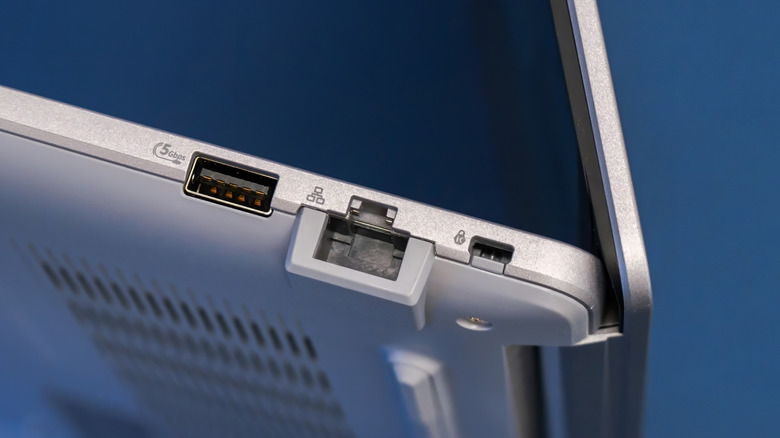
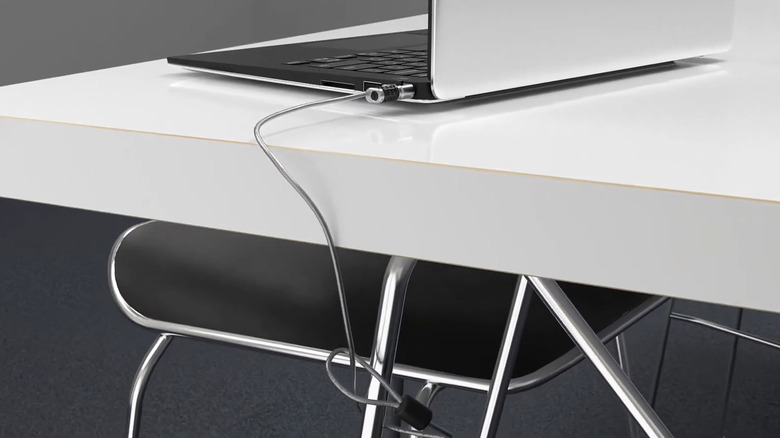
Using a laptop in public places like libraries, cafes, and parks comes with the risk of theft. All it takes is a moment of distraction, and your laptop could be gone without a trace. Sure, there are ways to track down a stolen laptop, but as the saying goes, prevention is better than a cure. After all, it’s not just about protecting the expensive hardware but also the sensitive data stored on it. Fortunately, most laptops include a dedicated lock port that can help you keep your device secure in public spaces.The lock port on a laptop looks like a tiny rectangular hole and is typically located on the side or back of the device. It is also known as the Kensington lock slot or K-slot. The way this lock functions is quite simple: you wrap one end of the cable around a sturdy, immovable object, then insert the lock into your laptop’s K-slot and secure it using the key or the combination lock. Once locked, your laptop is essentially anchored to a desk or table, making it difficult for anyone to walk away with it. The cable used in these locks is made of aircraft-grade carbon steel, so it can’t be easily pulled or cut. And if excessive force is applied, it may damage the laptop’s casing, making it less attractive for thieves who intend to resell it.>>>48Wh N550BAT-3 Replacement Battery for Clevo N550RC N550RN N551RC N551RNNot all the laptop lock slots are same
Kensington lock slots are not just useful for personal laptops. They can also be used by colleges, libraries, and businesses to prevent devices from being moved or stolen. And these slots are not limited to laptops; you’ll also find them on desktop computers, monitors, projectors, and even gaming consoles. Kensington lock slots come in different types depending on your laptop model. The most commonly used is the Kensington Standard Slot, which looks like a small rectangle. Modern laptops with a thin design typically have the Kensington Nano Slot, which is narrower. There’s also the Noble Wedge Slot, which is the smallest of the three. Depending on which lock slot your laptop has, you’ll need to purchase the appropriate lock. Alternatively, you can get a universal laptop cable lock from Amazon that works with all three slot types. Keep in mind that many modern ultrathin and lightweight laptops omit the lock slot entirely for design reasons, so don’t be surprised if your laptop doesn’t have one.When buying a cable lock for your laptop, you’ll need to consider things like the cable length, lock type, and whether it includes features such as an integrated alarm system. When using the lock, make sure it is attached to something that can’t be easily moved or broken. Even with a Kensington lock in place, it’s still best not to leave your laptop unattended in public spaces for long.>>>3620mAh G16B01W Replacement Battery for Xiaomi Redmi G 16.1 Gaming SeriesCan you secure a laptop without a lock slot?
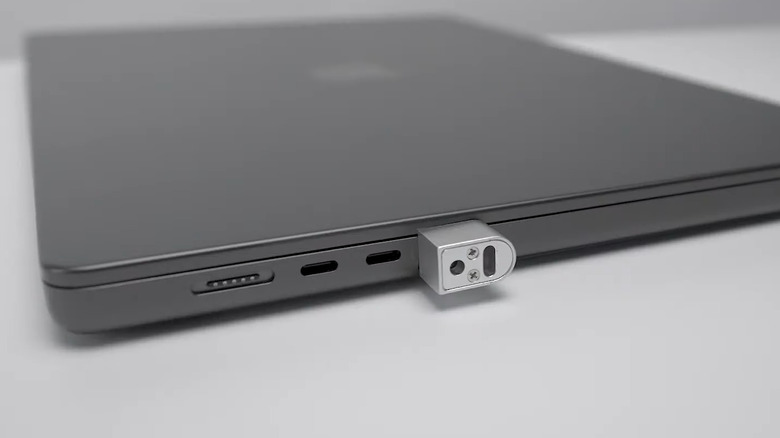
If your laptop lacks the Kensington lock port, you can still secure it using the Anchor security lock adapter. The compact adapter plugs into your laptop’s 3.5mm headphone jack. After plugging it in, you need to use the included screwdriver to turn the screw clockwise. Once you do, the adapter will expand inside the port and lock securely. Don’t worry; the adapter is designed not to damage your laptop’s audio port. Once the adapter is locked in, you can use any standard laptop security cable lock, like those from Kensington, to secure your laptop. When you need to remove the Anchor lock adapter, simply use the screwdriver to turn the screw counterclockwise. The Anchor lock adapter essentially adds a lock slot to laptops that don’t come with one built in.A lock adapter isn’t your only option. You can also get a device like AlarmID from Amazon. It works similarly to a Kensington lock by securing one end to a sturdy object, but instead of locking your laptop with a T-bar mechanism, it connects to your laptop via a USB Type-C cable. If someone else tries to remove or cut the cable, it plays a 100dB alarm to inform you about the theft. The alarm can only be turned off using your fingerprint. A key benefit of this device is that it can be used with a smartphone or other USB-C gadgets.
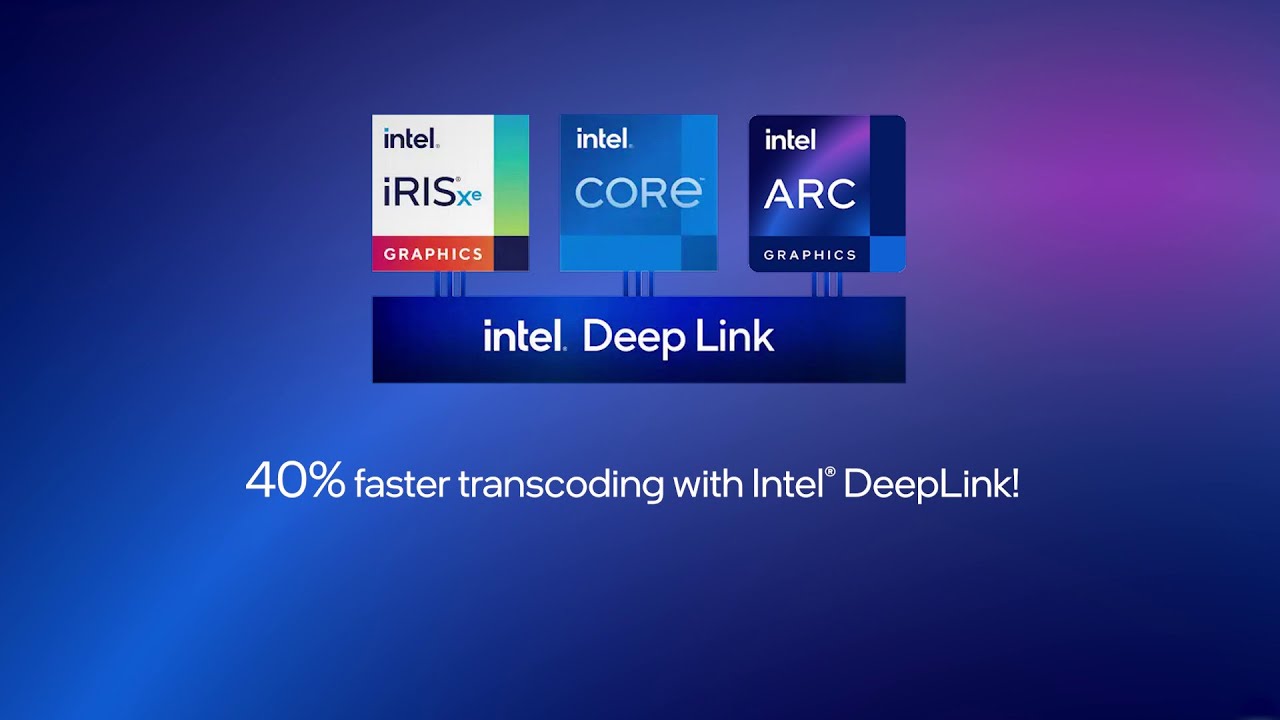
Intel has officially discontinued development and support for its Deep Link technology, which allowed synergistic performance boosts between Intel CPUs and Arc GPUs. Introduced in late 2020, the suite included features like Hyper Encode, Stream Assist, and Dynamic Power Share.
Existing users can continue using Deep Link, but no future updates or fixes will be provided. (Image Source: Intel)
Intel has officially ended support for its Deep Link technology, a software suite introduced in late 2020 to boost performance by combining the strengths of Intel CPUs and Arc GPUs. The news came not through an official press release but via a GitHub thread where an Intel representative confirmed the discontinuation after a month-long inquiry from a user struggling with Stream Assist in OBS Studio.
Deep Link was designed to deliver improved efficiency and performance for tasks such as video streaming, encoding, and AI acceleration. It required a system running Intel’s 11th, 12th, or 13th Gen CPUs paired with Arc Alchemist GPUs. The suite offered four primary features – Dynamic Power Share, Hyper Encode, Stream Assist, and Hyper Compute. These allowed smartpower distribution between processor and graphics card, multi-processor encoding, streaming task offloading, and AI acceleration via OpenVINO.
Over the years, users often reported instability or non-functionality – especially in apps like OBS and Handbrake. Further, dome features required vendor-specific support, Another challenge was growing compatibility gaps as newer CPU architectures like Meteor Lake were launched without Deep Link support.
While Intel quietly stopped promoting Deep Link with newer products like Battlemage, the final confirmation came from Intel employee “Zack-Intel” in response to a GitHub issue – “Deep Link is no longer actively maintained and will not be receiving future updates.” Users can still access Deep Link if their hardware is compatible, but future driver or software issues will not be addressed.
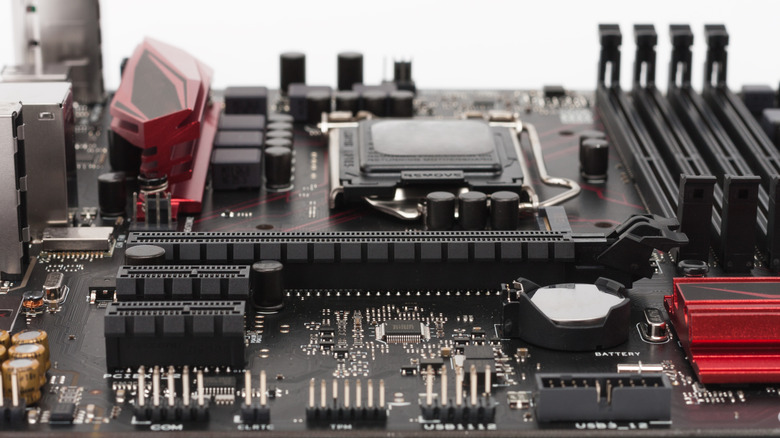
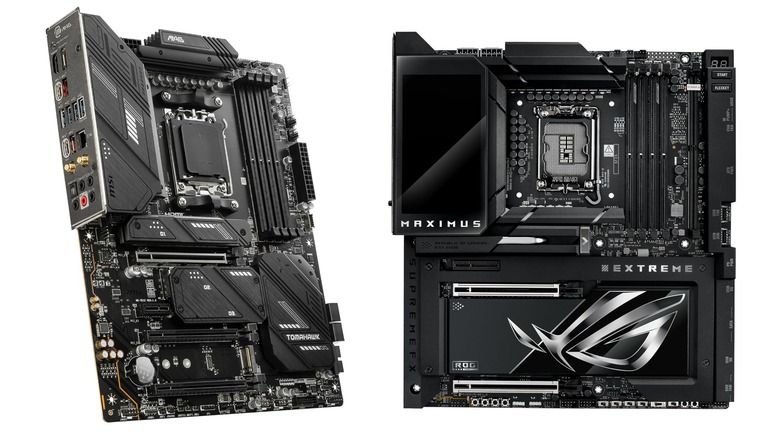
If you’re looking to build a PC, your choice of motherboard is a crucial decision. It determines not only the dimensions of the case you’ll need to build inside of, but also impacts your options for connectivity and the components you can add to the system. But for those who don’t spend their lives combing over spec sheets and keeping track of PC hardware, differences between motherboards can seem frustratingly opaque. But there are major tradeoffs with each choice in terms of the size of your system and what components you can configure it with.Two of the most common motherboard types you’ll encounter from major motherboard brands are the ATX and EATX archetypes, with ATX being by far the more common of the two. Most people won’t go wrong with an ATX build. As we’ll explain in more detail, the primary difference between the two is size, with EATX being a little larger. But that change has knock-on effects that impact everything from how much memory you can install to how many graphics cards the system can handle, as well as how big the case you have to build your PC inside of will be. There are also a couple of smaller motherboard sizes that are gaining increasing popularity as smaller builds become more viable, which are important to disambiguate from their bigger brothers. So, let’s break through the confusion: here’s what you need to know about ATX and EATX motherboards.>>>Replacement battery for Dell Precision M4600 M4700 M4800EATX is a larger version of ATX with more slots
For most people, an ATX motherboard is the sweet spot. It stands for Advanced Technology Extended, and it can trace its roots all the way back to 1995, when it was first released by Intel (don’t worry, AMD CPUs work with it, too). The most important thing about an ATX motherboard is its size. ATX boards measure 305 by 244 millimeters, and PC parts and case sizes have largely standardized around them. That means they’re perfect for powerful PC builds inside mid-sized and large towers. ATX motherboards typically have four (but up to eight) DIMM slots for RAM, along with up to six PCIe slots for GPUs. These days, you’re likely to find two to five M.2 storage slots as well, giving you the ability to use some of the fastest storage modules on the market.EATX, meanwhile, is essentially a wider version of the ATX platform that has more room for activities, measuring 305 by 330 millimeters. With the increase in size comes an increase in the number of RAM and PCIe slots, with up to eight memory slots and four to eight PCIe slots. However, some EATX motherboards, such as the MSI X870 Godlike, have only 4 memory slots. You will need to build off an EATX board inside of an EATX-sized case, and EATX builds can get quite large. If you plan to use your PC for the most intensive GPU-based tasks, like training AI models, you may want to consider building on an EATX motherboard, but most other people will probably be better off with an ATX.>>>Replacement battery for Dell CAM ICES-3(B)ATX should not be confused with MicroATX or Mini-ITX
In addition to ATX and EATX, motherboards also come in more pint-sized flavors. MicroATX and Mini-ITX motherboards are both smaller than ATX boards, which means they’re quite handy if you want to build a powerful PC in a petite package. Mini-ITX is the smallest designed for the PC, measuring just 170 by 170 millimeters. That enables some fabulously tiny PC builds, some of which are small enough to fit into one of the best tech backpacks. You don’t have to sacrifice much in terms of specs, either. Mini-ITX motherboards support the latest CPUs from Intel and AMD, so if you’re looking to install one of the most powerful processors for a PC, you can do so. Most Mini-ITX boards also have at least two RAM slots, along with a PCIe slot that can support the best graphics cards on the market. This won’t be a limitation for most people, since most folks aren’t using multiple GPUs. What matters more is that some Mini-ITX cases won’t have a lot of room for water cooling, so be sure to double-check that a radiator can be mounted if you don’t want to air cool your system.With Mini-ITX becoming increasingly able to meet most people’s needs, that leaves MicroATX as the odd duckling of motherboard types, since, if your goal isn’t to build as small as possible, there’s scant reason not to move up to a full-fat ATX board. Measuring 244 by 244 millimeters, MicroATX motherboards tend to have two to four RAM slots, just like a full-size ATX, but may only have up to two PCIe x16 slots that can be close together. Both Mini-ITX and MicroATX are likely to have less I/O, as well.