We special in laptop battery ,laptop adapters for most of top brands, such as apple,acer, asus, dell, fujitsu,hp, compaq, ibm, lenovo, toshiba, samsung, sony on UK,all the ac power adapters, laptop batteries are high quality and low price.
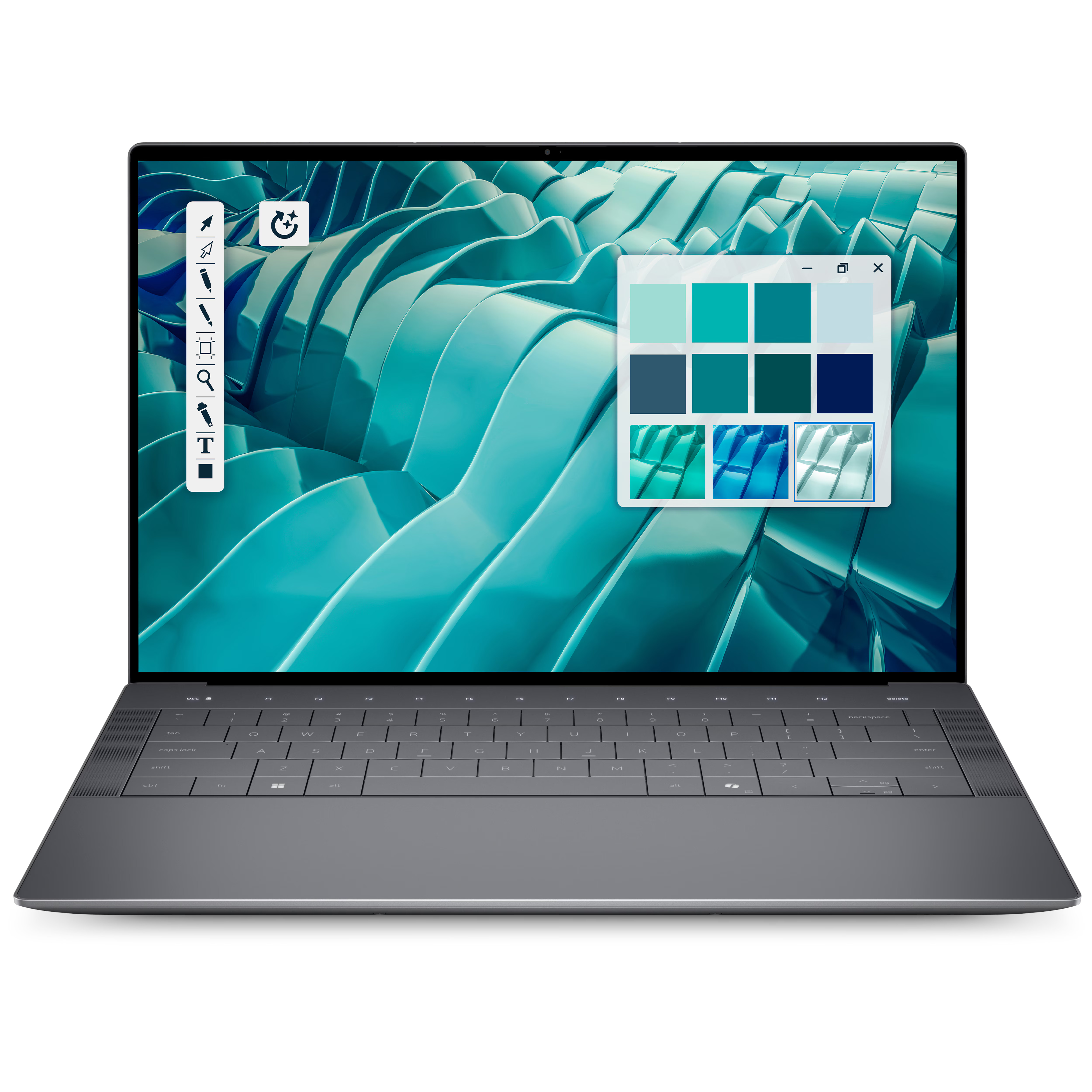
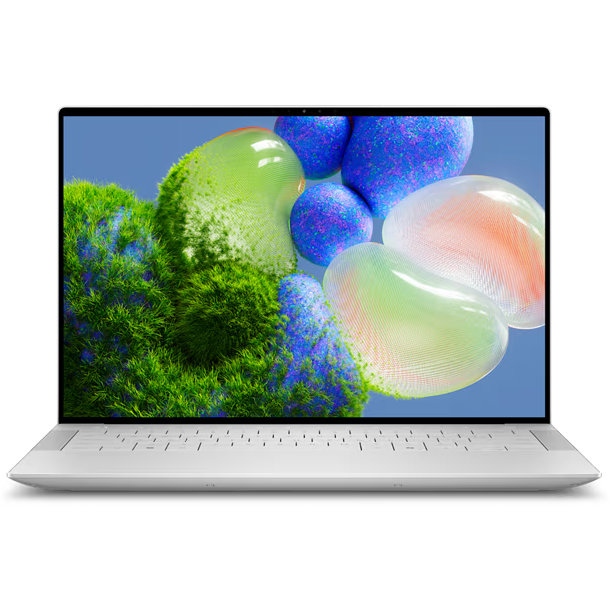
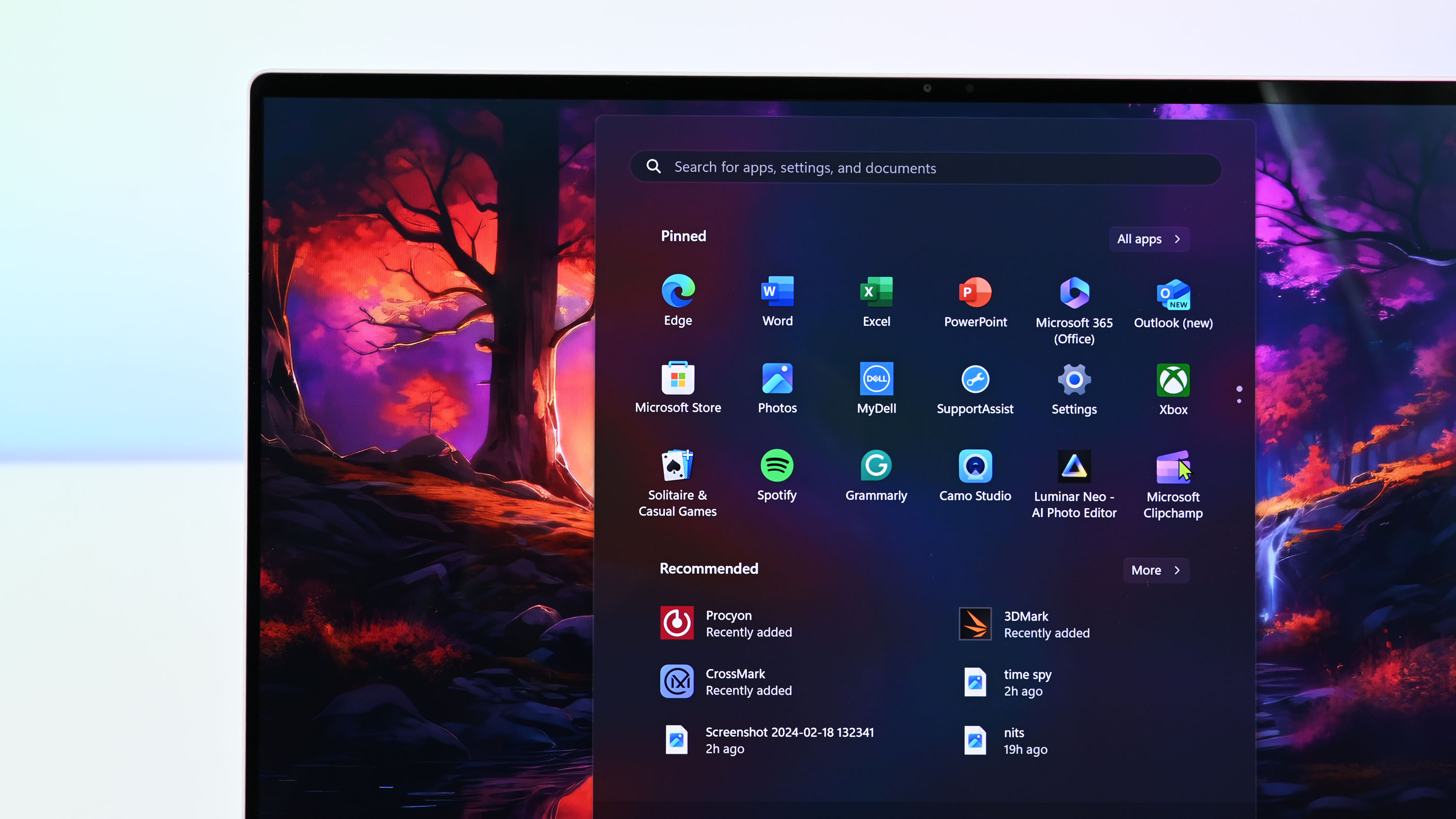
Dell’s revamped laptops include the Dell 14 Premium, a successor to the XPS 14. But what exactly has changed, if anything?
Dell 14 Premium (DA14250)
Dell’s 14 Premium laptop got a new name and a new Intel CPU, but otherwise, it’s largely the same as its predecessor. Those who crave the best performance and efficiency should shop here, but be prepared to pay more than for the often discounted XPS 14.
Pros
Both display options are great, but OLED is worth the extra money
Faster and more efficient Intel Core Ultra 7 255H CPU
Improved integrated graphics
Still one of the best-looking Windows laptops around
Cons
No major changes to the design
Costs a lot more now that the XPS 14 is being cleared out
The keyboard, touchpad, and function row can be divisive
Dell’s XPS 14 (9440) is the Dell 14 Premium’s predecessor, offering a slightly slower CPU and integrated GPU but otherwise very similar specs (including an RTX 4050 Laptop GPU). With clearance prices in place to make room for the new laptop, I recommend the XPS 14 to most people, at least until it’s gone.
Pros
Usually deeply discounted, making it a far better deal
Largely the same performance hardware, aside from the Intel CPU
Both display options are great, but OLED is worth the price
One of the best-looking Windows laptops around
Cons
Slower CPU and integrated GPU
The keyboard, touchpad, and function row can be divisive
No longer as widely available as the new Dell 14 Premium
Dell announced a near-full rebrand of its PC portfolio at CES 2025, getting rid of recognized names like XPS, Precision, Latitude, and more. While many of those PCs, including the XPS 14 (9440), are still available, so are many of Dell’s new laptops.
More specifically, the largerDell XPSreplacements — now named “Dell 14/16 Premium” —launched in June 2025with the latestIntel Core Ultra (Series 2)CPUs and optional RTX 40- and50-series Laptop GPUs.
There’s not a huge difference between the XPS 14 and the new Dell 14 Premium, and as you’ll see from my comparison, you can save a lot of money on one of thebest Windows laptopsof recent years as long as you don’t mind working with a slightly older CPU.
12.6 x 8.5 x 0.71 inches (320mm x 215.97mm x 18mm)
12.6 x 8.5 x 0.71 inches (320mm x 216mm x 18mm)
Weight
From 3.66 pounds (1.66kg)
From 3.7 pounds (1.68kg)
Price
From $1,649.99
From $1,499.99
The Dell 14 Premiumstarts at $1,649.99 at Dell, with the introductory model containing a Core Ultra 7 255H CPU, integratedIntel ArcGraphics, 16GB of RAM, 512GB SSD, and a 14.5-inch FHD+ display.
Custom config orders allow you to easily push the price up toabout $2,649.99for a model with an RTX 4050 Laptop GPU, 32GB of RAM, 2TB SSD, and that sweet 3.2K OLED display.
The XPS 14 (9440) debuted with a $1,699.99 price tag, $50 more than the Dell 14 Premium. However, now that it’s aging out in favor of its replacement, it seems that Dell has applied a permanent $500 discount for all models.
That drops an XPS 14 model with Core Ultra 7 155H CPU,NVIDIA RTX4050 Laptop GPU, 16GB of RAM, 1TB SSD, and FHD+ IPS display down to$1,499.99 at Dell.
A similar XPS 14 model with 32GB of RAM and a 3.2K OLED display only costsabout $1,899.99 at Dell, making it, by far, the better deal.
XPS 14 stock won’t last forever, though, and we’ll eventually arrive at a time when the Dell 14 Premium has completely taken over.
How much has actually changed with Dell’s new 14 Premium?
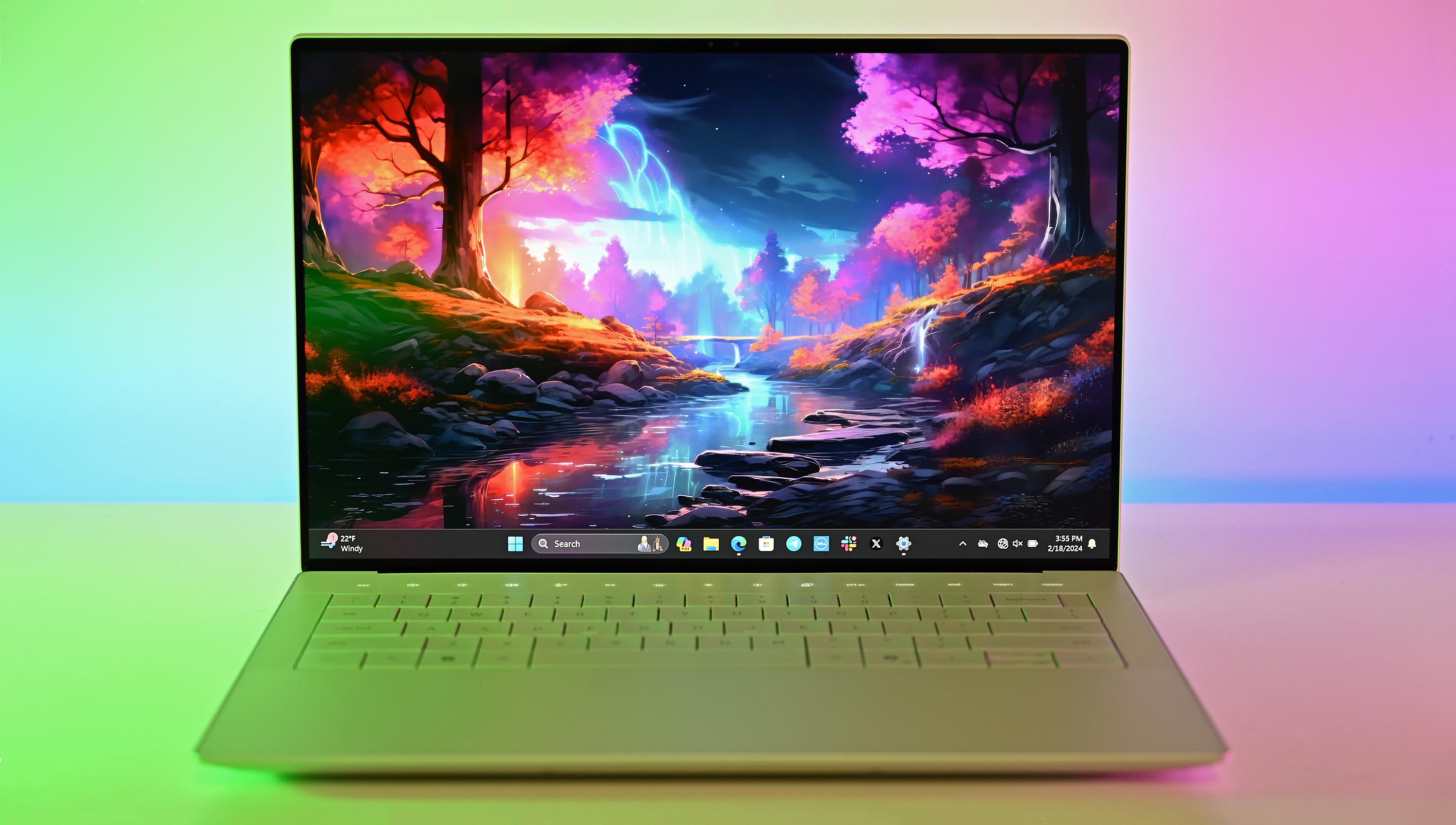
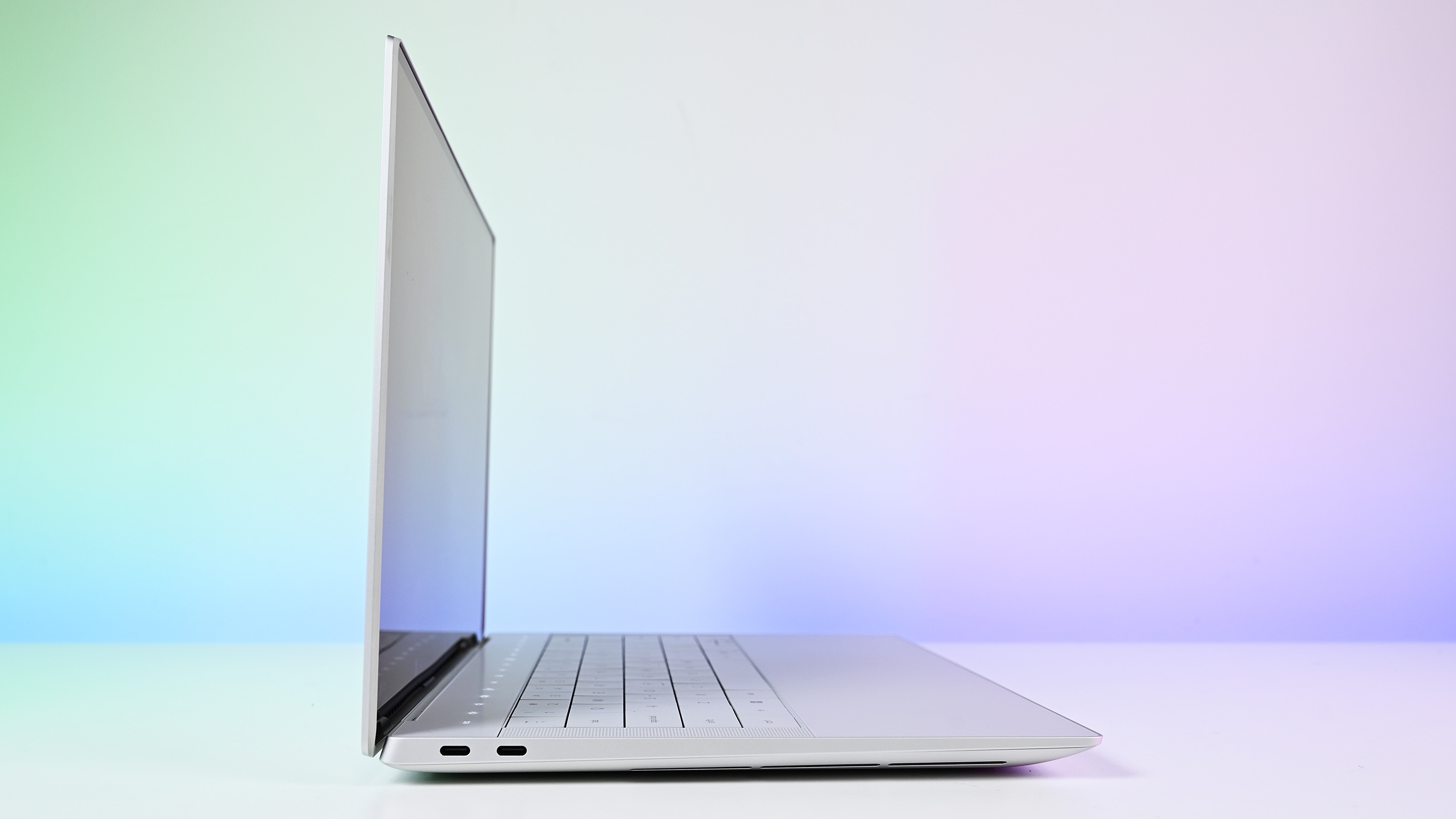
Dell’s XPS 14 (9440) and the new Dell 14 Premium share the same futuristic design.
If I placed the new Dell 14 Premium next to an older XPS 14 (9440) and mixed them up, I’d have a hard time telling them apart.
Despite Dell’s massive initiative to completely overhaul its branding, the new Dell 14 Premium arrives with the exact same design and dimensions as its XPS 14 predecessor.
“One look at the XPS 14 and, like its smaller sibling, you think it’s a prototype or laptop concept of what could be someday instead of shipping right now. Dell has made some bold choices with these new XPS laptops.”
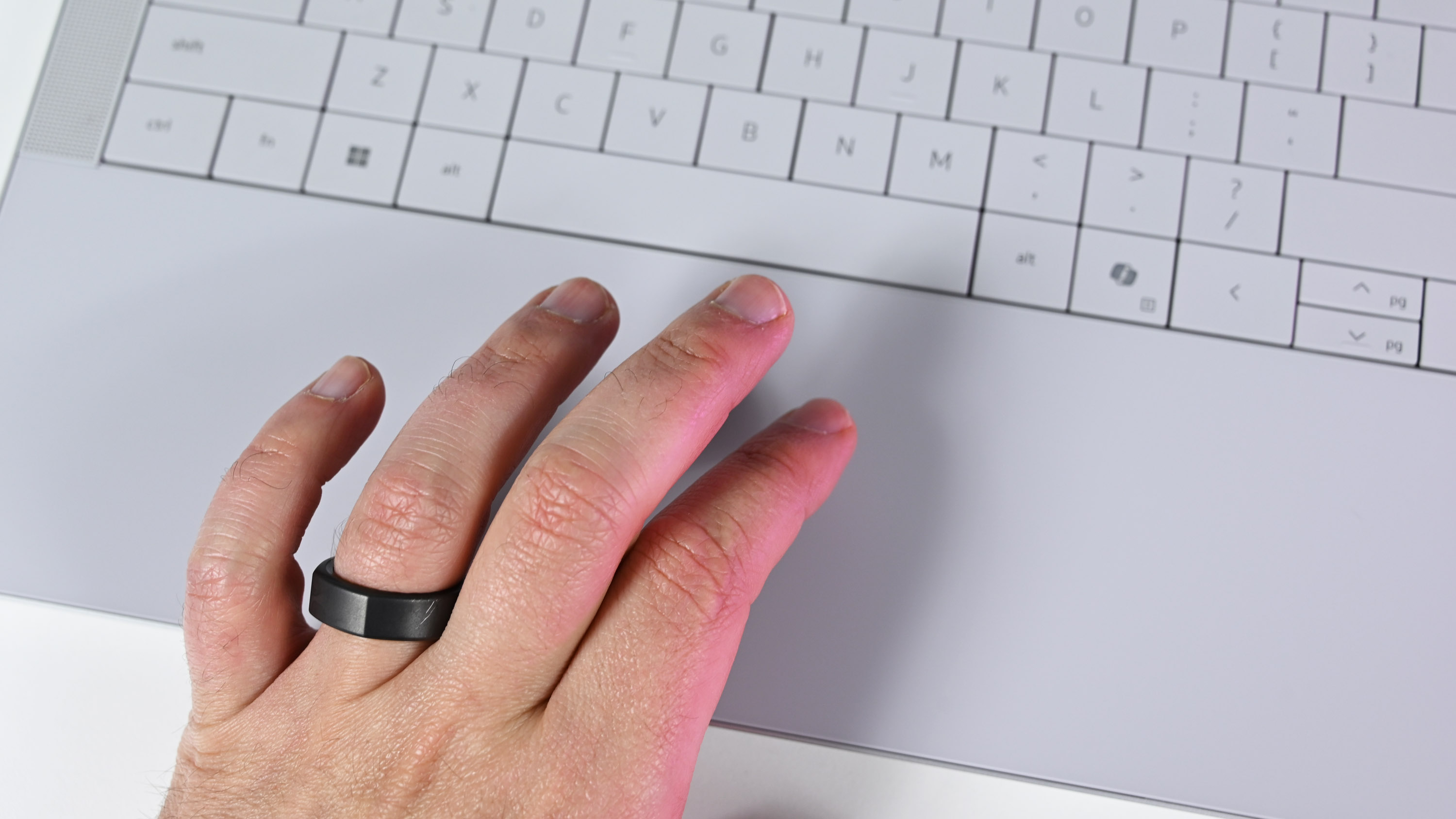
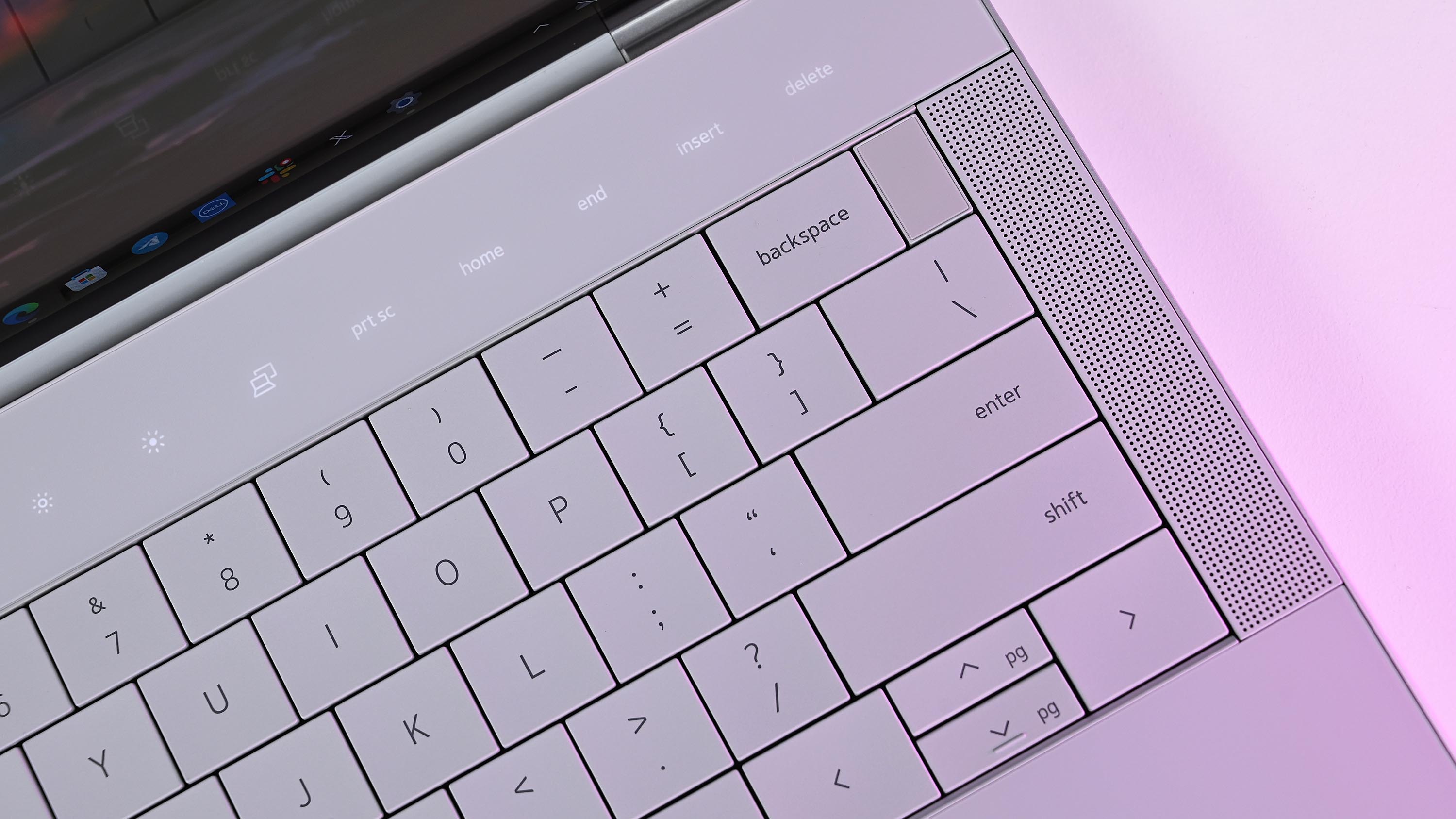
Those changes, which include a zero-lattice keyboard with large keycaps and 1mm key travel, a touch function row, and a seamless glasshaptic touchpad, are the same in both laptops.
If you love the futuristic design, great. If not, you’ll probably want to continue to steer away fromDell’s high-end PCsaltogether.
A look at the seamless glass haptic touchpad and lattice-free keyboard available on both the XPS 14 and Dell 14 Premium.
There are some smaller changes under the hood that I must note before getting into a closer look at performance.
The new Dell 14 Premium has been upgraded toWi-Fi 7and Bluetooth 5.4, whereas the XPS 14 Plus is onWi-Fi 6Ewith Bluetooth 5.3.
That’s not a difference that the vast majority of users will notice, although the rare few with Wi-Fi 7 routers will benefit from higher speeds and improved efficiency.
The UHS-II microSD card readers are also slightly different, with the Dell 14 Premium picking up the newer v7.1 standard compared to v6.0 in the XPS 14.
Once again, this change isn’t going to be noticed by most users, with v7.1 supporting microSD cards up to 128TB and slightly faster transfer speeds.
Ports otherwise remain the same across both PCs. It’s unfortunate that the Dell 14 Premium didn’t pick upThunderbolt 5support, but I expect that will arrive with the next generation.
The threeThunderbolt 4ports on both laptops will nevertheless perform well, but amodern Thunderbolt docking stationwill be required for heavier workflows.
The OLED display available in both the XPS 14 and Dell 14 Premium is one of the best on the market today.
The two 14.5-inch displays available in each of these Dell laptops are the same, and the decision will come down to whether you want an FHD+ IPS panel or a 3.2K OLED panel.
The more affordable option has a 1920×1200 resolution, non-touch panel, 120Hz variable refresh rate, 500 nits maximum brightness, 100% sRGB coverage, anti-glare finish, andDolby Vision.
You can also opt for an OLED touch display with 3200×2000 resolution, 120Hz variable refresh rate, 400 nits max brightness, 100% DCI-P3 color, Dolby Vision, and anti-reflective finish.
Again, quoting our Editor-in-Chief from his XPS 14 review:
“The only downsides to having a 3.2K OLED touch screen are increased price, weight, and decreased battery life. Dell’s full HD option is better for those who value longer-lasting battery over visual acuity. But if you’re a content creator, going 3.2K OLED is the only choice. You won’t be disappointed.”
The biggest changes are in the performance hardware
The XPS 14 and Dell 14 Premium are ultra-slim despite housing an RTX 4050 Laptop GPU inside.
The Dell 14 Premium arrived sporting Intel’s Core Ultra 7 255H CPUs, an upgrade from the XPS 14’s older Core Ultra 7 155H chip.
The newer Intel Core Ultra (Series 2) hardware has a higher 2.0GHz base clock (compared to 1.4GHz), a faster 5.1GHz Turbo clock (compared to 4.8GHz), and otherwise similar specs, including a 28W TDP.
What does that mean for real-world performance? Intel’s newer chips are more efficient and more powerful, and I’d say you can roughly expect about 15-30% better performance from the Dell 14 Premium’s CPU, depending on single-core and multi-core workloads.
The integrated Intel Arc 140T GPU in the Core Ultra 7 255H is also faster than the 155H chip’s GPU. For reference, I triedgaming on the Yoga Book 9i (Gen 10)with the same Arc 140T GPU (albeit in a Core Ultra 9 285H CPU), and I was able to runForza Horizon 5at about 48 FPS with a High preset and ray tracing enabled.
Of course, Dell offers an RTX 4050 Laptop GPU in both PCs, and anyone with aims to game or handle more demanding tasks should make the upgrade for best results.
Battery capacities are the same in both Dell laptops, so don’t expect any massive changes there. Intel’s newer CPUs are more efficient, but you’ll see a bigger difference based on your screen choice and whether or not your model has a discrete NVIDIA GPU.
And while these PCs are both consideredhigh-end AI laptops, neither has aNeural Processing Unit (NPU)with enough power to runCopilot+tools built intoWindows 11.
My recommendation — buy the discounted XPS 14 while it lasts
There’s nothing else quite like the XPS 14 and Dell 14 Premium on the Windows laptop market today.
With no changes to the overall design, single-generation improvements to the CPU, and no differences to the displays or discrete GPUs, I recommend that most people take advantage of the discounted XPS 14 (9440) pricing.
A model with an Intel Core Ultra 7 155H CPU, NVIDIA RTX 4050 Laptop GPU, 32GB of RAM, 1TB SSD, and 3.2K OLED display currently costs$1,939.99 after a massive $500 discount at Dell.
Compare those specs with a Dell 14 Premium model, and you’re looking at payingabout 2,449.99.
Even better, XPS 14 modelsstart at $1,499.99 with the same $500 discount, and you get the NVIDIA RTX 4050 discrete GPU. That’s about $250 less than a Dell 14 Premium model with integrated Arc graphics and half as much storage space.
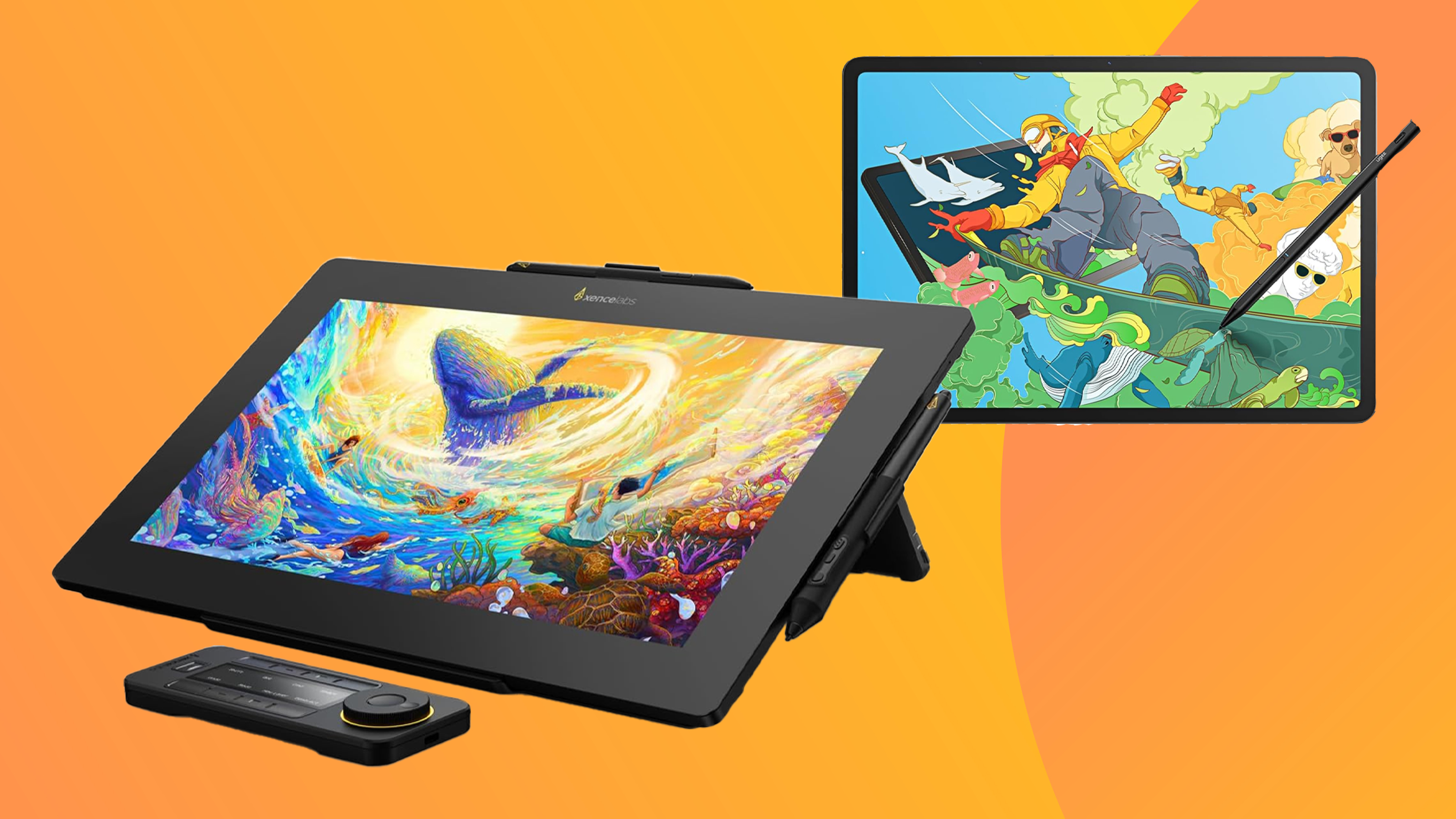
Our expert reviewers compare the best drawing tablets, including pen tablets, pen displays and pen computers.
Artists use drawing tablets to create all kinds of digital art and illustration. They can also be useful for graphic design and even photo editing. There are more options than ever, but also considerable variety in terms of features, power, accuracy and build.
But what types of drawing tablet are there? Apen tabletor graphics tablet is a flat, trackpad-like device with no display that serves as an input for a computer. You need to use your monitor or laptop display to see what you’re doing.Pen displayswork in a similar way but have a display so you can see what you’re doing on the device itself. Finally, there arepen computers. These are general tablets like iPads that allow you to draw directly onto a screen and run art apps (and other software) natively.
To help you choose the best option for you, we’ve extensively tested and reviewed a wide range of drawing tablets of all three types. We’ve also curated views from contributing artists to the website. We’ve compared design, performance, build, software and price to pick the best drawing tablets for different kinds of user.
Active drawing area:261.6 x 147.2mm / 10.3 x 5.8inScreen resolution :NAPen pressure sensitivity:8,192 levelsConnections:USB-C to USB-AOS:Windows, macOS, Linux
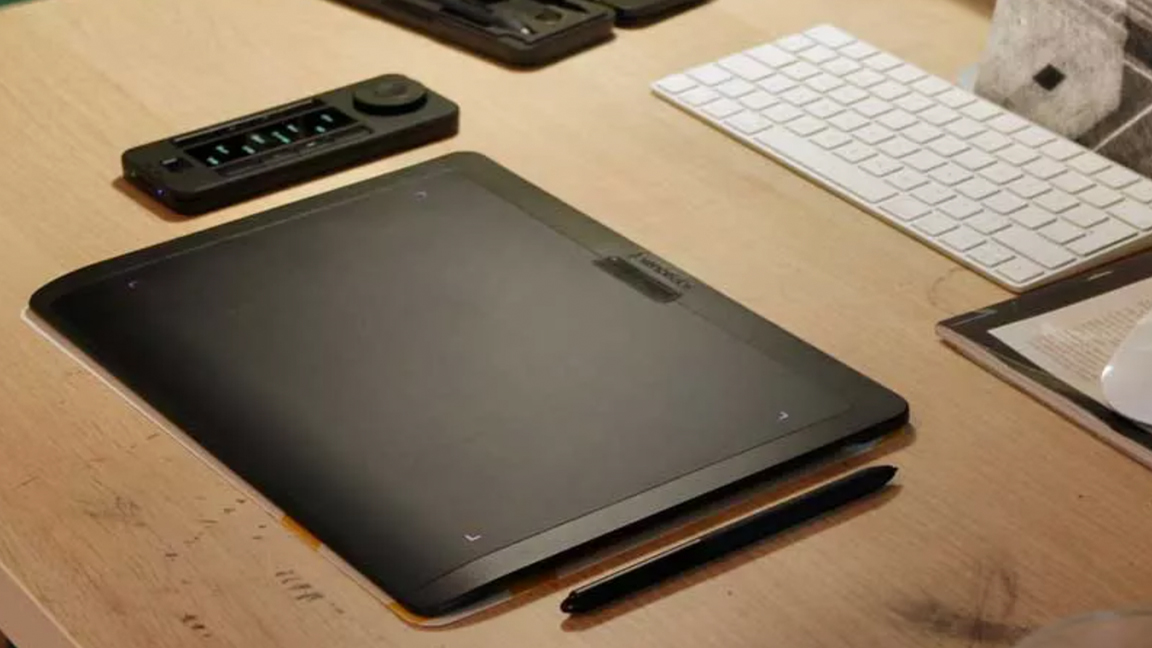
30-second review:The Xencelabs Pen Tablet Medium is a drawing tablet that strikes an optimal balance between power, design, portability and price, and in our opinion that makes it the best drawing tablet you can buy right now. Relative newcomers to the market, Xencelabs boast among their roster a number ofWacomalumni, who have brought their tablet design nous to this newer brand.
Design:One of the most important aspects of a drawing tablet is the texture of its drawing surface, and the Xencelabs Pen Tablet Medium gets it bang on the money. As our reviewer noted in their five-star review of the tablet, the level of ‘bite’ against the stylus feels exactly right, and it makes the tablet immensely satisfying to draw on. Having used the Xencelabs Pen Tablet Medium myself I agree with our reviewer, this one just feels good to use.
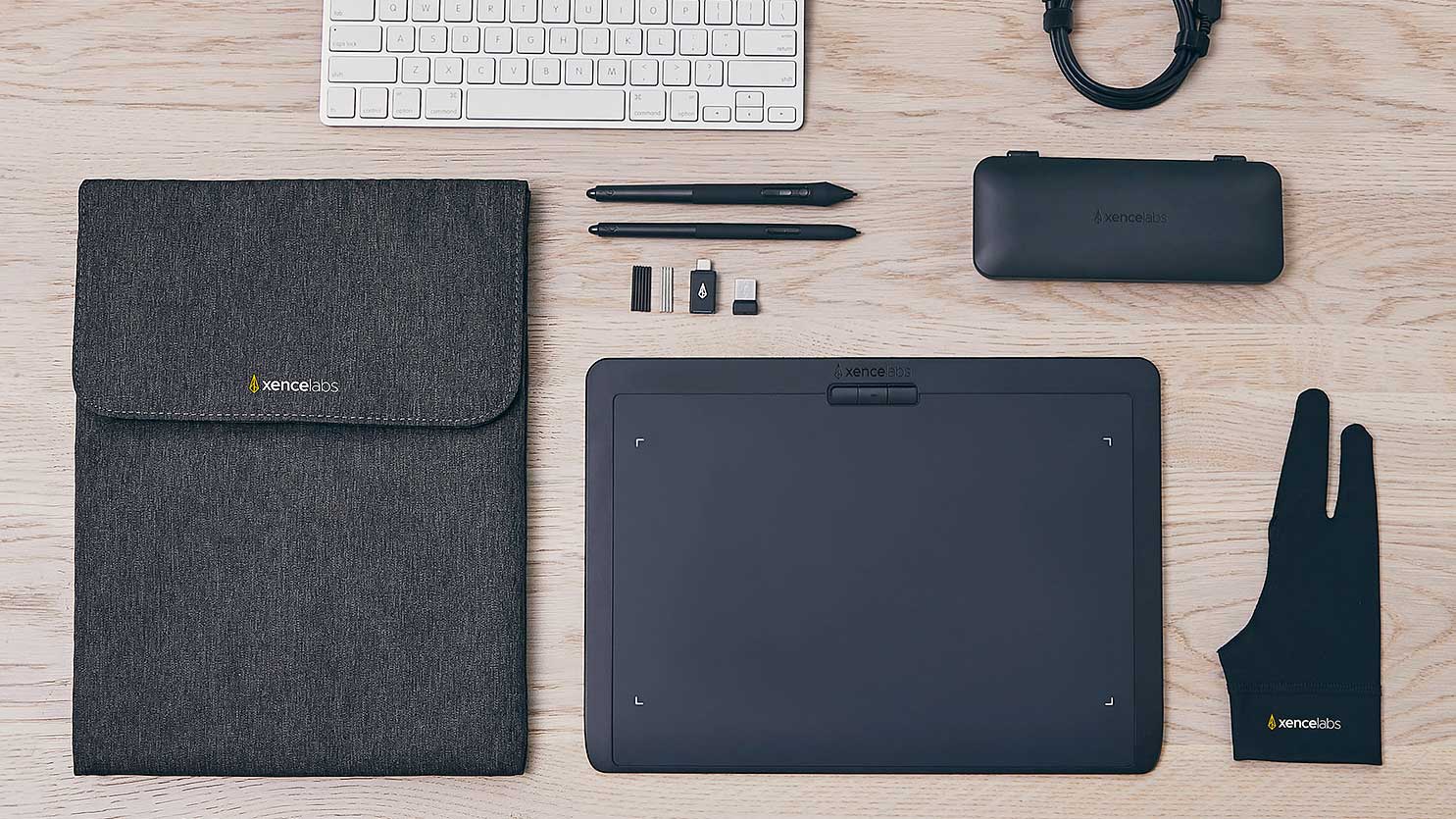
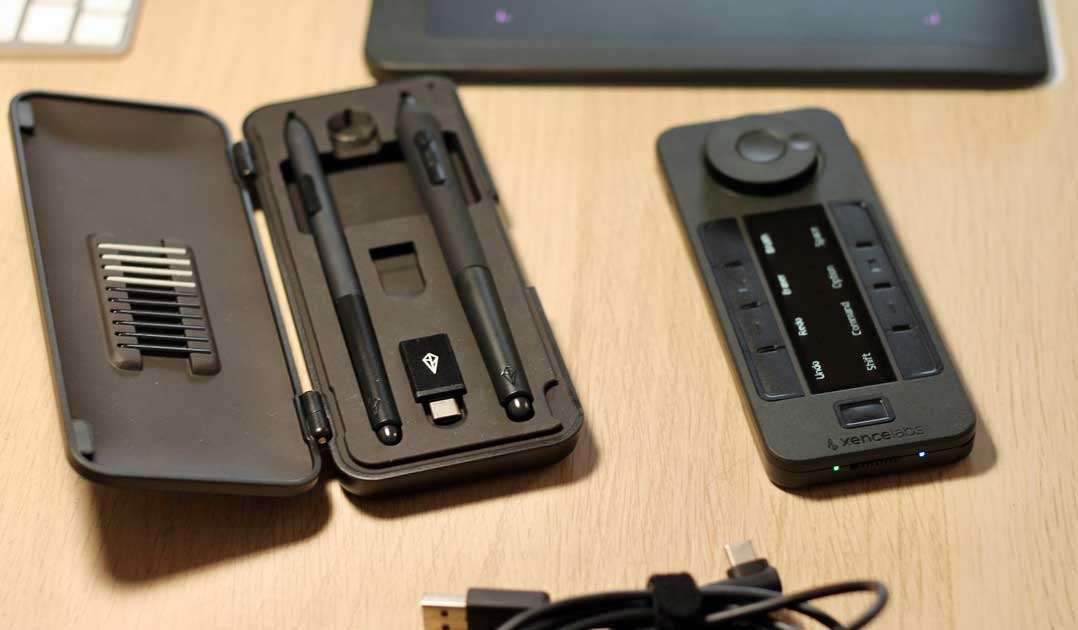
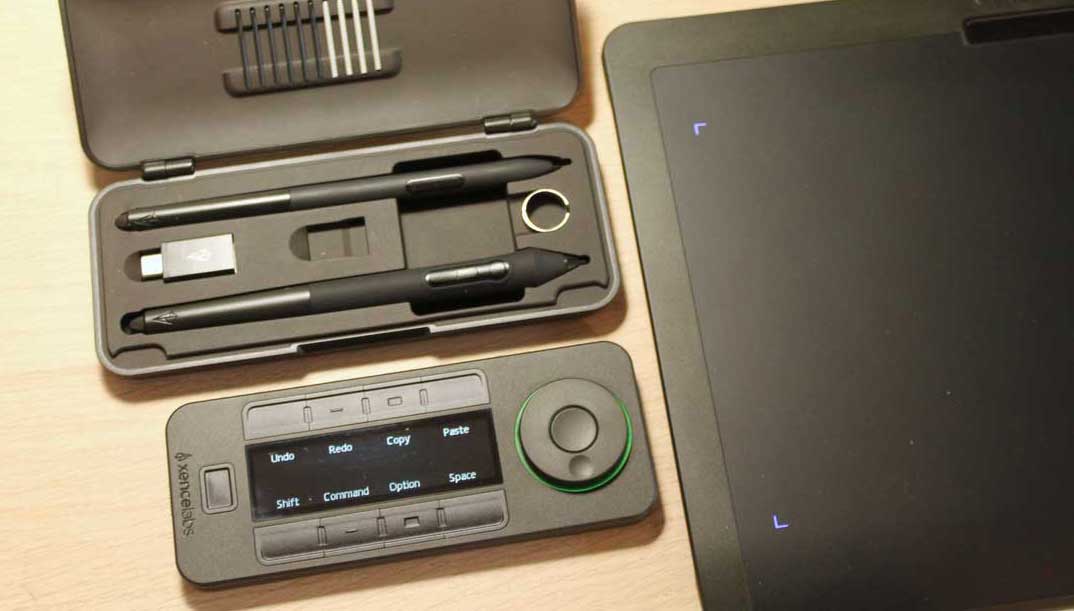
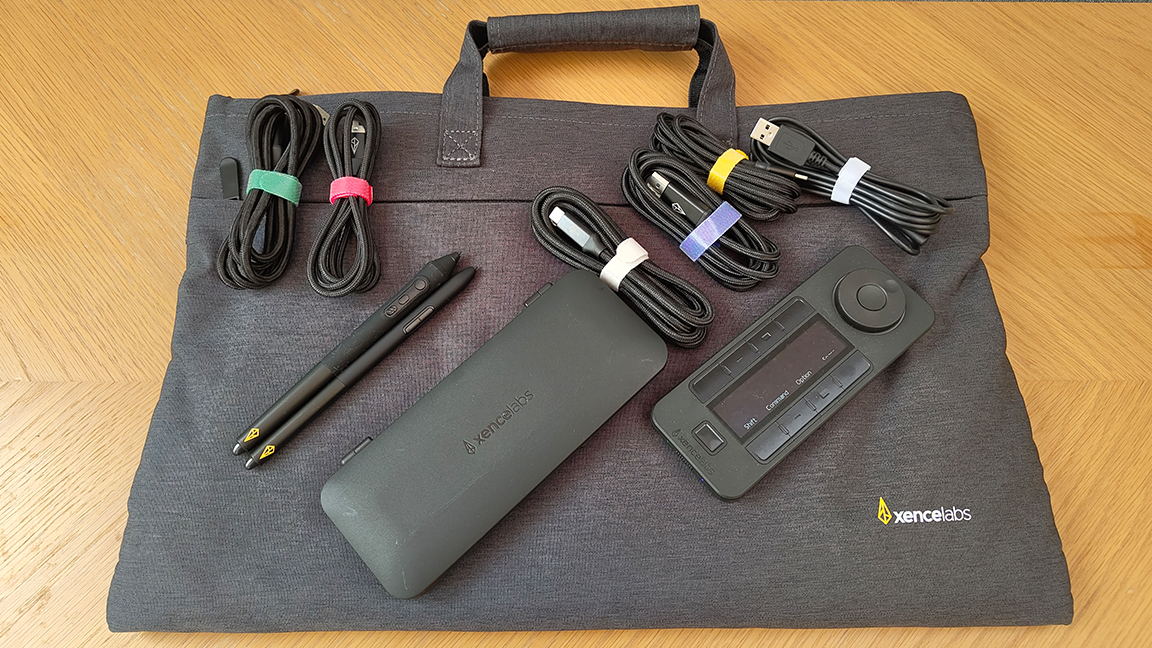
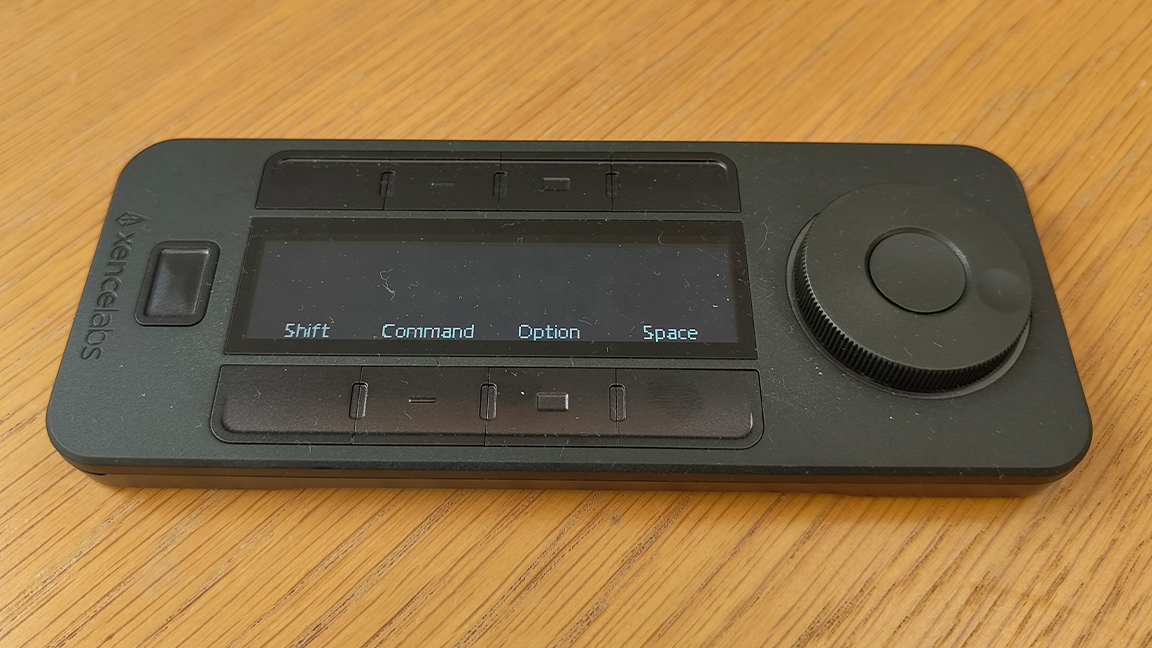
This drawing tablet’s design removes the Quick Keys from the device itself and puts them into a Bluetooth remote unit that comes packaged, the upshot is the Xencelabs Pen Tablet Medium devotes all of its space to a drawing area. Some may find this new approach awkward, in which case the more traditional Wacom Intuos Pro at No.2 on my list is a better choice.
Features:The pressure and 60-degree tilt sensitivity of this tablet and stylus are also practically pitch-perfect, and having two pens bundled in is also great, as you can set them up for different uses (for example one for line art and one for digital painting, or one for 3D and the other for 2D) to enable quick swapping and a smooth workflow.
Stylus pen pressure is 8,192, which is now standard and a solid performance, though the XPPEN tablets on my list blow this away with 16K levels of pressure, which is fast becoming a new standard. The Quick Key remote features eight programmable buttons and an OLED display for ease of use. The calibration and setup interface of the Xencelabs’ app is my favourite outside of Wacom, and this tablet works with all the leading digital art and design software, includingPhotoshop,ZBrushandCorelPainter.
Price:The Xencelabs Pen Tablet Medium costs $249.99 / £249.90 with two stylus and pen case, but my recommendation would be the Xencelabs Pen Tablet Medium Bundle for $329.99 / £289.90, this includes the Quick Key remote which is essential. This is great value, for example the comparable Wacom Intuous Pro (medium) is $379.95 / £329.99.
Active drawing area:307 x 213mm / 12.1 x 8.4inScreen resolution:NAPen pressure sensitivity:8,192 levelsConnections:USB, BluetoothOS:Windows or macOS
Reasons to buy
+Good value for money +Large active area
Reasons to avoid
-Pen stand doesn’t grip well -Difficult to access new pen nibs
30-second review:Wacom is the longstanding leader in drawing tablets, known for reliability, quality and compatibility with every app you can think of. The Intuos Pro range comprises its best pen tablets, coming in three sizes: small, medium and large, with the latter being ideal if you want the most room to work with.
UPDATE: We’ll talk here about the 2017 version of the tablet, but Wacom has also launched a redesignedWacom Intuos Pro rangefor 2025. The new models shift the dials and buttons from the side to the top of the tablet. We’ve not yet reviewed them, but we think the new configuration could be more comfortable for left-handed artists in particular. On the other hand, the earlier versions are now seeing more discounts.
Design:This drawing tablet is large, solid to the touch and flat – it measures just 8mm thick. It’s made from a black anodised aluminum and fiberglass composite resin which gives it a sturdy feel but also flexible enough to give when you push into it. The Wacom Intuos Pro (Large) measures 16.8 x 11.2 x 0.3 inches, ensuring there’s a nice sweep or arc to your arm and hand as you draw.
Unlike the Xencelabs Pen Tablet at No.1 this Wacom features its trademark stack of Quick Keys down the side, eight buttons and a dial for total control. It’s worth noting the Wacom is suitable for both left- and right-handed users. This is a more traditional approach and may appeal more than the Xencelabs remote solution.
Features:The Wacom stylus remains one of the best around, and with 8,192 levels of pressure sensitivity gets you as close as you can get to using an actual pen. All this is supported by Wacom’s broad ecosystem of alternative pens and Texture Sheets to give your drawing surface a distinctive feel. This drawing tablet is also multitouch for using gesture controls and stylus together – cheaper drawing tablets often lack this.
The Quick Keys are fully customisable, as is the stylus. This is also Bluetooth enabled (the cheaper Wacom Intuos range isn’t) and comes with everything you need in the box. It’s worth noting that unlike the Xencelabs this only comes with one stylus, Wacom’s traditional ‘fat’ design. If you prefer the slimmerApple Pencilstyle of pen, then you can by one separately, and Wacom is one of the best supported brands for alternative stylus.
Finally, something worth mentioning is Wacom’s excellent calibration software and compatibility with near enough every digital art and 3D app. It’s very easy to setup and customise. Overall, in our review we found the Wacom Intuos Pro Large to be very responsive and to work well with all leading digital art apps.
Price:The Wacom Intuous Pro Large costs $499.95 / £449.99 and for a short time comes with a choice of app for free, either Shapr3D, Capture One or MASV. For a limited time US readers can also add a Wacom Intuos Wireless Tablet and save 50%. Wacom’s are more expensive than other tablet brands on my list, but they made to last, compatible with every app and industry-proven.
Active drawing area:254 x 158.6mm / 10 x 6.25in (PC mode), 10 x 6.25 inches (Android mode)Pen pressure sensitivity:8,192 levelsScreen resolution :n/aConnections:USB-C, Bluetooth 5.0OS:Windows, Mac, iOS, Android, ChromeOS, Linux
Reasons to buy
+Easy to set up +Simple yet stylish design +Portable size
Reasons to avoid
-Lack of pen storage
30-second review:The Huion Inspiroy Frego M is an well-priced and elegant drawing tablet that’s a solid starter option for new artists and beginners to digital art, as well as anyone who needs an affordable mobile tablet. In our review we recognised this as a good entry-level tablet that isn’t too expensive but features good specs where needed.
Design:Pro artists would need more, especially when it comes to Quick Keys (the Frego M doesn’t have any), but for anyone new to digital art seeking a solid drawing tablet the Huion Inspiroy Frego M is recommended. Our reviewer has been using drawing tablets for decades, and loved this new Huion.
This comes in two sizes, the Frego M measures 304 x 220 x 8 mm and the Frego S comes in at 220 x 165.7 x 8 mm. Interestingly it features two work modes, one for mobileAndroidconnection and the other for PC desktop – the active work area dimensions vary with the M and S models: Frego M: 10 x 6.25 inches (PC mode), 10 x 6.25 inches (Android mode), Frego S 6.3 x 3.9 inches (PC mode), 6.3 x 3.9 inches (Android mode).
Overall the Frego M is our pick, and we love how slim, lightweight and neatly designed this drawing tablet is; for a budget tablet it feels like a premium device. There are some nice design notes too, such as the canvas loop to store the stylus and the subtle curve to rest your wrist.
Features:Despite the budget price this Frego M tablet uses the brand’s excellent PenTech 3.0+ stylus that has 8,192 levels of pressure stylus, with 60-degree tilt; for this price, it’s surprisingly excellent. The Frego M can connect to your main device via USB-C or Bluetooth 5.0 for wireless use, so you don’t need to worry about wires (and boasts over 24 hours of use).
The Huion Inspiroy Frego M works with the most common digital art apps, including Photoshop, Krita and Blender. It can also be connected to iPhones and Android smartphones for use with mobile art apps – Huion offers HiPaint and ibisPaint as free downloads. One drawback our reviewer found was it could lag in olderMacBook Prolaptops (M1 models).
Price:The Huion Inspiroy Frego M costs $99.99 / £104.99 (but you can regularly fund deals for around $80) and comes packaged with a stylus, USB-C cables, USB adapters and spare nibs. Extras like a stand are sold separately.
The best pen display overall
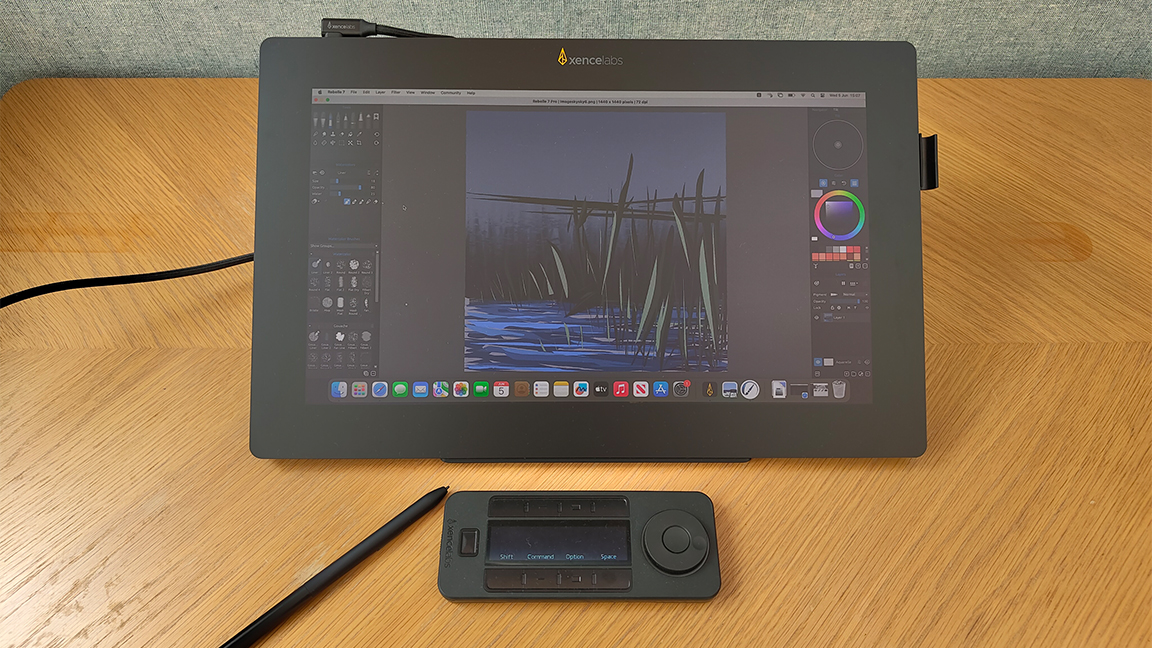
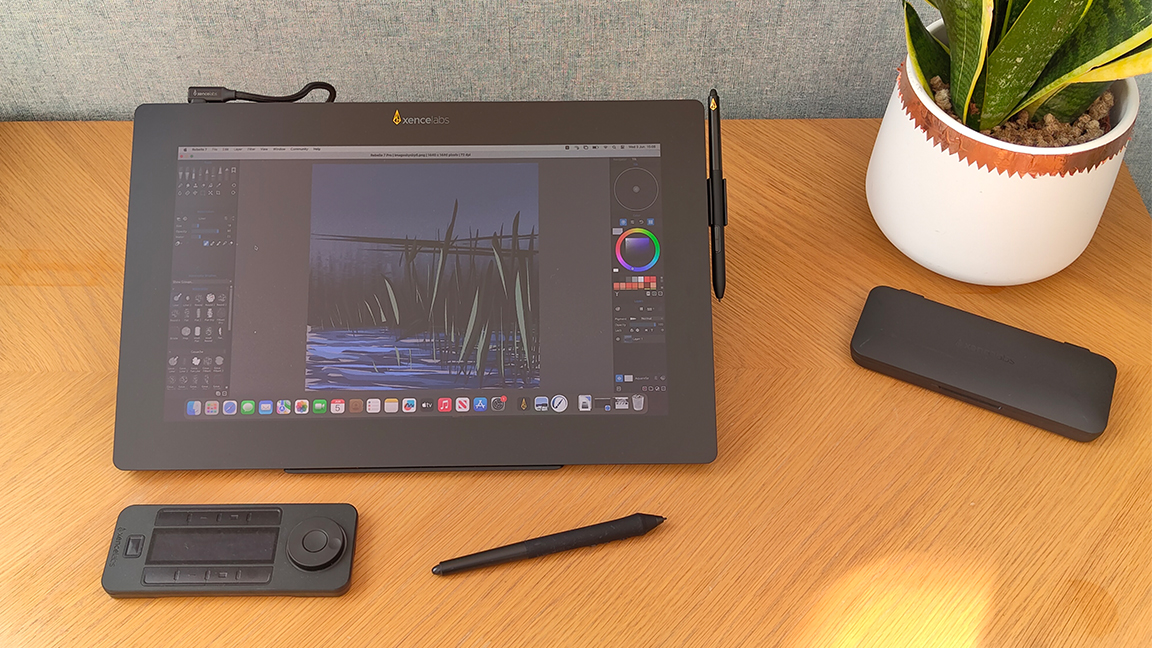
04. Xencelabs Pen Display 16
The best pen display for a balance of specs and price
Specifications
Active drawing area:342.9 x 196.7mm / 13.5 x 7.75inResolution:3840 x 2160 (4K)Pen pressure sensitivity:8192 levelsConnections:1 x USB C. Supports HDMI and DisplayPort using HubOS:Windows, Mac OS, Linux
-Lacks touch controls so Quick Keys Remote is required
30-second review:The Pen Display 16 consolidates Xencelabs’ growing reputation for producing high-quality drawing tablets at very competitive prices. It’s well build and packs in features like an OLED display and good colour coverage at a reasonable price for a pen display of this size. Just note that the Quick Keys Remote, which is sold as part of a bundle, is really an essential to get the most from the device.
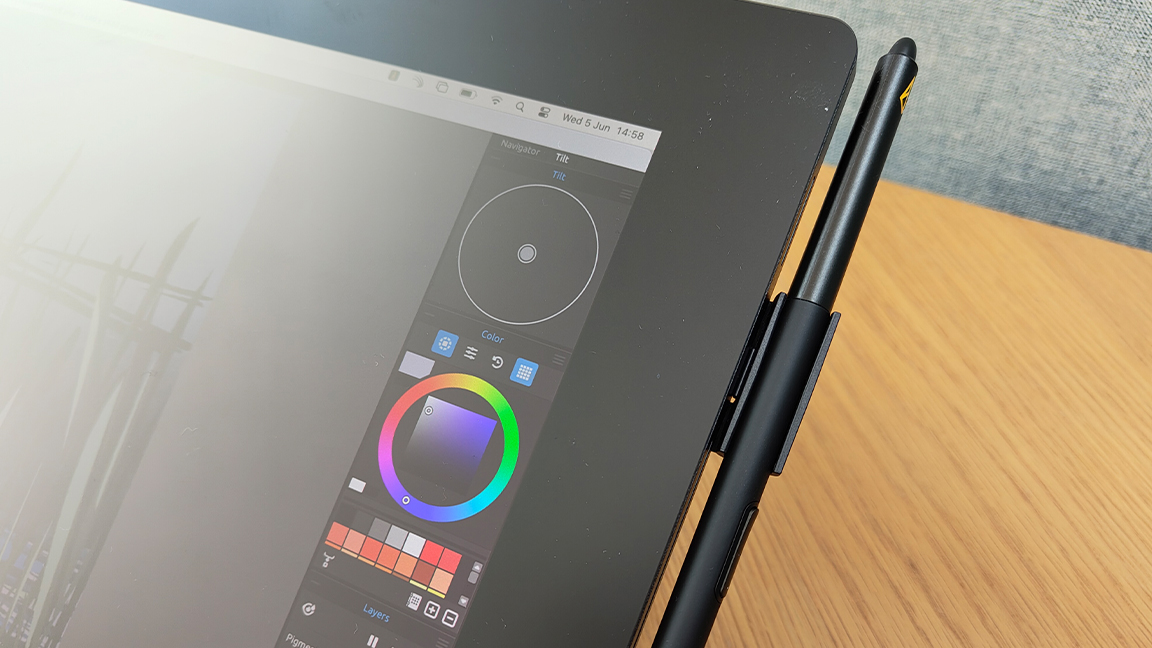
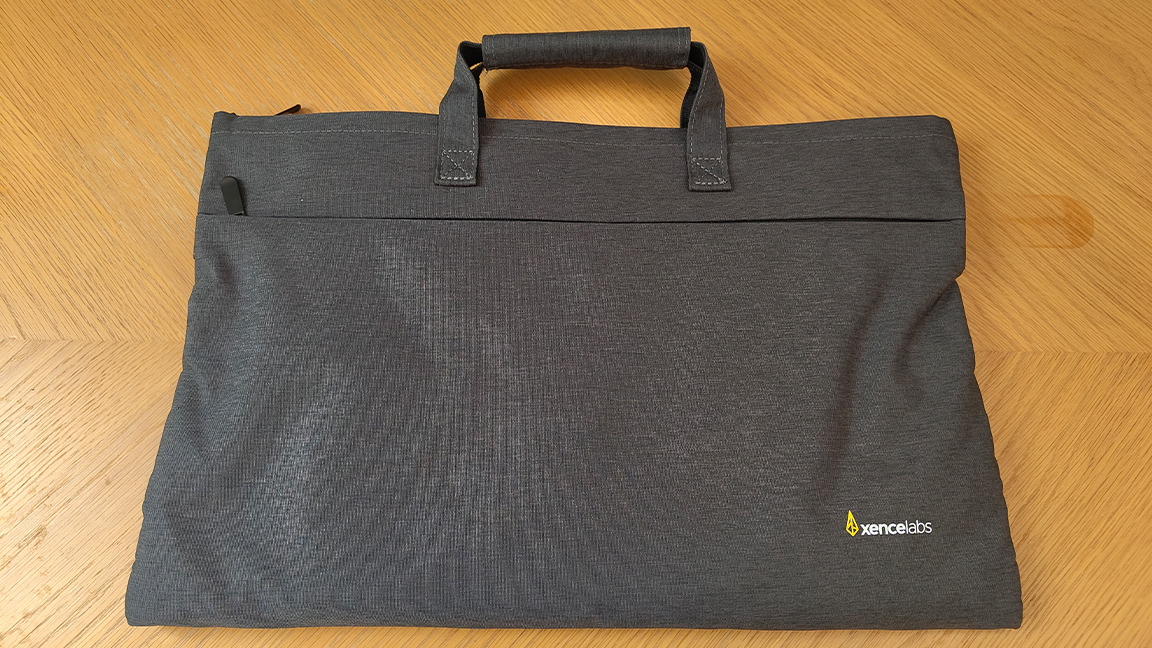
Design:We have been impressed with the build quality of Xencelabs’ pen tablets, and its foray into pen displays has keeps that up. We found this to be very light for a 16-inch Pen Display, but it felt reassuringly solid and durable, and it remained cool in use. The fat bezel around the edge of the screen is a good design decision since it means you can rest your wrists and prevents the stylus from falling off the tablet when selecting from menus in the top left or right corners of an app’s menu. It’s also nice that the bundle includes a case and a stand, which aren’t always included by other brands.
Features:The 4K OLED screen really shines, and it covers up to 98% ofAdobeRGB, 98% P3-DCS and 99% sRGB. We found that the anti-glare coating worked with direct light overhead. It isn’t a touchscreen, though, so doesn’t support gesture controls. This means that the Quick Keys Remote included is a pretty essential add-on (it’s included in the bundle package but not in the Essentials package).
The Remote can be connected via cable or wirelessly via a Bluetooth dongle, and it has its own OLED display to show key functions. Both the keys and the labelling are cutomisable, and we found them to be convenient and easy to use.
The two styluses included are the same ones that come with Xencelab’s other drawing tablets, so we’ve tested them a lot by know and we’ve found them to be consistently accurate. Each can be customised and set up for specific software or jobs, and there’s a case for them included.
Price:We think the Xencelabs Pen Display 16 is very competitive when it comes to price. At $1,249 / £1,199, the Bundle deal, which includes the Quick Key Remote and Mobile Stand, is worth the extra cost over the Essentials option ($999 / £969).
There is also the outstandingXencelabs Pen Display 24that repackages the same tech and design ideas into a much larger display. This costs $1,899 / £1,850, which is around $600 / £600 less than the similarly specced Wacom Cintiq Pro 24. The advantage of the Xencelabs is it’s not only more affordable but comes witheverythingyou could need in the box.
In both cases, the tablet sits comfortably between Wacom’s Cintiq Pro 16 ($1,599 / £1399.99) and the budget XPPen Artist Pro 16 (Gen 2) ($599.99 / £529.99). Considering that the latter isn’t OLED and lacks true 4K resolution, Xencelabs offering gets our vote as the best value Pen Display overall. The new Wacom Movink 13 is a little cheaper at $749.95 / £729.98, and it has a touchscreen, but it’s smaller and has inferior colour coverage.
The best large pen display
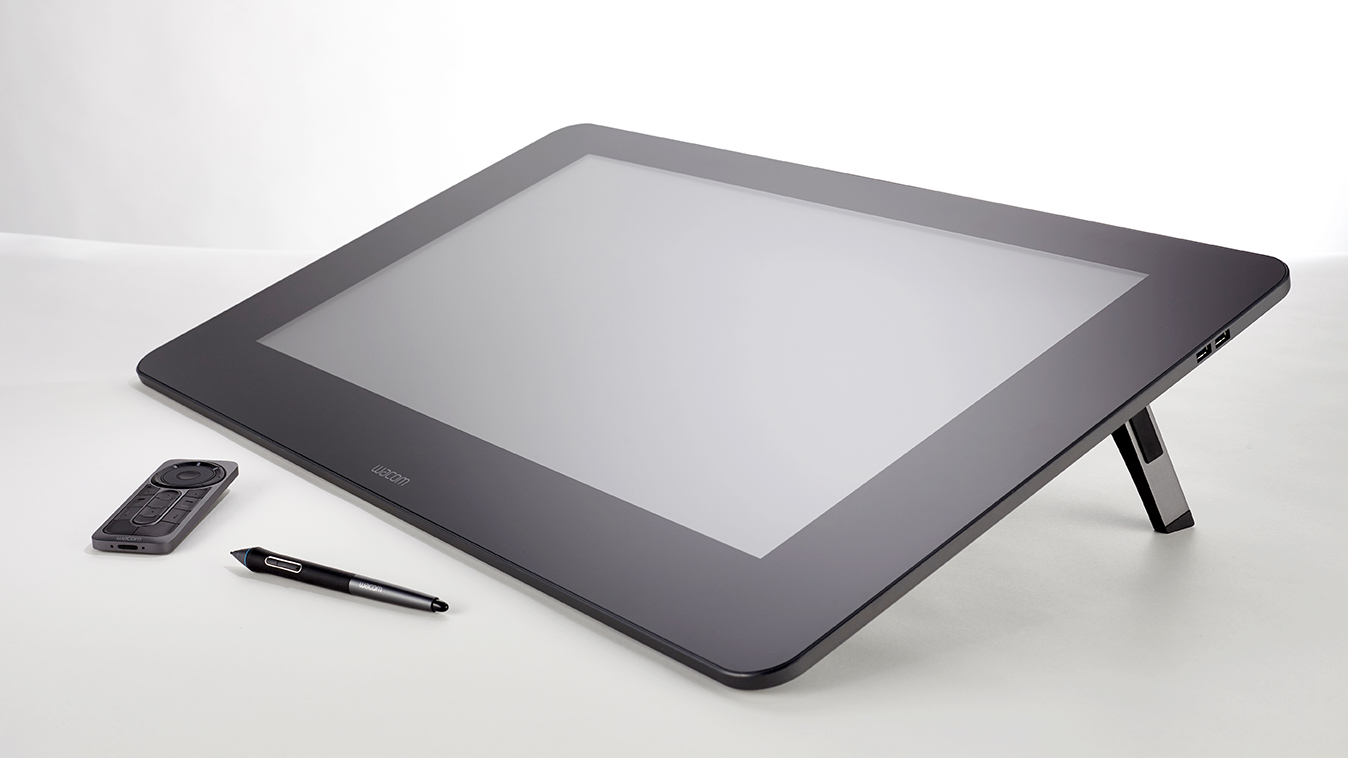
05. Wacom Cintiq 22
Our best runner up pen display is a reliable Wacom tablet for pros
Specifications
Active drawing area:495.3 x 292mm / 19.5 x 11.5 inchesScreen resolution:1,920 x 1,080Pen pressure sensitivity:8,192 levelsConnections:HDMI, USB 2.0OS:Windows
Reasons to buy
+Keen price point +Very good drawing experience +Built-in adjustable stand
Reasons to avoid
-Costs more than its direct rivals -Relatively low screen resolution -No built-in shortcut keys
30-second review:Despite increased competition, the Wacom name is still to be reckoned with, and as far as I’m concerned the Wacom Cintiq 22 is the drawing tablet to consider if you’re looking for large high-quality pen display that will last you for years. Wacom makes a number of good pen displays, but for value, features and size I think this is the best option for users who aren’t prepared to pay for the Cintiq Pro (see our guide to thebest Wacom tablets).
UPDATE: You might want to wait if you’re considering this tablet. Wacom has announced that it will release anew Wacom Cintiq 24to replace the Cintiq 22 later in 2025. We haven’t yet tested it, but the new model will have 2,560 x 1,440 resolution and, as the name suggests, an extra two inches in display size. it’s also nearly half as thick, which could make it more portable despite the larger screen size.
Design:In our review, we noted the Wacom Cintiq 22 has a list of design touches that compete at the highest level, including a 22-inch display that provides plenty of creative space to play with. It has Full HD resolution, which maybe a drop behind Xencelabs’ 4K, but it’s good for pro artists and hobbyists alike and features 96% sRGB. You can get sharper screens on other Wacom tablets too, but they cost more, and this model is all about bringing Wacom quality with an affordable price tag. And let’s not forget that plenty of pen displays that come in cheaper but lack this resolution.
An advantage of Wacom tablets is that these are pretty much the industry standard and best of all these pen displays last years – and what you really need these days is a tablet that is reliable. This drops to the runner-up pen display slot on my list because the Xencelabs offers a larger screen, new design innovations and more accessories for a good price, but if you need an industry-standard pen display that’s slightly smaller and costs a little less, this Wacom is for you.
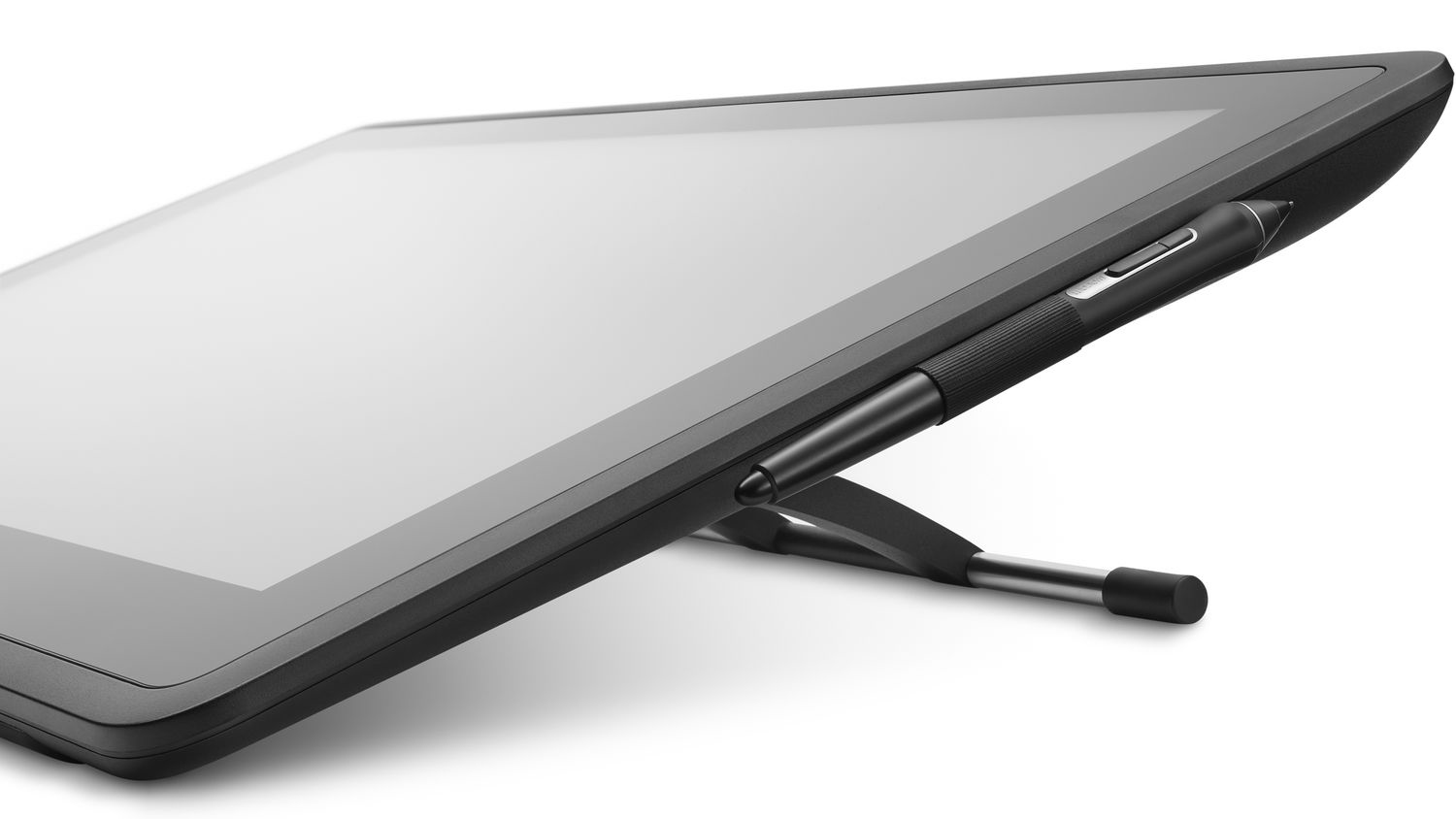
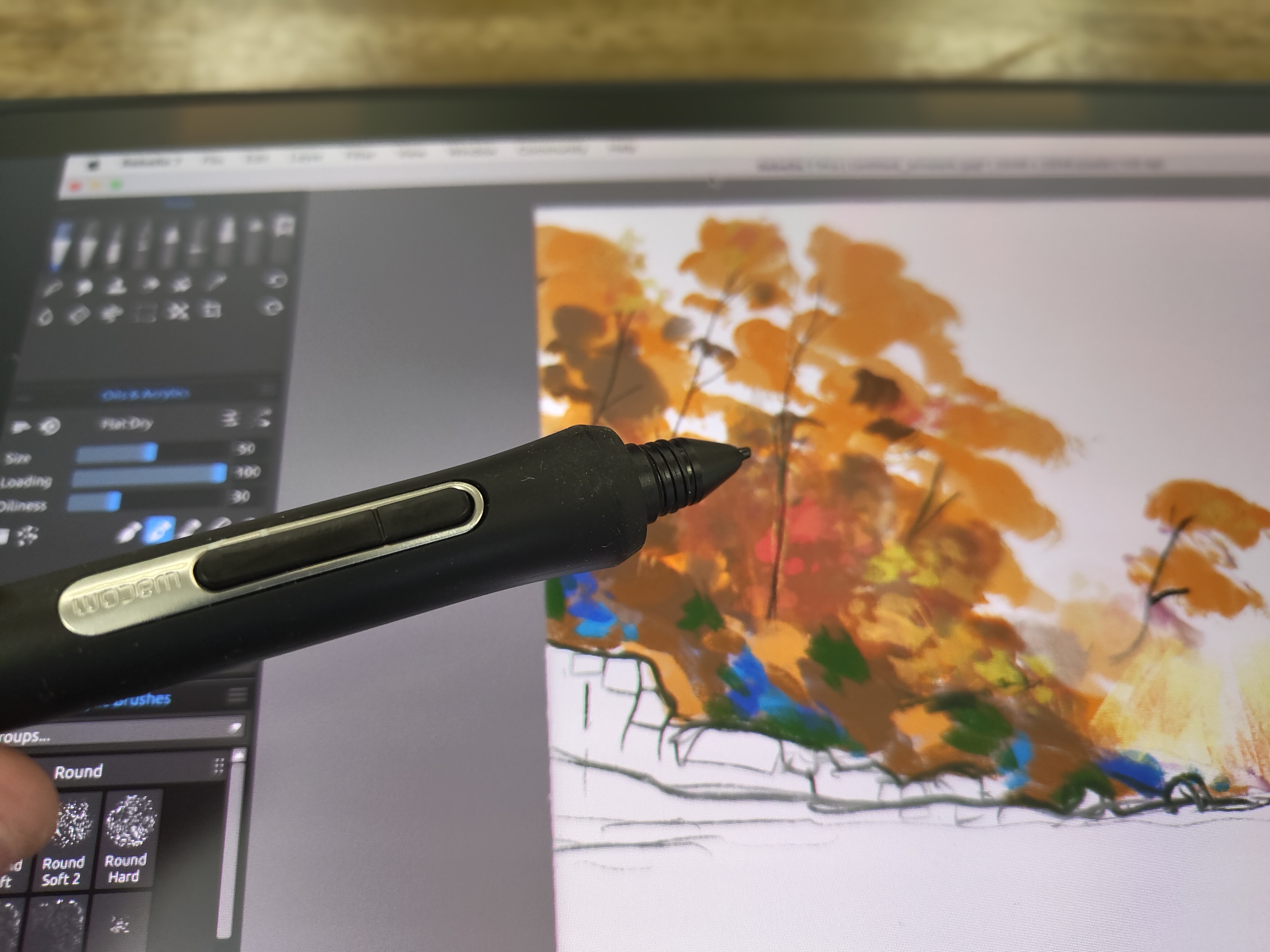
Features:What really makes the Wacom Cintiq 22 such a pleasure to use is the Wacom Pro Pen 2, with a whole 8,192 levels of pressure sensitivity as well as tilt sensitivity. Wacom has been in this game a long time, and it’s hard to imagine an artist with any complaints about the Pro Pen 2. It just works really,reallywell. While XPPen in particular now offers 16k levels, the design, weight and build of the Wacom stylus stillfeelsgood.
This pen display features a built-in adjustable stand and an anti-glare scratch resistance display. It doesn’t feature any Quick Keys on the tablet, and the Quick Key remote for custom shortcuts isn’t included (unlike Xencelabs), so you’ll need to pay an extra $100 / £100. This pen display lacks gesture control too. So you can see how Wacom is bringing the price down by reducing features. Though Wacom does include a six month subscription to Clip Studio Pain.
Price:The Wacom Cintiq 22 costs £1,229.99 / $1,299.95, and US reader can get an exclusive offer to add a Wacom Intuos Medium to their basket for half the price ($199.95to $99.95).
Most portable pen display
06. Wacom Movink 13
A super thin and light pen display with an OLED screen
Specifications
Active drawing area:294 x 165mm / 11.6 x 6.5inScreen resolution:FHD (1920 x 1080)Pen pressure sensitivity:8,192 levelsConnections:USB-COS:Mac, Windows, Android, ChromeOS
Reasons to buy
+Slim, lightweight design +Very accurate +Vibrant OLED screen
Reasons to avoid
-Only FHD resolution -Some artists will want a larger screen -Stand sold separately
30-second review: The Movink 13 is Wacom’s thinnest and lightest pen display to date, and the first with an OLED display. The portability makes it a great option for working on the move since it takes up little space.
Design: It’s hard to overstate just how thin and light the Movink 13 is. We’ve tested a lot of pen displays and we were really taken aback. It weighs just 420 grams and is just four millimetres thick, widening to 6.5mm to create a soft sloped with a slightly wider bezel below the display at the slimmer side.
Our initial concern was that this might make it feel fragile, but the tablet actually feels very solid and well built, even when we tested to see if it would bend. That said, you’re still going to want some kind of protective case if you’re taking the tablet around with you, both to protect the tablet and to prevent loss of the stylus, and that will cost extra.
Features: Adding even more portability, there’s no power cable: it takes power from your laptop by USB-C. There are physical buttons as well as on-screen touch buttons for accessing keyboard shortcuts, which we found to be steamlined approach that does away with the need for a desktop setup.
As for the stylus, I love the slimmed-down Wacom Pro Pen 3 that comes included (there’s a cutomisation kit if you prefer the older fat design). Small things make a difference, like the slightly longer nylon nib, which let me see more of the display where it touches. I found brush strokes to be accurate and responsive in my tests.
The nicest thing about the Movink is that it’s just so easy to set up and use. You just plug in and draw. In my full review, I compared it to drawing on an A4 pad. It feels quite liberating if you’re used to being stuck at a desk. It could also be compared to using an iPad to draw (see below), but I found the drawing experience to be much better.
Price: The Movink aims pretty much at the middle of the market. It’s a lot cheaper than Wacom’s Cintiq Pro devices but it’s more expensive than comparable pen displays of this size from other brands, and if you want a stand or case, they come separately, adding to the cost.
We think the OLED display and super slim build make it worth that extra cost for those who want a very mobile device, but if you’ll mainly be working at a desk, you might prefer to get more screen for your buck with something like the Xencelabs Pen Display 16 further up on our list.
Best pen computer overall
07. iPad Pro M4 (11-inch)
The best pen computer for digital art and more
Specifications
Active drawing area:11in (also 13in)Screen resolution:2752 x 2064Pen pressure sensitivity:Not specified (requires optional Apple Pencil)Connections:USB-C, Bluetooth, Wi-FiOS:iPadOS
30-second review:If having the best drawing tablet simply isn’t enough for you, and you need to have the best tablet all round, that can run apps natively, there’s really only one choice: the iPad Pro (M4). It’s a solid workhorse and an elegant table for art, design and everyday work.
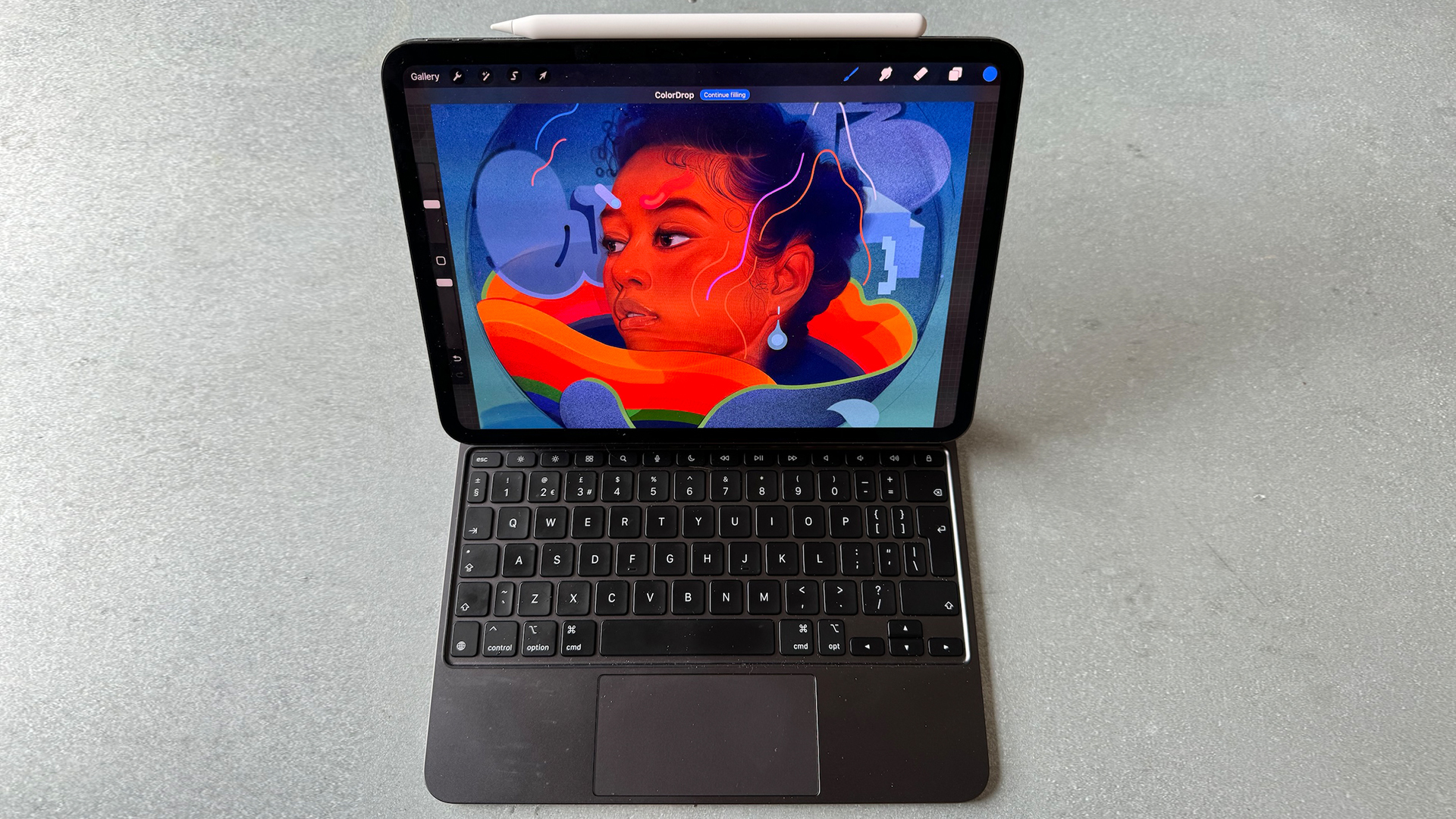
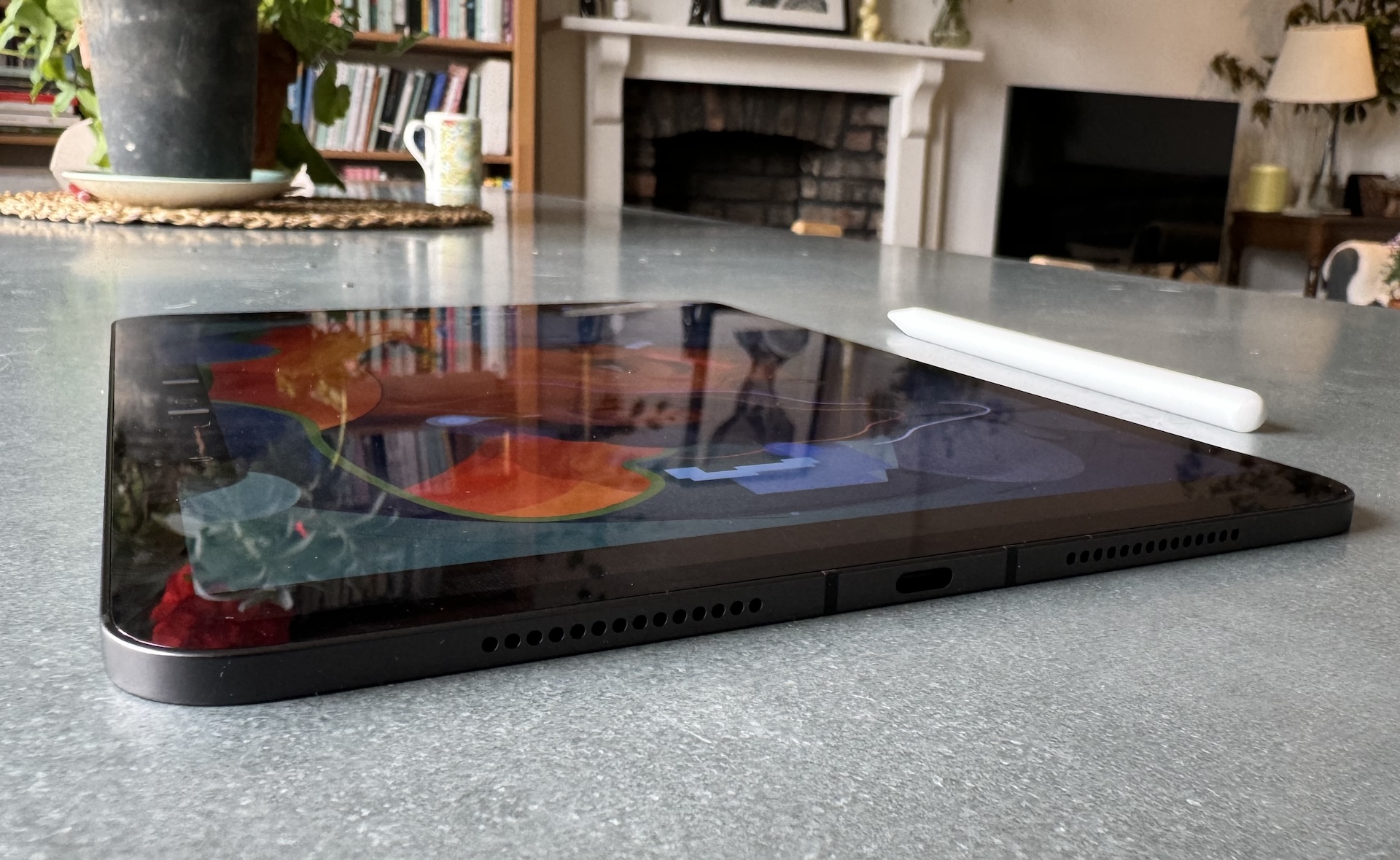
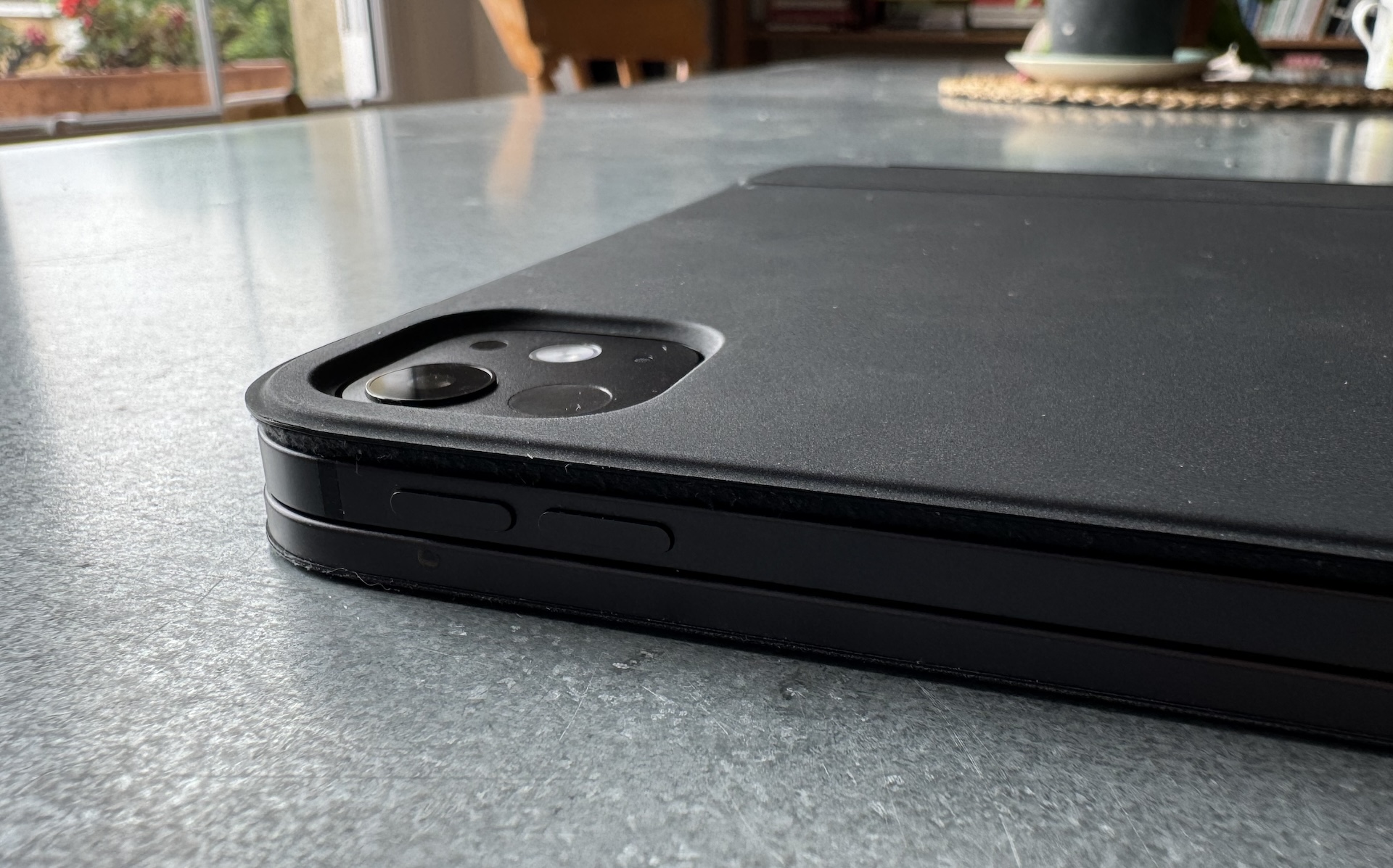
Design:The iPad Pro (M4) has a new thinner design, and the build quality is fantastic. It comes in two sizes: 11in and 13in. We’ll discuss the specs of the former here, but the larger tablet provides the same features and performance. The thinner, lighter design makes this an ideal mobile art tablet (I opt for the 11-inch over the 13-inch as I use my iPad Pro on the sofa and while travelling.)
It has a fingerprint-resistant, fully laminated display with great specs – 2752 x 2064 resolution, 1,000 nits brightness (up to 1,600 nits HDR), it’s multi-touch and it’s the first iPad with OLED tech for enhanced contrast. On the downside, it’s glossy and reflective despite an antireflective coating, which for some artists can be an issue. You can pay extra to have nano-textured glass for improved anti-glare, but this is only available in models with 1TB or 2TB storage, upping the cost – $500 / £500 for extra storage and $100 / £100 for the improved screen. If you’re using iPad Pro (M4) for art and design, this is needed.
Features:The iPad Pro (M4) isincrediblypowerful, and so priced accordingly, that if you are only looking for a drawing tablet and won’t need its many other features, it probably isn’t worth it, and a dedicated tool like those above will offer greater value for money. Or you can drop down a price band and look at the iPad Air 11-inch (M2), which starts at $599 / £599, but this doesn’t have the nano-texture option.
Not only is the iPad Pro (M4) powered by Apple’s blazing fast M4 chip for stunning performance, it has an Ultra Retina XDR display with amazing brightness as well as adaptive refresh between 10-120Hz and True Tone for adjust colour intensity. Put the two together and you have a near-unbeatable all-in-one system for creating digital art as well as showing it off to best effect. (When not creating you can now play Triple-A games like Assassin’s Creed Mirage on this tablet, see my op ed onApple’s new games-focused plansfor more detail.)
Special mention goes to the newApple Pencil Pro(sold separately) which is one of the best stylus around at the moment, and features tilt, pressure sensitivity and palm rejection (as expected) but also squeezing it brings up tool menus, ‘Barrel roll’ enables you to turn the stylus in your hand to change the shape of the brush, and double-tap enables you to hot swap between functions.
This is why I’ve named this my favourite pen computer, in line with the more expensive Wacom MobileStudio Pro. Not everyone needs a pen computer, and Apple has cornered the market for these kinds of drawing tablets. It’s worth noting the amazingProcreateonly works on iPads and animation appProcreate Dreamsonly runs on iPad Pro, which is another reason iPad Pro (M4) is my pick for best pen computer overall. Also, coming this year isZBrush for iPad, which will make this tablet even more versatile.
Price:The cost of an iPad Pro 11-inch (M4) varies with the build you choose, but the starting price for a modest 256GB build is $999 / £999. The preferred build for digital art would be the 1TB WiFi model for $1,599 / £1,599, with the added $100 / £100 upgrade for nano-textured glass. You’ll need to add Apple Pencil Pro for an extra $129 / £129, which will take the cost closer to $1,800 / $1,800. If you opt for the 13-inch model you can add around $300 / £300 to that tally.
Best pen computer for desktop software
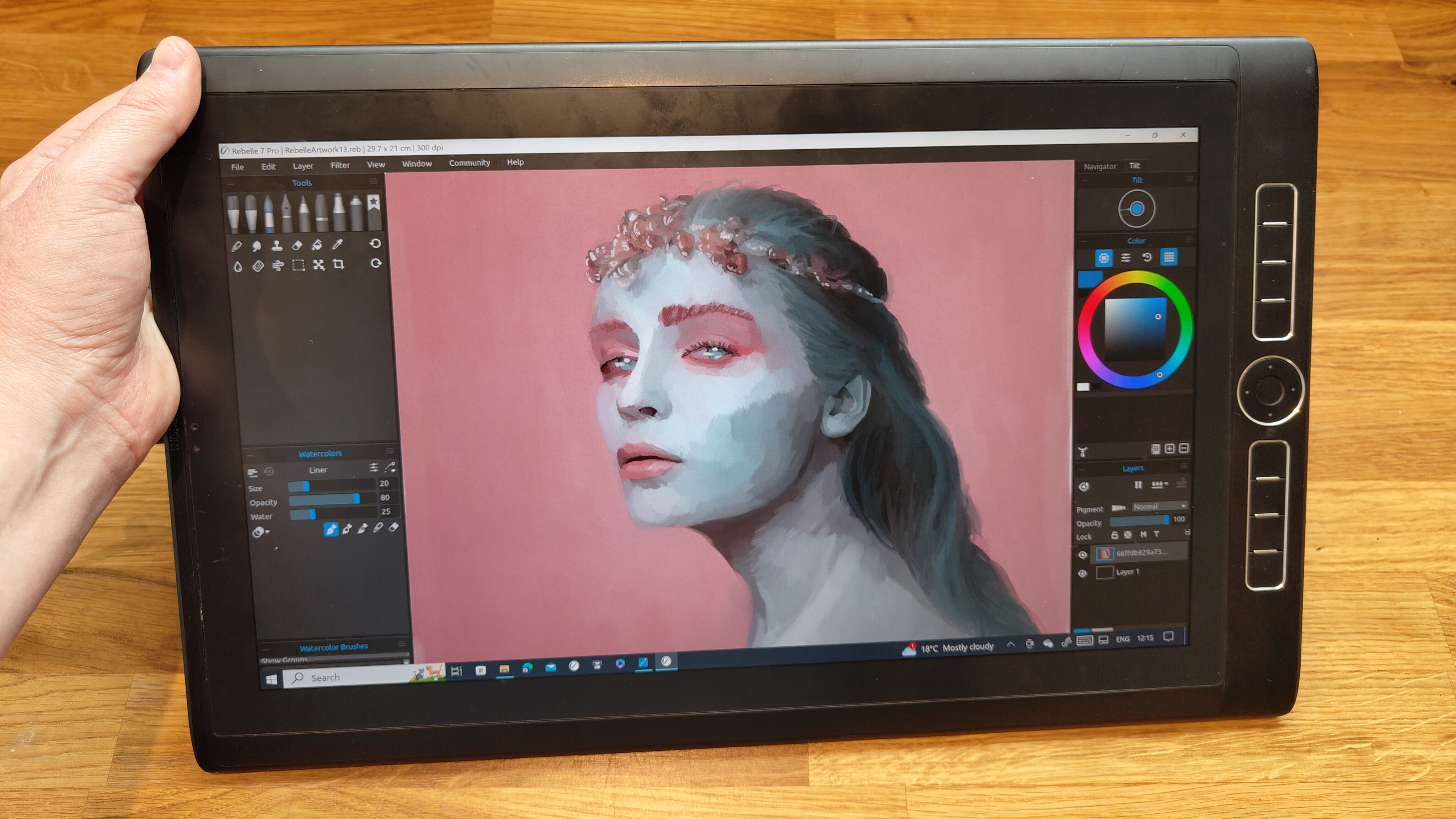
08. Wacom MobileStudio Pro 16
The best pen computer a desktop performance
Specifications
Active drawing area:346 x 194mm / 13.6 x 7.6inResolution:3840 x 2160 (UHD)Pen pressure sensitivity:8,192 levelsConnections:Bluetooth 5.1, WiFi, x3 USB-C ports, Thunderbolt 3, SD cardOS:Windows
Reasons to buy
+Powerful internals and excellent drawing experience +Etched glass screen +Pro Pen 2 is great
Reasons to avoid
-Expensive -Quite heavy -Adjustable stand is extra
30-second review:The Wacom MobileStudio Pro 16 is a powerhouse large pen computer that can run full versions of desktop art and design software, unlike iPad Pro that runs paired-down apps. This means you can run task-heavy software likeZBrush,HoudiniandUnreal Engine 5.
Design:Wacom makes two skews of its only pen computer, the smaller 13.3-inch model and the 15.6-inch model, chosen here. I’ve picked the more expensive, larger build as this offers a true alternative to iPad Pro – if you’re a digital artist who works in 3D and VFX this larger screen is needed.
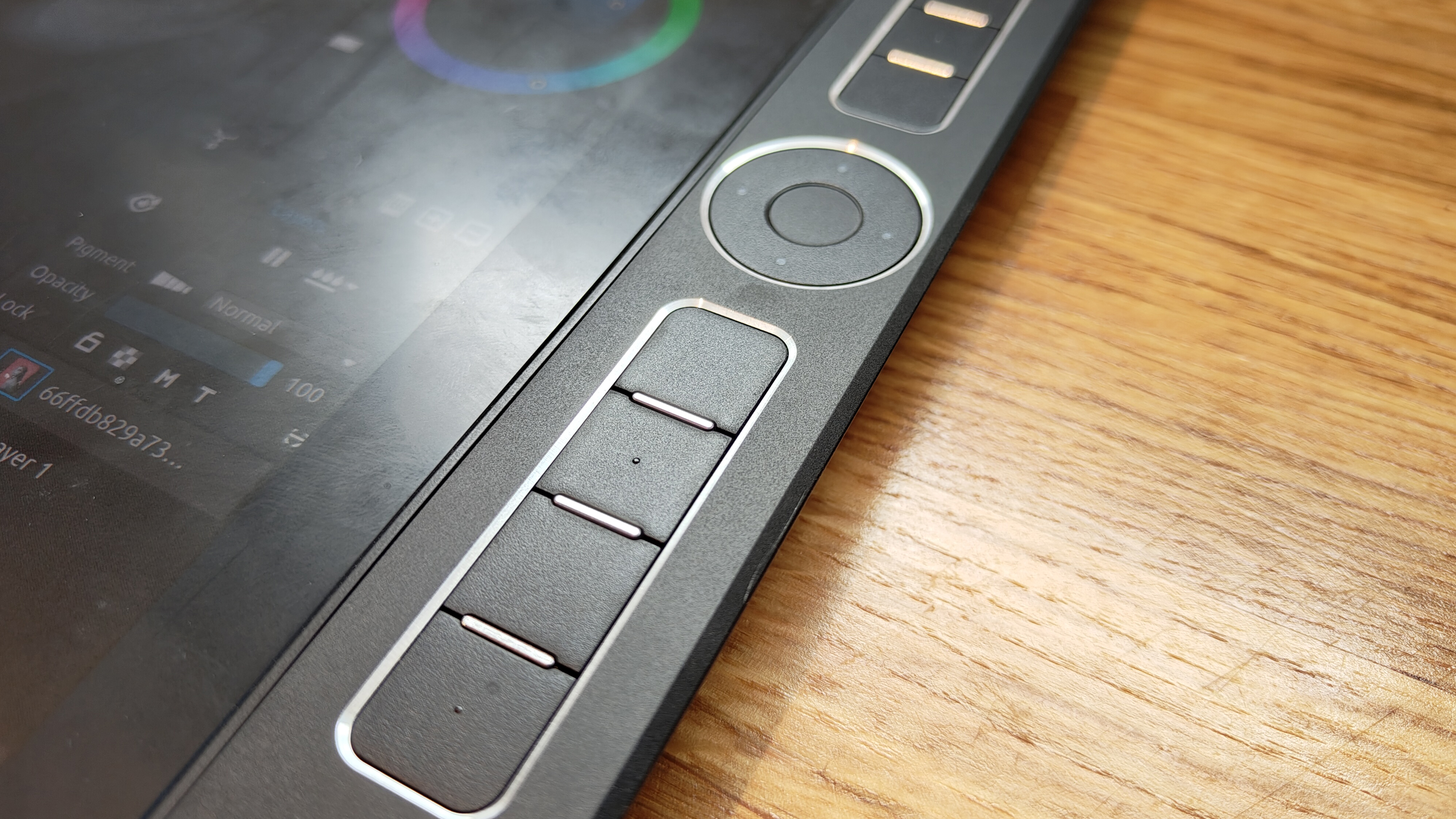
This tablet features a wider bezel than on iPad Pro, but it does have more connections – a USB-C, two Thunderbolt3, an audio port and an SD card reader slot – ensuring this Wacom can be hooked up to a larger monitor if needed. Unlike iPad Pro this Wacom is designed for artists, so you get the brand’s regular stack of customisable Quick Keys and a dial for selecting brushes, files and more.
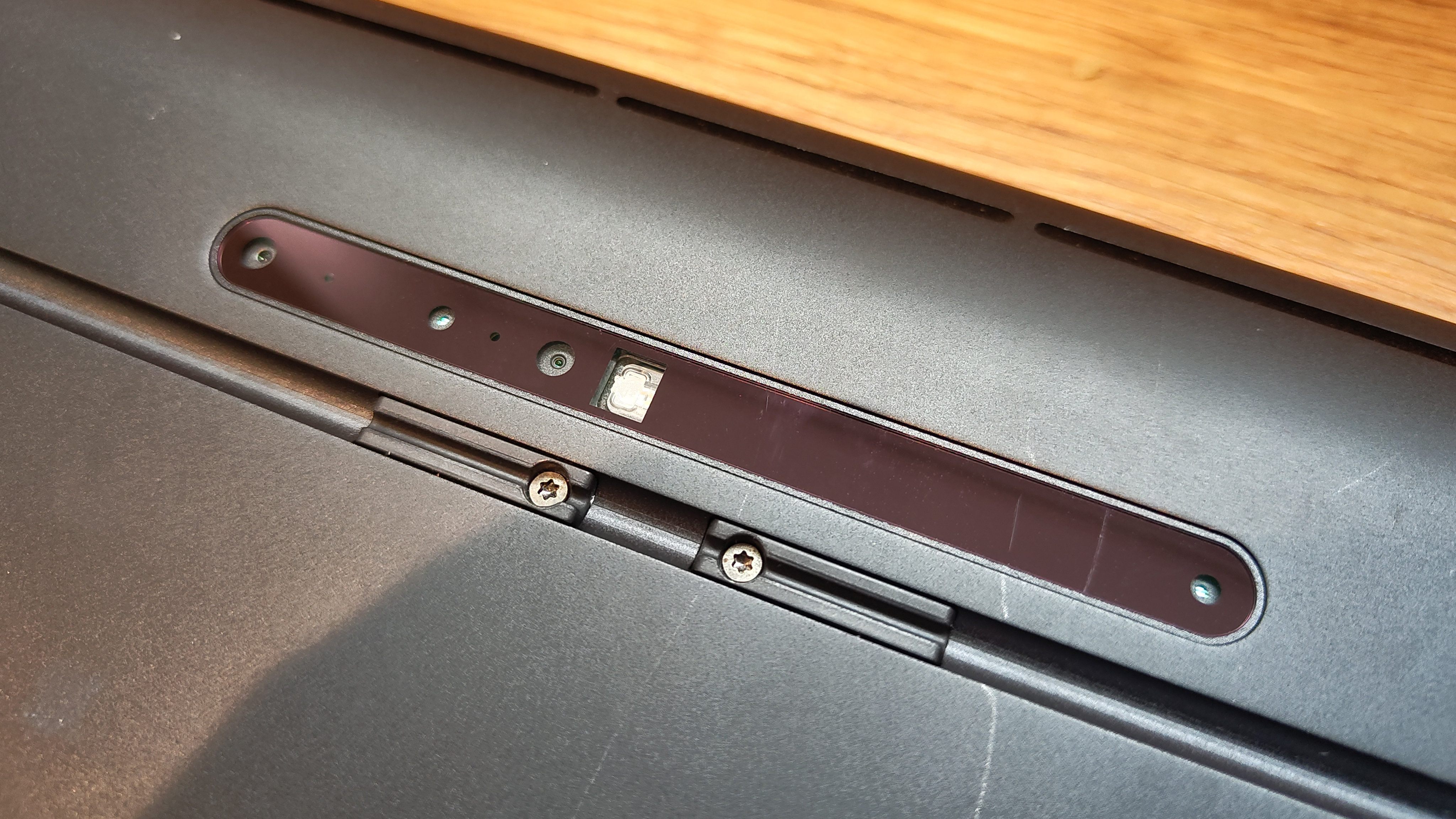
Features:The Wacom MobileStudio Pro 16 is a Windows PC in a tablet with a display, Quick Keys and stylus aimed at digital artists. It features an on-board 512GB SSD for speedy loading and saving, good but not not leading edge 5MP and 8MP cameras but these do support the equipped Intel RealSense technology for scanning objects in 3D space.
The real advantage of the Wacom MobileStudio Pro 16 is its Windows OS, with full touch support and the specs – inside is an Intel Core i7 and NVIDIA Quadro P1000 with 4GB GDDR5. The display is a Ultra HD 3840 x 2160 resolution and features an etched, anti-glare finish ideal for digital art. This comes at a cost, this tablet weighs around 2kg and doesn’t come with a built-in stand, you can buy one separately. This isn’t a light and portable tablet like iPad Pro.
I own an eight-year-old Wacom MobileStudio Pro 16 and it’s still going strong, this kind reliability is why artists flock to Wacom, and being a Windows tablet you’ve got good support. The only niggle in this time is the battery life has dimmed, and even new Wacom MobileStudio Pro tablets lack the long battery life of an iPad (I find a full charge will last around three hours of use).
Price:The Wacom MobileStudio Pro 16 costs $3,499.95 / £3,199.99. The Wacom MobileStudio Pro 13 costs £2,399.99 and is not available in the US; aside from the size difference this model has an Intel Iris Plus Graphics 655 instead of the Nvidia GPU.
FAQs
What are drawing tablets?
Drawing tablets are electronic devices intended to allow artists to draw, sketch and paint digitally using a stylus in order to replicate the motion used on paper or canvas. There are different types. The most basic drawing tablets are pen tablets: flat, plastic panels that serve as input devices with pressure sensors to measure the input of a pen stylus and transfer this data to a computer.
These do not have a display so you have to look at what you’re doing on your laptop or PC display. But pen displays are another type of drawing tablet that do have their own display so you can see what you’re doing, although you still need to connect them to a computer.
The use of pressure sensitive styluses allows the creation of thick to thin lines depending how hard you press for a realistic drawing experience. Many general tablets, or pen computers, like iPads can also be used as drawing tablets while also serving for other uses. However, a key difference is that dedicated drawing tablets usually have an etched surface for a tactile paper-like feel, while iPad screens are glossy and hard.
What are the different types of best drawing tablets?
Broadly speaking, there are three main types of drawing tablet. Each takes a different approach to the central challenge of helping you create digital art and draw on your Windows PC or Mac, as if you were drawing on paper.
Pen tablets
Pen tablets, also known as graphics tablets, connect to a device but don’t feature in-built screens, meaning you’ll need to use your monitor or laptop screen to see what you’re drawing. These are often the most cost-effective options and many artists like using these as it means they can have a large monitor at eye level. My favourite is the Xenceabs Pen Tablet (both Medium and Small).
Good forAffordable and large sizes, reliable and accurate, offer a tactile drawing experience, can be used with large monitors, a replacement for mice and trackpads.
Reasons to avoidYou find the ‘looking up’ setup awkward, prefer the direct response of drawing on a screen, want to replicate a traditional ‘easel’ workspace, you still need a computer.
Pen displays
These are drawing tablets that feature an integrated screen but must still be connected to a laptop or PC to function. These are the favoured form factor of most professionals and mid-weight creatives, offering a detailed and ergonomic drawing experience. These can be large and come with built-in stands; smaller pen displays can also be used as traditional drawing tablets by turning off the screen – the best of both worlds.
Good forA natural way to draw, offer excellent precision and accuracy, uses a stand for a traditional ‘easel’ setup.
Reasons to avoidNot all displays are 4K, not all pen displays have touch controls, more expensive than traditional drawing tablets, can feel less tactile, you still nee a computer.
Pen computers
These are tablets made by generalist tech brands such as Apple, Microsoft and Samsung. These don’t need to be plugged into a computer, but lack some of the drawing-first features associated with pen tablets and displays, whether that’s screen size and texture or stylus sensitivity. New to this type of drawing tablet is XPPen with its Magic Drawing Pad, this mixes dedicated drawing tablet tech with its mobile CPU to run apps likeArtRage Viatefrom the device.
Good forAn excellent mobile art tablet, compliments a desktop setup, no need for a laptop or PC, iPad, Samsung and XPPen offer excellent stylus, touch and gesture controls, bespoke apps like Procreate, can have other uses.
Reasons to avoidThese are expensive, smaller than pen displays and drawing tablets, drawing on gloss screens can be ‘slippery’, not all are specifically designed for digital art.
Who are drawing tablets for?
Dedicated drawing tablets (pen tablets and pen displays) are intended for both professional and enthusiast artists and designers. They can be used for creating digital and illustration as well as for graphic design and even photo editing. More general pen computers are aimed at general consumers, but some devices, like the iPad Pro, are also widely used by professional artists.
Drawing tablets are the ideal way to use digital art software, such asAdobe Photoshop,Rebelle 7orCorel Painter. There are art apps available for iPad and Android too, for example the iPad-exclusiveProcreate Dreamshas been designed to use Apple Pencil. Some of the best 3D modelling and VFX software can also be used with drawing tablet too, includingZBrush for iPad.
But even dedicaged drawing tablets aren’t just for artists and designers. Not everyone loves using a mouse or touchpad, and drawing tablets can provide an alternative input device for a computer, particularly smaller devices like the Wacom One S,Xencelabs Pen Tablet SmallorHuion Inspiroy H430P.
Are there drawing tablets for kids?
Yes, there’s a growing market of drawing tablets for children, and you can check out our dedicateddrawing tablets for kidsguide if this is something you’re looking for. These have been designed to be easy to use and indestructible.
Are there drawing tablets for smartphones?
More drawing tablet brands are now enabling drawing tablets to be connected to smartphones, Android devices and use Linux. These are often smaller than standard drawing tablets and can fit neatly into a bag, as well as using USB-C to USB-C cables. My three best drawing tablets for smartphones and mobiles would be:
Ugee M808A small 10 x 6.25 inch drawing tablet with shortcut keys.
Parblo Intangbo X7This one has a unique device switcher.
Wacom One SThe new budget option offers superior build quality.
Graphics tablets vs Pen displays: what’s the difference?
If you’ve been around computers for a long time, this is what you probably think of instinctively at the mention of adrawing tablet: a plain surface that you draw on with a stylus, with your work displayed on a separate computer monitor, also known as apen tabletorgraphics tablet. These remain the most affordable drawing tablet category. Their main disadvantage is the sense of ‘disconnect’ between the drawing surface and the screen, although most people get used to this quickly.
Pen displaysconsists of a flat-screen monitor with a pressure-sensitive surface that you draw on with a stylus. They don’t have the sense of disconnect that you might get with graphics tablets, and they’re more portable; however they cost more. Furthermore, you get a lot of cables between the display and computer (see thebest computers for graphic design), and many of the display surfaces don’t offer the ‘bite’ that graphics tablets do.
Are tablets good for drawing?
Android, Windows and iOS devices like the Surface Pro and iPad Pro take on the other drawing tablets in two ways. You don’t need another computer: just download an art app and start drawing with your fingertip or a stylus. Also, when you want to use the Creative Cloud suite on your main computer, these can function as graphics tablets with apps like Astropad.
As for how good they are for drawing, well, it depends on what you need. The iPad has incredible software likeProcreateand the very capableApple Pencil 2offers some pretty impressive features and specs, but it’s very expensive. The Surface Pro range is better suited for sketching and doodling, but at a push could handle some more detailed art if you’re willing to work for it.
What drawing tablet is good for beginners?
Beginners who want to start experimenting with digital drawing and painting might want to begin with a pen computer like an iPad if they need a device for other uses too. The advantage is that you can use one device for different type of work, avoiding having to buy a dedicated device only for drawing.
That said, the tactile feel of dedicated drawing tablets can make for a nicer drawing experience, and there are very good value pen tablets and pen displays available. I would consider starting with a pen tablet like the Xencelabs Pen Tablet Medium Bundle at the top of our guide – or the Xencelabs Pen Display 16 is you want to be able to see your work directly on the tablet.
A keenly price mid-ranger that goes big on performance and stamina
Verdict
The Poco F7 provides unusually speedy performance for a sub-£400 phone, not to mention excellent build quality and superb stamina. However, its software continues to underwhelm, and the camera doesn’t offer anything to get excited about. It’s a strong mid-range option for power users and gamers on a budget, but it has its limitations.
After the flagship-approaching aspirations of thePoco F7 Ultra, the Poco F7 marks a welcome return to outright affordability. It hasn’t had to sacrifice much in the way of performance either, with the new Snapdragon 8s Gen 4 providing an impressively rapid experience.
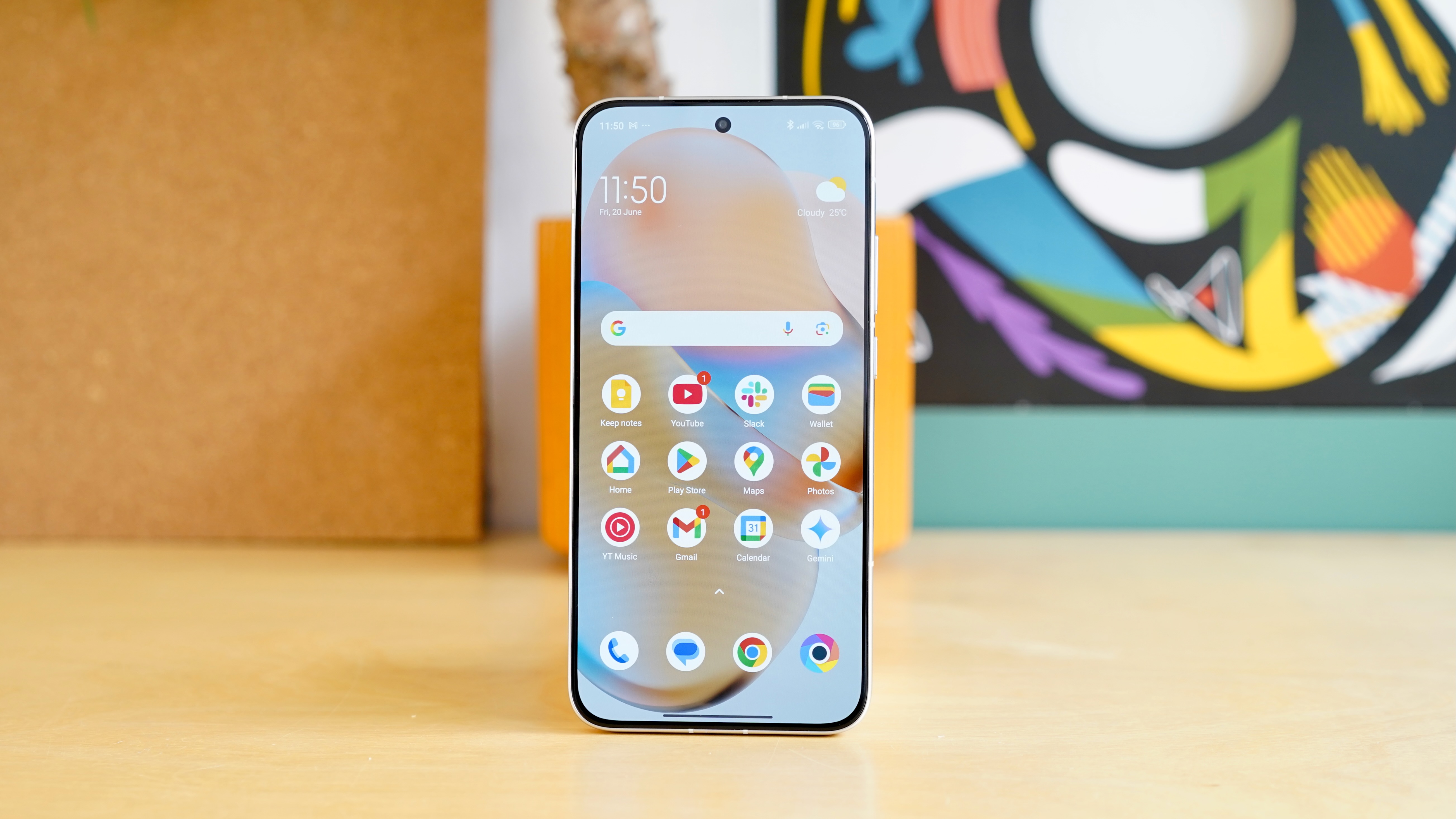
For less than £400, you’ll struggle to find a phone that’s built better. With a metal and glass construction, and full IP68 certification, this phone is reassuringly solid in the hand – though it’s also rather bulky, and the design of the Silver model is an acquired taste.
Some of the extra bulk can be attributed to the choice of a 6500mAh battery, which is one of the biggest to be found anywhere. It produces genuinely impressive stamina, and 90W wired charging isn’t bad at all either.
The display is bigger than we’ve grown accustomed to from the brand, but it remains a sharp, bright, and generally well-balanced panel.
It’s clear where Xiaomi’s priorities lie with the Poco F7, and that results in a camera set-up that fails to impress or excite. The 50MP main camera will will do a job in good conditions, but you can get a more complete photographic experience for similar money in the Honor 400 or the Nothing Phone (3a) Pro.
The company’s HyperOS continues to underwhelm, too, with a cluttered layout and way too much bloatware. The company pays lip service to AI features, but the implementation isn’t the most elegant we’ve ever seen.
All in all, the Poco F7 feels like a better buy than its Ultra brother, with similar strengths – and weaknesses – at a much keener price.
Some of those aforementioned rivals are more elegant and arguably better balanced, but if performance and stamina (not to mention ruggedness) are priorities, you’re unlike to do better for your £389.
Poco F7 review: price and availability
Released in June 24 2025 for £389/$399 (12GB/256GB model)
12GB/512TB model costs £429/$449
Not available in US or Australia
The Poco F7 launched on June 24, 2025, with availability across the UK and Europe.
Pricing starts from £389/$399 for 256GB of storage. The step-up 512GB model (with the same 12GB of RAM) costs £429/$449. Xiaomi always supplies dollar pricing, even though it doesn’t sell its phones to the US.
That makes the Poco F7 between £10 and £20 cheaper than its predecessor, the Poco F6, which is refreshing to see.
It also means that the phone undercuts the likes of theGoogle Pixel 9aand theSamsung Galaxy A56by more than £100, and is a closer rival to theSamsungGalaxy A36 and the Honor 400. The £449 Nothing Phone (3a) Pro also stands out as a key competitor.
As is often the case with Poco phones, you can pick the Poco F7 up at a £70 Early Bird discount if you’re quick.
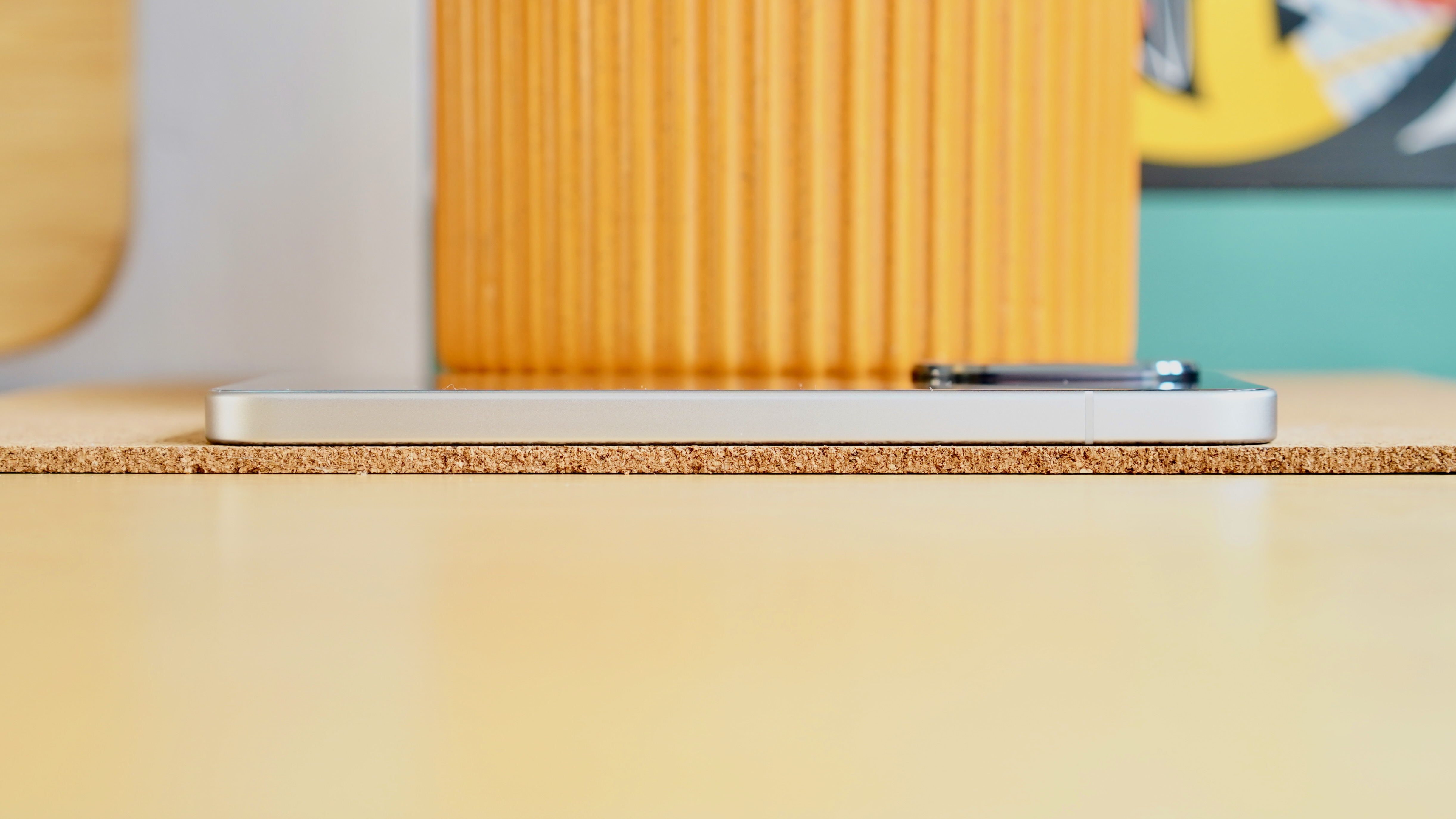
Following on from the Poco F7 Ultra, the Poco F7 brings another big, flat design. At 163.1 x 77.9 x 8.2mm and 216g, you’ll always know when it’s in your pocket.
While it’s quite a bit bigger and heavier than the Poco F6 before it, however, it’s a more premium design. That extends to the choice of materials, with an aluminum alloy frame and a glass (not plastic) back cover.
It’s a tough cookie, too. Flagship-level IP68 dust and water resistance makes a welcome return, but Xiaomi is also making noises about the phone’s bending resistance rating of up to 70kg². I didn’t dare put this one to the test, but it should be nice and resistant to those ‘plonk yourself down with phone in back pocket’ incidents.
In terms of the look of the Poco F7, it’s another vaguely iPhone-shaped device with dead-flat surfaces and curved corners. I think the white and black models look quite classy, if a little boring – at least from pictures.
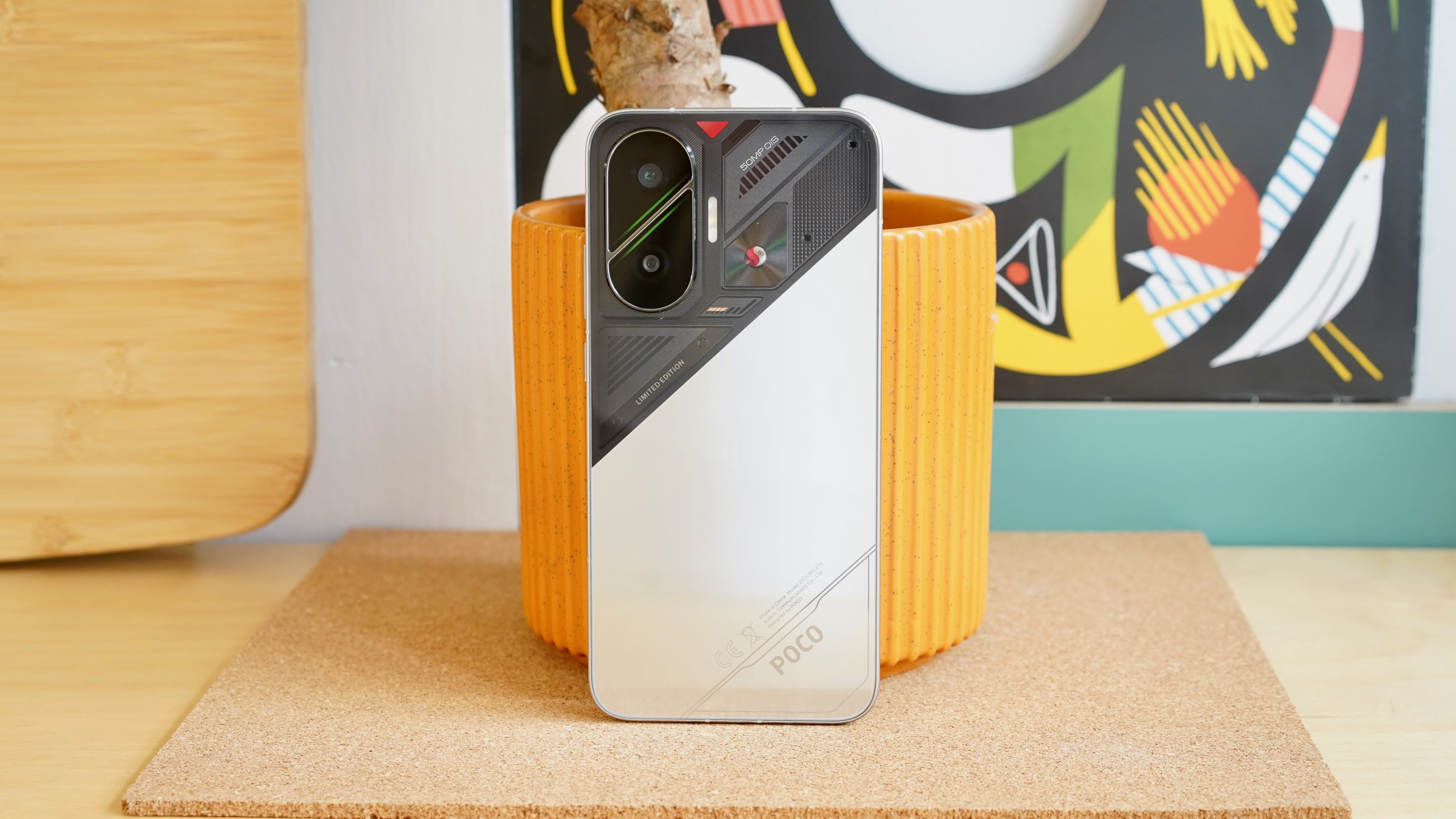
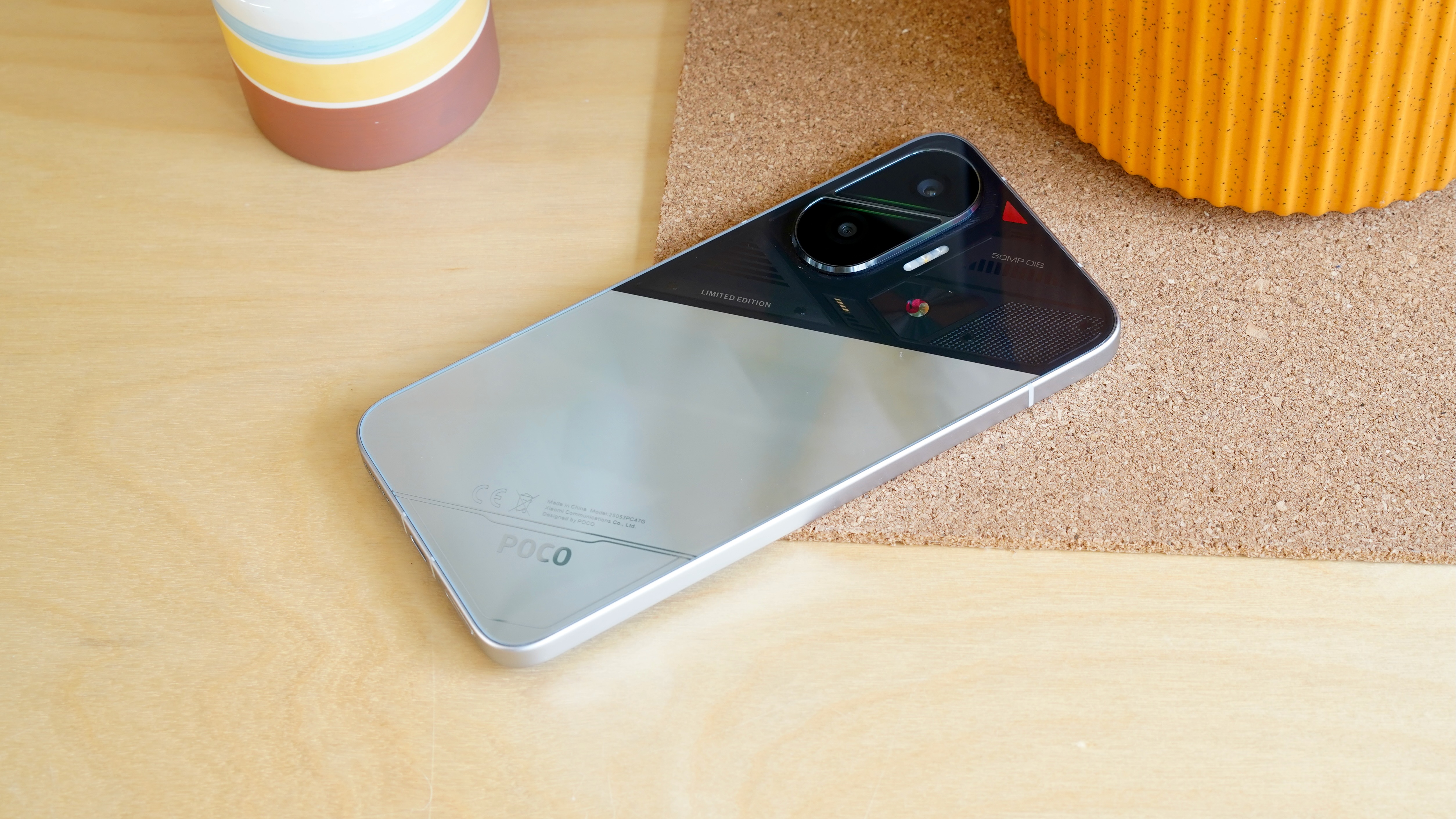
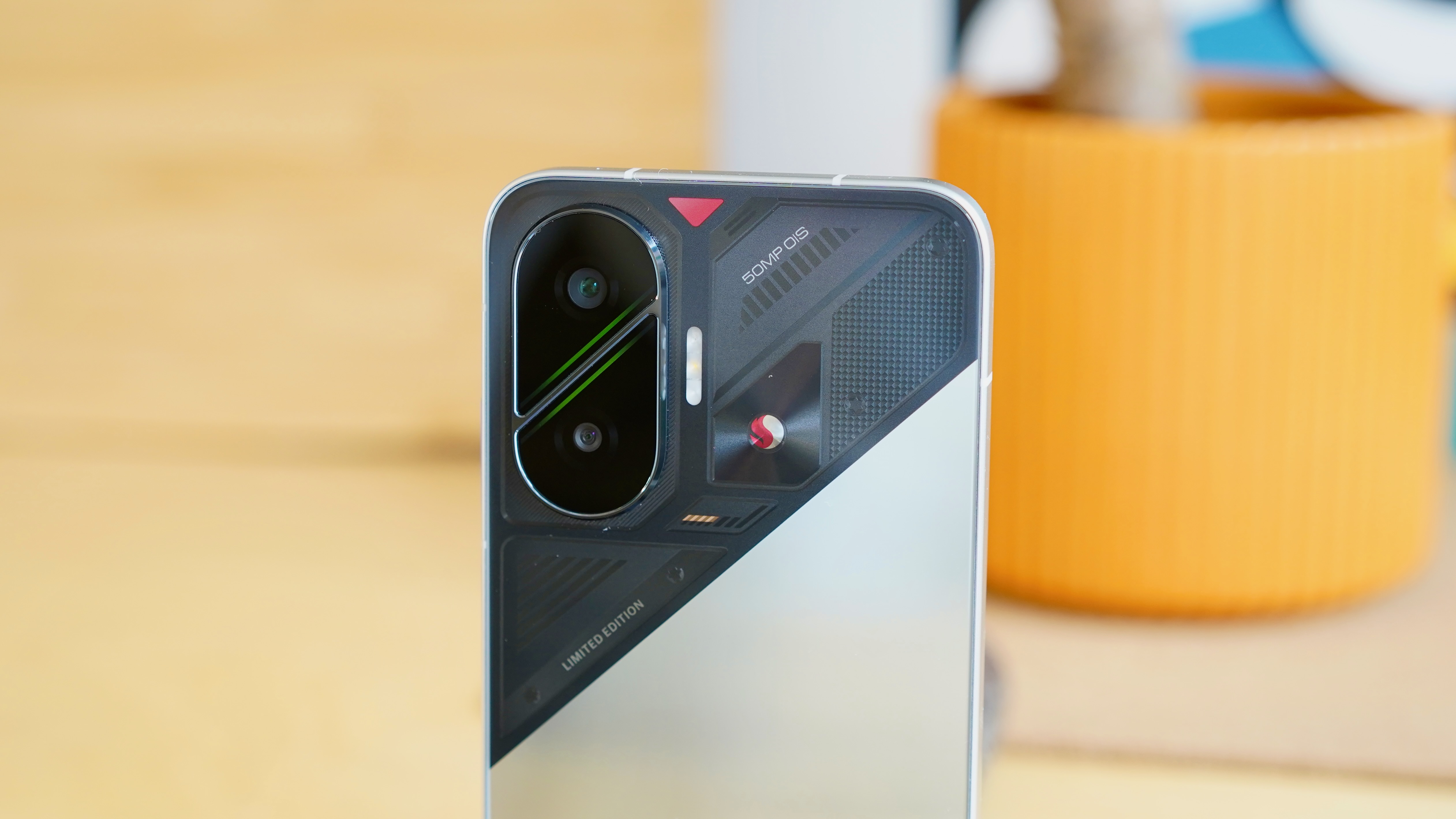
I wasn’t sent either of those models, however. Instead, I got the limited Cyber Silver Edition, which completely flips that script: it looks a little cheap, but it’s certainly not boring.
Xiaomi has split the back of the phone at a jaunty angle, with the bottom half(ish) of the phone taken up by a shiny silver finish and the top half taking on a printed circuit board effect. It’s somewhat redolent of a gaming phone such as the Redmagic 10S Pro, which isn’t necessarily the kind of association Xiaomi should be encouraging.
It screams ‘performance’, yes, but it’s also likely to make grown adults feel self-conscious whenever they pull the phone out in public. It’s a shame we didn’t get more of Poco’s signature experimenting with the colour yellow, which can be quite effective in helping it to stand out from the crowd.
Suffice to say, this overall reflectiveness makes the Poco F7 a fingerprint magnet. And also, for the record, a total nightmare to photograph.
Design score: 3.5 / 5
Poco F7 review: display
6.83-inch AMOLED (2772 x 1280) with 120Hz refresh rate
Decent 3200 nits peak brightness, 1700 nits HBM
Well calibrated colours
Xiaomi’s budget sub-brands always turn up with excellent, balanced AMOLED displays, and the Poco F7 maintains the winning run.
It’s larger than that of both last year’s Poco F6 and this year’s Poco F7 Ultra at 6.83 inches, while a 2772 x 1280 ‘1.5K’ resolution proves nice and sharp.
Just like its Ultra brother, this screen maxes out at 3200 nits of brightness in limitedHDRscenarios, which is an improvement on the Poco F6’s 2400 nits. It hits a slightly lower (but still solid) 1700 nits in high brightness mode than the Ultra, which will kick in when direct sunlight beats down on it.
There’s a 120Hz maximum refresh rate here, as you’d expect. We expect that even of cheap phones these days, unless you’re talking aboutApple.
This screen is covered in Corning Gorilla Glass 7i rather than the toughened “Poco Shield Glass” of the Poco F7 Ultra, so those aforementioned tough credentials presumably only extend so far.
All in all this is a big, bright, sharp and colour-accurate display, which is really as much as you can ask for in a mid-range phone.
Display score: 4 / 5
Poco F7 review: cameras
50MP main sensor produces solid but unspectacular shots
8MP ultra-wide
No telephoto
20MP front camera
From what I can see, the Poco F7 features the same basic camera set-up as last year’s Poco F6, as well as the lesserPoco X7 Pro.
That means a dual camera system led by a 50MPSonyIMX882 sensor with a wide f/1.5 aperture. You also get a humble 8MP ultra-wide, and a 20MP front camera. There is no dedicated telephoto camera.
Unsurprisingly, our comments regarding the Poco X7 Pro camera broadly apply here. The Poco F7 does benefit from packing a Snapdragon 8s Gen 4 processor with its superior image processing, but the characteristics are similar.
That is, you’ll get clear and bright images in good lighting, with nice vibrant colours. Once the light drops and Night mode comes into play, shots are solid, but not quite as clear as I would have liked, with a hint of grain to those dark skies.
Don’t expect miracles from the 8MP ultra-wide. It obviously lacks the detail of the main sensor, as well as the same level of contrast, and there’s a slight over-processed look as Xiaomi looks compensate for its hardwired deficiencies.
Zoomed shots look fine at 2x, putting the extra pixels from that lead sensor to good use without much visible grain. Things start getting fuzzy at 5x, however, while 10x is unusably blurry.
There are AI features here, of course. AI Erase is the now-familiar tool that lets you erase background elements. AI Image Expansion literally speculates on what might be outside of the frame and sketches it in – convincingly, if incorrectly. As the name suggests, AI Sky lets you change the scene to a sunnier or cloudier day, adjusting the tone accordingly.
AI Beautify, meanwhile, offers the dubious ability to ‘improve’ your personal looks, removing pores and blemishes (wrinkle removal requires downloading), and altering your body shape. It can even pimp up your pets. Suffice to say, beyond giving it a quick test, I wanted none of it.
Selfie quality from the 20MP front camera is adequate, once you bump the default beautifying effect down to zero. You’ll find that the detail level is adequate and skin tones are rendered reasonably naturally, but it struggled with dynamic range on bright days.
4Kvideo at 60fps makes a return from the Poco F6, and the footage I captured was reasonably smooth without being exceptional.
Camera score: 3 / 5
Poco F7 review: camera samples
Poco F7 review: performance
New Snapdragon 8s Gen 4 is a strong performer
12GB RAM as standard
256 or 512GB of storage
Xiaomi has gone with an interesting choice of processor in the Snapdragon 8s Gen 4. This is a brand new chip that falls well short of the giddy heights offered by the Snapdragon 8 Elite, but still turns out broadly flagship-level performance.
Nothing is using this very chip in its Phone (3), which is going to be priced at around £800, so it’s impressive to find it here in a £389 phone.
Sure enough, in the Geekbench 6 benchmarking tool, it comfortably beats the Pixel 9a (and the Pixel 9 Pro for that matter) on raw CPU performance, and positively decimates the Samsung Galaxy A56.
GPU performance using the GFXBench tool doesn’t prove as impressive, with both of those rival phones beating the Poco F7 in on-screen tests. It’s worth reminding ourselves that Xiaomi’s phone has a much sharper display than either of those phones, of course, which invariably takes a toll on GPU performance.
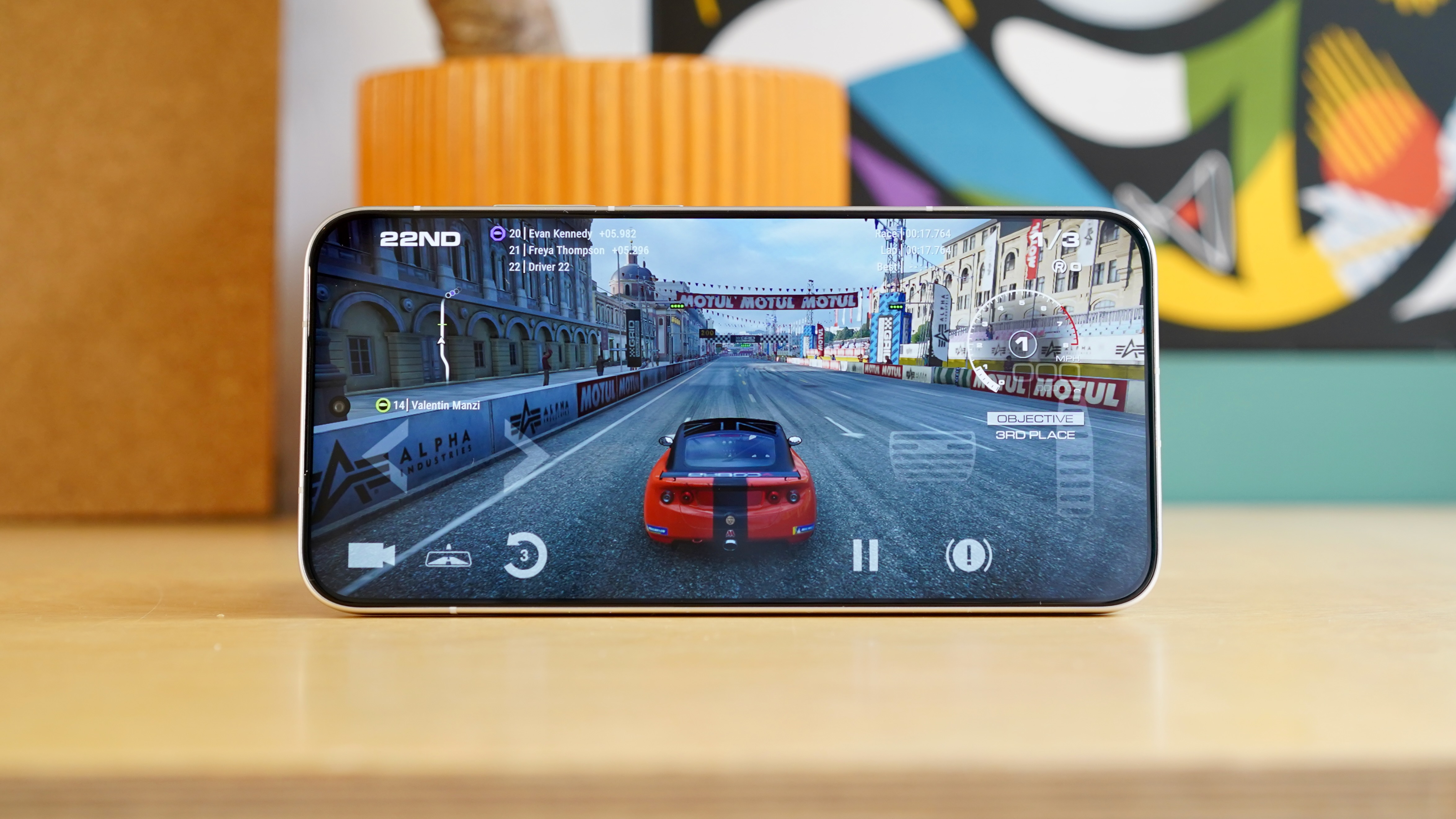
The main thing to note is that it’s well up to the job of gaming. It’ll actually play console racerGRID Legends– which h is often only playable on high-end phones – and smoothly at that.
It’s good to see that Xiaomi has gone with a fixed 12GB of RAM here, regardless of the storage capacity you opt for (256 or 512GB).
We should also note that the company is using a 6000mm² 3D Dual-Channel IceLoop System for cooling the aforementioned processor, with “the biggest Loop Heat Pipe ever used in a Poco device”. I did find that the phone heated up quite significantly after running those GPU tests, but this isn’t unusual for such a demanding task, and this was during one of the hottest days of the year so far.
Performance score: 4.5 / 5
Poco F7 review: software
Clumsy UI with lots of bloatware
4 years of OS updates and 6 of security patches
Hit and miss AI provision
Xiaomi might have attempted to do something a little different with the Poco F7’s hardware, but the software provision is very familiar indeed.
That’s completely natural – no manufacturer makes sweeping UI changes between models – but it also means that all of my old criticisms of Xiaomi’s HyperOS (and prior to that, MIUI) remain.
For the record, you’re getting HyperOS 2 layered on top of Android 15. Just as I noted with the Poco F7 Ultra, this is a UI that responds nice and snappily when there’s a half-decent processor involved, as there is here.
While it’s a well-tuned and extremely customisable UI – minus a slight but persistent instance of lag when scrolling from the Google Feed back to the main home screen – HyperOS continues to frustrate. It’s jam-packed with extra apps, both from Xiaomi’s own stable and from third party developers.
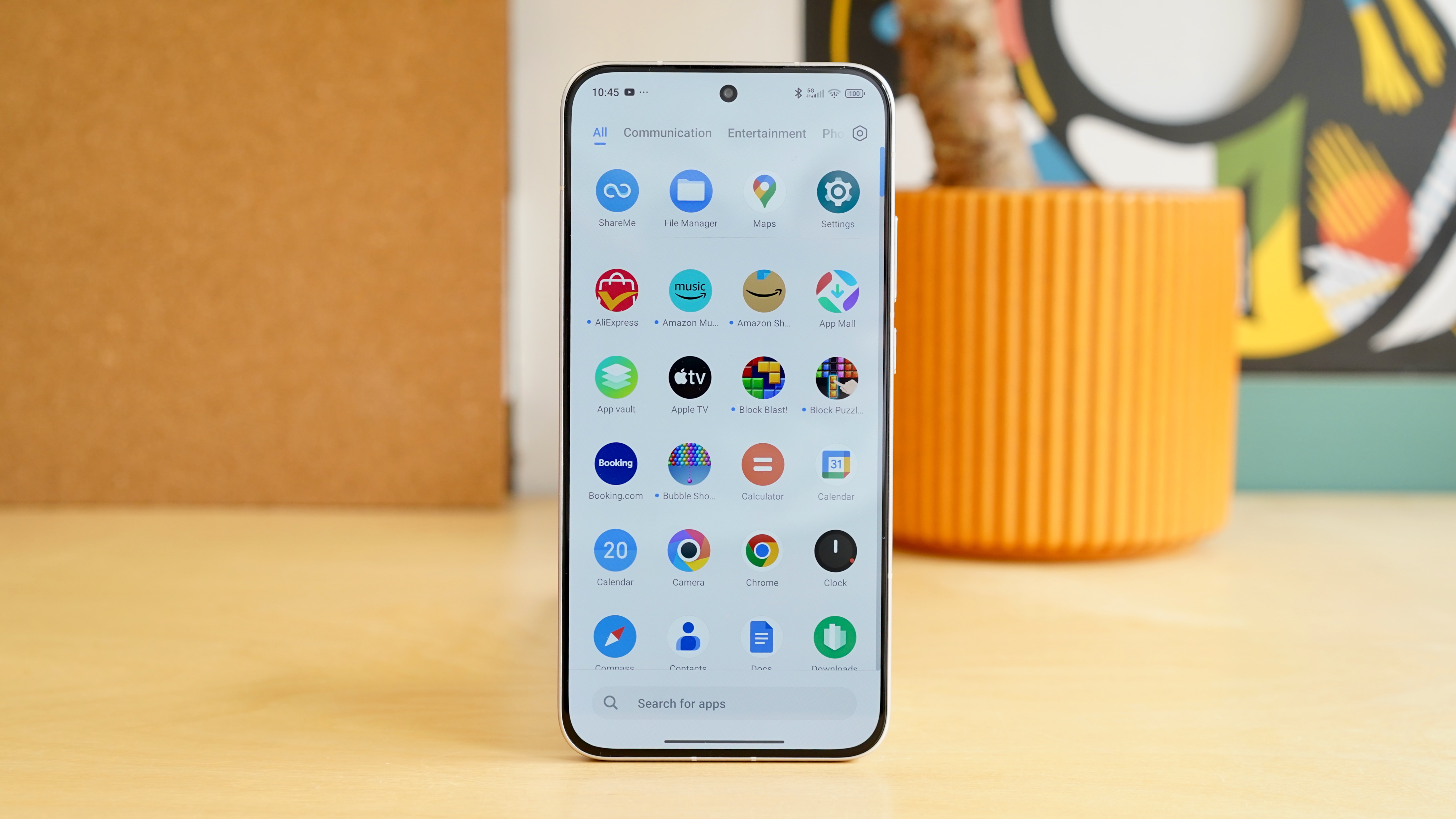
Even after laboriously deselecting all of Xiaomi’s ‘Recommended apps’ at the set-up stage – all of which look bafflingly terrible – I still found the second home screen playing host to the Temu shopping app, Facebook, Spotify,MicrosoftOneDrive, Netflix, and the Booking.com app.
Bring up the app tray and there’s more in the shape of AliExpress,AmazonMusic, Amazon Shopping, TikTok, and a smattering of crushingly basic games.
Xiaomi’s own Theme store is a strange one. From a certain perspective, it grants more wallpaper and lock screen personalisation options than virtually any other manufacturer. But there’s an awful lot of tat in there, and not all of it is free to download.
Simply finding some basic system alternatives to the default wallpaper remains more difficult than it should, and that sense of friction pervades HyperOS.
As with the Poco F7 Ultra, Xiaomi is offering four Android OS upgrades and six years of security patches. It’s a pretty decent provision all things considered, covering the likely natural life of the phone and then some. However, it falls short of Google’s (seven years) and Samsung’s (six years) own extensive update promises.
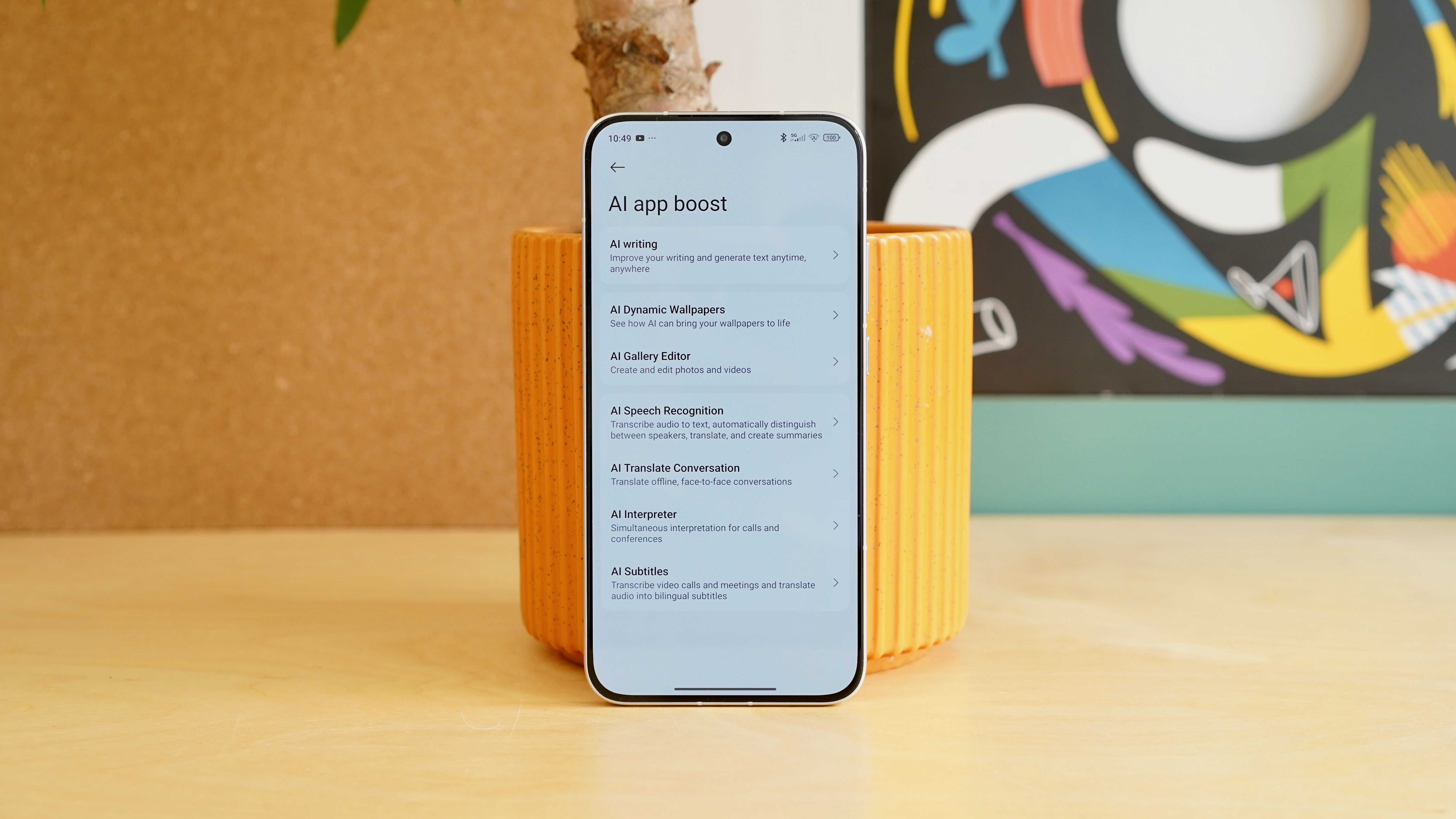
As with the Ultra model, the Poco F7 comes with plenty of AI tools of varying levels of usefulness. AI writing can summarise text, AI Interpreter will translate calls in real time, and AI subtitles will transcribe calls and meetings. There’s the usual suite of photo editing tools (after you’ve installed the relevant plug-ins), and Google Gemini is only a long power button press away.
Much of this has become a box-ticking exercise for manufacturers, and this isn’t the most intuitive or seamless implementation we’ve ever seen. With that said, those AI boxes have undoubtedly been ticked.
Software score: 3 / 5
Poco F7 review: battery life
Genuinely huge 6500mAh battery
Up to 90W wired charging
No wireless charging
If there’s one stand-out spec for the Poco F7, it’s the inclusion of a 6500 mAh battery. That’s a huge increase on the Poco F6’s 5000mAh battery.
In fact, short of the Red Magic 10S Pro and its predecessors – niche gaming phones one and all – this is the largest battery I’ve seen in a phone.
It’s a brute force way to extend the phone’s stamina, but it’s an effective one nonetheless. On one typical day of moderate usage, with 3 hours 45 minutes of screen on time, I was left with 70% – enough for a full second day without any stress whatsoever.
Indeed, I sailed right through the night without plugging the phone in, and by the end of a lighter second day with an hour less screen on time, the Poco F7 still had 29% left.
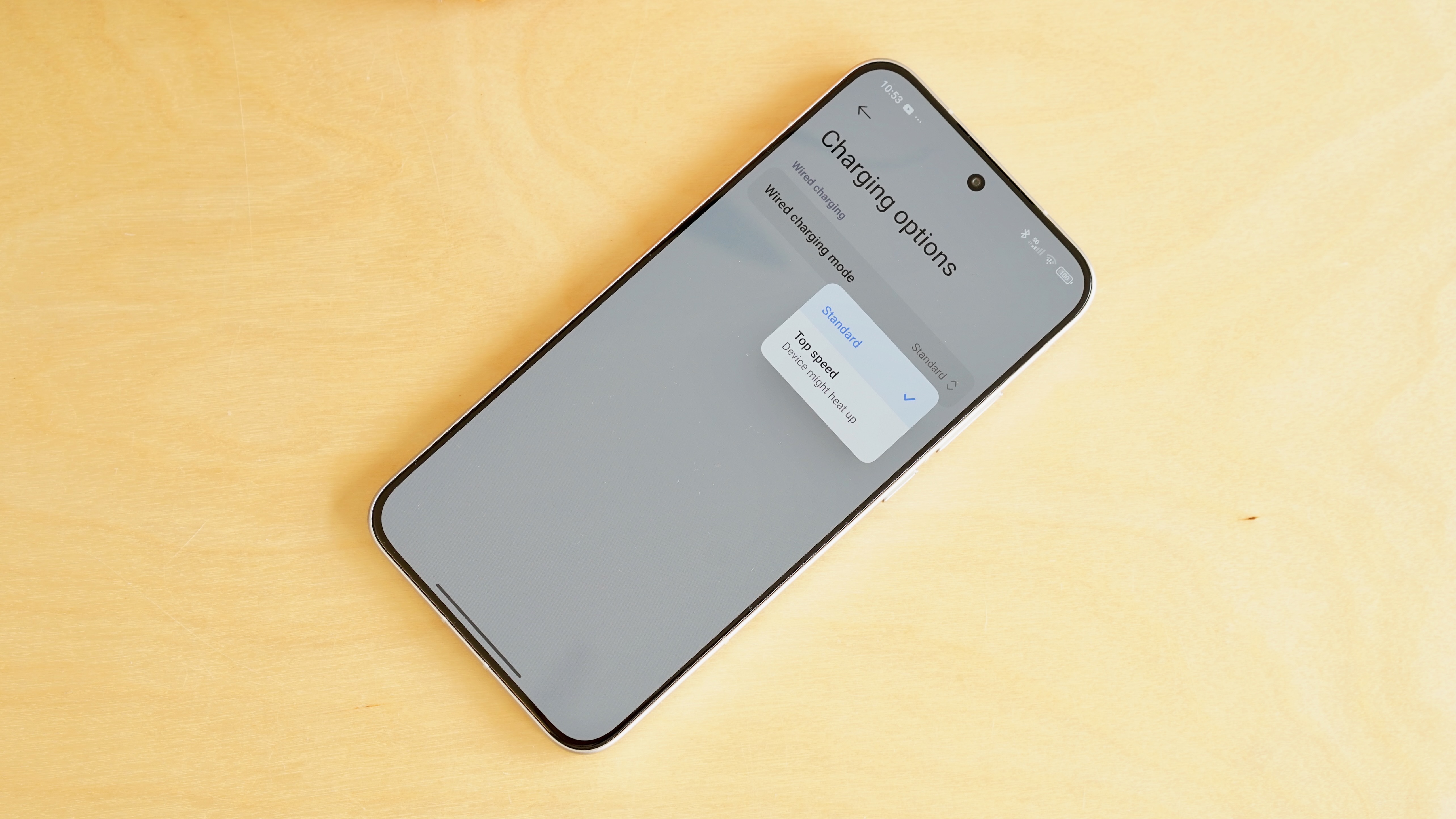
The Poco F7 supports the same 90W wired charging as its predecessor. Xiaomi claims it’ll go from empty to 80% in 30 minutes, but that’s only with the Quick Charge function active, and you’ll have to dive into the Settings menu and toggle that manually.
Straight out of the box, in its default configuration, I found that the phone would get to just 60% in 30 minutes. That’s still pretty good, especially when you consider the sheer size of that battery.
Battery score: 5 / 5
Should I buy the Poco F7?
Poco F7 Ultra score card
Attributes
Notes
Rating
Design
The Poco F7 is very well-built for its price, with IP68 certification and a high quality materials, though it’s also quite big, and the Cyber Silver Edition version is a little chintzy.
3.5 / 5
Display
The Poco F7’s 6.83-inch OLED is big and bright, with a shark ‘1.5K’ resolution.
4 / 5
Performance
The Snapdragon 8s Gen 4 is a capable runner, outperforming most fellow mid-rangers and even some flagship phones.
4.5 / 5
Camera
Cameras have never been a priority with the Poco range, and the Poco F7 doesn’t bring anything meaningfully new or impressive to the table.
3 / 5
Battery
With a huge 6500mAh battery, the Poco F7 will be able to last most people two days, while 90W wired charging is more than decent.
5 / 5
Software
HyperOS 2 is too cluttered, with way too much bloatware, but it is at least quite customisable.
3 / 5
Value
The Poco F7 is even cheaper than its predecessor, and undercuts some of our favourite mid-range phones by more than £100. The level of build quality and performance is impressive for the money.
4.5 / 5
Buy it if…
You’re after high performance on a budgetWith a new Snapdragon 8s Gen 4 processor, there aren’t many phones that run this quickly in the sub-£400 price category.
You want a phone that lastsThe Poco F7’s 6500mAh battery is one of the biggest around, enabling genuine two day usage.
You want a cheap phone that’s built wellWith IP68 certification and a glass and metal built, the Poco F7 is made of stern stuff.
Don’t buy it if…
Clean software is a priorityHyperOS is busy and full of bloatware.
You take a lot of picturesIt’s not that the Poco F7’s camera is bad, as such, but it is quite limited, and you can do better for the money.
You like subtle designThe Poco F7 might be built well, but it’s also big and heavy, and the Silver model looks a little cheap.
The best computing devices that Samsung has to offer.
Apart from TVs and phones, Samsung also makes some of the best laptops in the world. The best Samsung laptops today are sleek, powerful, and offer a ton of great AI capabilities. Whether you’re looking for a Windows laptop or something that runs ChomeOS, Samsung has you covered. While most of their offerings tend to be on the expensive side, there are a few affordable options too.
The best overall Samsung laptop is the Samsung Galaxy Book 5 Pro. This Copilot+ PC features Intel’s highly potent Core Ultra (Series 2) CPUs, a fantastic AMOLED screen, and tons of RAM and storage. Samsung has plenty of other great options too if you’re looking for something lower down the price range or a laptop that can also double as a tablet. Read on to find out all the great options Samsung has to offer.
Best overall
1. Samsung Galaxy Book 5 Pro
Best overall
Specifications
Display:14-inch / 16-inch, 2880 x 1800, AMOLEDProcessor:Up to Intel Core Ultra 7 256VGraphics:Intel Arc 140V GraphicsRAM:16GB LPDDR5/ Up to 32GB (16-inch)Storage:512GB / 1TB (16-inch) NVMe (plus microSD slot)Connectivity:Wi-Fi 7, Bluetooth 5.4Ports:1x USB-A, 2x Thunderbolt 4, HDMI 2.1, microSD, headphoneBattery:63WHr / 76WHrAudio:AKG Quad Speaker (Woofer Max 5W x 2, Tweeter 2W x 2), Dolby Atmos, 3.5mm jackCamera:1080p, dual micsDimensions:(14-inch) 312.3 x 223.8 x 11.6 mm / 355.4 x 252.2 x 12.8 mmWeight:2.71 lbs / 3.44 lbs
Reasons to buy
+Upgraded Series 2 Core Ultra processors+Super thin and lightweight construction+Plenty of ports +Sturdy construction +Wi-Fi 7
Reasons to avoid
-No touchscreen on 14-inch variant -ExpensiveSleek and lightweight, the Samsung Galaxy Book 5 Pro ticks all of the boxes if you’re looking for a new, do-it-all laptop. It comes with a vibrant 3K AMOLED display and utilizes Intel’s latest Core Ultra (Series 2) processors to deliver consistently excellent performance, regardless of the task.
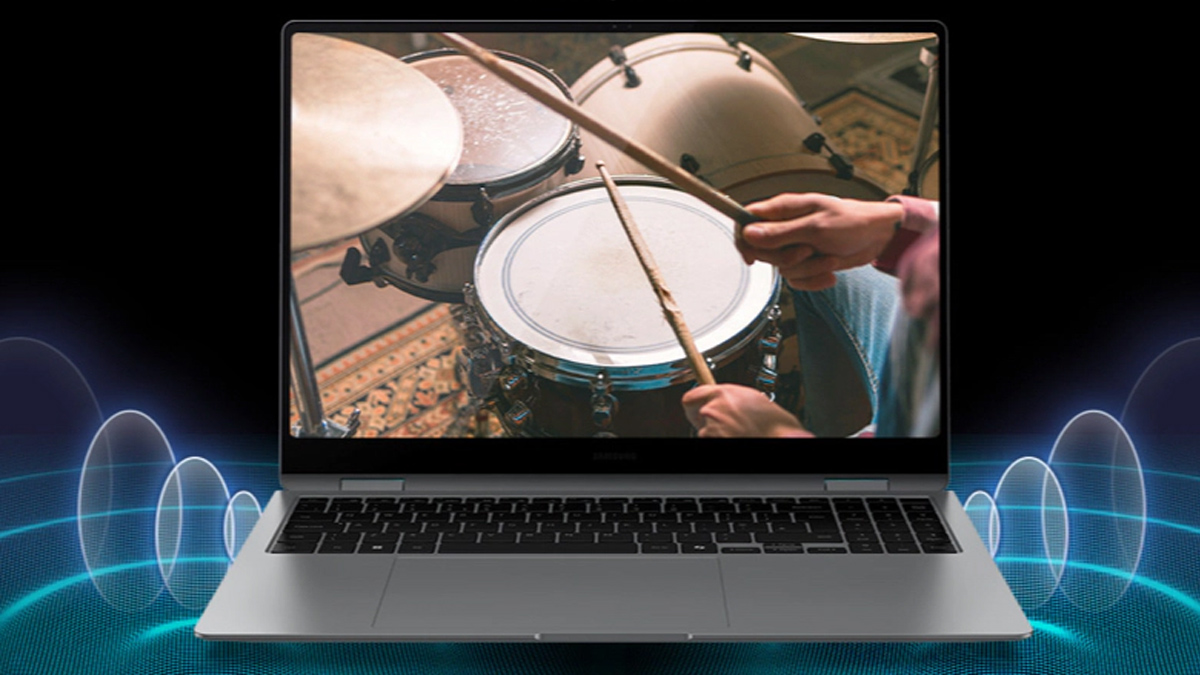
This latest CPU also features a dedicated co-processor (NPU) for accelerating AI tasks, making it future-ready. It’s also Microsoft Copilot+ certified, which means you get to enjoy all the exclusive Windows AI features like Cocreate in Paint and Windows Recall. Dolby Atmos and AKG speakers provide great sound, and you get plenty of ports on both sides of the laptop, including HDMI, two USB-C ports, amicroSD slot, and even a USB-A port, which is a rarity these days.
Although all of this sounds great as it is, the specs become even more exciting when you consider the laptop’s remarkably thin and lightweight design. The 14-inch version of the Galaxy Book 5 Pro clocks in at just 11.6mm tall and weighs a mere 2.71 pounds, despite the fact that the laptop also boasts a durable, all-metal construction.
The 14-inch model typically retails for around $1,349.99, while the 16-inch variant is priced at $1,649.99. Neither option is exactly cheap, and only the 16-inch model comes with a touch screen.
Display:14-inches LED LCD(16:9), 1920 x 1080Processor:Qualcomm Snapdragon 7c Gen2Graphics:Qualcomm AdrenoRAM:4GB LPDDR4xStorage:128GB eUFSConnectivity:Wi-Fi 5, Bluetooth 5.1Ports:1x USB-A, 2x USB-C, microSD, headphoneBattery:42.3 WHrAudio:Stereo Speakers (1.5W x 2)Camera:720pDimensions:323.9 x 224.8 x 14.9 mmWeight:3.04 lbs (1.38kg)
Reasons to buy
+Very affordable +Fan-less +Snapdragon processor +Plenty of ports, including USB-A
Reasons to avoid
-Battery life isn’t great -Doesn’t match Lenovo IdeaPad Chromebooks
Although it’s a few years old at this point, the Samsung Galaxy Book Go continues to be a solid option if you need an affordable laptop that you can count on. Typically retailing for less than $300, the Galaxy Book Go hits that delicate balance between budget-friendliness and quality specs. The laptop comes with the solid Qualcomm Snapdragon 7c processor built right in, making it fast and entirely fan-less.
The ultra-thin Samsung laptop measures just 14.9mm thin, plus you get a nice 14-inch HD display and a full-size keyboard. Dual Dolby Atmos speakers deliver surprisingly crisp and clear sound quality, plus you get all the ports you need, including two USB-C, one USB-A, a headphone jack, and a microSD slot.
At this price point, don’t expect to be blown away by the performance or battery life, but if you’re looking for a Samsung laptop that’s thin, cheap, and quiet, the Galaxy Book Go is tough to beat.
Display:15.6-inch AMOLED, 1920 x 1080 (FHD), 60Hz, 16:9Processor:Intel Core 3 100UGraphics:Intel GraphicsRAM:8GB LPDDR5XStorage:256GB eUFSConnectivity:Wi-Fi 6E, Bluetooth 5.3Ports:1x HDMI, 2x USB-C, 1x USB-A 3.2, microSD, 1x 3.5mm Audio JackBattery:68Wh (Up to 13 hours)Audio:2x 1.5W speakers, 3.5mm Audio Combo JackCamera:1080pDimensions:225.8 x 355.4 x 11.8 mmWeight:2.58 lbs (1.17 kg)
Reasons to buy
+The thinnest and lightest Chromebook +Beautiful and massive display +Quick Insert Key is convenient when you find a use for it +Intel’s Raptor Lake chip is a welcome addition +The keyboard is excellent and comfortable to type on +Includes a surprising number of ports
Reasons to avoid
-Limited to one configuration -Might be too expensive for some -Battery life needs to be better -No touchscreen or convertible design -Lacking a fingerprint scanner -Offset keyboard and trackpad isn’t for everyone
When you’re looking for the best Chromebooks in any category, it’s important to find laptops that have a good value-to-performance ratio. In other words, Chromebooks don’t need to blow you away with premium performance, they just need to be reliable, versatile, and powerful enough to handle most of your daily tasks. Suffice it to say, the latestSamsung Galaxy Chromebook Plusgets the job done with flying colors.
The Galaxy Chromebook Plus features a thin and lightweight design, but it doesn’t compromise on performance. Compared to our previous pick, the Galaxy Chromebook 2 360, the new Chromebook Plus loses the convertible design and touchscreen but I don’t think that should be a deal-breaker. In fact, it gains a gorgeous 15.6-inch AMOLED with slim bezels. The processor is also from the newer Intel ‘Raptor Lake’ series, but there’s just one configuration on offer.
It’s pricier than the outgoing model at roughly $700, but you’re also getting a much more premium experience. We found the keyboard to be excellent for typing, and the Galaxy Chromebook Plus has a surprising number of ports given its slim size. A few annoyances aside, like the lack of a fingerprint sensor and the average battery life, it’s a great package overall. Once you have it in your hands, these are thefirst things to do on your Chromebook.
If money is no object, you can’t do much better than the Samsung Galaxy Book 4 Ultra. This laptop is the brand’s most premium flagship yet, and it doesn’t disappoint when it comes to unique features and top-of-the-line performance. This laptop brings together all of your Galaxy devices to form a cohesive ecosystem, but that barely scratches the surface of everything the Ultra can do.
The Galaxy Book 3 Ultra boasts a vibrant 16-inch 3K AMOLED display with a 120Hz refresh rate, plus you get a 1080p webcam with a two-mic system and AKG Quad speakers with Dolby Atmos. It also boasts of the latest Intel Core Ultra processors, but unlike the other laptops in the Book 4 series, the Book 4 Ultra can be kitted with up a Core Ultra 9 processor and up to an Nvidia GeForce RTX 4070 graphics card, making it very powerful for professional content production or even gaming.
Not everything is rosy with the Galaxy Book 4 Ultra, however. With a starting price of around $2,400, the laptop may be out of reach for many people. There’s also no touchscreen or S Pen support. Despite these shortcomings, if you’re already a Samsung user and you want the most premium laptop that the brand has to offer, the Galaxy Book 4 Ultra is certainly worth checking out.
Best convertible
5. Samsung Galaxy Book 5 Pro 360
Best convertible
Specifications
Display:16-inch, 2880×1800 AMOLED, TouchscreenProcessor:Intel Core Ultra 7 256VGraphics:Intel Arc 140V GraphicsRAM:16GBStorage:1TBConnectivity:Wi-Fi 7, Bluetooth 5.4Ports:1x USB-A, 2x Thunderbolt 4, HDMI 2.1, MicroSD, 3.5mmBattery:76WHrAudio:Quad Speakers, Dolby AtmosCamera:2MPDimensions:355.4 x 252.2 x 12.8 mmWeight:1.69 kg
Reasons to buy
+Convertible design +Touchscreen display is compatible with an S Pen +Thin and lightweight +Large battery capacity
Reasons to avoid
-No smaller display option
The new Galaxy Book 5 Pro 360 comes in at a slightly higher price than the Book 4 Pro 360, but it’sthemodel you should be considering. The main reason being this is a Copilot+ PC, which means you’ll have access to all the exclusive Windows 11 AI features just like the Snapdragon Samsung laptops. The other big reason is that it has Intel’s latest Core Ultra (Series 2) processor which delivers vastly better computational and graphical performance than Series 1.
You’ll also be able to use Samsung’s excellent S Pen which will let you take advantage of the native Windows Ink functionality. But, since this is a Samsung device, the company has baked in the same Air Actions menu that you’ll find on thebest Samsung tabletsand phones. The rest of the specs are similar to the previous model.
The Book 5 Pro 360 only comes in a single display size of 16 inches. It’s a brilliant 3K AMOLED touch panel, but it’s also quite large so it might not be the best choice if you travel a lot. You also get ample RAM and storage, and an excellent set of physical ports. If you want a premium 16-inch Samsung laptop that has most of the features of the Ultra model but with a lower sticker price, the Book 5 Pro 360 fills that need perfectly.
Best Windows on Arm
6. Samsung Galaxy Book 4 Edge 14″
Best Windows on Arm
Specifications
Display:14-inch, AMOLED display (2,880×1,800)Processor:Qualcomm Snapdragon 8 EliteRAM:16GBStorage:Up to 1TBConnectivity:Wi-Fi 7, Bluetooth 5.3Battery:61.8WHrAudio:Quad Stereo Speakers, Dolby AtmosCamera:2MPDimensions:325.4 x 226.4 x 14.9 mmWeight:3.4 lbs (1.54g)
Reasons to buy
+Impressively slim design +Integrates well with Galaxy AI and Samsung ecosystem +Benefits of Copilot+ AI features +Brilliant 3K AMOLED screen +Snappy performance
Reasons to avoid
-Non-native Windows on Arm apps might have compatibility issues
The Samsung Galaxy Book 4 Edge series of Copilot+ PCs is your best bet if you’re looking for zippy Windows 11 performance, but with the instant reponse that typically comes with Arm-based devices. The Galaxy Book 4 Edge 14″ and 16″ are the premium models with the top-end Snapdragon X Elite SoC and 3K AMOLED displays, while the Galaxy Book 4 Edge 15.6″ is an affordable option with the Snapdragon X Plus SoC and a FHD LED display. In reality, the premium Edge 14″ is often priced lower than the budget Edge 15, which makes it better value.
Our friends over at Techradar.com havereviewedthe 16-inch model, and have praised the portability of this laptop thanks to its super-slim design. The Snapdragon X Elite chip also delivers excellent performance and there’s deep integration with other Samsung devices and Galaxy AI, making it a great addition if you already own one of thebest Samsung phones. The two things going against it are the average battery life and the fact that you could face compatibility issues with apps that aren’t designed to run on Arm natively. While Windows 11’s built-in Prism emulator does its best to run x86 apps on Qualcomm’s silicon, it can be a hit or miss at times.
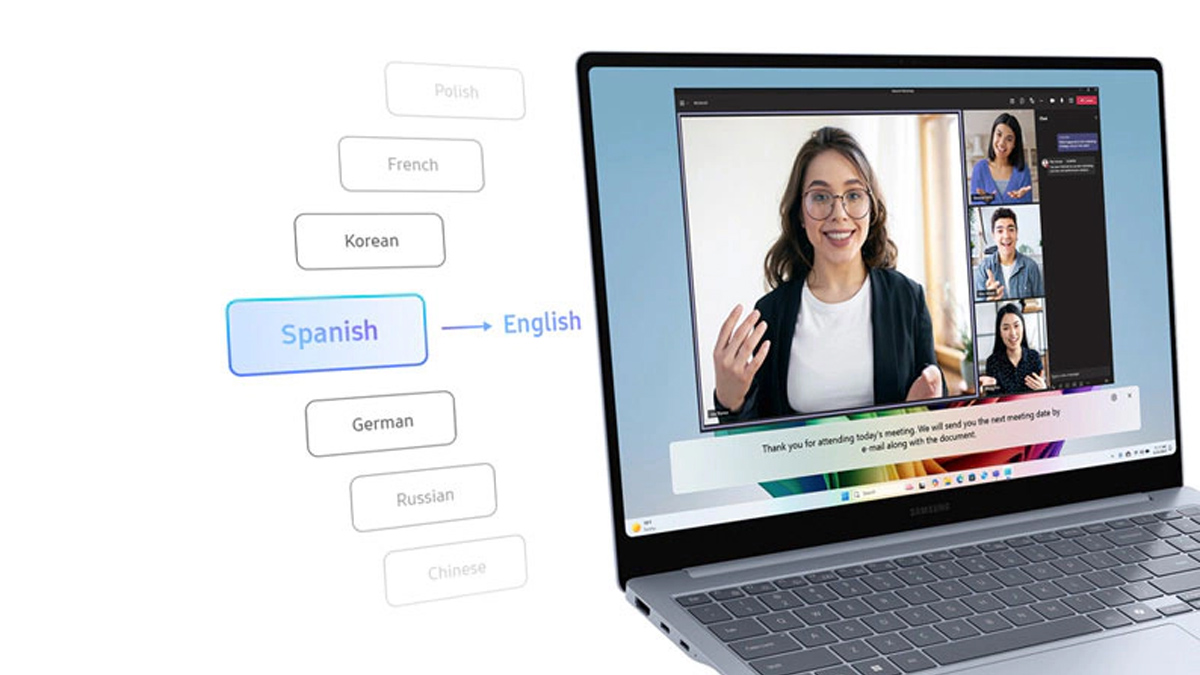
You get plenty of ports, storage goes up to 1TB, and there’s 16GB of RAM on all the variants. Plus, you get to use all of the exclusive Windows AI features like automatic live captions when watching videos, Windows Studio Effects, Cocreator in Paint, and lots more.
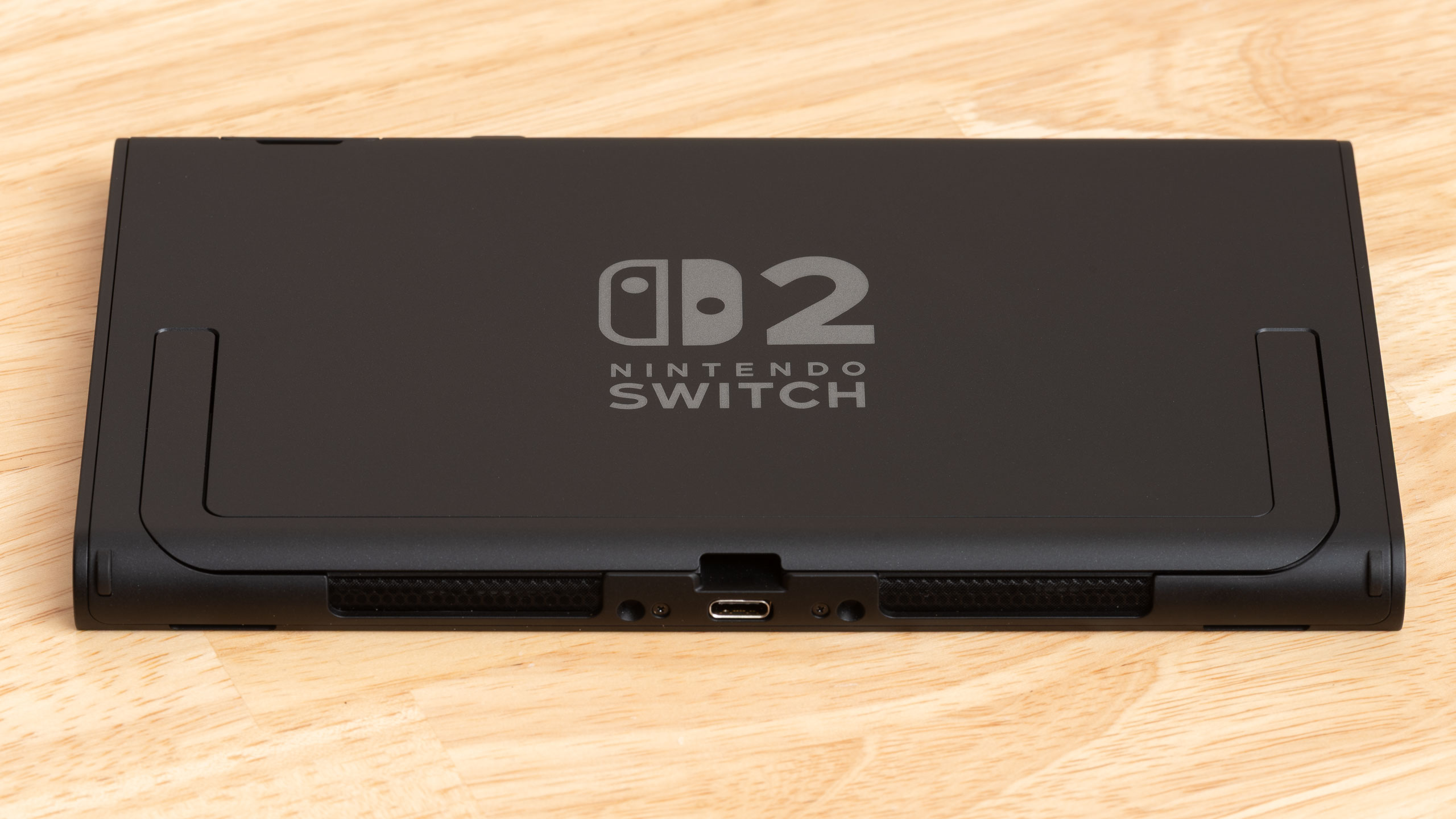
TheNintendo Switch 2offers valuable and much-needed upgrades over the original Switch. It features a larger, higher-resolution screen with a 120 Hz refresh rate, bigger Joy-Con controllers that now attach magnetically, improved graphics capabilities, and even some new social features. However, it appears that the company has limited the functionality of the onboard USB-C port.
Nintendo has intentionally implemented measures to restrict third-party accessories, including docks, hubs, and other accessories, from working with the new Switch 2. According to two accessory manufacturers who spoke toThe Verge, the console maker is making use of a new encryption method as well as an encryption chip. Previously, a similar report byGamesRadarsuggested that the change in power requirements (20V) on the Switch 2 has restricted accessory makers like Jsaux, from making docks for the new handheld hybrid console. However, it seems that the real reason is that Nintendo has made changes to the USB-C protocols, which now require “re-adaptation for both power delivery and video output.”
Further investigation done by Sean Hollister, senior editor atThe Verge, reveals more evidence. Traditionally, when a user plugs a dock or hub into a USB-C port on a laptop or tablet, a standardized set of structured instructions is sent out to enable successful communication between the host and the dock. The instructions first deliver the correct amount of power using the PD (Power Delivery) protocol and then enable other features like HDMI or DisplayPort video out, Ethernet, and so on.
By using a USB-C power diagnostic device, specifically thePower-Z KM003C, Hollister managed to successfully log the data transferred between the Switch 2 and the official Switch 2 Dock. The two devices communicate with each other using Nintendo’s proprietary vendor-defined language before agreeing on any video output. Additionally, before the dock confirms that video-out is active, over 30 proprietary unstructured messages are exchanged. Notably, this behavior is not seen when tested with third-party USB-C hubs and docks, except for one.
>>>Replacement battery for Nintendo Game Boy Micro OXY-001 Y76NB01 TheAntank S3 Max, also listed as theSiWiQU TV Dock StationonAmazon, is currently the only third-party dock compatible with the Switch 2. It appears to communicate and send coded messages in a sequence similar to Nintendo’s official dock. Priced at $36, the product listing notes that it requires the official Switch power adapter and cable to function correctly, although testing showed that the power supplied by the Antank S3 Max was slightly different.
Even though the Antank S3 Max might currently be the only third-party dock for the Switch 2, its long-term compatibility remains uncertain. Nintendo is expected to further tighten restrictions on unofficial accessories through future firmware updates. A representative from Antank acknowledged this possibility, stating, “Yes — the key should be considered subject to change. However, our product supports firmware updates, so any future changes to the authentication key by Nintendo could theoretically be addressed via software to maintain compatibility.”