We special in laptop battery ,laptop adapters for most of top brands, such as apple,acer, asus, dell, fujitsu,hp, compaq, ibm, lenovo, toshiba, samsung, sony on UK,all the ac power adapters, laptop batteries are high quality and low price.
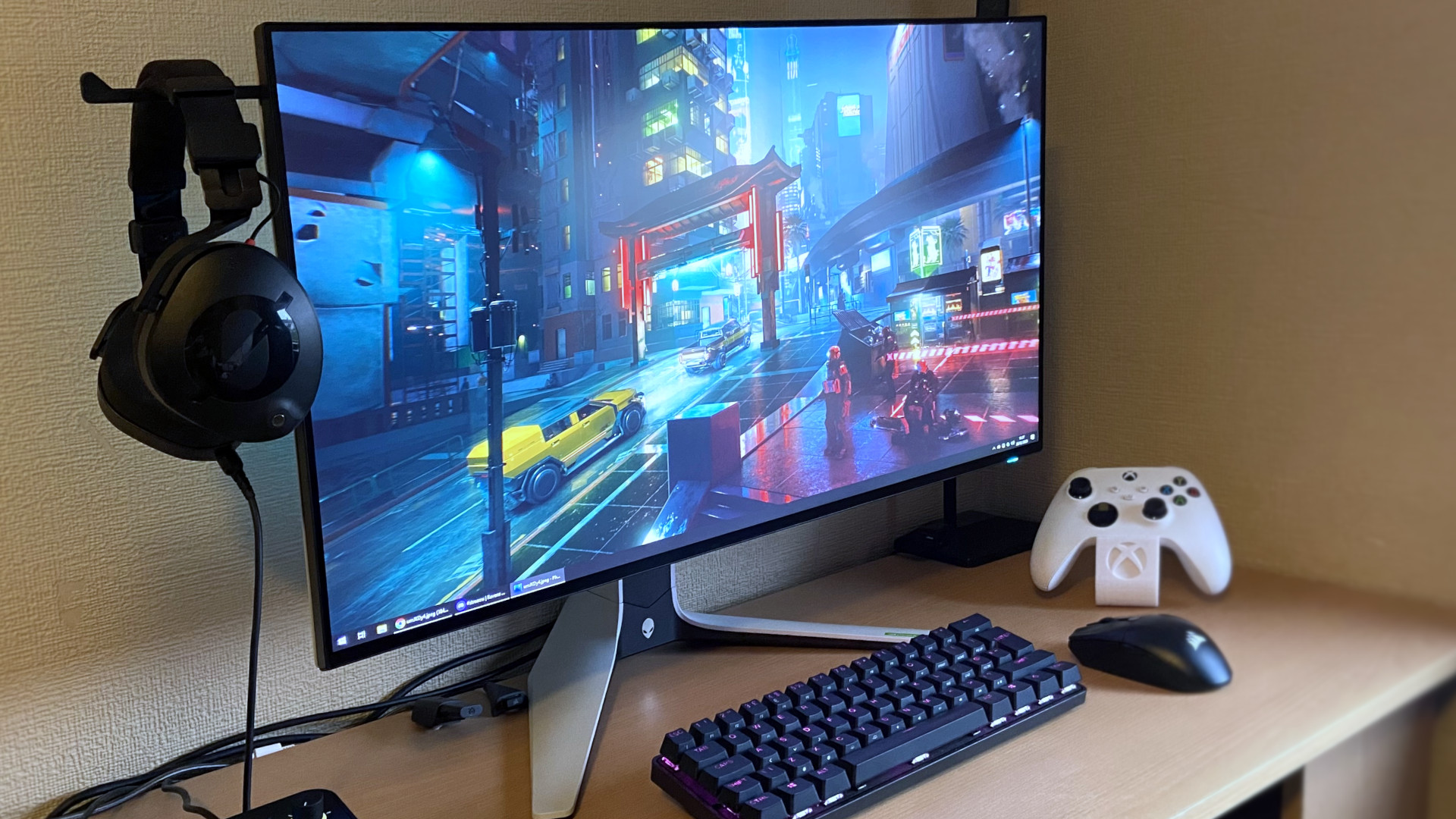
Speed up your gaming experience on Windows 11 with these easy-to-configure tweaks.
To improve your gaming experience on Windows 11, you can use my top five recommended tweaks.
If you useWindows 11for gaming, there are several settings you can change and features you can turn on or off to get better performance. However, if I were asked to pick just five of the most effective changes, here’s what I’d recommend.
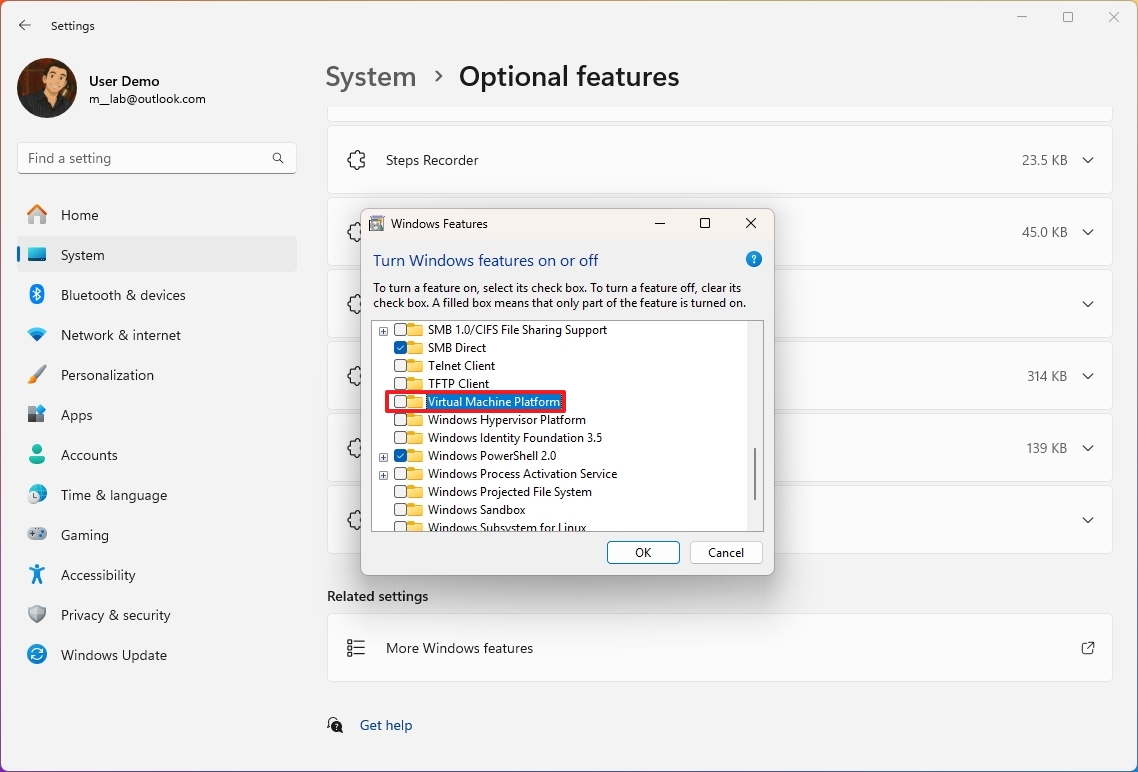
First, I recommend turning off Memory Integrity and Virtualization Platform features, as Microsoft has noted, even though they are designed to improve security, they can slow down gaming performance.
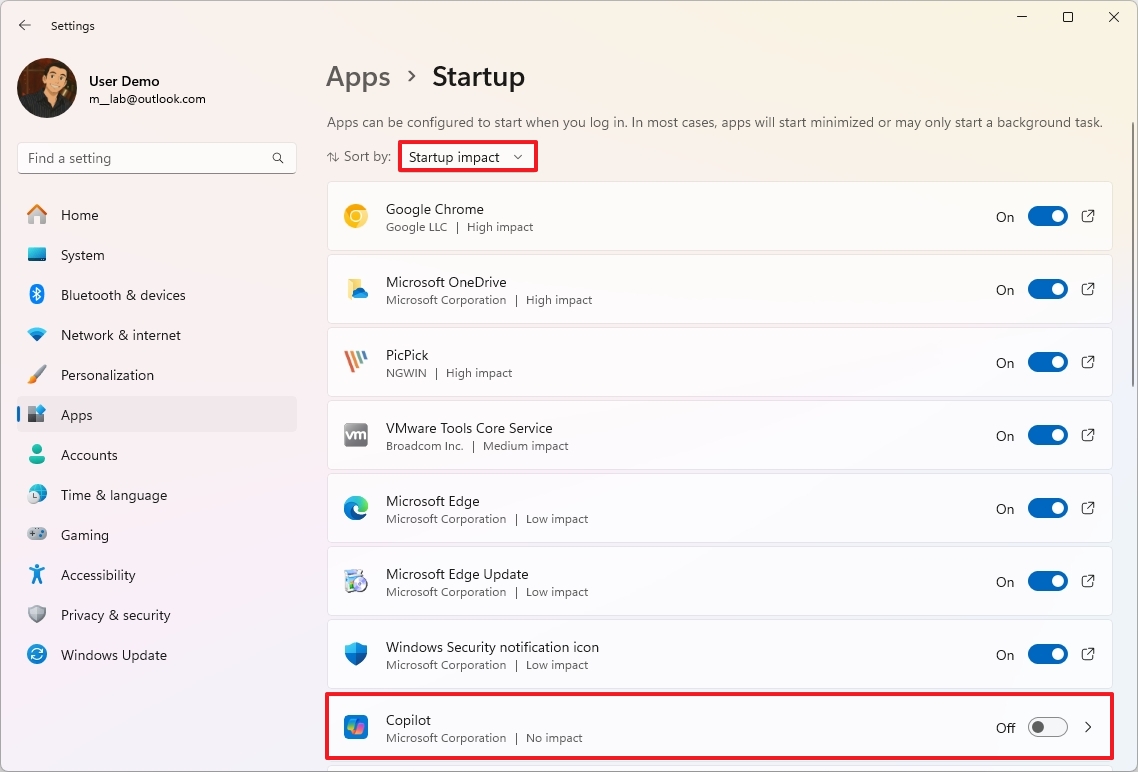
We often install many apps, and some of them run in the background every time the computer starts, wasting valuable system resources. If you turn off these apps, you can free up memory and processor, giving your games more breathing room.
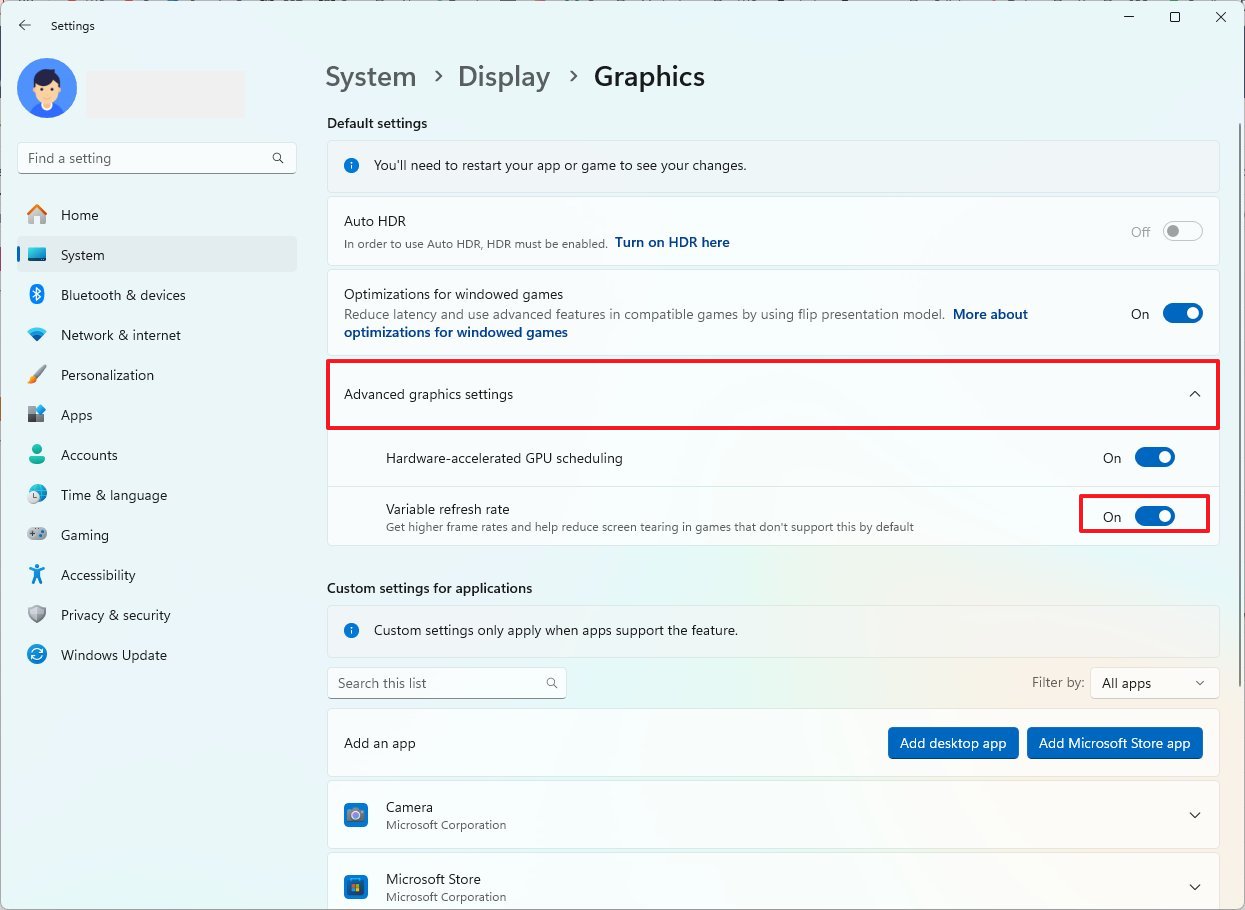
If your device supports it, turning on Variable Refresh Rate (VRR) helps reduce screen tearing and stuttering. It makes your gameplay look and feel smoother, especially in fast-paced titles.
Finally, updated drivers often include performance optimizations and bug fixes for new games. Whether you’re using NVIDIA,AMD, or Intel graphics, always make sure you have the latest version installed. (However, before updating, it’s best to research the new version to make sure other users are not having issues to avoid a negative impact on your gaming experience.)
In thishow-to guide, I’ll share my favorite tips to improve the gaming experience on Windows 11.
Best tweaks to improve the gaming experience on Windows 11
The following tweaks are listed in no particular order. These are my personal recommendations, though I understand others may have different preferences.
1. Disable Memory Integrity
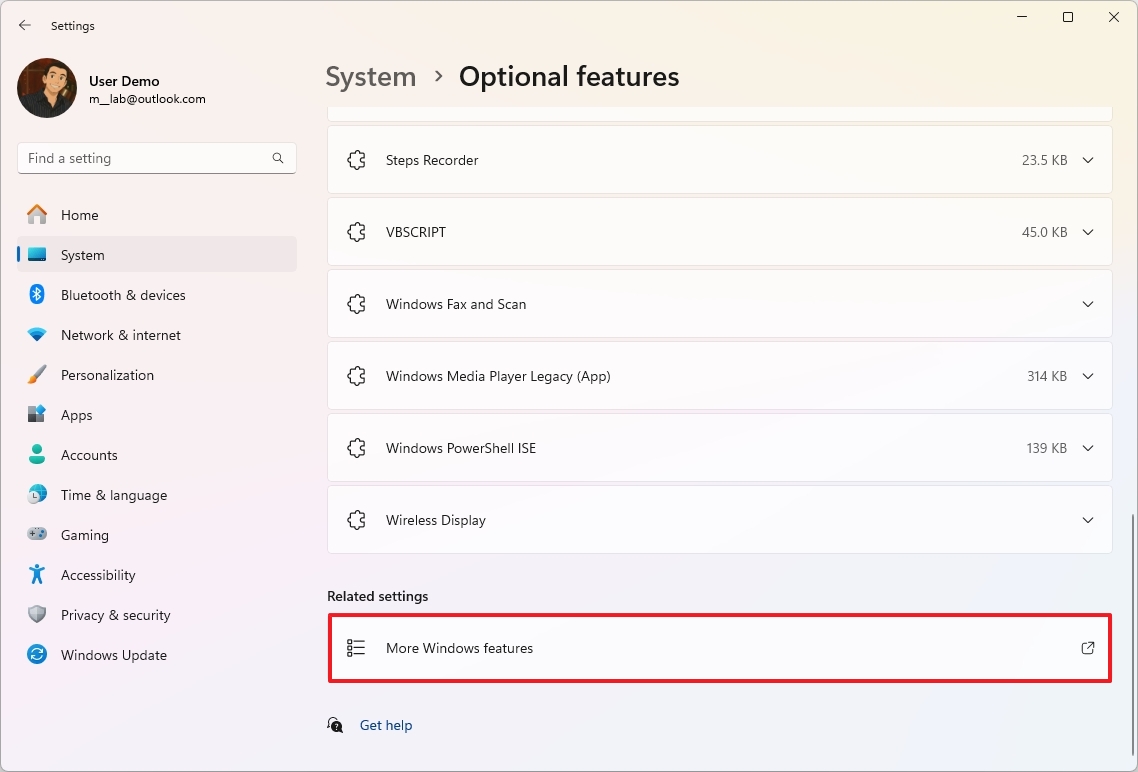
According to Microsoft, if you’re noticing performance issues while playing games on Windows 11, this can be due to two specific security features, including Hypervisor-protected code integrity (HVCI), also known as “Memory Integrity” in the Windows Security app, and the Virtual Machine Platform security features.
If you want to prioritize gaming performance, you should turn off these security features during gameplay. However, after you’re done playing, you should turn them on again.
To disable Memory Integrity on Windows 11, use these steps:
OpenWindows Security.
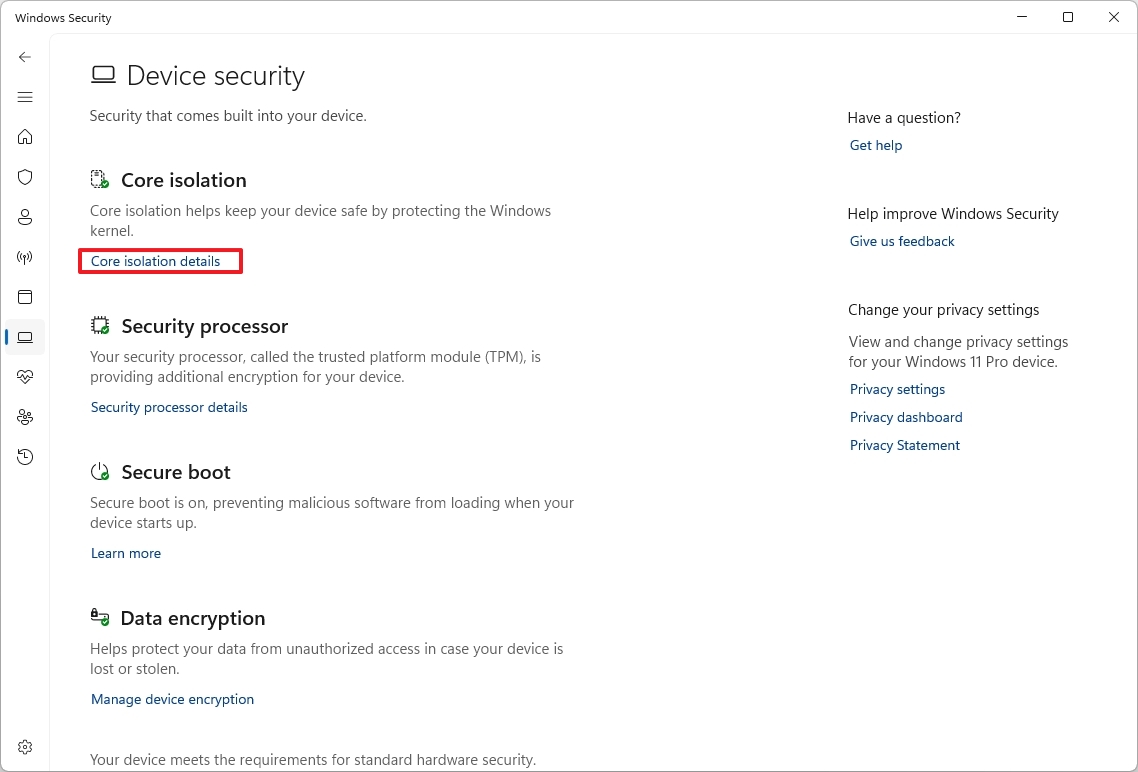
Click onDevice Security.
Click the“Core isolation details”option on the right.
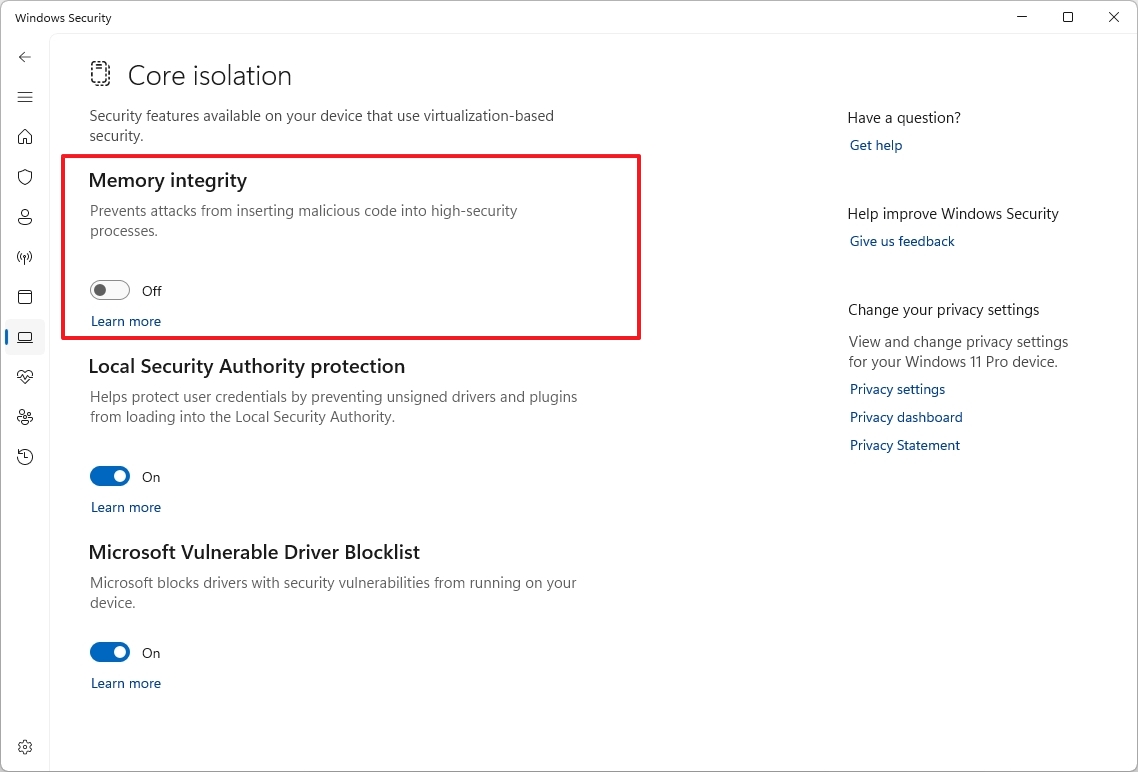
(Option 1) Turn off theMemory Integritytoggle switch to disable the feature.
(Option 2) Turn on theMemory Integritytoggle switch to enable the feature.
Restart the computer.
Once you’re done playing, remember to turn on the security feature.
It’s not a secret that apps configured to launch at startup will consume more system resources, and this can negatively affect gaming performance.
To manage apps running at startup, use these steps:
OpenSettings.
Click onApps.
Click theStartuppage on the right side.
Choose theStartup impactoption in the “Sort by” menu.
Turn off the most impactful apps running on your system.
Once you complete the steps, restart your computer, and depending on the applications that were previously loading at startup, your computer should be able to dedicate more resources for gaming.
If you’re unsure which applications to remove from the startup process, you can proceed with the apps you’ve installed. However, it’s not recommended to turn off apps like Microsoft Defender and other system services.
4. Enable Variable Refresh Rate
On Windows 11, Variable Refresh Rate (VRR) is a feature that automatically adjusts the refresh rate of the monitor based on the frames generated by the graphics card, thereby increasing frame rates while reducing screen tearing and stuttering.
If the feature is available on your Nvidia G-SYNC, AMD FreeSync, or VESA DisplayPort Adaptive-Sync monitor, use these instructions to enable it:
OpenSettings.
Click onSystem.
Click theDisplaypage on the right side.
Click onGraphics.
Click onAdvanced graphics settingsat the bottom of the page.
Turn on the“Variable Refresh Rate”toggle switch.
After you complete the steps, the feature will be enabled and work with the same feature available in the graphics card. If the feature doesn’t start from the graphics card, the operating system will activate its own version of VRR.
5. Upgrade graphics drivers
It’s always recommended to have the latest device drivers for any component, especially your graphics card, since manufacturers usually release improvements and bug fixes, which sometimes can have a significant impact on your gaming performance, and even on specific games.
However, drivers and system updates can sometimes cause more problems than they solve. As a result, important to research the driver update before installing it.
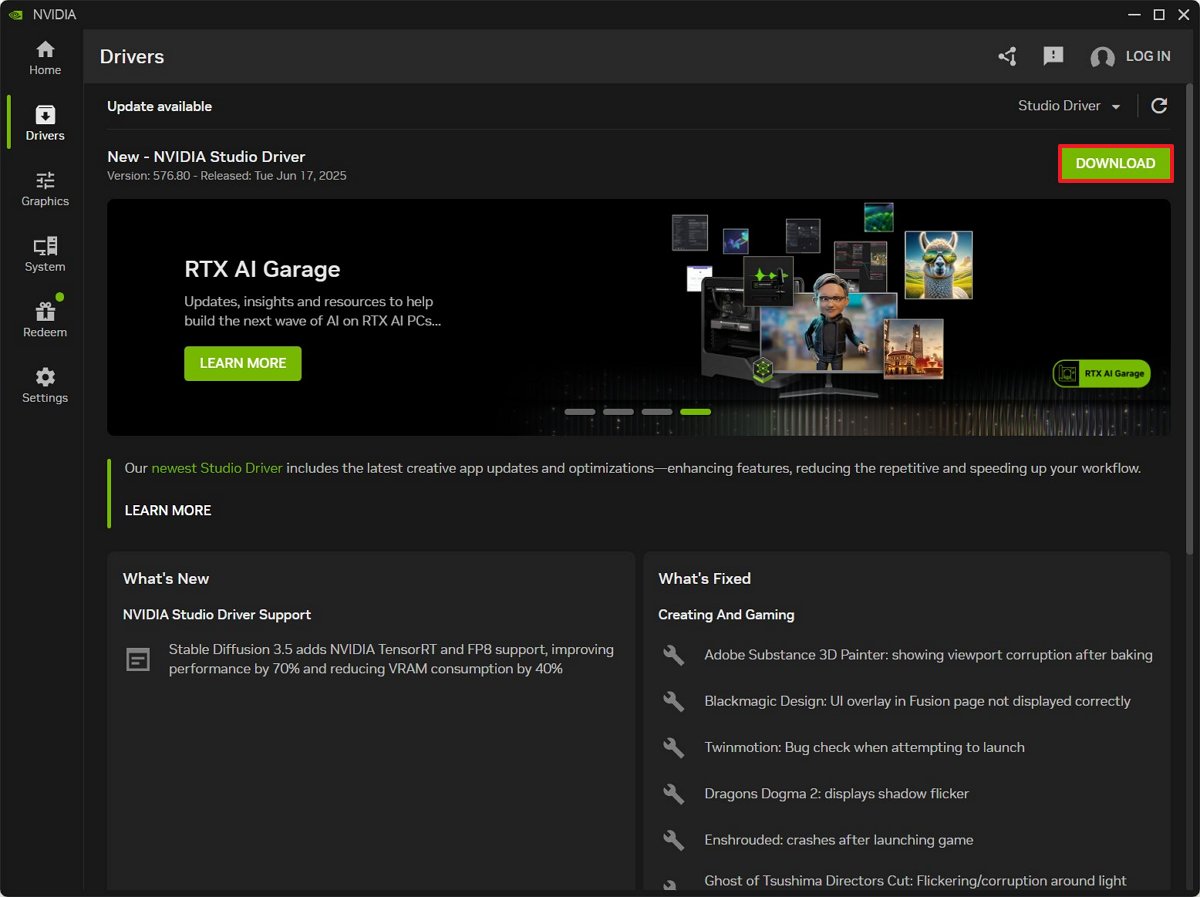
For example, to update the graphics drivers from the Nvidia app, use these steps:
Open theNvidiaapp.
Click onDriversfrom the left pane.
Click theDownloadbutton.
Continue with the on-screen directions.
Once you complete the steps, you may have to restart your computer to apply the changes.
If you have anAMDsystem, the steps are obviously different using the Adrenalin Edition app, but the concept is the same.
Although I am focusing on only a select number of improvements, you can alsorefer to my comprehensive guide, which offers more than twenty tips, from enabling Game Mode and selecting the most optimal power plan to Hardware-accelerated GPU scheduling and performing a clean installation of the graphics drivers.
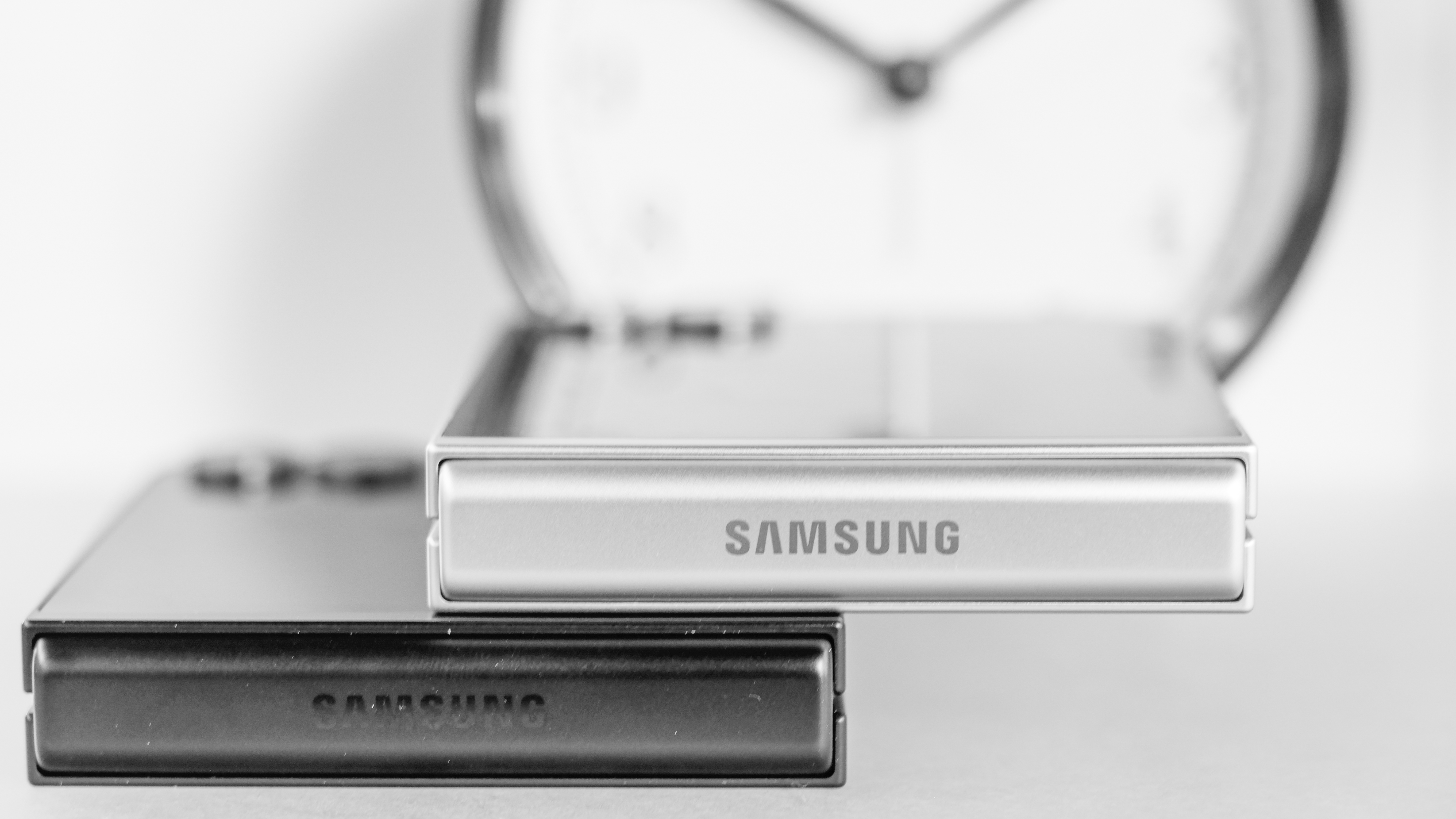
The Samsung Galaxy Z Flip 7 FE should have been cheaper and more colorful, but instead we get a basic black and white version of last year’s Flip 6 with only 8GB of RAM instead of 12GB. It’s cheaper than last year’s Flip, but the Motorola Razr is a huge bargain in comparison, with bright colors and a better cover screen.
Pros
+Actually much cheaper than a Flip 6
+Keeps the Flip 7’s 50MP camera
Cons
-Costs much too much
-No cool colors like other FE devices
-Basically last year’s phone with less RAM
The day was a real cooker as I approached the Brooklyn Navy Yard, site of theSamsungUnpacked event that would feature the new Galaxy Z Fold 7, Galaxy Z Flip 7, and the latest addition to the foldable family, the Galaxy Z Flip 7 FE.
I’d heard whispers about the Galaxy Z Flip 7 FE; rumblings from the street, you might say. We knew it would be a cheaper version of the Galaxy Z Flip 7, but how was Samsung going to pull it off? What corners would be cut? What features would get left out in the cold?
I couldn’t concentrate on cold; it was too hot outside. I waited through the Galaxy Z Fold 7 announcement. Did the suit on stage really misspeak and say it would cost $199.99? I guess some prices are too high even for Samsung’s own people to swallow.
I sat through the Galaxy Z Flip 7 announcement, thinking I’d made a huge mistake. I put my partners on the trail of the Flip 7 and the even more expensive Fold 7. I figured my time slumming it with Motorola’s base model Razr would make me the right gumshoe to sniff out the details on the cheap new Flip FE.
Then I saw the bezel on the Galaxy Z Flip 7 cover display and I felt the green monster — jealousy — breathing down my neck.
Fine, I thought, you can’t have every phone. Sometimes you have to let the good ones go if it means saving a buck or two. The Galaxy Z Flip 7 has looks, sure, but those come at a high price: $1,099.99. That’s too rich for my blood.
Starts at $899 / £849 / AU$1,499 for 8GB RAM / 128GB storage
Cheaper than Galaxy Z Flip 6, but still very pricey
Finally, the moment of truth arrived. The Samsung rep faked a retreat then stepped back to the front of the stage with that old chestnut: and one more thing… it was the Galaxy 7 Flip FE. My quarry. I finally had my eyes on the prize. But what exactly was I seeing?
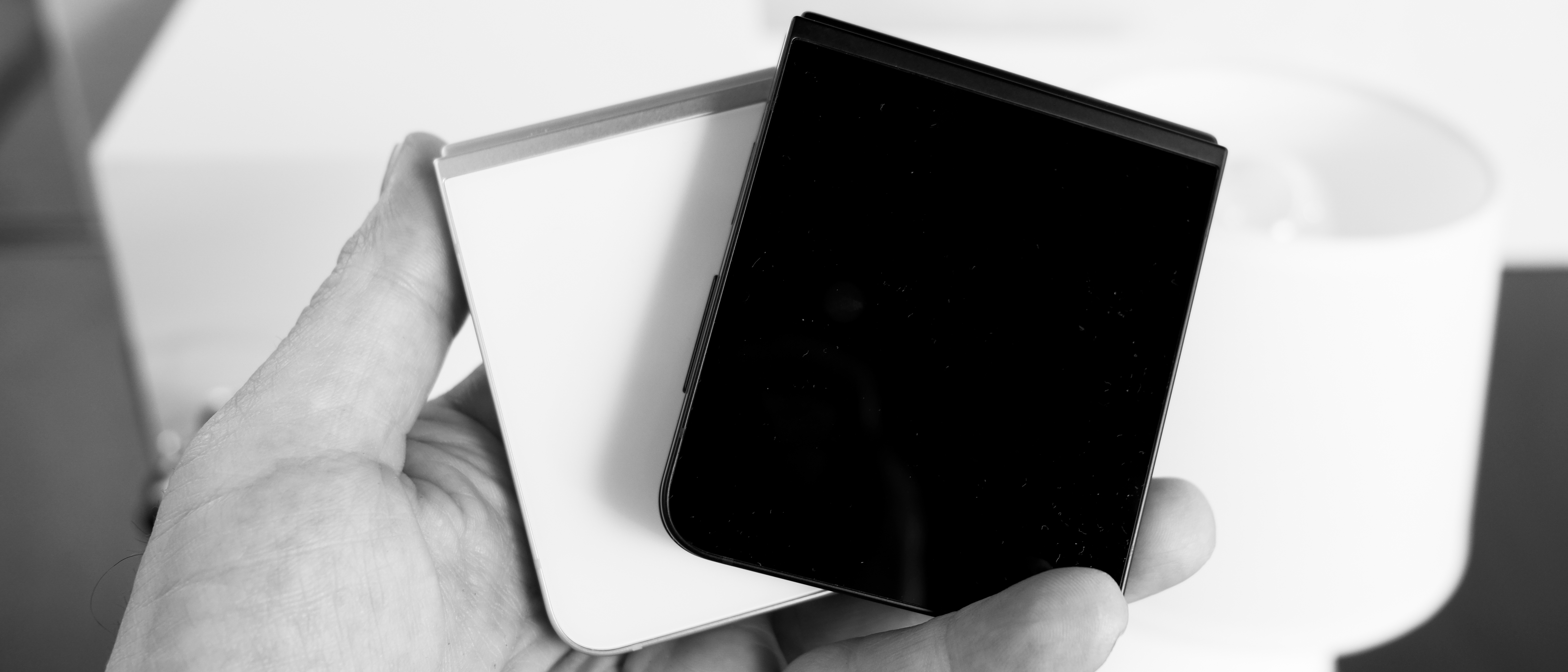
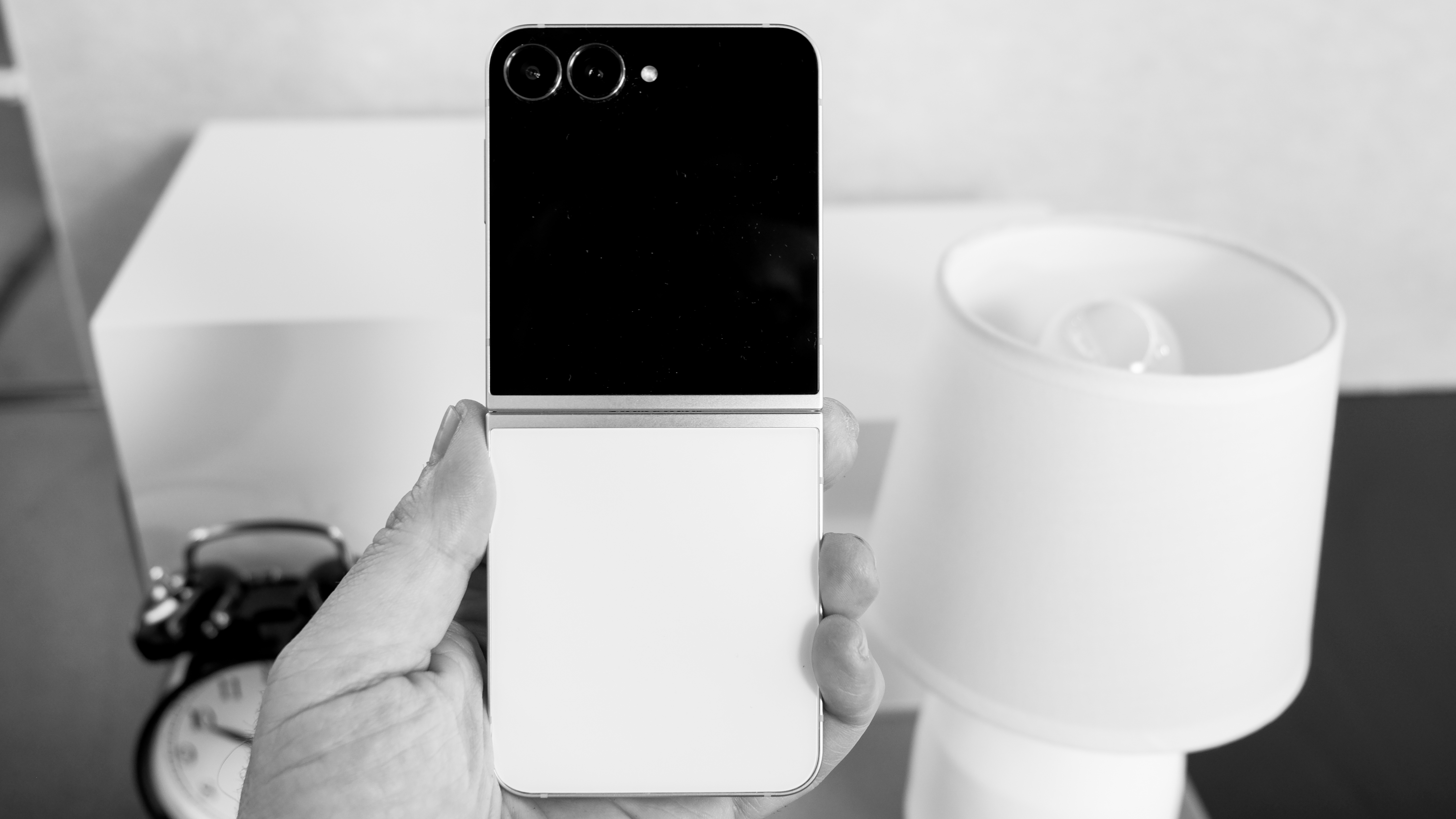
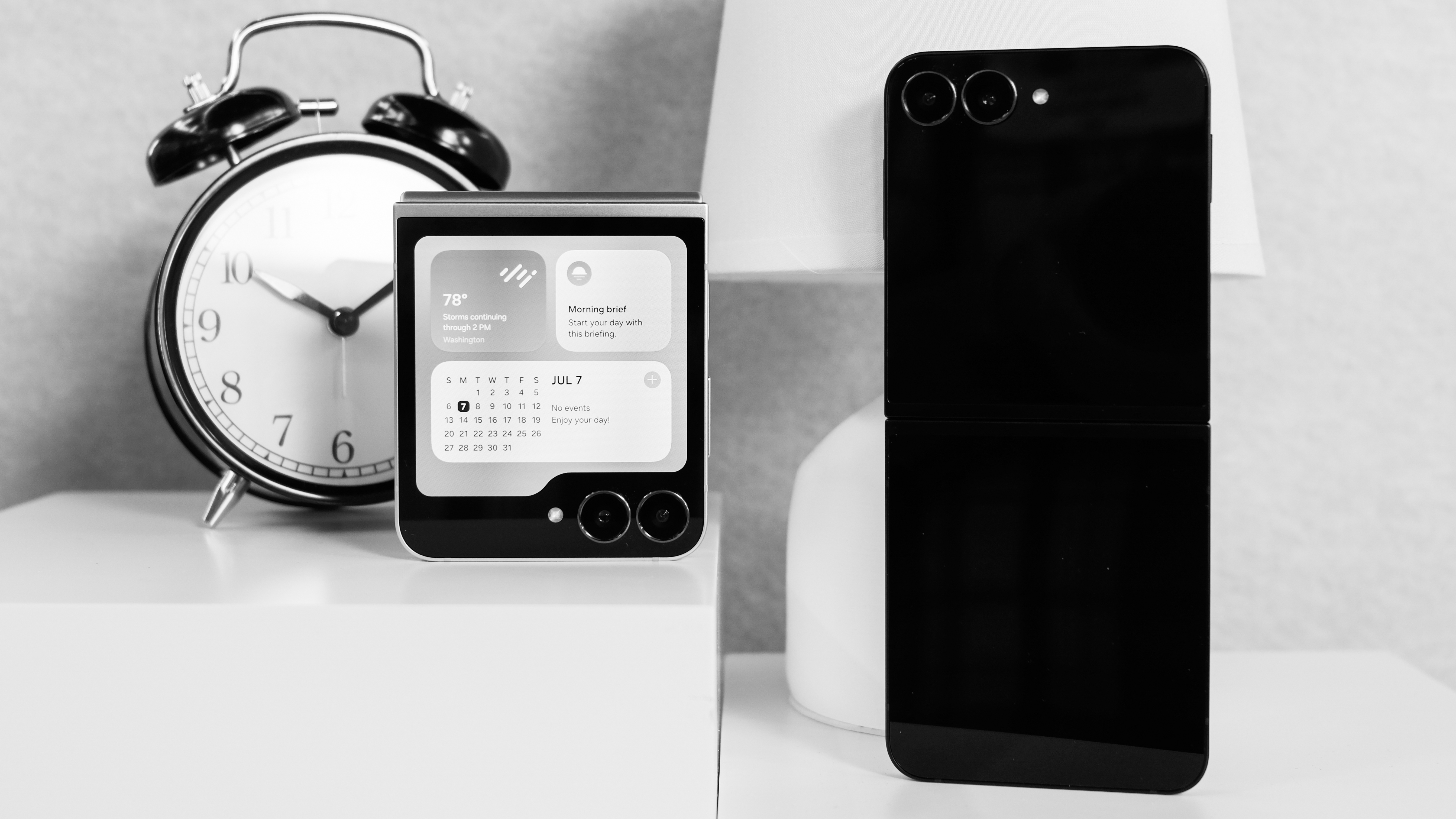
Samsung laid it out in black and white – literally. That was the first thing I noticed about the Galaxy Z Flip 7 FE. It came in black or white. Shiny, glossy, like 88 ivories ready to be played. No other colors.
I grabbed my notebook. This couldn’t be right, could it? For a Galaxy FE? I flipped back a few months to the Galaxy Tab S10 FE, Samsung’s iPad Air competitor. Didn’t that tablet come in blue? The blood drained from my head. The room started to go dark.
I flipped back even further to the Galaxy S24 FE. Mint! I have it in mint, and I know there was a blue. Was this a dream? Some sawbones once told me that dreams are often in black and white, but I don’t pay much attention to doctors.
Why would the Galaxy Z Flip 7 FE be available only in black and white? I may have a long memory for Samsung’s favorite hues, but Samsung only has its eye on one dame… theAppleiPhone 16e.
Samsung used to show up at the bargain table wearing bright colors like it was Easter Sunday. Then Apple reminded the world that every day can be a funeral, and the iPhone 16e launched in black and white – the first monochromatic iPhone I can recall since the iPhone 3GS.
If I had to guess, I’d say that’s why Samsung changed its FE look. I would also guess that the overpriced iPhone 16e is the reason Samsung priced the Galaxy Z Flip 7 FE like a premium flagship, not a bargain phone. The Flip 7 FE will start at $899.99. I gasped when Samsung flashed the number.
Pantone’s Gibraltar Sea, Spring Bud, Lightest Sky, Parfait Pink
Samsung Galaxy Z Fold 7 review: design
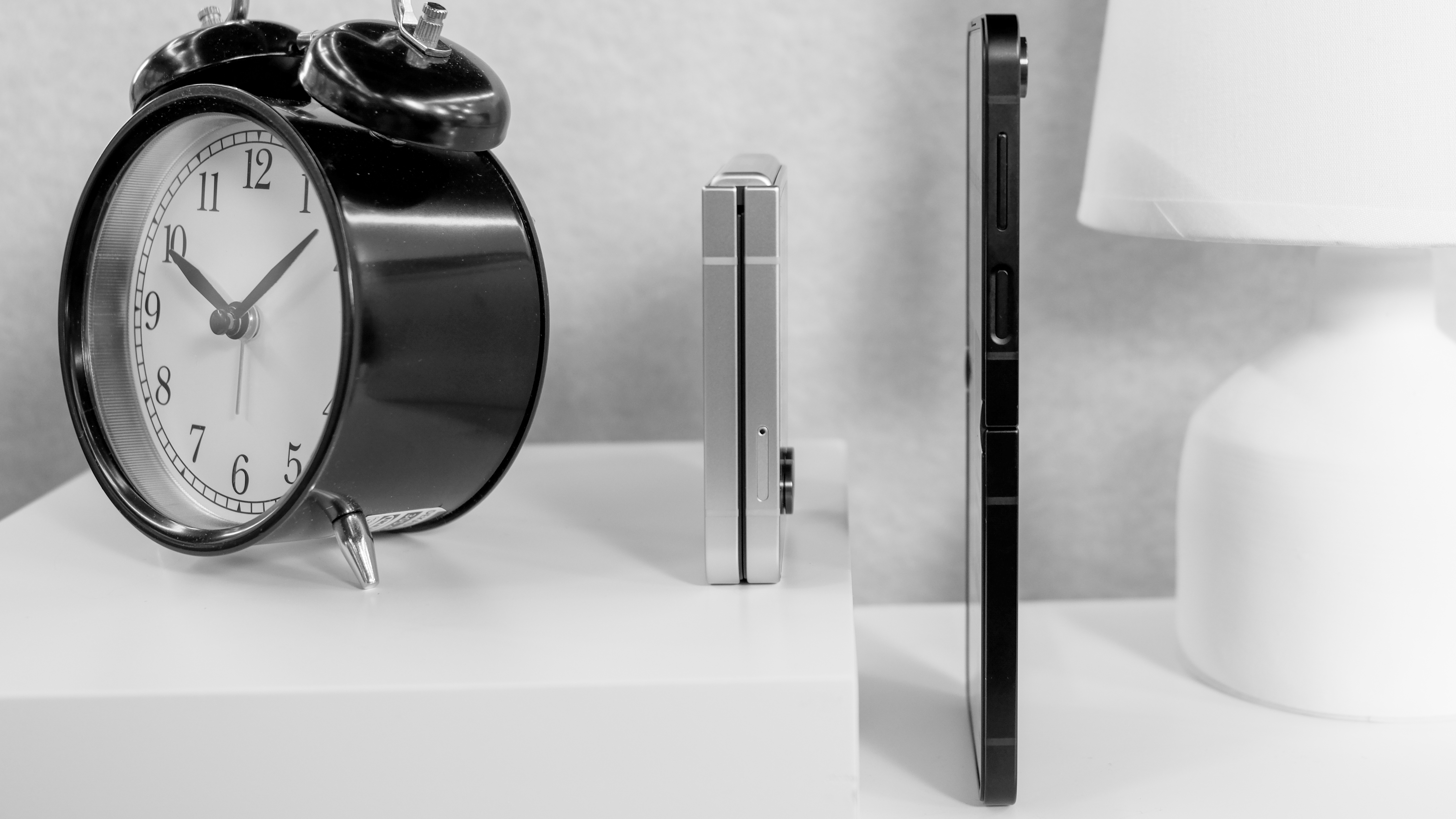
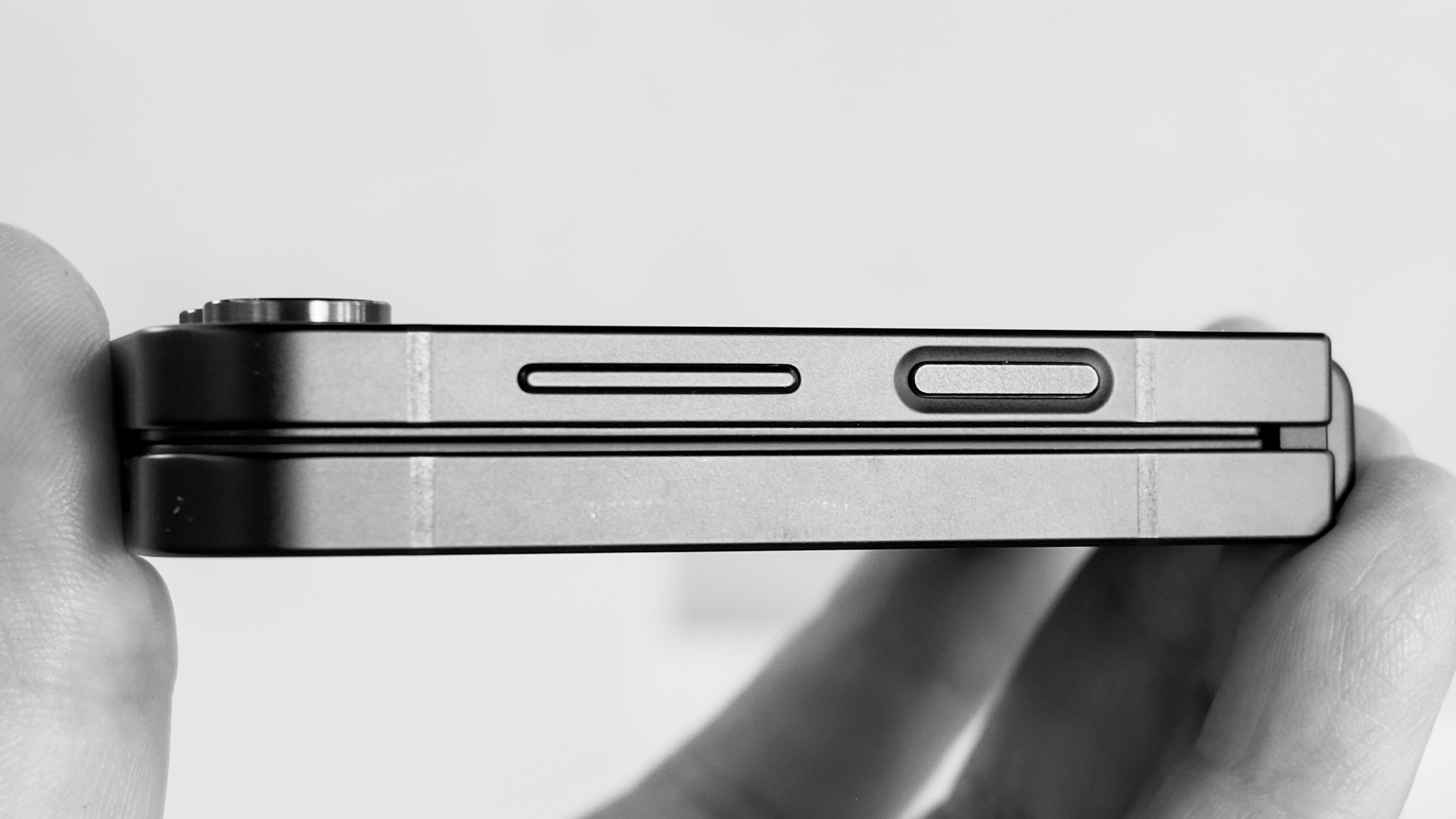
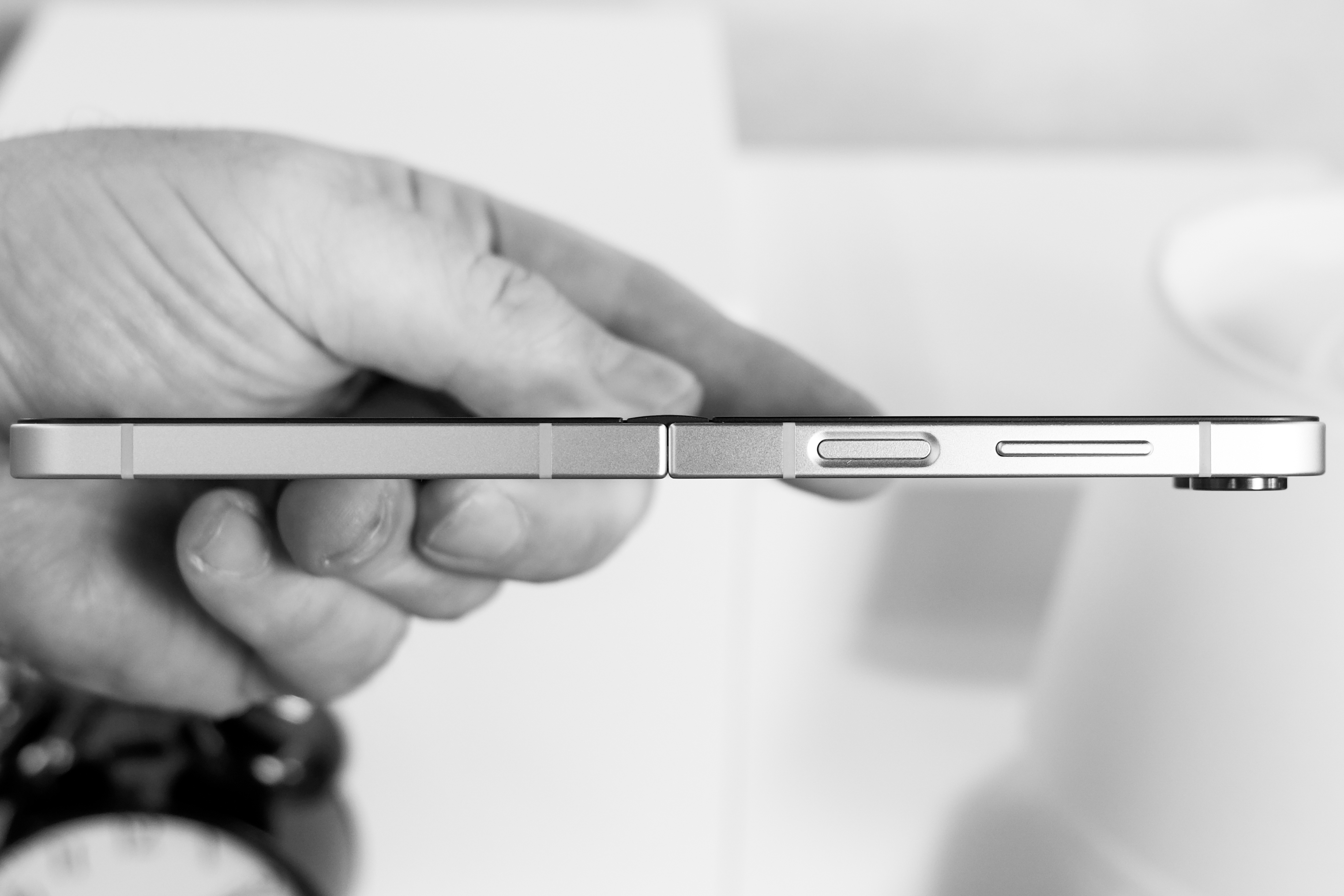
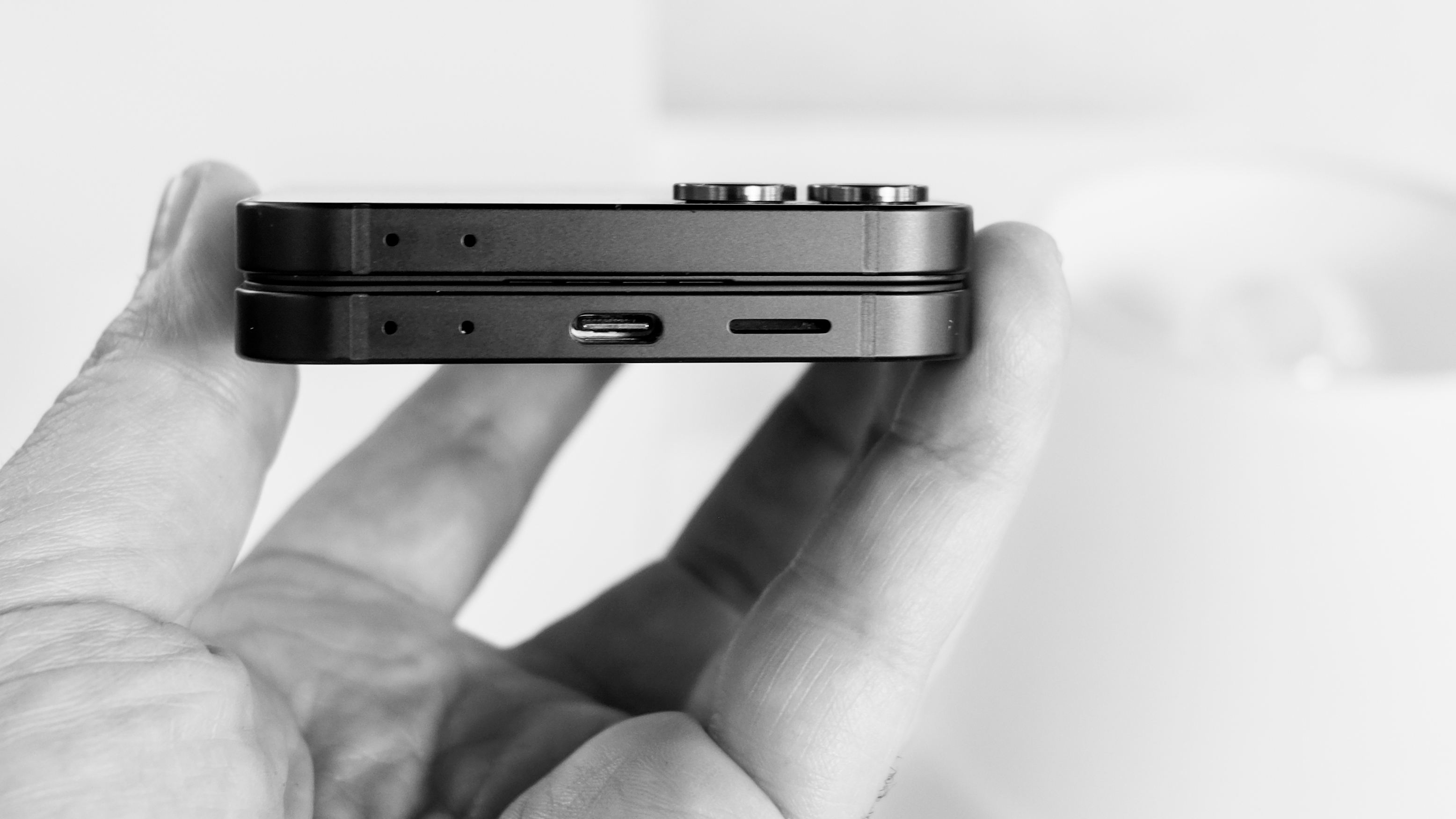
Same dimensions and weight as Galaxy Z Flip 6
Only comes in black and white
I headed to the hands-on tables and sidled up next to Lance, who was parked in front of the gorgeous, mint green Galaxy Z Fold 7. The room was filled with tables and shmoes like me, looking for a scoop.
All I saw were bright colors, but my target had none of that. I was looking for the colorless suspect in the center of it all: the Galaxy Z Flip 7 FE.
The massive warehouse was decked out in more color than I could comprehend. There was bright graffiti covering one corner.OLEDTVs showed off Samsung’s commitment to ecology in bright green and poison-dart frog orange.
A more colorful Galaxy Z Flip 7
After a tour of the gigantic space, I found my FE back near where I started. There were three on a table: two black and one white. These were the only Galaxy Z Flip 7 FE phones in the room.
Clearly, Samsung didn’t expect a big crowd for its so-called bargain.
Samsung Galaxy Z Fold 7: display
You’ll be jealous when you see the Flip 7’s cover display
Inner screen is large but not as big as a Moto Razr or Flip 7
Frankly, I don’t blame them. It’s hard to work up a sweat over a cheap phone that costs $900, even on a hot day like today. With a good sale happening, I can get two Motorola Razr phones for the same price – one for work and another for the weekend.
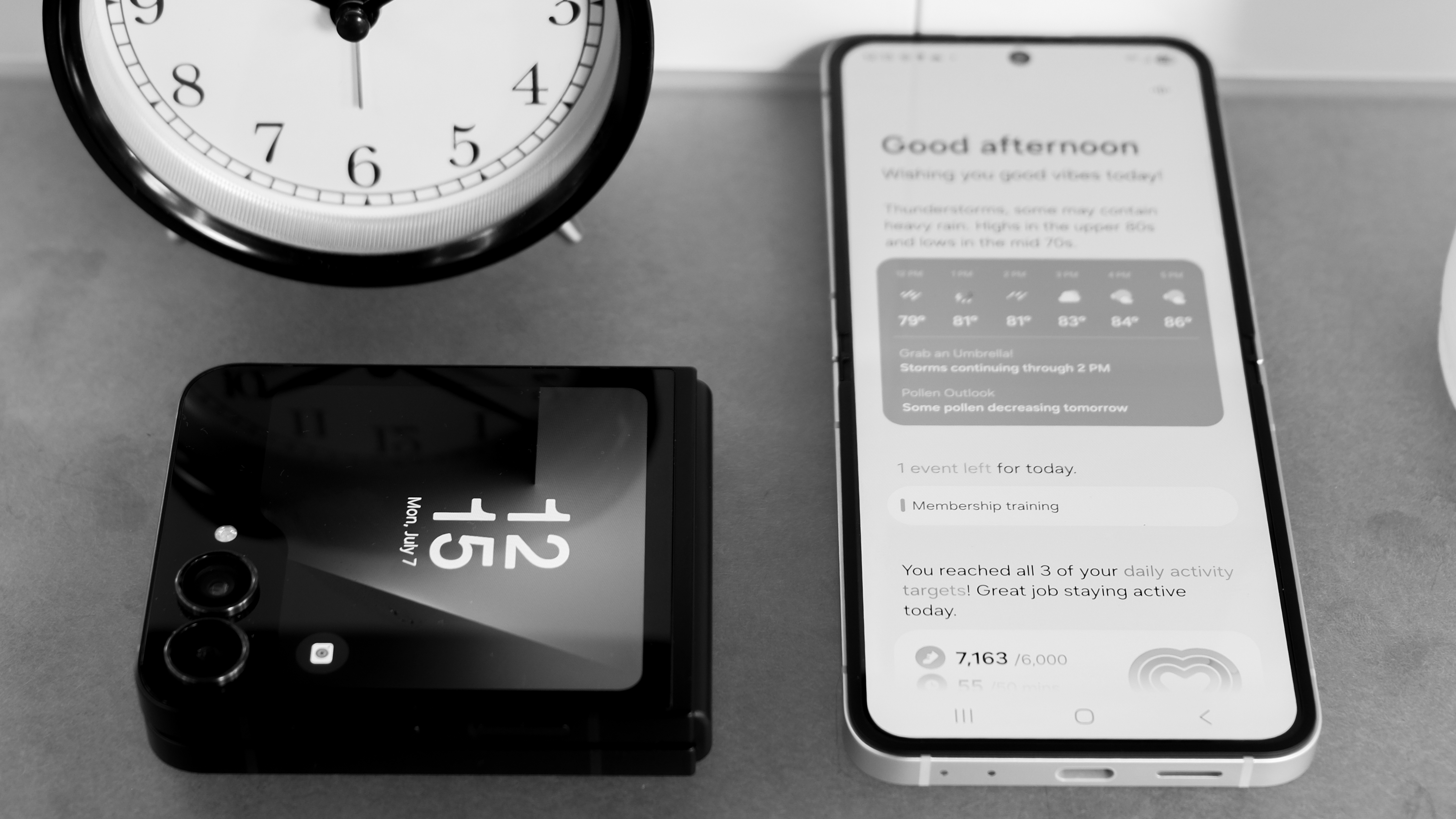
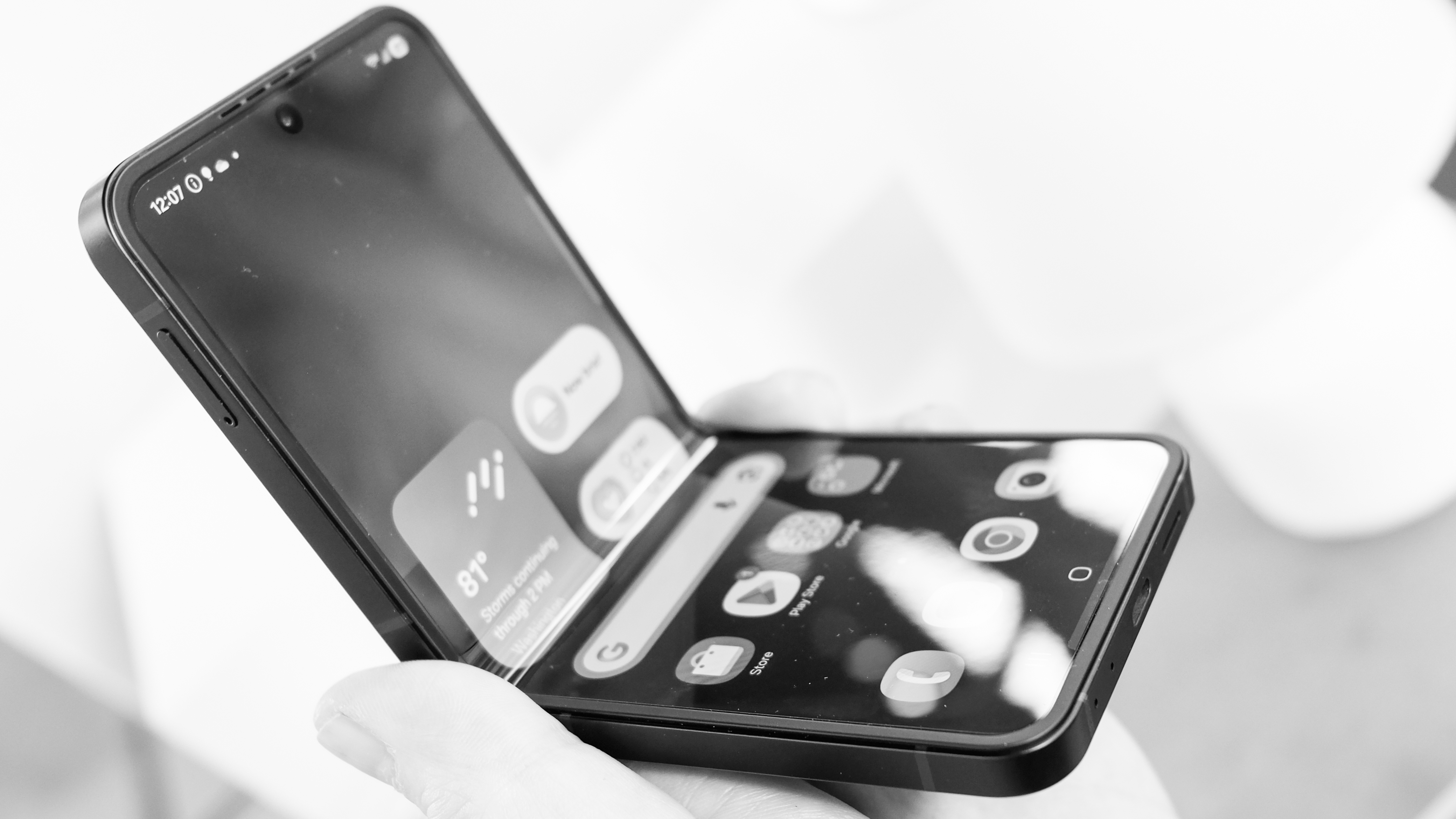
After a few minutes with the Flip 7 FE I’m onto Samsung’s jig. The FE is the exact same size and weight as the Galaxy Z Flip 6. It’s got the same screens, inside and out, down to the pixel.
To be fair, the Flip 7 FE can get brighter, but that’s according to Samsung. I’ll let my folks in Future Labs run tests at the clubhouse before I declare this phone the winner.
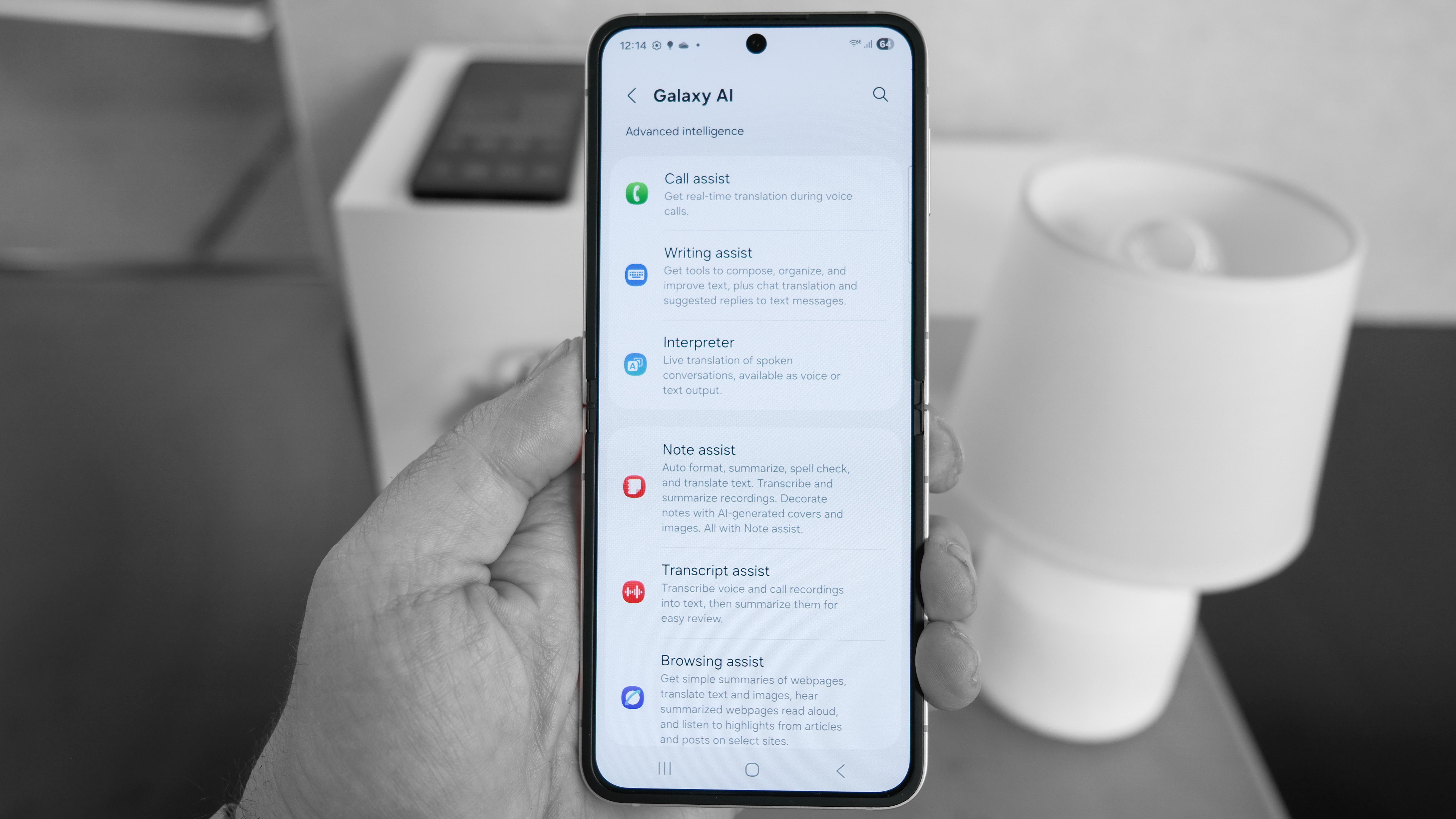
The Galaxy Z Flip 7 FE almost seems designed to disappoint. No colors. No big cover screen. No Snapdragon inside – this phone runs on the Exynos 2400 that flummoxed Galaxy S24 buyers who weren’t in the US. It even has less RAM than the Galaxy Z Flip 7: eight gigabytes instead of 12.
Samsung Galaxy Z Fold 7: cameras
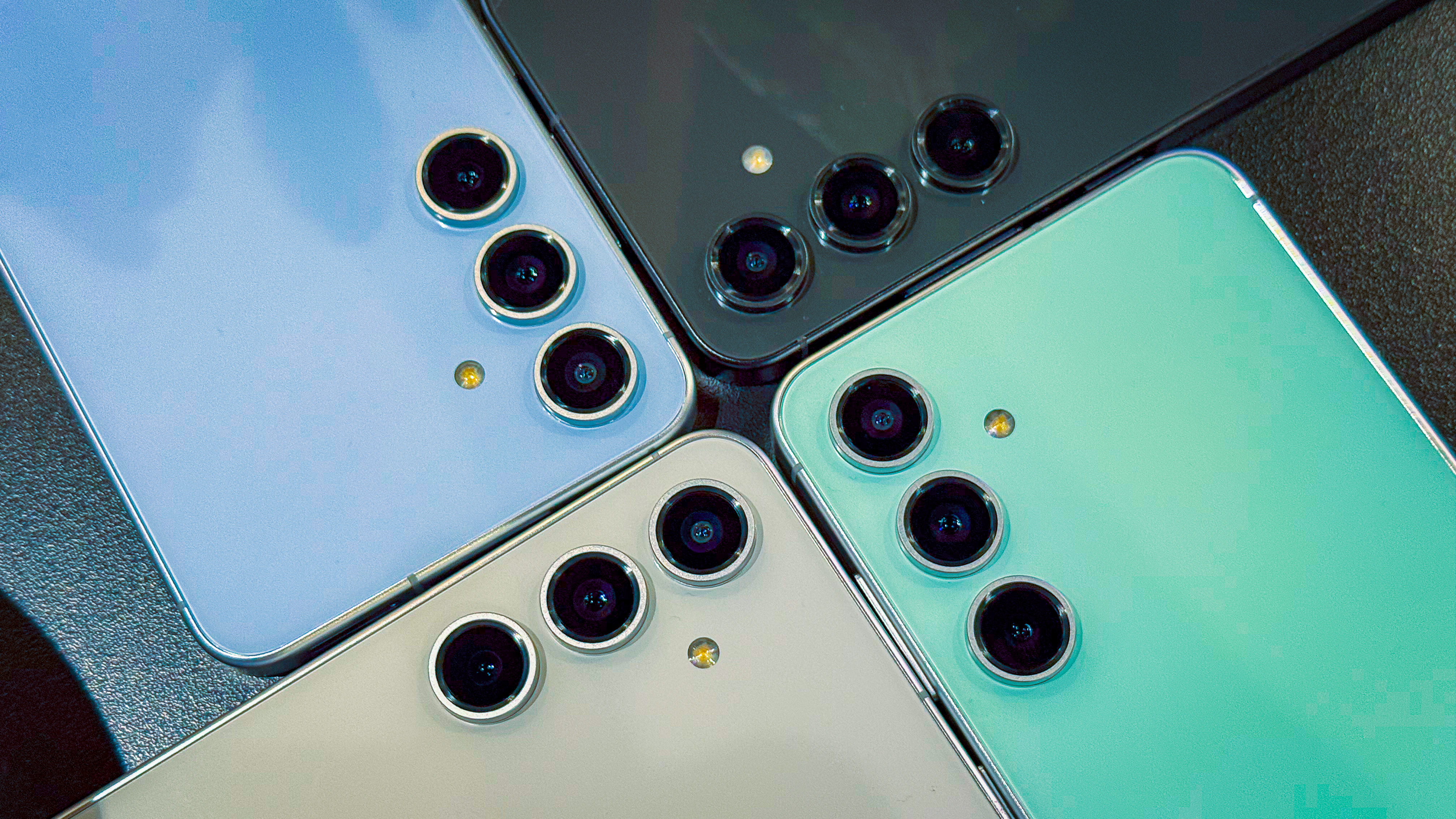
50MP main camera, 12MP ultra wide
Same camera specs as Galaxy Z Flip 7 (and Flip 6)
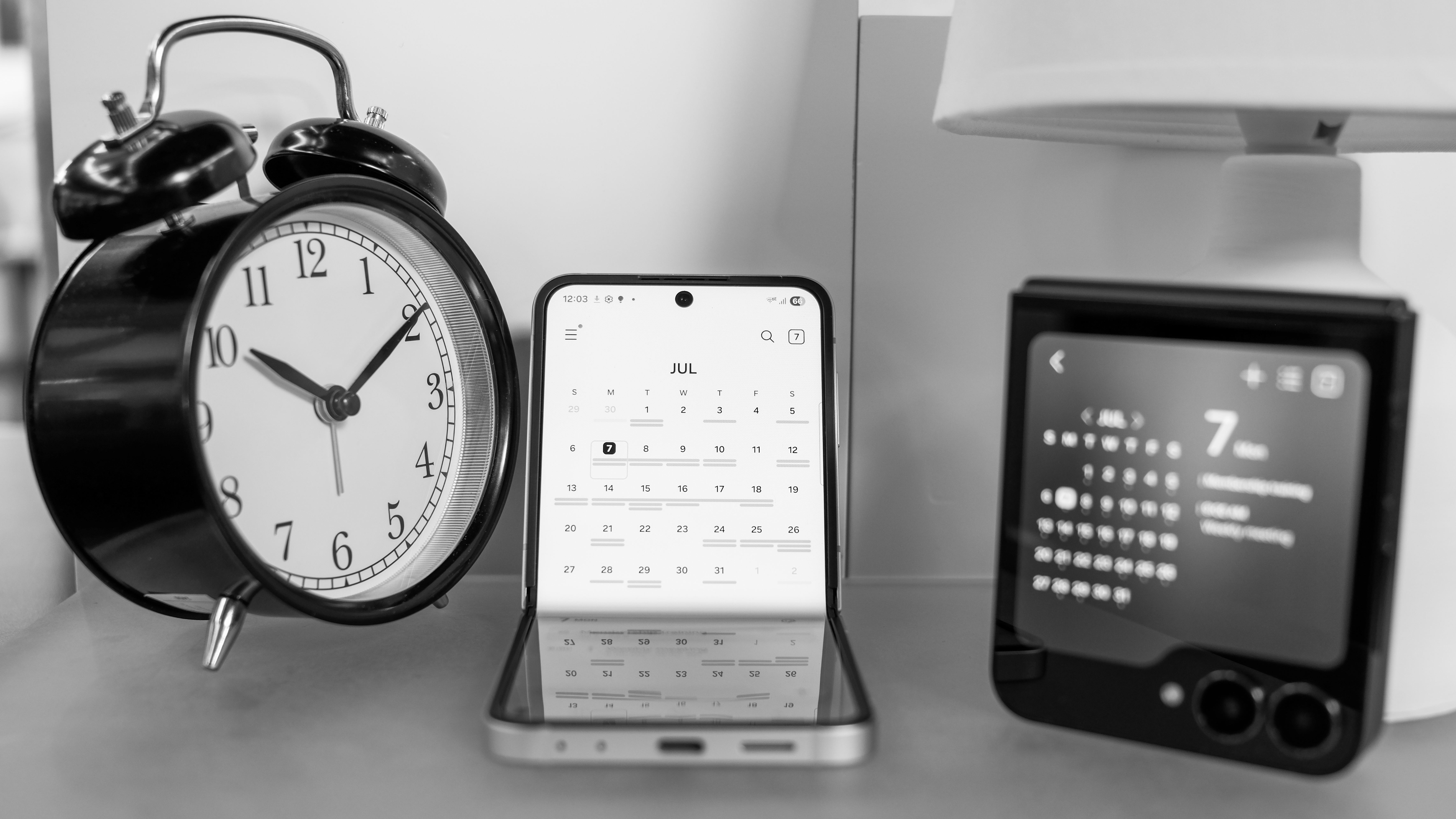
I check out the cameras – not bad? At least it keeps the same shooters as the normal Flip7. There’s a 50MP wide cam that’s a solid option for selfies, and I can see my kisser in the cover screen with the Flip 7 FE closed.
At least the Galaxy Z Flip 7 FE doesn’t seem to be a downgrade in that department. I’ll need to take it for a spin to be sure, but the cameras look identical to what the Galaxy Z Flip 7 is packing.
Samsung Galaxy Z Fold 7: final word
Why not just keep the Galaxy Z Flip 6 around at a discount? Samsung feeds me a line and I chew on it, but I don’t swallow. It said the Z Flip 6 couldn’t run DeX, but the Exynos in the Z Flip 7 will make it happen. A likely story, since the Flip 6 and the Galaxy S24 had the same chips.
But what about the Flip 7 FE? It’s unclear what it can and can’t do.
I can’t imagine anyone picking the Galaxy Z Flip 7 FE over a Galaxy Z Flip 7, except by accident. I’ll need to spend some quality time with this phone before I can write its full review story, but my gut tells me if last year’s phone gets a discount, steer folks toward an older, more colorful Flip 6 before sending them after this black-and-white ‘bargain.’
The best photo editing laptops based on our hands-on testing.
A lot of what makes the best laptops for Adobe Photoshop also makes thebest laptops for video editing: a well-balanced combination of performance, battery life, and a bright and vivid display. Whether you’re just learning the ins and outs of editing photos or can wield the lasso tool like a scalpel in the hand of a surgeon, there’s no shortage of great options, whatever your skill level.
Laptops with Nvidia’s RTX 50-series GPUs are now available for creators with demanding Photoshop needs, as well as allIntel’s Core Ultra 200-series andAMD’s Max Pro series of processors. Professional editors can benefit from the added performance of a discrete graphics card by enabling Photoshop’s hardware acceleration features, which helps power through demanding tasks faster.
A high-resolution OLED display is also something to consider. You’ll not only get to enjoy the rich hues and deep contrasts OLEDs are famous for, but some of them also have wide color gamut coverage — wide enough to find colors in between colors.
For beginners or anyone looking to save money, any laptop with last-gen hardware will still provide more than performance to move Photoshop edits along quickly. Even ones without a discrete graphics card. Check out ourbest laptop dealsfor the best discounts at various price points.
-Can’t configure RTX 4060 with Intel Core Ultra 7 -Touchpad too resistant -Awful audio
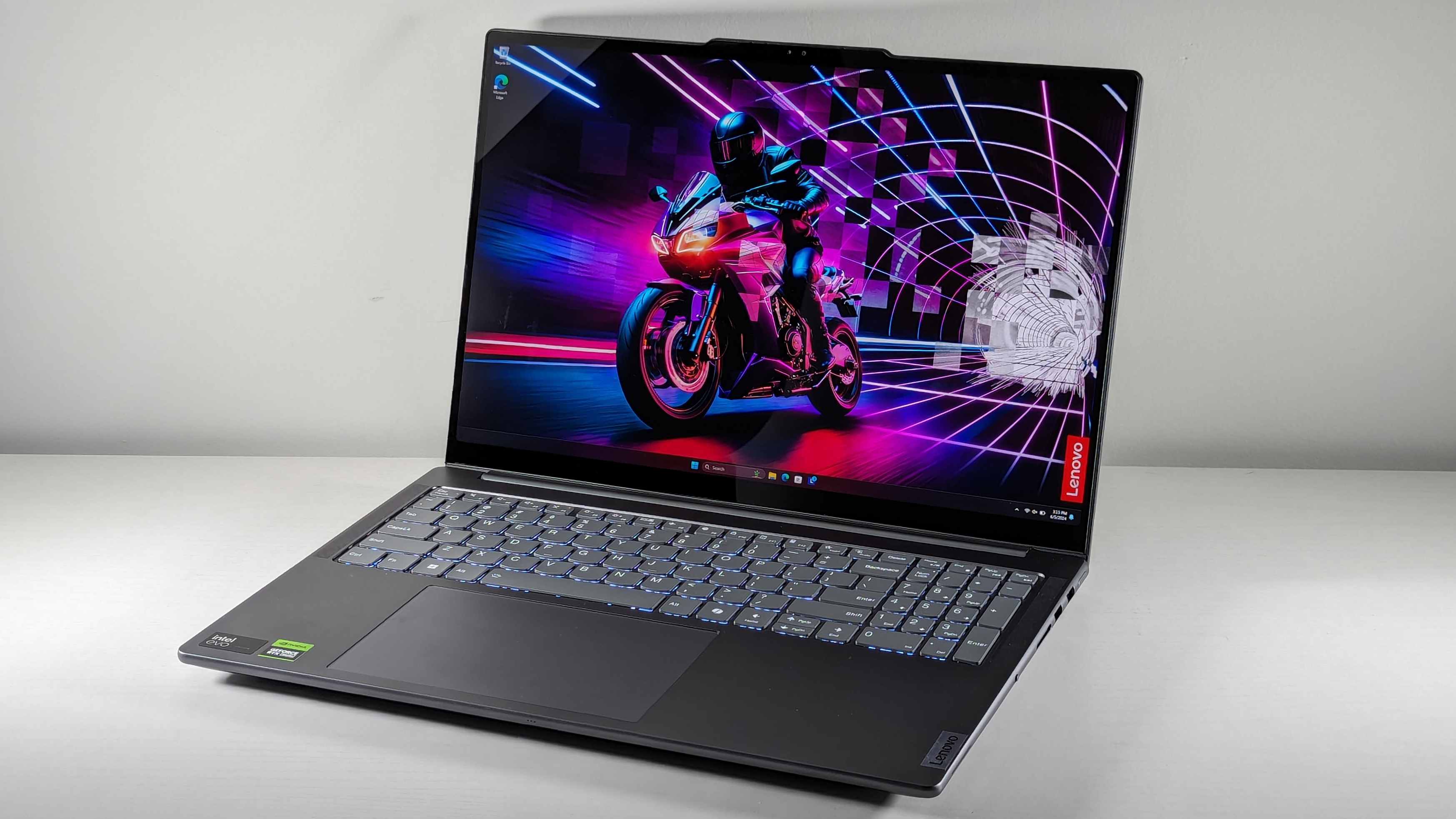
There’s little not to love about the Lenovo Yoga Pro 9i 16 Gen 9. It features a gorgeous display, powerful processor, solid discrete graphics, and enough memory and storage for creators of all skill levels. It even comes with decent battery life and a comfortable, bouncy keyboard.
Rami Tabari said in our review, “I love a display with a little kick. The Lenovo Yoga Pro 9i’s 16-inch, 3200 x 2000, 165Hz panel is gorgeous. It’s reasonably bright and offers a vivid wave of color.”
The Yoga Pro 9i covers 105.7% of the DCI-P3 color gamut, which is well above the premium laptop average (91.2%). Its display is far better than similar laptops like theHP Spectre x360 16(87.1%),Dell XPS 14 OLED(79.9%), andApple MacBook Air(77.8%).
The Yoga Pro’s powerful combination of an Intel Core Ultra 9 185H processor and Nvidia GeForce RTX 4050 graphics card provide enough power for even the most demanding projects. The Yoga Pro 9i also lasted a respectable 9 hours and 51 minutes on the Oriccabatterybattery test, which is far more than many similarly packaged laptops.
The Yoga Pro 9i 16 Gen 9 base model costs just $1,482 for an Intel Core Ultra 7 155H processor, 16GB of RAM, and a 512GB SSD. The fully specced $2,043 version provides an Intel Core Ultra 9 185H processor with an RTX 4060 GPU and a 16-inch, 3.2K, Mini-LED display. Our preferred middle-of-the-road spec costs just $1,784.Why is it our top pick?
TheLenovo Yoga Pro 9i 16 Gen 9is a nearly perfect laptop for content creators thanks to its gorgeous display, strong performance, powerful discrete graphics, and respectable battery life. It also houses a nice bouncy keyboard and is only held back by its minimal configuration options and dismal audio.Buy it if
✔️You want the power of discrete Nvidia RTX graphics.Combined with an Intel Core Ultra 9 185H processor, the Nvidia RTX 4050 GPU under the hood of the Yoga Pro 9i 16 Gen 9 delivers impressive content creation performance for intricate photo filters, 3D effects, and powerful AI features.
✔️You want one of the most gorgeous OLED panels we’ve seen.The Lenovo Yoga Pro 9i’s OLED display panel is stunning, covering an impressive 105.7% of the DCI-P3 color gamut.Don’t buy it if
✖️You want to use it for video editing.The Yoga Pro 9i 16 Gen 9 has a fantastic display, but the audio is sub-par. You could opt for a set of studio headphones, but if you’re making videos for YouTube or social media, you want to know how your video sounds on a laptop or phone speaker. And in that case, the Yoga Pro 9i will only do you a disservice.
✖️You need a budget-friendly laptop.While the Yoga Pro 9i offers incredible value for the money, it isn’t cheap. If you’re on a tight budget, we’d recommend one of the more economical choices on this list.
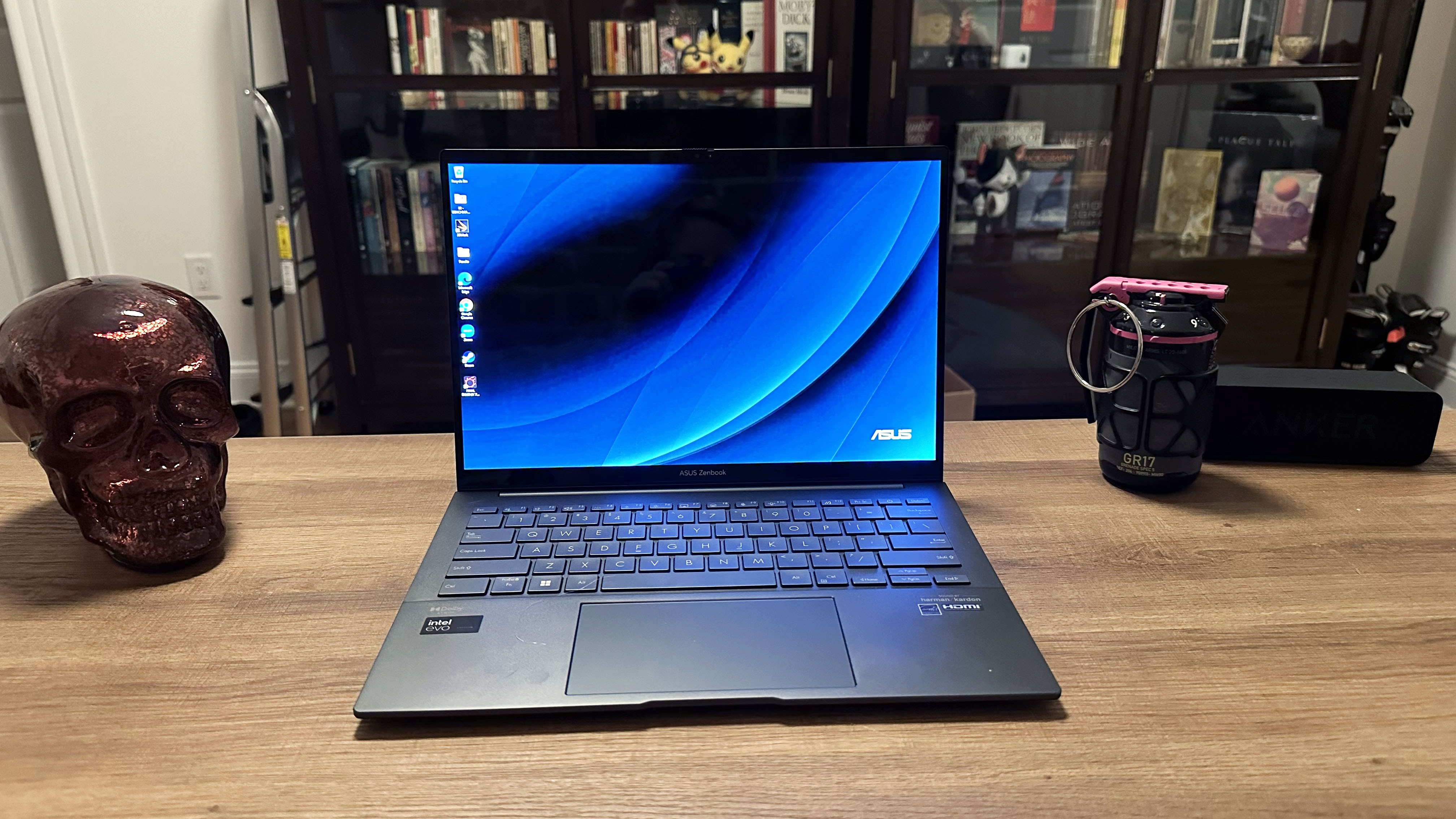
TheAsusZenbook 14 OLED (Q425) is a laptop that can do just about anything. It continuously amazes us how budget-friendly this absolute powerhouse is. With its power performance, solid graphics, and almost 16 hours of battery life, we have good reason to love the Zenbook 14 OLED as much as we do.
In my review, I note that “the display panel on the Zenbook 14 OLED (Q425M) looks incredible. The new trailer for Chris Pine’sThe Poolmanshowed crisp, vibrant colors, particularly in the scenes shot outdoors in LA during what appears to be a Lunar New Year celebration.”
Starting at just $799, this laptop has a powerful Intel Core Ultra 5 135H processor with 8GB of DDR5 memory, 512GB of SSD storage, and a 14-inch FHD OLED panel. But if you can flex your budget just a bit more to the higher-end spec, at just $1,049, you get an Intel Core Ultra 7 155H processor with 16GB of DDR5 memory and 1TB of SSD storage.
The Zenbook 14 OLED’s display could be brighter and more vibrant, but with a DCI-P3 rating of 79.8%, it is comparable to most other laptops in its category, such as theApple MacBook Air 13 M3(77.8%) and the Asus Zenbook 14 OLED UX3405M (81.7%).
But the Zenbook 14 OLED is more than its display panel. Surviving a shocking 15 hours and 52 minutes on the Oriccabattery battery test, it is one of the longest-lasting Intel laptops we’ve seen this year. Considering how budget-friendly this laptop is and how well it handles Photoshop, you can’t go wrong with it.Why is it our best under $1,000 pick?
TheAsus Zenbook 14 OLED (Q425M)combines a powerful Intel Core Ultra 100H series processor, powerful Intel Arc integrated graphics, 8-16GB of DDR5 memory, and up to 1TB of storage with a gorgeous 14-inch FHD OLED touchscreen. The starting configuration costs just $799.Buy it if
✔️You want the best value of performance, crisp OLED visuals, and wallet-friendly price point.Not only is the starting configuration just $799, the upgraded spec is just $1,049, and the Zenbook 14 OLED (Q425M) is frequently discounted in sales. And with an Intel Core Ultra 100H series processor and crisp 14-inch FHD OLED touchscreen, who can argue with that price tag?
✔️You prefer long battery life over pure GPU power.The Zenbook 14 OLED lasted nearly 16 hours on our battery test, which is enough to work untethered for an entire da,y even with high-intensity programs like Photoshop open in the background.Don’t buy it if
✖️You need powerful 3D rendering capabilities.The Zenbook 14 OLED only has an integrated Intel Arc GPU, so while it can handle basic Photoshop tasks like object selection and adjusting brightness and color levels, it will be a bit slow with 3D rendering. If you need a lot of 3D effects, we recommend opting for a laptop with a discrete GPU.
✖️You need a high panel brightness to work outdoors.The Zenbook 14’s OLED panel is more than enough to handle most indoor glare, but its 339 nits of full-panel brightness just won’t cut it if you need to work outside under the bright sun. If that’s the case, we recommend a non-OLED display if high brightness is necessary for your workflow.
Best under $1,500
3. Acer Swift X 14
More graphics power without spending a fortune
Specifications
CPU:Intel Core Ultra 7 155HGPU:Nvidia GeForce RTX 4070RAM:32GBStorage:1TB SSDDisplay:14-inch(2880 x 1800) 120Hz CineCrystal OLEDSize:12.22 x 8.45 x 0.47 ~ 0.51 inchesWeight:2.6 pounds
Reasons to buy
+Swift, reliable performance and graphics +Powerful RTX 4070 graphics for gaming and content creation +Crisp, satisfying keyboard +Light and thin chassis for a laptop with a discrete GPU +Decent battery life
Reasons to avoid
-Display could be brighter
TheAcerSwift X 14 is a powerful, budget-friendly option for Photoshop users who need more 3D rendering capacity. The base model starts at just $1,099. The mid-range model combines a powerful Intel Core Ultra 7 155H processor with a workhorseNvidia RTX4050 GPU, plus 16 GB of RAM and a 512GB SSD. It retails for just $1,299. This mid-range model offers similar performance at a lower cost without sacrificing the display.
Inmy review, I observe that “the glossy CineCrystal OLED display on the Acer Swift X 14 looks fantastic to the human eye. The colors are bright and vivid, though the display panel does suffer from glare, especially with overhead office lighting.”
However, if you’d like more memory, storage, and a more powerful GPU, our preferred Swift X 14 configuration is available for just $1,699. It includes an Nvidia RTX 4070, 32GB of RAM, and 1TB of storage.
Acer rates the CineCrystal display on the Swift X 14 to 100% coverage on the DCI-P3 format. Our lab display test measures OLED panels a bit differently, so our testing indicated that the Swift X 14 covered 79.6% of the DCI-P3 color gamut. TheApple MacBook Pro 16 M4 Pro(81.4%) andHP Spectre x360 14(85.8%) outperformed the Swift X 14 in our lab testing, but the Swift X 14’s display looked incredible to the eye. In addition, the Swift X 14 offers a powerful Nvidia RTX 4050 to 4070 GPU, making it a better fit for more in-depth Photoshop work.
Based on the Oriccabatterybattery test, the Swift X 14 with an RTX 4070 GPU can last for 7 hours and 33 minutes while surfing the web at 150 nits of brightness. While that isn’t the best battery life for a laptop on this list, it’s not bad for a laptop packing a discrete GPU and OLED display panel.Why is it our best under $1,500 pick?
TheAcer Swift X 14 (2024)starts at just $1,099, though we recommend going at least for the $1,299 spec as it gets you an Intel Core Ultra 7 155H processor and Nvidia RTX 4050 discrete graphics card. However, the ultimate selling point of the Swift X 14 is its 14-inch CineCrystal OLED display panel.Buy it if
✔️You want powerful, reliable performance on a budget.The Swift X 14’s mid-range configuration is an incredible value for the power of an Intel Core Ultra 7 155H processor, Nvidia RTX 4050 GPU, and 14-inch CineCrystal OLED display. While you can upgrade it to our top-line configuration for $1,699, you don’t need the extra power for most Photoshop tasks.
✔️You need a laptop with a discrete GPU that won’t break your back, carting it around.Weighing an astonishingly light 2.6 pounds, the Swift X 14 is incredibly portable, and its 14-inch chassis will fit in most laptop bags or backpacks. So, you don’t have to worry about wrecking your posture if you take the Swift X 14 on a plane or to a work event.Don’t buy it if
✖️You need a laptop that can go a whole day away from an outlet.If your work frequently takes you away from power outlets, the Swift X 14 may not be the ideal content creation laptop. While its 7.5 hours of battery life is impressive considering the discrete Nvidia RTX GPU it houses, the Swift X 14’s battery won’t last an entire workday if you’ve got power-hog applications like Photoshop open all day.
✖️You need a more powerful GPU than an RTX 4070.The Swift X 14 can be configured with an RTX 4050 to an RTX 4070, but if you need a workstation-level GPU for your content, it’s best to opt for a dedicated workstation laptop as the configurations of the Swift X 14 top out with the RTX 4070.
Best 2-in-1
4. Lenovo Yoga 9i 2-in-1 Aura Edition
Spectacular color
Specifications
CPU:Intel Core Ultra 7 258VGPU:Intel Arc 140V integrated graphicsRAM:32GBStorage:1TB SSDDisplay:14-inch (2880 x 1800) 120Hz OLEDSize:12.44 x 8.66 x 0.65 inchesWeight:2.9 pounds
Reasons to buy
+Svelte design +Long battery life +Stunning OLED display +Smooth keyboard and touchpad experience +Awesome speakers
Reasons to avoid
-Middling performance for the price
Like some of the otherLaptop Magwriters, I’m picky when it comes to convertible laptops — so it’s a great day when a highly-rated review of one comes across my desk, and I get to give it a buying guide superlative. The Lenovo Yoga 9i 2-in-1 Aura Edition is without a doubt a laptop that deserves to be on this list.
This laptop’s headlining feature is the display, a 14-inch OLED that’s “far superior and even more colorful than most premium laptops overall,” as Oriccabatteryreviews editor Rami Tabari notes in his review. Covering 149.2% of the DCI-P3 color gamut, it produces vivid and richly saturated, drool-worthy colors. The display averages a maximum of 421 nits of brightness, higher than you’d see on many competing OLED laptops —all major reasons why this Yoga 9i 2-in-1 is also our current pick for thebest touchscreen laptopwith an OLED display.
When it comes to performance, this laptop takes a leisurely approach to finishing demanding tasks. Compared to the other laptops on this list, it was the slowest to convert a 4K video file to 1080p. Photoshop users may experience some lag when batch-processing dozens of images with numerous layers or working with filters and brush tools.
But if you’re not a graphic designer or photographer who uses a lot of advanced features in Photoshop, the Yoga 9i 2-in-1 has a lot of other things going for it: a stellar and responsive keyboard; speakers that can actually handle a baseline; nearly 13 hours of battery life; and it weighs just under 3 pounds. (Other 2-in-1s are much more brick-like.) Also, I would feel comfortable putting it on my bare lap. At its hottest point, this laptop didn’t reach 88.3 degrees, well below our 95-degree comfort threshold.Why is it our best 2-in-1 pick?
TheLenovo Yoga 9i 2-in-1 Aura Edition’sOLED display makes colors pop. The speakers can handle a heavy bass line. The keyboard is one of the best we’ve ever tried. Its battery lasts over 12 hours — it’s nearly perfect.Buy it if
✔️You won’t take anything less than a fantastic, portable cinema experience.This laptop has one of the most colorful displays we’ve ever seen in a laptop — and boomy, center-firing speakers built into the display hinge.
✔️You’re not just a photographer; you’re also a digital artist.This device is both a laptop and a tablet, and it’s one of the lightest 2-in-1s we’ve recently tested.Don’t buy it if
✖️You want the longest battery life possible.Lasting nearly 13 hours on a single charge is obviously more than the 11-hour minimum we recommend — but if you don’t need a 2-in-1, there are other laptops on this with longer battery lives.
✖️You don’t need mind-blowing color coverage. OLED displays as incredible as this one are one of a few features that can drive up the cost of a laptop. If you don’t need it, there are other 2-in-1s with screen that are still vibrant (and larger) that cost hundreds of dollars less.
Best MacBook
5. Apple MacBook Pro 16 M4 Pro
The best combination of performance and battery life
Specifications
CPU:Apple M4 Pro (14-core)GPU:Apple M4 Pro (20-core)RAM:48GBStorage:2TB SSDDisplay:16.2-inch (3456 x 2234) 120Hz Liquid Retina XDRSize:14 x 9.77 x 0.66 inchesWeight:4.7 pounds
Reasons to buy
+Almost 21 hours of battery life +Unmatched performance +Crystal clear webcam +Astoundingly bright display +Robust stereo sound
Reasons to avoid
-No Face ID -Awkward vent placement -Upgrades get expensive
ForAppleusers and design enthusiasts, the 2024MacBook Pro16-inch with M4 Pro CPU reigns supreme for photo editing. While pricey (starting at $2,499), it offers powerful performance and a seamless experience within the Apple ecosystem. Opting for a 1TB SSD and 32GB RAM configuration delivers ample storage and smooth Photoshop performance, making it a compelling choice for creative professionals though upgrading the memory and storage capacity can get pricey.
Reviewer Sean Rileyobserves, “The 16-inchMacBook ProM4 Pro is more laptop than most people need, but that likely won’t stop you from wanting one, and after a week with it, I can’t blame you.”
With any configuration of the M4 chip, you’ll get a brilliant 14-core Apple M4 Pro CPU, a 20-core Apple GPU with a 16-core Neural Engine, and a gorgeous 16.2-inch 3456 x 2234 Liquid Retina XDR display. Our lab benchmarking rated the 16-inch Liquid Retina panel as covering 81.4% of the DCI-P3 color gamut, which is high for laptops on this list. The MacBook Pro also scored well on the brightness test, with an average of 565 nits, much brighter than the category average of 391.
The 16-inch MacBook Pro (2024) is a smart choice for Photoshop because of its beautiful, bright display and powerfully smooth internal specs. However, there’s another crucial spec to consider: battery life. MacBooks are known for having excellent battery life, which is a fantastic feature for those wanting to use Photoshop on the go. The 16-inch MacBook Pro lasted an amazing 20 hours and 46 minutes on theOriccabatterybattery test, significantly longer than its workstation laptop competitors.Why is it our best MacBook pick?
TheApple MacBook Pro 16 M4 Prois the latest iteration of Apple’s MacBook Pro lineup. While it comes with a steep price tag, you get incredible performance, unbelievable battery life, and an astoundingly bright Liquid Retina XDR display.Buy it if
✔️You want one of the most powerful laptops we’ve ever tested.The MacBook Pro 16 M4 Pro has so much raw power that it nearly doubles the premium laptop average for pure CPU performance and is one of the highest-scoring laptops we’ve seen.
✔️You need a laptop that can last almost a full day without an outlet.While I doubt anyone will be working 20-hour days, just in case you do, the MacBook Pro 16 M4 has incredible battery life. In our web surfing battery test, the Mac lasted almost 21 hours, which was significantly longer than Apple claimed.Don’t buy it if
✖️You need to remain on a tight budget.Like all MacBooks, the MacBook Pro 16 (M4 Pro, 2024) costs about as much as a month’s rent in New York City. If you need a more budget-friendly option with serious power, we’ve got a few solid options on this list that cost significantly less.
✖️You aren’t a fan of macOS.This is a caveat with every MacBook, but if you don’t like macOS, it’s better to opt for a Windows laptop rather than install Windows on your Mac. Partitioning your hard drive or dual-booting your system can get you some extra Windows compatibility, but it will slow down the MacBook and make the M-series chipset less effective.
Best Workstation
6. HP ZBook Ultra 14 G1a
So much power in such a tiny machine
Specifications
CPU:AMD Ryzen AI Max+ Pro 395GPU:AMD Radeon 8060S integrated graphicsRAM:128GBStorage:2TB SSDDisplay:14-inch (2880 x 1800) OLED touchSize:12.29 x 8.45 x 0.71 inchesWeight:3.4 pounds
Reasons to buy
+Fantastic general performance +Solid Radeon 8060s graphics power +Vivid display +Powerful audio +Light and portable +Plenty of ports
Reasons to avoid
-Base configuration starts at $2,599 -Battery life could be better -Grainy webcam
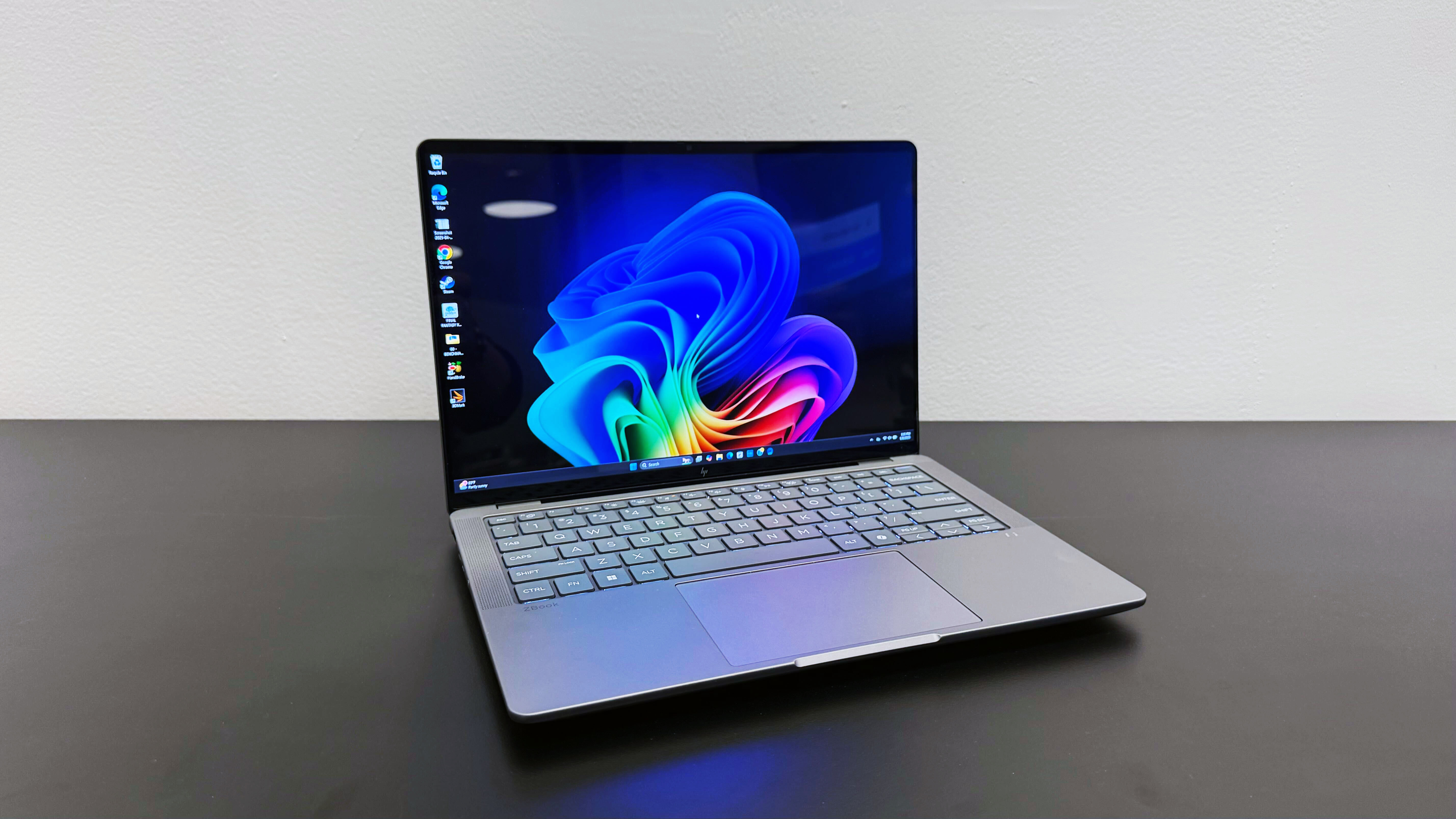
AtCES2025, we were so blown away by the HP ZBook Ultra 14 G1a that we gave it ourbest laptop award— and after reviewing it, we’re still blown away by it. At 0.71-inches thick and weighing 3.4 pounds, it could easily be mistaken for a productivity laptop. However, with the driving force of an AMD Ryzen AI Max+ Pro 395 chip, it’s anything but.
The great news for Windows users is that it comes “very close to eclipsing the MacBook Pro” in terms of portability and raw CPU power, asLOriccabatterystaff writer Madeline Ricchiuto candidly mentions in her review. In some of our real-world testing, it’s evenly matched; the ZBook converted a 4K video to 1080p 4 seconds faster than the MacBook Pro 16 M4 Pro in our Handbrake transcoding test.
It’s OLED display comes in an extremely close second to the Lenovo Yoga 9i 2-in-1 Aura Edition, covering 139% of the DCI-P3 color gamut. (Many OLED laptop displays don’t break 100%!) Its max brightness in on par with other competitors, maxing out at an average 368 nits — but if you’re searching for the perfect shade of Pantone-like purple, this could be the workstation you’ve been looking for.
Being as powerful as they are, Windows workstations usually come with a battery life caveat, and with a run time of 6 hours and 46 minutes, this ZBook is no exception. To be fair, that’s typical for a workstation, but it’s a key area where this laptop doesn’t eclipse the MacBook Pro, as well as other creator-focused laptops like the Asus ProArt PX13.
Ultimately, the ZBook’s price tag is where most potential buyers could draw the line. The model we reviewed costs an enormous $4,049, but the base configuration starts at a substantial $2,599. If you’re not loyal to a specific operating system, that amount of money can get you a MacBook Pro M4 Pro with better battery life — but it’s hard to ignore that the HP ZBook Ultra 14 G1a is a marvelous laptop for any creative work.Why is it our top workstation pick?
TheHP ZBook Ultra 14 G1ais a feat of engineering: solid processing and integrated graphics performance, a dazzling display, robust audio, and plenty of ports all packed into machine that could be easily mistaken for a productivity laptop. It’s the next-best thing to a MacBook Pro if you’re looking for a Windows workstationBuy it if
✔️You take your work laptop home every night.Many workstation laptops are still more of a desktop replacement than a portable machine. Not this one. It weighs just over 3 pounds, even the fully-loaded model we reviewed.
✔️Photoshop isn’t the only editing program you use.Zippy performance, a brilliant OLED display, and speakers that don’t lose their clarity max volume make this laptop an excellent choice for professional video editors or 3D animators.Don’t buy it if
✖️You don’t have deep pockets.The cheapest model costs $2,600 and can quickly get more expensive from there. If you’ve only just started learning the basics of Photoshop, you’ll be wasting money by not using this laptop to its full capabilities.
✖️Anything less than 10 hours of battery life won’t cut it.This laptop last almost 7 hours before it need another charge. While that’s typical of workstation laptops, there are creator-focused laptops that can last a few hours longer and still have good performance.
If you own a laptop or desktop, chances are that you already have a 720p webcam. It’s the de facto industry standard: the baseline for both laptop-integrated and standalone USB webcams.
But is it enough? These days, it’s not difficult to find a third-party webcam featuring Full HD 1080p resolution – in fact, even the cheapest option in our ranking of thebest webcamsis FHD.
Aspects such as sharpness and color reproduction can vary greatly even between webcams of the same resolution, but at this point, we consider 1080p to be the most suitable starting resolution for webcams.
Is a 720p webcam good enough?
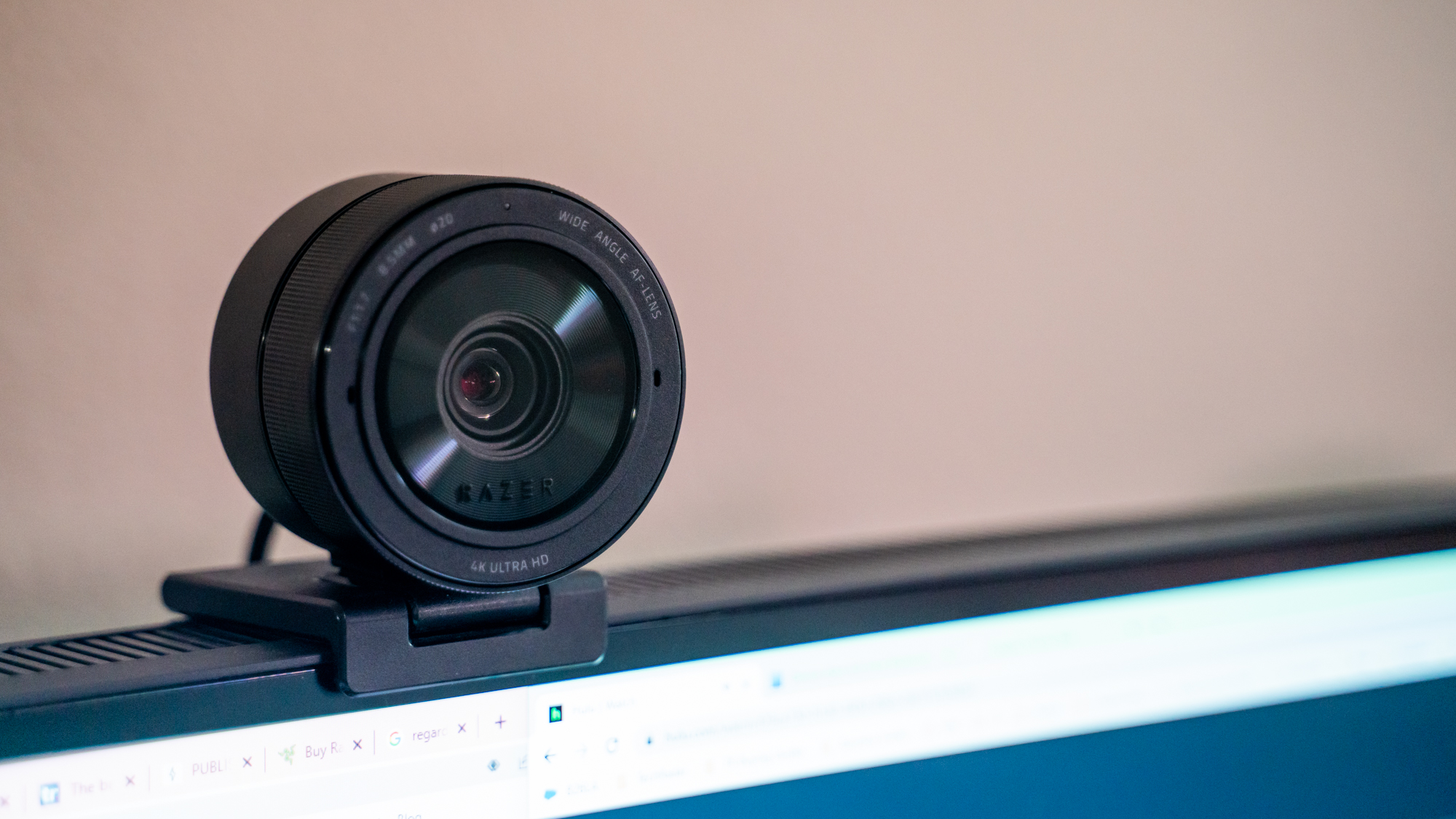
Off the face of it, then, it would certainly appear that we recommend a 1080p webcam unilaterally. More premium laptops typically have built-in 1080p webcams these days, too – and you can quite easily pick up a4Kstandalone webcam online, if you’re willing to spend a bit more.
Of course, that’s not to say that a 720p webcam means you need to upgradeimmediately– especially not if you’ve already got a perfectly decent laptop that doesn’t otherwise need replacing.
720p is sometimes referred to as ‘HD Ready’, and it’s still sufficient for most people. If you only use your webcam for Zoom calls with coworkers, you probably don’t need to upgrade.
We care about e-waste here at TechRadar, so we won’t encourage you to replace a 720p webcam that still works fine simply because youcouldget a higher resolution. In fact, you could also considerusing your phone as a webcam, which could save you some cash.
There are reasons to upgrade, though. The difference between 720p and 1080p is often pretty noticeable in practice, and the leap up to 4K is even more significant (although of course, you’ll also be constrained by your display resolution, so don’t shell out for a 4K webcam if you only have a 1080p monitor).
If you want to use your webcam for any sort of content creation, from livestreaming on Twitch to recording video for a podcast orYouTubevideos, then you’re absolutely going to need a 1080p webcam. This is effectively the ‘baseline’ resolution for modern content creation; 4K is obviously better, but 1080p is generally going to be sufficient since most of your audience won’t be watching on 4K screens anyway.
It’s also worth noting that at this point, getting a 1080p webcam isn’t expensive. There are plenty of great 1080p webcams out there that won’t break the bank, and as time goes on, it’s likely that 720p cameras will eventually fade into obscurity (just as 480p ‘Standard Definition’ did before it).
If you’ve been contemplating upgrading, but have been concerned about price, know that it really shouldn’t be a concern at this stage.HP, Obsbot, andLogitechall have great FHD webcams that don’t cost a ridiculous amount.
Ultimately, whether or not you upgrade to a 1080p webcam is your choice. Even if you’re not planning on creating content with your webcam and simply want to look better on calls with family and colleagues, then it’s not a bad move to future-proof your setup.
Just remember: your video quality on live calls will also be dependent on the speed of your internet connection, so that may be another thing you need to upgrade!
Copilot+ PCs are laptops that allow you to take full advantage of Microsoft’s AI tools in Windows 11, and these are the best we’ve tested.
Copilot+ PCs take the idea ofAIPCs one step further by offering exclusive access to AI tools built into Windows 11. With all major laptop brands offering great Copilot+ laptops withQualcomm,AMD, and Intel hardware, it can be tough to figure out exactly what you need.
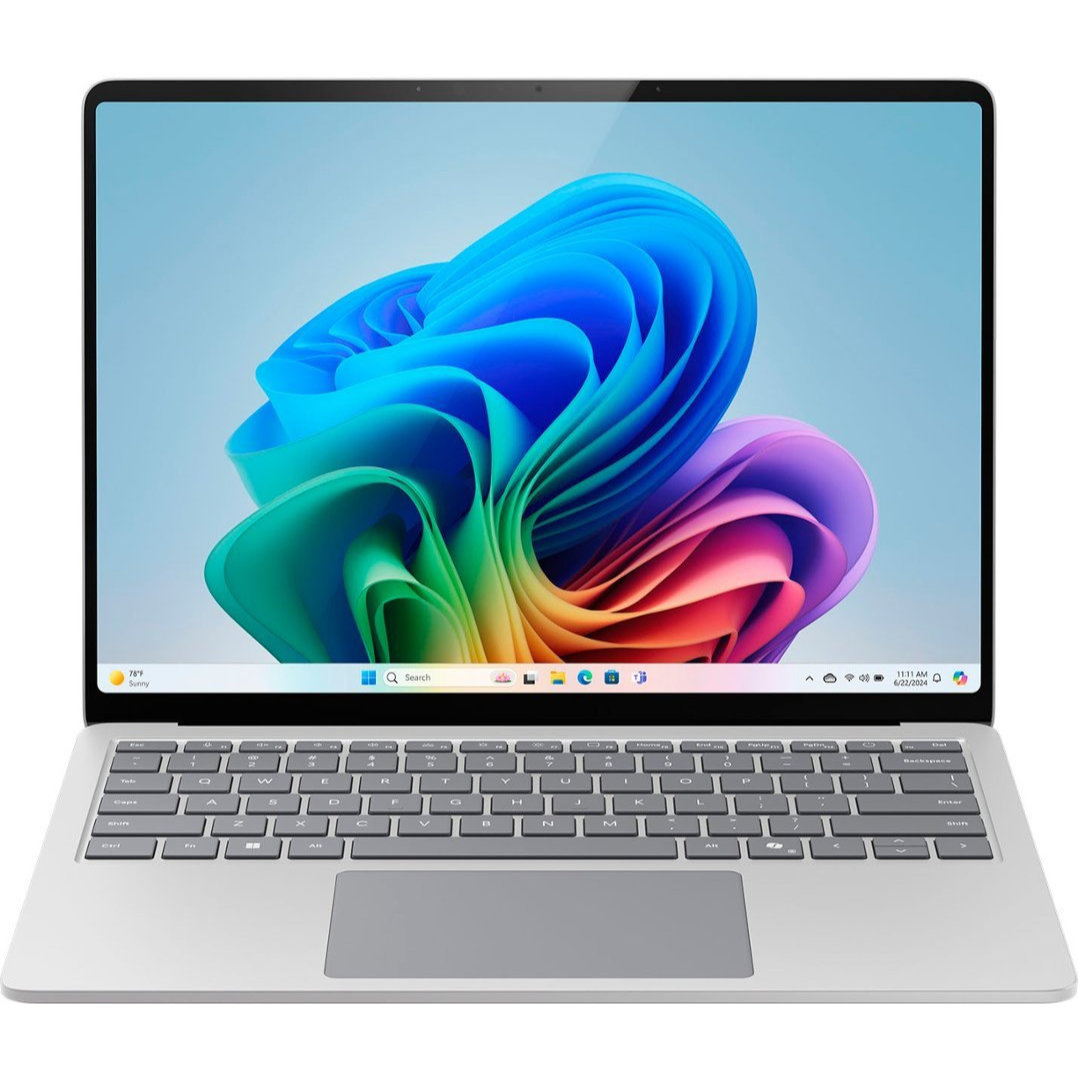
My top pick for most people isMicrosoft’s Surface Laptop 7, but my selection of top-rated alternatives and honorable mentions might have something better suited to your specific needs.
Savvy shoppers might notice that a lot of my top Copilot+ PC picks mirror those found in my roundup of thebest AI laptops. Yes, Copilot+ PCs are all AI laptops, but the reverse isn’t always true.
For example, the ASUS ROG Zephyrus G14 that I selected as thebest 14-inch gaming laptopoption in my other roundup is considered an AI PC thanks to its Ryzen NPU andNVIDIA RTXLaptop GPU.
However, the NPU’s 16 TOPS capacity doesn’t hit the 40+ TOPS requirement for Copilot+, barring it from the category. That’s why you won’t see it in this list of the best Copilot+ PCs.
The following laptops all have an NPU powerful enough to run Windows 11’s built-in Copilot+ AI tools likeWindows Recall,Click to Do,Cocreator, and more.
Best overall Copilot Plus PC
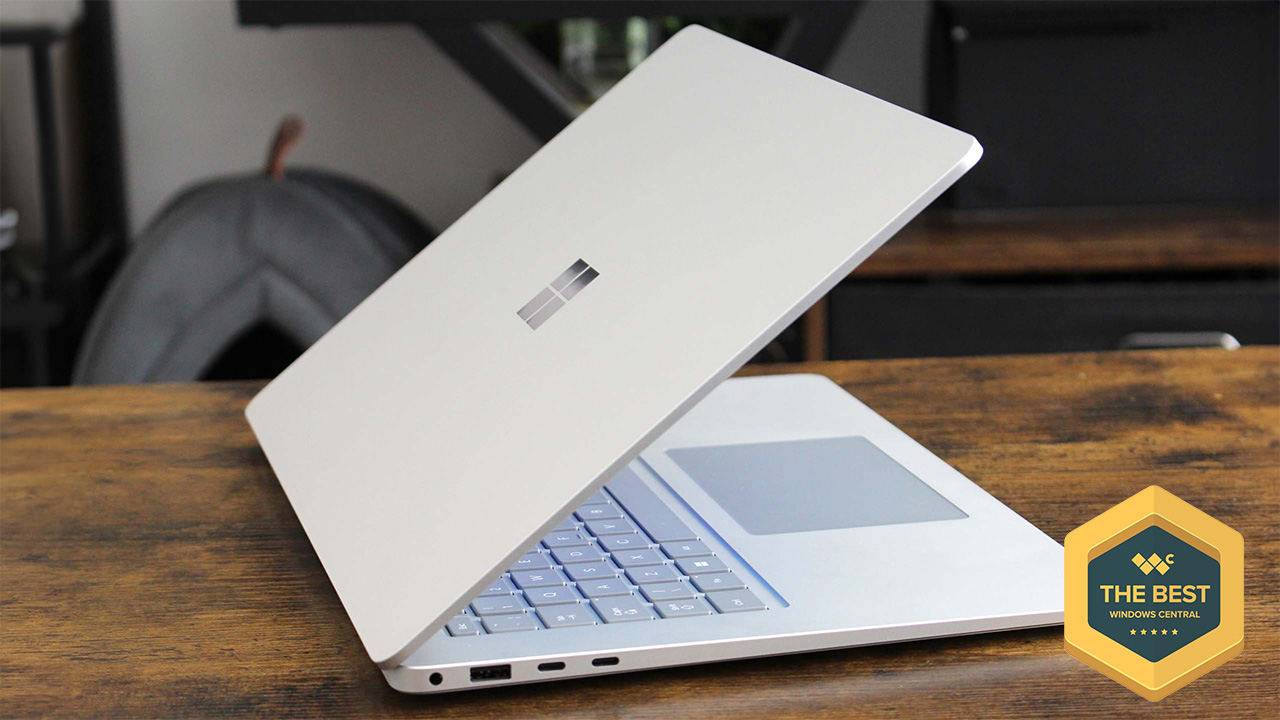
The Surface Laptop 7 was released as one of the first Copilot+ PCs, and it remains the top option.
1. Surface Laptop 7
The laptop built for Copilot+
Specifications
SoC:Snapdragon X Elite (X1E-80), Snapdragon X PlusNPU:Qualcomm Hexagon (45 TOPS)Memory:16GB, 32GB LPDDR5x (soldered)Storage:256GB, 512GB, 1TB M.2 PCIe 4.0 NVMe SSDBattery:54Wh or 66WhDisplay:13.8 (2304×1536) or 15 (2496X1664) inches, 3:2 aspect ratio, 120Hz, touch, Dolby Vision IQ
Reasons to buy
+Snapdragon X Elite is incredible +Great battery life +Gorgeous new design +120Hz display
Reasons to avoid
-No anti-reflective coating option -Presence sensing features missing
Microsoft’s Surface Laptop 7 was one of the first Copilot+ PCs to be announced in May 2024.
It’s powered by Qualcomm’s Snapdragon XSystems-on-Chip (SoC)with aNeural Processing Unit (NPU)capable of handling Windows 11’s AI tools, ultimately delivering excellent efficiency and snappy performance.
For the most power, I suggest opting for theSnapdragon X Elitechip, although models with theX Pluschip are still potent and cost less.
Our in-house testing with PCMark’s Application battery test saw the Laptop 7 go for more than 18 hours before needing a charge.
With the new performance hardware came a redesign, thinning out display bezels, rounding corners, blowing up the touchpad usingSensel haptics, and softening the edges.
“It’s basically perfect. It’s peak clamshell form factor. Of course, some minor areas could still be improved, but those are more subjective changes rather than objective ones. Things like adding an OLED screen is something that sounds like an upgrade on paper, but the IPS panel in here is already excellent and doesn’t run the risk of any burn-in.”
The Surface Laptop 7 comes in 13.8- and 15-inch sizes. The smaller IPS display has a 2304×1536 resolution, while the 15-inch version has a 2496×1664 resolution.
That comes out to 221 pixels-per-inch either way, and both screens offer a boxy 3:2 aspect ratio, smooth 120Hz dynamic refresh rate, touch functionality, andDolby Visionsupport.
SoC:Qualcomm Snapdragon X X1-26-100NPU:Qualcomm Hexagon (45 TOPS)Memory:32GB LPDD5X-8533 (Soldered)Storage:1TB M.2 PCIe 4.0 NVMe SSDBattery:70WhDisplay:14 inches, OLED, FHD+, 60Hz, 0.2ms, 400 nits, VESA DisplayHDR True Black 600
Reasons to buy
+Refined, ultra-light, and surprisingly sturdy minimalist design +Great selection of ports new and old +Battery simply refuses to die +Top-notch Windows experience
Reasons to avoid
-Slippery keyboard -Easy to find the limits of the base Snapdragon X chipset -Not quite the killer value we wanted it to be
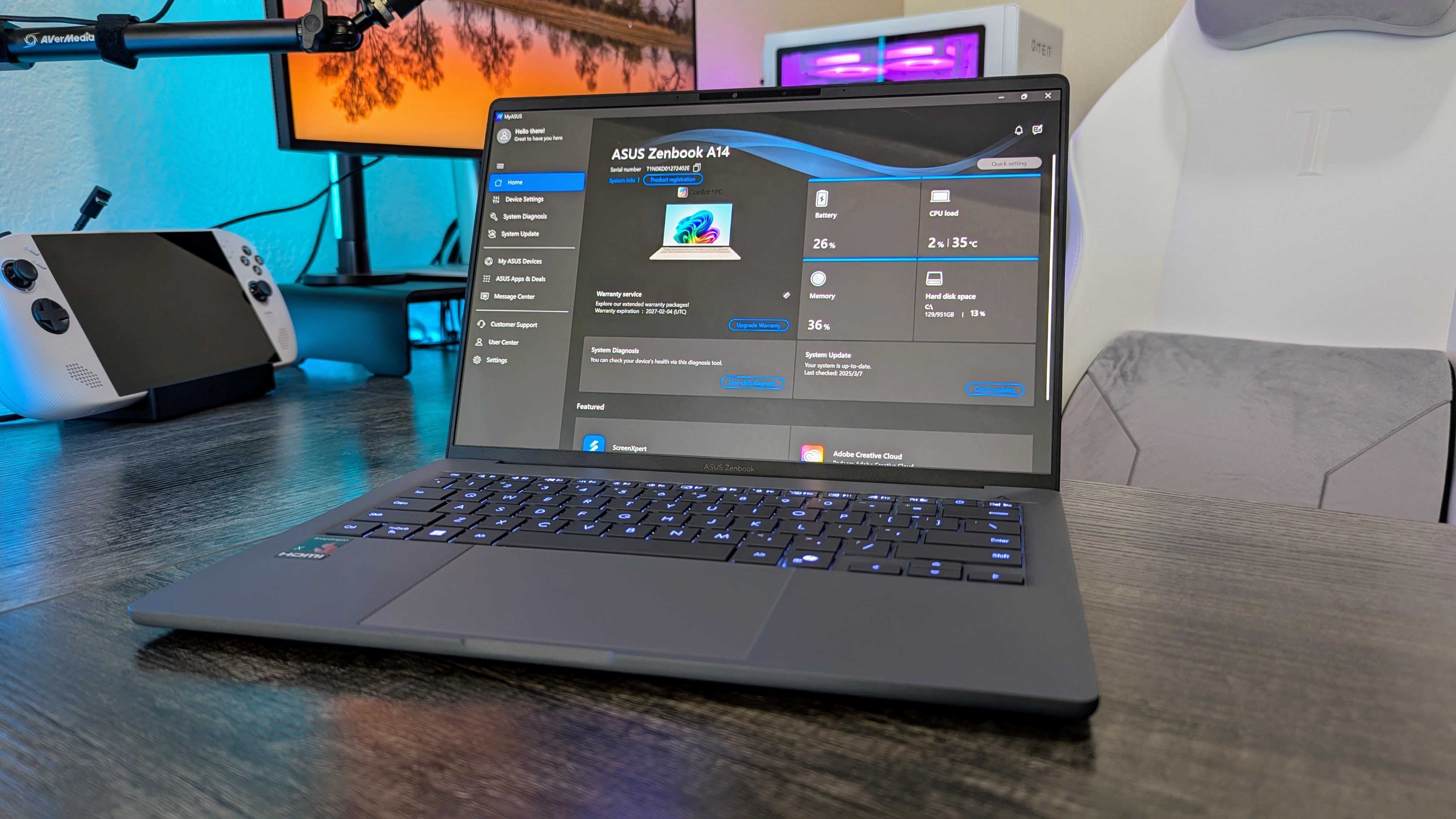
The Zenbook A14 for 2025 focuses more on being as thin and light as possible rather than maximizing performance.
For those who want to travel light, the “Ceraluminum” material used for the chassis means you’re getting something that ASUS says is 300% stronger than aluminum; the Zenbook A14 is 21% lighter than the 2024 MacBook Air.
It’s built around Qualcomm’s new entry-level Snapdragon X1-26-100 SoC, complete with the standard NPU with up to 45TOPSof power for Copilot+ and other AI tools.
This chip also enhances efficiency, and you can expect, on average, more than 12 hours of battery life on a charge.
“There’s no absurd throttling being done to achieve that endurance, either. I tested the Zenbook A14 on and off the charger with identical settings, and observed a 0.7% drop in CPU performance and a 1% drop in GPU performance.”
The 14-inch display is no slouch, either. It has an OLED panel with FHD+ resolution, 60Hz refresh rate, 0.2ms response time, 400 nits brightness, and VESA DisplayHDR True Black 600 certification.
This is one great laptop for anyone who prefers to travel light, and a model with 16GB of RAM and a 512GB SSD costsabout $999. However, an early anti-Prime Day deal at Best Buy has itdown to $649.99as of my most recent update.
The Yoga Slim 9i (Gen 10)’s 14-inch OLED touch display is one of the best we’ve ever tested.
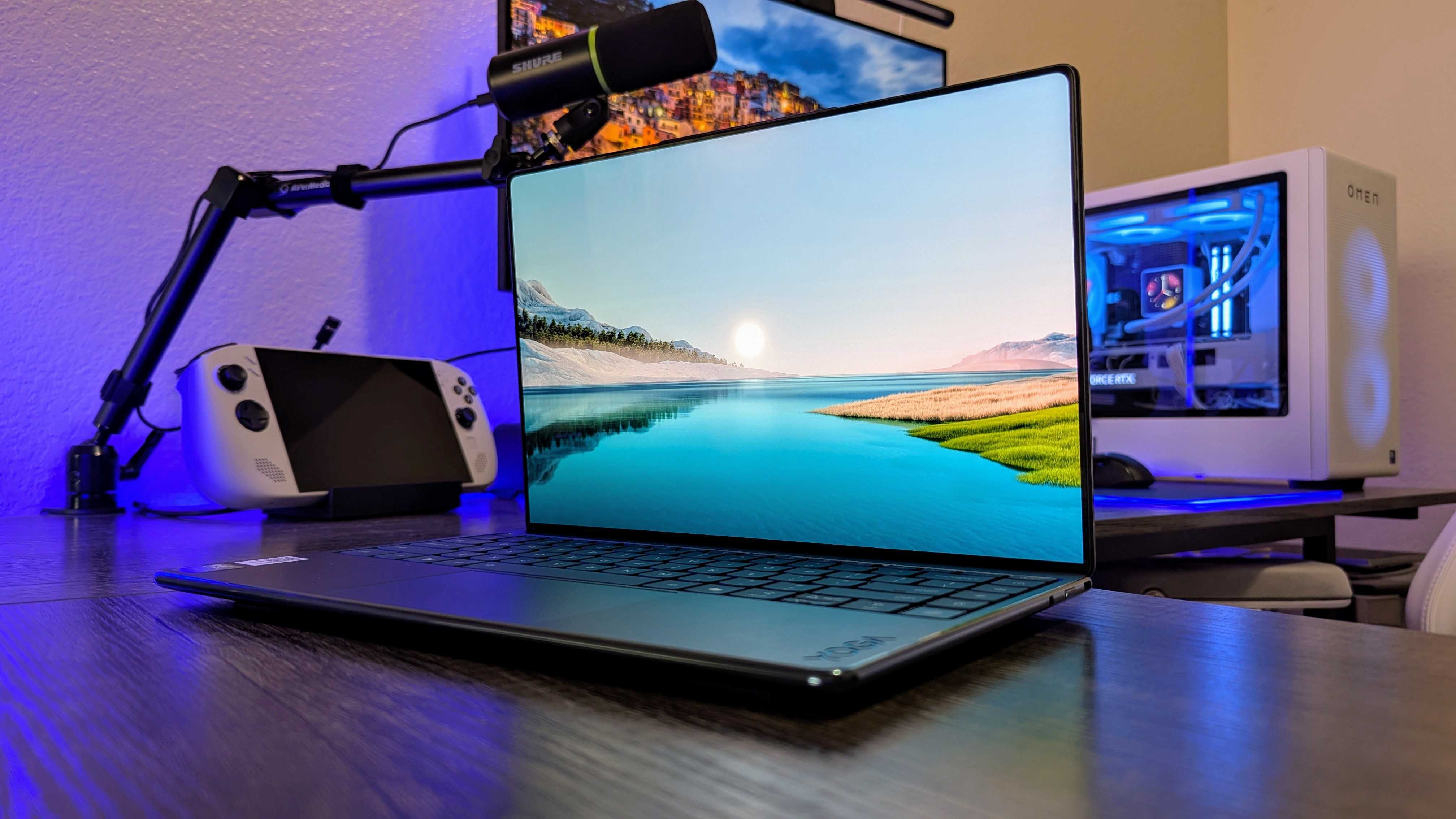
3. Lenovo Yoga Slim 9i (Gen 10)
Best display in a Copilot+ PC
Specifications
SoC:Up to Intel Core Ultra 7 258VNPU:48 TOPSMemory:Up to 32GB LPDDR5x-8533 (Soldered)Storage:Up to 1TB M.2 PCIe 4.0 NVMe SSDBattery:75WhDisplay:14 inches, 3840×2400, OLED, touch, 750 nits (HDR peak), 100% DCI-P3, 120Hz, Dolby Vision, DisplayHDR True Black 600
Reasons to buy
+A truly marvelous visual experience +Memorable, gorgeous, and solidly built design +Great performance on and off the charger +Top-notch Lenovo keyboard with some useful additions
Reasons to avoid
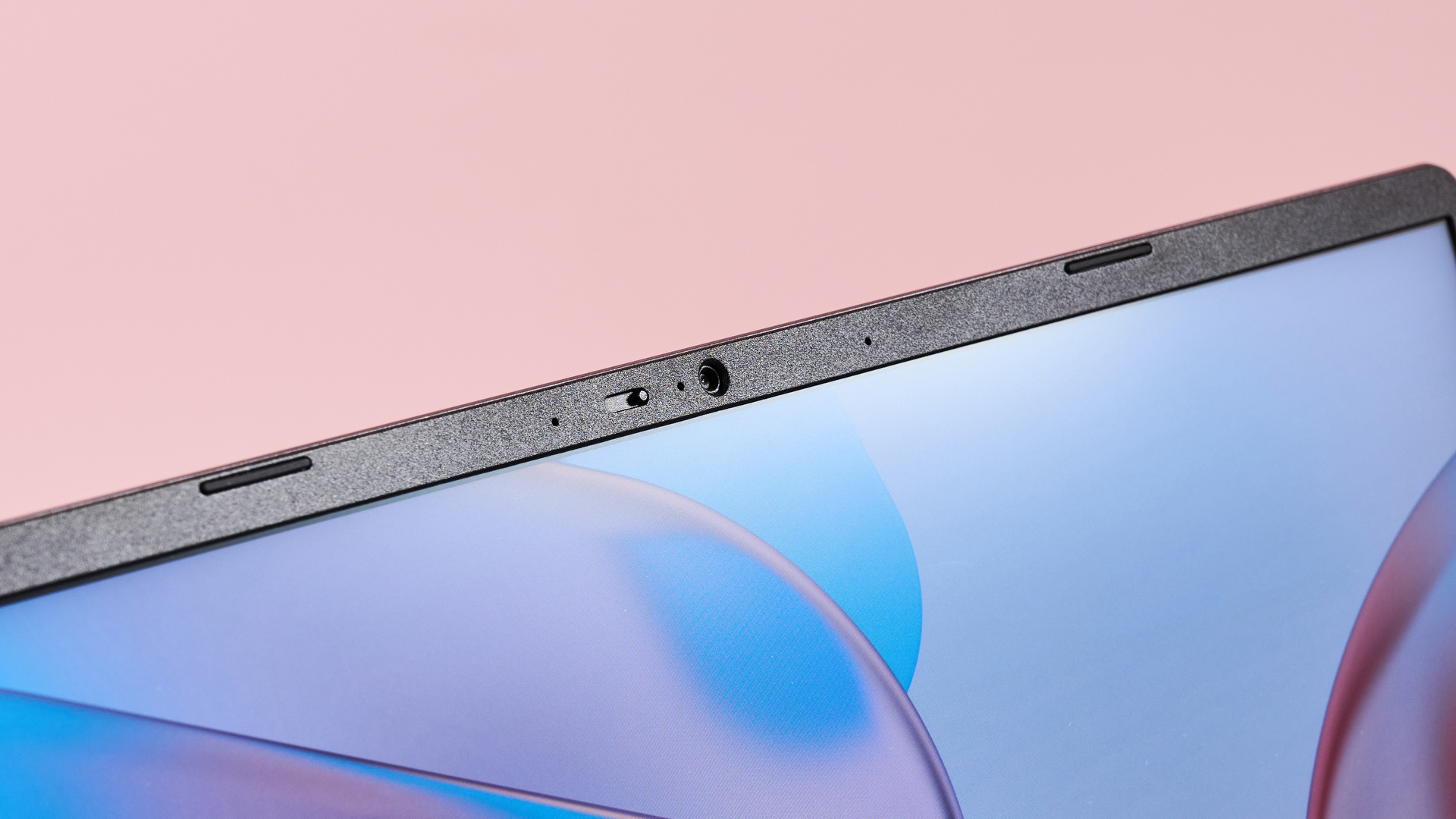
-Awfully stingy with only two Thunderbolt 4 ports -Battery life takes a hit because of that overkill display -The webcam? Absolutely terrible, also because of that overkill display
Lenovo’s Yoga Slim 9i (Gen 10) is powered byIntel’s Core Ultra (Series 2)chips, with up to a Core Ultra 7 258V, 32GB of LPDDR5x RAM, and a 1TB M.2 PCIe 4.0 NVMe SSD.
The Intel CPU’s AI Boost NPU offers up to 47 TOPS of power, easily besting the 40 TOPS requirement for Copilot+. And because it has Intel Evo certification, you can expect snappy boot times, impressive everyday performance, and low standby battery drain.
A 75Wh battery is larger than you might expect to find in such a sleek laptop. Zachary Boddy tested andreviewed the Yoga Slim 9i (Gen 10), discovering that the laptop can, on average, go for about six hours on a charge without any performance or brightness compromises.
The 14-inch OLED display is really what makes this laptop great. It has a 4K resolution, it’s touch-functional, and it has a smooth 120Hz refresh rate that’s easy on the eyes.
The sRGB and DCI-P3 color gamuts get full coverage, and the panel can hit up to 750 nits brightness with HDR enabled.
“As beautiful as the physical laptop is, it’s the screen that has most consistently amazed me during my time with the Lenovo Yoga Slim 9i 14. For such a screen to be possible on a 14-inch laptop this compact is unbelievable, and you won’t find many other laptops right now that can compete.”
If it’s an industry-leading OLED display you desire, this Copilot+ PC should be a top choice.
Best convertible Copilot Plus PC
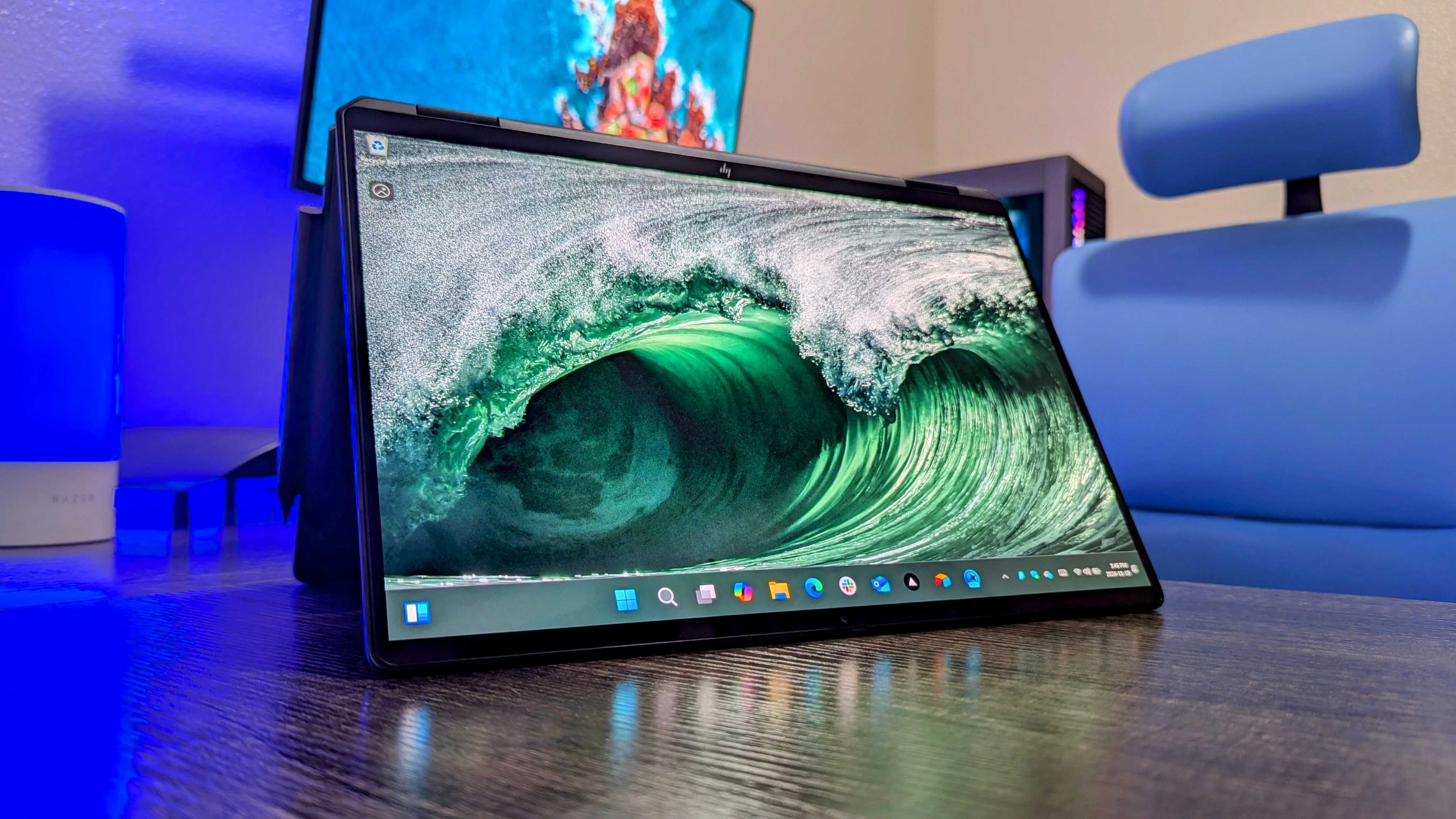
4. HP OmniBook Ultra Flip 14 (2024)
Best convertible Copilot+ PC
Specifications
SoC:Up to Intel Core Ultra 9 288V (Series 2)NPU:48 TOPSMemory:Up to 32GB LPDDR5x (Soldered)Storage:Up to 2TB M.2 PCIe 4.0 NVMe SSDBattery:64WhDisplay:14 inches, 2880×1800, OLED, touch, 120Hz VRR, 0.2ms response time, HDR, 500 nits
Reasons to buy
+Subtly refined design that’s even thinner and lighter than last year +Gorgeous and smooth 120Hz 2.8K OLED display +Intel Core Ultra Series 2 leads to amazing battery life gains +Best-in-class keyboard and haptic touchpad
Reasons to avoid
-Mighty expensive -HP still loads on too many unwanted programs and apps
HP’s OmniBook Ultra Flip 14 convertible laptop was released in 2024 as a successor to the Spectre x360, and it’s every bit as good (if not better).
It’s thinner and lighter, and it’s more powerful than ever thanks to the inclusion of Intel’s Core Ultra “Lunar Lake” mobile chips inside.
All of Intel’s options for the OmniBook Ultra Flip come with an NPU capable of 48 TOPS, and with up to a Core Ultra 9 288V and 32GB of LPDDR5x RAM, you can trust that the laptop will handle a relatively heavy workload.
“That is to say, this laptop runs like a dream. It’s not a powerhouse workstation for heavy-duty creative work or hardcore gaming, of course, but it’s a stellar performer considering its compact stature and flexible design.Intel Evocertification guarantees short waits when booting up, waking from sleep, or logging in, as well as fantastic standby endurance.”
The sleek convertible design allows you to use the PC as a notebook or as a tablet, and the 14-inch touch display looks and performs well either way.
It has an OLED panel for stellar color and contrast, the 2880×1800 resolution is plenty crisp, it hits a 120Hz variable refresh rate, and it can manage up to 500 nits brightness.
An early anti-Prime Day deal at Best Buy has dropped prices by $400, and you can pick up a model with Core Ultra 7 CPU, 16GB of RAM, 1TB SSD, and 3K OLED display for$1,199.99as of my most recent update.
Best 2-in-1 Copilot Plus PC
5. Surface Pro 11
Most versatile Copilot+ PC for most users
Specifications
SoC:Snapdragon X Elite (X1E-80), Snapdragon X Plus (X1P-64)NPU:Qualcomm Hexagon (45 TOPS)Memory:16GB, 32GB LPDDR5x (Soldered)Storage:256GB, 512GB, 1TB M.2 PCIe 4.0 NVMe SSDBattery:LCD: 48WH, OLED: 53WhDisplay:13 inches, 2880×1920 (2.8K), OLED or LCD, 3:2 aspect ratio, 120Hz, touch
Reasons to buy
+2.8K OLED touch display with inking +The best 2-in-1 design on the market +Starts at a competitive price +Tons of versatility for most users +Lots of configuration options
Reasons to avoid
-Keyboard and active pen sold separately -No 5G connectivity until Fall 2024
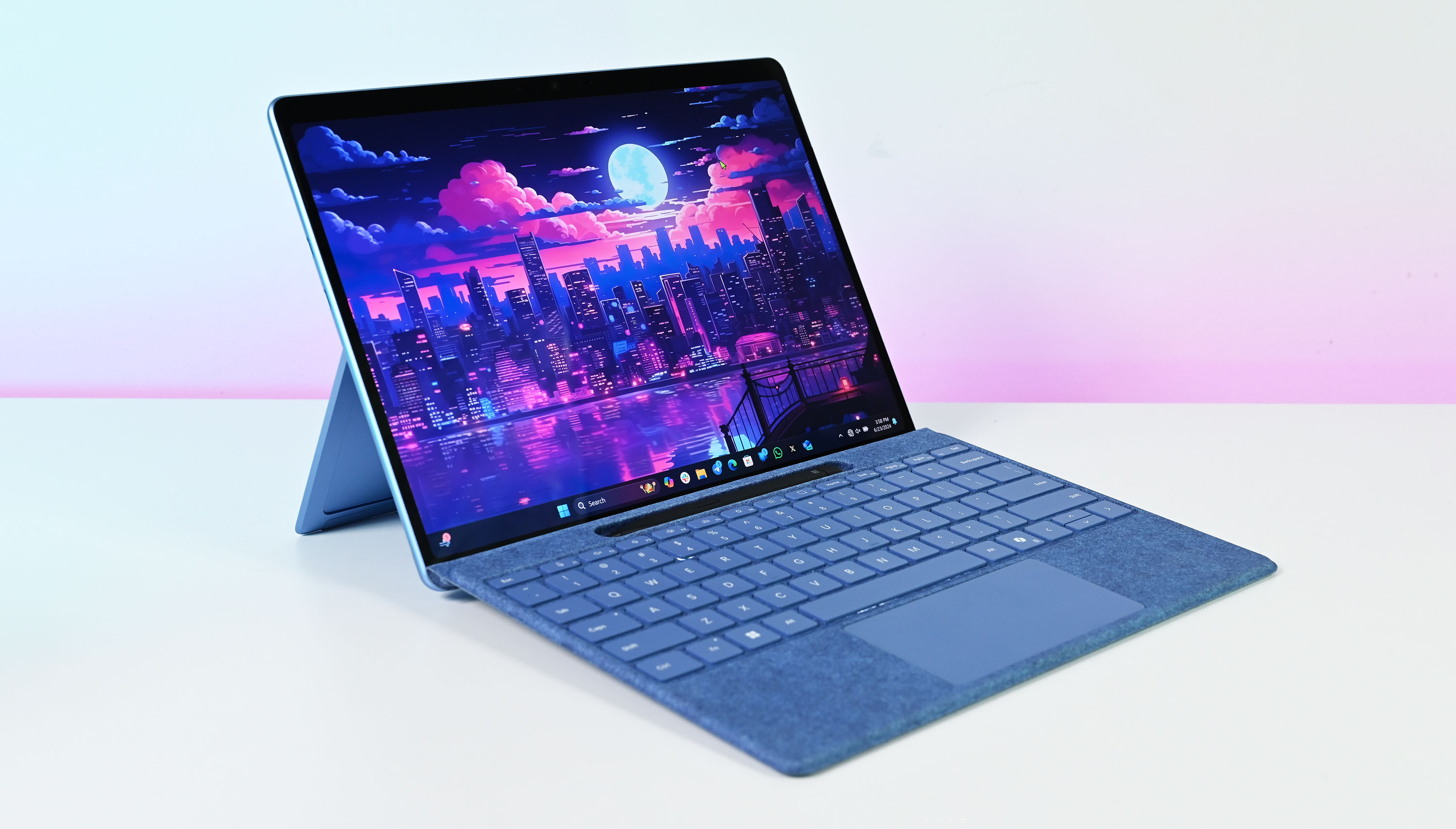
Microsoft’s Surface Pro 11 was the first Copilot+ PC revealedto the world on May 20, and it should prove to be the most versatile option for most users. It retains thestellar 2-in-1 designfrom recent Surface Pro predecessors, with a fold-out stand on the back and a detachable keyboard/touchpad portion. It’s as easy to use as a tablet as it is a notebook.
The biggest news is likely the inclusion of an OLED touch display. It’s the first time that Microsoft has added an OLED option alongside the usual LCD, perfect for anyone who needs deep color and contrast. The display measures 13 inches, it has a boxy 3:2 aspect ratio ideal for a tablet, and it hits a 2880×1920 resolution. A dynamic refresh rate hits up to 120Hz, and inking support is included.
“New this year is the optionalOLED panel, which offered 550 nits of brightness in my tests and is VESA DisplayHDR 600 (high-dynamic range) compatible. This makes movies and compatible video games pop with extreme brightness (up to 900 nits, according to Microsoft). There is also support forDolby Vision, a form of HDR that enhances contrast in video content encoded in supported movies.”
On that note, the new Surface Pro Flex keyboard and Surface Slim Pen are both accessories sold separately. While many older Pro keyboards are compatible with the Pro 11, the new Pro Flex keyboard finally adds wireless connectivity, allowing you to use it when separated from the tablet.
A combination Pro Flex keyboard and Surface Slim Pen addsabout $450to the total price, but you can get the keyboard alone forabout $350.
Powering the new Surface Pro 11 is either aQualcomm SnapdragonX Elite (X1E-80) or Snapdragon X Plus (X1P-64)System-on-Chip (SoC). The more powerful X Elite is tied to the OLED display, while the X Plus comes with an LCD display. You can otherwise get up to 32GB of LPDDR5x RAM and up to 1TB of M.2 PCIe 4.0 NVMe solid-state drive (SSD) that can be upgraded after purchase.
Optional5Gconnectivity to complement standardWi-Fi 7is now also available.
The best Prime Day deal I spotted during my most recent update is for a Surface Pro 11 and keyboard bundle. Instead of $1,349.99, it’s down to$999.99 at Best Buy.
Best AMD Copilot Plus PC
6. ASUS Zenbook S 16 (UM5606)
Best Copilot+ PC with AMD hardware
Specifications
SoC:Up to AMD Ryzen AI 9 HX 370NPU:50 TOPSMemory:Up to 32GB LPDDR5x (Soldered)Storage:1TB M.2 PCIe 4.0 NVMe SSDBattery:78WhDisplay:16-inch 3K (2880×1800), 120Hz, OLED, touch
Reasons to buy
+Color-accurate 3K OLED display with 120Hz refresh rate +Off-white chassis option looks great with a unique texture +All-day battery life with traditional x86-64 processor
Reasons to avoid
-50 TOPS NPU is often idle and unused in Windows Task Manager -Built-in touchpad shortcuts for ScreenXpert can be annoying
ASUS’ Zenbook S 16 (UM5606) was our first opportunity to testAMD’s new Ryzen AI 300 mobile CPUswith an NPU capable of up to 50 TOPS of AI power.
With up to the sizzling Ryzen AI 9 HX 370 CPU and an integrated AMD Radeon GPU, you can expect snappy performance no matter what you’re doing. Better yet, battery life is quite good, hitting more than 13 hours in PCMark 10’s rundown benchmark.
“What stands out the most for ASUS is the fantastic value, starting from only$1,399.99 at Best Buyto bag a 120Hz OLED screen with a color-accurate display, albeit one that performs best indoors and away from natural sunlight is a total bargain when you also factor in the all-day battery life. As more apps open up to cross-platform NPUs, AMD could pull ahead of its rivals. Still, for now, ASUS benefits primarily from AMD’s powerful Radeon 800M internal graphics and Zen 5 CPU.”
The display measures up to the laptop’s impressive performance and efficiency. It’s a 16-inch OLED screen with a crisp 2880×1800 resolution and 120Hz refresh rate.
In Wilson’s testing, it reached about 375 nits brightness (without HDR enabled) and hit 100% coverage for DCI-P3 and sRGB color gamuts.
Honorable mentions & recent reviews
The six Copilot+ PCs I’ve included above have the best mix of features for a variety of users, but they’re not the only laptops we’ve tested.
Here are a few more Copilot+ laptops that you might want to consider.
Razer Blade 14 (2025):The new Blade 14 for 2025 arrives with a fresh design that’s the “pinnacle of premium laptop design,” according to our review. Get it with up to an AMD Ryzen AI 9 365 CPU and NVIDIA RTX 5070 Laptop GPU.
Lenovo ThinkPad X1 2-in-1 (Gen 10):Need a secure and durable business convertible? The new ThinkPad X1 2-in-1 is a beautiful PC with lots of added security and AI features, plus it’s a strong performer thanks to Intel Core Ultra (Series 2) chips.
HP EliteBook X 14 (G1a):This durable, secure, and feature-laden business laptop powered by AMD Ryzen AI 300 CPUs is the right choice for professionals who crave Copilot+ tools.
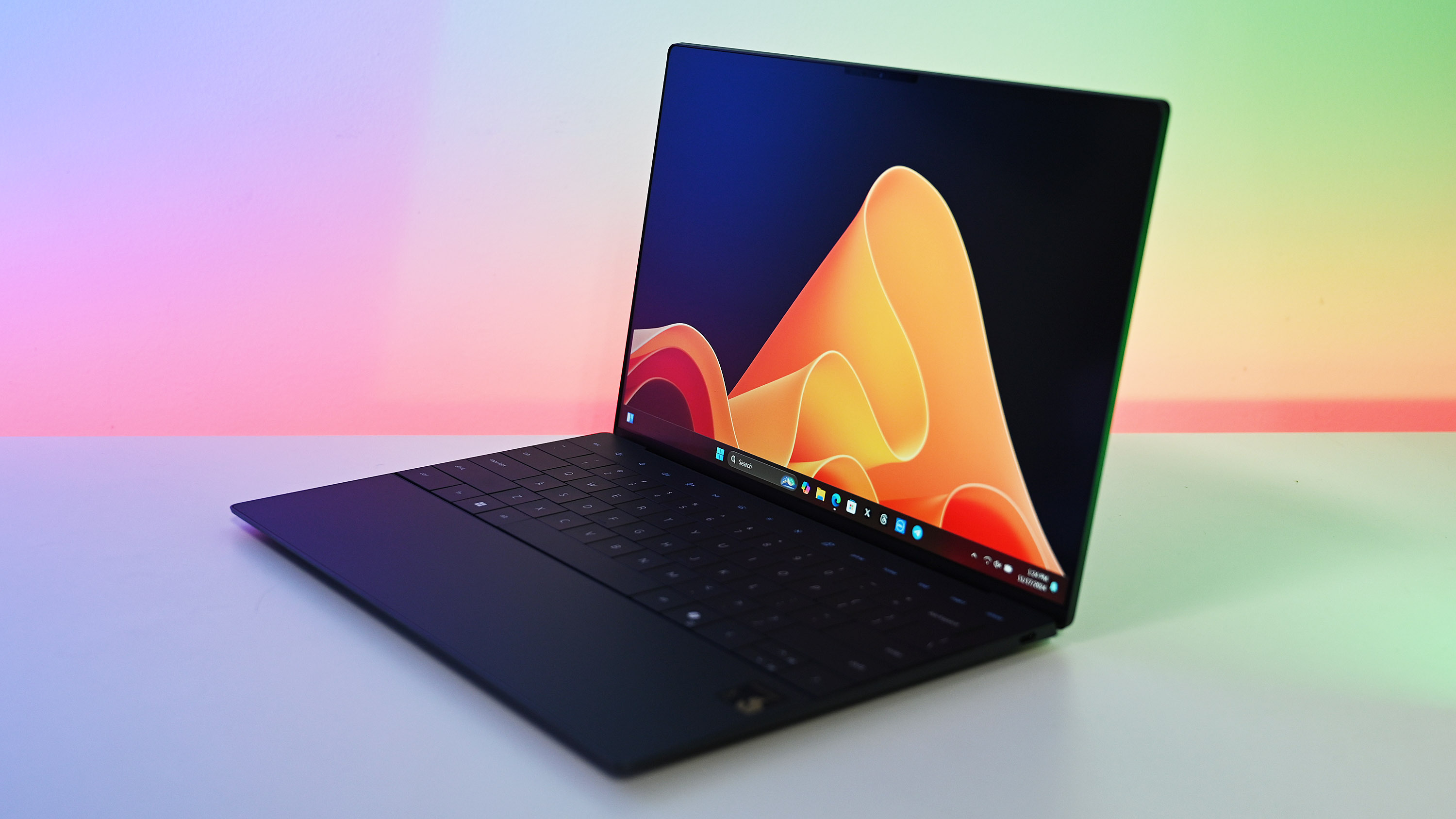
Dell XPS 13 (9345):Dell’s Qualcomm-powered XPS 13 wowed us with its stellar battery life, futuristic and compact design, and high-end display options.
ASUS ProArt P16 (2024):Creators who need a powerful Copilot+ can take advantage of the color-accurate OLED display and strong AMD Ryzen AI 300 CPU performance.
HP ZBook Ultra 14 (G1a):This 14-inch mobile workstation is home to the most powerful mobile CPU AMD has to offer, making it perfect for AI developers, enterprise users, and pros everywhere.
HP EliteBook Ultra 14 (G1i):This ultra-premium business Copilot+ PC focuses on a thin and light build and the features desired by professionals and prosumers.