We special in laptop battery ,laptop adapters for most of top brands, such as apple,acer, asus, dell, fujitsu,hp, compaq, ibm, lenovo, toshiba, samsung, sony on UK,all the ac power adapters, laptop batteries are high quality and low price.
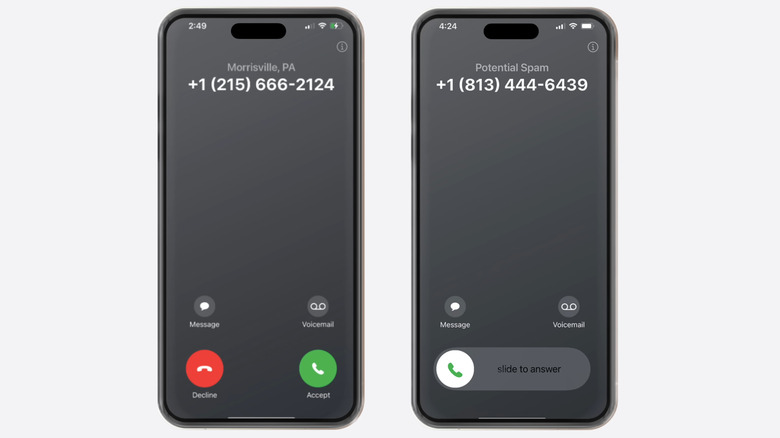
Even if you’ve been using your iPhone for a long time, there are still things that can leave you confused. For instance, you might wonder what the arrow at the top of the screen means or what the orange and green dots indicate. Another common mystery with iPhones is why you sometimes see a “slide to answer” option when receiving a call, while other times you get “Decline” and “Accept” buttons instead. There’s a simple explanation for this. When your iPhone is unlocked, you see the red and green buttons to decline and answer the call. In the latest versions of iOS, you don’t even see a full-screen alert if you’re watching a video or playing a game. Instead, a banner appears at the top. You can change this in the settings if you prefer full-screen incoming call alerts. On the other hand, the “slide to answer” option appears when you receive a call while your iPhone is locked. However, you can still decline calls by pressing the side button twice, which sends the call to voicemail. Pressing the side button once only silences the call without rejecting it. Below, we’ll explain the reason why your iPhone shows two different call screens. >>>Replacement battery for Apple iPhone 13 MiniWhat’s the need for two different incoming call screens?
In earlier versions of iOS, specifically iOS 1 through iOS 5, Apple only offered a single incoming call screen with options to answer or decline calls. This worked well when your iPhone was already unlocked, as you were likely looking at it. However, imagine your iPhone being in your pocket or bag, and you accidentally answer or reject a call with a stray touch.>>>Replacement battery for Apple iPhone 14 PlusTo solve this, Apple introduced the “slide to answer” option with iOS 6. This was a clever solution, as sliding the screen from left to right is much less likely to happen accidentally. If you look at Android phones, most devices offer only one incoming call screen, regardless of whether the phone is locked or unlocked. You need to swipe the green or red button upwards or sideways to answer or decline calls, which helps prevent any accidental actions.
Powered by AI, it will ‘detect and blur images that may contain nudity’ and provide warnings.
Google Messages has started rolling out sensitive content warnings for nudity after first unveiling the feature late last year. The new feature will perform two key actions if the AI-based system detects message containing a nude image: it will blur any of those photo and trigger a warning if your child tries to open, send or forward them. Finally, it will provide resources for you and your child to get help. All detection happens on the device to ensure images and data remain private.
Sensitive content warnings are enabled by default for supervised users and signed-in unsupervised teens, the company notes. Parents control the feature for supervised users via the Family Link app, but unsupervised teens aged 13 to 17 can turn it off in Google Messages settings. The feature is off by default for everyone else.
With sensitive content warnings enabled, images are blurred and a “speed bump” prompt opens allowing the user to block the sender, while offering a link to a resource page detailing why nudes can be harmful. Next, it asks the user if they still want to open the message with “No, don’t view,” and “Yes, view” options. If an attempt is made to send an image, it provides similar options. So, it doesn’t completely block children from sending nudes, but merely provides a warning.
The feature is powered by Google’s SafetyCore system whichallowsAI-powered on-device content classification without sending “identifiable data or any of the classified content or results to Google servers,” according to the company. It only just started arriving on Android devices and is not yet widely available,9to5Googlewrote.
There are several things you can do to customize your Chromebook experience and make it comfortable to use. For instance, you can enable dark mode to make ChromeOS easier on the eyes, especially at night. For added convenience, you can even schedule the dark mode to turn on automatically at specific times. That said, enabling dark mode may not always be enough. If you’re using an app that doesn’t support dark mode, like Google Docs or Sheets, it will still appear with white backgrounds and strain your eyes. In such cases, your next best option may be to invert screen colors on your Chromebook. Enabling color inversion can also be helpful for those with low vision or anyone who finds bright colors uncomfortable. Fortunately, Chromebook offers more than one way to invert screen colors. Below, we’ll walk you through these methods and explain how this mode affects your Chromebook’s display.>>>Replacement battery for Asus Chromebook Flip CM3 CM3200 CM3200FVAHow to enable screen color inversion on Chromebook
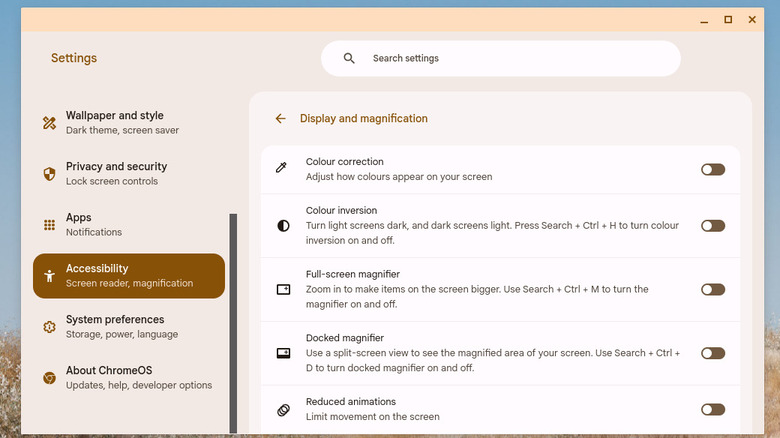
Google’s ChromeOS makes it easy to invert screen colors. Here’s how you can enable or disable this mode via the Settings app. Go to your Chromebook desktop. Click on the time in the bottom-right corner of the screen. In the Quick Settings panel, click the gear-shaped icon to launch the Settings app. Go to the Accessibility tab in the left pane. Click the Display and magnification option on your right. Finally, turn on the toggle next to Color inversion. Once you complete the above steps, the colors on your Chromebook screen will be inverted. If you need to toggle this mode on and off frequently, there’s a quicker way. You can press the Ctrl + Search + H keyboard shortcut on your Chromebook, then click the Continue button to enable the mode. You can use the same shortcut to turn off inverted colors and return to normal screen colors.>>>Replacement battery for Samsung Galaxy Chromebook XE930QCAWhat does color inversion on Chromebook do and how is it different from dark mode?
Color inversion is an accessibility feature on Chromebook that aims to improve screen readability. As the name suggests, it swaps bright colors for dark ones and vice versa. Once enabled, it applies to everything on your Chromebook screen, from icons to images. This makes content easier to read, especially in places where there’s too much light. Further, it also helps reduce the screen glare effects caused by sunlight or overhead lights. While color inversion may seem similar to dark mode, they are not the same. A major difference is that color inversion applies to every element on the screen, whereas dark mode only typically replaces light backgrounds with darker ones. Dark mode needs to be enabled for each of your apps separately, so if an app doesn’t support it, you can’t use it in dark mode. Compared to this, color inversion works across all apps and screen elements, so you don’t need to worry about compatibility.
Most of us ignore that little “LTE” symbol in the corner of our screens, but real chaos is unleashed when it disappears. Suddenly, loading a single webpage feels like you’ve time-traveled back to the dial-up era. Videos refuse to play, messages take forever to send, and you’re this close to hurling your phone at the wall.LTE is the reason modern mobile internet doesn’t feel like a patience test. Introduced in the late 2000s, it was a giant leap from 3G, delivering faster speeds, smoother streaming, and call quality that doesn’t sound like a tin-can telephone. Thanks to LTE, you can scroll TikTok for hours, binge Spotify on the go, and video call without freezing mid-sentence.5G might be the current buzzword, but LTE is still the backbone of mobile networks worldwide, keeping millions connected when 5G isn’t available. Let’s break down what LTE really stands for, and why it’s still the unsung hero of today’s mobile internet.>>>Replacement battery for Nokia 105What is LTE?
LTE, short for Long Term Evolution, is the technology that powers 4G mobile networks. Developed by the 3rd Generation Partnership Project (3GPP), it was designed as a major upgrade over 3G to boost data speeds, reduce lag, and make mobile internet more reliable overall.Before LTE, 3G networks struggled with limited bandwidth and outdated infrastructure. That meant slow browsing, video buffering, and dropped connections in busy areas. LTE fixed this by switching to a faster, all-IP system that took a more efficient approach to handling data.Instead of sending data in bulky chunks like 3G, LTE breaks it down into smaller packets that travel faster and smoother. It’s like upgrading from a pothole-ridden one-lane road to a smooth, multi-lane expressway — more data can zoom through at once, and you’re less likely to hit a traffic jam. LTE also cuts down on digital delays, slashing latency from around 100 milliseconds in 3G to as low as 30–50 milliseconds. That means smoother video calls, snappier apps, and lightning-fast searches.Under the hood, LTE runs on clever tech like OFDMA (Orthogonal Frequency-Division Multiple Access) and MIMO (Multiple Input Multiple Output), which basically let your device juggle more data streams at once. That brainy backend is what made LTE fast enough to unlock modern conveniences, from ride-hailing apps to real-time maps, and set the stage for everything mobile networks would become.>>>Replacement battery for Nokia TN-BP5000N1Wait…aren’t 4G and LTE the same thing?
They’re often used interchangeably, and for most people, they feel the same. Your phone says “4G,” your videos load fast, life is good. But under the hood, there’s a technical distinction. 4G is the broader category — a generation of mobile tech. LTE is the specific technology that made 4G possible in the first place. In other words, 4G is the destination and LTE is the bridge that made it possible to cross over.When LTE first launched, it failed to reach the International Telecommunication Union’s rigorous standards for what constitutes a “true 4G,” namely 100 Mbps from a mobile position, and 1 Gbps on a stationary one. Still, because it was so much faster and more efficient than 3G, carriers (and the public) ran with it and called it 4G anyway.Eventually, LTE got a major upgrade: LTE-Advanced (and later LTE-A Pro). These versions did meet the ITU’s original 4G standards, so if we’re being technical, they’re the real 4G, and while all LTE is considered part of the 4G family, not all LTE versions are technically “true” 4G.>>>Replacement battery for Nokia 105 4GSo, will 5G replace 4G and LTE?
Not immediately, and not entirely. 5G might be the next big leap in mobile networks, but it doesn’t make 4G LTE obsolete. In fact, many 5G deployments today are non-standalone (NSA), meaning they still rely on the existing LTE infrastructure to deliver service. It makes it possible for mobile carriers rolling out 5G to do it faster and more affordably, since they’re not necessarily starting from scratch.It’s part of the broader story of how mobile networks evolve. Rather than replacing older generations outright, each new standard is an iteration in a longer chain of progress: LTE itself was a leap from 3G, which evolved from GSM and UMTS standards before it. And just like LTE paved the way for 5G, 5G will lay the groundwork for whatever comes next. It’s less like swapping phones and more like adding storeys to a skyscraper.So, will 5G eventually replace LTE? Yes, but gradually. As standalone (SA) 5G networks roll out and become the norm, LTE will gradually play a smaller role. But that transition will take years, especially in regions where LTE is still expanding.
Logitech has bumped up prices by up to 25% on a bunch of its products, probably because of tariffs on stuff coming in from China. A video breakdown byCameron Dougherty(via9to5Mac) shows that around 51% of Logitech’s lineup is feeling the impact, with an average price hike of about 14%.
For instance, the MX Master 3S mouse has increased by $20 to $119.99, the Pro X TKL keyboard shot up from $199.99 to $219.99, and the K400 Plus Wireless Touch keyboard is now $34.99 after a $7 increase (that’s a 25% jump!).
On the bright side, not everything has seen price increases—the MX Ergo mouse and the G703 gaming mouse are still at their old prices. You might even find better deals on Amazon, which could help balance out those hikes.
These price increases come right after Logitech pulled its financial outlook for 2026, thanks to “tariff uncertainty” tied to President Trump’s trade policies. It hadoriginally predictedsales for 2026 to be between $4.53 billion and $4.71 billion, but is still sticking with its2025 sales forecast.
Experts say Logitech’s pricing often sets the trend for other brands, so we might soon see similar increases from competitors.
In recent weeks, President Trump has announced various tariffs worldwide, leading to much uncertainty worldwide.
Currently, China is facing exceptionally high tariff rates from the Trump administration. These began with a 10% tariff on all imports from China that took effect February 4, 2025, which was then increased by another 10% on March 4.
The tariff situation has escalated significantly, with China now facing up to a 245% tariff on some imports to the United States. This includes a 125% “reciprocal” tariff, a 20% tariff related to the fentanyl crisis, and existing Section 301 tariffs that range from 7.5% to 100% on specific goods.
Unlike other countries that received a 90-day pause on new tariffs above the 10% baseline, China has been excluded from this reprieve. While imports from most other countries maintain the 10% baseline tariff, China’s minimum tariff rate was increased to 145%.