Android head says ‘we’re going to be combining ChromeOS and Android into a single platform’

A killer combo?

Chrome logo on laptop next to Andorid logo on phone

Chrome OS is good and all, but it’s always felt distant — on an island of its own away from the might of Android. Well, it turns out Google finally got the memo to send a rescue boat out to said island, as an executive has confirmed the company’s plans to combine the two platforms.

This comes in an interview withTechRadar, where Sameer Samat, president of Android ecosystem at Google, just dropped this nugget into a conversation about why the interviewer was using a suite of Apple devices.

Now, we have heard this before. Back in November, Android Authority reported that a source inside Google had said this was the mission. However, this is the first time Google has confirmed it on-the-record. And honestly? It may be a few years late in my eyes, but I’m glad it’s finally happening. Let me explain.

>>>Replacement battery for Google Pixel Watch3 45mm

Android’s hitting the big screen

This comes off the back of Android bringing some new big screen features to the table, such as a proper desktop mode a la Samsung Dex, improved adaptability of apps, better external display support and windowing within the desktop.

Basically, Android is now able to do pretty much everything that a Chromebook could, so why have the two running side by side in isolation of each other?

I’ll always appreciate what Chrome OS has brought to the table, though. I mean with theLenovo Chromebook Plus 14, Google was able to make low-key one of the best laptops for students, sharpen up the OS with quick shortcuts and add AI features that are logically added rather than clumsily overlaid (looking at you, Microsoft Copilot).

But what was learnt in Chrome OS can also come over to Android too, and having it all in one place unlocks a special new perk on the computing skill tree.

>>>Replacement battery for Google Pixel 9 Pro Fold

‘It just works’
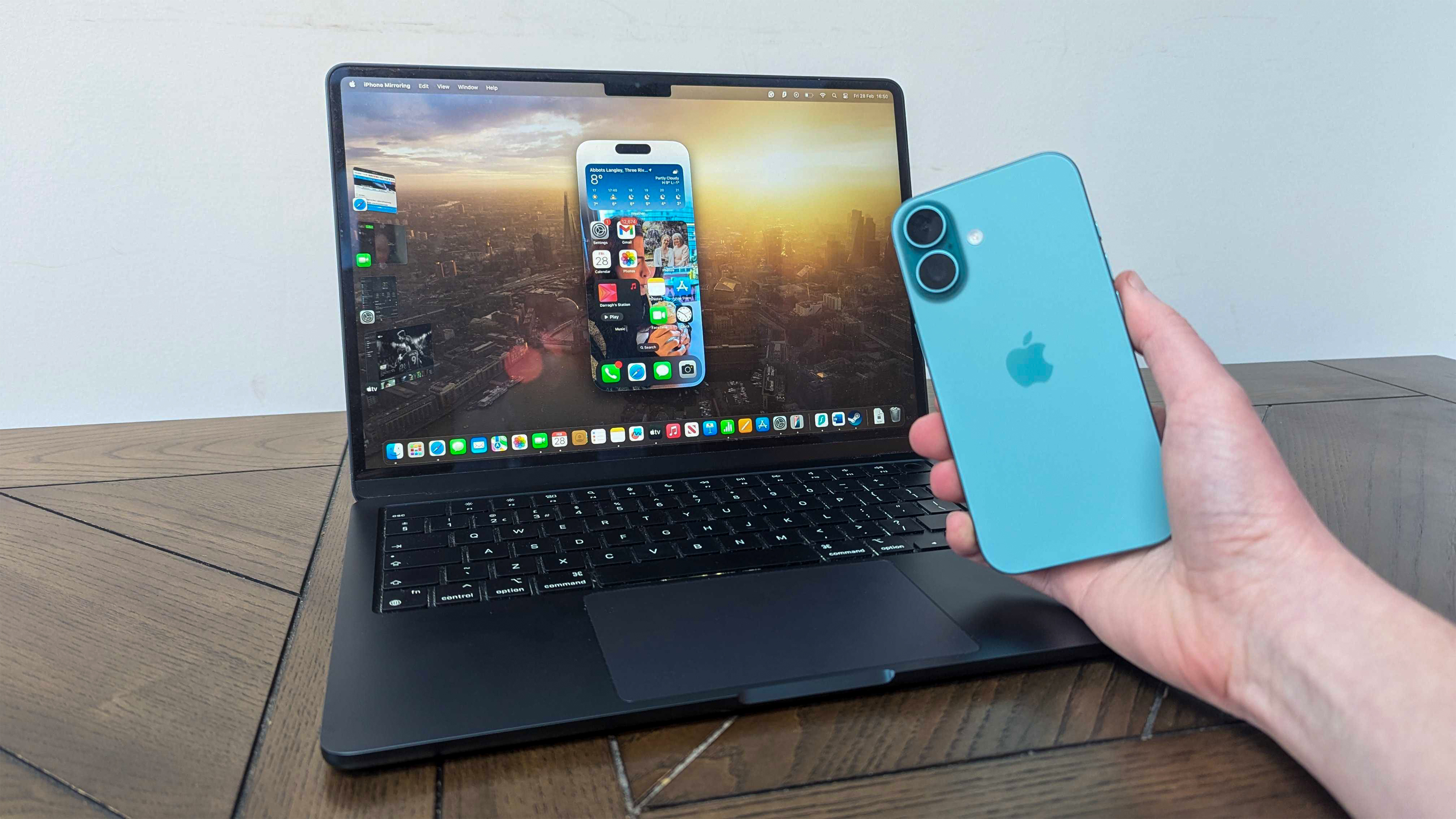
An iPhone 16 in hand in front of MacBook Air 13-inch M3 on table

This is the moniker you hear around a lot of Apple devices. It’s one of the reasons why I use them, why Lance who conducted this interview at TechRadar uses them, and hell, it’s probably why a lot of you out there use them.

The fact thateverything just comes together through Continuity featuresand marries these devices together nicely is always one of Apple’s superpowers thatGoogle has been able to do somewhat, but just not to the level of smoothness you’d find in the Cupertino playground.

To do it properly, you need real sync up in the operating systems, which for all the heavy lifting Google did with Chrome OS to try and make it talk to Android, it was just not feasible. But now a proper merger is on the cards, this is the answer to all of its problems.

And stat-wise it makes sense too. According tomost recent data, around 1.25% of the world’s computer users are on Chrome OS — down from nearly 2% last year. With a downward trajectory, change needed to happen, and this might just be the smartest decision the company’s made in a decade.

So what now?
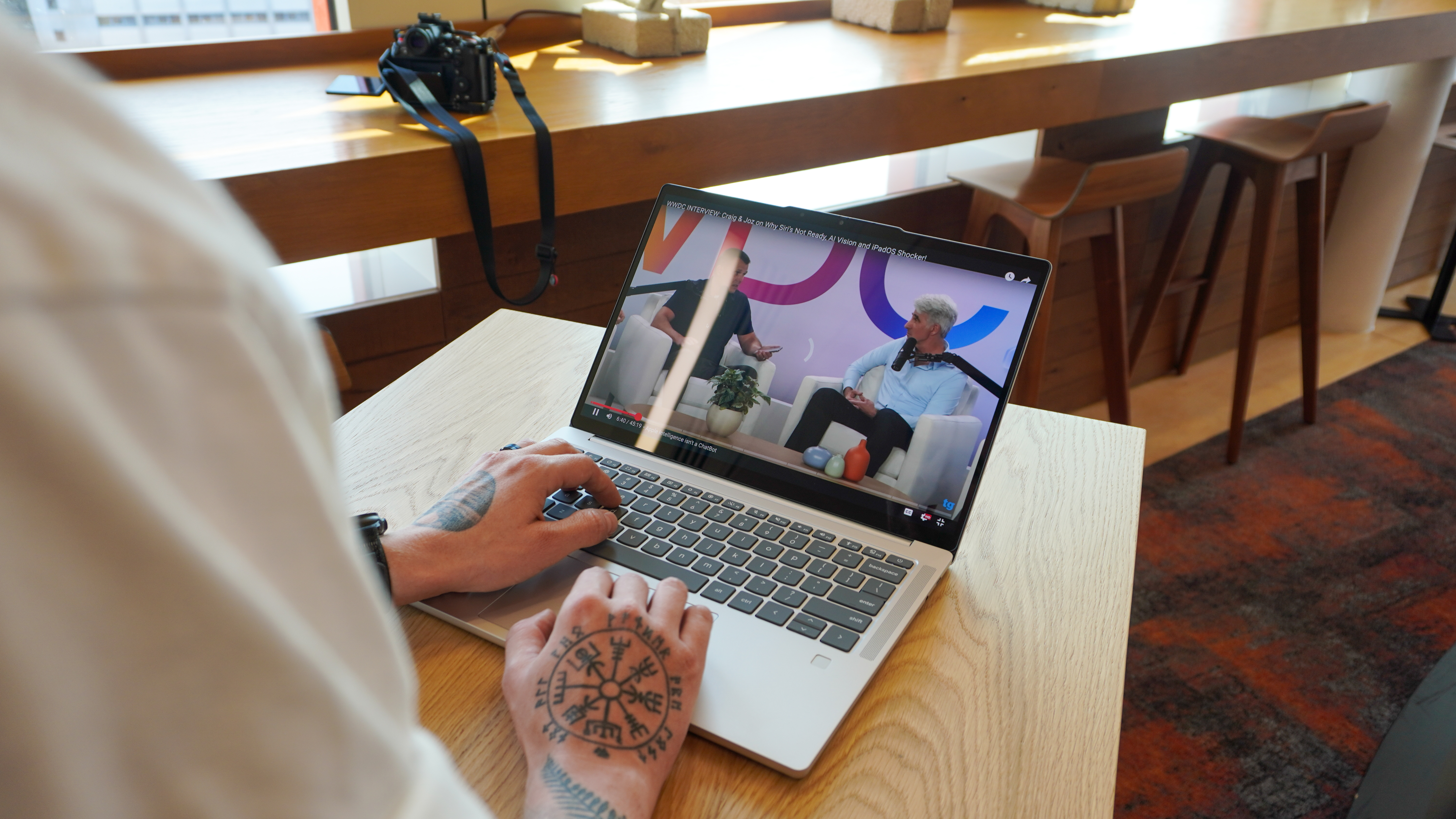
Lenovo Chromebook Plus 14

As this was a quick quote from a Google exec, there are some questions I have that remain unanswered as of now:

  • Does this mean any Android device could be a desktop device too?Imagine the Pixel 10 getting a laptop-esque accessory (like the long-gone NexDock) to browse your device like a laptop. Pretty cool, right?
  • What does this mean for current Chromebooks?Android does technically work on Arm and the more computer-traditional x86 architectures (I go more into the differences in my review of theAMD-armed Asus Zenbook S16), but we’re talking over 99% of its features and apps have been built with Arm in mind. What happens to Chromebooks that are running older Intel chips? Are hardware requirements going to change drastically and leave these people in the cold?
  • What about updates?Chrome OS is usually updated every four weeks, mostly for security reasons but Google does sneak some new features in there too. Will moving to Android’s more infrequent feature drops affect this?

We don’t have answers to any of these, and it’ll be just a case of waiting and seeing what happens (my guess is by the time Android 17 rolls around). But as far as the initial news itself goes, this is an encouraging step in the right direction for Chromebooks.
IS YOUR PC RUNNING TOO HOT? HERE’S HOW TO KNOW IF YOU NEED A NEW FAN OR UPGRADED COOLING

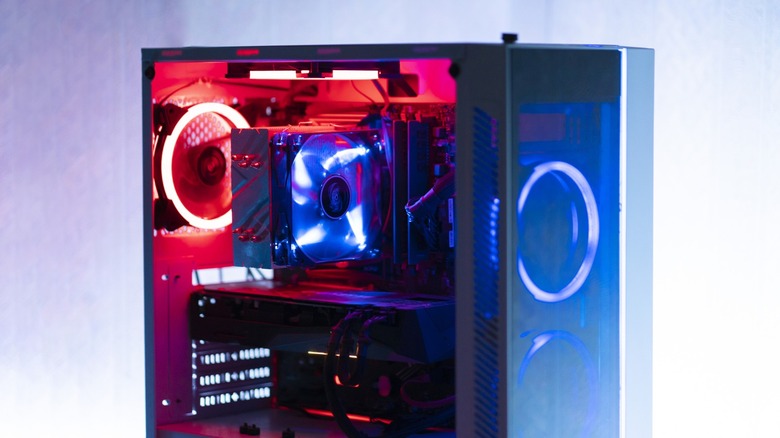
A gaming PC with a CPU cooler and RGB fans

Scoping out the best PC parts that fit your budget is as exciting a task as it is challenging. It’s natural to want to blow the bulk of your budget on a solid CPU and a beefy graphics card — and these indeed are two of the most important components when building a gaming PC. More RAM and fast storage will also directly contribute to better performance, but the remainder of the PC is usually an afterthought — the cooling solution often being an aspect that’s affected.Though GPUs can hit higher temperatures in demanding games, it’s usually the CPU that runs into overheating issues — and this can happen even when your PC isn’t under full load. The easiest and most obvious way to tell if your PC is overheating is to physically inspect the case and its airflow. Warm air exiting the exhaust fans is normal behavior, but if your PC cabinet is uncomfortably hot to the touch — it’s time to tune this hot box to avoid long-term damage to your components.Overheating also causes a drop in FPS, stuttering, and longer frame freezes — none of which are ideal for a computer you’ve built to enjoy games on. Windows does have a failsafe mechanism that shuts down your PC if your CPU’s temperature shoots up dangerously high. While this prevents immediate damage, it is still not a solution to the overheating problem.>>>PS0011UA1BRS Toshiba Dynabook X30L-J PCR10T-04N00Checking for signs of overheating on your gaming PC

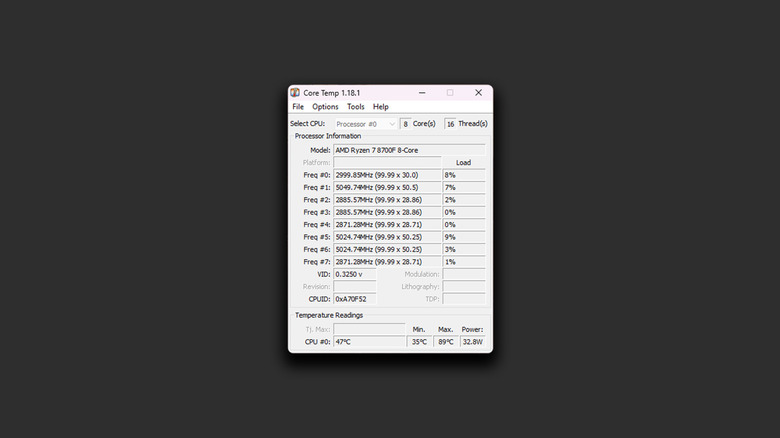
Screenshot of Core Temp displaying CPU temperatures

Apart from a stuttery gaming experience or abrupt shutdowns, another sign of an overheating computer is if the fans regularly ramp up to full speed. You can check CPU temperatures through the BIOS interface — but this might not give you the full picture, given that your PC is barely under any load in this state. Instead, you can download free utility tools on Windows — I’ve been using Core Temp for over five years to monitor the temperatures of my notoriously hot Ryzen CPU. You can configure the app to run on startup and even pin a handy indicator to the system tray.Generally, anywhere around 35 to 50 degrees Celsius is the temperature you should expect when your PC is idle. Under heavy load, CPU temps can soar up to 85 degrees. Modern Ryzen CPUs tend to run even hotter, especially when paired with the stock cooler. AMD claims its newer CPUs are designed to handle temperatures up to 95 degrees — but this is definitely not the ideal range, especially if there are things you can do to fix your CPU temperatures.>>> R15B07W Xiaomi RedmiBook Pro 15Managing PC temperatures

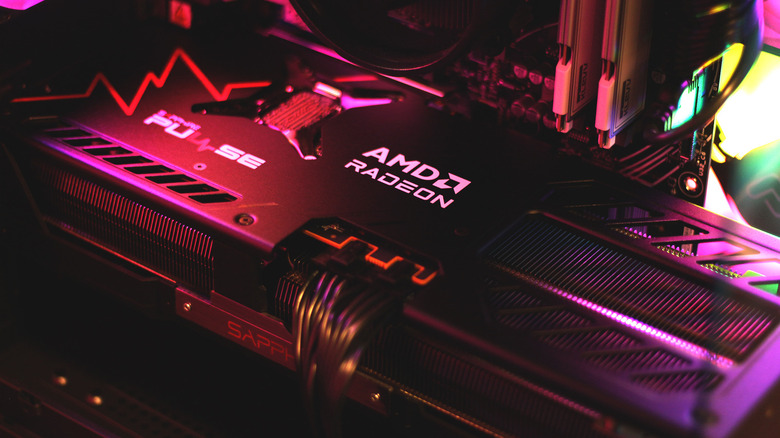
A Radeon graphics card in a gaming PC

Switching to a liquid cooling system will make a world of difference — but it’s not a measure every build needs. First things first, check for any obstructions that may be affecting your PC’s airflow — things like other items on your desk being situated too close to any of the exhaust fans. Anything that’s blocking the intake airflow will also negatively impact the thermals in your machine. Safely cleaning the inside of your computer periodically contributes to the longevity of all the components.Choosing the right thermal paste and applying it to your CPU can also improve thermal performance — especially if you’ve replaced or refitted the cooler even once before. If you are itching for a hardware upgrade, picking a beefier air cooler can also drastically reduce your CPU temps. I switched from AMD’s stock cooler to the relatively cheap $25 Thermalright Burst Assassin 120 SE Cooler, and it instantly shaved 10 to 20 degrees off my PC’s idle and maximum load temperatures.Case design also plays a crucial role in the thermal performance of a rig. Fish tank cabinets might look sleek, but there’s a reason why cases like the NZXT H5 Flow are popular among enthusiasts and are rated highly. Upgrading to a better air cooler, applying a fresh layer of thermal paste, or simply relocating your PC to a dry, cool, and well-ventilated place can all combat overheating issues.

These are my 5 favorite ways to optimize my Windows 11 PC for gaming — Here’s how I tweak my settings for extra performance

Speed up your gaming experience on Windows 11 with these easy-to-configure tweaks.

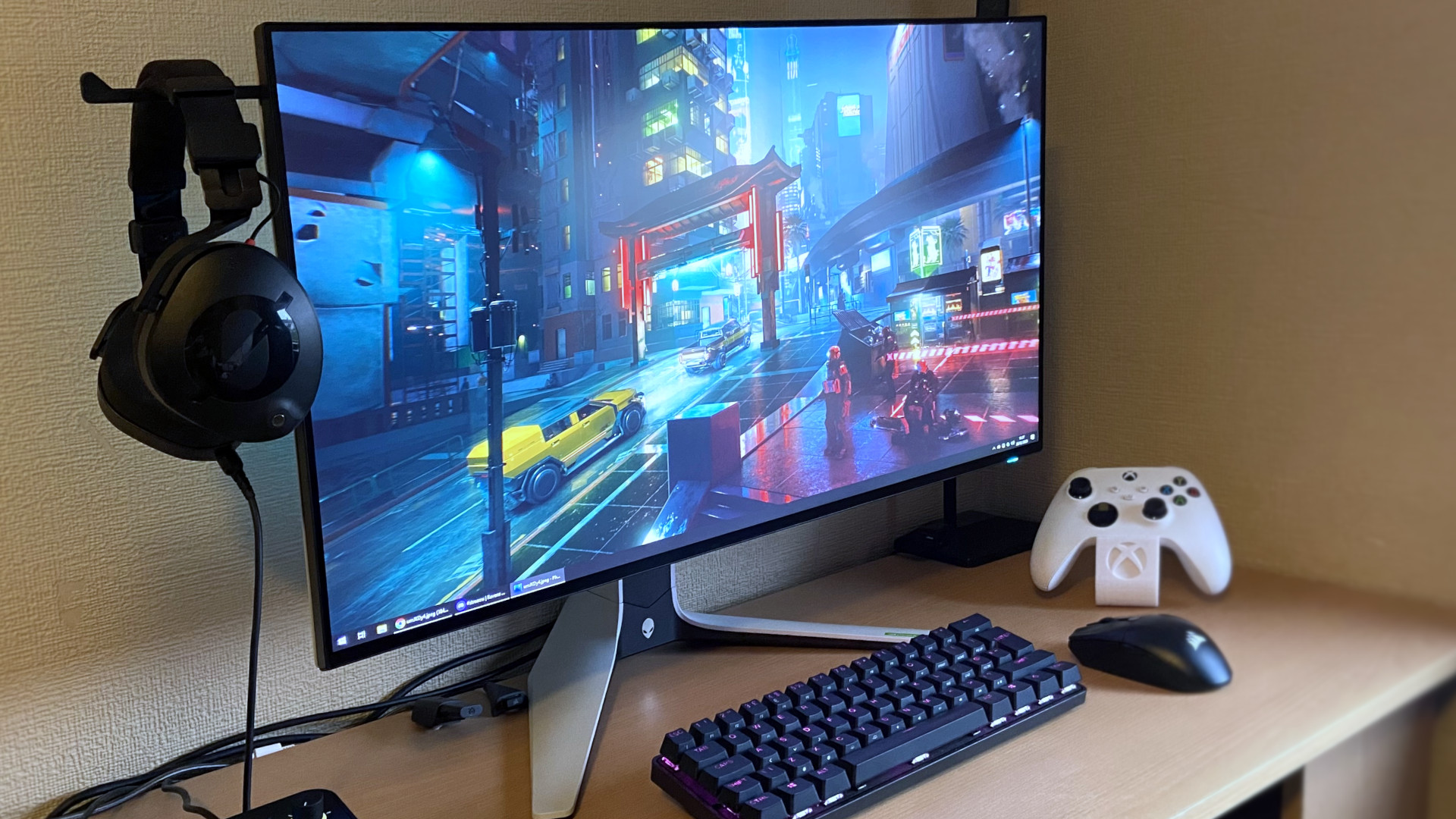
Alienware AW2723DF

To improve your gaming experience on Windows 11, you can use my top five recommended tweaks.

If you useWindows 11for gaming, there are several settings you can change and features you can turn on or off to get better performance. However, if I were asked to pick just five of the most effective changes, here’s what I’d recommend.

First, I recommend turning off Memory Integrity and Virtualization Platform features, as Microsoft has noted, even though they are designed to improve security, they can slow down gaming performance.

We often install many apps, and some of them run in the background every time the computer starts, wasting valuable system resources. If you turn off these apps, you can free up memory and processor, giving your games more breathing room.

If your device supports it, turning on Variable Refresh Rate (VRR) helps reduce screen tearing and stuttering. It makes your gameplay look and feel smoother, especially in fast-paced titles.

Finally, updated drivers often include performance optimizations and bug fixes for new games. Whether you’re using NVIDIA,AMD, or Intel graphics, always make sure you have the latest version installed. (However, before updating, it’s best to research the new version to make sure other users are not having issues to avoid a negative impact on your gaming experience.)

In thishow-to guide, I’ll share my favorite tips to improve the gaming experience on Windows 11.

>>>Replacement battery for Microsoft Surface Pro 9 2032 1996 1997 2038

Best tweaks to improve the gaming experience on Windows 11

The following tweaks are listed in no particular order. These are my personal recommendations, though I understand others may have different preferences.

1. Disable Memory Integrity

According to Microsoft, if you’re noticing performance issues while playing games on Windows 11, this can be due to two specific security features, including Hypervisor-protected code integrity (HVCI), also known as “Memory Integrity” in the Windows Security app, and the Virtual Machine Platform security features.

If you want to prioritize gaming performance, you should turn off these security features during gameplay. However, after you’re done playing, you should turn them on again.

To disable Memory Integrity on Windows 11, use these steps:

  1. OpenWindows Security.
  2. Click onDevice Security.
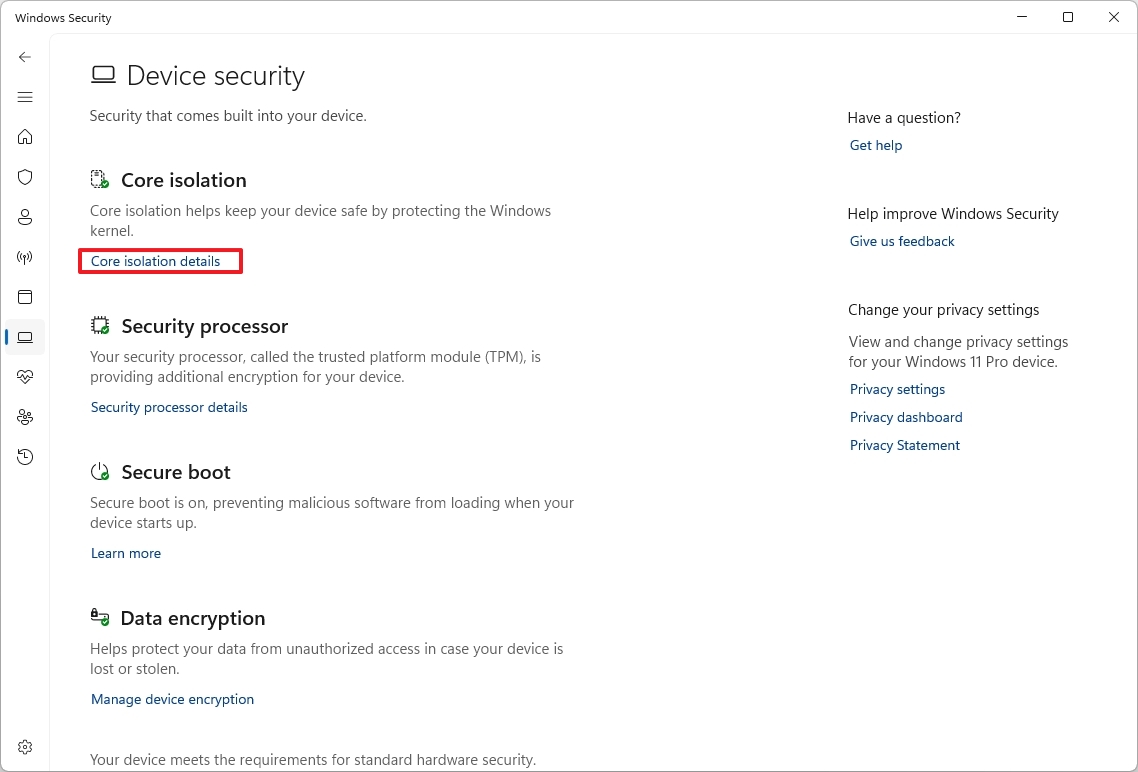
  3. Click the“Core isolation details”option on the right.
Core isolation details
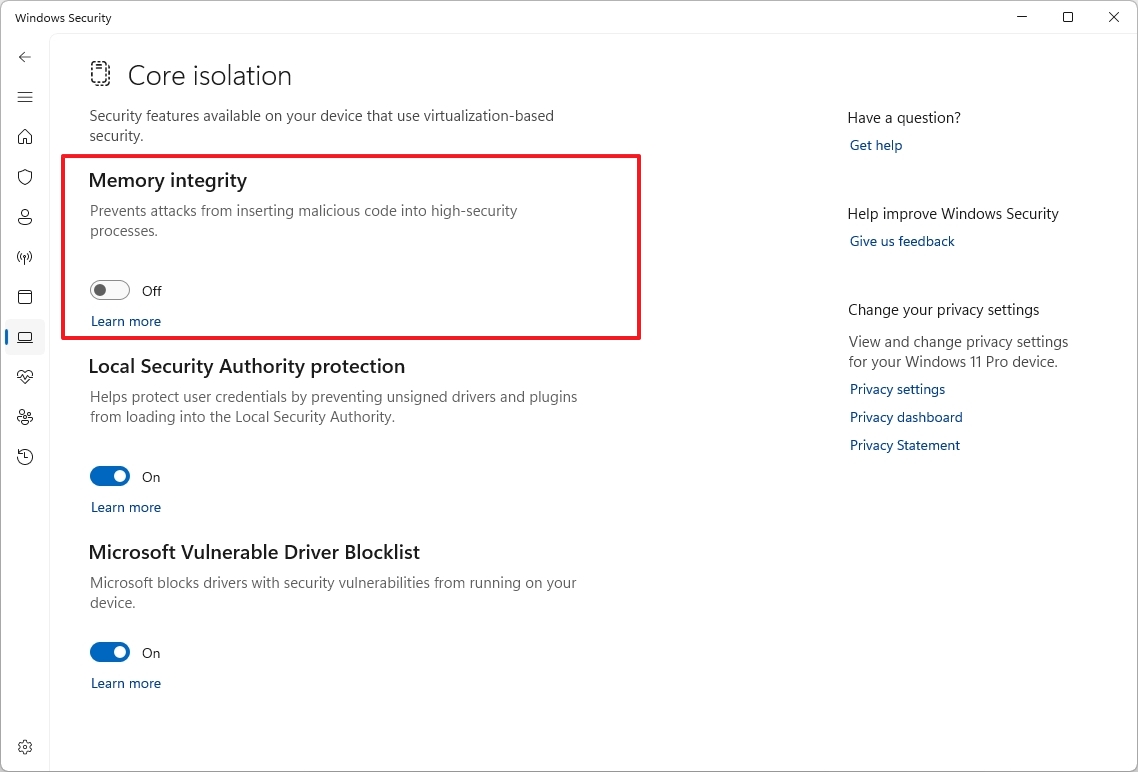
  1. (Option 1) Turn off theMemory Integritytoggle switch to disable the feature.
Memory Integrity disabled
  1. (Option 2) Turn on theMemory Integritytoggle switch to enable the feature.
  2. Restart the computer.

Once you’re done playing, remember to turn on the security feature.

>>>Replacement battery for Microsoft Surface Pro X 13″ Tablet

2. Disable Virtual Machine Platform

To turn off the virtualization component, use these steps:

  1. OpenSettings.
  2. Click onSystem.
  3. Click theOptional featurespage on the right side.
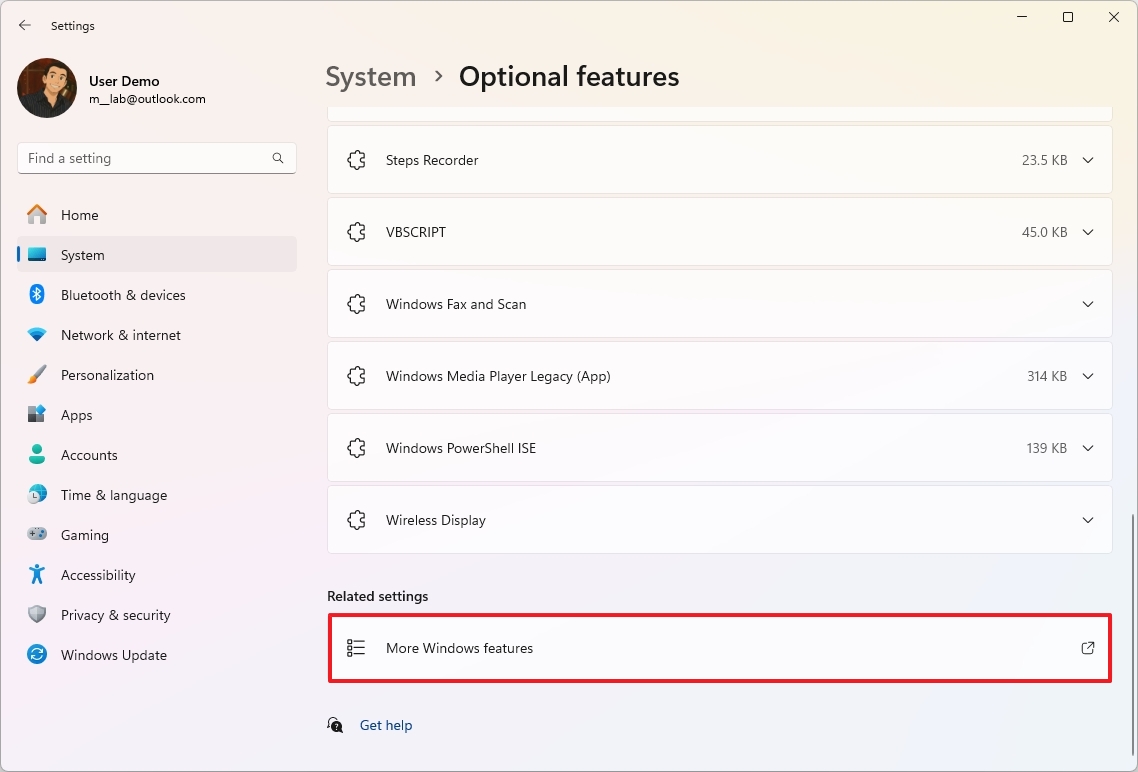
  4. Click the“More Windows features”setting.
More Windows features
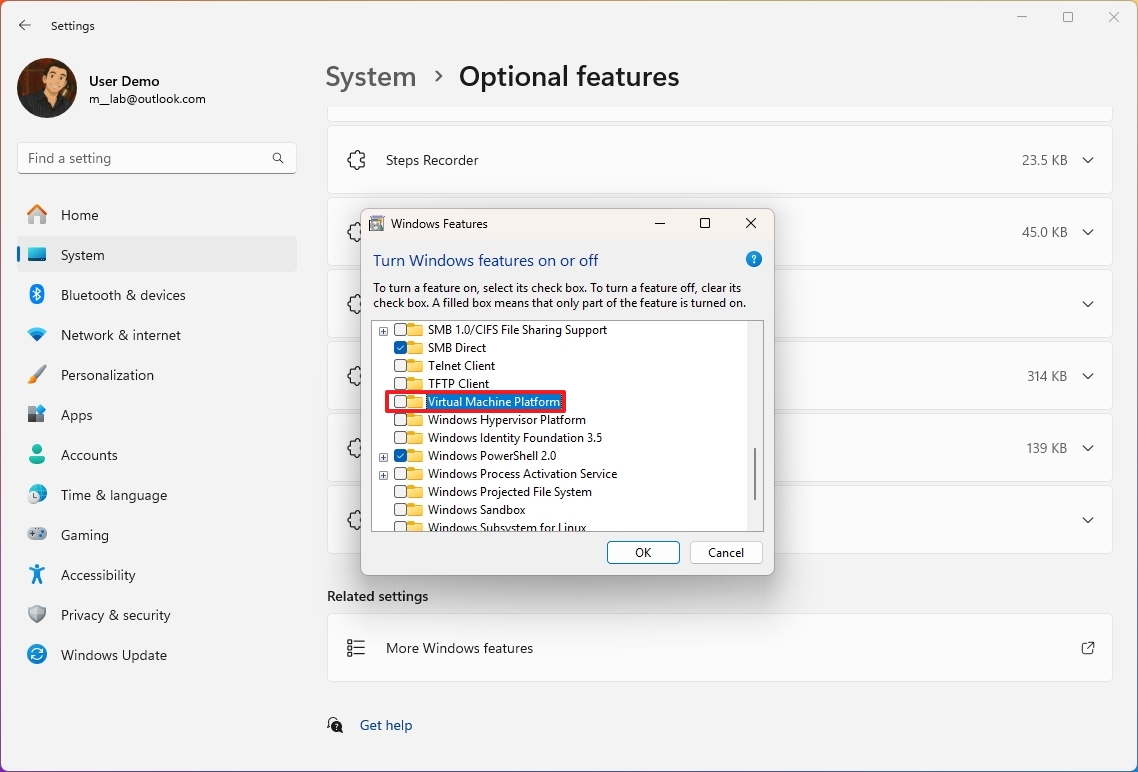
  1. (Option 1) Clear the“Virtual Machine Platform”option to disable the feature.
Virtual Machine Platform disabled
  1. (Option 2) Check the“Virtual Machine Platform”option to enable the feature.
  2. Click theOKbutton.
  3. Restart the computer.

After you’re done playing games, re-enable the feature.

>>>Replacement battery for Microsoft Surface Pro 8 1982 1983

3. Disable startup apps

It’s not a secret that apps configured to launch at startup will consume more system resources, and this can negatively affect gaming performance.

To manage apps running at startup, use these steps:

  1. OpenSettings.
  2. Click onApps.
  3. Click theStartuppage on the right side.
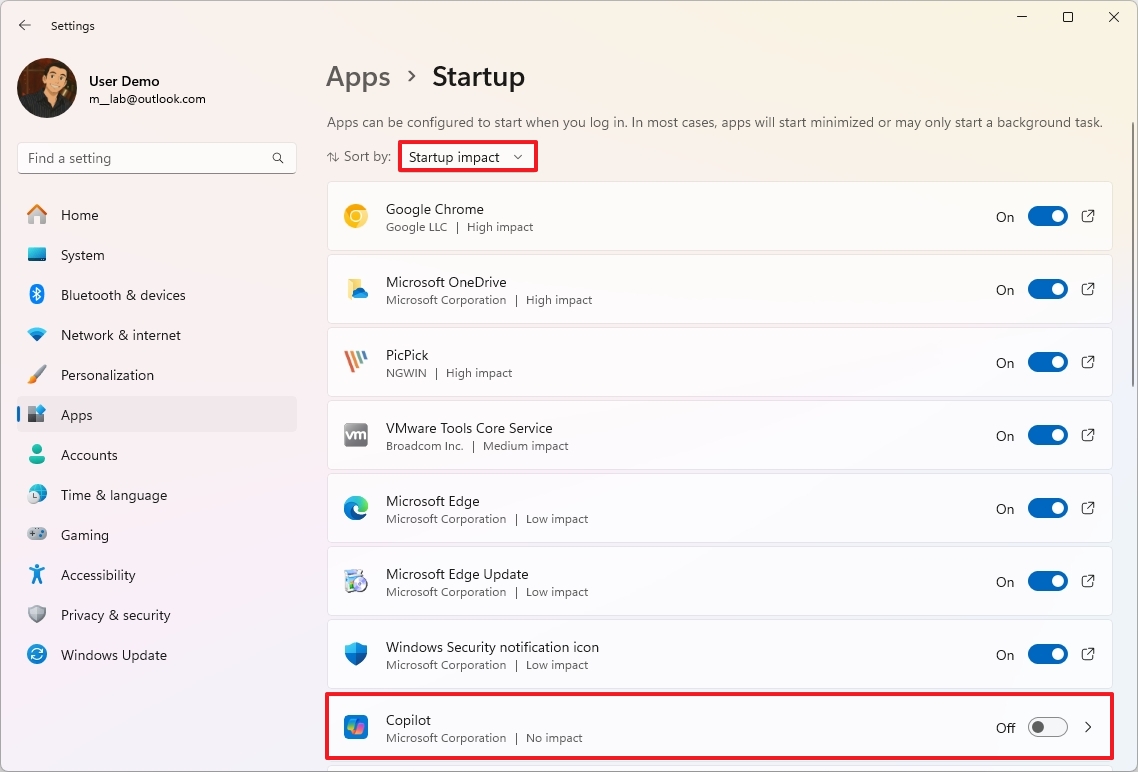
  4. Choose theStartup impactoption in the “Sort by” menu.
  5. Turn off the most impactful apps running on your system.
Windows 11 disable apps startup

Once you complete the steps, restart your computer, and depending on the applications that were previously loading at startup, your computer should be able to dedicate more resources for gaming.

If you’re unsure which applications to remove from the startup process, you can proceed with the apps you’ve installed. However, it’s not recommended to turn off apps like Microsoft Defender and other system services.

4. Enable Variable Refresh Rate

On Windows 11, Variable Refresh Rate (VRR) is a feature that automatically adjusts the refresh rate of the monitor based on the frames generated by the graphics card, thereby increasing frame rates while reducing screen tearing and stuttering.

If the feature is available on your Nvidia G-SYNC, AMD FreeSync, or VESA DisplayPort Adaptive-Sync monitor, use these instructions to enable it:

  1. OpenSettings.
  2. Click onSystem.
  3. Click theDisplaypage on the right side.
  4. Click onGraphics.
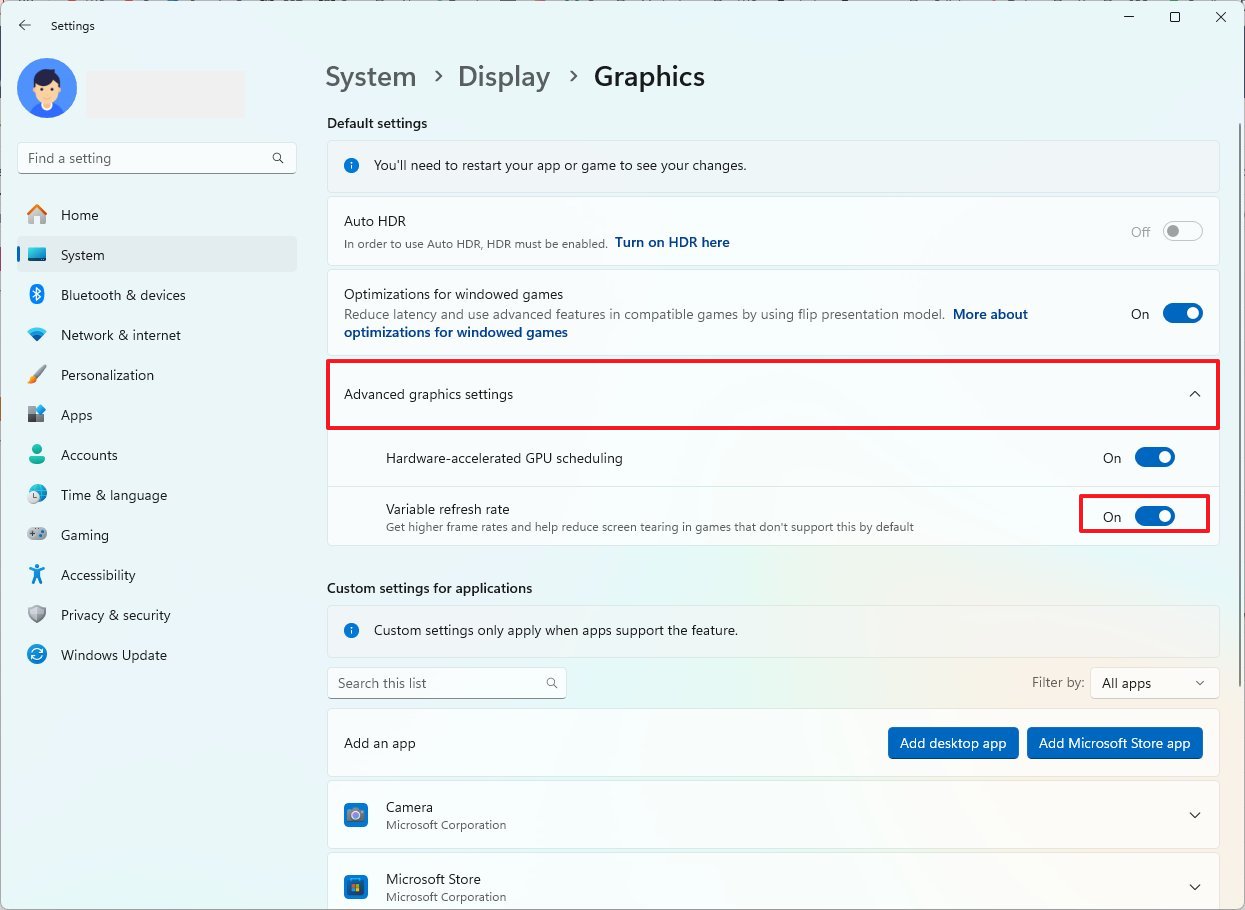
  5. Click onAdvanced graphics settingsat the bottom of the page.
  6. Turn on the“Variable Refresh Rate”toggle switch.
Windows 11 enable VRR

After you complete the steps, the feature will be enabled and work with the same feature available in the graphics card. If the feature doesn’t start from the graphics card, the operating system will activate its own version of VRR.

5. Upgrade graphics drivers

It’s always recommended to have the latest device drivers for any component, especially your graphics card, since manufacturers usually release improvements and bug fixes, which sometimes can have a significant impact on your gaming performance, and even on specific games.

However, drivers and system updates can sometimes cause more problems than they solve. As a result, important to research the driver update before installing it.

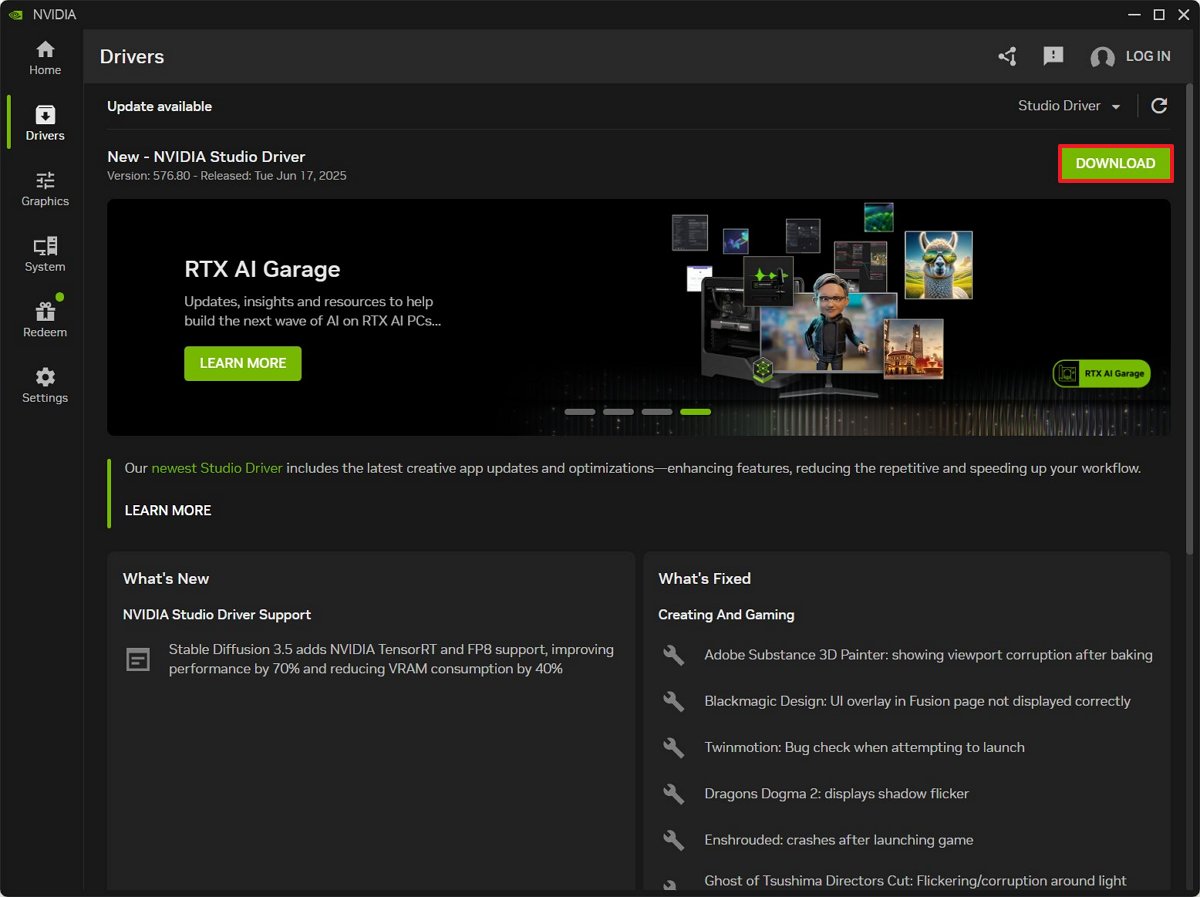
For example, to update the graphics drivers from the Nvidia app, use these steps:

  1. Open theNvidiaapp.
  2. Click onDriversfrom the left pane.
  3. Click theDownloadbutton.
  4. Continue with the on-screen directions.
Nvidia download drivers for Windows 11

Once you complete the steps, you may have to restart your computer to apply the changes.

If you have anAMDsystem, the steps are obviously different using the Adrenalin Edition app, but the concept is the same.

Although I am focusing on only a select number of improvements, you can alsorefer to my comprehensive guide, which offers more than twenty tips, from enabling Game Mode and selecting the most optimal power plan to Hardware-accelerated GPU scheduling and performing a clean installation of the graphics drivers.

Do I really need a 1080p webcam?

Resolution confusion

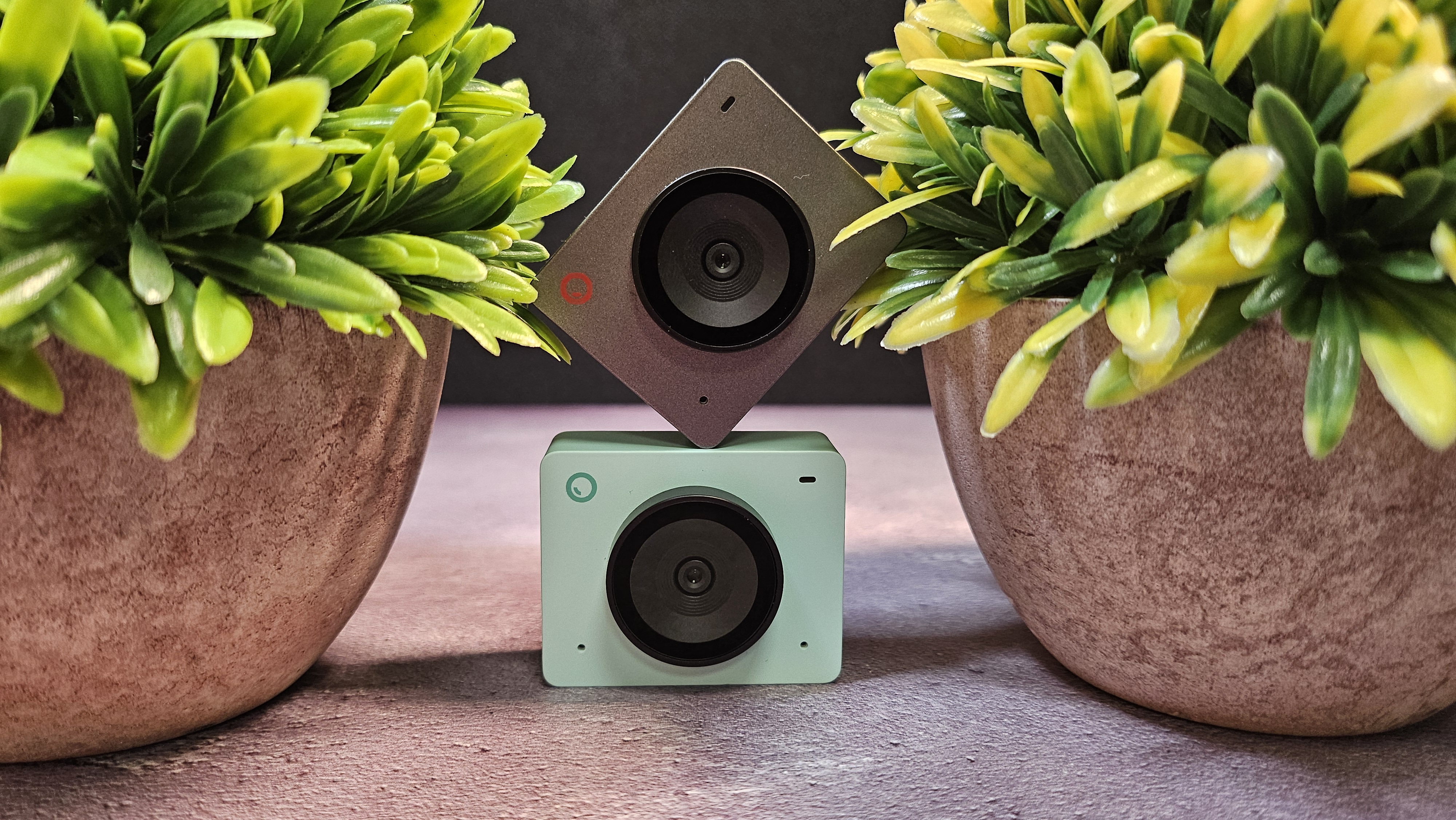
The Obsbot Meet SE webcam.

If you own a laptop or desktop, chances are that you already have a 720p webcam. It’s the de facto industry standard: the baseline for both laptop-integrated and standalone USB webcams.

But is it enough? These days, it’s not difficult to find a third-party webcam featuring Full HD 1080p resolution – in fact, even the cheapest option in our ranking of thebest webcamsis FHD.

Aspects such as sharpness and color reproduction can vary greatly even between webcams of the same resolution, but at this point, we consider 1080p to be the most suitable starting resolution for webcams.

Is a 720p webcam good enough?

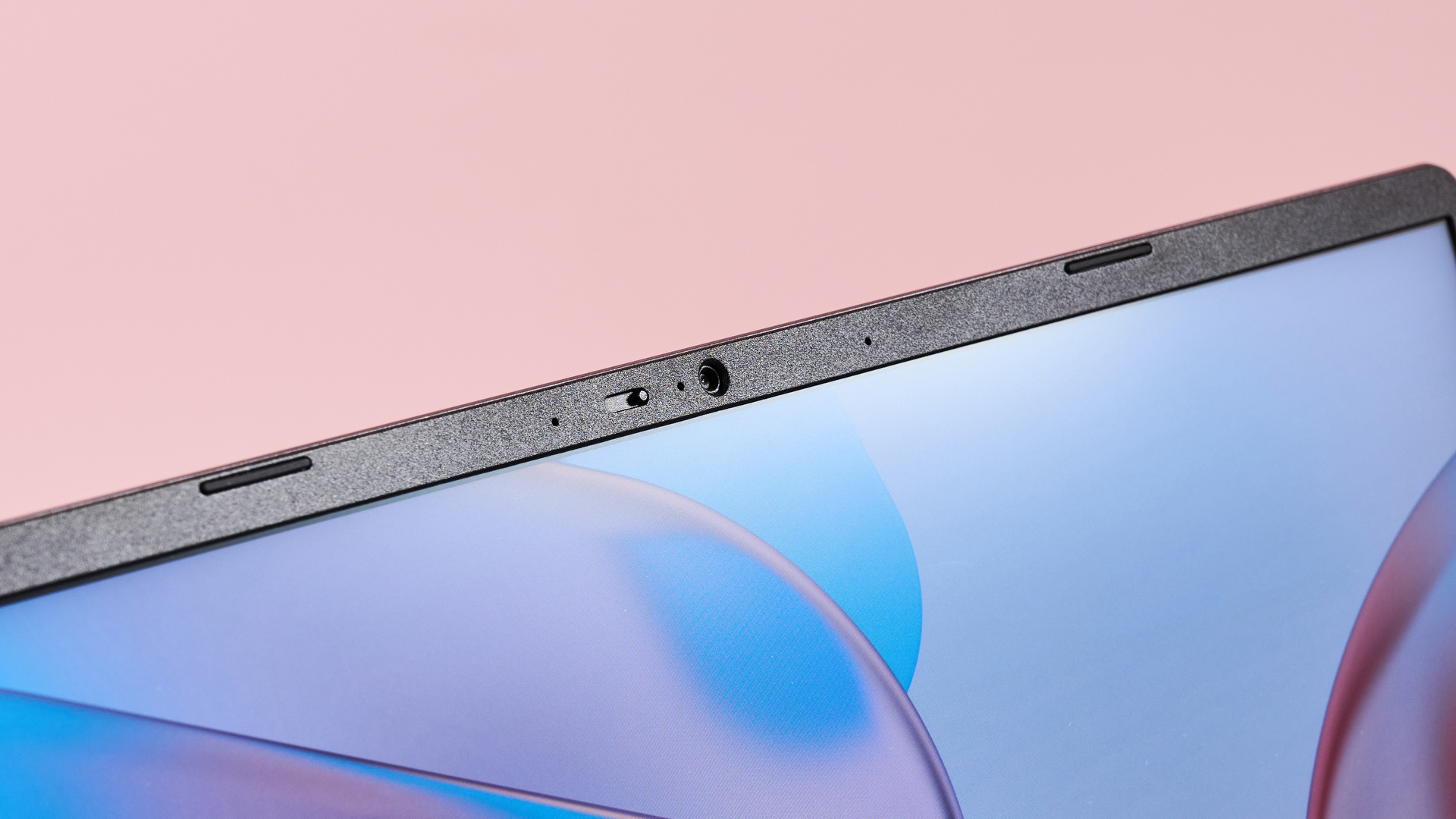
Close-up of webcam on Acer Chromebook Plus 514 with pink background

Off the face of it, then, it would certainly appear that we recommend a 1080p webcam unilaterally. More premium laptops typically have built-in 1080p webcams these days, too – and you can quite easily pick up a4Kstandalone webcam online, if you’re willing to spend a bit more.

Of course, that’s not to say that a 720p webcam means you need to upgradeimmediately– especially not if you’ve already got a perfectly decent laptop that doesn’t otherwise need replacing.

720p is sometimes referred to as ‘HD Ready’, and it’s still sufficient for most people. If you only use your webcam for Zoom calls with coworkers, you probably don’t need to upgrade.

We care about e-waste here at TechRadar, so we won’t encourage you to replace a 720p webcam that still works fine simply because youcouldget a higher resolution. In fact, you could also considerusing your phone as a webcam, which could save you some cash.

>>Replacement battery for Acer Aspire One Z1401 Z1402 C6UV C6YW

Upgrading to 1080p and beyond

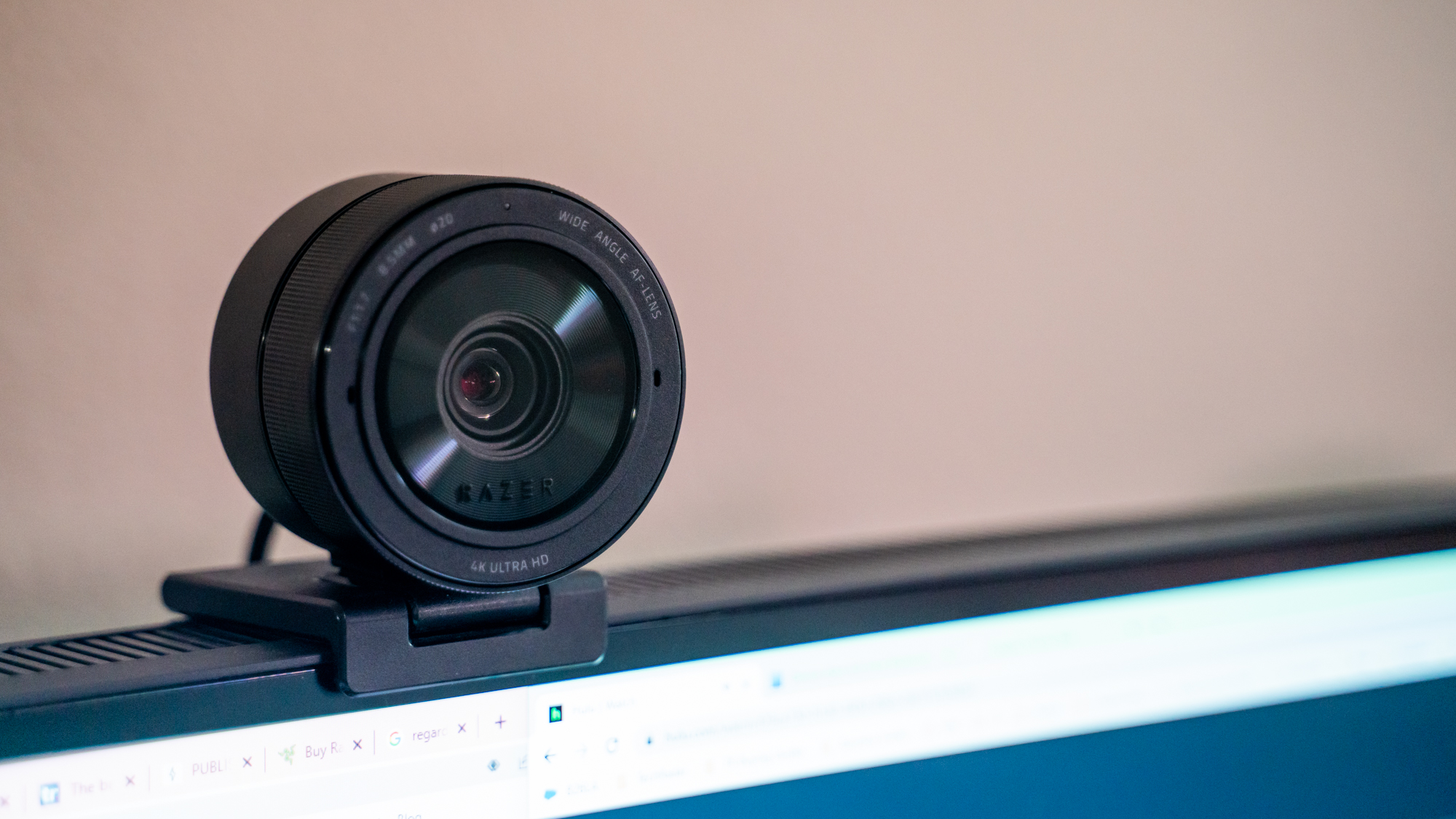
Razer Kiyo Pro Ultra mounted on a monitor

There are reasons to upgrade, though. The difference between 720p and 1080p is often pretty noticeable in practice, and the leap up to 4K is even more significant (although of course, you’ll also be constrained by your display resolution, so don’t shell out for a 4K webcam if you only have a 1080p monitor).

If you want to use your webcam for any sort of content creation, from livestreaming on Twitch to recording video for a podcast orYouTubevideos, then you’re absolutely going to need a 1080p webcam. This is effectively the ‘baseline’ resolution for modern content creation; 4K is obviously better, but 1080p is generally going to be sufficient since most of your audience won’t be watching on 4K screens anyway.

It’s also worth noting that at this point, getting a 1080p webcam isn’t expensive. There are plenty of great 1080p webcams out there that won’t break the bank, and as time goes on, it’s likely that 720p cameras will eventually fade into obscurity (just as 480p ‘Standard Definition’ did before it).

If you’ve been contemplating upgrading, but have been concerned about price, know that it really shouldn’t be a concern at this stage.HP, Obsbot, andLogitechall have great FHD webcams that don’t cost a ridiculous amount.

>>>Replacement battery for Acer Extensa 5635Z 5635ZG

Ultimately, whether or not you upgrade to a 1080p webcam is your choice. Even if you’re not planning on creating content with your webcam and simply want to look better on calls with family and colleagues, then it’s not a bad move to future-proof your setup.

Just remember: your video quality on live calls will also be dependent on the speed of your internet connection, so that may be another thing you need to upgrade!

The Razer Blade 14 is amazing — but should “normal” people actually buy this ultra-premium gaming laptop?

Who should spend their money on the expensive Razer Blade 14?

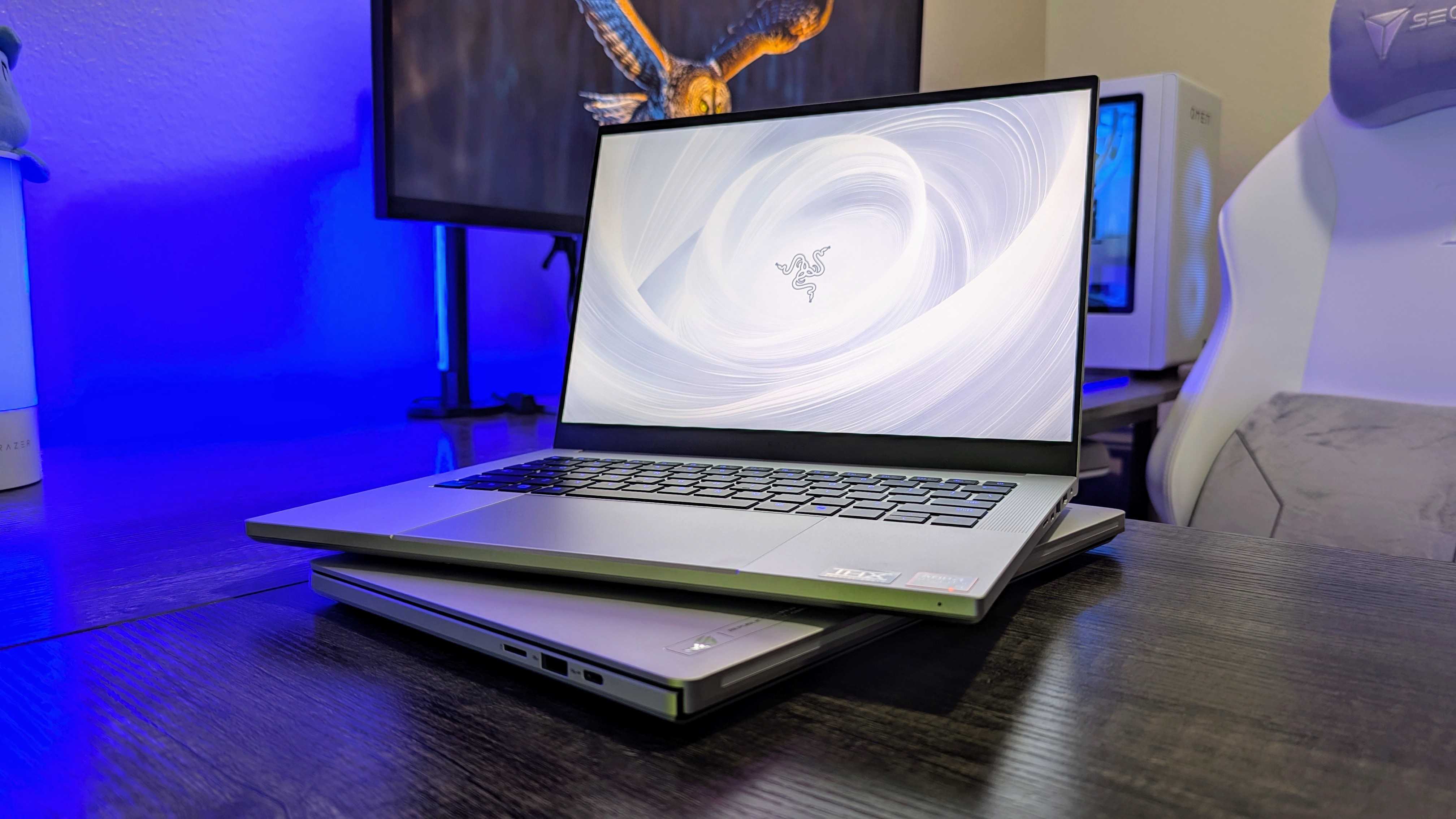
Image of the Razer Blade 14 (2025).

It’s difficult to find fault with the Razer Blade 14, but that doesn’t mean you should spend your money on it.

I recently reviewed the Razer Blade 14 (2025), the latest iteration (and a complete redesign) of Razer’s best-selling and most portablegaming laptop.

I awarded the new Blade 14 a healthy 4.5/5 star rating and generally praised this premium and powerful device, but hovering over every item of praise was the overbearing price tag attached to it.

That begs the question —Razermay have crafted an incredible gaming machine, but what kind of person should actually spend their hard-earned money on it?

Statistically speaking, most of the people reading this article probably don’t. Here’s what sets theRazer Blade 14apart from most laptops, and exactly who should consider making it their next companion.

>>>Replacement battery for Razer Blade RZ09-01302E22 RZ09-0102 RZ09-01161 RZ09-01301E41

What makes the Razer Blade 14 (2025) so special?

Image of the Razer Blade 14 (2025) gaming laptop.

The Razer Blade 14 is packing some serious firepower.

14-inch laptops are a dime a dozen, even if you only consider premium options from companies likeHP,Lenovo,Dell,Apple, and many more. So, where does the Razer Blade 14 fall?

Unlike most premium 14-inch devices, the Blade 14 is designed with gaming and creation in mind. That means it packs some of the most powerful hardware you can squeeze into a laptop, despite being around 16mm thick (to put it into perspective, that’s actually thinner at points thanthe Surface Laptop 7 we reviewed).

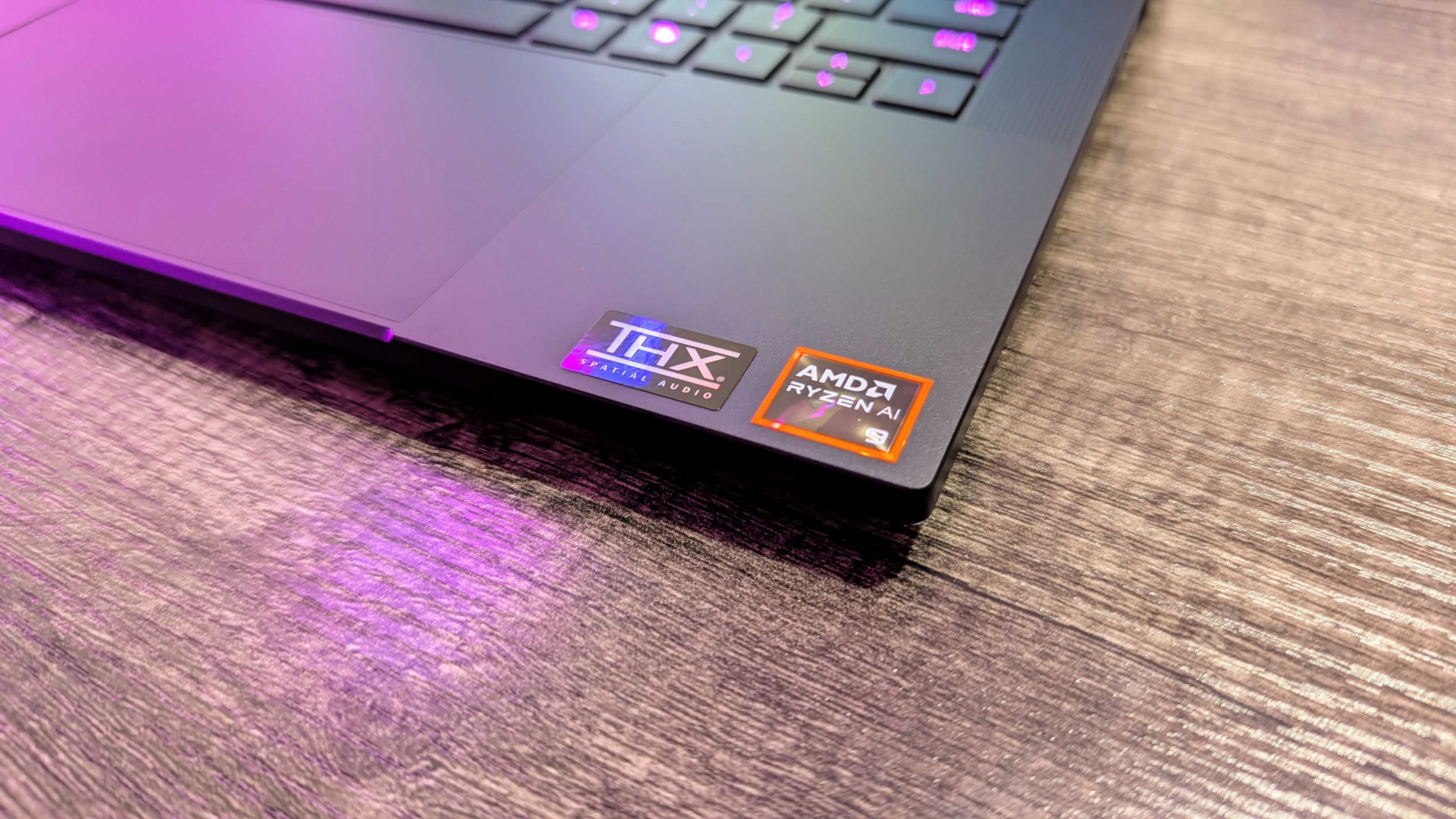
The Razer Blade 14 has a lot of other things going for it: an attractive and durable body milled out of a single block of high-grade aluminum, a vibrant and responsive 120HzOLEDdisplay, a bolsterious six-speaker system with spatial audio, all the ports you could ask for, andWindows Hellofacial recognition to log you in without a password.

Under the hood, though, you’re getting one of the bestAMD Ryzen AIchipsets and anNVIDIA GeForceRTX 50-series GPU, which enables high-performance gaming, content creation,andsupport for all the bestAIfeatures aCopilot+ PCcan offer.

That’s a whole lot of PC in a small package.

>>>Replacement battery for Razer Blade 15 Base 2020

Aren’t normal laptops also quite powerful now?

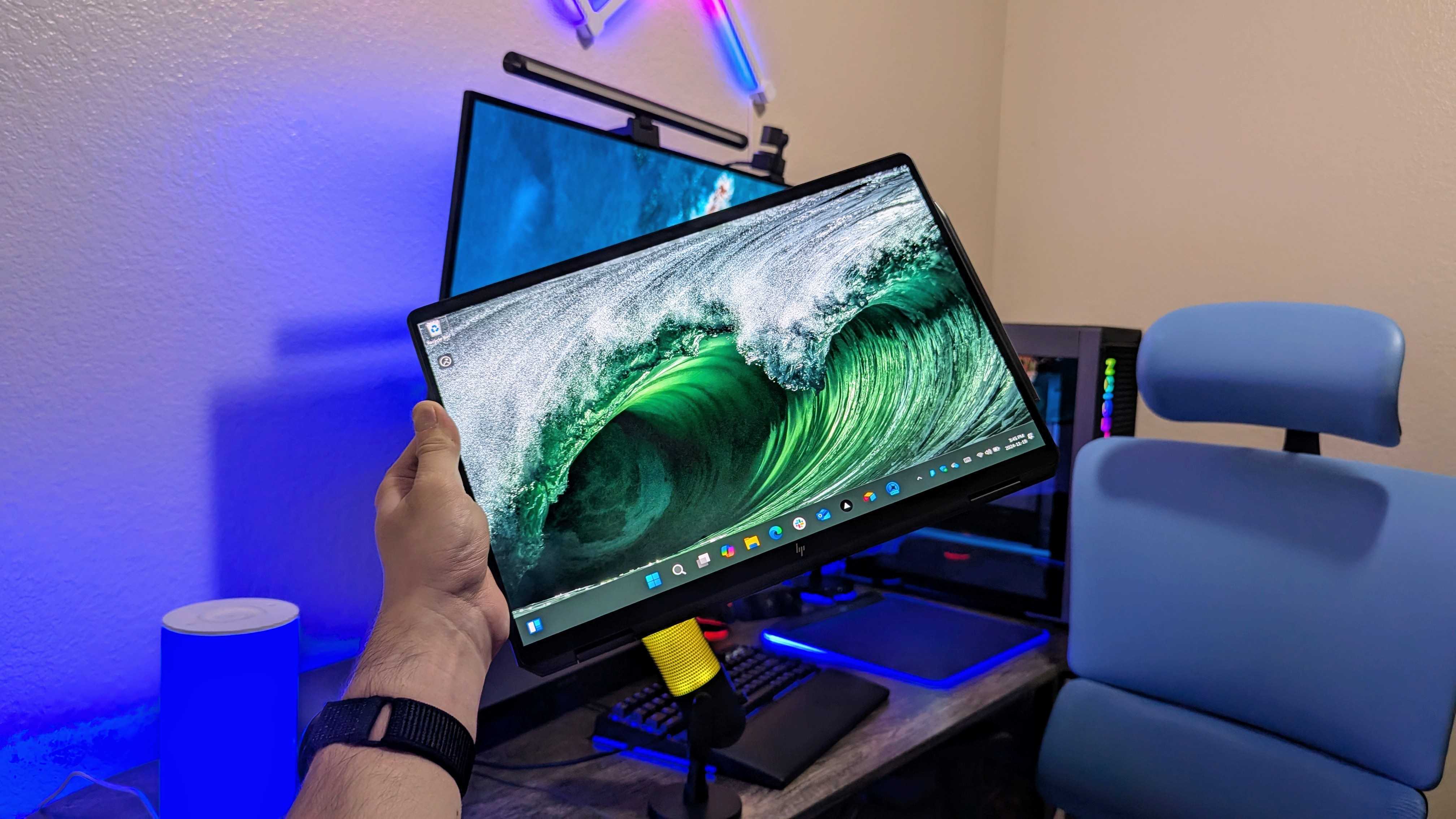
The HP OmniBook Ultra Flip 14 (2024) held in the hand in tablet mode.

For most people looking for a capable, premium 14-inch laptop, I’d recommend the OmniBook Ultra Flip before the Blade 14.

There’s simply no debating whether the Razer Blade 14 is one of the most powerful 14-inch laptops ever made — it is. That doesn’t mean that all other 14-inch laptops are slow, though; they’re simply designed for something else.

Takethe HP OmniBook Ultra Flip 14 (2024) I reviewed. This is still one ofthe best Windows laptopsI’ve ever tested, and it’s the laptop I chose to use as my backup whenever I’m not reviewing something else.

It’s thinner and lighter than the Blade 14, boasts a versatile 2-in-1 design with touch and stylus input, and true all-day battery life (where the Blade 14 can only make it through a full day if you cut some corners). It’s alsocheaperthan the Blade 14, despite arguably offering more features.

There’s no discrete NVIDIA GPU inside, nor is theIntel Core Ultra (Series 2)chipset it relies on as performant as the RyzenAIat the Blade 14’s center, but performance is still buttery smooth for 99% of what 99% of people do on their computers… even gaming.

Obviouslythe Razer Blade 14 will play games at higher resolutions, higher framerates, and higher settings.Of courseit will render video faster. But the OmniBook Ultra Flip can still play most PC games at lower settings just fine, and that’s all most people need.

>>>>Replacement adapter for Razer Blade 15

Why should I consider the Razer Blade 14?

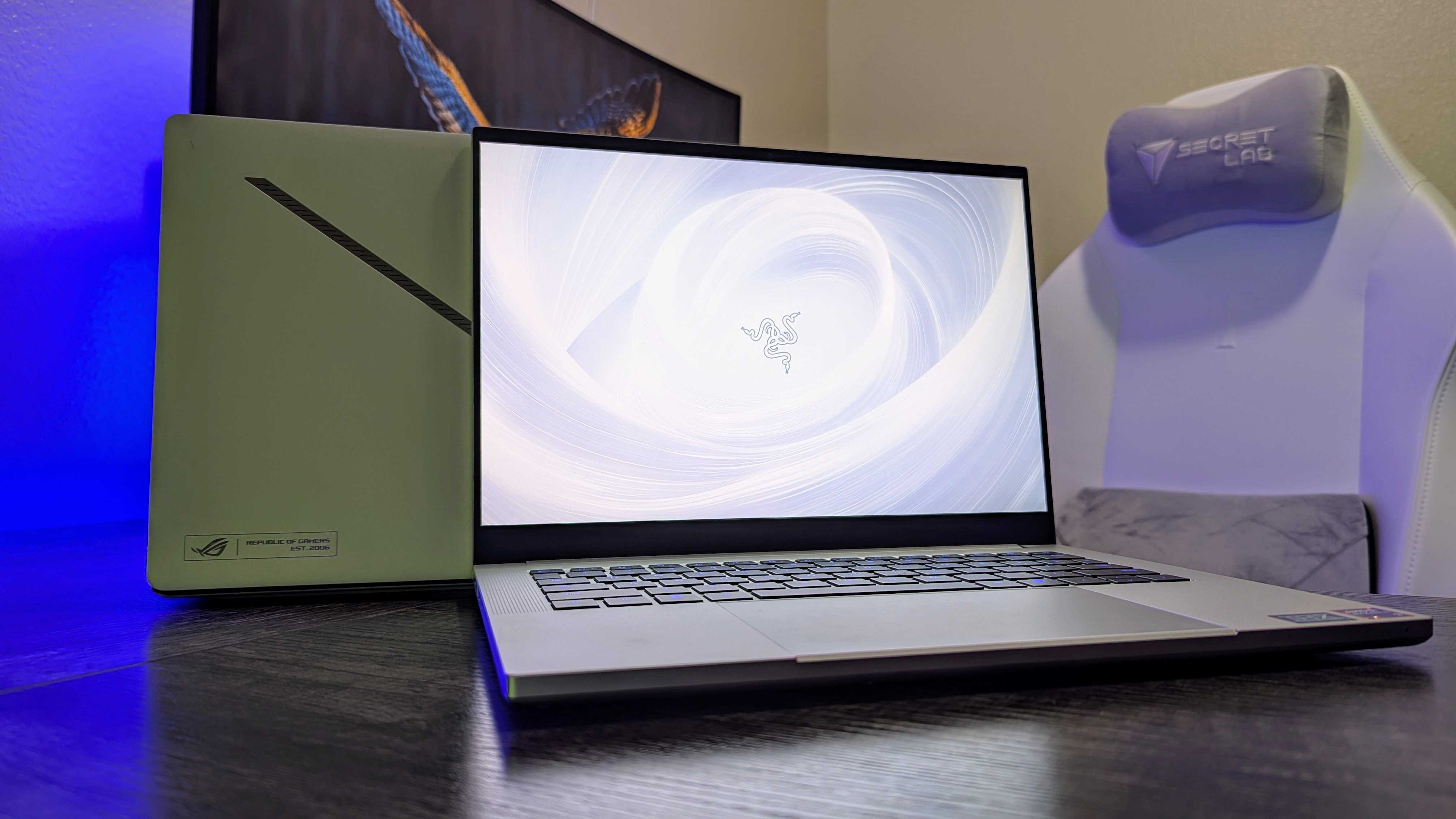
Image of the Razer Blade 14 (2025).

There are a lot of great laptops that will do what people need it to do for less than the Blade 14.

If you need a reliable and competent 14-inch Windows laptop and are willing to pay for a premium device with more features, there are plenty of excellent alternatives like the HP OmniBook Ultra Flip 14 — many with more versatile and portable designs, longer-lasting batteries, and even more AI features.

If you need a powerful gaming laptop that will spend most of its time plugged in, there are plenty of excellent alternatives like theLenovo Legion Pro 7i (Gen 10) I reviewed— many with far superior performance, greater thermal management, better keyboards, and larger and faster displays.

Even if you need a laptop that carefully straddles the gap — by offering most of the performance of a 16-inch gaming laptop with most of the portability and features of a 14-inch ultrabook — I’d still suggest considering something likethe ASUS ROG Zephyrus G14 (2024) I reviewed.

That laptop targets a similar niche as the Razer Blade 14 (2025), and italwayscosts a lot less from configuration to configuration. I also love that laptop (so stay tuned for my review of the 2025 update, because I have that in hand right now).

Image of the Razer Blade 14 (2025) gaming laptop.

The Razer Blade 14 is a phenomenal feat of engineering, and it’ll serve the people who need it well.

That’s a lot of “buts,” and I can still happily recommend the Razer Blade 14 (2025). All I’m offering is a word of caution; be sure the Blade 14 is the tool you need to get the job done.

Depending on your needs, you can find better battery life, better performance, or better value in many of the otherbest Windows laptops.

If what you need, though, is a thin and light luxury laptop with an industry-leading premium design, enough performance for all the greatest PC games and most demanding workloads, and a battery capable of lasting a full day when you need it to, then the Razer Blade 14 is thepeakof that specific category.

Just be prepared to pay for it, asthe Razer Blade 14 (2025) startsfrom $2,299.99 at Razer. It’s not a question of whether the Blade 14 is worth it, because itdoesjustify that cost — it’s a question of whether it’s worth it toyou.