WTF is RAM, anyway?

Our laptop expert breaks down confusing computer jargon.
Convoluted, jargon-laden hardware specifications (specs) can make laptop shopping difficult for those of us who aren’t especially tech-savvy. But as Oriccabattery’s residentlaptopexpert, I know that being able to decipher them is essential to pinpointing PCs that fit your needs and identifying whendeals are actually worthwhile. So, a basic working knowledge is valuable.
Below, I walk through common specs for today’sApple MacBookandWindows laptopcomponents in plain language, and dole out some recommendations for different types of users. (For a deeper dive into specs forChromebooks, which are cloud-based laptops that run on Google’s ChromeOS, read our dedicated”Chromebooks versus laptops” guide.) Spoiler alert: The RAM in question is not a horned sheep, the chiclets are not edible, and the nits you’ll encounter don’t have the potential to hatch your scalp.
>>>Replacement battery for Lenovo Yoga Slim 7 Gen 9th 2024 83ED000AFR
Processor

Credit: Intel
The central processing unit (orCPU) is a chip inside a laptop’s motherboard that’s responsible for executing all tasks and commands. It’s often referred to as the machine’s brain or control center.
Modern MacBooks run on Apple’s custom-made M-series chips. In Windows laptops, you’ll find CPUs made by Intel, AMD, and Qualcomm (i.e., its Snapdragon line). Qualcomm processors are based on a different kind ofWindows architecturethanIntel and AMD chips, and as such, they don’t work with some games and certainspecialty apps.
I don’t typically recommend buying a laptop with a processor that’s more than two generations removed unless your needs are basic, or if you care more about saving money than future-proofing. (Older laptops tend to be way cheaper and easier to find on sale than newer ones.) It’s really easy to tell the age of a MacBook’s CPU: The bigger the number in its M-something processor name, the newer and faster it is. Intel andAMD’s naming schemais a bit more complex — the former has aCPU generation guideon its website — but put simply, they follow the same “higher model number equals newer/better” logic.
Shoppers can pick from three different Qualcomm chips in Windows laptops as of mid-2025: the Snapdragon X, Snapdragon X Plus, and Snapdragon X Elite. I’ve listed them in order from least to most powerful, but the low-endSnapdragon X chipis the company’s latest release.
Graphics processor
The graphics processing unit (orGPU) is a specialized chip that’s responsible for rendering the visuals on a laptop’s screen.
There are two different species of GPUs out there. One is anintegrated GPU, which is built into the laptop’s CPU and shares its memory with it. They’re cheaper than the alternative, but they’re also not powerful enough for serious gaming or multimedia editing. Integrated GPUs have the same manufacturer as their CPU (Intel goes with Intel, Qualcomm with Qualcomm, etc.).
The other type of GPU you’ll come across is a dedicated GPU, akadiscrete GPU, which is a standalone graphics card that has its own memory. They offer more power for intensive tasks but consume a lot more of it: Laptops with dedicated GPUs (e.g., gaming laptops) tend to have lousy battery lives. They also cost a premium. Among dedicated GPUs, the biggest names areNvidia’s GeForce RTX seriesandAMD’s Radeon RX series. GeForce RTX GPUs can be paired with CPUs from any manufacturer, but Radeon RX GPUs only come with AMD CPUs.
In comparing dedicated GPUs between different laptops, I usually advise prospective buyers to go up to two generations back if they want a good deal or if they mainly playcasual and indie games. If you’re someone who keeps up with the latestTriple-A games(and you’ve got cash to burn), a current-gen GPU is worth the investment. When it comes to decoding GPU model numbers, higher numbers still indicate brawn and brand-newness.
>>>Replacement battery for Lenovo Xiaoxin 16 IRL8 2023
Memory

A laptop’s random-access memory (RAM) is where it temporarily stashes the data its CPU needs for any active applications. The more RAM a machine has, the more tasks its system can handle simultaneously.
Sixteen gigabytes of RAM has become the industry standard as of late,even among MacBooks, and that’s going to be a great starting point for most people. You can bump that up to the next configuration tier (usually 32GB) or higher if you do a lot of demanding gaming orcontent creation. Those with basic workloads can get away with 8GB of memory — “basic” meaning sending emails, writing documents, watching YouTube, and maybe playingMinecraft— but don’t go any lower than that.
As mentioned, dedicated GPUs have ready access to their own little stockpile of RAM calledVRAM, or video random-access memory, for handling graphics data. The more visually intricate Triple-A games you play, the more VRAM you’ll want.
>>>Replacement battery for Lenovo IdeaPad Slim 5 14IMH9
Storage
A laptop’s storage is the space where it keeps long-term data — your documents, downloads, photos, videos, and audio files.
You’ll run into a few different types of storage at different pricing levels. SSD (Solid-State Drive) storage is used in mid-range and premium laptops, while UFS (Universal Flash Storage) and eMMC (embedded MultiMediaCard) flash storage are common in budget PCs. They go in that exact order from fastest to slowest data transfer speeds.
Casual users can get by with 256GB of storage, the standard starting configuration for most laptops, but you’ll want to upgrade to at least 512GB for a daily driver, especially if you do any sort of regular gaming or creative work. Keep in mind that the laptop’s operating system takes up a chunk of its storage space, so you won’t get to utilize the full advertised capacity.
Display

A laptop’s display (or screen) is the panel on which it produces text and visuals. It’s the focal point of the device’s lid, the thin slab attached to its base (or chassis) with hinges. It also serves as your main way of interacting with the laptop’s software, so it’s crucial that it’s relatively nice and apt for your needs. Consider the following display specs:
Screen size
Laptop screens range in size from 11 to 18 inches, and like TV screens, they’re measured diagonally from corner to corner. Stick with the lower end of that range (11 to 13 inches) if you frequently work on the go and prioritize portability. Stay in the middle (14 to 15 inches) if you want a machine that has more power and screen real estate for multitasking, but is still relatively easy to tote around. Go for the upper end (16 to 18 inches) if you’ll mainly be using your laptop for gaming or multimedia work, and you’re OK with it staying parked in one spot most of the time.
Screen type
Delving intolaptop display technologiesgets convoluted and acronym-heavy fast, so I’ve done my best to compile a brief, no-nonsense rundown of the two-ish types you’ll encounter most often.Touchscreenscome in both varieties, for what it’s worth.
LCDscreens are the standard among low-end to mid-range laptops. They look fine and don’t suck up a ton of power. There are two notable LCD subtypes, one beingIPSdisplays, which have better, more realistic colors from wider viewing angles compared to regular LCD displays. The other ismini-LEDdisplays, which are brighter and have better contrast. They’re newer and pricier.
The other main type of laptop screen out there is the thinOLEDdisplay, which features rich colors with deep blacks and stark contrast. They can be decently energy-efficient if their picture isn’t constantly super bright or white. (The main trade-off is a proclivity forburn-in.) They used to be reserved for high-end laptops, but nowadays they’re available on models at a variety of price points.
Resolution
A laptop screen’sresolutionrefers to its dimensions in pixels. (Pixelsare teeny little light-emitting dots that make up the screen’s picture.) The higher the resolution, the sharper the picture is going to be. Full HD (or 1920 x 1080 pixels) is a good baseline for general-purpose usage and even some gaming, but feel free to go up from there if there’s some wiggle room in your budget, or if your workflow necessitates it. Gamers and creatives who like detailed visuals should look into QHD (2560 x 1440) or 4K UHD (3840 x 2160) options.
Resolution is directly tied to another minor display spec calledaspect ratio, which is basically just a width to height comparison. A wider 16:9 aspect ratio has traditionally been the go-to, but 16:10 and 3:2 aspect ratios with more vertical space are getting more popular. They’re considered better for general productivity versus entertainment.
Refresh rate
A laptop screen’srefresh rate(measured in hertz) refers to the number of times it updates its picture per second. The higher the refresh rate, the smoother motion looks. General-purpose laptops typically have 60Hz displays, while fancier gaming laptops range from 120Hz to 240Hz so action-packed titles look clean. There are some gaming laptops out there that go all the way up to 480Hz,but that’swayoverkill.
Brightness
The brightness of a laptop’s screen (that is, the amount of light it produces) is measured in nits. The more nits, the brighter the screen and the easier it is to see its picture in direct sunlight.
Laptop displays generally range from 250 nits on budget models to 600 nits on premium PCs, with some elite content creation laptops capable of cranking up to 1,000 nits and beyond. I wouldn’t go any lower than 300 nits, but I also don’t think it’s necessary to buy the brightest screen possible: There’s a good chance you’ll hardly use it at its maximum setting because it’ll strain your eyes. It’ll also zap the laptop’s battery life. (For reference, I can work all day with my 500-nit MacBook Pro set to about 75 percent brightness.)
Webcam

A laptop’s webcam is the front-facing camera built into its display. It’s located in the top bezel (screen border), or in the case of MacBooks, in a small notch that juts down into the screen. Some webcams come with physical privacy shutters that you can slide open or closed with a finger.
Laptop webcams aren’t as lousy as they used to be: While some gaming PCs still have 720p webcams, manufacturers have mostly (finally) moved on to 1080p as the standard resolution, and many newer models boast 5MP, 9MP, or 12MP options. That said, most of them are still pretty lousy compared tosmartphones’ front-facing cameras, no matter the resolution. If you care deeply about video call quality, I’d just resolve to buy anexternal webcam.
Keyboard

Laptops have “island-style” keyboards with low-profile, spaced-out keys. They’re also frequently called “chiclet” keyboards (as in Chiclets, the square-shaped gum candies). Some include numeric keypads, or numpads, next to theirQWERTYsetups, but they feel rarer nowadays, with most keyboards opting for just the top row of numbers.
Most modern laptops have backlit keyboards; snazzy gaming laptops’ keyboards sport colorful “RGB” backlighting. They also typically have fingerprint readers built into one of their keys for security purposes. Windows laptops from 2024 on have dedicatedCopilot keys— Copilot being Microsoft’s AI assistant.
Touchpad or trackpad
A laptop’s touchpad or trackpad is the touch-sensitive rectangle below the keyboard that allows you to control its cursor without needing a separate mouse. It can be made of plastic (on cheap laptops) or glass (on nicer laptops).
Touchpads onMacBooksandWindows laptopssupport gestures — e.g., pinching your fingers on the surface to zoom. Some higher-end models havehaptictouchpads that produce subtle vibrations when certain actions are performed.
Connectivity

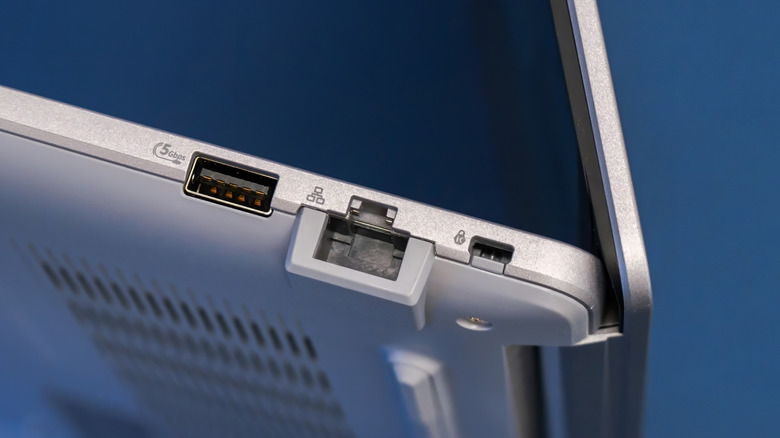
Every laptop has a selection of ports on the side of its chassis — or in the case of some gaming laptops, the rear portion below its hinges — which let the user connect differentaccessories and peripherals. Think external monitors, keyboards, and wired headphones.
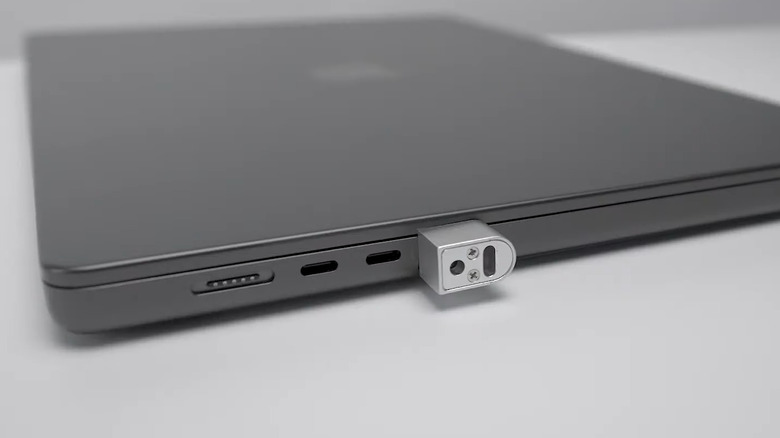
Common ports on today’s laptops includeUSB-Cports,Thunderbolt 4ports, 3.5mm audio jacks, and a charging port. Some models still tack on aUSB-Aport, but those are being phased out. (Such older ports are referred to as legacy ports.) Laptops geared towardmultimedia editingcome equipped withHDMIports andSD/microSD cardslots.
Battery life
A laptop’s battery life is a measure of how long it lasts on a single full charge. This can vary greatly depending on the specs of its other components, their settings, and the tasks the machine runs throughout the battery cycle. Manufacturers typically list laptops’ battery lives as potentials — “up to 18 hours,” for example — and in my experience, they rarely hit their advertised maximum in practice.
Weight
Laptops keep getting thinner and lighter as time goes on, which is stellar if you value portability and sleekness. (Models under three pounds are deemed lightweight.) However, gamers and creative professionals shouldn’t shy away from heavier options. In the laptop world, heft is associated with power.