ARE FITBITS WATERPROOF? WHAT TO KNOW BEFORE DIVING IN

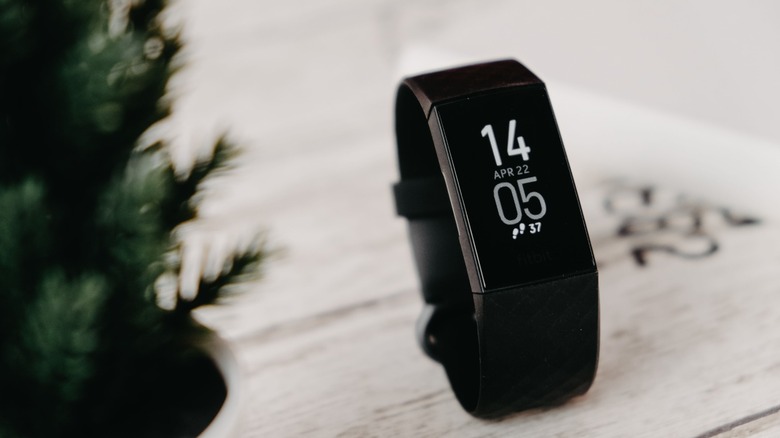
Fitbit Charge 4 fitness tracker on a table

Despite commendable efforts in the space of wearable technology, it seems like consumers have largely settled with smartwatches as the go-to wearable device. Even if you’re unwilling to drop a considerable amount of money for a fully-fledged smartwatch, you can reap good use out of affordable fitness trackers. Among the prominent players in this industry is Fitbit — a brand that has been around for over a decade and a half, and is now owned by Google.Fitbit’s current product lineup isn’t exactly streamlined, but this ensures that there’s a fitness tracker in its catalog for everyone. Regardless of which smart fitness band you choose to go for, you will benefit from health tracking features, integration with Google apps, and more. Beyond the rich feature set and sleek design of wearables, a question that pops up in the minds of prospective buyers is regarding the device’s waterproofing capabilities.You’ll be pleased to know that nearly all Fitbit models you can buy right now feature protection against splashes and even drops underwater. This makes them suitable for everything ranging from sweaty workouts to rainy-day runs. Pairing a modest level of durability with its comparatively affordable price point makes any Fitbit an easy recommendation.>>>Replacement battery for Fitbit Charge 5 FB421 SmartwatchWhich Fitbit models are waterproof?
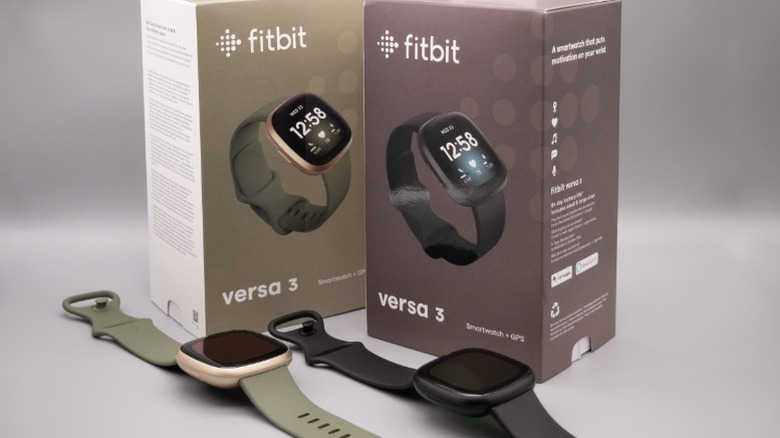
Fitbit Versa 3 fitness tracker outside its packaging

Unlike some of the higher-end smartwatches for Android, Fitbit devices don’t sport an official Ingress Protection rating. This, however, doesn’t mean that a product cannot handle splashes or a few dives underwater. An IP rating requires a product to undergo a set of standardized tests, which add to the overall cost. Despite not featuring this certification, Fitbits are built to withstand exposure to water.Based on official documentation, the following Fitbit models are designed to be water-resistant up to 50 meters:

  • Fitbit Ace 2
  • Fitbit Ace 3
  • Fitbit Charge 3,4,5, and 6
  • Fitbit Flex 2
  • Fitbit Inspire series
  • Fitbit Luxe
  • Fitbit Sense series
  • Fitbit Versa series

>>>Replacement battery for Fitbit Sense 2Being water-resistant up to 50 meters means that you can actually go swimming in shallow waters with your Fitbit and not worry about a thing. However, you will need to factor in how well (or not) the accessory band that’s attached to your Fitbit is going to hold against water. The Fitbit Ace (first generation) is the only model that the company claims is only showerproof, and not water-resistant like the others.Also, be sure not to repeatedly expose your fitness tracker to other kinds of liquid, like soaps and shampoos — these can degrade the effectiveness of waterproofing over time. Make sure your Fitbit is nice and dry before you put it up on charge. Additionally, there’s a built-in Water Lock toggle in select models that disables touch input and accidental button presses, which can wreak havoc underwater.Read More: https://www.slashgear.com/1839799/fitbit-devices-waterproof-rating-pool-shower/

Blame your phone for killing off this traditional Windows app

Android and iOS smartphones (and Bing!) have made Maps redundant.

Windows Maps app

If you’ve ever used your phone to navigate from one appointment to the next, then you’ve probably never used Windows Maps. That’s basically why Microsoft is getting rid of it.

In anongoing calendar of deprecated features within Windows, Microsoft has targeted Maps for deprecation by April. It will be removed from the Windows Store by July and will no longer be supported, the company said. In July, a new update will turn the Maps app off.

“Any personal data or files you have saved, such as guided navigation or URLs to maps, won’t be removed, but they’ll no longer function in the Maps app past July 2025,” Microsoft said. The Maps app won’t come preinstalled on new PCs past the current Windows 11 24H2 release, either.

Maps will still be supported within Windows, however. You’ll simply have to visitBing’s own maps pageto access them.

Maps is a legacy app that was invaluable on Windows Phones, though that platform died years ago. Now, there’s no real reason to hold on to Maps, or to add those few kilobytes to the install size of Windows.

>>>Replacement battery for Microsoft Surface Laptop Studio 1964

Maps, whose data is credited to both TomTom and Microsoft itself, also previously agreed to change the “Gulf of Mexico” to the “Gulf of America.” So if that riles you up, you’ll be glad to see Maps go.

How to enable Nvidia G-Sync

For smooth visuals in game, you may want to know how to enable G-Sync

Nvidia G-Sync

(Image credit: Nvidia)

Sometimes despite having high frames or ahigh refresh rate monitor, games can still look choppy and an easy way to resolve this issue is by enabling G-Sync. For those who are unsure of how to enable G-Sync, we’ll be covering everything from what you need to step-by-step instructions.

G-Sync is a technology that matches your frame rate in game with the refresh rate of your monitor. There are many benefits to enabling G-Sync, including no screen tearing, reduction in stuttering and less input lag. For those wondering how to enable G-Sync, it’s worth noting that you need anNvidia GPUin order to do so.

When considering how to enable G-Sync, the process is very simple and once you’ve enabled it once, you won’t need to constantly keep switching it on.

The technology can make for a much more pleasant gaming experience and with less input lag, it can even make you better at games.

>>>Replacement battery for Fujitsu FPB0361S FPCBP595 CP813800-01

Tools and requirements

  • PC or laptop with Nvidia graphics card
  • Nvidia Control Panel software
  • Up-to-date graphics card drivers
  • G-Sync capable monitor

Steps for how to enable Nvidia G-Sync

  • Open up your Nvidia Control panel
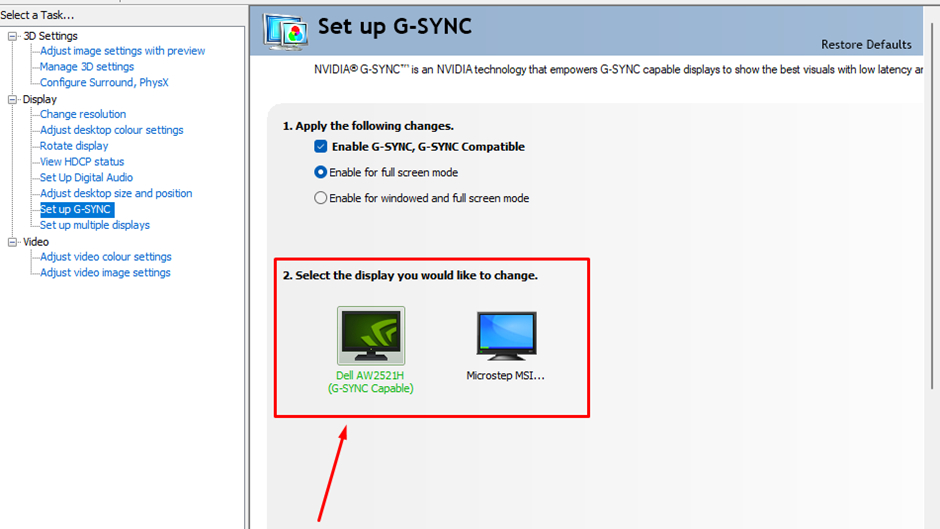
  • Under Display hit the Set up G-Sync option
  • Tick the enable G-Sync box and select whether you want it to enable for full screen mode or both windowed and full screen mode and which display you want to change

>>>Replacement battery for Fujitsu LifeBook U937 U938 U939 U939X


Step by step guide on how to enable Nvidia G-Sync

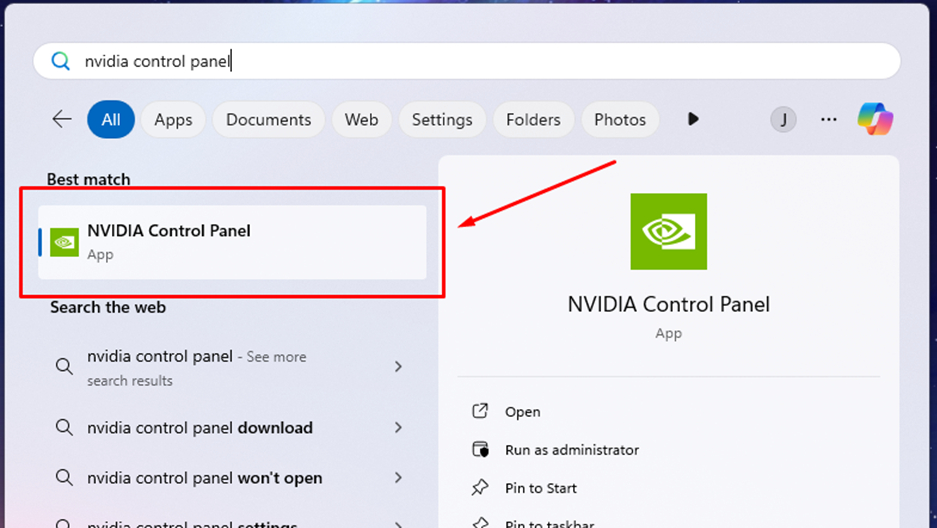
1. Open Nvidia Control Panel

Screenshot showing the Nvidia Control Panel in Windows 11's Start menu

Open up your Nvidia control panel, you can search for this in your taskbar or Start menu.

You can also open it by right-clicking on your desktop, selectShow more optionsand selectNVIDIA Control Panel.

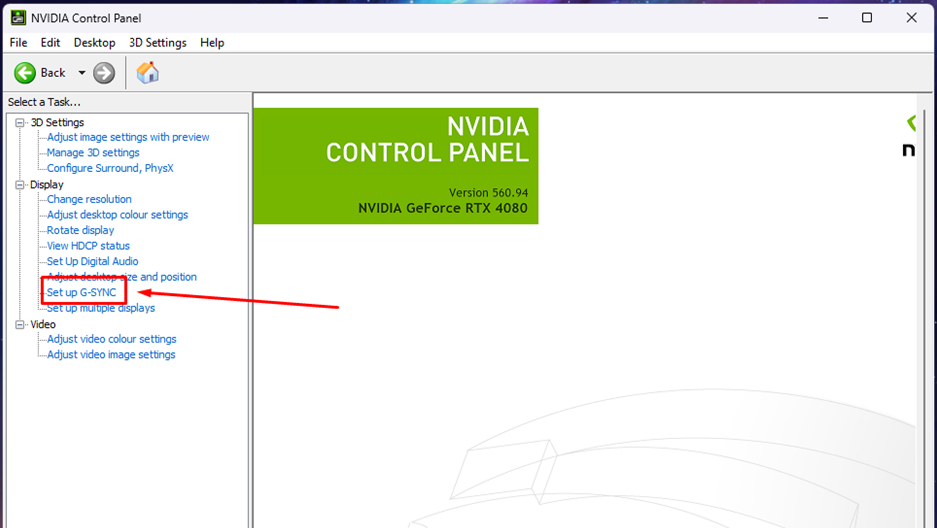
2. Change G-Sync settings

Screenshot showing the Nvidia Control Panel in Windows 11's Start menu

Once the control panel window opens, under the Display category, hit theSet up G-SYNCoption.

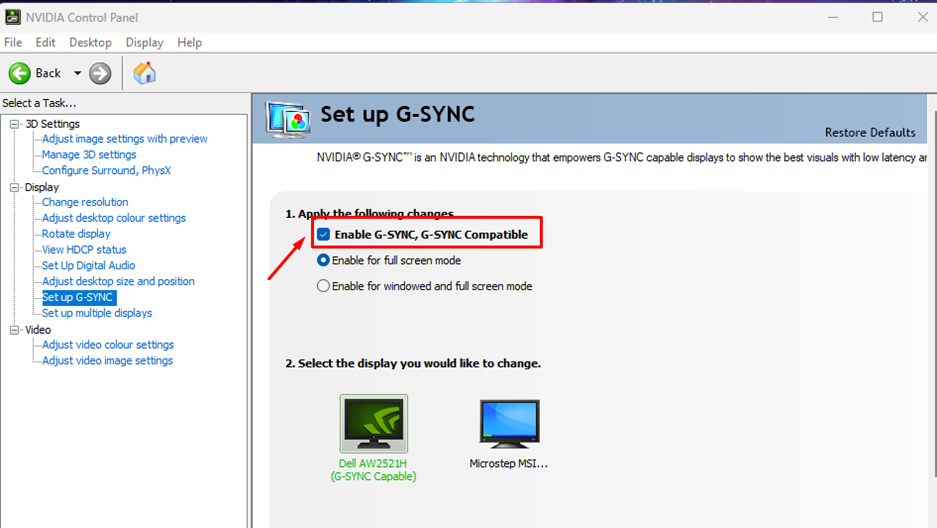
3. Enable G-Sync

Screenshot showing the Nvidia Control Panel in Windows 11's Start menu

Check theEnable G-SYNCbox. If it’s greyed out then you may not have a G-Sync-compatible display or GPU.

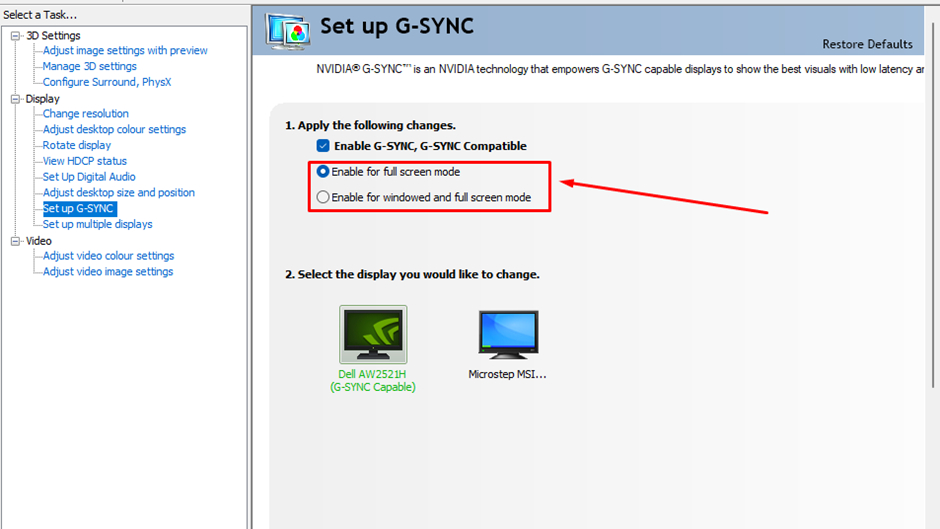
4. Choose when G-Sync is used

Screenshot showing the Nvidia Control Panel in Windows 11's Start menu

Select whether you want to enable G-Sync for when apps are in fullscreen mode or both windowed and full-screen modes. This will be based on whether or not you play games in windowed mode.

5. Choose the monitor to use

Screenshot showing the Nvidia Control Panel in Windows 11's Start menu

If you have multiple monitors, then choose which display you want these settings to apply to. This will be the display that you play games on or your primary monitor.

>>>Replacement battery for Fujitsu LifeBook U7312 U7412 E4412 E5412A E5412

Final thoughts on enabling Nvidia G-Sync

Overall, usingNvidia’s G-Sync technology is a great way to make for the smoothest and most pleasant gaming experience.

By syncing up your frame rate and refresh rate, you don’t have to worry about screen tearing or stuttering.

Another great benefit of enabling G-Sync technology is that it can lead to less input lag, making for quicker reactions that can mean the difference between life and death in competitive games.

WHAT IS USB TYPE MINI B & WHICH DEVICES USED IT?

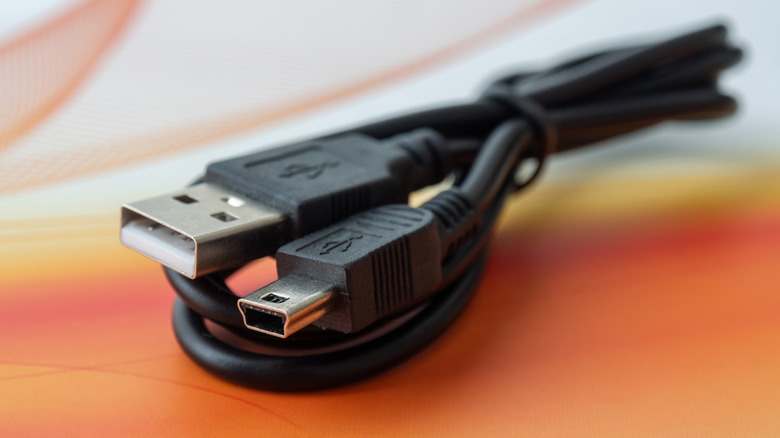
USB Type-A to USB Mini-B cable

Connectors are synonymous with modern electronics, and since the early 2000s, one standard has dominated all others — the USB. While almost everyone who uses an electronic device is familiar with the term, many go about their days using these connectors without knowing exactly what USB stands for. USB stands for Universal Serial Bus, a standard that simplified the way computers connect to peripheral devices like printers, cameras, and external drives. When USB 2.0 made its debut in 2000, along with much faster transfer speeds, the USB Mini-B was introduced. This new connector was a smaller version of the standard USB and was designed to work with compact devices, unlike its bigger Type-B counterpart that was typically found on printers and other bulkier hardware. At the time, devices were getting smaller, and the USB Mini-B provided a way to transfer data and charge devices without taking up much space. Being small wasn’t the only thing that made the USB Mini-B stand out; its design also offered a more secure connection than earlier ports. For these reasons, it became the go-to connector for everything from early smartphones and MP3 players to digital cameras and GPS units. As popular as these connectors were at the time, you’ll rarely see them outside of older or legacy devices today.>>>Replacement adapter for HP Chromebook X360 14-CA051WM 14-CA051WMWhat is USB Type Mini-B?

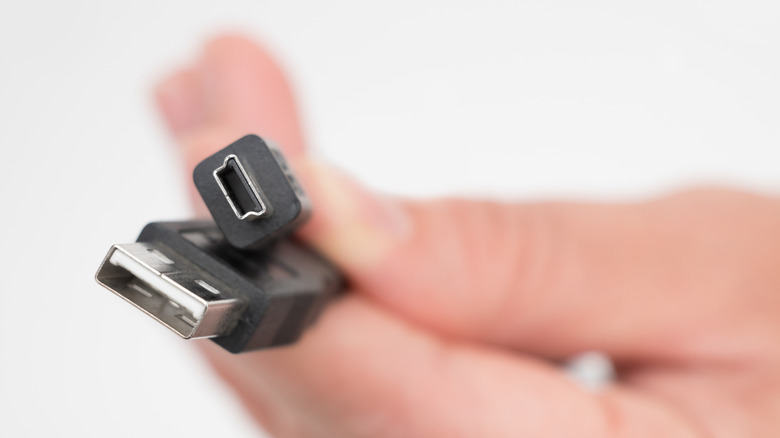
Person holding a USB Type-A to USB Mini-B cable

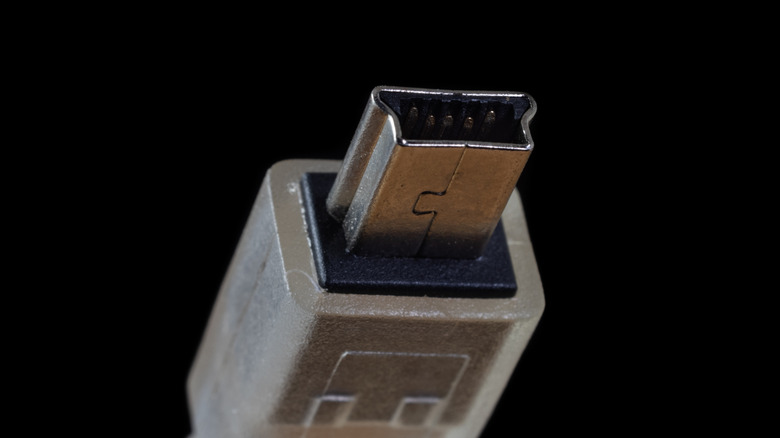
The USB Mini-B is a five-pin connector that came out at the same time as the USB 2.0 standard in 2000. The new standard was an improvement over earlier versions and supported data transfer speeds of up to 480 Mbps. For comparison, the USB 1.1 standard’s speed maxed out at 12 Mbps. You can identify the USB Mini-B based on its small, trapezoidal shape, which is slightly larger than Micro-USB but smaller than the standard USB Type-B connector. The USB Mini-B came about as the demand for compact USB ports increased, especially as portable electronic devices became smaller. While the USB Type-B connector had a large square shape that worked well with printers and scanners, the Mini-B was space-efficient, making it the right choice for the newer digital devices of that time. Since the Mini-B had five pins, including one called the ID pin, it could be used for USB On-The-Go (OTG) — a feature that let devices like phones or cameras switch roles and act as either a host (like a computer) or a peripheral, something that was especially useful for early mobile technology.>>>Replacement adapter for Apple Macbook 12 DisplayWhich devices used USB Mini-B connectors?

USB Mini-B connector

After their introduction in the year 2000, the USB Mini-B quickly became the default connector for small electronic devices. There were a number of reasons for this, including its support for USB 2.0 speeds, size, and durability, all of which often made it the best choice for devices that needed fast data transfer and charging capabilities. The bulkier Type-B connectors that were used with larger devices like printers and scanners just didn’t work with smaller devices. Back when use of the USB Mini-B connector was widespread, you’d find it in all sorts of devices, including digital cameras, MP3 players, external hard drives, and GPS units. The USB Mini-B was also used in some early smartphones, as well as PDAs, before manufacturers of these devices began using Micro-USB and finally USB-C. Over the past couple of decades, there have been several generations of USB connectors, with each building upon the last to improve speed, size, and functionality. While the Mini USB connectors are largely obsolete, you may get a glimpse of them on older electronics and buy replacement cables through online retailers like Amazon.

New smartphone labels for battery life and repairability are coming to the EU

smartphones-tablets-energy-label-with-numbers

The new label highlights energy efficiency, durability, repairability, and battery life.Image: European CommissionTablets are also covered by the scheme, which takes effect in June.

The European Union has announced details of new mandatory labels for smartphones and tablets sold in the bloc, which include ratings for energy efficiency, durability, and repairability. Hardware will also have to meet new “ecodesign requirements” to be sold in the EU, including a requirement to make spare parts available for repair.

The labels, which will be required for any devices that go on sale from June 20th onwards, are similar to existing ones for home appliances and TVs. They display the product’s energy efficiency rating, on a scale from A to G, along with battery life, the number of charge cycles the battery is rated for, letter grades for durability and repairability, and any applicable IP rating for protection from dust and water.

>>>Replacement battery for HP EliteBook 840 G11

An example of the EU energy label for smartphones and tablets

The new labels include plenty of information on a product’s eco credentials.Screenshot: European Commission

Alongside the labels the EU is introducing “ecodesign requirements” imposing minimum standards on the same products. Those include protection from splashes of water (and dust particles larger than 1mm for phones), scratch and drop protection, batteries that retain at least 80 percent of their capacity after 800 charging cycles, and making “critical spare parts” available within 5-10 working days. Manufacturers are also required to provide operating system updates within six months of the source code becoming available — a bar that Samsung would have failed to meet with its recentOne UI 7 rollout.

>>>Replacement battery for HP HSTNN-OB3A N07273-005

Covered products include smartphones and tablets with screens up to 17.4 inches, along with cordless landline phones and feature phones. Phones with rollable displays are exempted — not that any are on sale yet,though they’re coming— while Windows-based tablets will be covered by aseparate scheme for computers.