We special in laptop battery ,laptop adapters for most of top brands, such as apple,acer, asus, dell, fujitsu,hp, compaq, ibm, lenovo, toshiba, samsung, sony on UK,all the ac power adapters, laptop batteries are high quality and low price.
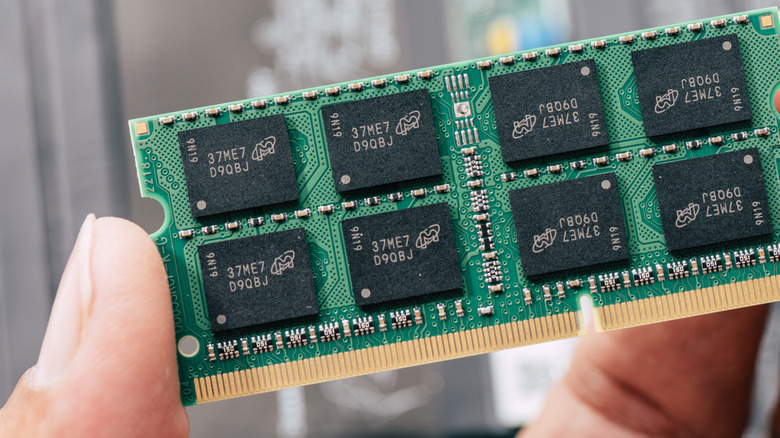
Upgrading your RAM —Random Access Memory — whether you’re getting more RAM or faster RAM, is one of the easiest ways to improve your computer’s performance. With upgraded memory, you can multitask more efficiently, open and update apps and files faster, and experience overall snappier system responsiveness. The good news is that replacing the RAM on your laptop is usually something you can do yourself rather than seeking out a technician. It only takes a screwdriver, pry tool, and some basic knowledge of computer disassembly. However, if you’re not comfortable tinkering with your device, you can always take it to a service center and pay someone to refresh your computer. Unfortunately, while many modern laptops let you swap out the original RAM no problem, not all portable computers actually support such replacements. For one, you generally can’t upgrade the RAM in your Chromebook. You’re essentially stuck with the built-in RAM of your current model. In case you need something faster, you’ll be forced to buy an entirely new Chromebook. Here’s why.>>>Replacement battery for Asus Chromebook Flip CM3 CM3200 CM3200FVAChromebooks don’t have user-replaceable RAMs
Compared to your regular Windows laptop, Chromebooks are considerably more budget-friendly. They typically don’t go over $800, and you can even buy one brand new for as low as $179. One of the biggest factors behind this affordability is the Chromebooks’ soldered RAM. When the memory modules are soldered directly onto the motherboard instead of mounted on slots, the laptops tend to be cheaper to manufacture overall. This is because they require less manpower and fewer components.The downside of soldered RAM, though, is that you can’t upgrade the RAM on your Chromebook as easily. Unlike with a slot where you can quickly insert a new module, a soldered RAM is permanently fixed onto the board. You can’t replace it, unless you go through the tedious and very technical process of figuring out what RAM chips to buy, unsoldering those on the board, and soldering the new chips into place. This isn’t something an average user can do from home. You’ll need advanced knowledge and hands-on experience to upgrade a soldered RAM, and even then, there’s still the risk of damaging the motherboard in the process.>>>Replacement battery for Asus Chromebook C536EA-BI3T3Are there any Chromebooks with upgradable RAM?
Although most, if not all, of the Chromebooks you’ll find today have on-board RAMs, there are some models that did offer upgradeable memory. One of the more recent releases was the Framework Laptop Chromebook Edition in 2022. It’s powered by a 12th Gen Intel Core i5 and comes with 256GB of storage and 8GB of RAM that you can replace later. The Framework Laptop is on the more expensive side at $999, but its modular design makes the premium pricing worth it. To upgrade the RAM in this Chromebook, you simply have to pop the memory stick into the socket as you normally would on any traditional laptop. Regrettably, Framework has already discontinued the Chromebook, so you might have trouble getting your hands on one.Other Chromebooks that used to include user-removable RAM were the Google CR-48 Chromebook, Samsung Chromebook XE550C22, and Acer Chromebook C710-2847 and C710-2833. These models, however, were released back in the early 2010s, meaning they’re already old and aren’t the most powerful laptops out there specs-wise. For instance, the Samsung Chromebook XE550C22 only features 1.3Ghz Intel Celeron, 16GB of storage, and a 1280 by 800 LED screen, which might not even be enough for your multitasking needs. Even if you can buy a refurbished or used one online, it’s probably going to be more trouble than it’s worth. You’re better off browsing the currently available Chromebook models or converting your unused Windows laptop to ChromeOS.
While this device delivers great performance, what else would you expect for over $2,000?
Verdict
Overall, using the Asus ROG Flow Z13 has been an exceptional experience; however, there are a few flaws here that prevent this gaming laptop/tablet hybrid from achieving a perfect score. While you get over 60fps in most games, even when playing with ‘Ultra’ graphics settings, at this price point you can pick up standard gaming laptops that provide better performance. However, there’s no denying that this is a very sleek device for easy on-the-go gaming. It’s lightweight, stays cool and quiet, and is extremely portable thanks to its compact design.
Pros
+Great and consistent performance
+Sleek and compact design
+Stays cool and quiet even when playing AAA titles
This year has seen some of thebest gaming laptopsand gaming handhelds ever made hit the market, which means it can be hard to decide which device you want to pick up for your on-the-go gaming needs.
However, what if you were to take both device categories and smoosh them together? You get the Asus ROG Flow Z13: a high-performance gaming tablet which, unlike other gaming tablets on the market, actually allows you to play ambitious AAA titles and achieve not just playable but good frame rates, all while staying cool and quiet.
The downsides, which stop this device from achieving a perfect score, is the battery life not being great when gaming. However, it does last a decent amount of time when using it for general browsing or watching videos.
Where can you get it? Only available in certain regions
Coming in at $2,099 / £2,199, this is an exceptionally expensive device in terms of gaming tablets. However, with alternatives unbale to offer a similar level of performance, it’s hard to compare price-wise with other gaming tablets.
More similar alternatives are products like theAsus ROG Ally X, the gaming handheld from the same company, which comes in at $799 / £799 and provides you with the same kind of performance.
The Asus ROG Flow Z13 is available in certain regions including the UK and US, however unfortunately it cannot be picked up worldwide.
This gaming tablet from Asus ROG Flow Z13 comes in one iteration in 2025. You get anAMDCPU with a built-in NPU and GPU paired with 32GB of RAM and 1TB SSD making for a powerful machine.
Unfortunately you only get a 1TB SSD with no way to expand the storage, so you may have to invest in an external hard drive if you’re planning on installing large games.
There are other iterations of the Asus ROG Flow Z13 from previous years if you’re looking for other specifications.
Asus ROG Flow Z13 review: Design
Very portable
Fantastic design
Good selection of ports
One of my favourite parts of the Asus ROG Flow Z13 is how compact it is, as you’d expect from a gaming tablet.
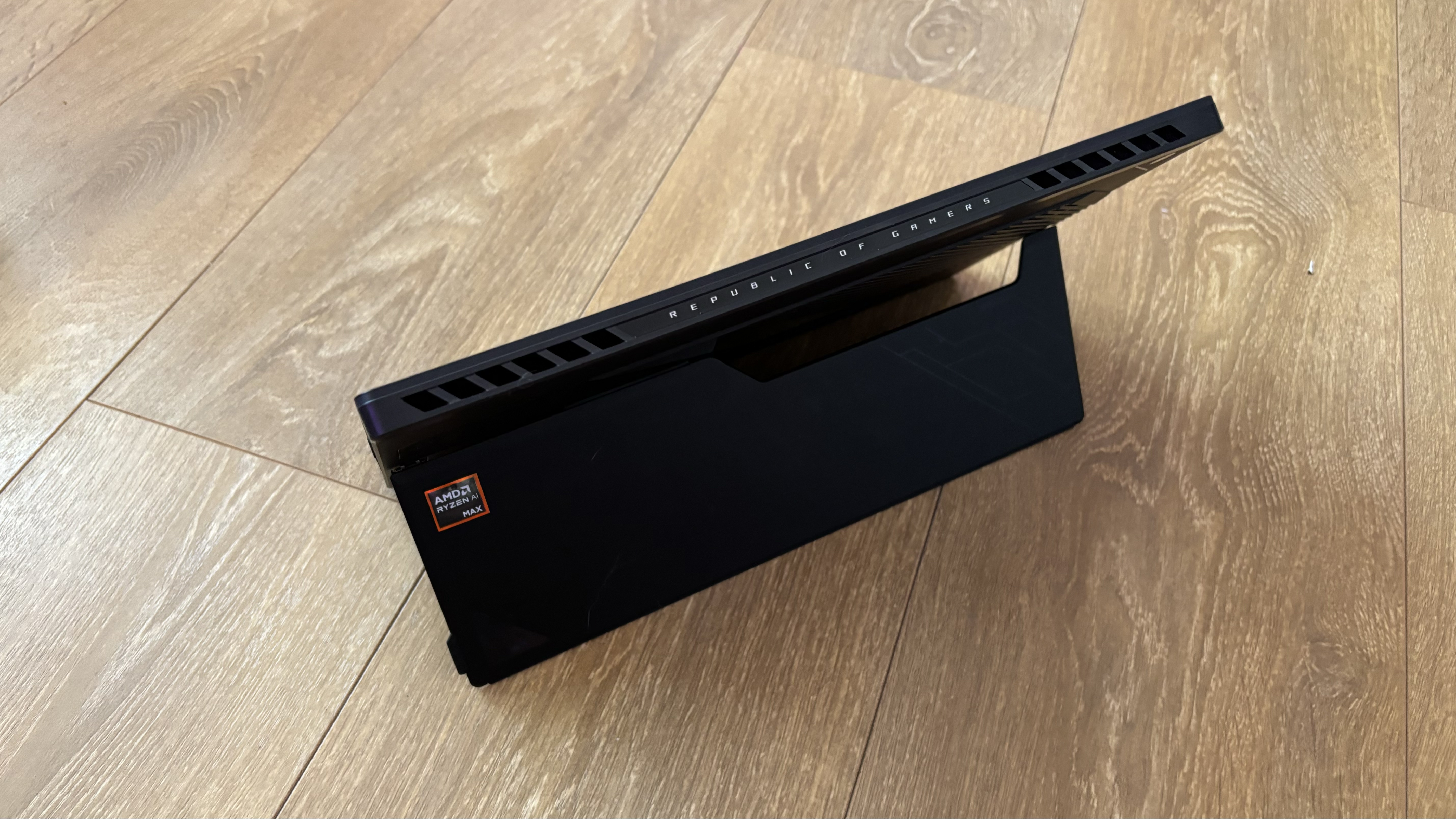
This is a device you can take pretty much anywhere, chucking it into any bag, even a small handbag thanks to how small it is (measuring 30 x 20.4 x 1.30cm). Compared to many gaming laptops that weigh around 3kg, the Asus ROG Flow Z13 comes in at just 1.2kg, perfect for taking your device on the go.
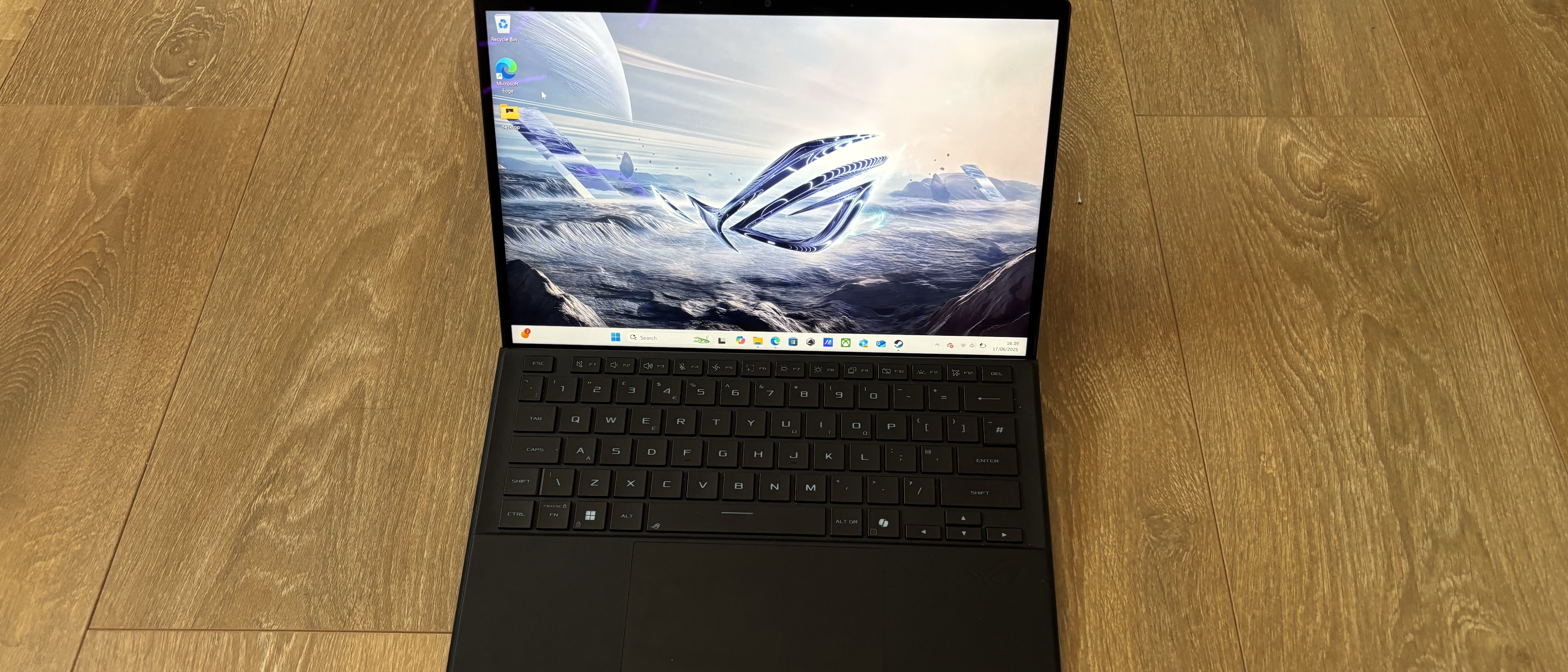
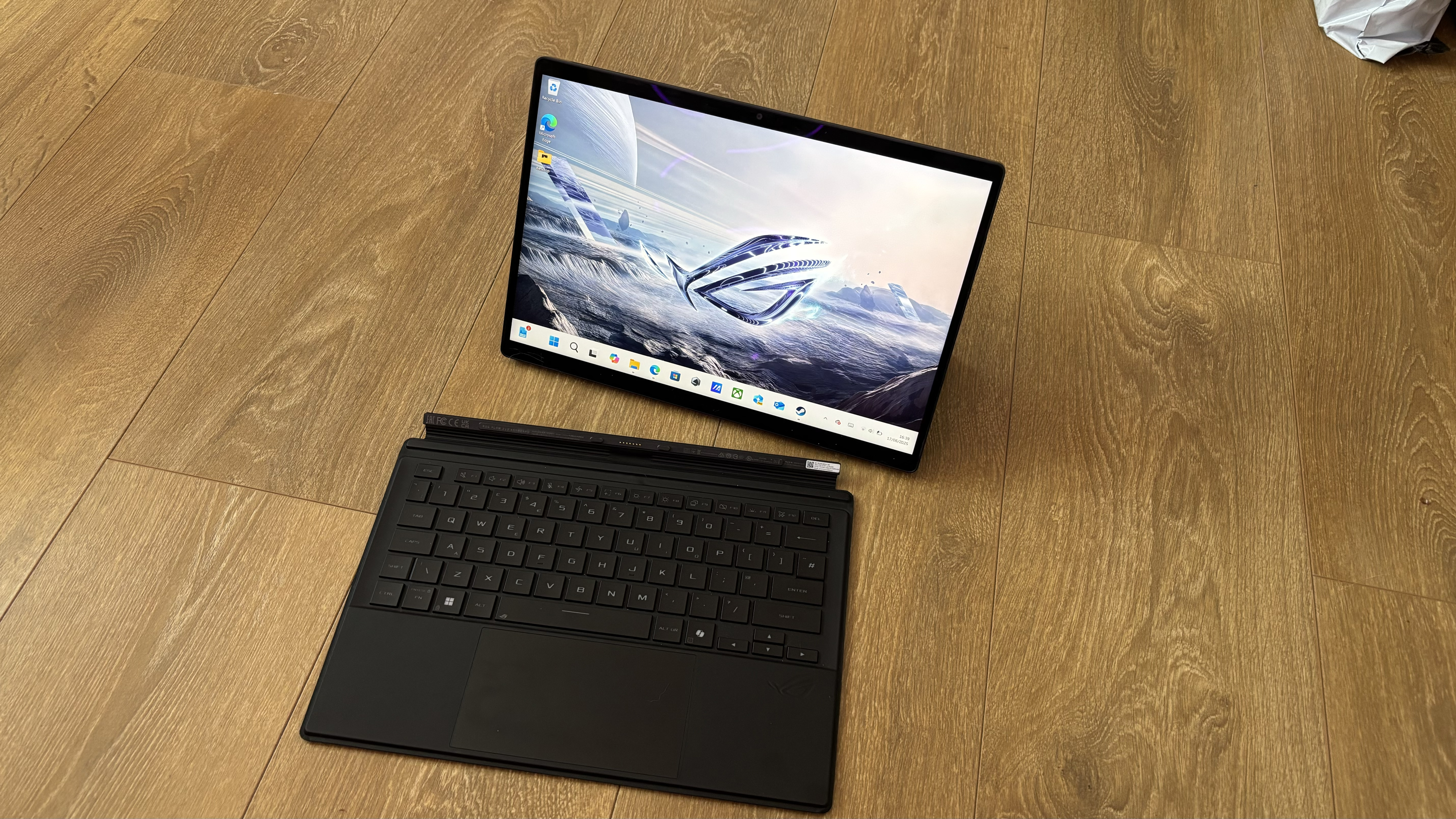
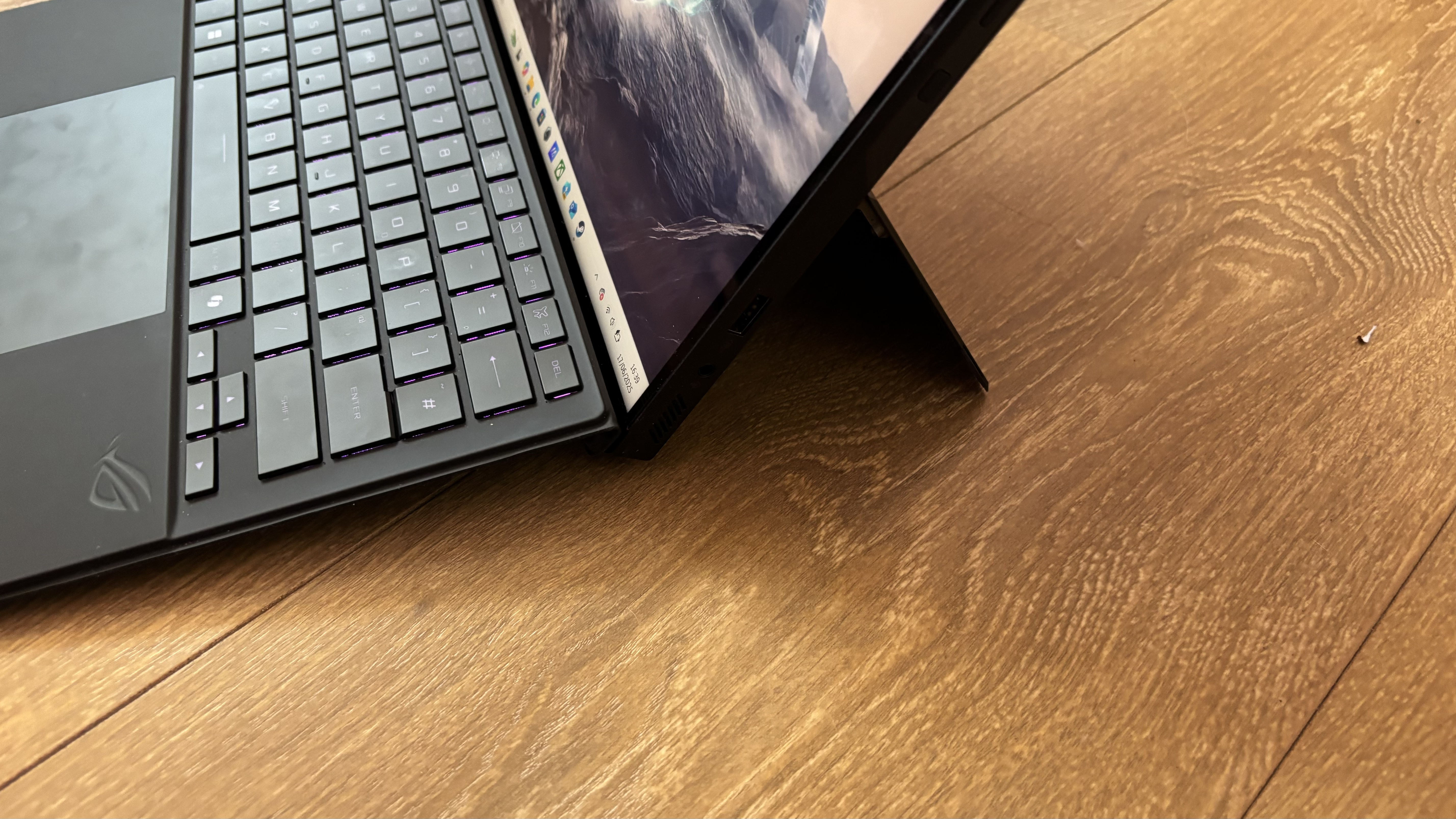
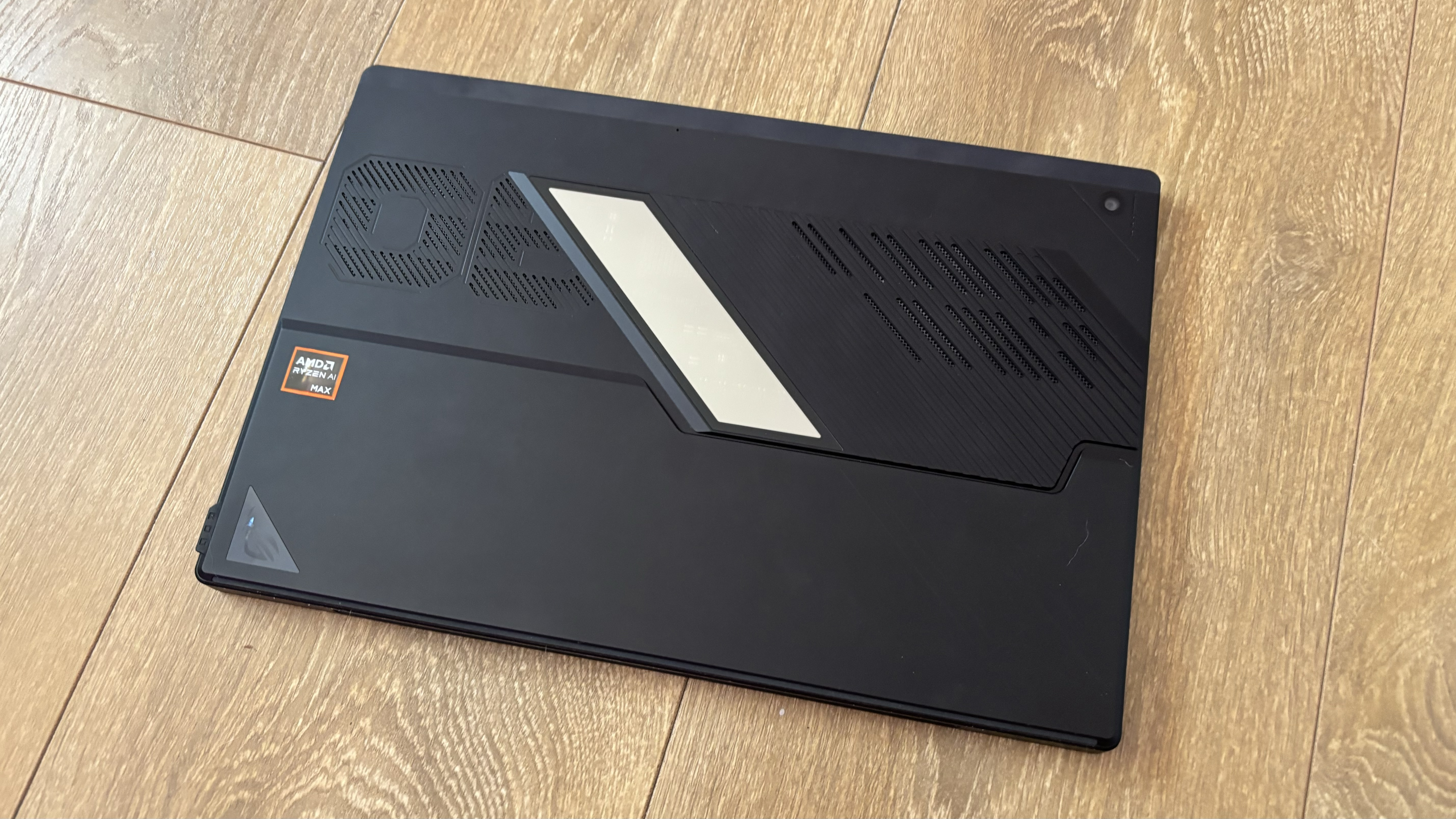
In terms of style, you get a simple and sleek tablet with a detachable keyboard and trackpad. There’s a small window on the back of the device that allows you to view some of the components inside, which is a really nice touch.
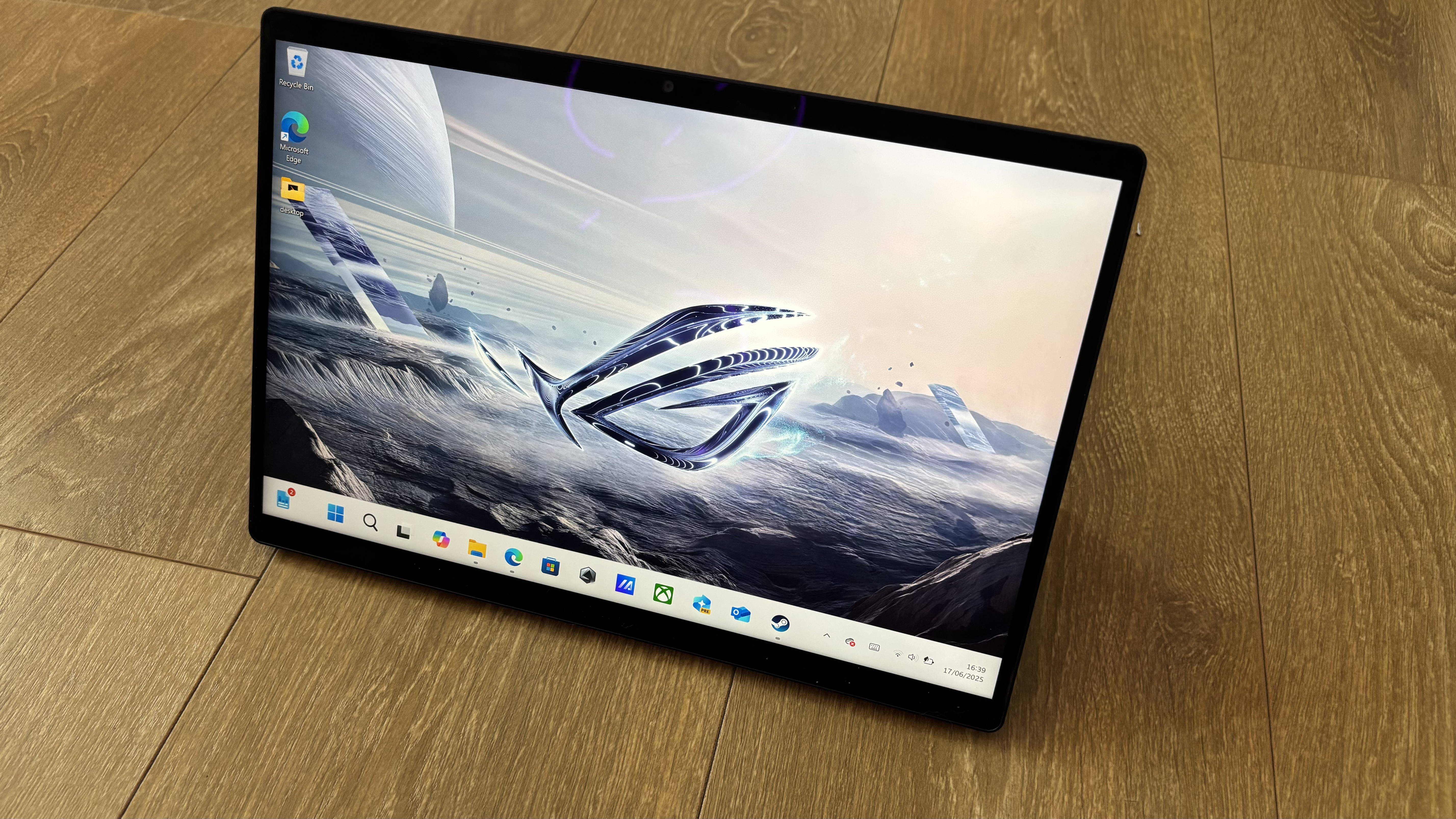
While it doesn’t have anOLEDscreen – something that did shock me initially – the Asus ROG Flow Z13 still has a pretty nice display. It won’t blow you away by any means, but it has a great color range and an exceptional refresh rate for a tablet at 180Hz.
There are a fair amount of ports on the Asus ROG Flow Z13 , including USB-A, two USB-C ports (either can be used for charging), HDMI, an audio jack, and a microSD card reader. This is great for those who are hoping to use other gaming peripherals with their device as there are plenty of options to plug in.
The included keyboard is extremely slim, and while I usually despise tablet keyboards, this one wasn’t as squidgy as alternative options. It made for a satisfying typing and gaming experience, however for those playing competitive titles, I would recommend opting for an externalgaming keyboardfor those precise responses.
Design score: 5 / 5
Asus ROG Flow Z13 review: Performance
Gaming performance is impressive
Overall user experience is great
Quiet when in use
Benchmarks
These are the results of our benchmarking tests for the Asus ROG Flow Z13:
3DMark: Night Raid:36,307;Fire Strike:11,230;Time Spy:4,634 GeekBench 6:2,162(single-core); 11,575(multi-core) CrossMark: Overall:1,417;Productivity:1,241;Creativity:1,760;Responsiveness:1,100 Total War: Warhammer III (1080p, Ultra):63;(1080p, Low):122 Cyberpunk 2077 (1080p, Ultra):73;(1080p, Low):93 Dirt 5 (1080p, Ultra):39;(1080p, Low):80 PCMark 10 Battery Life:6 hr 4 min TechRadar movie test:5hr 55 min
In terms of performance, the Asus ROG Flow Z13 delivers some pretty good framerates for a gaming tablet, however considering the price point, I was actually expecting more.
While for the most part, you get above 60 fps when playing in 1080p at Ultra graphics presets, equivalently-priced gaming laptops would likely be delivering significantly better performance, as they can make use off more powerful hardware without having to fit it into a tablet-like form factor.
The Asus ROG Flow Z13 stayed very quiet the whole time I was using it. Even when putting it through its paces, like running AAA titles at Ultra, I was barely able to hear the device which makes it perfect for using on the go so you’re not disturbing everyone around you.
As you’d expect, due to how quiet it was, it also stayed very cool which is great for a tablet as it means you can still hold it and use the touchscreen as intended without worrying about burning your hands and fingers.
The speakers are pretty good, however as always I would recommend plugging in and using a headset to ensure the best gaming experience. For watching videos and movies, the speakers are absolutely perfect since you don’t need the directional precision.
Outside of the actual performance I was getting in-game, using the device itself has been a very pleasant experience. I enjoyed typing on it, and I found it easy to switch between tablet and laptop mode by just removing or flipping the keyboard back.
One downside for me was the built in trackpad, I found it a little bit slow in terms of responsiveness, while fine for browsing and general use, I obviously opted for agaming mousewhen playing.
Performance score: 3.5 / 5
Asus ROG Flow Z13 review: Battery life
The battery life of the Asus ROG Flow Z13 is actually surprisingly great, surpassing even some of the highest-performance and more expensive gaming laptops I’ve tried recently.
When benchmarking the battery, I was able to get around sixhours of usage, which is more representative of watching videos on the device rather than gaming. When gaming on the Asus ROG Flow Z13, I found I got closer to four hours of battery, with AAA games draining the device even faster.
For example, when playing Cyberpunk I only got around an hour of half of game time before the device shut off, which certainly limits how portable this device actually is, no matter how thin and light it might be.
Battery life: 3 / 5
Should I buy the Asus ROG Flow Z13?
Attributes
Notes
Rating
Price
This is a very expensive device, but it’s hard to compare to alternatives as it’s so unique.
3 / 5
Design
You get a sleek and stunning device which is lightweight and has an excellent range of ports.
5 / 5
Performance
This tablet delivers great performance while staying cool and quiet however laptops at a similar price point would surpass this easily.
4 / 5
Battery life
While delivering a better battery life than some gaming laptops on the market, it’s significantly reduced when gaming.
3 / 5
Total Score
This unique gaming tablet can be used as a more traditional laptop, and offers impressive performance and a fantastic and innovative design. Its high price and compromised battery life prevent it from being perfect, however.
3.5 / 5
Buy it if…
You want a portable gaming device This is super lightweight and compact, making for a great on-the-go gaming device.
You want something cool and quiet Even when put through its paces, it stays very cool and quiet.
You’re looking for good performance across AAA titles I got decent frames in all of the titles I tested out, including AAA titles at ‘Ultra’ graphical settings.
Don’t buy it if…
You’re on a budget You do get a decent battery capacity here, but it won’t last you very long when gaming.
You want a long-lasting battery You do get a decent battery capacity here, but it won’t last you very long when gaming.
Lenovo’s Yoga Book 9i is a well thought-out dual-screen laptop, offering strong performance and usability but very limited battery life.
Verdict
Lenovo’s Yoga Book 9i succeeds as a dual-screen laptop because of its smart software and included accessories. Though its battery life is limited, it can be an excellent productivity tool in the right hands.
Pros
+Two superb OLED touch screens
+Beautiful design
+Strong performance from H-class Intel CPU
+Excellent audio and webcam
+Keyboard, mouse, pen, and stand included
Cons
-Design may be divisive
-Brief battery life
-Only USB-C ports
-Not upgradeable
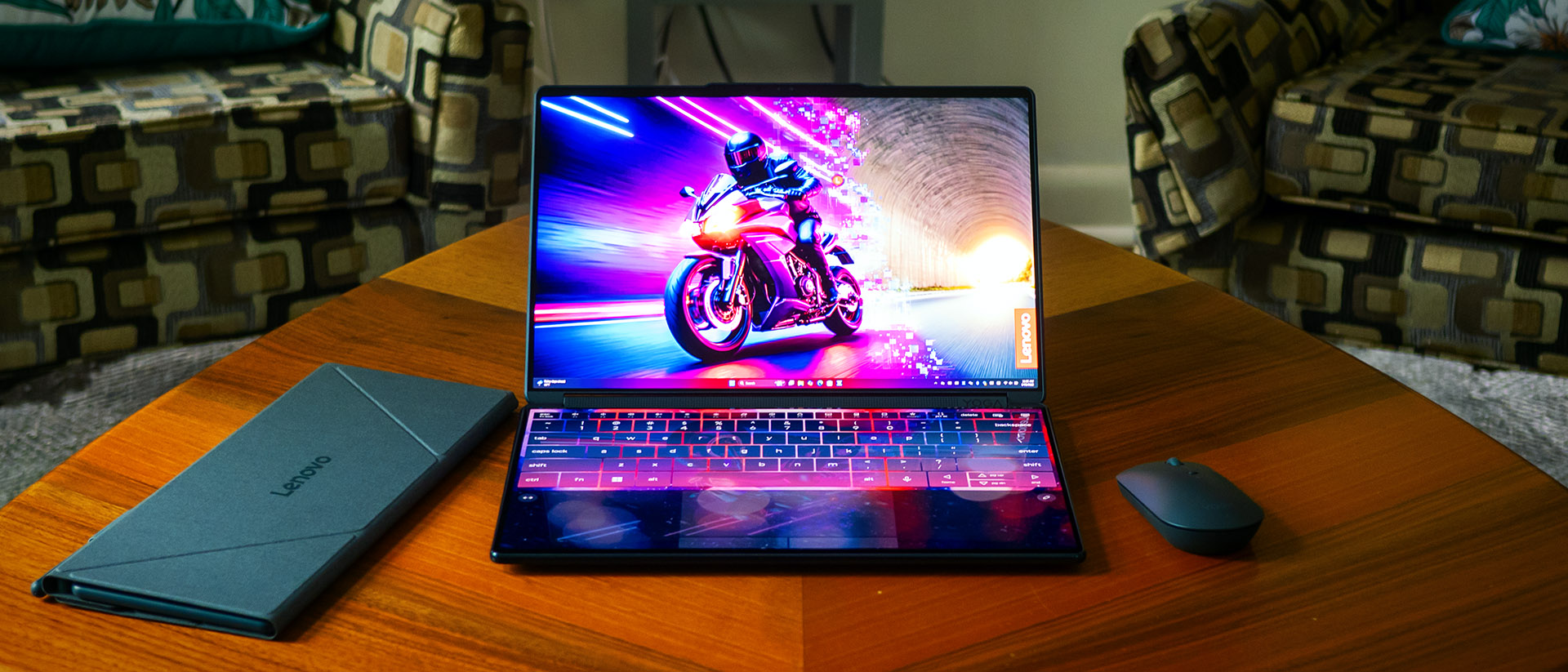
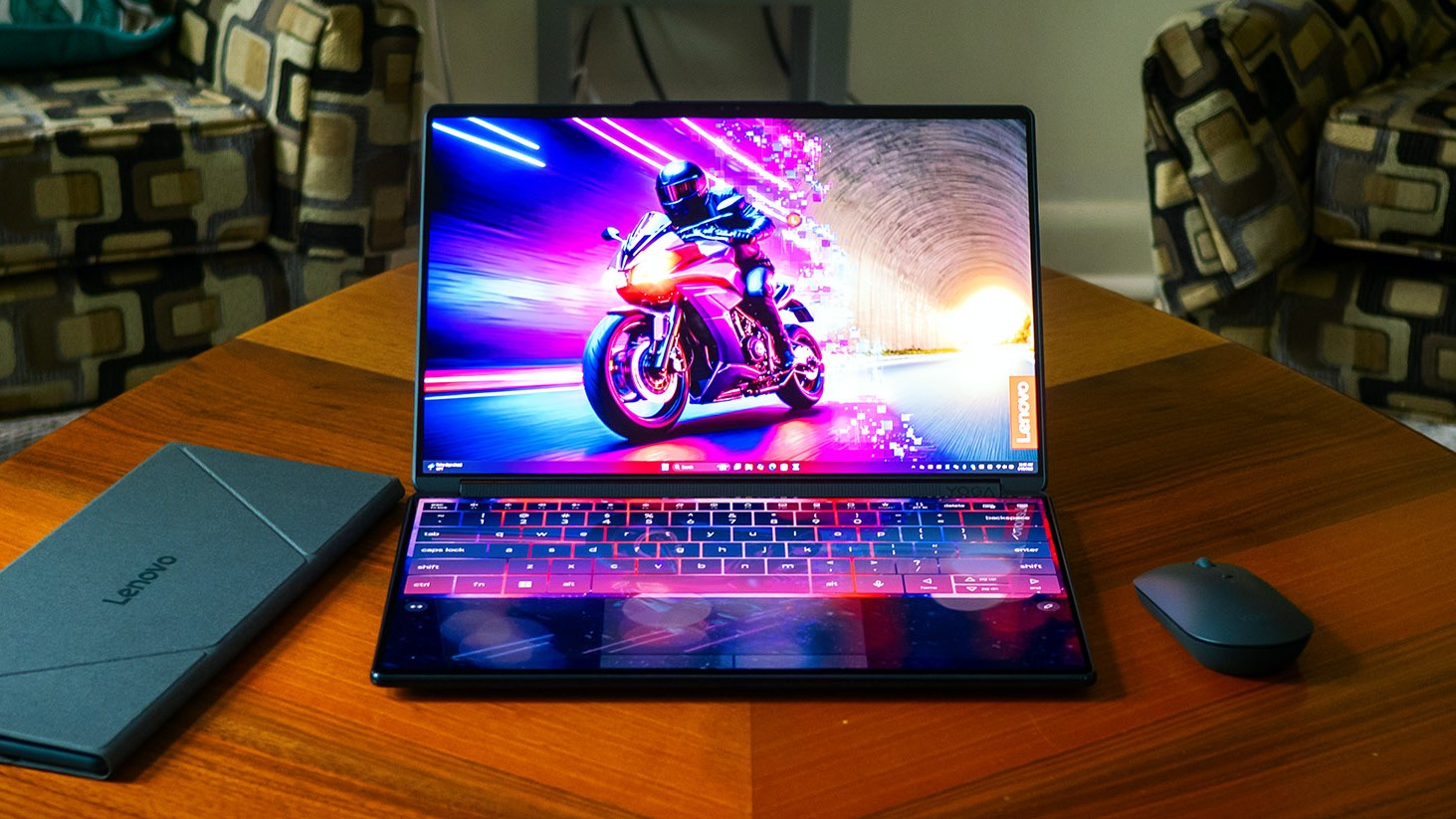
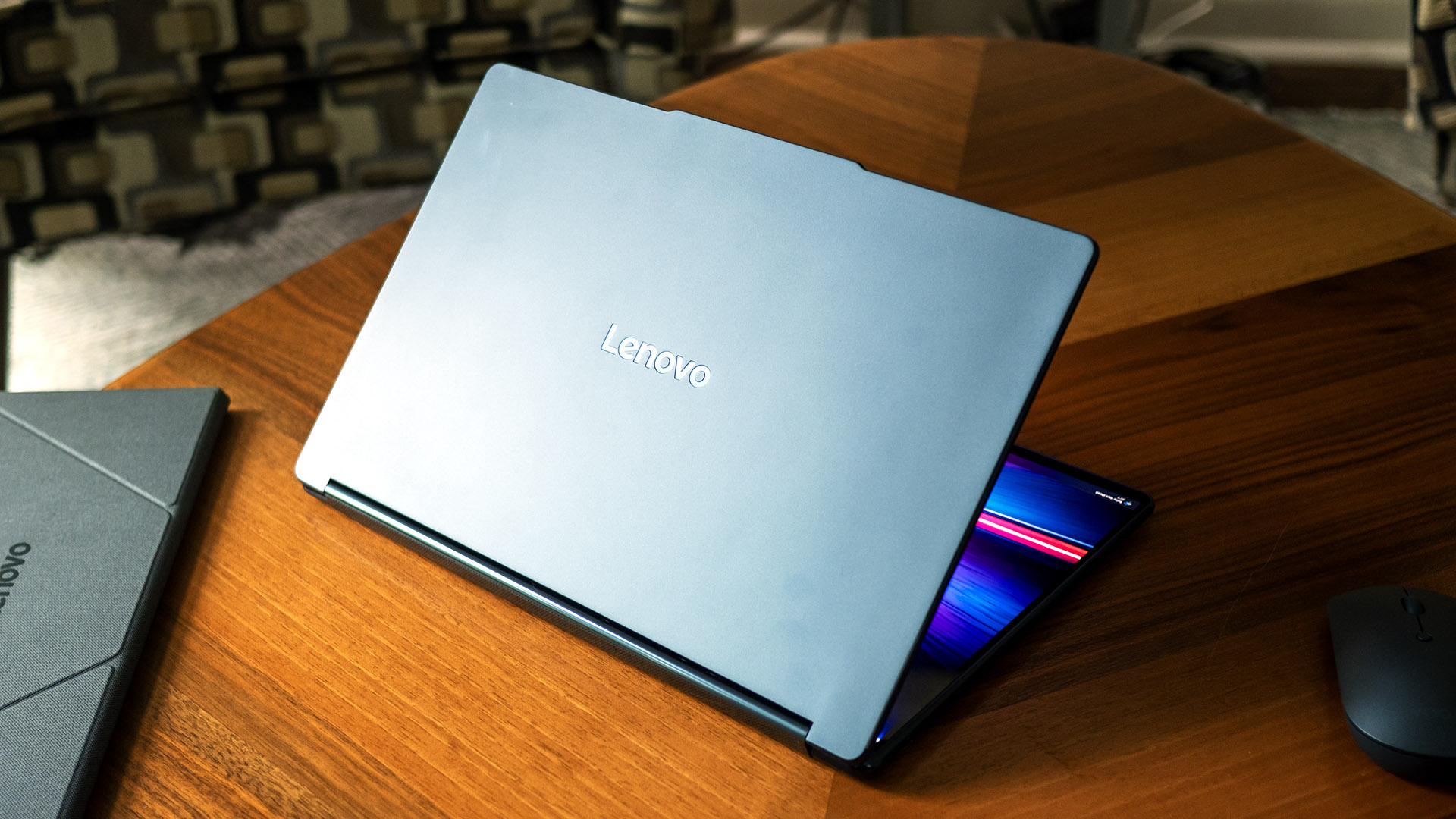
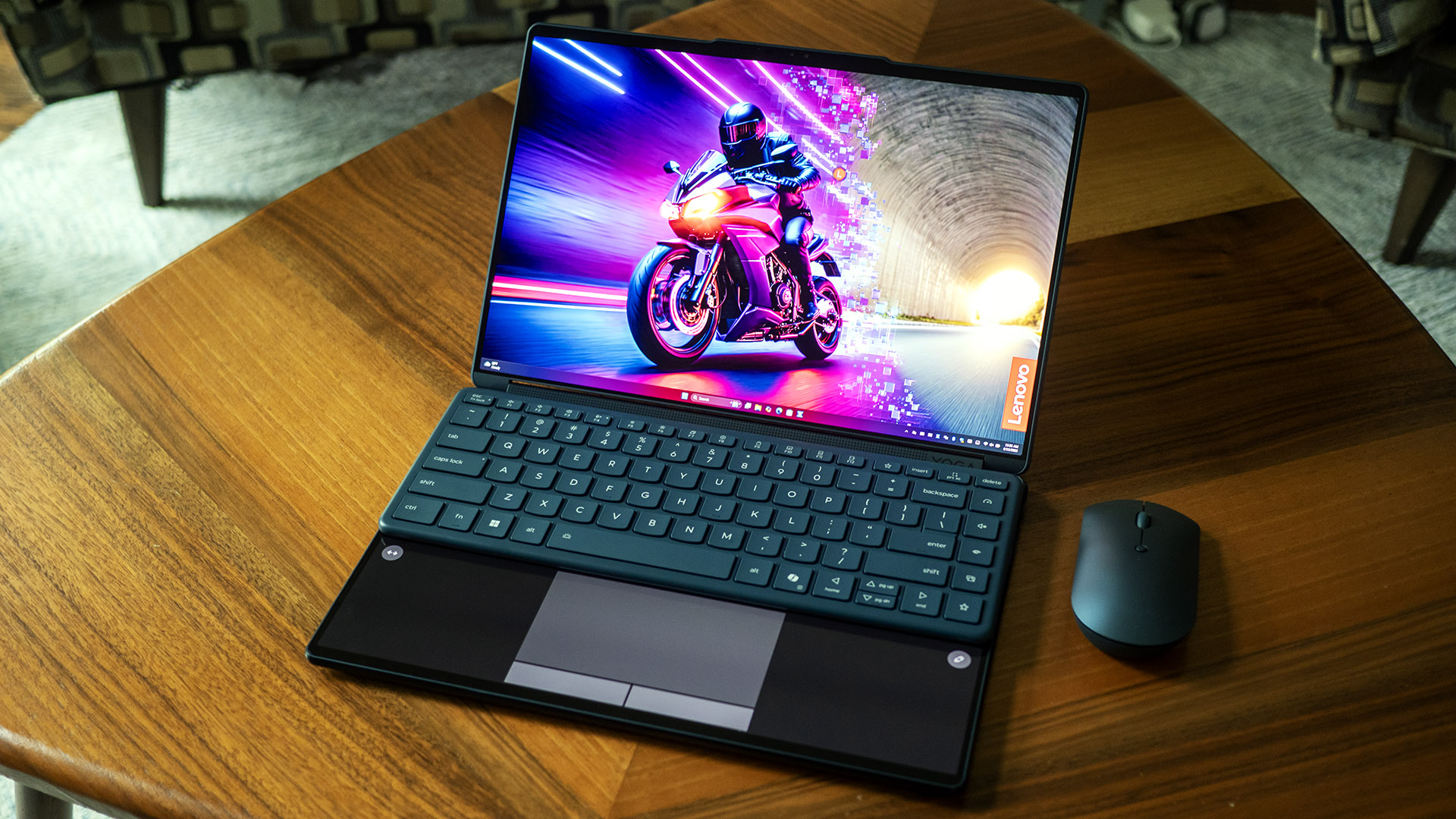
>>>Replacement battery for Lenovo Yoga 6 13ALC7Sci-fi filmmakers understand a simple truth: nothing says futuristic tech quite like a keyboard-free design. The Lenovo Yoga Book 9i Gen 10 ($2,079.99 as tested) embraces that vision, greeting users with two stunning 14-inch glass OLED displays, and no buttons in sight — except for the included peripherals
This premium ultrabook challenges conventional ideas about laptops with excellent software to manage its dual displays and well-designed accessories to make the most of them, including a wireless keyboard, mouse, stand, and pen. If you can live with its brief battery life, the Yoga Book is a compelling option, particularly for users considering a portable monitor.>>>Replacement battery for Lenovo Yoga Slim 7 Gen 9th 2024 83ED000AFR
Design of the Lenovo Yoga Book 9i Gen 10
The Yoga Book’s dual-display design is undeniably futuristic. This device lives up to its price, delivering exceptional build quality with a rigid, flex-free chassis and lid. Every part of its aluminum shell fits together seamlessly, with Lenovo’s reflective lid logo as its sole embellishment. The webcam notch above the display serves as a convenient grip, enabling effortless one-handed opening in a thoughtful design touch.
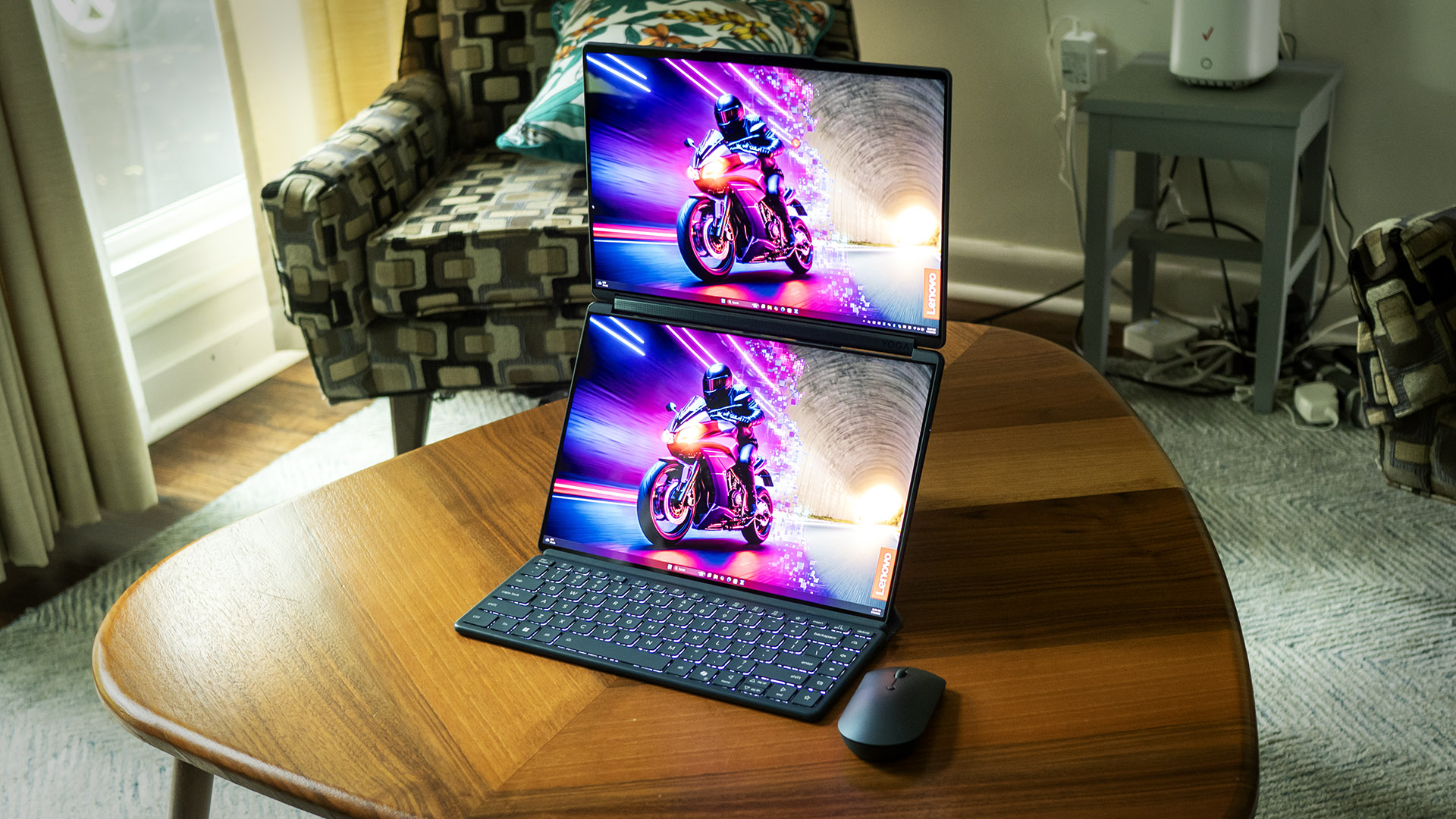
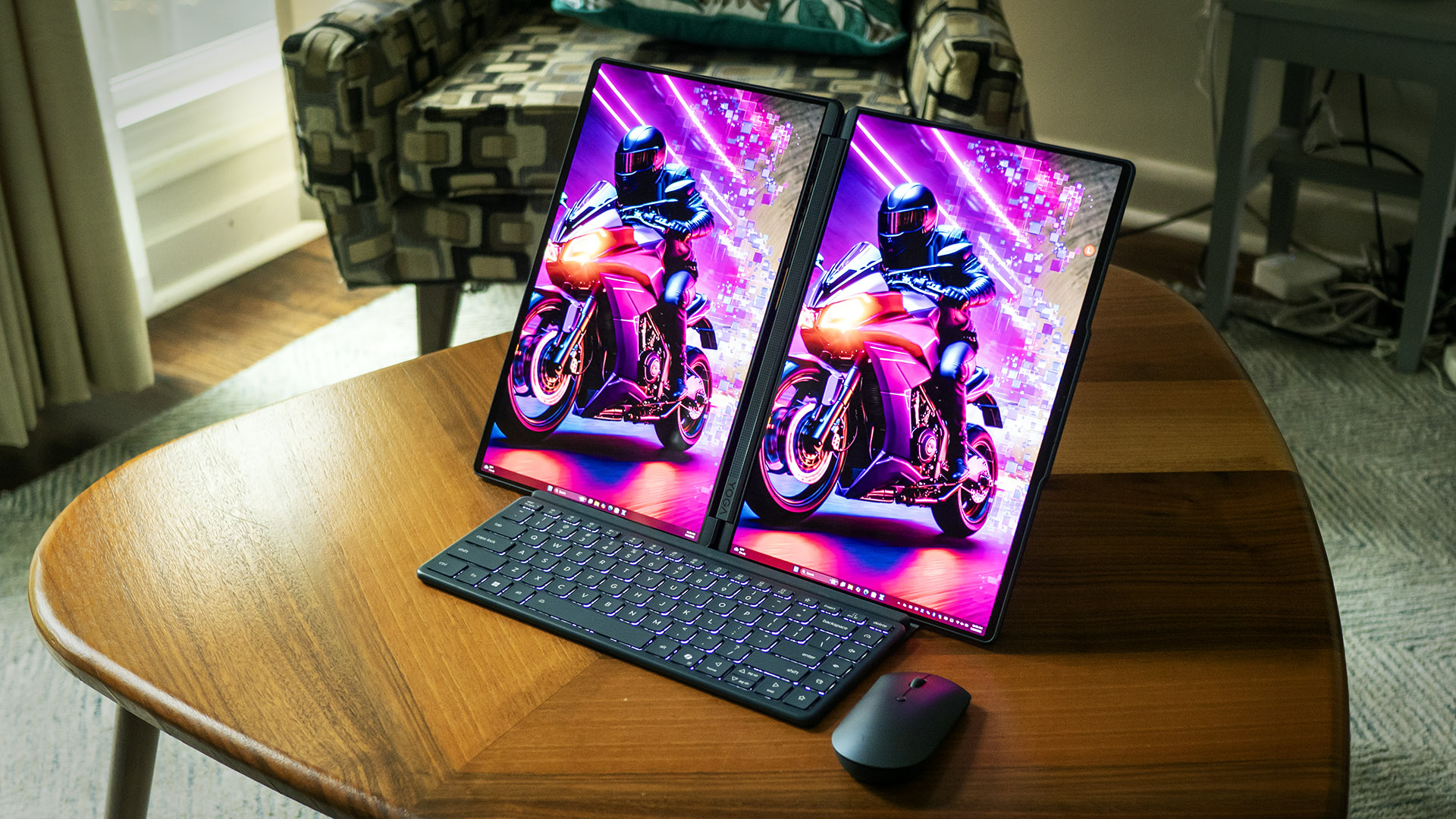
The included stand unlocks the Yoga Book’s productivity potential by using both displays. The laptop can be positioned with one screen on top of the other or opened like a book. The keyboard magnetically attaches to the stand in either configuration.
The stand truly highlights the productivity potential of this platform. While portable USB displays exist, this setup stands out with its perfectly matched, high-quality screens and the invaluable ability to use them vertically. I found the vertical orientation especially useful for side-by-side document comparisons. Additionally, this configuration is more compact than carrying both a laptop and an external monitor. I couldn’t be more impressed.
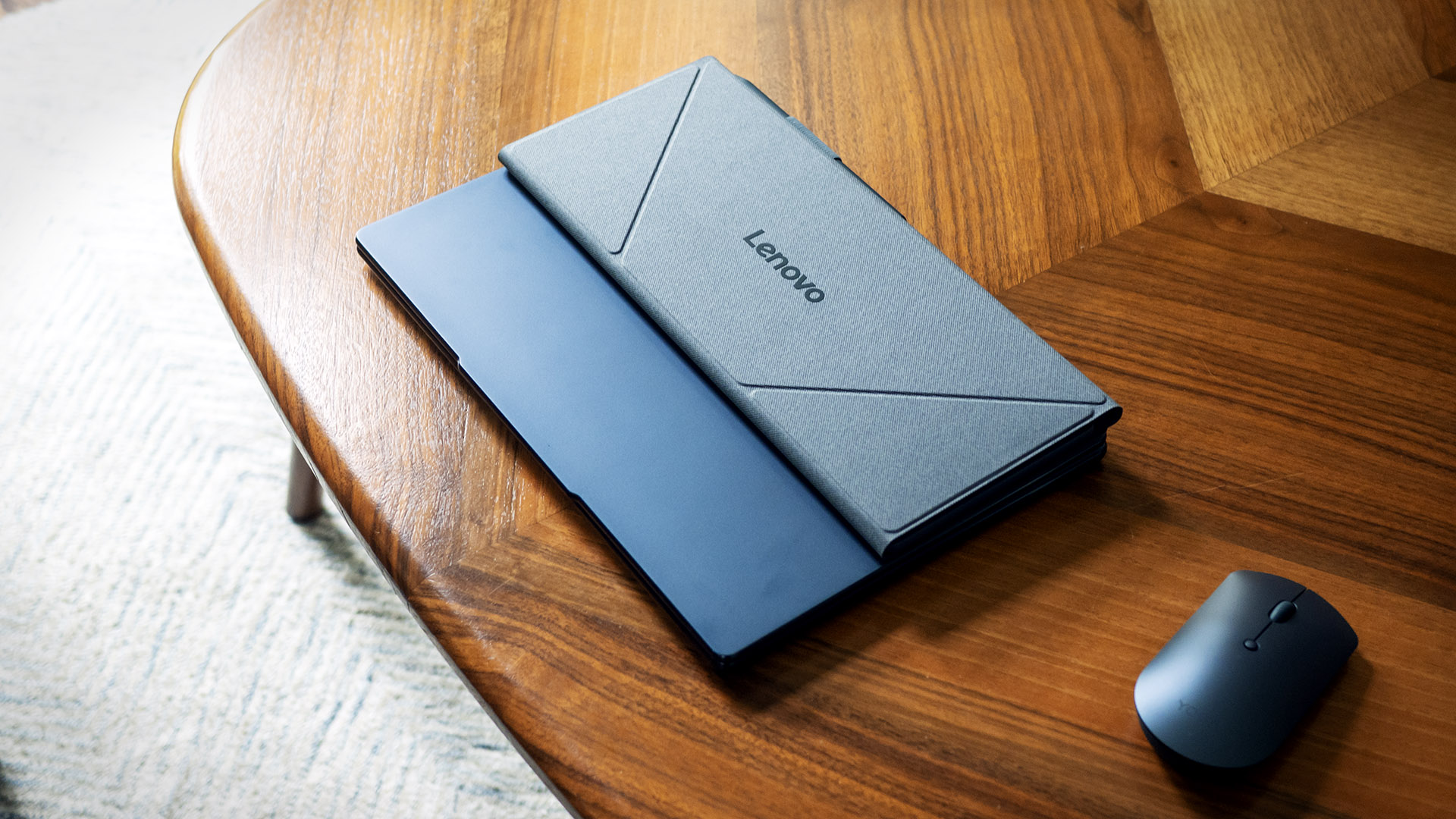
The innovation continues with Lenovo’s thoughtful design for easy transport. The stand wraps around the keyboard and magnetically attaches to the top of the Yoga Book, while the pen conveniently fits into a loop on the stand.
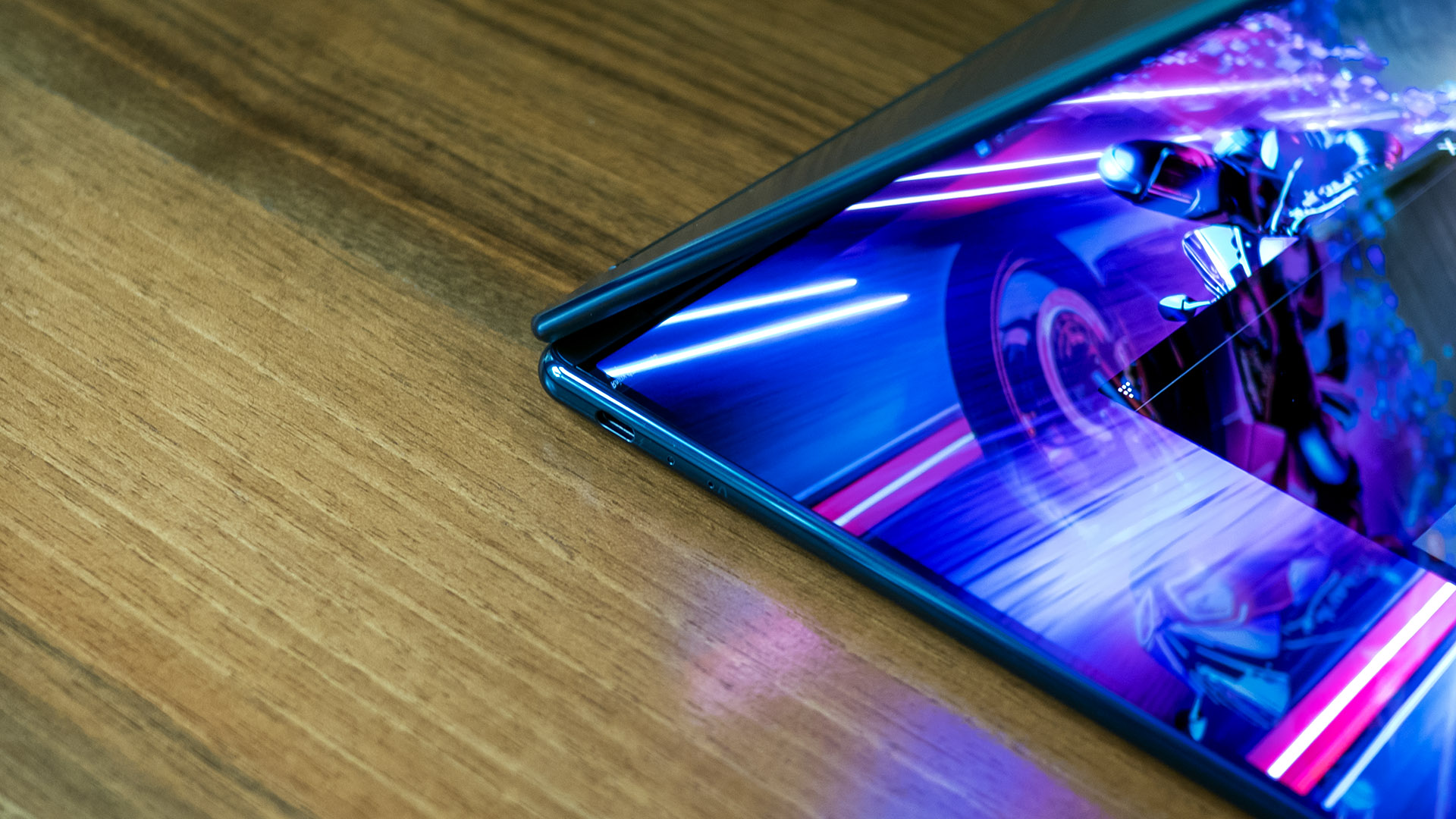
The Yoga Book’s last usage mode is as a tablet, accomplished by opening the screen 360 degrees. While still heavy for a tablet, the Yoga Book is much more convincing than a typical 2-in-1 convertible since it doesn’t leave an exposed keyboard under your fingertips.
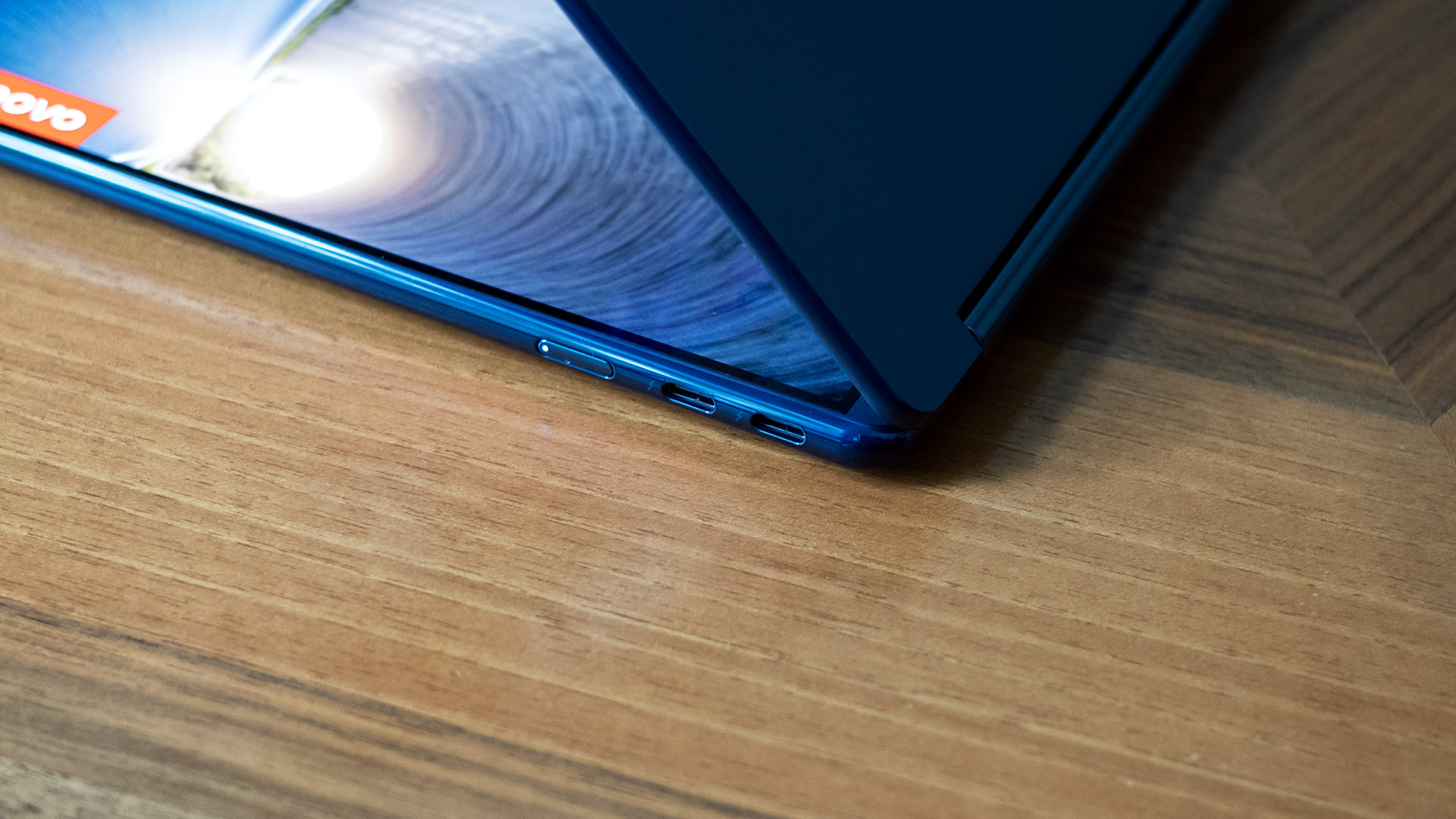
The Yoga Book is as sleek as any 14-inch ultrabook, measuring 12.4 x 8.35 x 0.63 inches and weighing 2.69 pounds. Its proportions closely match theHP OmniBook Ultra Flip 14(12.35 x 8.51 x 0.59 inches, 2.97 pounds), while it’s slightly larger than the Apple MacBook Air 13-inch (11.97 x 8.46 x 0.44 inches, 2.7 pounds). (Check out our review of the15-inch model.)Unfortunately, the Yoga’s port selection is minimal – there are just three Thunderbolt 4 (USB Type-C) ports, one on the left side of the device and two on the right. There is no headphone jack. The power adapter plugs into any of the USB-C ports.
Keyboard and Touchpad on the Lenovo Yoga Book 9i Gen 10
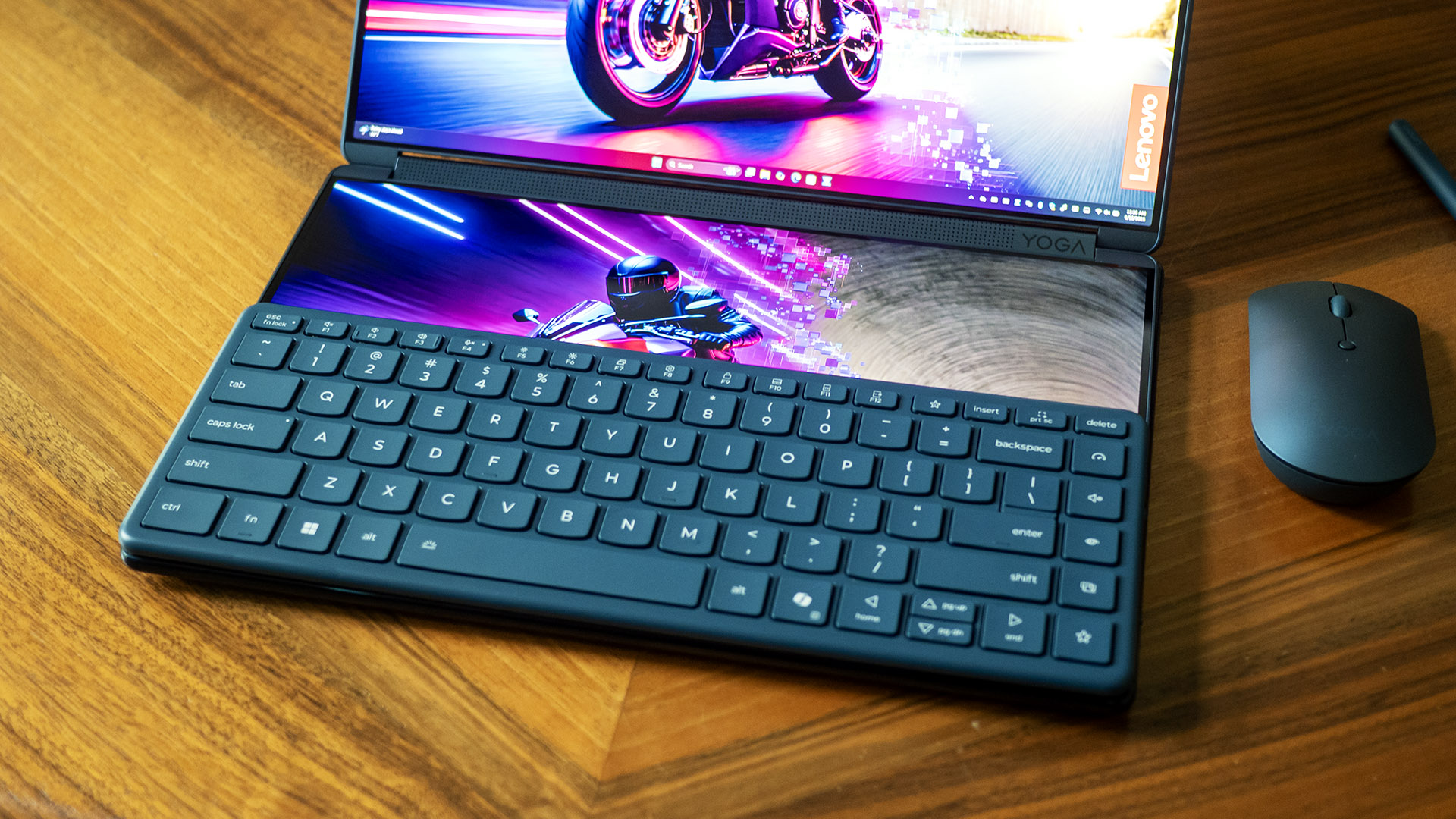
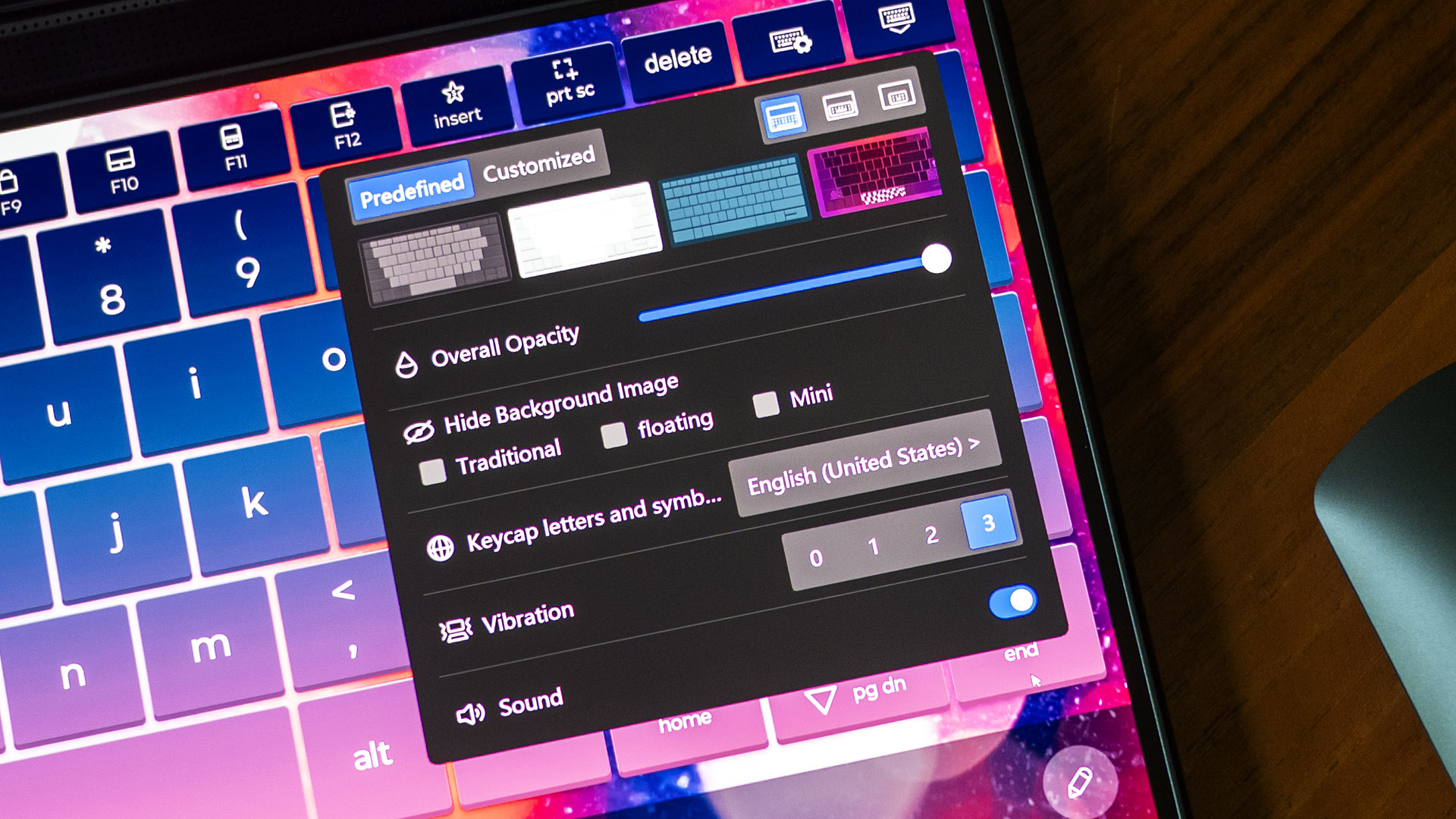
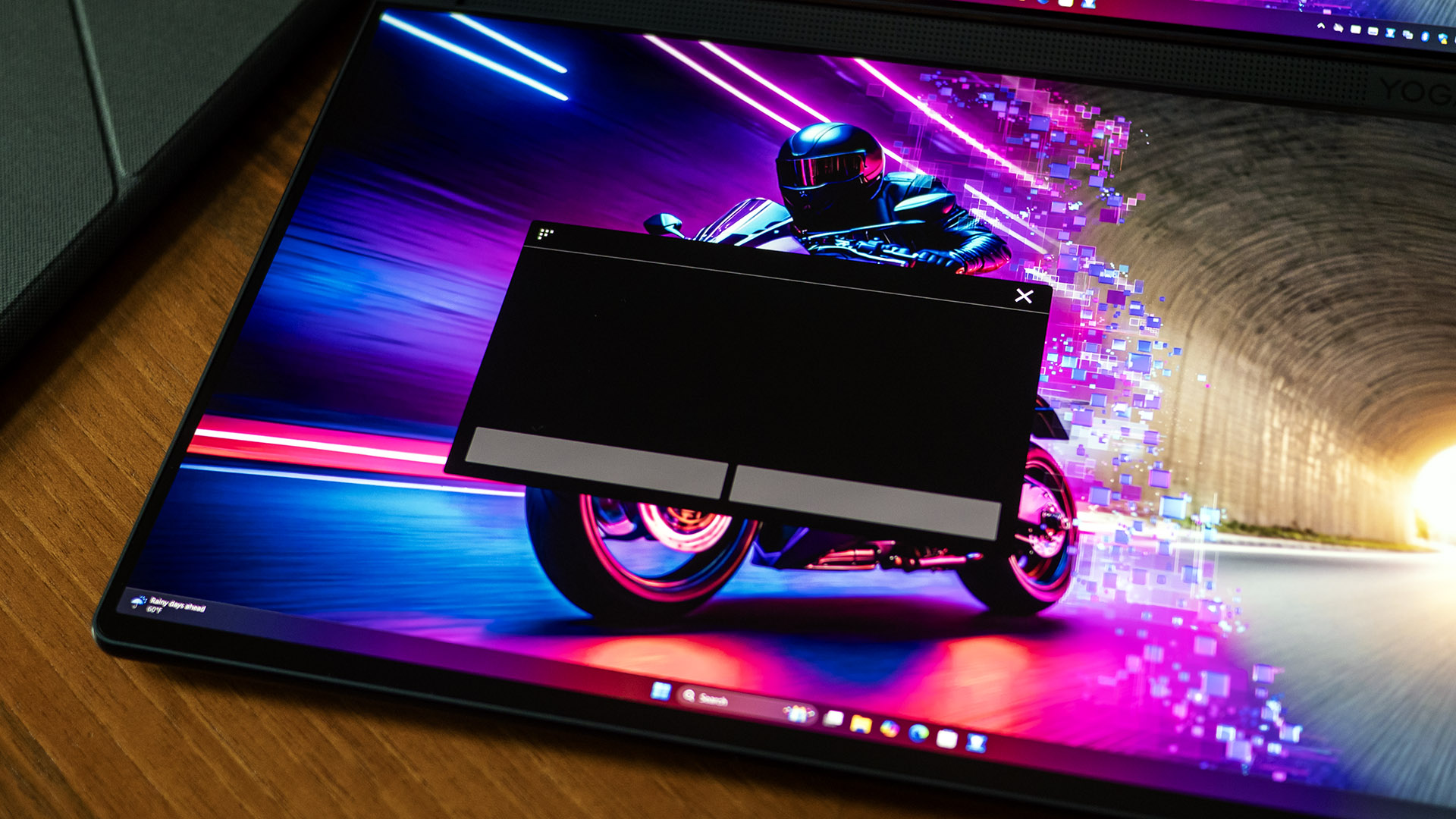
Despite having two screens, the Yoga Book still accommodates a keyboard. Lenovo provides a physical keyboard that docks with the device as well as a virtual keyboard that appears on the lower screen when you tap eight fingers. This virtual setup includes a “palm rest” and a virtual touchpad for added convenience.
Though it can’t fully replace a physical keyboard for extensive typing, the virtual keyboard is well executed. Its large, responsive ‘keys,’ combined with haptic feedback and sound effects, allowed me to reach 60 words per minute with near-perfect accuracy in the MonkeyType typing test. That’s half my usual speed on a physical keyboard, but I was surprised I could go that quickly without any real keys. The haptic feedback offers three intensity settings, and the sound effects can be turned off. Thoughtful touches enhance usability, such as Function Lock (Fn + Esc), which lets the top row display either F1–F12 keys or their secondary functions, like screen brightness.
Lenovo added an all-important fun factor to this virtual keyboard with multiple color schemes and visual settings, accessible through the virtual settings button. The keyboard’s transparency is adjustable, and you can select a background image. I found myself frequently changing between design schemes.
The virtual touchpad works almost as well as a physical touchpad, located in the same place and being about the same size as a traditional touchpad, including two virtual buttons. The virtual keyboard can be summoned anytime by tapping three fingers and can be repositioned as needed.
Lenovo includes a wireless Bluetooth keyboard with white backlit keys and soft tactile feedback, allowing me to reach my top typing speed of 120 words per minute in MonkeyType. It magnetically attaches to either the top or bottom of the Yoga’s lower screen. When positioned at the top edge, the virtual touchpad and palm rest appear automatically. While the keyboard shifts slightly on the glossy surface during typing, it remains impressively stable and closely mimics the feel of a traditional laptop keyboard.
The ‘palm rest’ features a virtual notepad on the right, designed for use with the included pen, a clever way to maximize space. The pen charges via USB-C and has configurable top and bottom buttons through the Lenovo Pen app.Placing the keyboard at the bottom edge frees up the top half of the lower screen for use as an additional display. Since there’s no touchpad in this setup, you’ll likely want to use the included Bluetooth mouse.
The mouse’s low-profile design doesn’t conform to the palm like a traditional desktop mouse, but it remains responsive with satisfyingly tactile clicks. It features a rubberized, notched scroll wheel and supports dual connections via a switch on the bottom. It’s powered by one AA battery.
Audio on the Lenovo Yoga Book 9i Gen 10
The Yoga Book delivers impressive sound quality through its rotating sound bar. While not particularly loud, it performs on par with a small Bluetooth speaker for entertainment. Vocals and acoustics in the music I sampled — Ghostdragon (electronic/pop) and Cole Swindell (country) sounded crisp and well-projected, while the bass was surprisingly deep, enhanced by built-in bass speakers within the chassis. TheMission: Impossiblemovie trailers I watched were immersive, with a good sense of surround sound. Dolby Atmos equalizers in the Dolby Atmos app enhance the detail and expansiveness but aren’t required for the speakers to sound good.
Upgradeability of the Lenovo Yoga Book 9i Gen 10
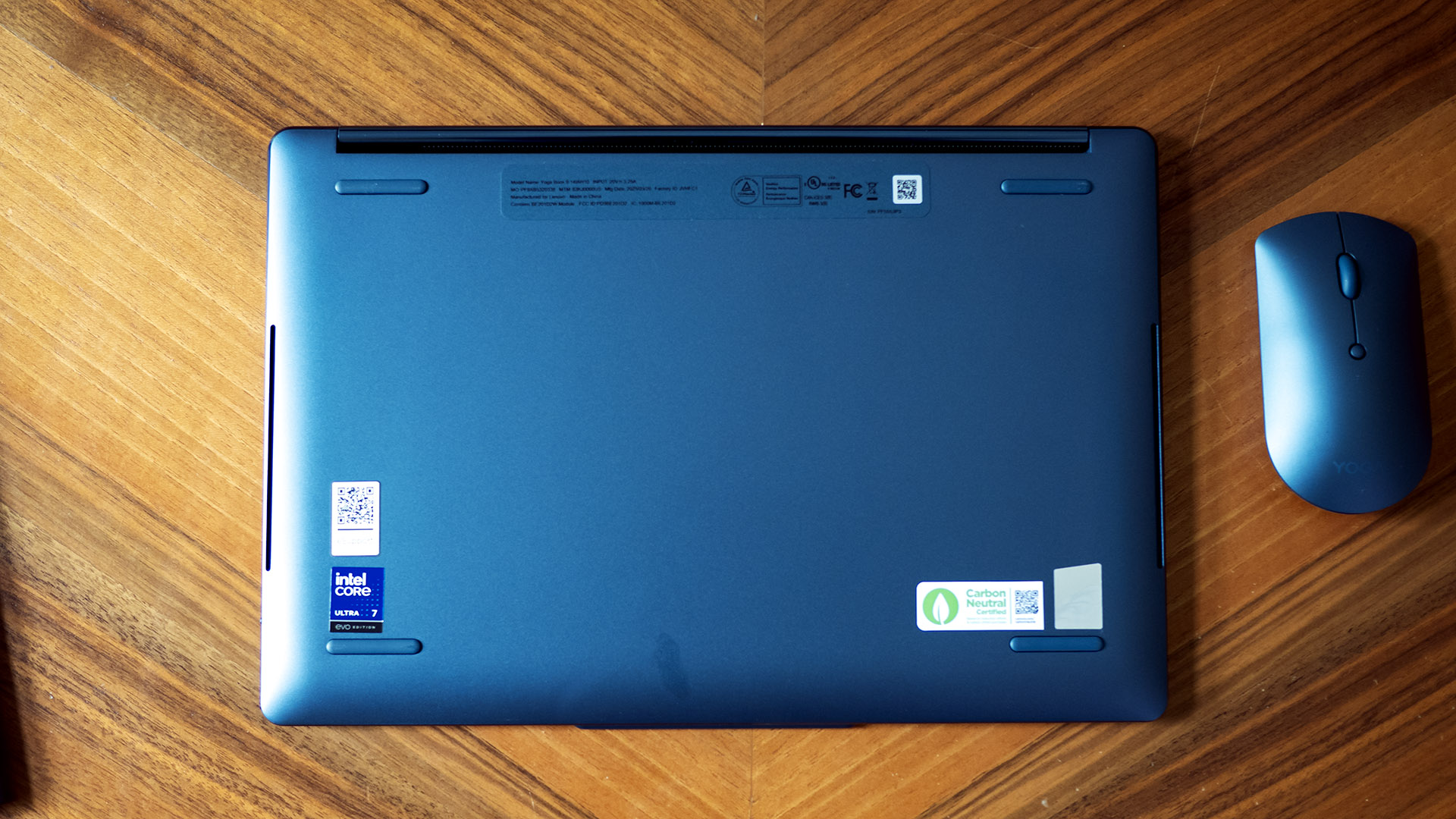
My efforts to find a way inside the Yoga Book were fruitless – the chassis appears sealed. You’ll need to order this laptop the way you want it from the factory. Even if you could get inside, the LPDDR5X memory and the wireless card aren’t upgradeable, leaving the storage drive and battery as the only potential upgradeables.
Heat on the Lenovo Yoga Book 9i Gen 10
We measure laptop surface temperatures by running 10 loops of the Cinebench 2024 CPU stress test. Since this laptop lacks a physical keyboard, we recorded temperatures on the bottom screen of 96 degrees Fahrenheit along the top edge and 85 F at the center while the hottest point on the bottom panel reached 101 F. Despite these readings, the Yoga Book remains entirely touchable, never crossing into uncomfortable heat levels. Its fans, while audible, stay subdued. For lighter tasks, the fans may not even turn on, resulting in silent operation.
Our internal temperature measurement is also taken during Cinebench. The CPU temperature averaged 63 degrees Celsius.
Software and Warranty on the Lenovo Yoga Book 9i Gen 10
The Yoga Book comes with familiar Lenovo software, including Vantage, which provides system updates, diagnostics, andsecuritycheckups. It also houses key system settings, such as battery care mode (allowing users to limit charging for longevity) along with rapid charge and convenience features, like powering on the laptop by opening the lid. Dolby Atmos sound equalizers are accessible in both Vantage and Dolby Access. Additionally, the Lenovo Pen app lets users customize pen button functions and adjust tip and tilt sensitivity.
Some bloatware is included – Lenovo Now is basically a wizard of paid entertainment and service offerings, and Lenovo Subscription Marketplace is a link to an online portal for other software apps, from security to PDF readers. Vantage also has some ads built-in, which you can’t do anything about since that app is required to control essential system functions.
The Yoga Book comes with a one-year warranty.
Lenovo Yoga Book 9i Gen 10 Configurations
The Yoga Book 9i comes in just a few configurations, all featuring the Core Ultra 7 255H processor and dual 14-inch OLED screens. The base model includesWindows 11Home, 16GB of RAM, and a 512GB SSD, while Windows 11 Pro ($65), 32GB of RAM ($65), and a 1TB SSD ($40) are available as upgrade options through custom configuration on Lenovo.com. The hardware can’t be upgraded later, so order it as you intend to use it.
Bottom Line
Lenovo’s Yoga Book 9i Gen 10 is a powerful productivity tool for dual-screen users on the go. With its accessories and intuitive software, it offers a more seamless experience than a traditional laptop-and-monitor setup. It also delivers strong system performance, qualityaudio, and a capable webcam.
However, its drawbacks are worth noting, particularly its limited battery life, which lasts roughly half as long as a typical premium ultrabook, along with its minimal port selection. The price is on the higher side but justifiable given the inclusion of dual OLED displays and essential accessories. Compared to similarly equipped premium ultrabooks, such as the Apple MacBook Air 13-inch and HP OmniBook Ultra Flip 14, the cost difference is only a few hundred dollars.
While not suited for every user, the Yoga Book merits consideration as a polished dual-screen productivity solution.
In today’s fast-paced world, a laptop’s battery life isn’t just a spec—it’s a lifeline. Whether you’re a remote worker, student, frequent traveller, or gamer, the ability to work or play without constantly searching for a plug point is invaluable. Among all the major tech brands, Lenovo stands out for delivering long-lasting power in devices that cater to a range of lifestyles.
This guide explores thetop Lenovo laptopswith the best battery life, combining performance, design, and stamina. If you’re hunting for a Lenovo laptop with exceptional battery life, whether for business, creative work, or light gaming, we’ve rounded up the best of the best.
Why Lenovo Laptops Excel in Battery Life
Lenovo has built a strong reputation for innovation when it comes to battery performance. From advanced power management settings to fast-charging capabilities, many Lenovo notebook battery designs are tailored to maximise efficiency without compromising on performance.
Models such as the Lenovo ThinkPad X1 Carbon, T series, and Yoga convertible laptops are known to push the limits of what a long battery life laptop can offer.
And it’s not just endurance—Lenovo also offers Smart Power software, USB-C charging flexibility, and rapid charge features that provide up to 80% battery in an hour, ensuring your work never skips a beat.
1. Lenovo ThinkPad X1 Carbon Gen 11 – Ultra-portable Powerhouse
Battery Life: Up to 15–17 hours
The Lenovo ThinkPad X1 Carbon battery life is one of the longest in its class. Lightweight, durable, and made for professionals on the go, this laptop redefines what it means to be a light laptop with long battery life. Its 57Wh battery, paired with energy-efficient 13th Gen Intel® processors, delivers all-day stamina.
Why it stands out:
• Perfect for business travel or hybrid work
• Charges rapidly with Lenovo’s RapidCharge tech
• Premium build with a carbon fibre chassis
Tip: Pair it with a USB-C power bank for uninterrupted productivity during long flights.
Explore more top picks on our best Lenovo laptop page.
2. Lenovo T480 – A Classic Workhorse with Serious Stamina
Battery Life: Up to 13.5–17.4 hours (with extended battery)
The Lenovo T480 battery performance is legendary among power users. Thanks to its Power Bridge system, which combines an internal 24Wh battery with an external 72Wh unit, users can hot-swap batteries without shutting down the system.
Why it’s worth considering:
• Removable battery makes upgrades easy
• Known for robust design and security features
• A top choice for remote workers or field engineers
Need extended hours? Consider carrying a spare 72Wh battery—great for long days away from outlets.
3. Lenovo Yoga 7i Gen 8 – All-Day Versatility in a 2-in-1 Design
Battery Life: Up to 14 hours
The Lenovo Yoga battery life is designed for flexible users who want a laptop and tablet in one. The Yoga 7i Gen 8 boasts a full-day battery thanks to its efficient 13th Gen Intel® Core™ CPU and OLED display options that draw less power.
Highlights:
• 2-in-1 form factor with touchscreen
• Ideal for students and creatives
• Dolby Vision and Atmos for rich multimedia experience
Looking for a versatile daily driver? This Yoga offers creativity without the cable clutter.
Check out more flexible machines with top battery ratings on the best Lenovo laptop collection.
4. Lenovo ThinkPad T14s – Lightweight but Built for Endurance
Battery Life: Up to 14.5 hours
Combining performance with portability, the T14s is a compact business laptop with elite battery efficiency. The Ryzen 7 PRO or Intel i7 CPU options give you plenty of horsepower without draining the battery quickly.
Why professionals love it:
• Business-grade durability and security
• Feather-light build makes it perfect for commuting
• Quiet, cool operation even on demanding tasks
Looking for a Lenovo notebook battery that lasts through back-to-back meetings? The T14s won’t disappoint.
5. Lenovo Chromebook Duet 5 – Best Chromebook with Long Battery Life
Battery Life: Up to 15 hours
This might be the Chromebook with best battery life in Lenovo’s lineup. The Duet 5 runs on a Qualcomm Snapdragon processor, optimised for mobile-like efficiency, with an ultra-light 2-in-1 design perfect for casual users, students, or working parents.
Why it stands out:
• OLED screen for vivid visuals
• Fanless and super quiet
• Great for browsing, streaming, and Google Docs
Ideal for students or note-taking in lectures—its long battery keeps going through classes and into study sessions.
6. Lenovo Legion Slim 7 Gen 8 – Best Gaming Laptop with Good Battery Life
Battery Life: Up to 10 hours (in hybrid mode)
Gaming laptops are notorious for draining power, but the Lenovo Legion Slim 7 flips the script. While no gaming machine will run AAA titles for 10+ hours, this one uses hybrid graphics and an energy-efficient AMD CPU to stretch battery life when not gaming.
Why gamers love it:
• One of the best gaming laptops for battery life
• Switch between iGPU and dGPU for balanced power
• Premium display with 165Hz refresh rate
Want the power of a gaming beast with practical battery backup? This one nails the balance.
7. Lenovo T430 – Still Going Strong for Budget Buyers
Battery Life: Up to 8–10 hours (with 9-cell battery)
If you’re looking for a cheap laptop with good battery life, the classic Lenovo T430 laptop battery can still go the distance. It may be an older model, but with a 9-cell extended battery, it remains a reliable workhorse for basic tasks like writing, spreadsheets, and browsing.
Why it’s a hidden gem:
• Great value for refurbished or secondhand buyers
• Solid build quality and keyboard
• Easy to repair or upgrade
Perfect for those who just want a machine that works without breaking the bank.
How Long Should a Lenovo Laptop Battery Last?
One of the most common questions people ask before buying a laptop is, “How long will the battery actually last over time?” The average life of a laptop battery—not just a single charge, but the full lifespan—typically ranges between 2 to 4 years, or around 300 to 500 full charge cycles. But that’s just a general guideline.
With Lenovo laptops, especially models like the ThinkPad X1 Carbon or T480, battery longevity often exceeds expectations thanks to smart engineering and power management tools like Lenovo Vantage. These premium machines are designed with business use in mind—meaning reliability and battery resilience are a top priority.
What’s a charge cycle?
A charge cycle is one full battery drain from 100% to 0%, even if you don’t do it all at once. For example, draining 50% and then recharging to 100% twice equals one full cycle.
Tips to Maximise Your Lenovo Notebook Battery Lifespan
The way you use and charge your laptop makes a huge difference to how long your Lenovo laptop battery will stay healthy over the years. Here are a few expert-backed habits to keep your long battery life laptop going strong:
• Stay within the 20–80% sweet spot
Avoid fully draining or overcharging your battery. Keeping it between 20% and 80% helps reduce long-term wear.
• Use Battery Conservation Mode (via Lenovo Vantage)
This limits your battery from charging to full capacity when not needed—perfect if you’re working plugged in most of the day.
• Avoid heat exposure
High temperatures degrade lithium-ion batteries. Don’t leave your laptop in direct sunlight or near heat sources.
• Unplug overnight
Leaving your laptop plugged in overnight consistently may shorten its battery lifespan. Enable sleep mode or shut it down instead.
• Perform battery calibration every few months
Lenovo’s built-in tools help recalibrate your battery for more accurate readings and longer life.
When to Replace Your Lenovo Laptop Battery?
Even the best batteries wear out over time. If you notice signs like:
• Rapid battery drain — going from 100% to 20% in under an hour
• The laptop only working when plugged in, no matter how long you charge it
• Frequent overheating even during light tasks, which may signal battery strain
• Charging stuck at a certain percentage or fluctuating randomly
…it may be time for a replacement.
Thankfully, Lenovo makes it easier than most brands to service your device. Popular models like the Lenovo T480 battery and Lenovo T430 laptop battery are known for their modular design, meaning the batteries are often removable and upgradeable—a major plus if you’re looking to extend your laptop’s usable lifespan without investing in an entirely new device.
Not sure if it’s time to replace your battery? Use Lenovo Vantage, Lenovo’s built-in support software, to run a Battery Health diagnostic. It’ll show you the current capacity compared to when the laptop was new and alert you if your battery is nearing end-of-life.
And if you do need a new device altogether, Box.co.uk stocks a wide range of Lenovo laptops with strong battery performance—from reliable ThinkPads to sleek Yogas and even Chromebooks.
Final Thoughts: Which Lenovo Long Battery Life Laptop is Right for You?
Choosing a laptop with the highest battery life doesn’t mean compromising on performance or portability. Whether you need a travel-friendly business laptop like the ThinkPad X1 Carbon, a student-focused Chromebook, or a gaming laptop with good battery life, Lenovo has something for every lifestyle.
Ready to find your perfect match? From flexible Yoga convertibles to professional-grade ThinkPads and game-ready Legions, Lenovo’s lineup is built to last—both in performance and in power.
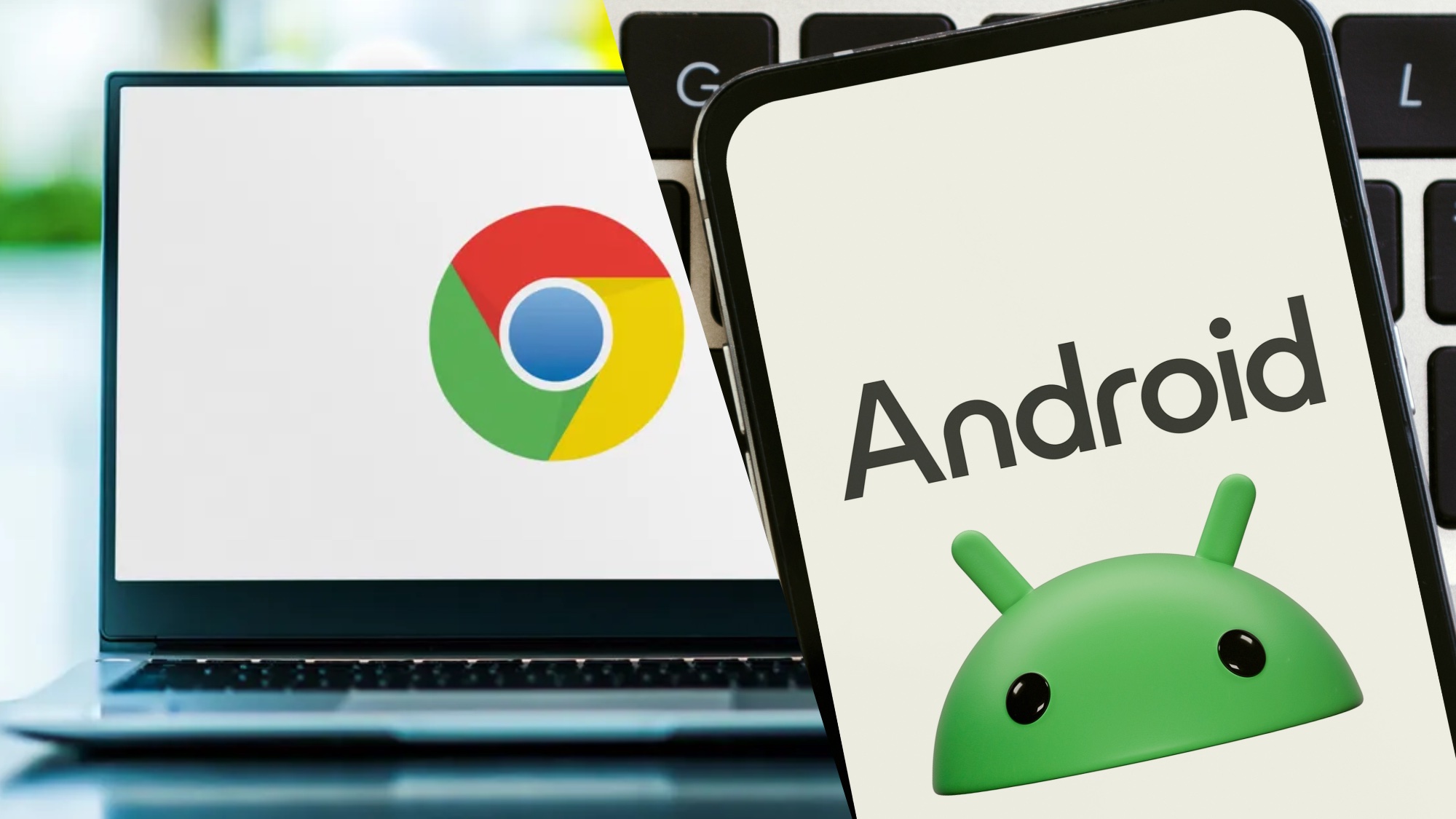
Chrome OS is good and all, but it’s always felt distant — on an island of its own away from the might of Android. Well, it turns out Google finally got the memo to send a rescue boat out to said island, as an executive has confirmed the company’s plans to combine the two platforms.
This comes in an interview withTechRadar, where Sameer Samat, president of Android ecosystem at Google, just dropped this nugget into a conversation about why the interviewer was using a suite of Apple devices.
Now, we have heard this before. Back in November, Android Authority reported that a source inside Google had said this was the mission. However, this is the first time Google has confirmed it on-the-record. And honestly? It may be a few years late in my eyes, but I’m glad it’s finally happening. Let me explain.
This comes off the back of Android bringing some new big screen features to the table, such as a proper desktop mode a la Samsung Dex, improved adaptability of apps, better external display support and windowing within the desktop.
Basically, Android is now able to do pretty much everything that a Chromebook could, so why have the two running side by side in isolation of each other?
I’ll always appreciate what Chrome OS has brought to the table, though. I mean with theLenovo Chromebook Plus 14, Google was able to make low-key one of the best laptops for students, sharpen up the OS with quick shortcuts and add AI features that are logically added rather than clumsily overlaid (looking at you, Microsoft Copilot).
But what was learnt in Chrome OS can also come over to Android too, and having it all in one place unlocks a special new perk on the computing skill tree.
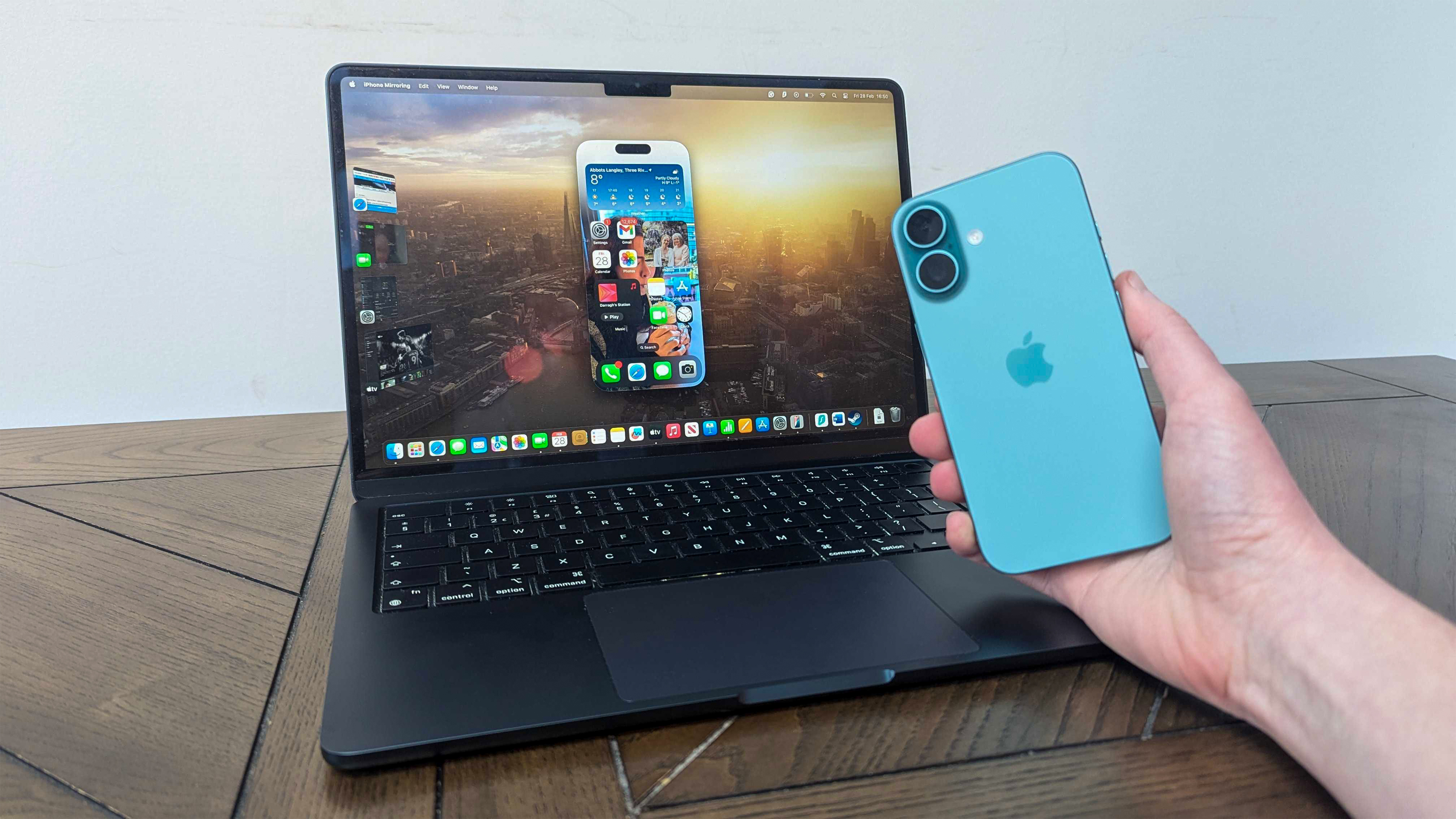
This is the moniker you hear around a lot of Apple devices. It’s one of the reasons why I use them, why Lance who conducted this interview at TechRadar uses them, and hell, it’s probably why a lot of you out there use them.
The fact thateverything just comes together through Continuity featuresand marries these devices together nicely is always one of Apple’s superpowers thatGoogle has been able to do somewhat, but just not to the level of smoothness you’d find in the Cupertino playground.
To do it properly, you need real sync up in the operating systems, which for all the heavy lifting Google did with Chrome OS to try and make it talk to Android, it was just not feasible. But now a proper merger is on the cards, this is the answer to all of its problems.
And stat-wise it makes sense too. According tomost recent data, around 1.25% of the world’s computer users are on Chrome OS — down from nearly 2% last year. With a downward trajectory, change needed to happen, and this might just be the smartest decision the company’s made in a decade.
So what now?
As this was a quick quote from a Google exec, there are some questions I have that remain unanswered as of now:
Does this mean any Android device could be a desktop device too?Imagine the Pixel 10 getting a laptop-esque accessory (like the long-gone NexDock) to browse your device like a laptop. Pretty cool, right?
What does this mean for current Chromebooks?Android does technically work on Arm and the more computer-traditional x86 architectures (I go more into the differences in my review of theAMD-armed Asus Zenbook S16), but we’re talking over 99% of its features and apps have been built with Arm in mind. What happens to Chromebooks that are running older Intel chips? Are hardware requirements going to change drastically and leave these people in the cold?
What about updates?Chrome OS is usually updated every four weeks, mostly for security reasons but Google does sneak some new features in there too. Will moving to Android’s more infrequent feature drops affect this?
We don’t have answers to any of these, and it’ll be just a case of waiting and seeing what happens (my guess is by the time Android 17 rolls around). But as far as the initial news itself goes, this is an encouraging step in the right direction for Chromebooks.