What should I do if my Apple device is disabled because I forgot the lock screen password or entered it incorrectly too many times? Let’s teach you a method to reset the lock screen password via Apple ID.
Before you start resetting your password, please understand:
1. Devices with forgotten passwords need to have installed iOS 15.2 or iPadOS 15.2 or later to reset the password via Apple ID.
2. The device needs to be connected to a cellular network or a wireless local area network.
If you restart your device when you see “Security Lock” on the lock screen, you will not be able to reconnect to the wireless LAN until the device is unlocked. If you have a valid service, the cellular network device will reconnect to the cellular network.
3. You need to know the Apple ID and password used when setting up the device.
4. Resetting the password via Apple ID will still clear all data including the lock screen password. Please confirm before proceeding.
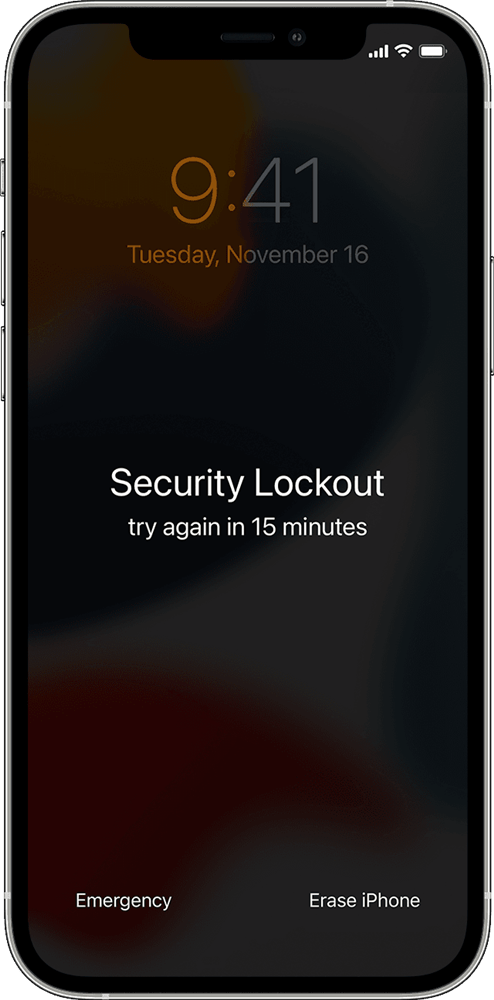
To reset your password via Apple ID:
1. Try to enter the lock screen password on the lock screen of the device until the device prompts you to try again later. If possible, repeat this step until you see the “Erase” option in the bottom corner of the screen.
2. Tap “Erase”, and then tap “Erase” again to confirm.
3. Enter your Apple ID password to log out of your Apple ID on your device.
4. Tap “Erase” to delete all your data and settings.
5. When the device restarts, follow the instructions on the screen to reset your device, restore your data and settings from the backup, and set a new lock screen password.
*If you are unable to reset the lock screen password through the above methods, you need to enter the recovery mode or DFU mode and connect the device to the computer to complete the clearance and flashing.
CELL PHONE BATTERIES – Shop a wide selection of cell phone Batteries at www.oriccabattery.co.uk Fast Shipping.