Share your Switch 2 games locally and play multiplayer titles with friends who don’t own them
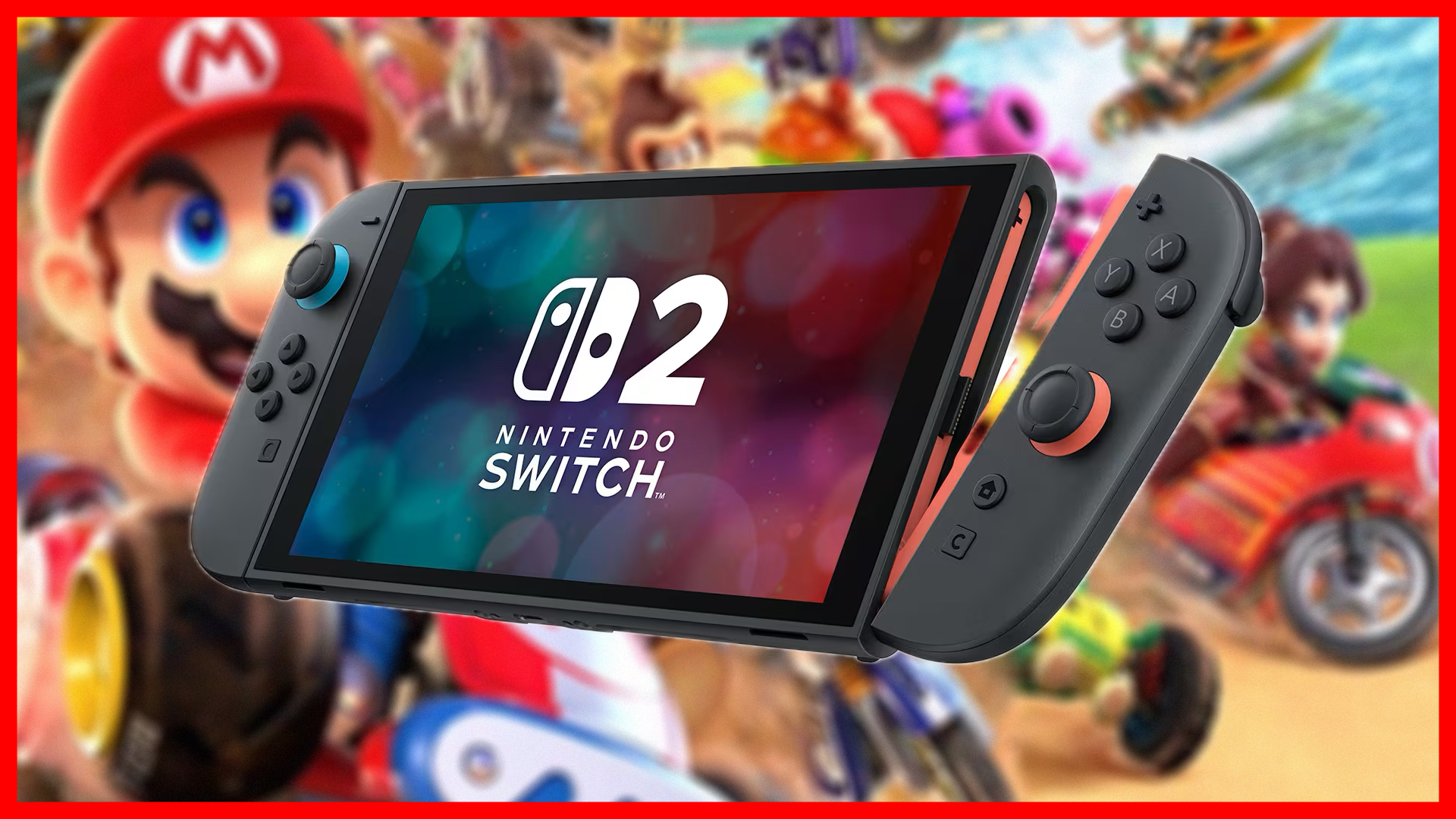
Nintendo Switch2’s GameShare feature makes it easier to play local multiplayer games with friends — even if they don’t own the game. Instead of requiring everyone to buy their own copy, one console hosts the session while another streams the gameplay locally.
It’s a simple idea that lowers the barrier to co-op gaming. Whether you’re teaming up in Mario 3D World or just exploring a game together, GameShare lets two consoles share a single copy.
Understanding how to set up and join GameShare sessions opens up new possibilities for gaming with friends and family, whether you’re using two Switch 2 consoles or connecting a Switch 2 to an original Switch.
>>>Replacement battery for Nintendo DS Lite DSL NDSL
1. Understand what GameShare does (and doesn’t) do
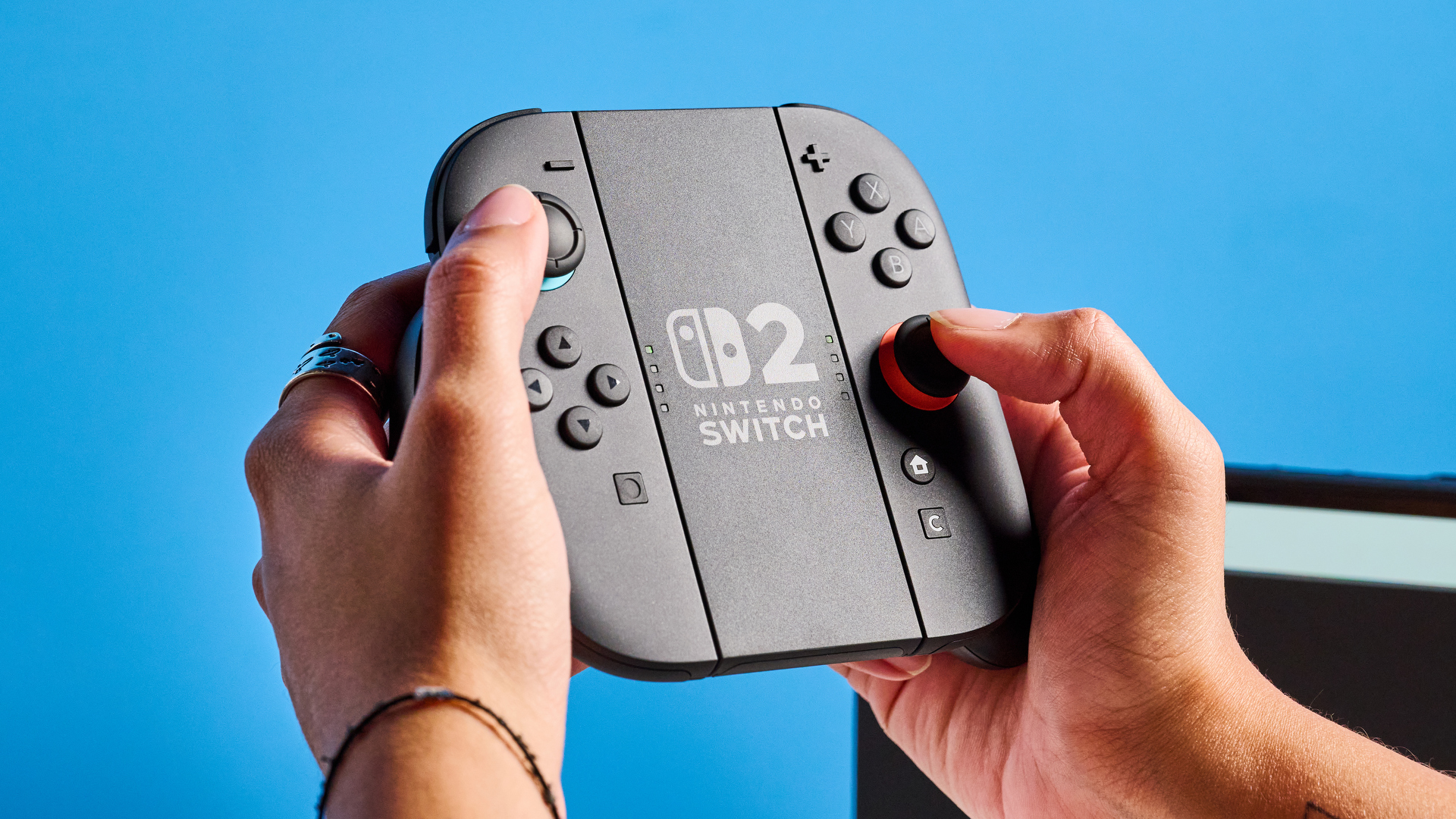
GameShare on the Switch 2 lets one player stream a multiplayer game locally to another console, so only the host needs to own the game. The receiving player can use either a Switch 2 or an original Switch, but both devices must be on the same Wi-Fi network — this isn’t an online feature.
It’s important to note that GameShare only works foractive multiplayer sessions. The guest can’t play solo, and gameplay will stop as soon as the host ends the session. It’s a way to co-play, not to lend games.
Not all Switch 2 games support GameShare functionality.Check the game’s multiplayer options menuto see if GameShare appears as an option. Compatible titles will clearly display it alongside other multiplayer choices.
>>>Replacement battery for Nintendo 3DS N3DS
2. Start a GameShare session as the host
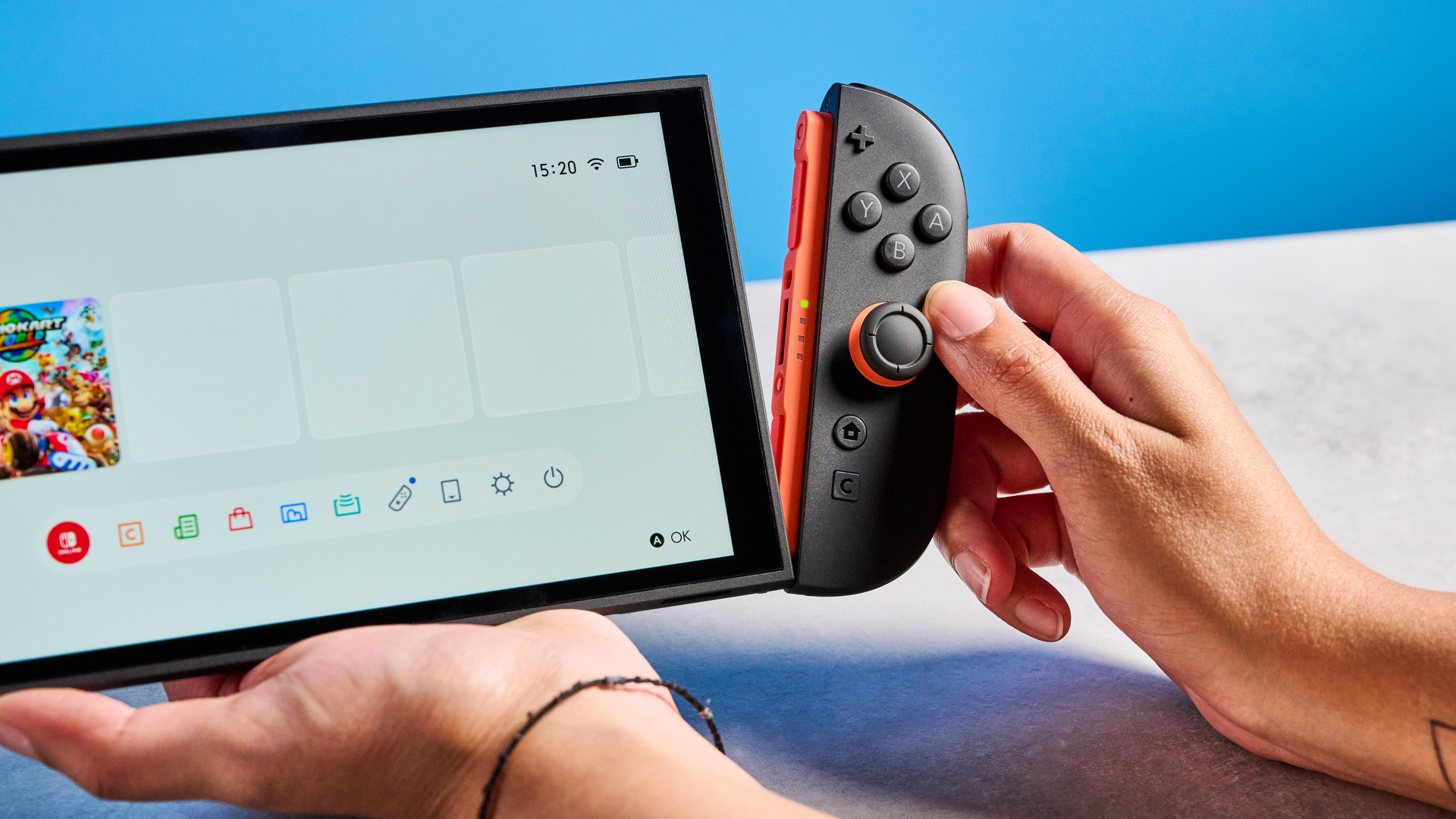
To begin sharing your game, you’ll need to launch it first. This process differs slightly depending on the title. InSuper Mario 3D World + Bowser’s Fury, for example,press Rto open the online menu.
InSuper Mario Odyssey, you’ll need toselect two-player modefrom the main screen Once in the multiplayer options,select GameShareto start hosting. Your Switch 2 will create a local session that other players nearby can discover.
Make sureyour console is connected to Wi-Fi, and keep an eye out — you’ll need toconfirm incoming join requestsbefore anyone can connect.
3. Join a GameShare session as a guest
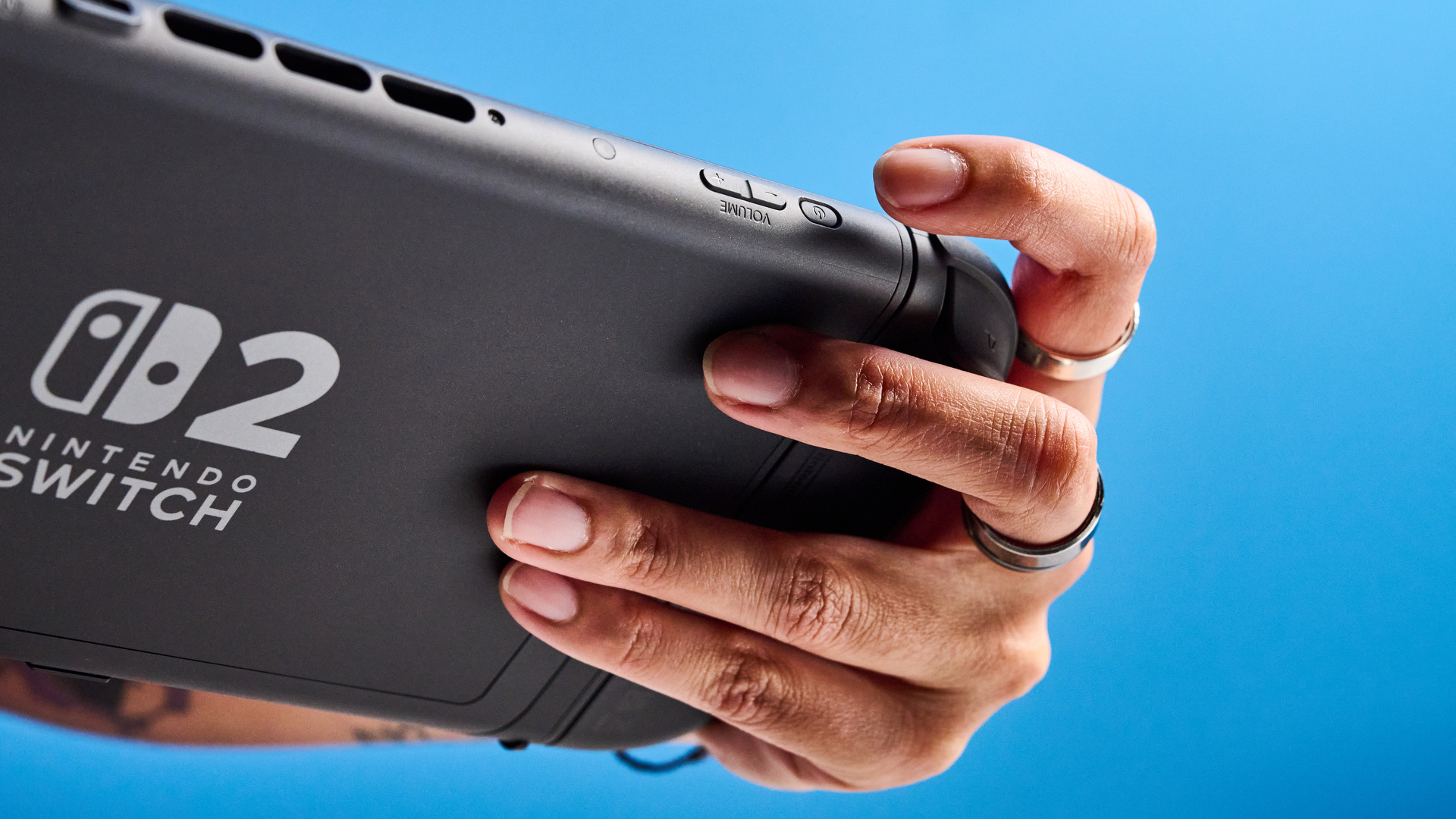
If someone nearby is hosting a session, you can join using a Switch 2 or an original Switch.
From the home screen,select GameSharefrom the menu bar. You’ll then be prompted tochoose a user profile, which determines your in-game progress and any friend connections used during the session.
Next,select Search for GameShare sessionto scan for available games. If one is found,select the session you want to join. The host will receive a prompt and mustapprove your requestbefore the game begins.
Troubleshooting GameShare issues
Ensure both consoles are connected to the same Wi-Fi networkif you’re having trouble finding or joining sessions. Check that your Switch 2 has the latest system update installed, as GameShare requires current firmware to function properly.
If the connection feels laggy or unstable,move closer to your router or reduce network trafficby pausing downloads on other devices.
GameShare performance depends heavily on your local network quality, so a strong Wi-Fi signal is essential for smooth gameplay.