13-inch Microsoft Surface Laptop review: A slightly worse version of a year-old PC

It only makes any sense at all because of the old Surface Laptop’s price hike.
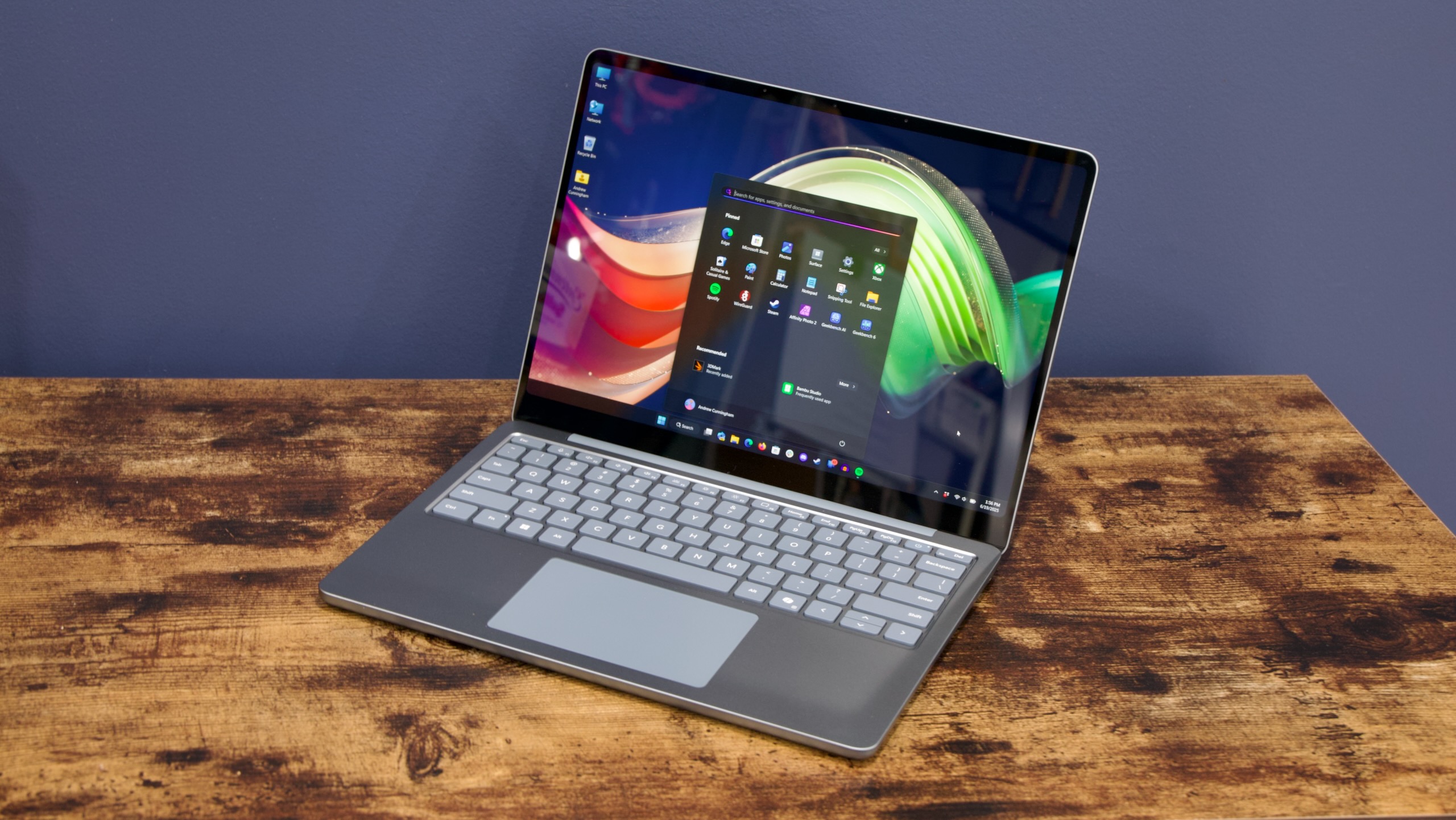
Microsoft’s new 13-inch Surface Laptop is an odd one. It’s inarguably a step down in every respect from last year’s 13.8-inch Surface Laptop. But it’s also too good (and too expensive) to be considered a replacement for the Surface Laptop Go, the company’s perennially overpriced and underspecced entry-level laptop. It’s cheaper than last year’s Surfaces, but mostly because Microsoft gave those devices a de facto price hike by killing the entry-level configurations of those PCs.

We’re left with a laptop that’s perfectly fine or even great, depending on what you want. It’s relatively affordable for what is, a sort of MacBook Air-ish, just-the-basics portable computer. But it’ssucha step down from the $999 laptop Microsoft released just last year that it’s hard not to see the entire laptop as one big series of compromises.

also:Replacement battery for Microsoft Surface Pro 9 2032 1996 1997 2038

Where does the 13-inch Surface Laptop belong?

Despite just calling it the “Surface Laptop, 13-inch,” Microsoft clearly considers this to be an entirely different sub-class of laptop rather than a continuation of the flagship Surface Laptop or the lower-end Surface Go. The system identifies itself to Windows as “Surface Laptop 13in 1st Ed with Snapdragon,” where the 13.8- and 15-inch Surface Laptops are both labeled as 7th edition devices.

13-inch Surface LaptopSurface Laptop 7 (13.8-inch)Surface Laptop Go 3
Processor8-core Snapdragon X Plus10-core Snapdragon X Plus or 12-core Snapdragon X EliteIntel Core i5-1235U (2 P-cores, 8 E-cores)
RAM16GB LPDDR5x16, 32, or 64GB LPDDR5x8 or 16GB LPDDR5
Storage256 or 512GB UFS256GB, 512GB, or 1TB NVMe256GB NVMe
Screen13-inch, 1920×1280, 60 Hz IPS13.8-inch, 2304×1536, 120 Hz IPS12.4-inch, 1536×1024, 60 Hz IPS
Size and weight11.25 x 8.43 x 0.61 inches, 2.7 lbs11.85 x 8.67 x 0.69 inches, 2.96 lbs10.95 x 8.12 x 0.62 inches, 2.49 lbs
Starting price$899$999$799 (launch), $949 (now, for some reason)

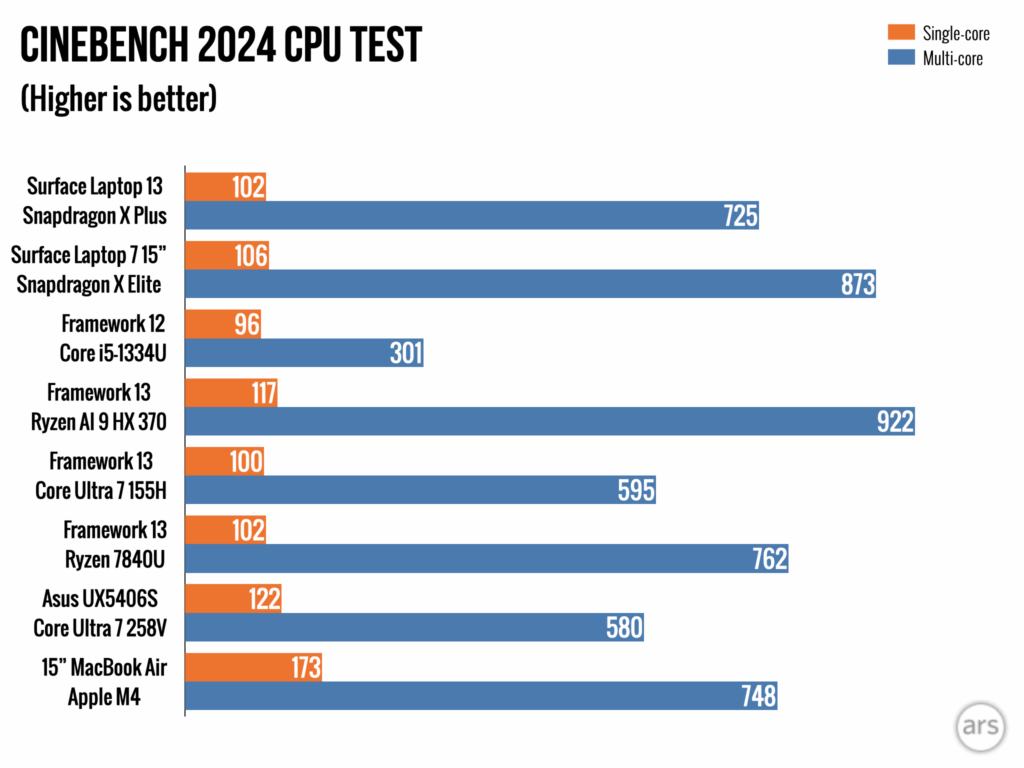
In measurements and specs, this new Surface Laptop falls right in between the 13.8-inch flagship and the aging Surface Go 3. The new laptop also borrows components and ideas from both the Surface Laptop 7 and the Surface Go design. But in the end, this feels like a refreshed, Arm-powered iteration of the Surface Laptop Go rather than a more compact version of the flagship Surface design.Internally, the 13-inch Surface Laptop is a scaled-back version of the flagship laptops Microsoft launched a year ago. Its 8-core Snapdragon X Plus processor uses the same architecture as the larger laptops, just with fewer cores. To meet Microsoft’s Copilot+ requirements, it has the same neural processing unit (NPU) as the bigger Surface devices, as well as 16GB of RAM and 256GB or 512GB of storage. Aside from storage and the color of the device, there are no upgrade options or choices to make. But unlike with the Surface Go, this does mean that the entry-level model is adequately specced and will feel plenty fast for most things.The external design pulls more extensively from the Laptop Go, a laptop that was originally designed to start at $550. The 13-inch Laptop does make some welcome upgrades—a backlit keyboard, a somewhat larger and higher-resolution display panel—but its aluminum body feels slightly softer and flimsier than what the main Surface Laptop uses. Its glass-covered touchscreen doesn’t have any kind of anti-reflective coating, something it shares with the bigger Laptops, and it uses a fingerprint reader for Windows Hello rather than a face-scanning camera. It has two USB-C ports for accessories and for charging, but they top out at 10 Gbps speeds rather than 40 Gbps USB4 speeds, and it’s missing the Surface Connect port (it does have USB-A and a headphone jack, though).>>>Replacement battery for Microsoft Surface Laptop Studio 1964
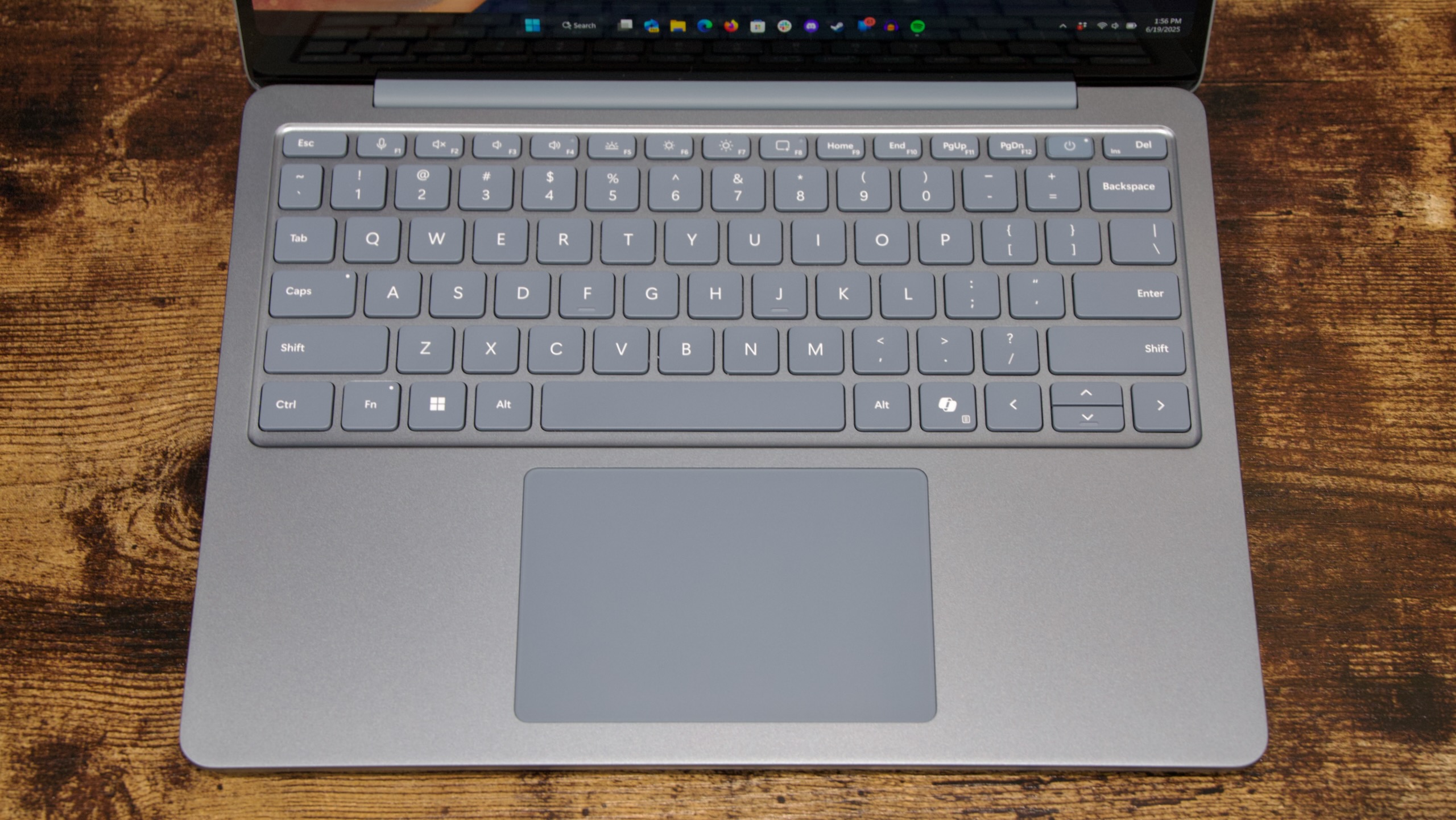
The 13-inch Laptop’s keyboard and trackpad look and feel a lot like the old Surface Laptop Go versions, but with an added keyboard backlight.
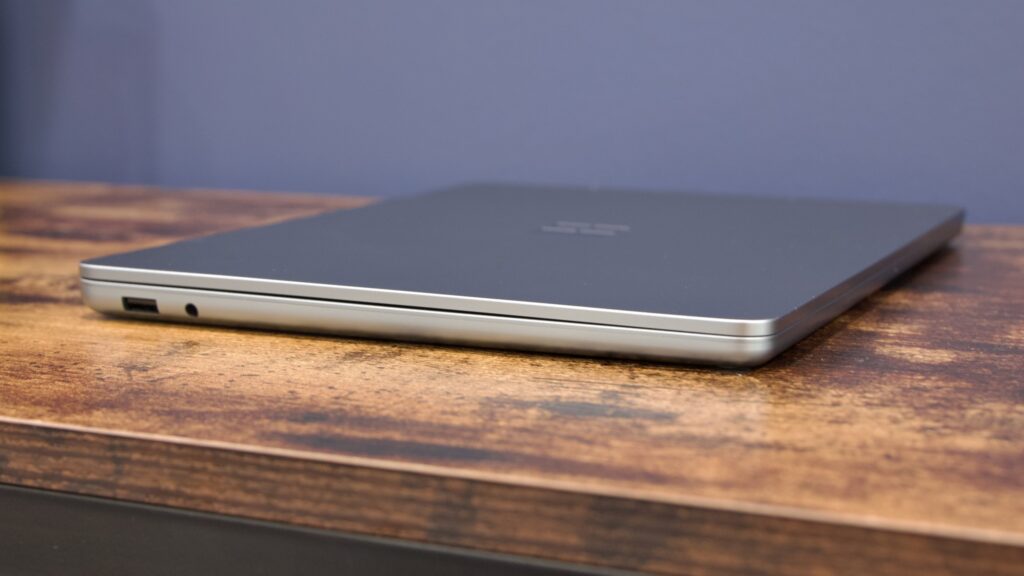
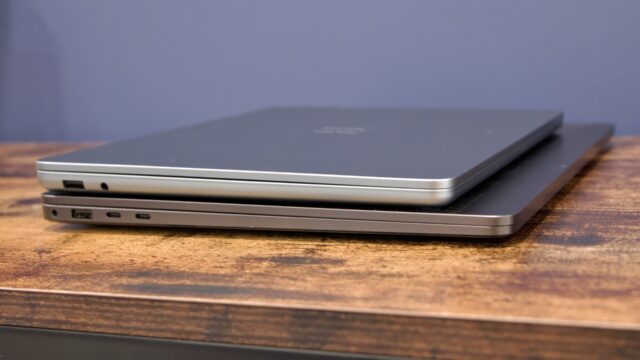
 On one side, you get headphones and USB-A.
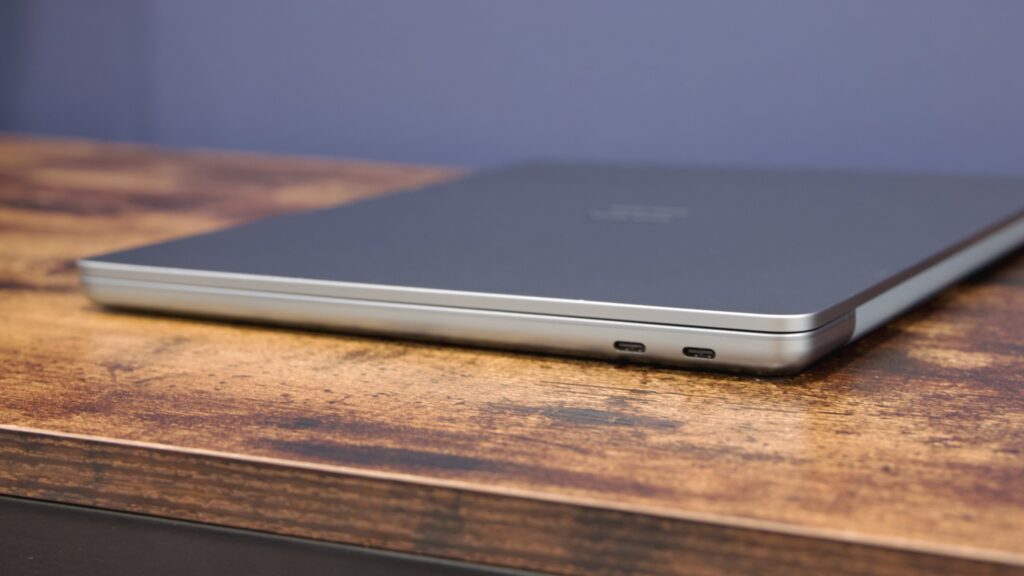
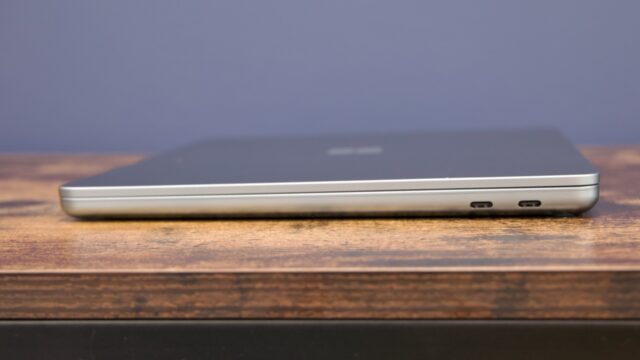
On the other, two USB-C ports, which also serve as your charging ports and display outputs.
Display quality is good, at least. With a peak brightness of 401 nits, a 1,817:1 contrast ratio, and 95 percent SRGB color gamut coverage, it’s not a premium laptop display (there’s no OLED or mini LED here, only 68 percent DCI-P3 gamut coverage, and there’s no refresh rate above 60 Hz). But it does tick the boxes for what we look for in a better-than-baseline laptop display in a way that (say)the Framework Laptop 12doesn’t do.

The laptop’s glass-coated touchscreen screen and aluminum exterior look and feel reasonably upscale, but it’s still a step down in rigidity and build quality from last year’s Surface Laptops or the MacBook Air. The fit and finish isn’t as tight, and the aluminum feels thinner and flimsier. When I open it, I am consistently greeted with a small creaking or popping noise. I’m not worried about anything breaking; it’s just missing the brick-like solidity of Microsoft’s other designs.

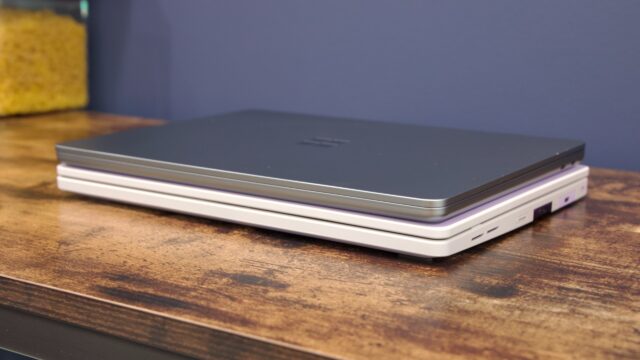
If I have one functional issue with the design, it’s that it’ssosymmetrical from the top with the lid closed that I frequently found myself trying to open it from the hinge side. There are obviously ways to tell the difference, but the square-of-squares Microsoft logo and the nearly non-tapered design both make it harder to tell at a glance.

>>>Replacement battery for Microsoft Surface Pro X 13″ Tablet

Repairs and upgrades

Microsoft has made a fair amount of noise in recent years about its support for more repairable devices, and it has made real progress on this front. Teardown artists at iFixit called 2017’s Surface Laptop a “glue-filled monstrosity.” But this year’s Surface Laptops rated an 8 out of 10 on the repairability scale, Microsoft publishes first-party repair manuals for all of its hardware, and the company had shifted to using replaceable M.2 SSDs across the lineup.

Microsoft hasn’t published the service manual for either of these newest Surfaces yet, but the new Laptop largely comes apart like recent Surface Laptop Go designs—remove the four adhesive-less rubber feet from the bottom, unscrew the Torx screws underneath each, and carefully use a plastic spudger to separate the keyboard from the bottom case so it can lift away. This is your first step toward most major repairs, including battery or motherboard replacements.

But the Framework Laptop this ain’t. There’s only one component that can really be considered user-replaceable, and it’s the SSD. The CPU, RAM, and other components are all soldered to the motherboard. The 12-inch Surface Pro tablet has seemingly reverted to soldered-down storage, with a UFS-based SSD instead of a typical NVMe drive, but it’s nice to see Microsoft preserve user-replaceable storage here.

As in many other Surface devices, these are of theshorter M.2 2230 varietyrather than the 80 mm-long M.2 2280 drives you’d find in larger laptops or in most desktop PCs. But this has become a more commonly used size than it was a few years ago—the Surfaces, the Steam Deck, the upcoming Framework Laptop 12, and a smattering of other thin-and-light laptops all use it now—so it’spossibleto find a third-party replacement drive. Microsoft hasoccasionally issued vague warningsabout using third-party SSDs, but in my limited experience trying different drives in these Arm-based Surface devices, swapping out NVMe drives has worked pretty much like it does in any other PC.

Performance and battery

There’s only one processor option in the 13-inch Surface Laptop: a Qualcomm Snapdragon X Plus chip (the exact model is X1P-42-100).

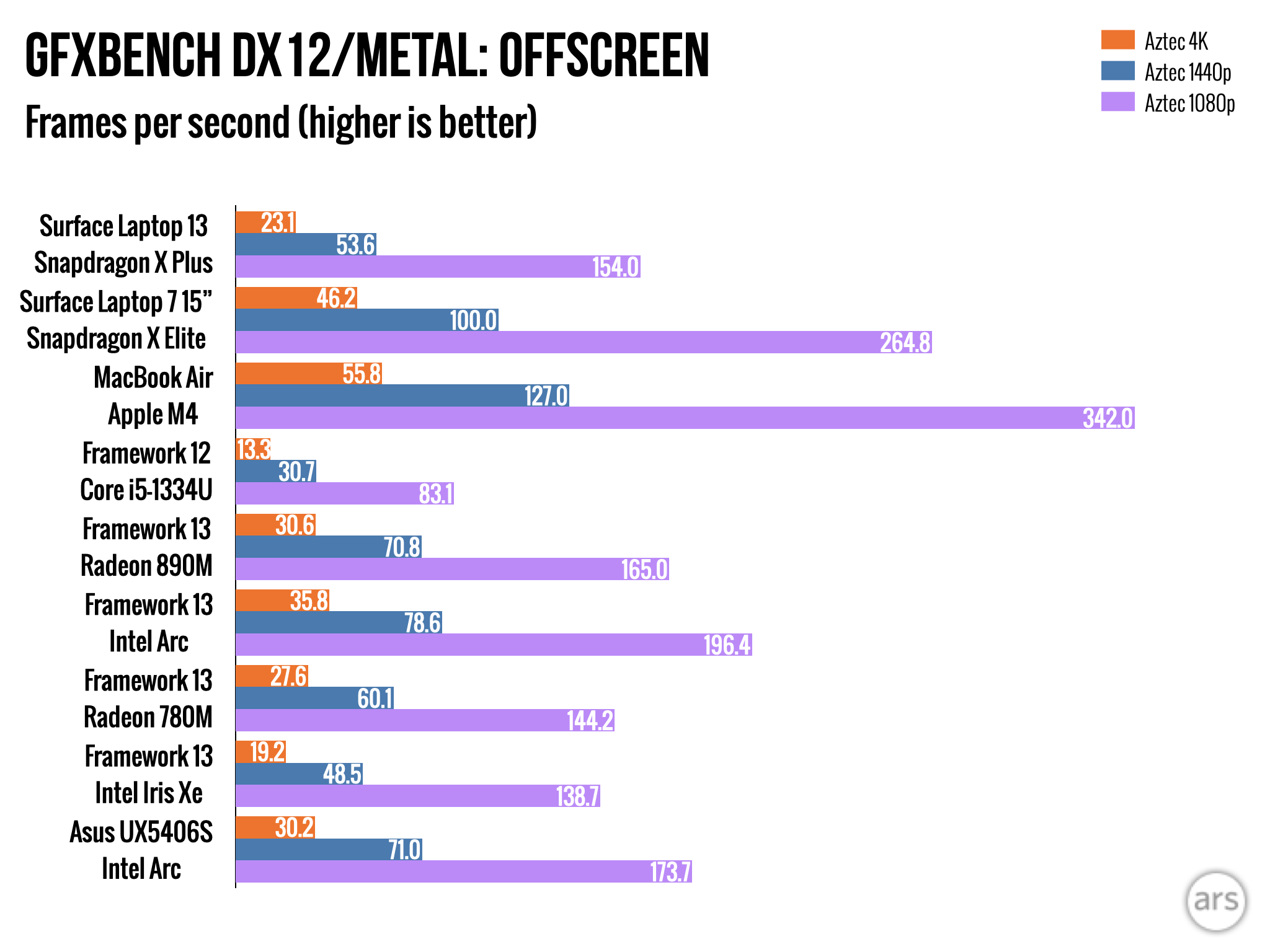
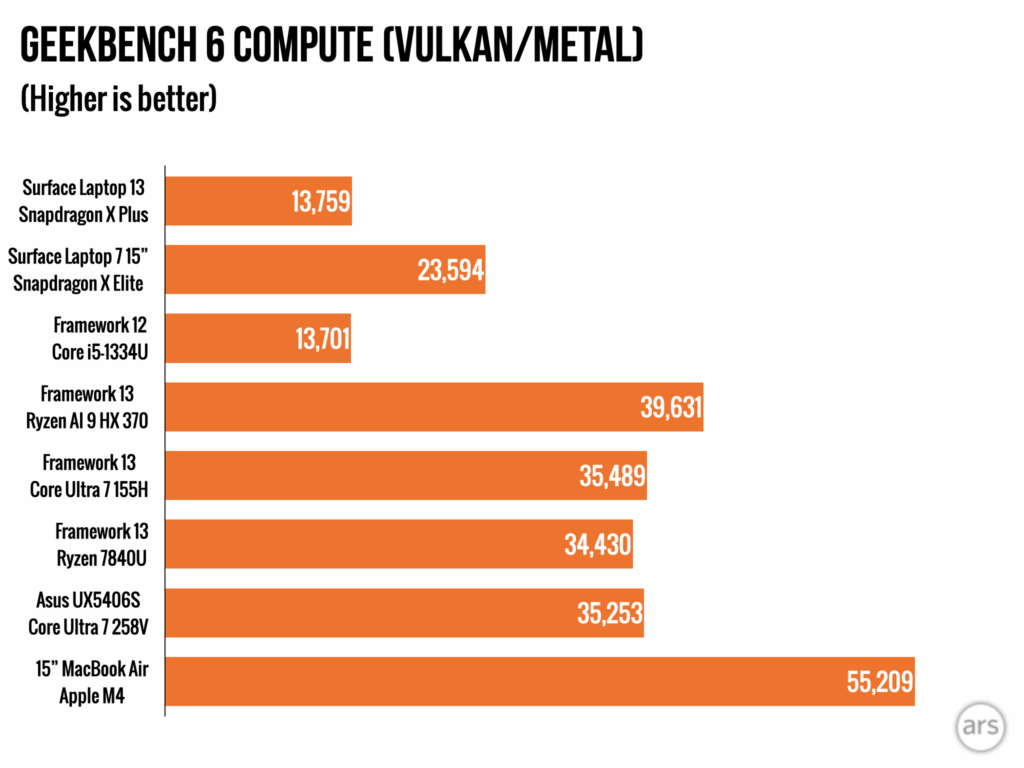
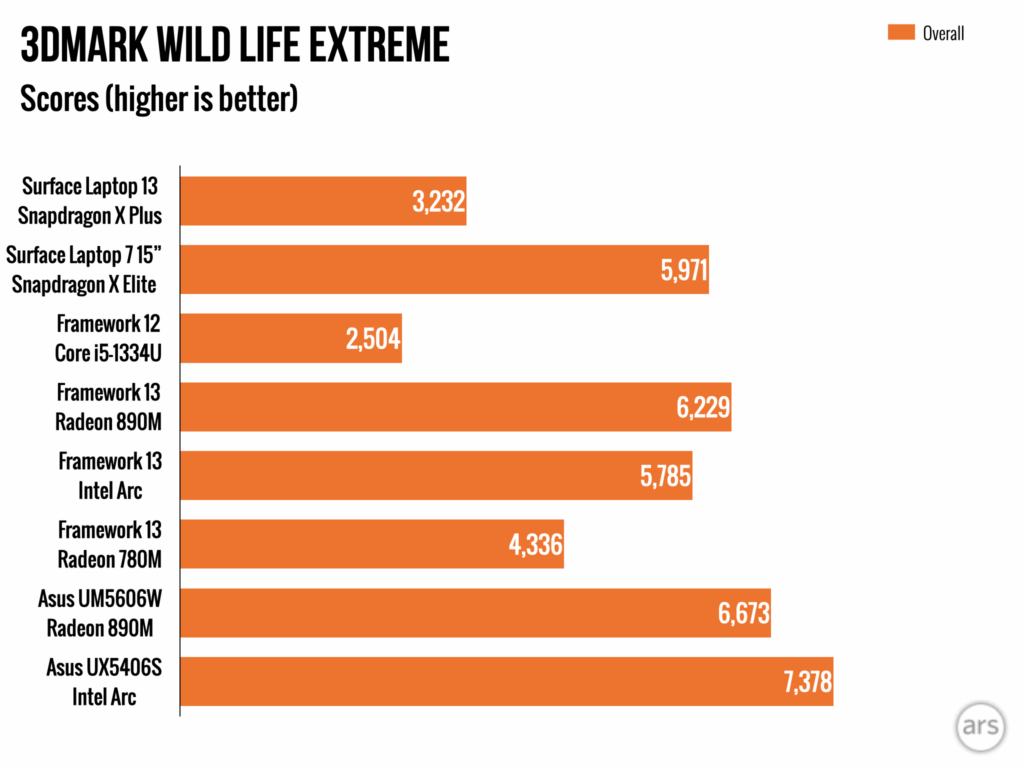
This is somewhat lesser than the Snapdragon X Plus processors used in last year’s Surfaces and others in the first wave of Copilot+ PCs. It has eight CPU cores based on Qualcomm’s Oryon architecture, with a maximum boost speed of 3.4 GHz. That’s two fewer cores than the 13.8-inch Surface Laptop and four fewer than the Snapdragon X Elite. The integrated GPU is also cut down from 3.8 TFLOPS of performance in the pricier Surfaces to 1.7 TFLOPS here. In the benchmarks we ran, the 13-inch Laptop usually had around or just over half the graphics performance of the larger versions with the better GPUs in them.
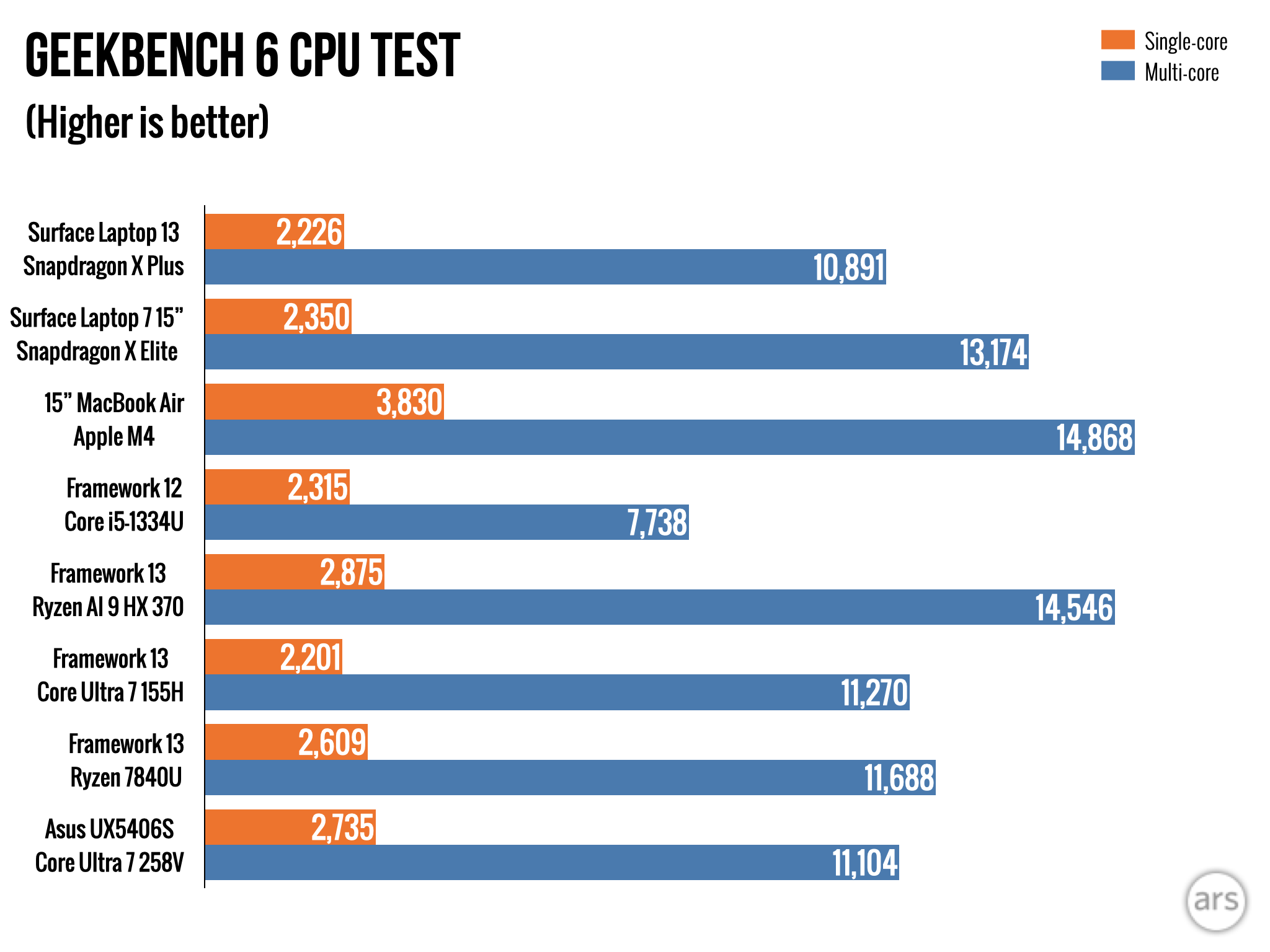
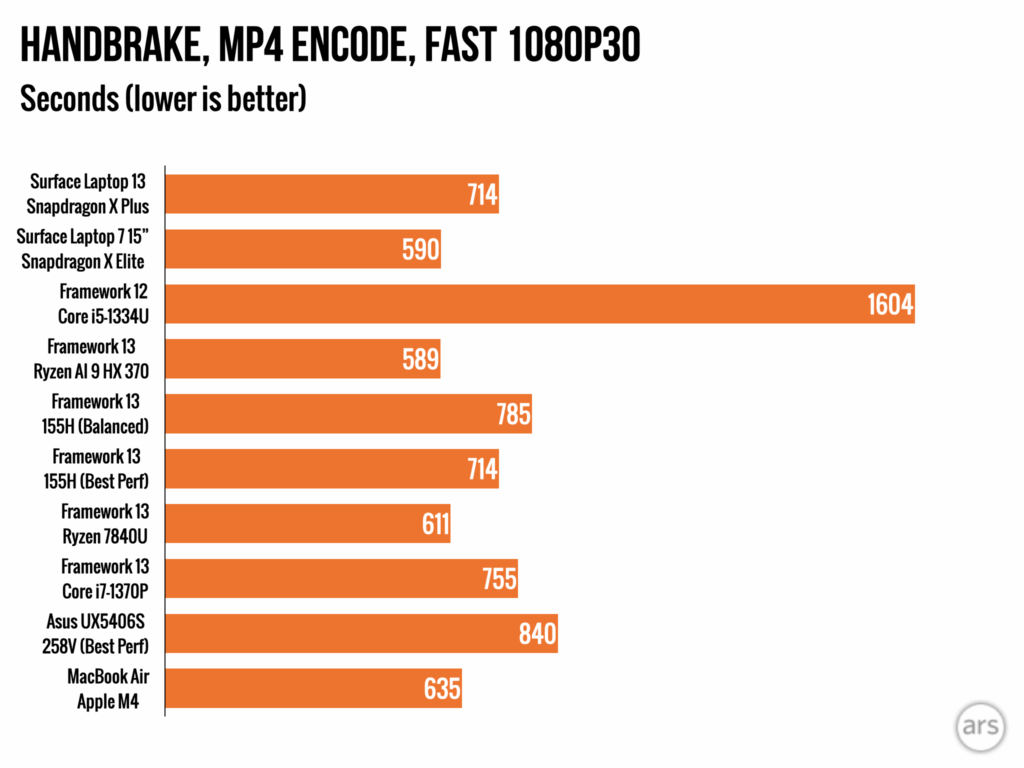
That means this isn’t a gaming laptop—performance is in roughly the same ballpark as Intel’s years-old Iris Xe integrated GPU and far short of the newer integrated Intel Arc GPUs, AMD’s integrated Radeon 780M and 890M, and likely most of the lower-end Ryzen GPUs, too. Arm PCs are already a bit iffy on the gaming front because of app-translation overhead and compatibility issues, and if the faster Adreno GPUs sometimes have enough raw performance to muscle through, the 13-inch Surface Laptop’s GPU will have a harder time.General performance feels fine because the processor still has plenty of cores, and you don’t need a lot of graphical oomph for desktop rendering (the laptop also handled an external display without struggling). Battery life also feels pretty excellent; the PCMark Modern Office battery test doesn’t run on the Arm version of Windows, so we have to go with vibes and anecdotal data rather than hard numbers. But like the Surface Pro and Surface Laptop from last year, I’d say battery life feels a sight better than most Intel and AMD-based PCs I’ve used lately, while not being quite as stratospheric as the MacBook Air. Expect to charge it most nights, but you usually shouldn’t need to worry about topping up in the middle of the day.

A quick note on Windows-on-Arm

The new Surfaces are Microsoft’s second wave of Arm-first consumer PCs, following several years of Arm devices that were sold as side projects or sub-variants of more traditional Intel and AMD systems. We’ve been covering the Arm versions of Windows since their inception, but particularly over the last couple of years, as a combination of effort from Microsoft and updates to third-party apps began making Arm PCs feel less like “Arm PCs” and more like just… PCs.

Progress since last summer has been mostly incremental, with the release of a few more one-off apps (the Google Drive app went Arm-native in November, Adobe supports more of its apps via emulation) and hardware drivers (Microsoft claims progress is being made onsupporting external audio interfaces). For developers, devoting time to Windows on Arm will require a certain amount of user demand, and Arm systems are still just a fraction of a fraction of the Windows user base—the situation is a lot better than it’s ever been, but drivers and niche apps with specific compatibility or performance problems will still take time to sort out.

If you play games or use exotic external hardware that requires specialized drivers, I’d still err on the side of grabbing an Intel or AMD laptop, particularly because this basic Snapdragon X Plus chip gives up more graphics performance than it does CPU performance. But for browsing, image editing, and the vast majority of office and productivity work, it’s still kind of remarkable how much “using an Arm PC” just feels like “using a PC,” compared to where things were just a few short years ago.

This is fine
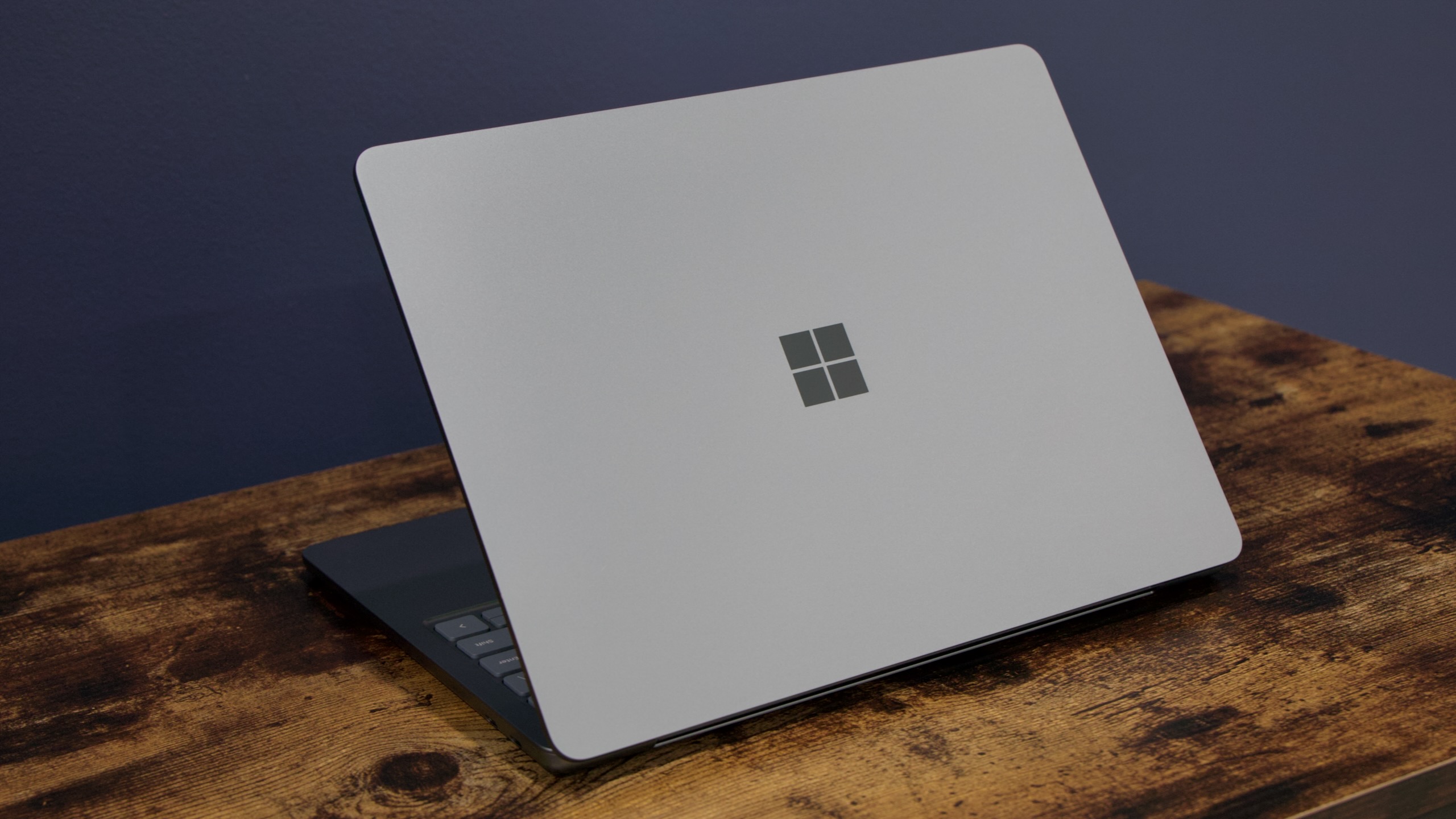
The 13-inch Surface Laptop.The $900 13-inch Surface Laptop isn’t bad. As Microsoft’s answer to the MacBook Air, it’s actually pretty good if you don’t trip over some lingering software compatibility issue with the Arm version of Windows. General performance is good; battery life is good; and I have no quibbles with the touchscreen, keyboard, or trackpad, three major components that fade into the background when done well but which can easily ruin a laptop if done poorly.

But it’s a step down from the 13.8-inch Surface Laptop in a whole bunch of ways, a laptop that Microsoft was selling for just $100 more than this until very recently. The screen is smaller and has a lower resolution, and it only refreshes at 60 Hz instead of 120 Hz. The build quality, while decent, feels a shade or two flimsier and more dentable. Integrated graphics performance takes a significant hit, though it retains the NPU necessary for Copilot+ PC features. Its base specs are fine for everyday use, but Microsoft offers few upgrade options, opting instead to upsell you to the now-$1,100 13.8-inch Laptop.

It’s hard to know what price point Microsoft was targeting with this thing when it was in the drawing-board phase, but its broad similarity to the old Surface Laptop Go design suggests it was intended as more of a budget model. In the end, Microsoft positioned it as an entry-level flagship device—and gave it an entry-level flagship price to match.

It’s hard not to see the 13-inch Surface Laptop as a poster child for our modern era of trade wars and economic uncertainty, factors that are driving up prices of everything from keyboards to game consoles. Cheap laptops still exist, but it feels like it’s become that much harder to find something that’s a step up from bargain-basement chunky plastic while still costing significantly less than $1,000.

Microsoft’s laptops regularly go on sale, both on Microsoft’s own store and at third-party retailers like Best Buy. If you can find it in the $700 to $800 range, it’s a solid deal. But at the regular retail price, it just feels like an inferior remix of a year-old laptop.

The good

  • Ticks all of the most important laptop boxes for $100 less than a MacBook Air
  • Solid CPU performance, 16GB of RAM, a nice-looking touchscreen, and a reliable keyboard and trackpad
  • Minimalist port selection that should still cover most of the basics
  • Most of the time, running Windows on Arm just feels like running Windows

The bad

  • Outstanding Windows-on-Arm compatibility issues with some external accessories, niche apps, and games
  • Somewhat flimsier build than laptops like the Surface Laptop 7 or MacBook Air
  • Lackluster graphics performance

The ugly

  • A year ago, you could buy a significantly better version of this laptop for just $100 more
I’m convinced — POCO’s F7 is the only mid-range phone worth buying in 2025

POCO goes back to what it does best — delivering incredible performance at an unbeatable value.

POCO F7 review

Verdict

POCO didn’t put a foot wrong with the F7; it has a 6,500mAh battery that lasts a day and a half, a vibrant AMOLED panel, and the best performance in this category. Combine that with longer-term software update guarantee, noteworthy design, and one of the best value-for-money of any phone in 2025, and you have an unbeatable package.

Pros

  • +Flashy design that stands out
  • +Noticeable performance gains
  • +Outstanding battery life
  • +Vivid AMOLED panel
  • +Decent main camera
  • +Long-term software updates

Cons

  • -Wide-angle lens isn’t great
  • -Global model doesn’t get the same battery as Indian version

POCO is clearly being ambitious in 2025; the brand’sX7 Pro Iron Man Editionwas a strong start to the year, and that was followed by theF7 Ultra, its best device yet. POCO is continuing that momentum with the debut of the standard F7. Although the device doesn’t have too many similarities to the F7 Ultra, it is interesting in its own right.

The F7 is powered by the Snapdragon 8s Gen 4, which has huge performance gains over the 8s Gen 3. I enjoyed using the chipset in theiQOO Neo 10, and it is just as performant on the F7 — Nothing is also set to use it on the Phone 3. But what makes the F7 that much more enticing is the value; POCO is once again undercutting its immediate rivals, and that makes the device a downright bargain.

I used the F7 for the better part of two weeks, and if you want a mid-ranger, there really isn’t anything that gives you quite as much value.

also:Replacement battery for Xiaomi Poco X6 Pro 5G

POCO F7: Pricing and availability

POCO unveiled the F7 on June 24, and the phone is set to go on sale starting July 1. The phone is available for ₹31,999 ($372) for the 12GB/256GB model, and ₹33,999 ($395) for the edition with 12GB of RAM and 512GB of storage. It’s good to see POCO providing 256GB of storage with the base model — just like last year.

Over in the U.K., the POCO F7retails for £389($530) for the 12GB/256GB model, and £429 ($584) for the 12GB/512GB variant. If you’re interested in buying the phone before July 7, you can pick up the 12GB/256GB model at £319 ($434) and the 12GB/512GB model at £359 ($488).

It will cost the equivalent of $399 for the 12GB/256GB model in other global markets, with launch pricing at $339. The 12GB/512GB model costs $449, with POCO bringing it down to $399 during the launch window.

>>>Replacement battery for Xiaomi Poco F5 Pro

POCO F7: What I like

POCO F7 review

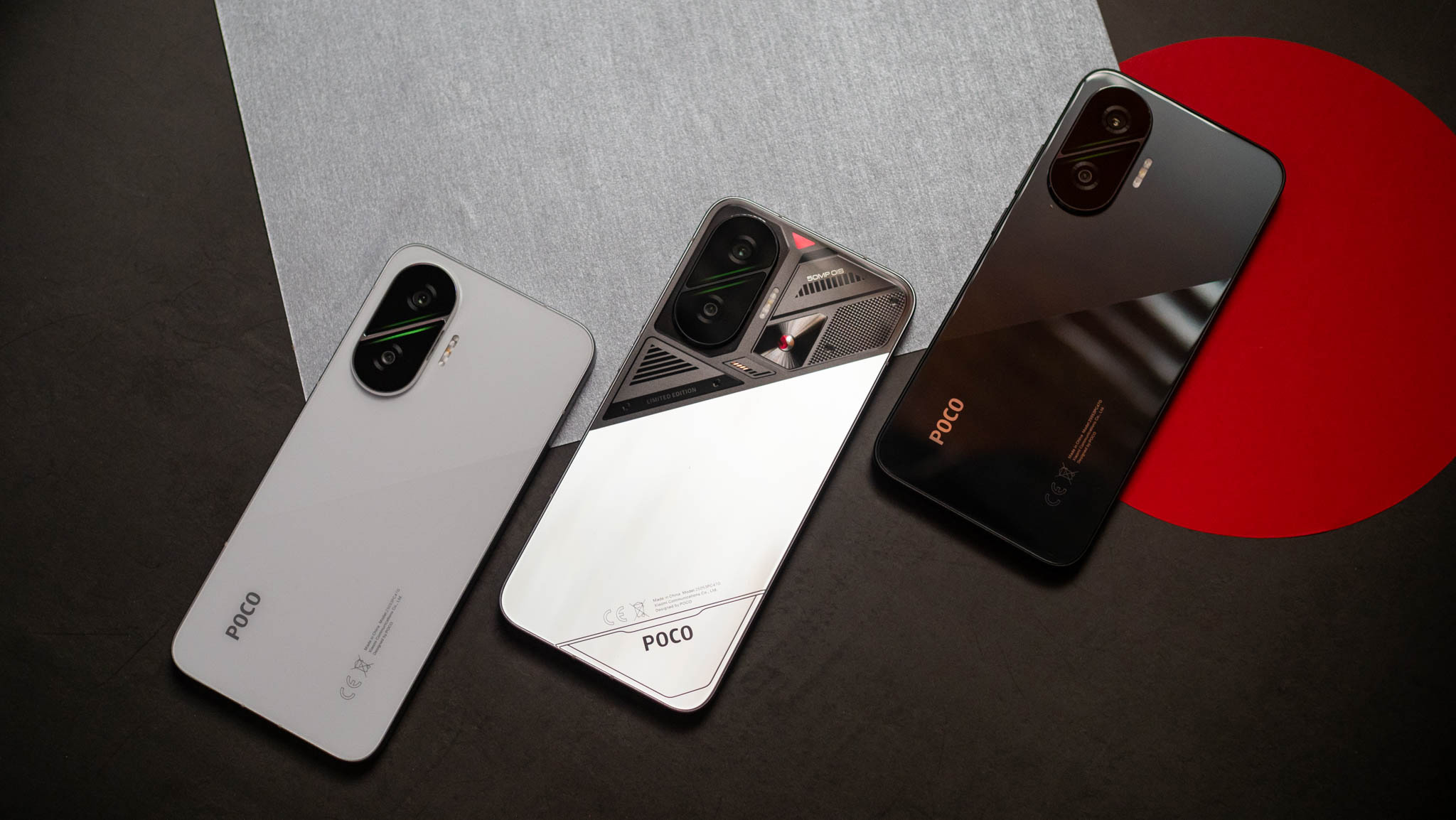
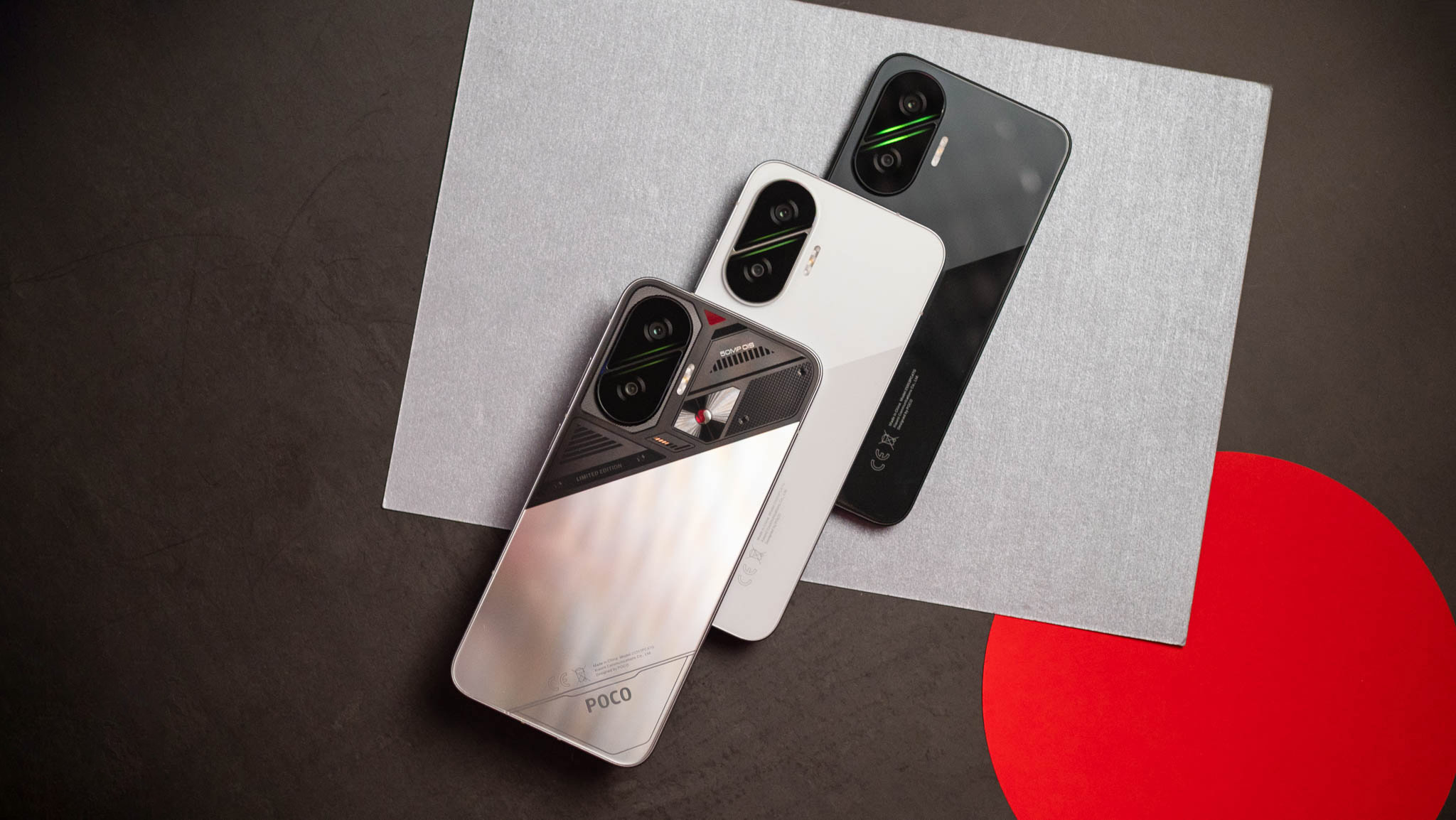
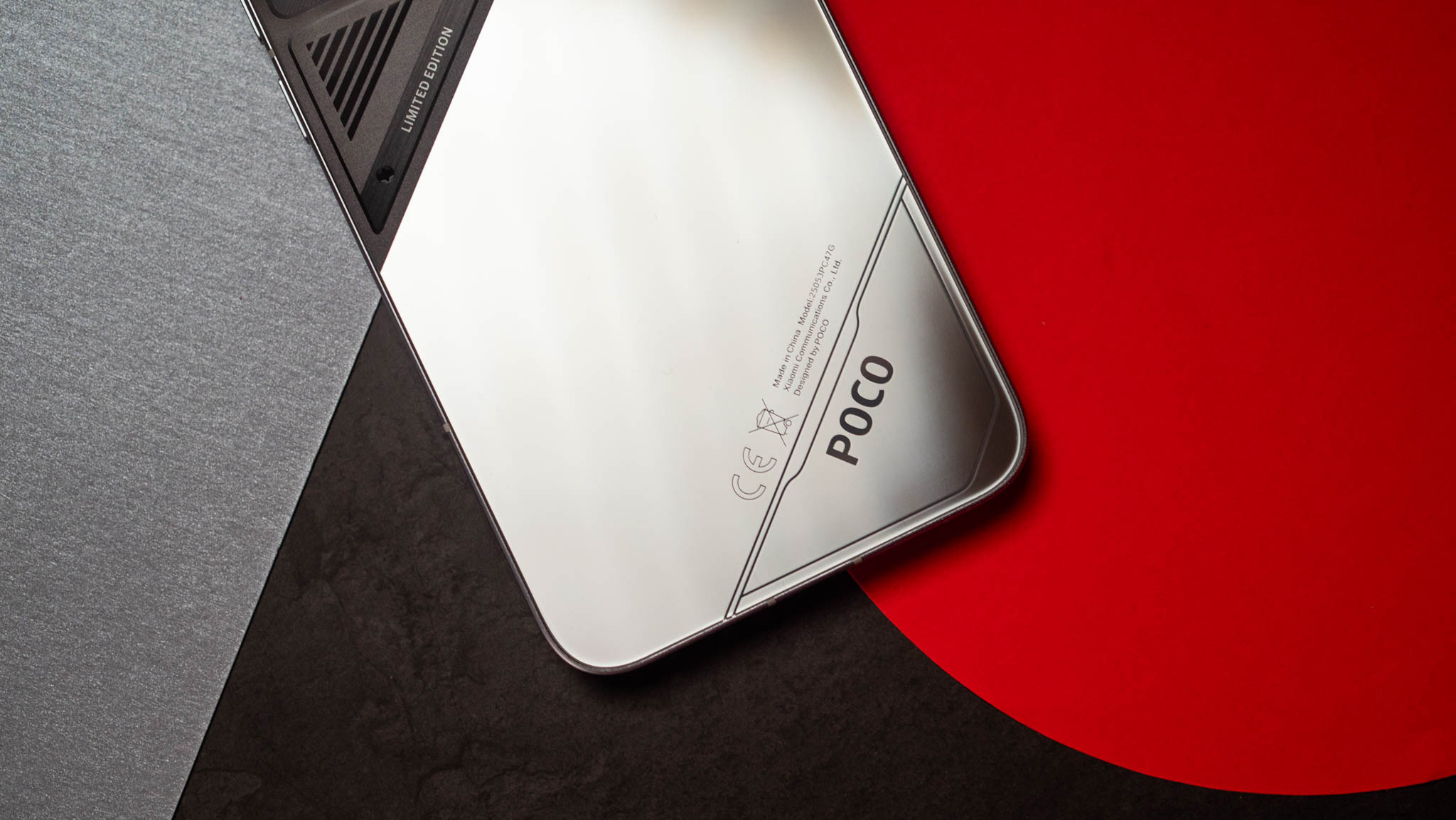
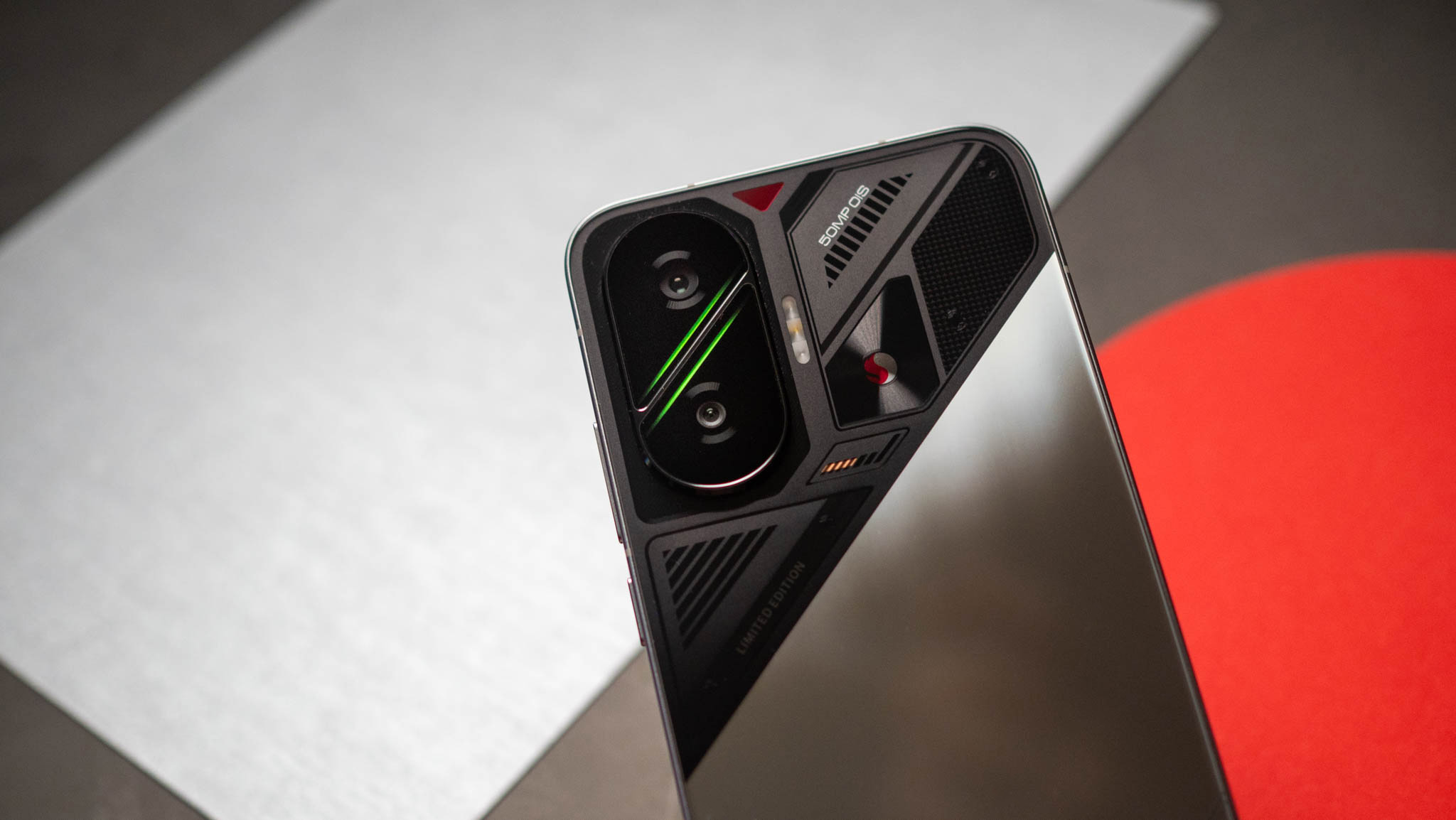
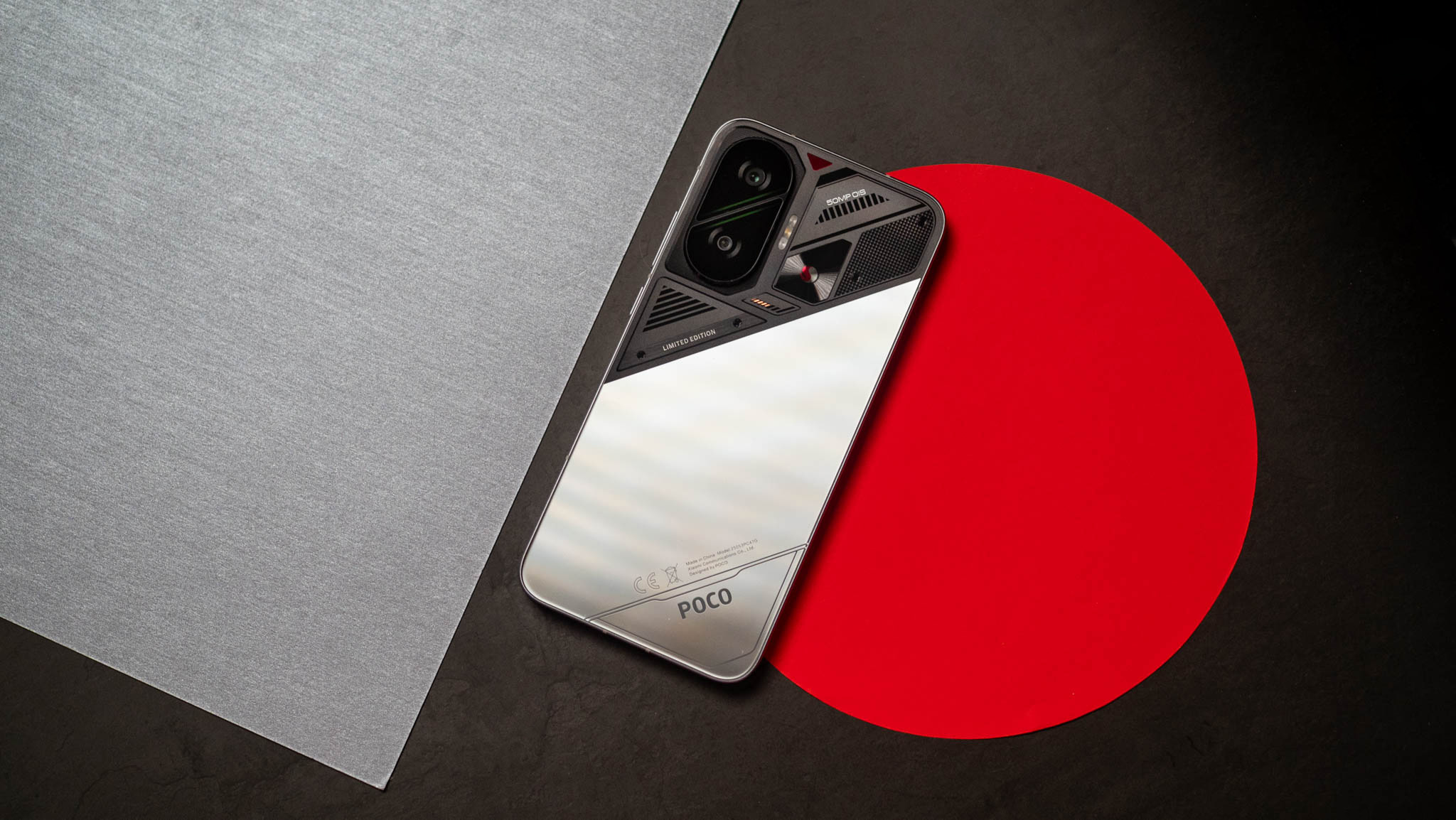
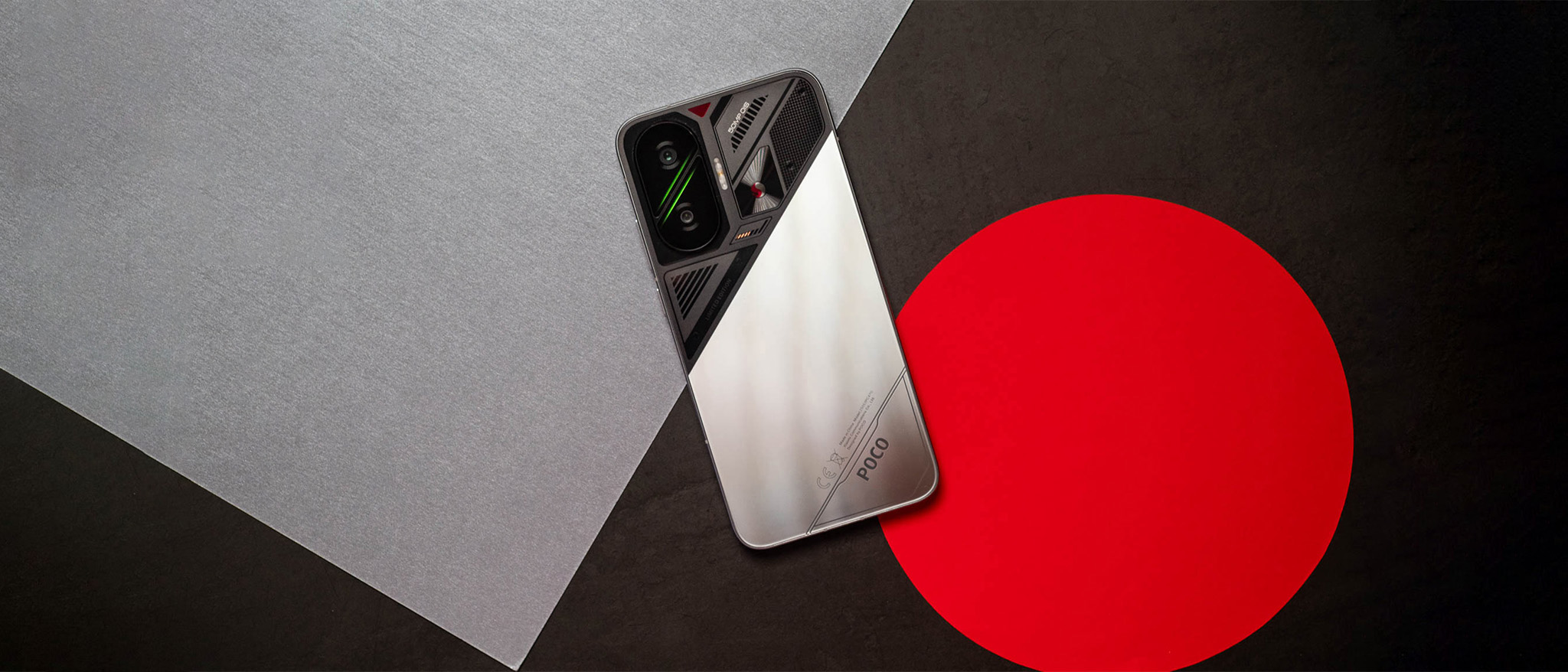
POCO doesn’t shy away from bold designs, and the F7 takes this to a new level. The white and black models have a two-tone design with a redesigned camera housing, and the oblong housing is split into. The green accents in the middle of the housing give it plenty of flair, and the dual-tone effect makes the design just that bit more refreshing.

>>>Replacement battery for Xiaomi Poco X5 Pro

The design is on another level

POCO F7 review

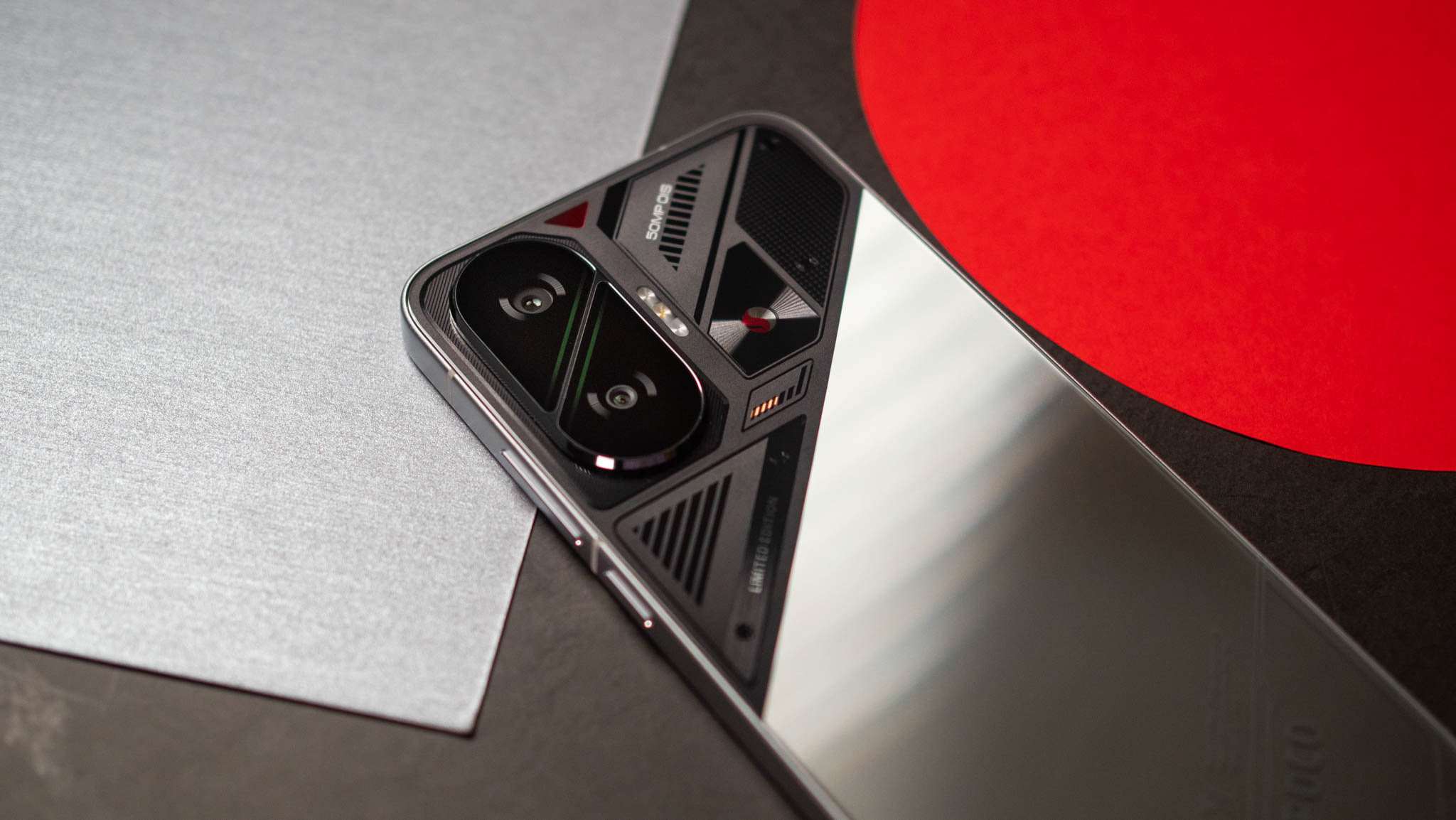
POCO also sent over the silver variant, and this is the model to get if you’re interested in buying the F7. It has futuristic styling with an embossed Snapdragon logo, and it easily attracts attention. POCO went with flat sides, but the bevels on the sides make it comfortable to hold and use the phone, and it isn’t unwieldy even though it has a massive battery.

POCO F7 review
POCO F7 review
POCO F7 review
POCO F7 review
POCO F7 review
POCO F7 review

The aluminum mid-frame and glass back make the device look upmarket, and POCO included IP68 dust and water resistance. The only issue I have with the design is that the fingerprint sensor is located a little too low on the panel, making it difficult to access.

This AMOLED panel gets bright

POCO F7 review

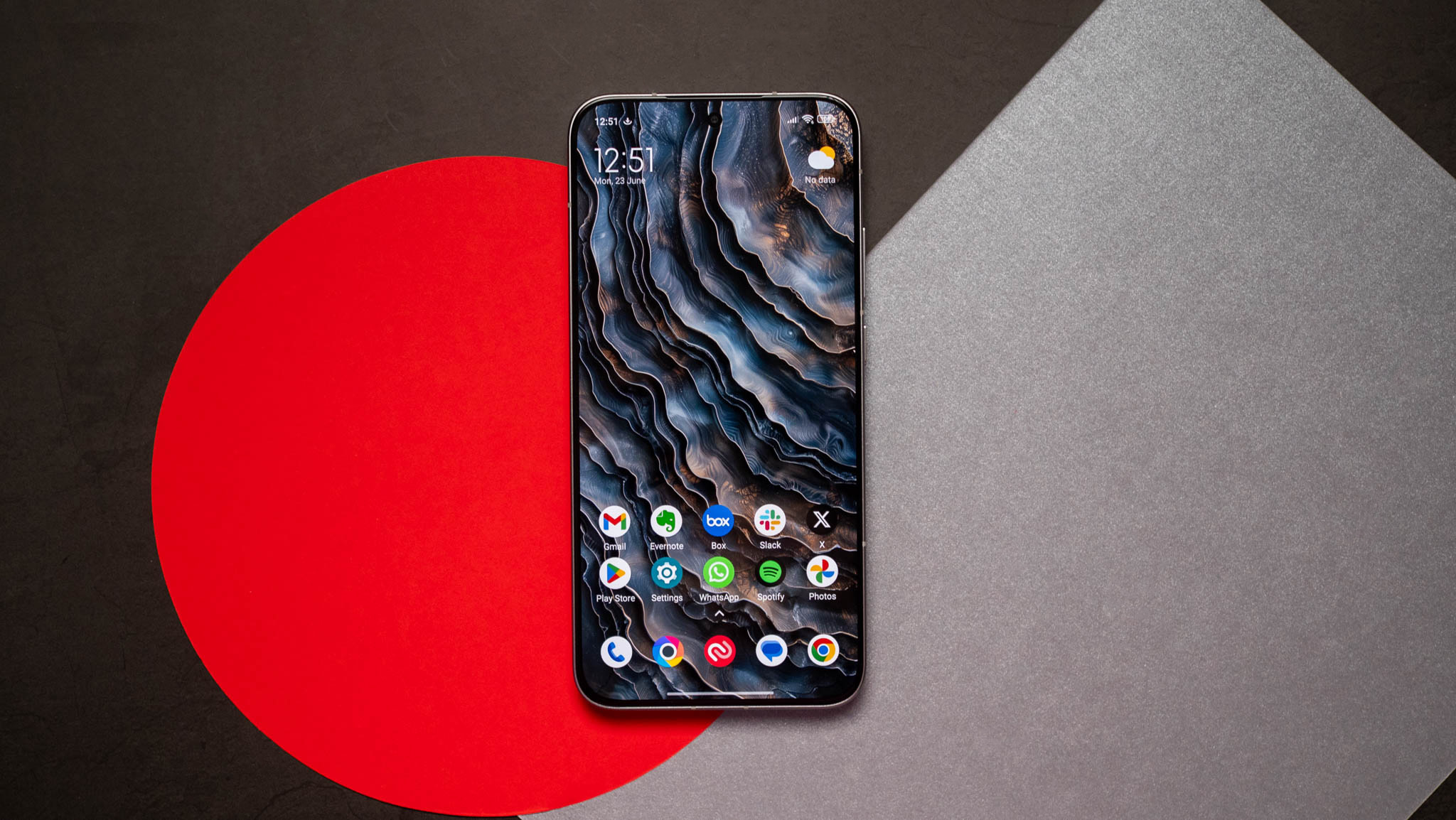
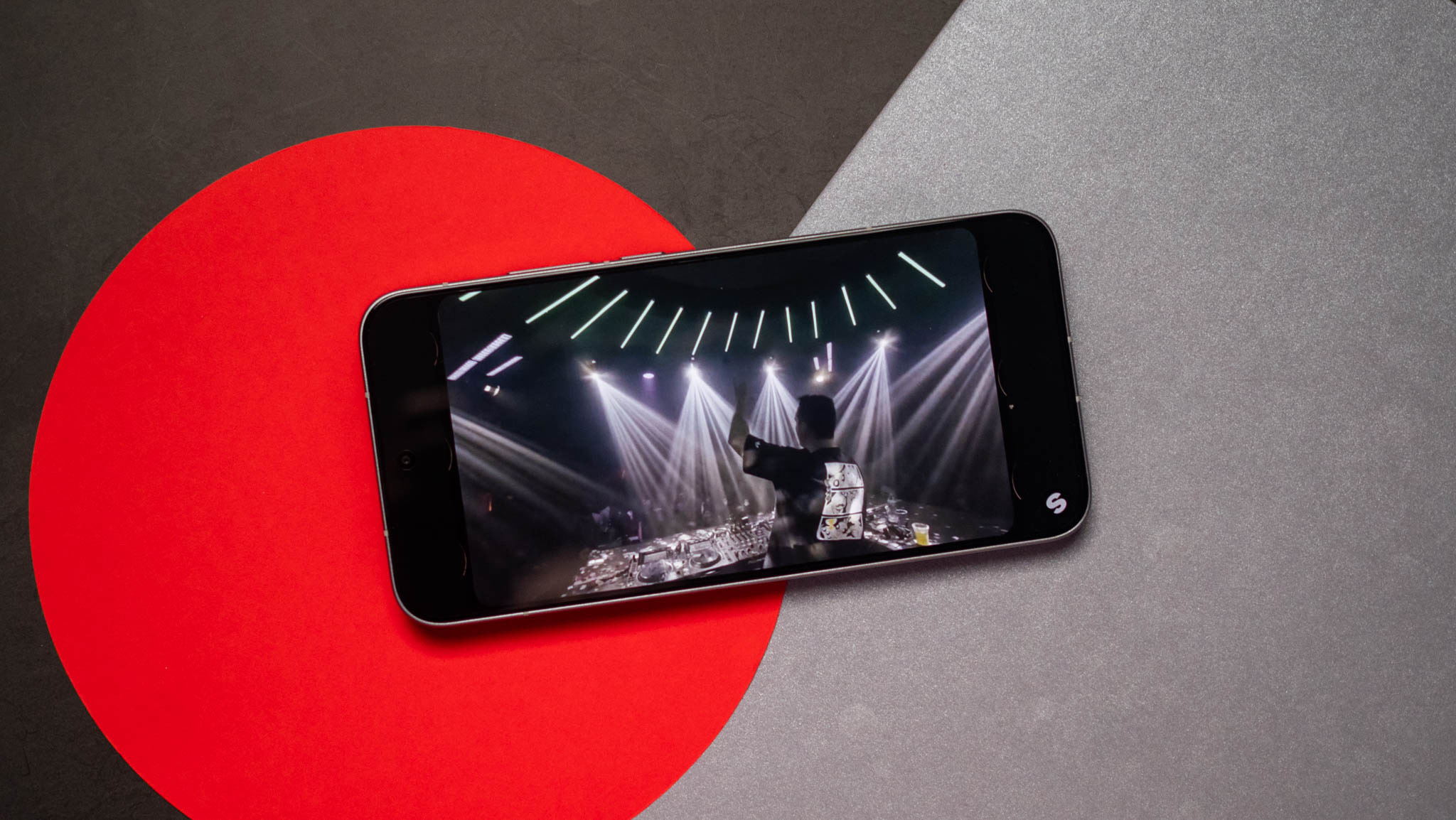
The F7 has a bigger 6.83-inch AMOLED panel, and it gets brighter than its predecessor. I didn’t see any issues with color vibrancy or contrast levels, and POCO continues to do a great job calibrating its panels. There’s Dolby Vision and HDR10+, and you get dynamic colors in Netflix and YouTube.

POCO F7 review

Gaming is similarly enjoyable, and the F7 doesn’t really have any issues in this regard. The stereo sound is limited as you don’t get identical channels, but you can make out two distinct sources of audio, and it is serviceable if you’re gaming casually. Interestingly, the phone gets 3,840Hz PWM dimming as standard, and it makes a huge difference if you’re sensitive to PWM issues.

Class-leading performance is a guarantee

POCO F7 review

POCO outfitted the F7 with the latest Snapdragon 8s Gen 4, and it is one of Qualcomm’s best mid-range chipsets in a long time. It uses a design that’s made up entirely of big cores — with the Cortex X4 leading the way — and the Adreno 825 holds up much better than the Adreno 735 in the 8s Gen 3.

Geekbench 6 (single-core)204920931988
Geekbench 6 (multi-core)627562466690
Geekbench AI (Quantized Score)359030412900
3DMark Wild Life Extreme (score)424645503566
3DMark Wild Life Extreme (FPS)25.4327.2521.35
3DMark Solar Bay (score)755880755131
3DMark Solar Bay (FPS)28.7430.7119.51

Basically, this is one of the fastest options in this category, and it allows the F7 to shine in demanding games. I didn’t see any issues with visually-demanding games, and the F7 delivers the best performance in this category by a long shot. Other niceties include UFS 4.1 storage modules, 256GB of storage even on the base model, Bluetooth 6.0 modem — just like theXiaomi 15 Ultraand Xiaomi 15 — alongside Wi-Fi 7, AptX Adaptive, and dual-band GPS.

A battery that goes on (and on (and on))

POCO didn’t really omit many features on the F7, and that’s refreshing to see. On that note, the phone has a huge 6,500mAh battery, and it lasts over a day and a half with medium use. Even if you binge an entire season of a TV show in one go, you’ll get a day’s worth of use out of the device.

My only annoyance with the battery is that the global model doesn’t have the gargantuan 7,550mAh silicon battery that’s exclusive to the Indian model. POCO did this in the past as well where it limited the bigger battery to the Indian version, and I want to see that change.

Other than that, the phone gets 90W charging, and it takes just over 44 minutes to charge the device. That’s quite decent when you consider the size of the battery, and this is with the 6,500mAh model — I didn’t get to use the Indian unit with the 7,550mAh battery.

Highly customizable software

POCO F7 review

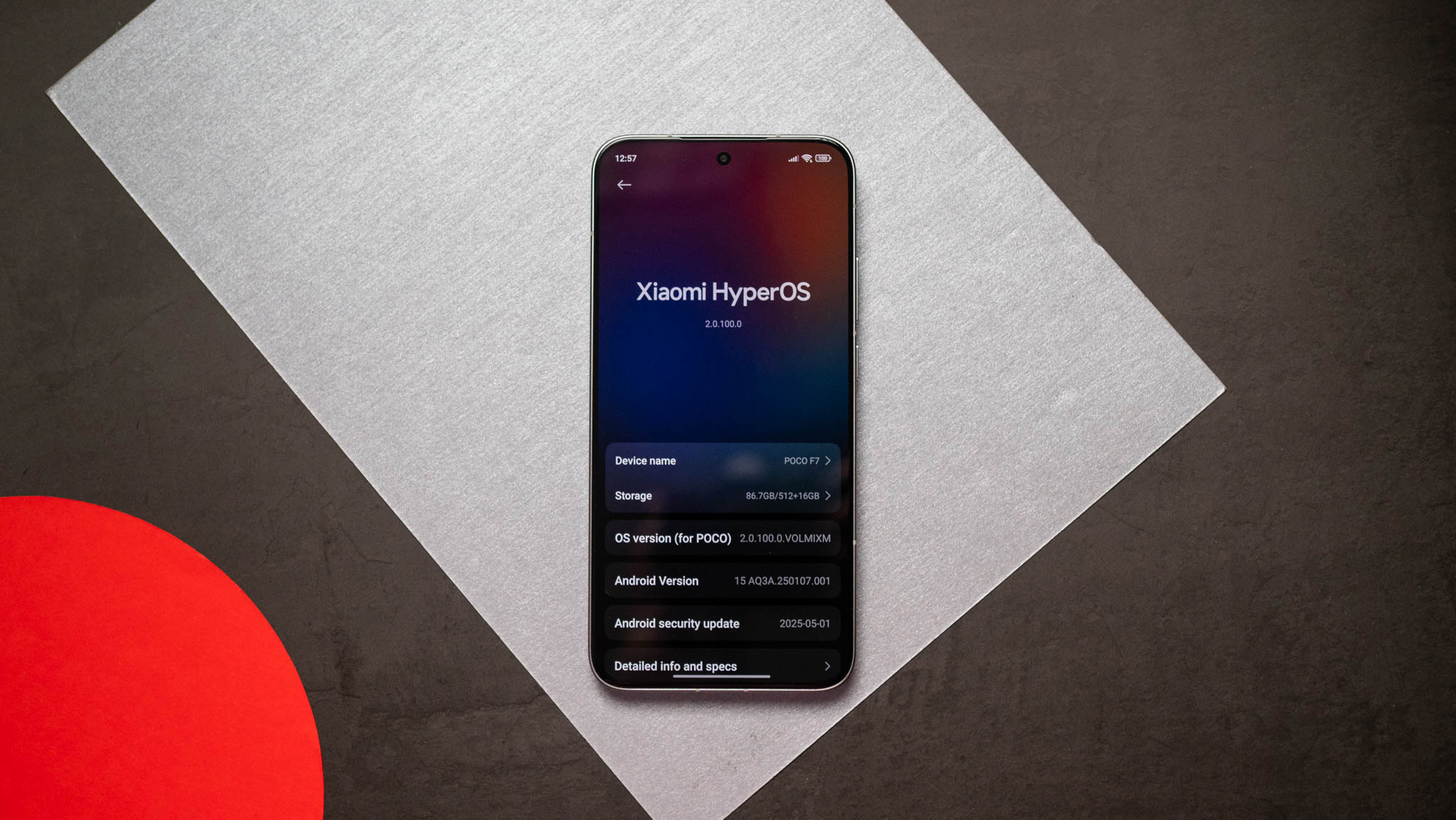
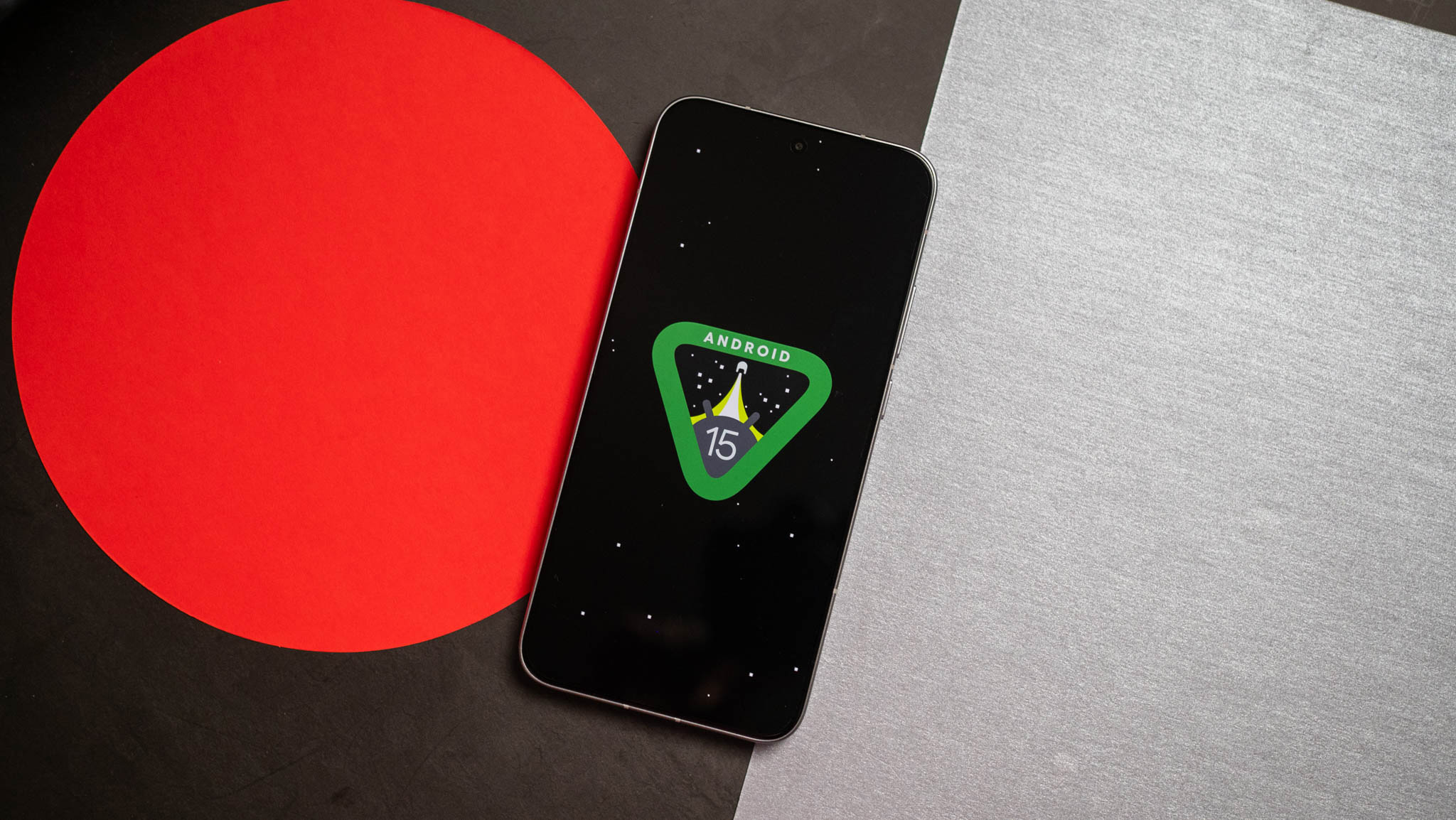
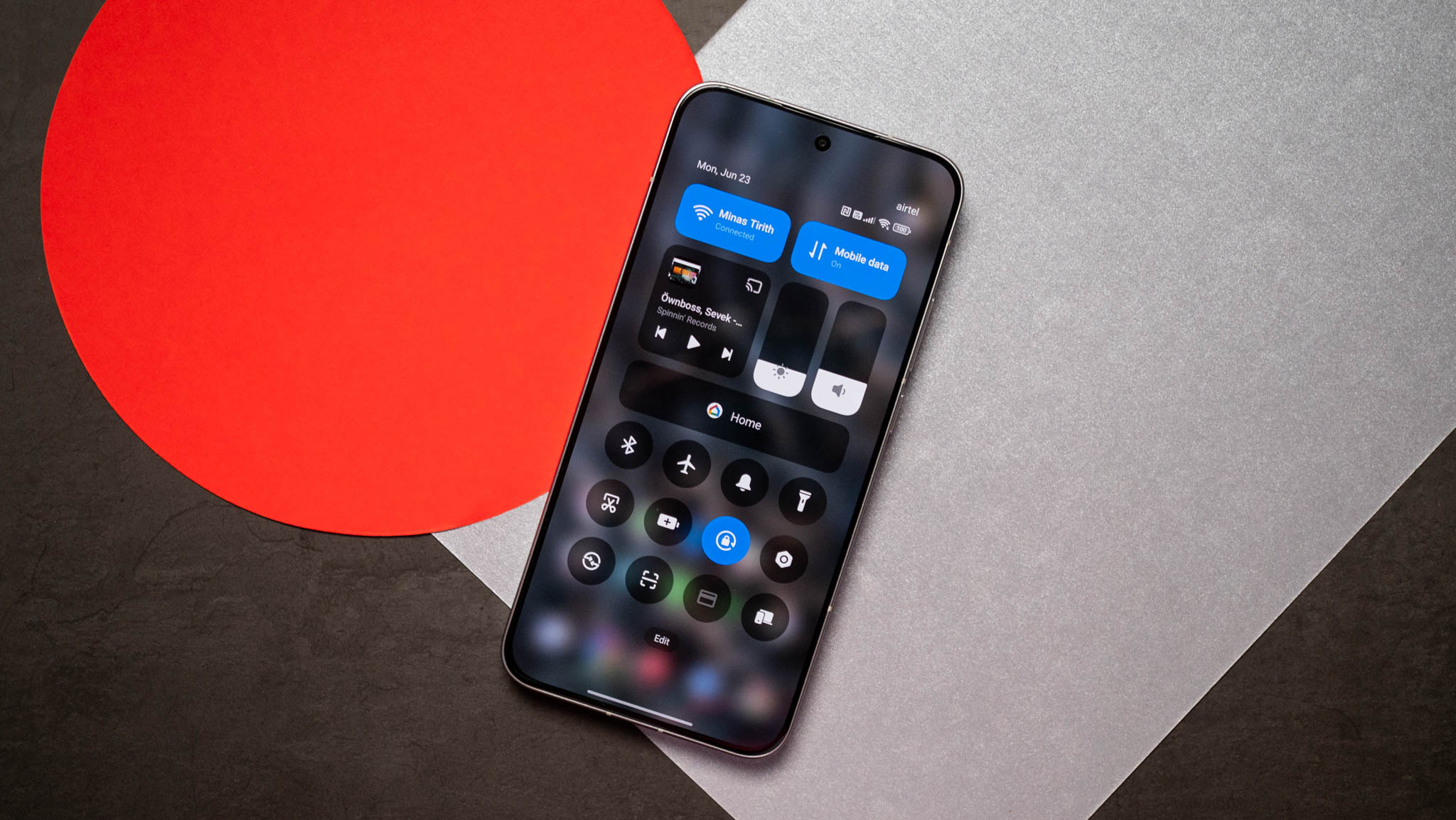
POCO’s phones have the same software as their Xiaomi siblings, and the F7 runs Android 15 out of the box. There’s good optimization, so you get a fluid interface without any noticeable lag in daily use. I ran into a few issues with notifications, but disabling the memory management sorted those out.

POCO F7 review

Other than that, there really isn’t much to talk about the software. You get the usual AI-backed utilities, but they’re limited to Xiaomi’s (err, POCO) own services, and I don’t really see much usability with these. What I like is that the F7 will get four Android OS updates alongside six years of security patches. That’s a positive move from POCO, and it allows the phone to be relevant that much longer.

POCO F7: What I don’t like

POCO F7 review

POCO will admit that cameras aren’t the highest priority for the brand, and while the F7 Ultra changed this narrative, the standard F7 doesn’t quite deliver the same caliber of photos. The phone uses a 50MP Sony IMX882 as the main camera, and it’s joined by an 8MP wide-angle lens and a 20MP front camera that lacks autofocus.

The phone takes decent photos in most conditions, but it isn’t going to win any awards. You can get beautiful shots if you’re willing to tweak the settings, but it isn’t anywhere as effortless to use as the Pixel 9a or even the iQOO Neo 10. The 8MP wide-angle lens is strictly average, and it doesn’t measure up in low-light situations. You get 4K60 video, but stabilization isn’t great.

Another issue is with the software; while I generally like what POCO is doing in this area, the F7 has way too much bloatware installed out of the box. Yes, you can uninstall or disable most utilities, but most users won’t bother doing so.

POCO F7: The alternatives

I like the iQOO Neo 10; it has a lot of the same features, and you get a 7,000mAh battery as standard alongside 90W charging. It holds up just as well in daily use and intensive gaming, and it is a smidgen lighter than the F7. I like iQOO’s software better, but the device won’t get as many updates.

If you need the best cameras, thePixel 9acontinues to be a solid choice. The phone isn’t anywhere as fast as the F7, and it misses out in a lot of other areas. But if you need a mid-ranger to take photos, the cameras are hard to beat, and Google has an extensive suite of AI editing features.

POCO F7: Should you buy it?

POCO F7 review

You should buy this if:

  • You want a phone that will turn heads
  • You need the best battery life
  • You’re looking for the best performance in this category

You shouldn’t buy this if:

  • You take a lot of photos and videos

The F7 is an existential threat to the Redmi Note 14 Pro+; POCO somehow managed to deliver better performance, much better battery life, a bigger AMOLED panel with brighter colors, and longer software updates.

This makes me question why Xiaomi even bothers with the Redmi Note series; sure, it takes better photos, but it is inferior in every other way, and the pricing just doesn’t justify what you’re getting.

If you need a mid-range phone and don’t mind average cameras, there really isn’t a better choice than the F7 right now.

Best all-in-one computers in 2025: our top picks tested and rated

These are the best all-in-one PCs we’ve ever used

Apple iMac M4 review unit on desk

I’ve been reviewing PCs for years and I’ve come to really appreciate all-in-one computers because the best all-in-ones are compact, powerful enough for work and play yet cheap enough that you won’t break the bank buying one.

I know because my team and I review hundreds of PCs every year, including the best all-in-one PCs from Apple, HP, Lenovo, MSI and more.

While most all-in-ones aren’t speed demons, the latest 24-inchApple iMacis something of an exception thanks to the powerful M4 chip inside. I recommend it as the best all-in-one for most folks because it’s a great multi-purpose PC, powerful enough to play games well with a lovely screen that offers nice wide viewing angles, so it makes for a great family or living room PC.

While it’s not the most expensive Apple PC the iMac is pricey, so if you just want a decent PC that doesn’t cost an arm and a leg I recommend theMSI Modern AM271Pbecause it’s a great value.

If you can afford to splurge but don’t like the iMac, I suggest theHP Envy 34because it adds a touch of elegance to the all-in-one design, sporting luxuries like a gorgeous 34-inch display and a built-in wireless charger on the stand.

>>>Replacement battery for MSI Modern 14 B5M C5M C13M Modern 15 B12M SERIE

The best all-in-one computers you can buy today

The best overall

1. Apple iMac M4

The best all-in-one for families

Specifications

VR Ready:NoProcessor:Apple M4 chipRAM:16-32GBGraphics Card:Apple M4 chipStorage:256GB – 2TB SSDAccessories:Apple Magic Keyboard and Mouse

Reasons to buy

+Speedy M4 performance
+Lovely 4.5K display
+Great 6-speaker sound system
+Upgraded camera is nice to have

Reasons to avoid

-Lack of height adjustment hurts
-No touchscreen option feels limiting

The colorful Apple iMac M4 looks an awful lot like its predecessors, but under the hood this all-in-one is powered by the all-newApple M4 chipthat helps propel it to our top spot on this list.

I really like the iMac because it combines good performance, a surprisingly good speaker setup and a lovely display with great viewing angles in one attractive package that’s easy to fit into your desk.

The 24-inch 4.5K display is among the best you can get on an all-in-one, and its wide viewing angles make it surprisingly good for gathering friends or family around to watch YouTube videos or stream a TV show. Pair that with the six-speaker sound system, which supports Apple’s Spatial Audio feature, and you get the best theater experience out of any PC on this list.

Pair that with the speed and power of the M4 chip, which is more than capable of handling basic work tasks, homework, basic video editing and light gaming, and you start to see why I love this machine as a general-purpose PC. Plus, the 12MP webcam is great for FaceTiming relatives or taking part in remote learning, and if you’re using FaceTime you can use the new Desk View feature to transmit a live feed of whatever’s in front of you on your desk in addition to your own video.

For more on why the Apple iMac M4 is a great all-in-one that’s so easy to recommend to families, students and teachers, check out our review and testing results!

>>>Replacement battery for MSI 2964125 2ICP3

The best value

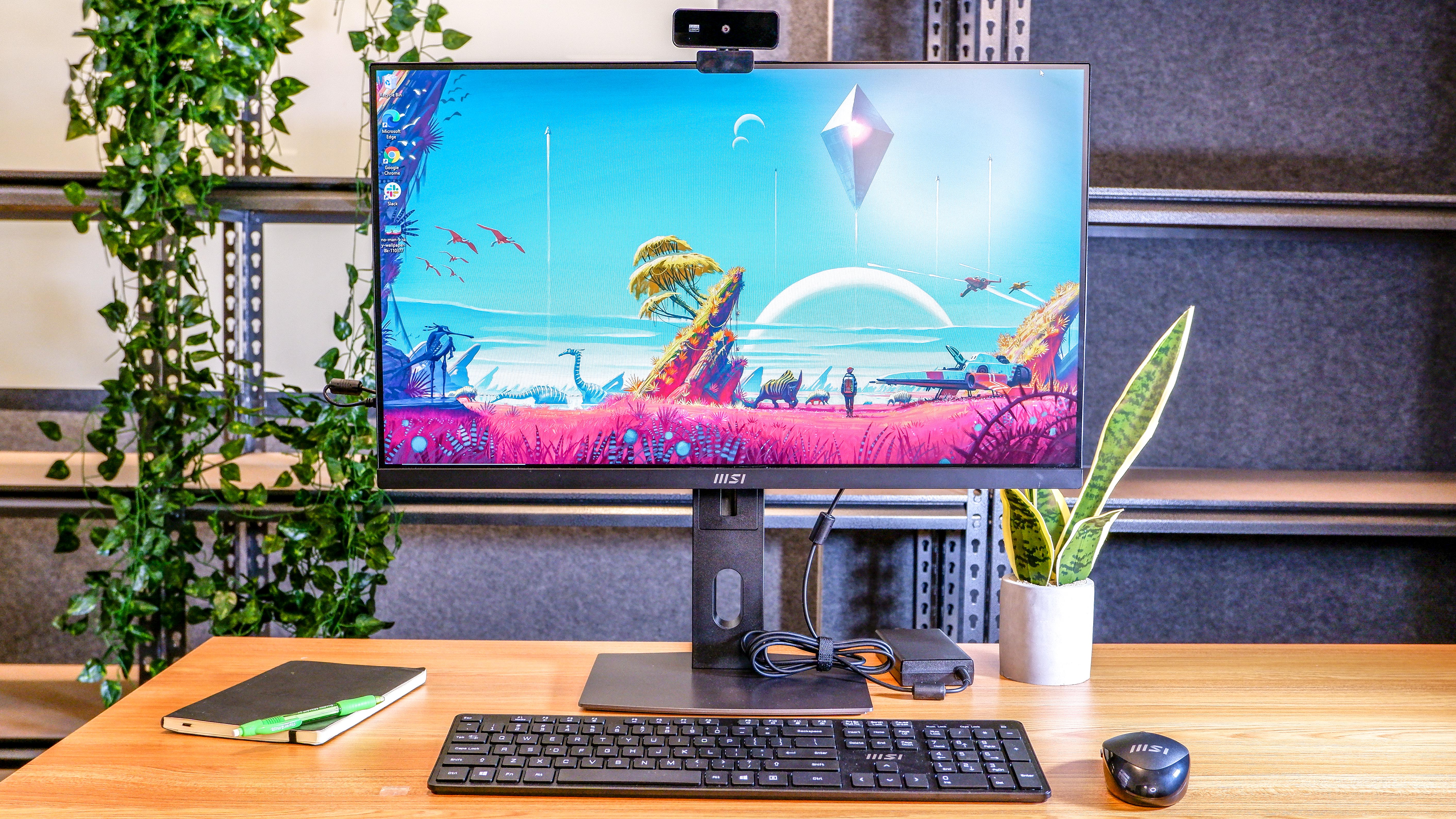
MSI Modern AM271 M11 on a desk

2. MSI Modern AM271P 11M

The best all-in-one for getting business done on a budget

Specifications

Display:27-inch 1080p (1920 x 1080 pixels)Special Features:1080p webcam, keyboard and mouse includedProcessor:Intel Core i7-1165G7Graphics:Intel integrated graphics

Reasons to buy

+Big, beautiful 27-inch screen
+Easy to set up and use
+Takes up minimal space
+Affordable price

Reasons to avoid

-Disappointing audio quality
-Struggles with modern games

The MSI Modern AM271P 11M is an awkwardly-named all-in-one that’s quite good if you need something relatively affordable that’s capable of tackling the day-to-day tasks of handling business and getting things done.

That’s because this PC packs a speedy 11th Gen Intel Core i7 laptop CPU into its display along with 16GB of RAM and a 512GB SSD. The fact that it’s powered by a top-of-the-line laptop CPU means this MSI can deliver a lot of speed and functionality even though the entire PC is housed inside the display itself. And with its built-in VESA mount, you can set it up on the included stand or mount it on a wall or monitor arm for more convenient workplace setups. Plus, you get a 1080p webcam, keyboard and mouse packed in with every unit — though all three leave a little something to be desired, so you may want to replace them with your own favorites down the road.

The best upgrade pick

3. HP OmniStudio X 32

The best Windows all-in-one for those who can afford to splurge

Specifications

Display:31.5-inch 4K UHD (3840 x 2160) IPSSpecial Features:Doubles as laptop dock or external displayProcessor:Intel Core Ultra 5 125H – Ultra 7 155HGraphics:Integrated graphics or Nvidia RTX 4050 GPU

Reasons to buy

+Fully customizable
+Excellent display color accuracy
+Lots of easily reachable connection ports
+Can act as an external monitor or dock for other devices

Reasons to avoid

-Included keyboard and mouse are poor
-Webcam image quality is mediocre

The HP OmniStudio X is a good Windows 11 all-in-one PC that costs a bit more than the MSI but offers more and better features.

And while the 32-inch 4K screen is not quite as high-res as the iMac M4’s 4.5K display, the HP’s screen is bigger and can double as an external display for your laptop or other device. So if you work on the road and wouldn’t mind a bigger screen to use when at home, this is a great all-in-one.

You have a surprising amount of leeway to customize it when you order, as well, which is something of a rarity when it comes to buying all-in-one PCs. You can also outfit it with a discrete Nvidia GeForce RTX 4050 GPU if you like, which expands the range of games you can play on this slick all-in-one.

But it’s really built for productivity mavens, and you can tell when you check out the slew of easily-accessible ports on the OmniStudio X. Not only do you get plenty of USB-A and USB-C ports, you also get HDMI outandHDMI in (so you can use the OmniStudio as a display for another device) as well as an RJ-45 Ethernet jack.

And while the built-in 12MP webcam doesn’t deliver great image quality and the “Desk View” feature (which lets you show what’s on your desk while you’re on a video call) is kind of a hassle to use, those are small complaints on what’s otherwise a great Windows 11 all-in-one.

You even get a mouse and keyboard packed in, and while they’re not high-quality they are nice to have if you don’t have some already or your favorite mouse and keyboard break.

How to choose

How to choose the best all-in-one computer for you

Even the best all-in-one computers generally don’t deliver a ton of power, so if you need a PC for serious photo/video editing, coding or playing games you should probably look elsewhere (like our regularly-updated list of thebest gaming PCs).

But if you need an all-in-one for general computing, you have a lot of great choices. The number one thing to decide when shopping for the best all-in-one computer for your needs is what operating system do you want: macOS or Windows?

While there are a few all-in-one Chrome PCs, the vast majority run on either Apple or Microsoft’s operating system. And while Windows AIO PCs like the OmniStudio X 32 support a wide variety of software and are compatible with any game you care to run, those strengths ofWindows 11matter less when it comes to all-in-ones because these PCs generally don’t have the power or cooling to run the most demanding apps and games anyhow.

So if you prefer macOS, you should definitely feel good about choosing an all-in-one like the 24-inch iMac. Macs are just as capable as Windows PCs these days, and the webcams built into Apple’s PCs are excellent. Plus, the modern iMacs can also run apps from Apple’s App Store and support modern features like iPhone Mirroring, so you can easily access iOS apps or even your phone’s home screen right on your desktop PC.

CPU performance of the best all-in-one PCs compared

Here is a quick look at our testing data for the PCs on this list. The tables below shows scores for benchmark tests we run using Geekbench 6 (which measures CPU performance) as well as our own custom tests for measuring file copy speed and video editing speed.

These comparisons give you a general sense of how these machines stack up performance-wise, so you can make sure to avoid buying a machine that’s mismatched to your needs.

Overall performance

Geekbench 6 (multi-core)25 GB File Copy (MBps)Handbrake (Min:Seconds)
Apple iMac M414,724N/A5:03
MSI Modern AM271P 11M5,232420.813:10
HP Envy 347,9351,579.58:23

Windows 10 gets an extra year of free security updates (with a catch)

You’ll have to turn on Windows Backup, or redeem some of those unused rewards points you got from Bing. But Windows 10 is getting a stay of execution, without the $30 charge.

Windows 11 logo juxtaposed with Windows 10 logo

For a long time, there’s been a Sword of Damocles hanging over the PC users who didn’t want to give up Windows 10, no matter how much Microsoftbegged them to upgrade to 11 and/or buy a new laptop. As the countdown to October kept ticking, we were wondering if Microsoft would relent for millions of users in no mood to change. As it turns out, they have…with some quid pro quos.

To be clear, this isn’t exactly a reprieve for Windows 10. The operating system, which is approaching its tenth birthday in July, won’t get any significant feature updates after it loses hits end of life in October. But Microsoft is expanding the Extended Security Updates program, cruciallyremoving the $30 fee for its first year…if you use Windows Backup to sync your Windows settings to OneDrive. Alternately, you canuse 1000 Microsoft Rewards pointsto get the same benefit.

>>>Replacement battery for Microsoft 93HTA003H

If you don’t want to do either of those, you’ll want to cough up $30 USD to extend full support to October 13th, 2026. Businesses and commercial organizations have some other options — if you’re a Fortune 100 company with about ten thousand machines and you don’t feel like upgrading to Windows 11 just yet, Microsoft is much more likely to listen to your concerns.

October 15th, 2025is still going to be something of a deadline for most regular users, who need to exercise one of those three options above or stop receiving crucial security and stability updates. But on the other hand, it might not be as dire a situation as that sounds like, at least initially. Microsoft will continue to updateWindows’ free, default Defender Antiviruson Windows 10 through October 2028, and that’s the first line of defense in terms of security from things like viruses, trojans, and spyware.

Of course, Microsoft would still very much prefer you to upgrade to Windows 11…or better yet, just buy a new PC. (Those Copilot+ laptopsaren’t going to sell themselves, after all.) In fact,the Windows Experience Blogstill calls 2025 “the year of the Windows 11 PC refresh” even as it gives you two new, free options to put off that refresh for another year.

Maybeall those baked-in advertisementsand pushes to use questionably-necessary AI tools (and theexpensive subscription they require) aren’t going over as well as some of the higher-ups in Redmond would have liked.

Chromebook Plus laptops are pulling out some AI big guns to outsmart Windows Copilot

It doesn’t matter if you’ve got a brand-new or older Chromebook Plus — AI is pretty much baked into everything now.

Chrome logo on a Lenovo Chromebook

What you need to know

  • Google is rolling out new AI features to every Chromebook Plus, not just the new Lenovo model.
  • The new AI features include ‘Select to search with Lens,’ ‘Text capture,’ ‘Help me read,’ and support for the Quick Insert key.
  • Every Chromebook Plus now includes a free year of the Google AI Pro plan—2TB storage and Gemini baked into Gmail, Docs, and more.

Google is rolling out a fresh batch of AI features for all Chromebook Plus devices, right on cue with thelaunch of the new Lenovo Chromebook Plus 14.

All Chromebook Plus devices, not just Lenovo’s, are getting in on the AI upgrade. Google’s blog post says a new “Select to search with Lens” feature lets you long-press on anything visible on your screen to instantly search for it. This feature comes in handy if you spot something you like while browsing, like a cool pair of sneakers or a mystery plant.

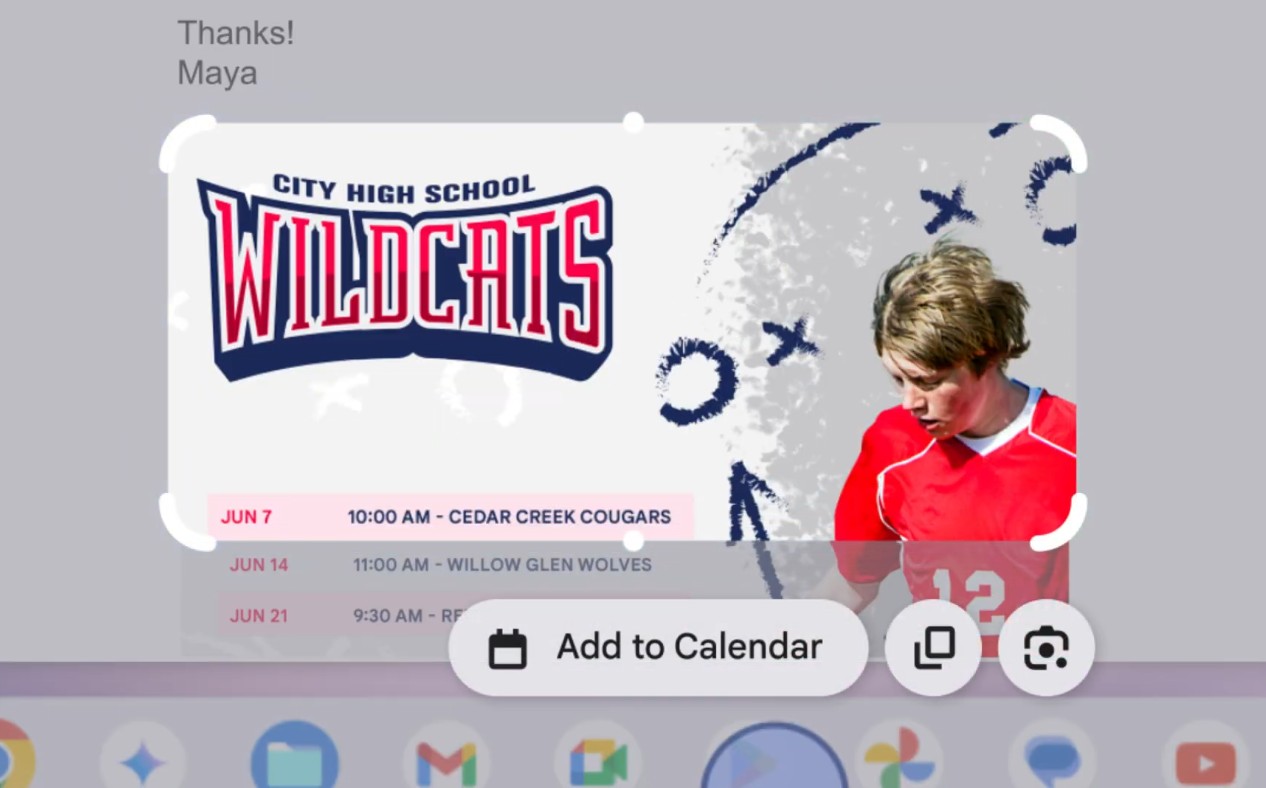
Additionally, “Text capture” instantly pulls information from photos like receipts or notes into editable text. It can even turn event invites into calendar entries or recipes into Google Docs shopping lists.

>>>Replacement battery for Asus Chromebook Flip CM3 CM3200 CM3200FVA

Text capture feature on a Chromebook Plus laptop

(Image credit: Google)

Chromebook Plus’s AI play

Perhaps the flashiest feature coming to Chromebook Plus is the new Quick Insert key that lets you drop in AI-generated images, emojis, or photos directly into your work, without the need for awkward copy-pasting.

This feature first popped up at a New York press event late last year, when theSamsung Galaxy Chromebook Plus and the updated Lenovo Chromebook Duet 11 were shown off.

The Quick Insert key is a do-it-all button that pulls up a dropdown menu packed with smart shortcuts. You can tap into AI tools, drop in emojis or GIFs, grab links from recently opened tabs, and pull files straight from Google Drive, all without breaking your rhythm.

>>>Replacement battery for Asus Chromebook C536EA-BI3T3

Quick Insert feature on a Chromebook Plus laptop

(Image credit: Google)

Free AI goodies

One highlight worth calling out is “Help me read,” a super handy tool that turns wordy articles or tech-heavy docs into quick, easy-to-digest summaries. To spice things up, Every Chromebook Plus now comes with a full year of theGoogle AI Proplan, packing 2TB of cloud storage and built-inGeminisupport across Gmail, Docs, and more.

NotebookLM, Google’s research sidekick, is now right on your Chromebook shelf too, ready to help you brainstorm or draft content without bouncing between apps.

Google is not stopping at work tools, as Chromebook Plus is getting a fun boost too. Squid Game: Unleashed is being optimized for Chromebooks with support for larger screens, keyboard and mouse controls, and exclusive in-game perks.

Luminar, a popular AI-powered photo editor, is now Chromebook-friendly, and new buyers get three free months of access to take their edits to the next level.